
Onboarding
Introduction
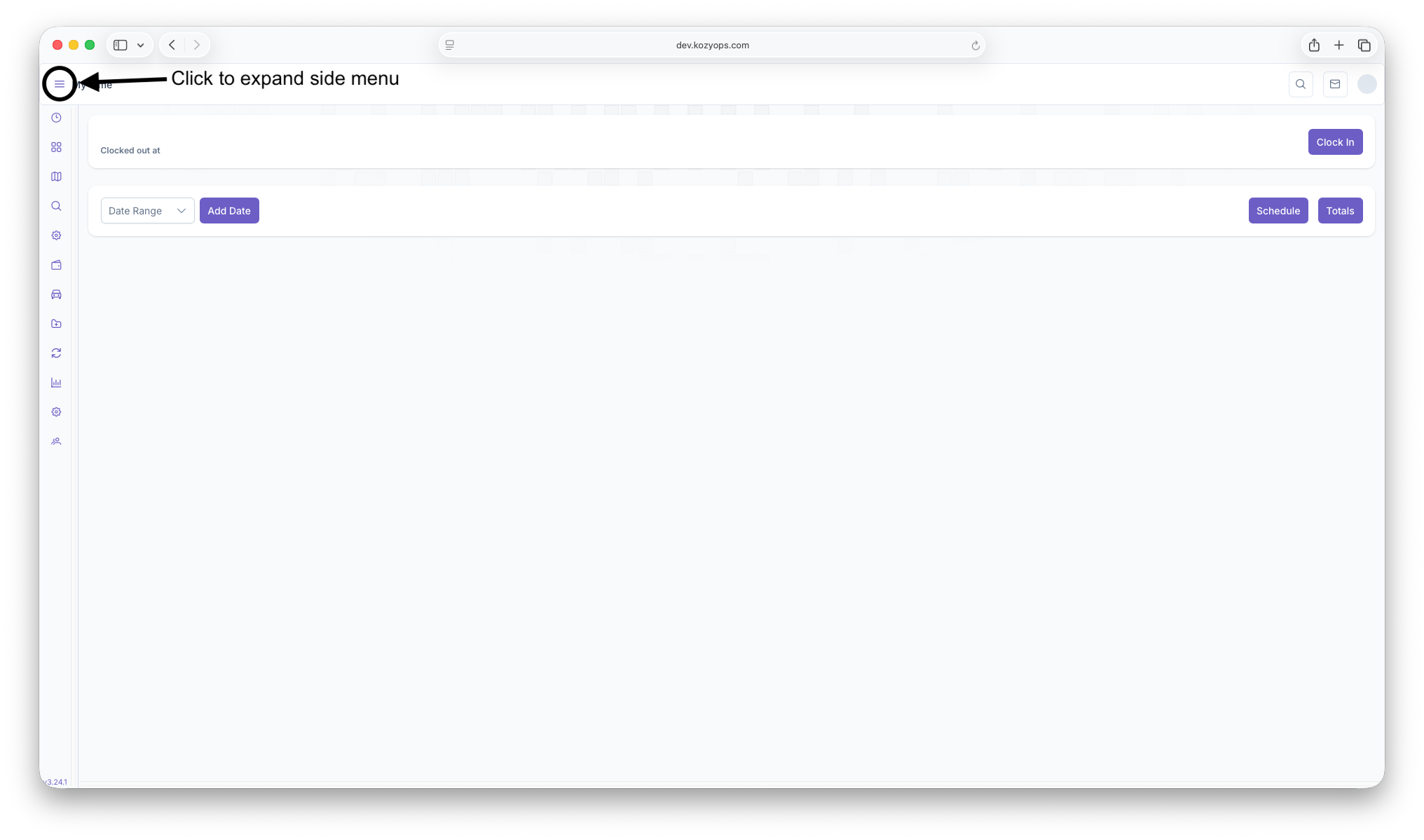
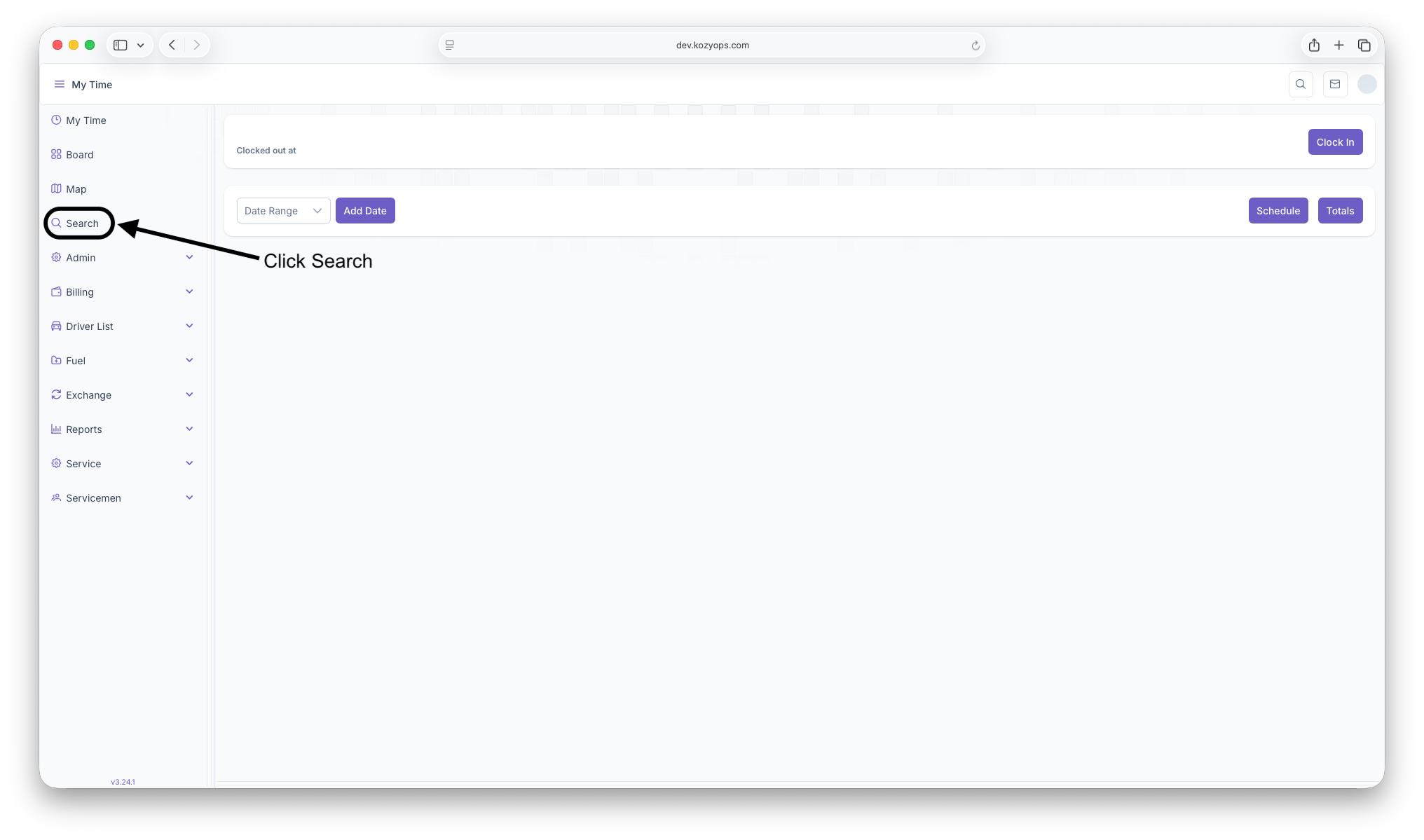
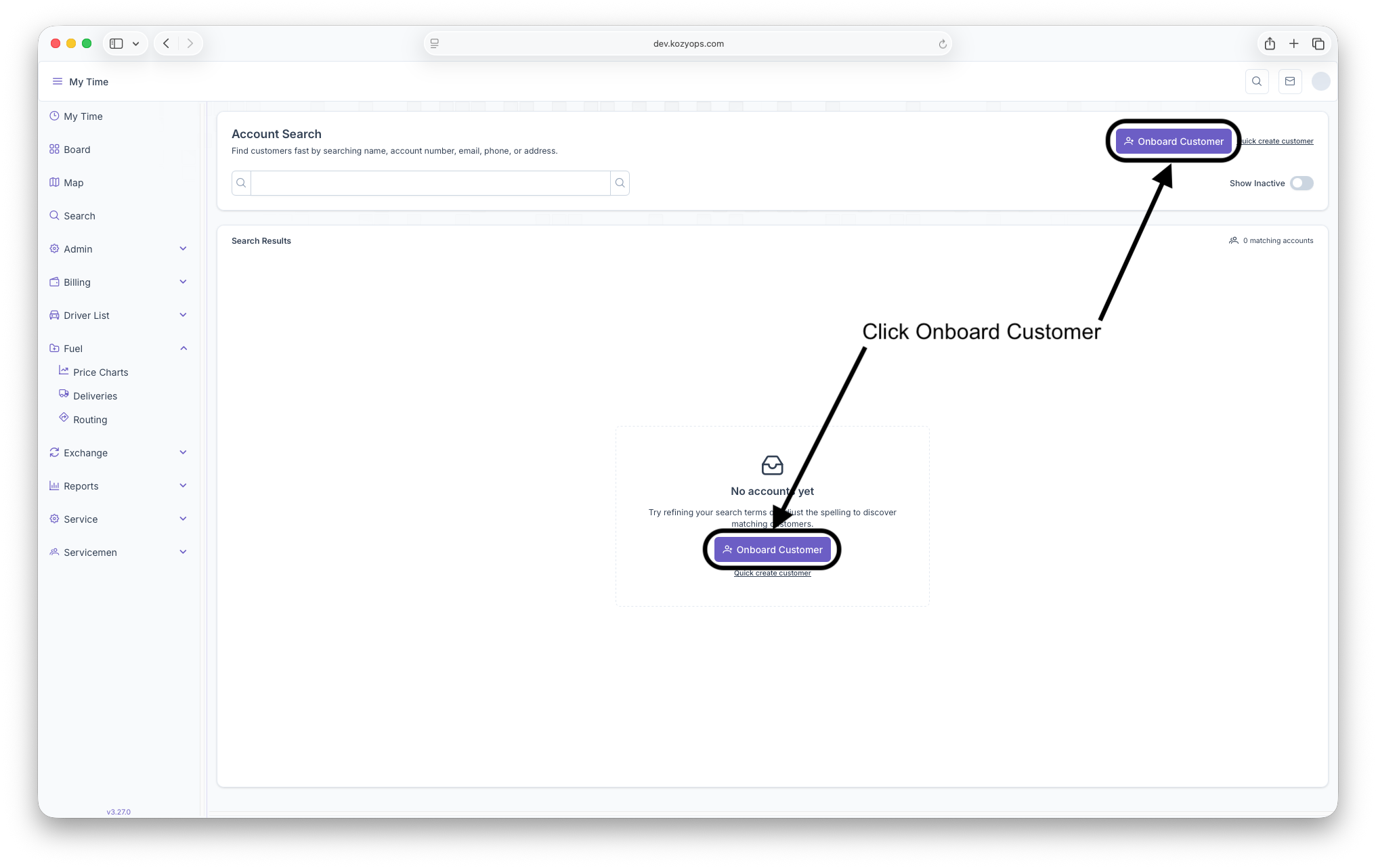
The onboarding process allows for a New Customer to be added to the system, but rather than just creating the customer only, as seen on the Adding a New Customer page, Onboarding allows for the entire process to be done at once to make adding New Customers easier and allow for quicker services to be provided to the New Customer. To reach the Onboarding process, first click on the Search button on the side menu to reach the Account Search,Search page, then click on the Onboard button located in the middle of the page or on the top right corner of the page. Clicking on the three bars on the top left corner of the page will expand the side menu for easier access.
Onboarding
After clicking on the Onboard button, the Customer Onboarding wizard will appear and then the process of onboarding can begin by filling out each page of the wizard. The Wizard initially opens with tabs for Customer, Location, and Credit Cards. After filling out the Customer and Location tabs, the rest of the wizard will open up and LabelLabels & Taxes, Systems and Services will be added as tabs that shouldcan be filled out. Filling out each page is optional and only the Customer page is required to create a customer.new account. Doing this will skip the other information for the customer and should only be done as a necessity. If done that way, fully onboarding a customer outside of this wizard can be seen on the Adding a New Customer guide page. The Onboarding process starts with...


Create Customer
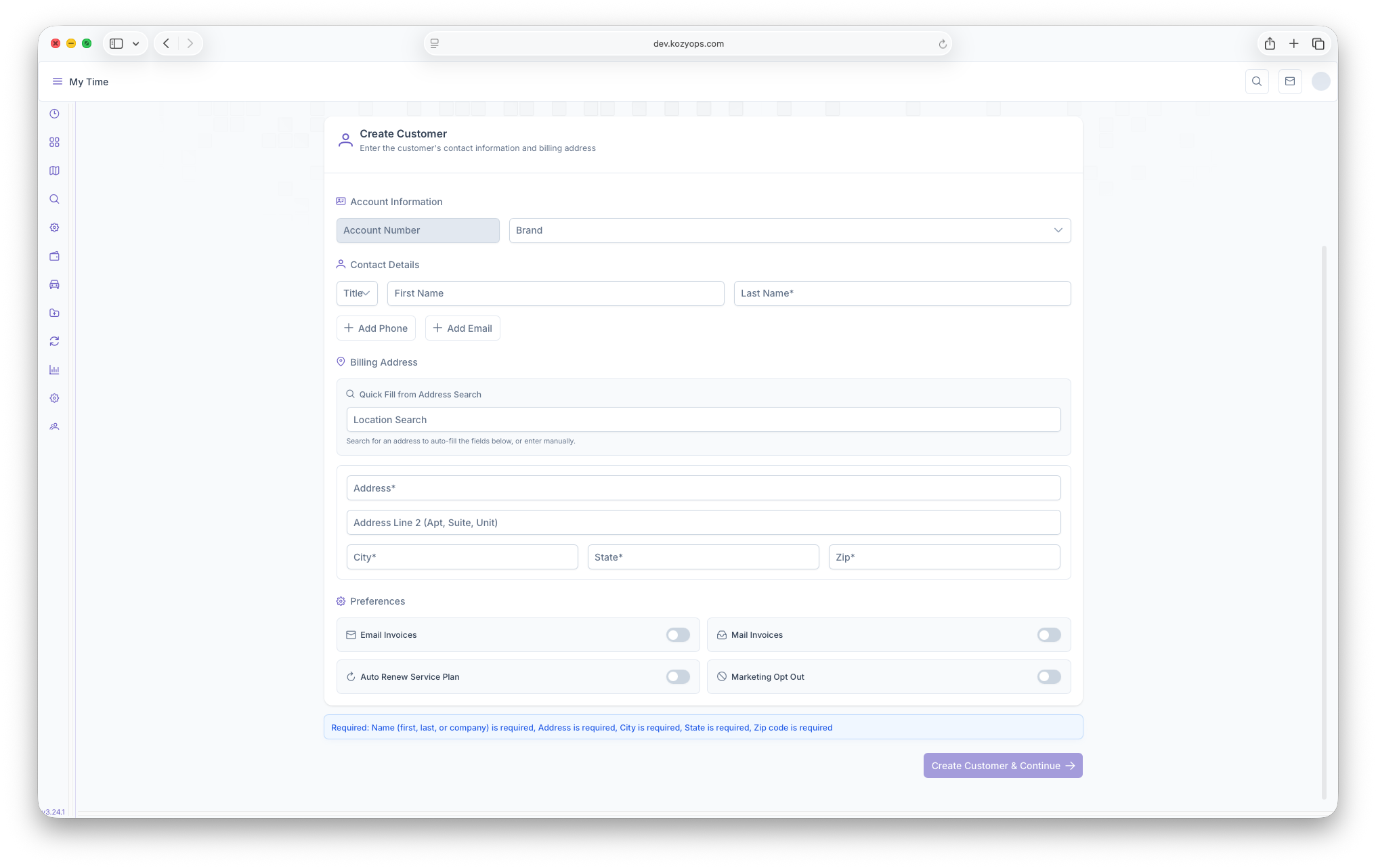
Here is where the customers basic information can be input into the following fields
- Account Information
- Account Number - will be automatically generated after the account is
createdscreated - Brand - Choosing the brand the customer is going to fall under
- Account Number - will be automatically generated after the account is
- Contact Details
- Title - The title The Customer wants to be referred as
- First Name, Last Name - The Customers Name
- Add Phone, Add Email - The customers phone number and email can be added here
- Billing Address - The Address the Customer is billed to, filling out the Quick Fill From Address Search will fill out the Billing Address information, otherwise the following needs to be filled out
- Address
- Address Line 2 - Optional
- City
- State
- Zip
- Preferences - Preferences for the customer can be toggled here
- Email Invoices - If the customer prefers to have their Invoices emailed to them
- Mail Invoices - If the customer prefers to have their Invoices mailed to them
- Auto Renew Service Plan - If the customer wants their
palnsplans to be auto renewed - Marketing Opt Out - If the customer wants to receive any marketing
After filling out all the information, clicking on Create Customer & Continue will create the customer and the Wizard will continue. The rest of the wizard can be skipped, if necessary, by clicking Skip Location on the next page and then clicking on Complete Onbaording to create the Customers Account. Skipping these steps will require the rest of the customers information to be filled out individually. A guide on how to do the rest of the steps individually can be seen on the Adding a New Customer guide. Otherwise the wizard continues with...
Adding Service Location
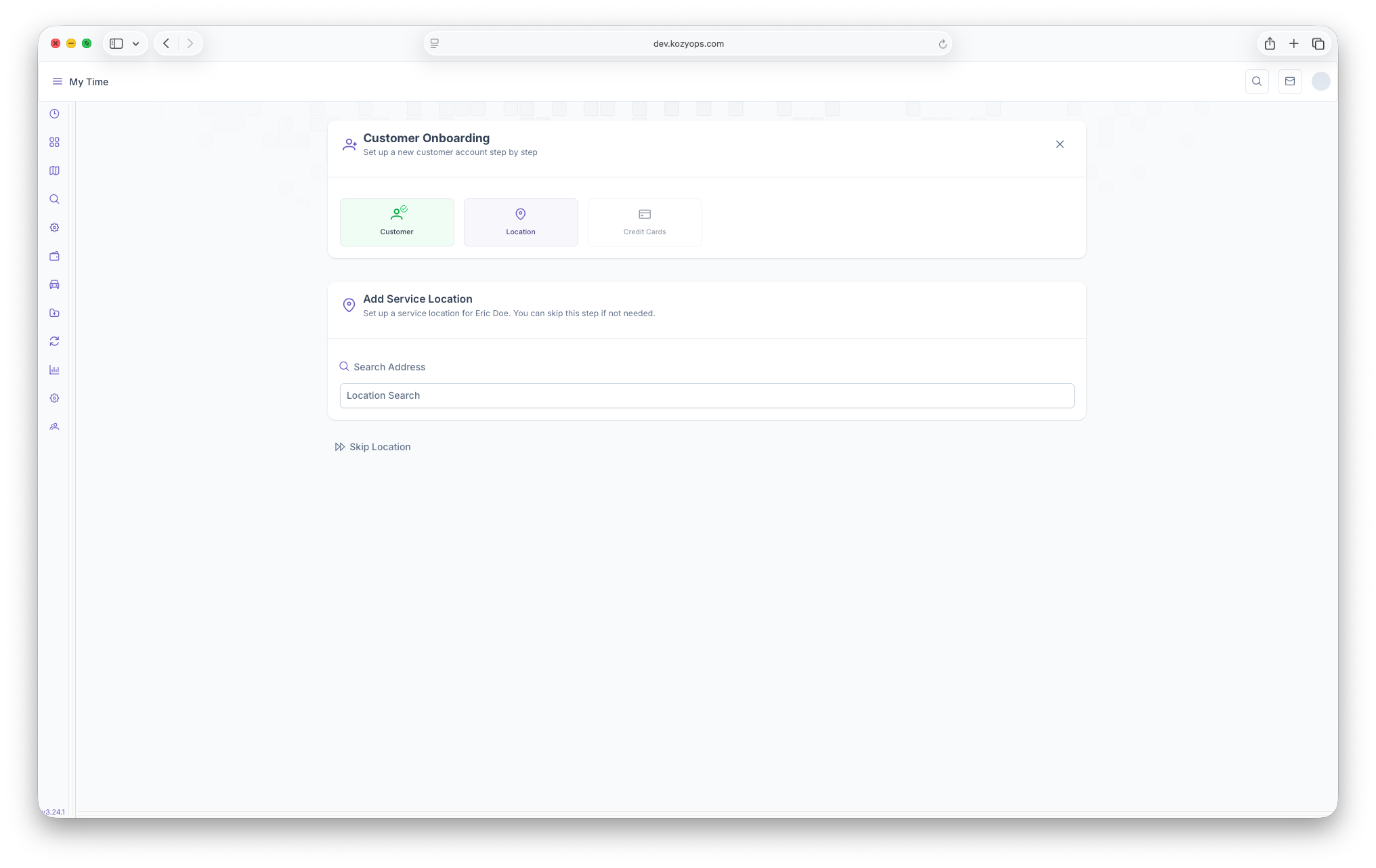
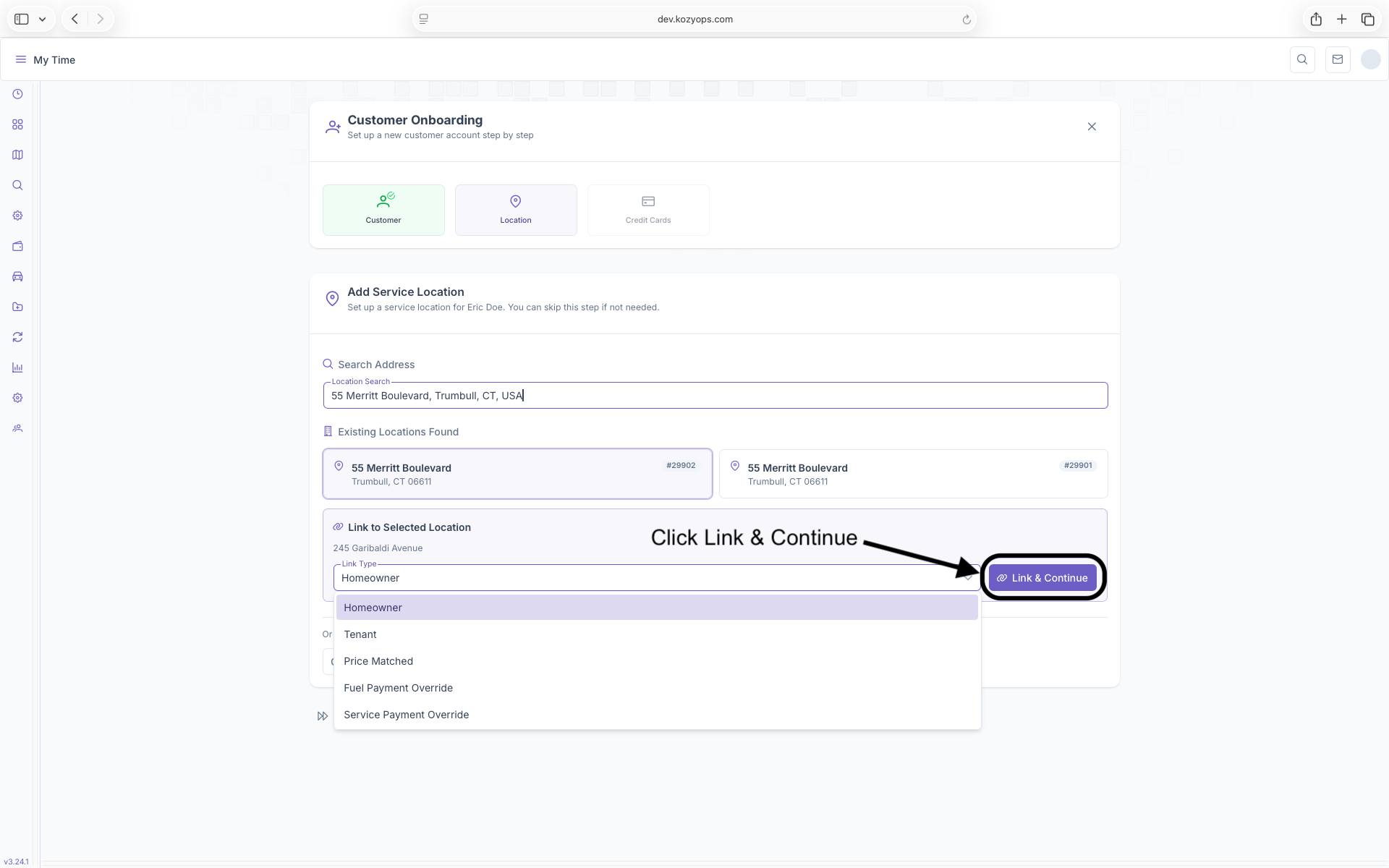
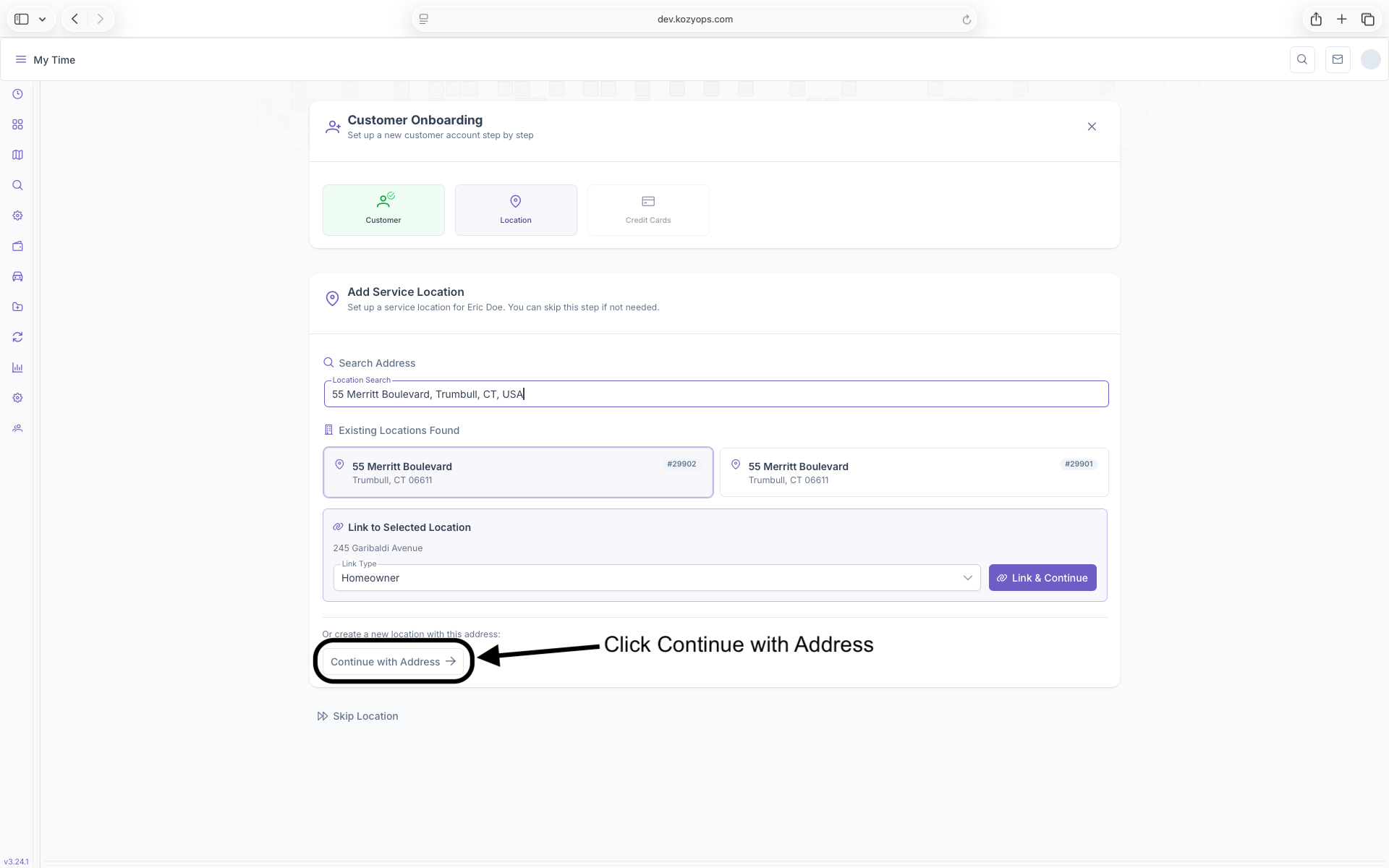
Next on the wizard is adding a service location for the customer. In the Search Address box, type in the customers address, if the address already exist in the system, the customer can be linked to the address by selecting an address, then selecting the Link Type (see below for more information) for the customer and then clicking on Link & Continue. This will link the New Customer to an existing location. If not, then click on Continue with Address to open Add Service Location page and fill out the following
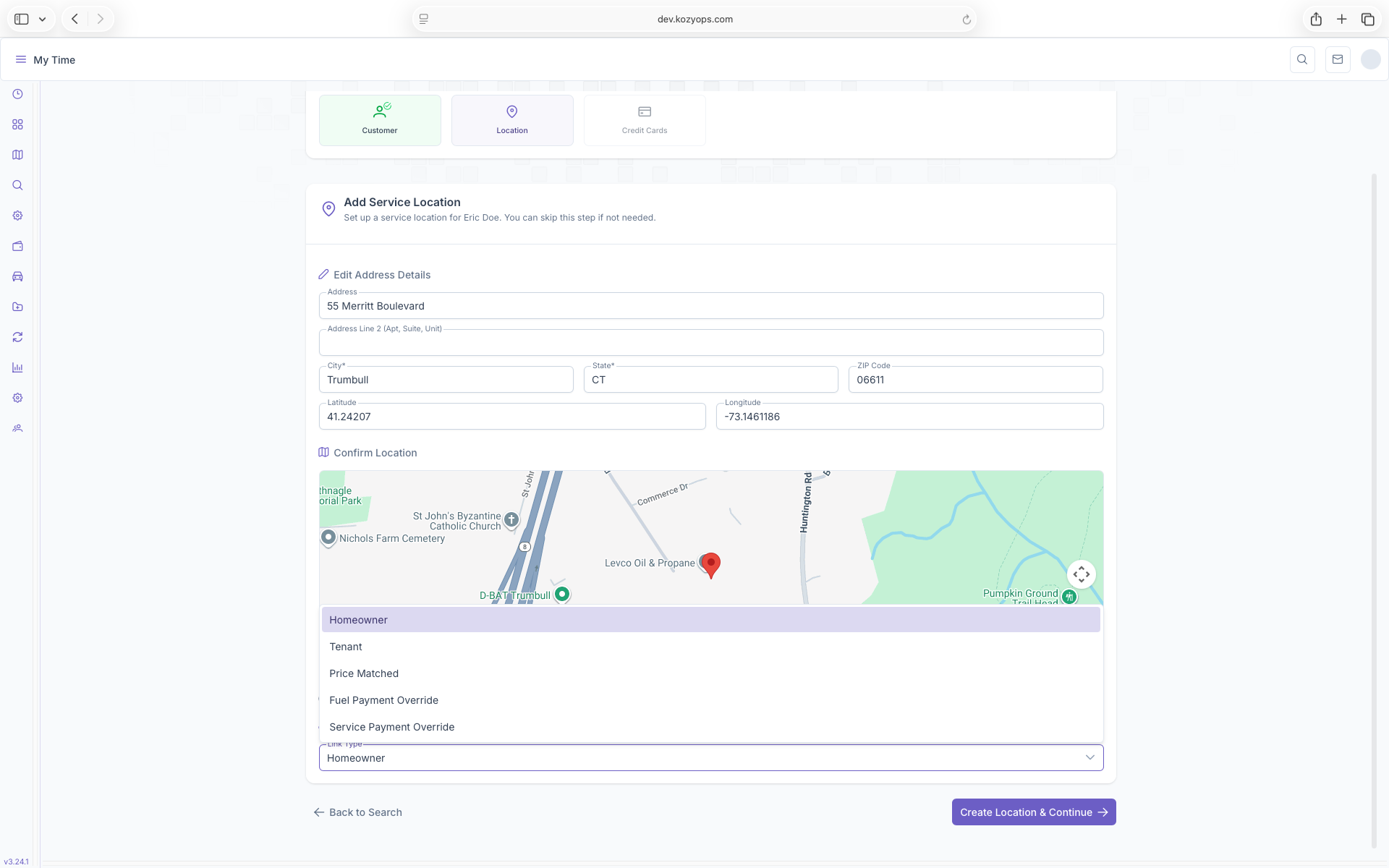
- Edit Address Details
- Address
- Address Line 2
- City
- State
- Zip
- Latitude and Longitude - Can not be edited except for the confirm location map
- Confirm Location
- Map - After the Address is filled out, a location marker will be shown on the map to indicate the address' location and will generate the Latitude and Longitude, The marker can be moved if the location is off
- Link Type - Here the customers link to the location can be added by selecting an option from the dropdown
- Homeowner
- Tenant
- Price Matched
- Fuel Payment Override
- Service Payment Override
A more detailed look at locations can be seen on the Location Management page. After all information is filled out and the map properly displays the customers location, clicking on Create Location & Continue will advance the Wizard to...
Labels, Taxes & Promotions
The next step to onboarding a customer is adding labels, taxes and promotions to their account. Customer and Location labels are used for giving a little more description to both the customer as well as the customers location, Taxes are used for adding taxes to any services provided for the customer, and Promotions are used to give the customer specific discounts or even penalty charges if certain criterias are or arent met. All of these can be added to the customers account here, but must first be created in the settings page under admin in order to be applied. To start
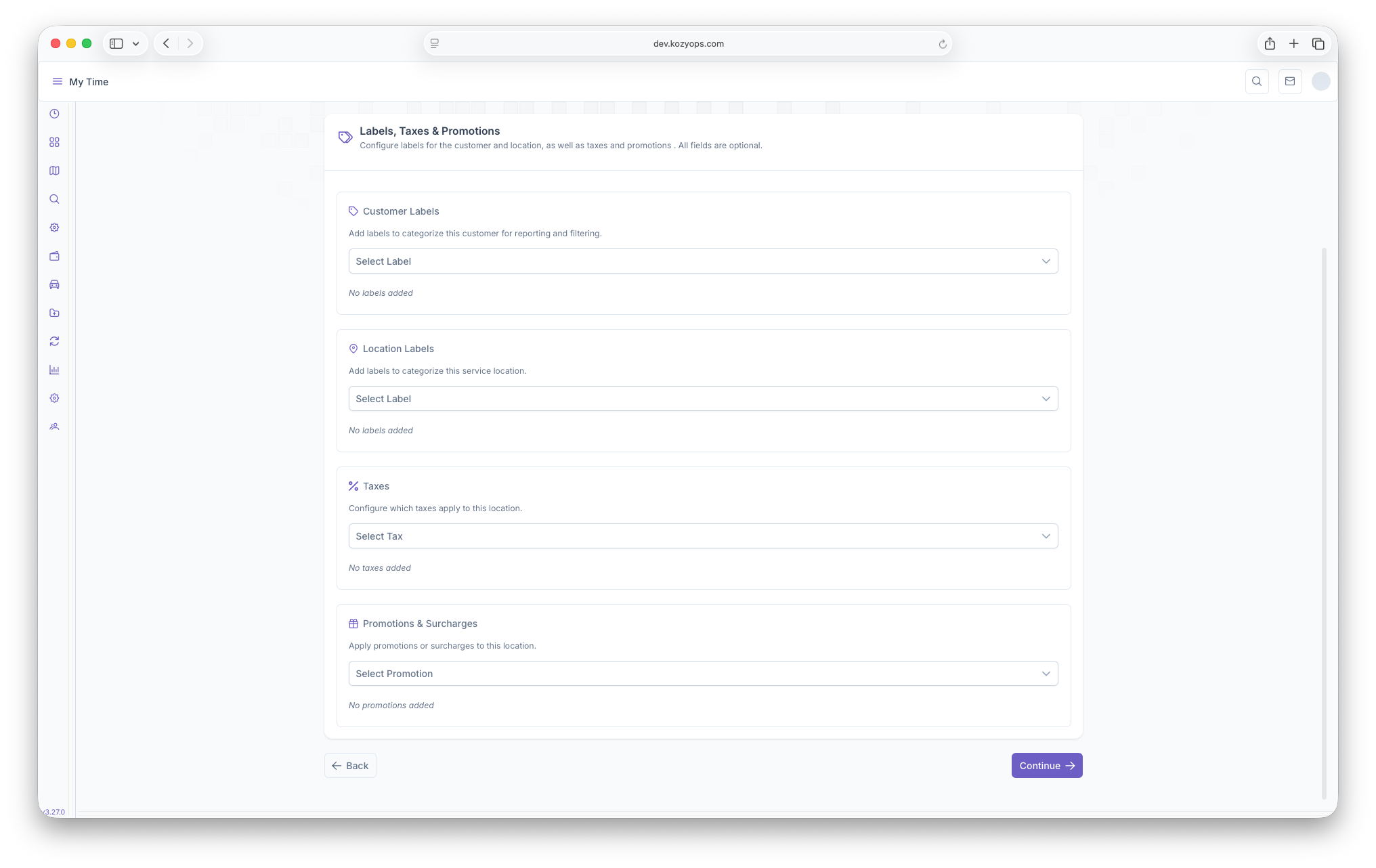
- Customer Labels - These are used to show a little more detail on the customer themselves such as being a business owner, property manager, etc. More information on how to create a Customer Label can be seen on the Labels page
- Location Labels - These are used to show more detail on the location itself such as being a commercial property, a church, etc. More information on how to create a Customer Label can be seen on the Labels page
- Taxes - These are used to add taxes to a customers account, if applicable, and can be automatically added to any sale that's taxable automatically. More information on creating taxes can be seen on the Taxes page
- Promotions - These are used to add a promotion to a customers account such as a discount for being an auto delivery customer or even a penalty for failing to pay on time. More information on how to create a promotion can be seen on the Promotions page
Selecting and clicking on a Label, tax and/or promotion will add them to the Onboarding page. They can easily be removed by simply clicking on the X next to each option selected. If a tax is created as default, it will be added automatically to every new customer created and cannot be added here, but will appear after the account has been created. A Tax that isn't set to default can be added here on the other hand. After adding any of the above to the page, clicking on continue will apply all labels, taxes and promotions to the account and the wizard will continue onto...
Fuel Systems
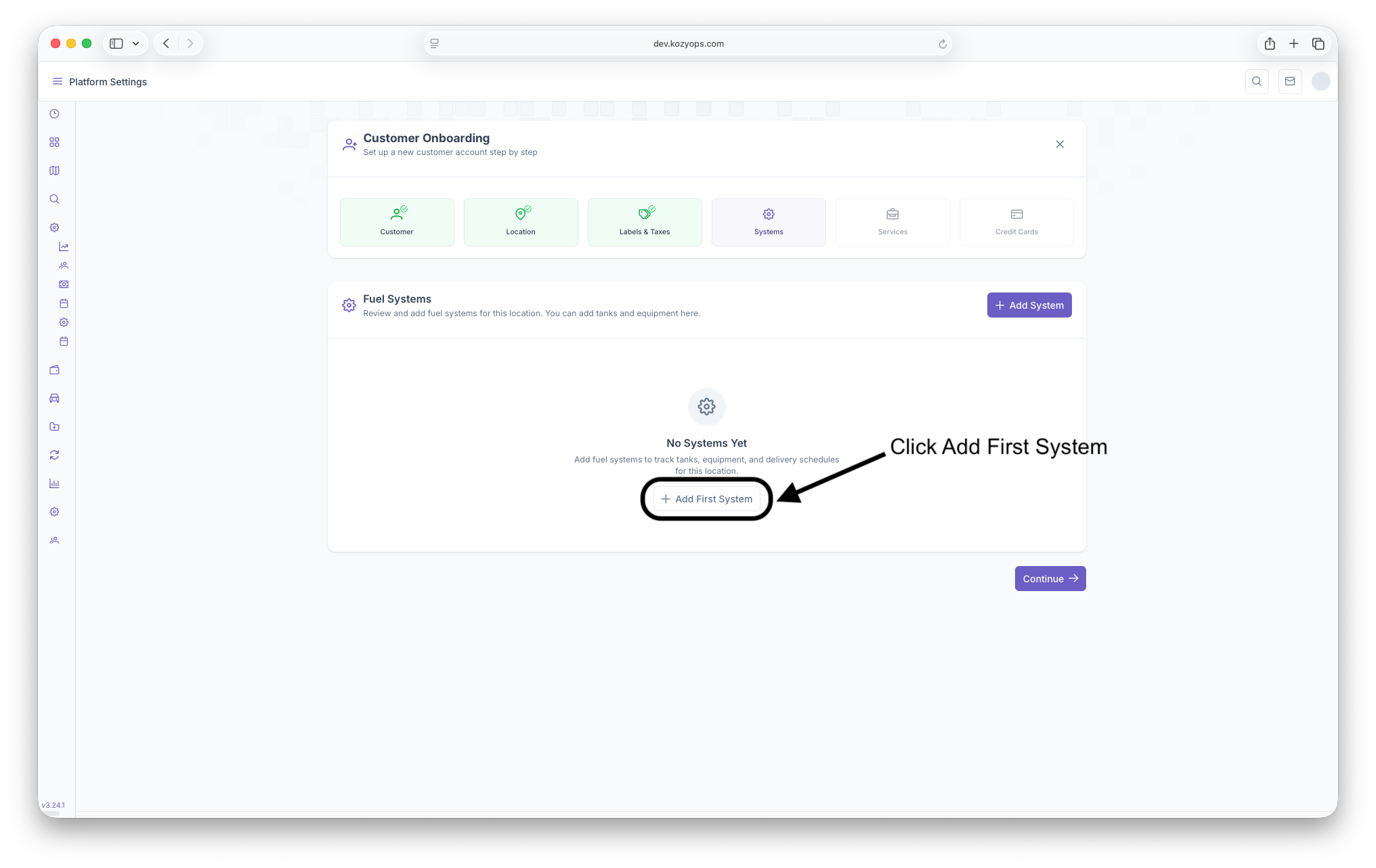
The next step in the wizard is to add a system to the customers location. Systems are used to represent multiple euipments linked to same fill connections, such as multiple tanks used to feed the same home appliance. For more information on Fuel System, see the General guide. To begin adding a system, first click on the Add System button to bring up the add systems popup. Once generated, the follwing fields should be filled out
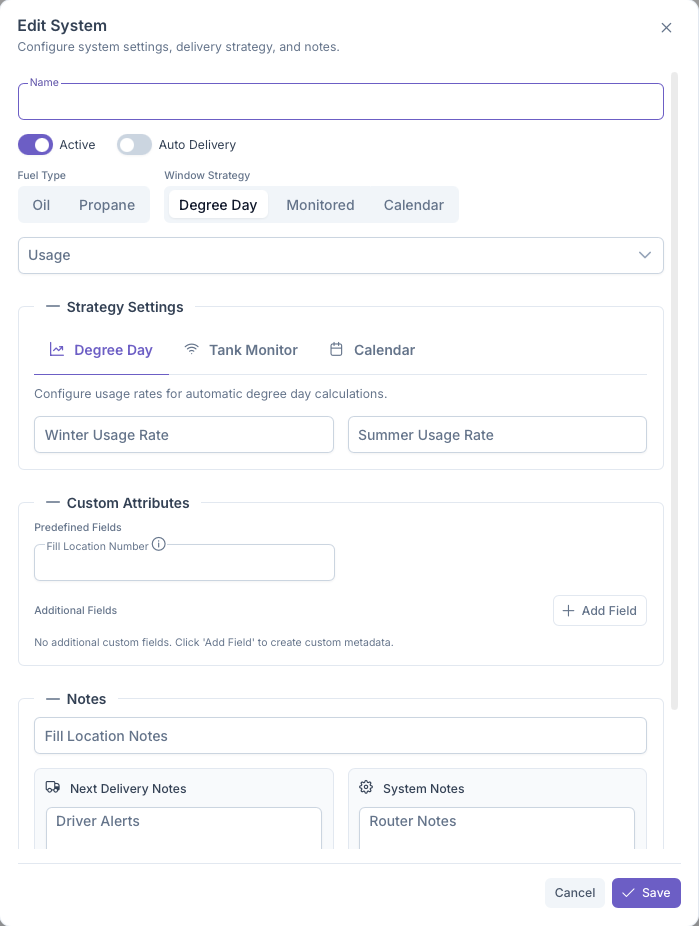
- Name - The name given to the system
- Active - Toggle if the system is active or inactive
- Auto Delivery - Toggle to set as an auto delivery system
- Fuel Type - Select the fuel the system will be using
- Window Strategy - Select one of the delivery estimations. For more information, see Understanding Window Strategies
- Degree Day - Temperature based use. See Understanding Degree Days for more information
- Monitored - For systems with monitors. See Understanding Fuel Monitoring for more information
- Calendar - For recurring scheduled deliveries. See Understanding Calendar Schedules for more information
- Usage - Select what the fuel is being used for
- Strategy Settings - Fill out the strategies for delivery esitmations
- Degree Day
- Winter Usage Rate - Gallons per Degree Day During Winter Season
- Summer Usage Rate - Gallons per Degree Day During Summer Season
- Tank Monitor
- Monitor Serial Number - Number used to identify Monitor
- Calendar - Start by clicking Add Schedule then filling out the following fields
- Frequency - How many deliveries
- Units - how often a delivery is made per days, weeks, months or years
- Preferred Day of Week - Day the delivery should be made
- Season Start - When the season begins for deliveries
- Seasons Ends - When the season ends for deliveries
- Requested Volume (Gal) - How much is being requested per scheduled delivery
- Active - Toggle if calendar is active or inactive
- Click on Create Schedule to create Calendar Strategy
- Degree Day
- Custom Attributes - Can add any additional custom information on the euipment if applicable
- Fill Location Number - Fill Number for the Custom Attribute
- Field Name - Name of Custom Attribute being added
- Value - A value if applicable
- Notes -
- Fill Locations Notes - For Delivery Access information
- Next Delivery Notes
- Driver Alerts - Important safety or access notes
- Router Notes - Important notes for routing or dispatching
- System Notes
- Router Notes - Important internal notes for routing or dipatching not visible by drivers
- Office Notes - Important internal notes only seen by Office Staff
For a more in depth look on Fuel Systems and adding them outside of the Onboarding Process, see The Adding a System Guide. After filling out the above information, clicking on save will save the information and add the system to the onboarding page. Clicking cancel will close out the window and delete all information added to the system. Equipment will need to be added next to complete the system for usage. To add equipment, click on Add Equipment to open the Add Equipment popup and fill out the following fields
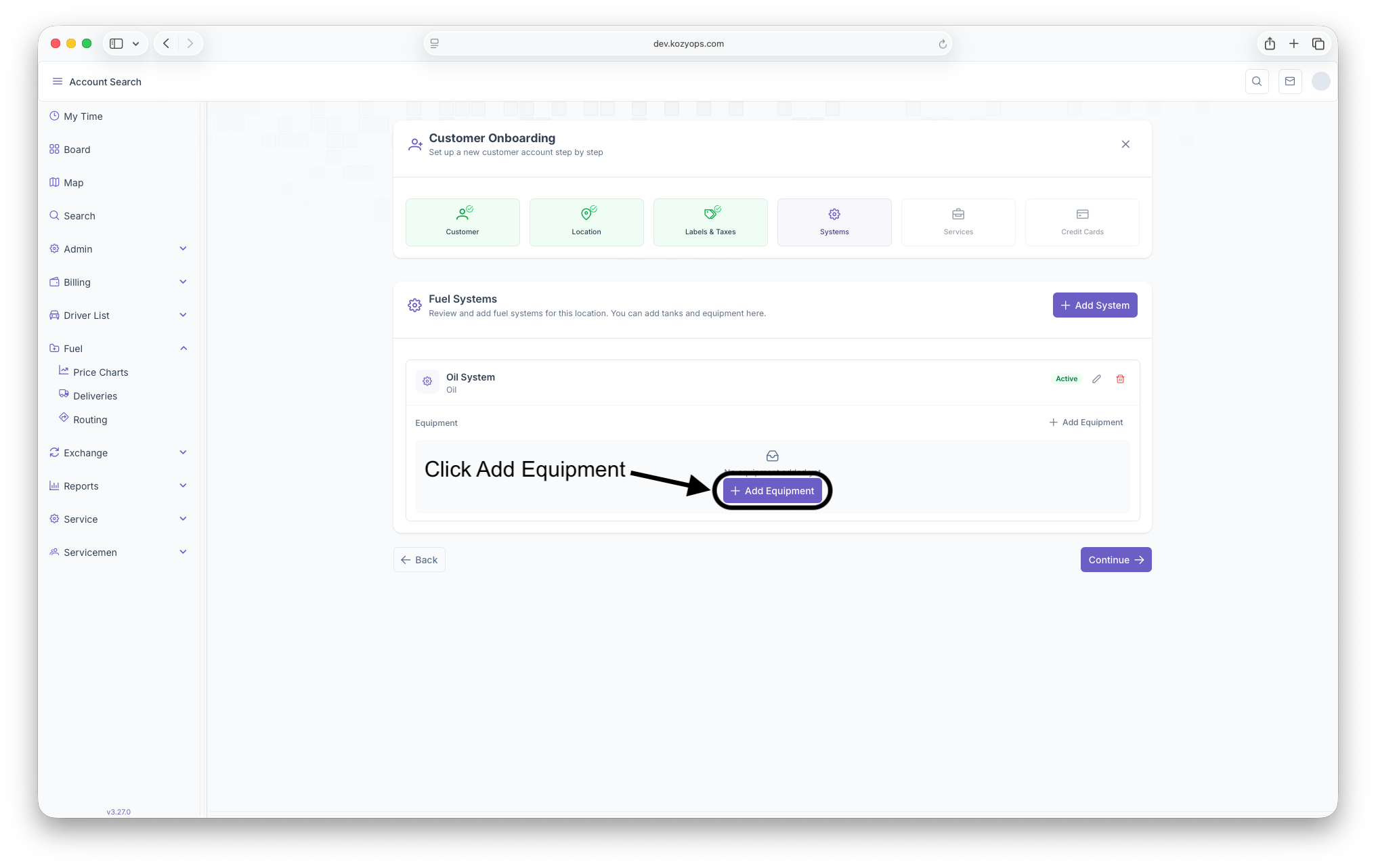
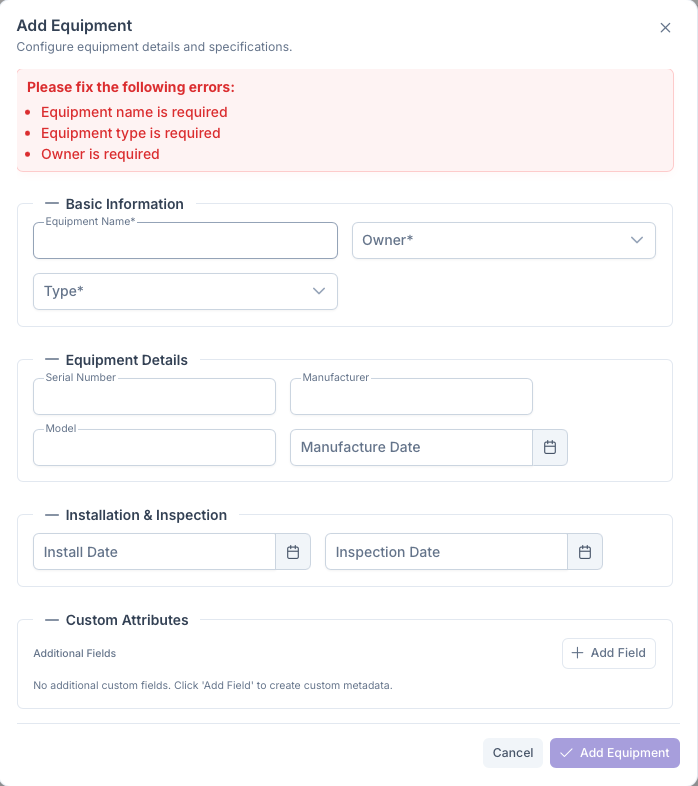
- Basic Information
- Equipment Name - The name of the equipment being added
- Owner - The owner of the equipment
- Type - The type of equipment being created
- Equipment Details
- Serial Number - The unique number assigned to the equipment
- Manufacturer - The name of the equipment manufacturer
- Model - The model number of the equipment
- Manufacture Date - The date the equipment was made
- Installation & Inspection
- Install Date - The date the equipment was installed
- Inspection Date - The date of the equipments last inspection
- Type Information - This will generate based on what the Type of equipment is being used
- Tank
- Size - The size of the tank
- Recommended Capacity - What the recommended capacity is for the tank
- Optimum Delivery - Optimum amount the customer wants delivered
- Regulator
- Expiration Date - The expeiration of the regulator
- Filter, Hot Water Heater, Pool Heater, Other Equipment
- Daily Consumption - How much fuel the system uses per day
- Usage Window Start Day - When the fuel is initially used
- Usage Window End Day - When the fuel is finished being used
- Custom Attributes - Can add any additional custom information on the euipment if applicable
- Field Name - Name of Custom Attribute being added
- Value - A value if applicable
- Tank
For a more a more in depth look on Equipment and adding them outside of the Onboarding process, see the Adding Equipment Guide. While adding equipment isn't necessary for continuing the wizard, a system will not be usable without it and trying to continue will trigger a warning on the page that equipment was not added. Clicking on Go Back will close the warning box and allow for equipment to be added. Clicking on Proceed will advance the Wizard without equipment being added.

Multiple Systems and Equipments can be added simply by clicking on Add Systems then clicking on Add Equipment under each system. Once both the Systems and, optionally, Equipments are added, they will appear on the page. They can be deleted by clicking on the trash can button next to the System and equipment. Clicking on Continue will add them to the customers account and advance the Wizard to...
Service
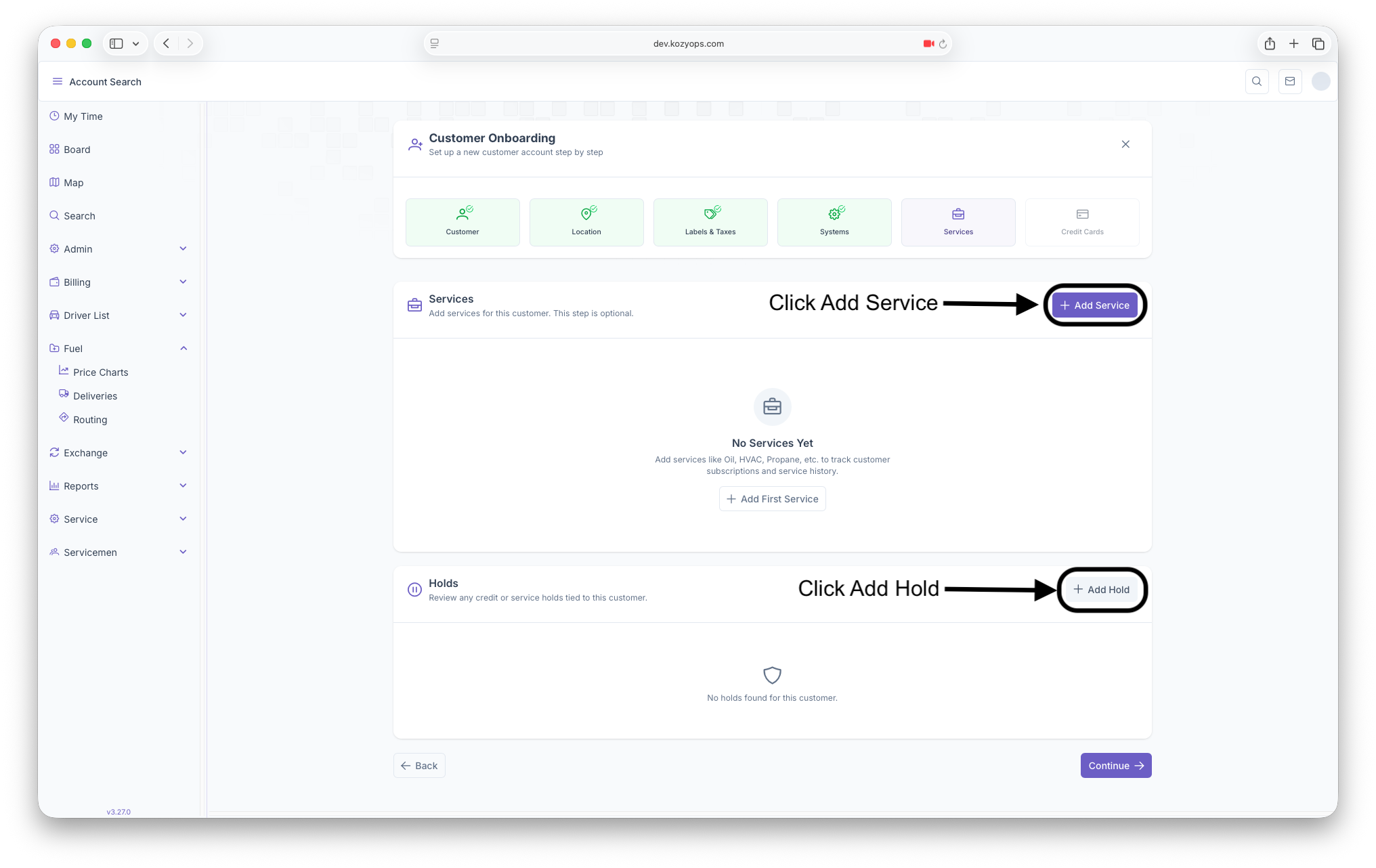
The next step of the Wizard is adding a Service to the customers account. A service is a product or service that's associated with the Customer and Location. In order to add a service, click on the Add Service button to open the Add Service popup and the following fields should be filled out
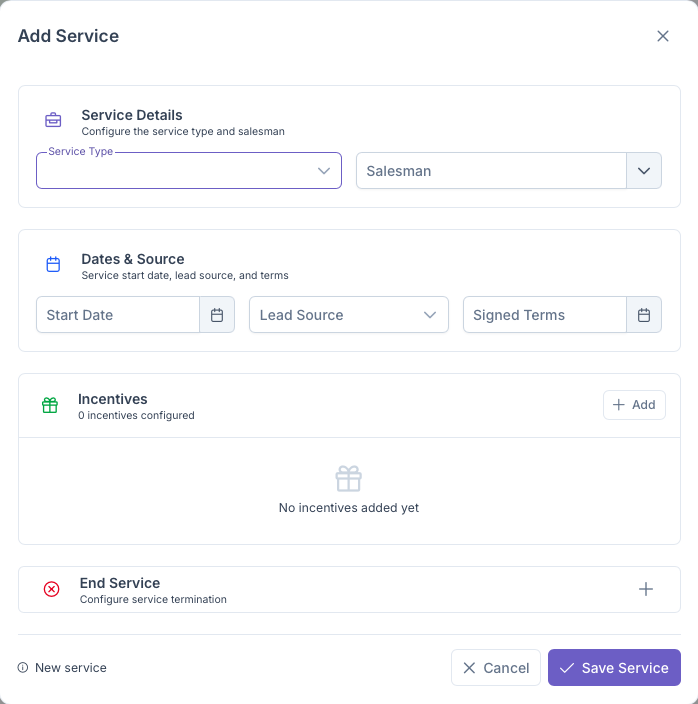
- Service Details
- Service Type - Select the type of service being added to the account
- Salesmen - Select the person who made the sale for the service
- Date & Source
- Start Date - The start date of the service
- Lead Source - Where it came from
- Signed Terms - The date the terms were signed
- Incentives - Incentives can be added by clicking on the Add button. The Add Incentive popup will appear and a description must be added to add an incentive to the Service
- End Service - Clicking on the Plus will begin the process of ending the service and the following fields should be filled out
- Quit Date - The date the service ends
- Quit Reason - The reason the service is ending
- Quit Notes - Any notes about the end of the service
For a more in depth look on Services or adding a service outside of the wizard can be seen on the Adding Services guide. Once finished, clicking on Save Service will add the service to the onboarding page and now a hold can be placed on the account if necessary. In the event that the new customer cannot start paying right away or if fuel cannot be delivered until a certain point, a hold can be placed on the account until any issues are resolved and the new customer is ready to fully get started. To begin the process of creating a Hold, click on the Add Hold button and the Add Hold popup will appear and the type of hold will need to be selected. Depending on the hold selected, a different popup will appear and the following will need to be filled out
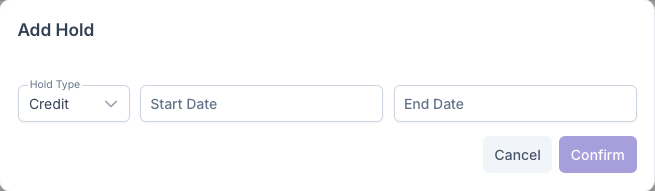
- Credit Hold
- Hold Type - Credit Hold
- Start Date - The date the hold will be placed onto the account
- End Date - The date the hold will end on the account
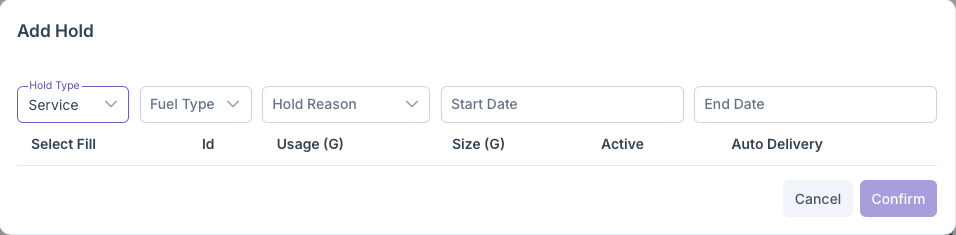
- Service Hold
- Hold Type - Service Hold
- Fuel Type - The type of fuel used being put on hold
- Hold Reason - Why the hold is being put on hold
- Start Date - When the hold is going in to effect
- End Date - When the hold is ending on the account, if applicable
After selecting the fuel type, a table will show with any systems created on the previous section of the Onboarding process and will show the following
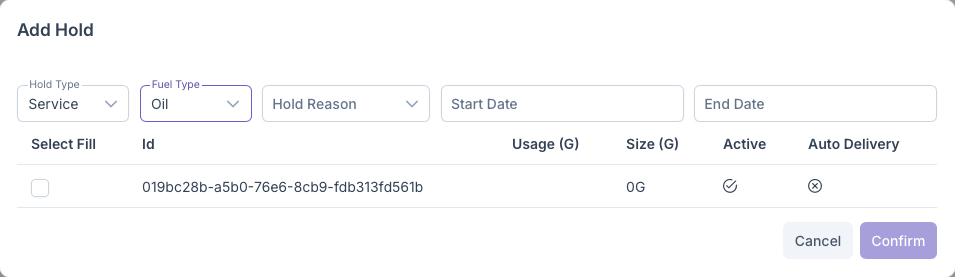
- Select Fill - This is where the system going on hold will be selected
- ID - The ID assigned to the system created
- Usage - How much the system uses, if applicable
- Size - The size of the equipement that belongs to the system
- Active - If the system is active or Inactive
- Auto Delivery - If the system is set up for auto delivery
For a more in depth look on holds, see the Holds guide. After filling out all information, clicking confirm will add the hold to the onboarding page. If needed, more Services and Holds can be added simply by clicking on Add Service and Add Hold. Clicking on continue will add the services and holds to the customers account and the Wizard will continue on to the last step...
Credit Cards
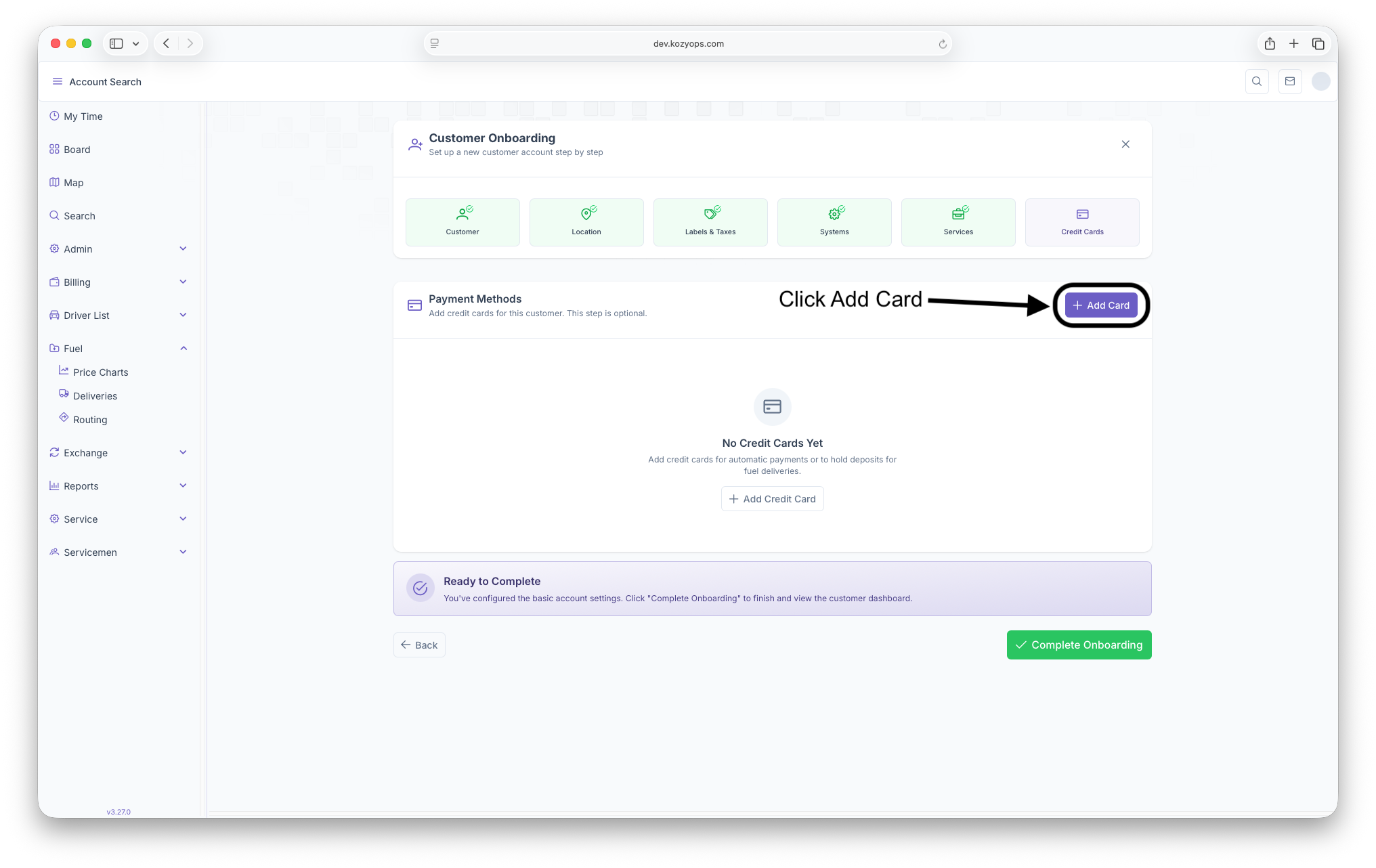
The final step in onboarding a customer is to add a credit card to the Customers Account if applicable. Clicking on the Add Card button will begin the process of adding a card and the Add Credit Card popup will appear with the following fields to be filled out
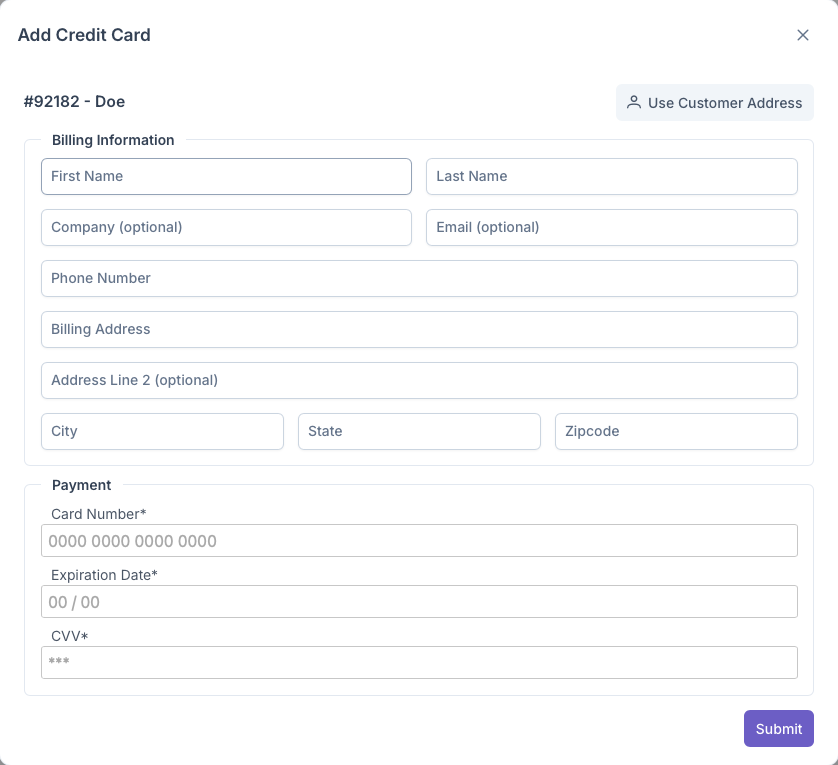
- Billing information - If the customers address is the same as the billing information, clicking on Use Customer Address will automatically apply the same information to the billing information. If not the same then the following should be filled
- First Name, Last Name - Customers Name
- Company - The customers business name (Optional)
- Email - The Customers Email (Optional)
- Phone Number - The Customers phone number
- Billing Address - The address associated with the card
- Address Line 2 - For more address information if applicable
- City - Billing City
- State - Billing State
- Zipcode - Billing Zipcode
- Payment
- Card Number
- Expiration Date
- CVV
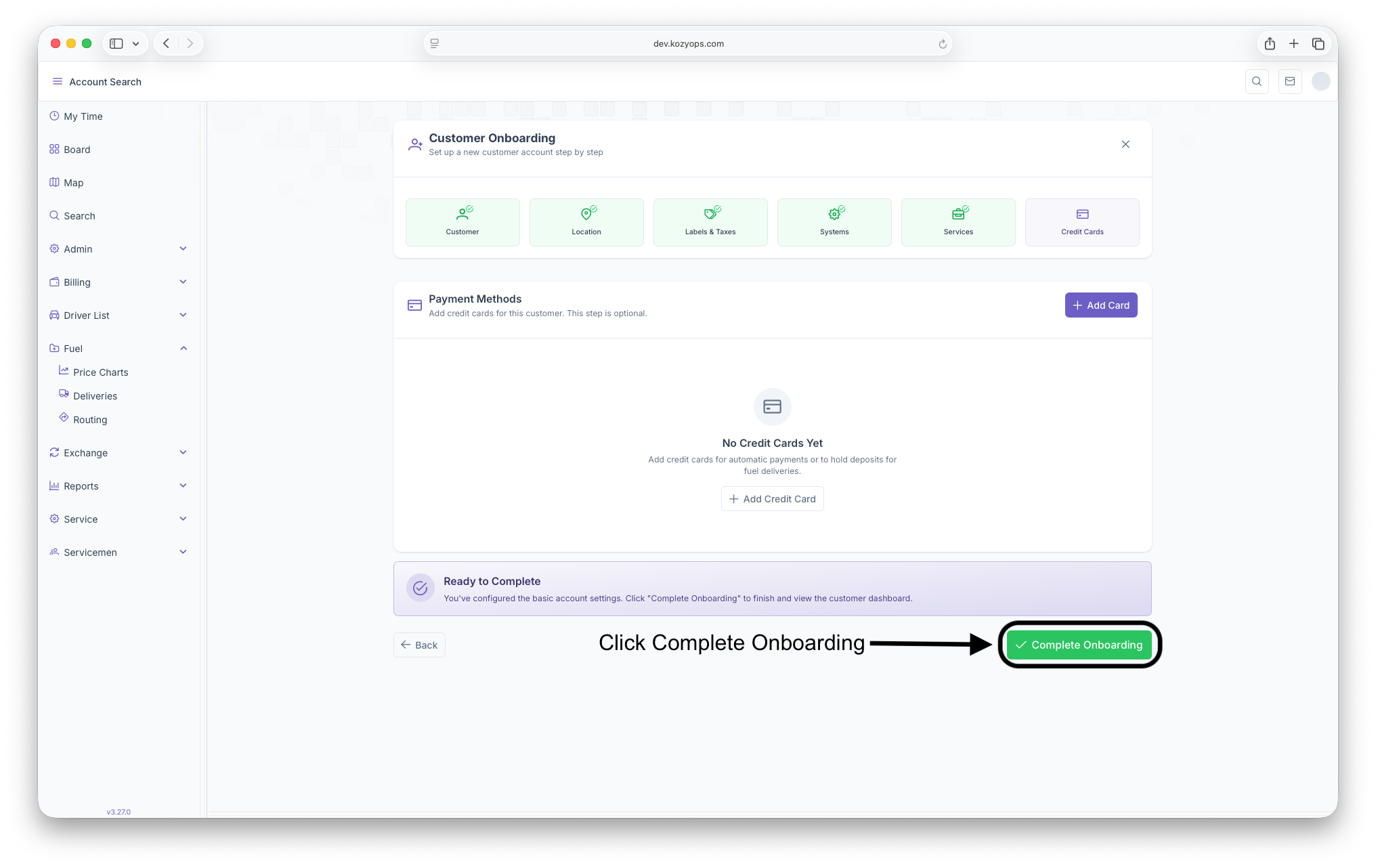
More information on Credit Cards or adding cards outside of the onboarding process can be seen on the Autopay/Adding Credit Cards guide. After all the information is filled out and the system accepts the card, it will be added to the onboarding page and ready to be added to the account. Clicking on any of the category tabs on the top of the page allows access to those steps for review if necessary. Clicking on Complete Onboarding will add the card to the customers account and the onboarding process will be complete. With that the customers account will be set up and ready to route and make deliveries to.
Editing
While some edits can be done on the wizard, edits can also be done outside the wizard if the onboarding process is completed and closed out. For editing any of the information above, see the following
- Customer - Customer Account
- Location - Location Management
- Labels and Taxes - Customer Account, Manage Location Settings
- Systems - Adding a System Guide, Editing a System Guide, Adding Equipment Guide
- Services - Adding Services
- Credit Cards - Autopay/Adding Credit Cards