
Autopay/Adding Credit Cards
Overview
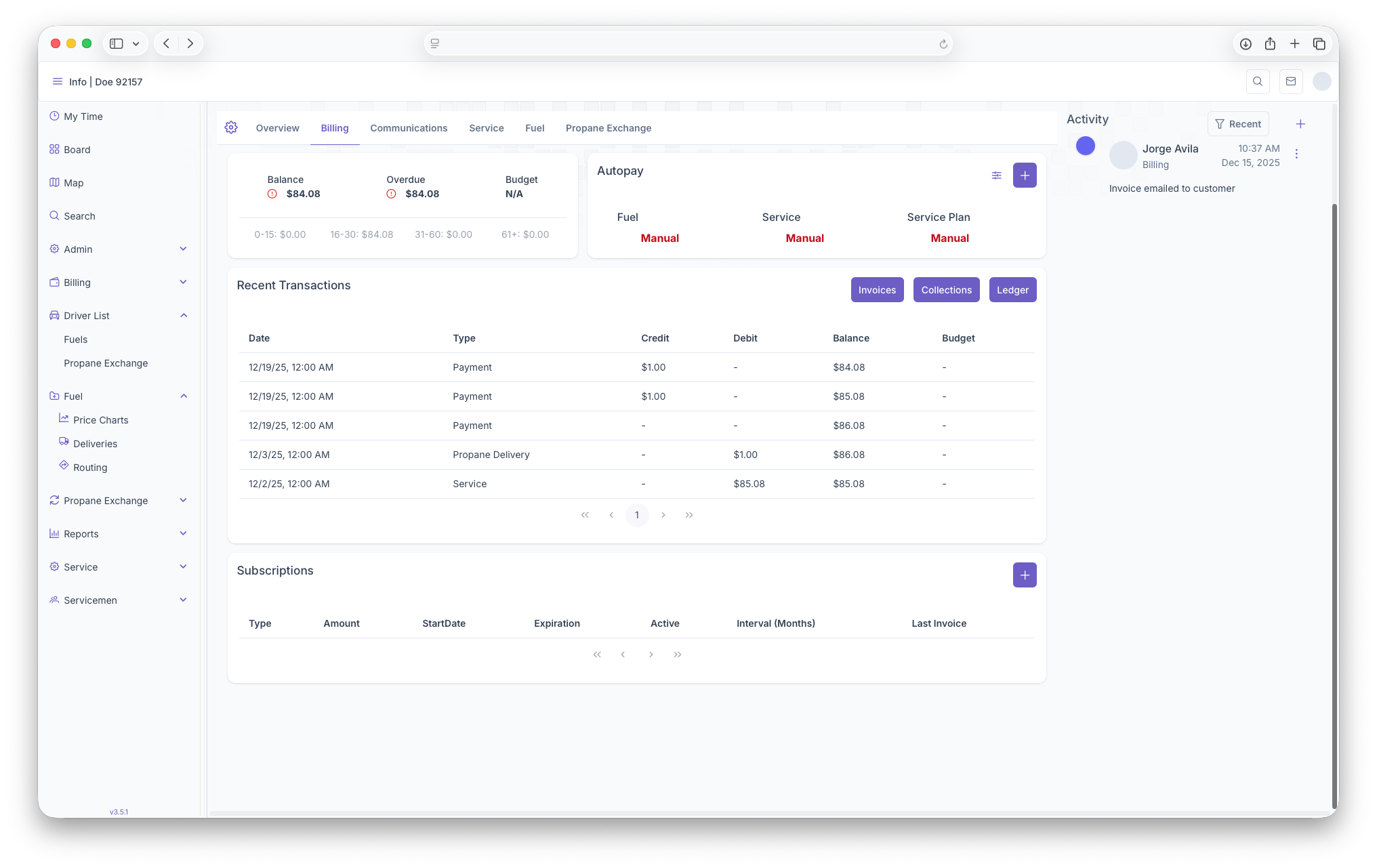
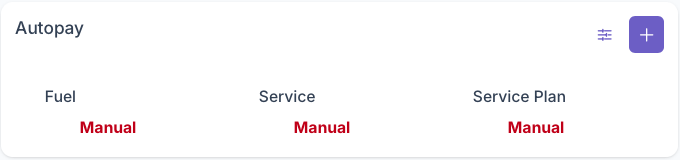
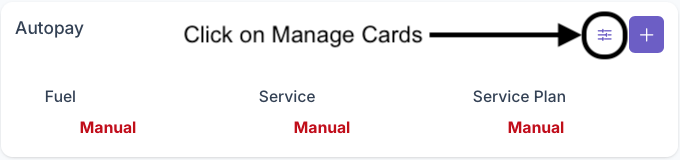
The Autopay section of billing is where credit cards on a customers account can be managed. This includes adding credit cards to the account and what autopay features are placed on said cards. All autopay services will appear as manual until a card is added for the purposes of being autumatically billed. If the customer decides not to be auto charged, all services can be set to manual as well
Adding Cards
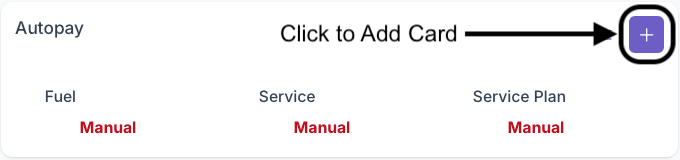
Clicking on the Add button on the top right of the box will bring up the add card page. The following fields must be filled out for a card to be added on to the account
-
Billing Information
- First Name
- Last Name
- Company (Optional)
- Email (Optional)
- Phone Number
- Billing Address
- Adress Line 2 (Optional)
- City
- State
- Zip Code
-
Payment
- Card Number
- Expiration Date
- CVV
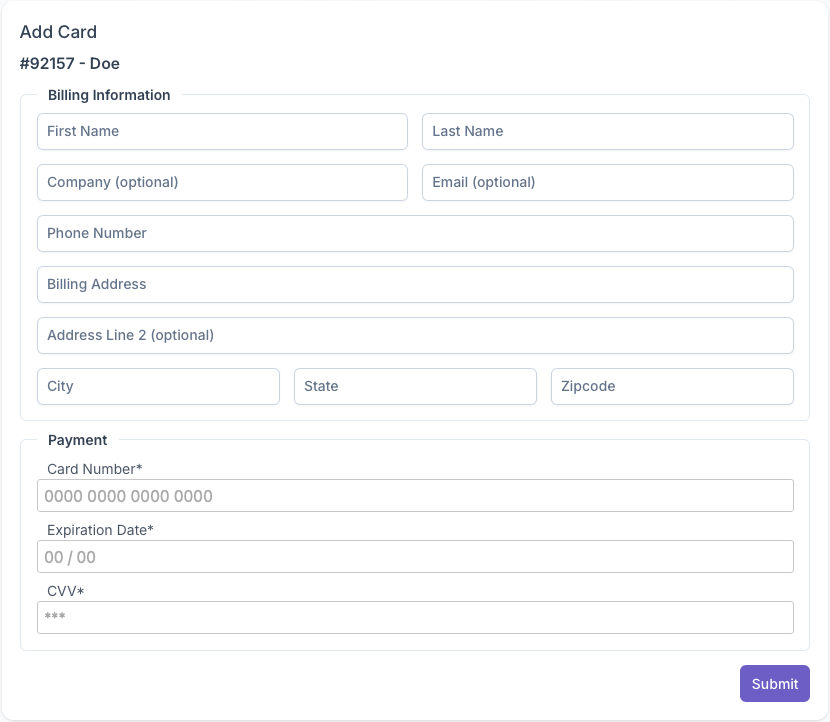
Once all fields have been filled out, clicking on submit will add the credit card onto the customers account and can now be managed for autopay purposes.
Managing Cards
Clicking on the Manage Cards button will bring up the Cards Setting popup. Here all cards on the account can be seen and managed for autopay purposes. The popup will generate with each card as a line item and with the following columns
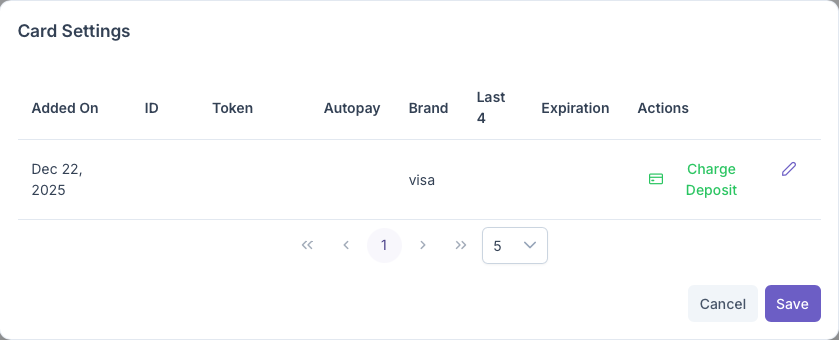
- Added On - When the Card was added on to the account
- ID - An ID given to the Credit Card
- Token - A placeholder number used for digital purchases
- Autopay - What autopay services are used with this card (Fuel, Service, Service Plan)
- Brand - Brand of the Credit Card
- Last 4 - The last four digits of the caredit card
- Expiration - The expiration date of the credit card
- Actions - Can charge a deposit by clicking under Actions, for more information, see below
- Edit - Allows for editing card for Autopay purposes, for more information, see below
Charge Deposit
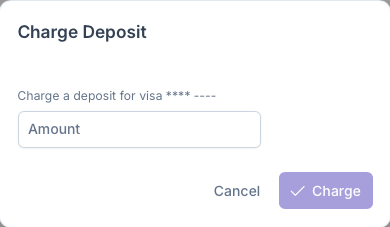
Clicking on Charge Deposit under the actions column of a credit card allows for the card to be charged a deposit for a future service. This can only be done if a credit card has been added to the system. After clicking on Charge Deposit, a Charge Deposit popup will appear and however much the customer is going to be charged will be filled out in the amount field. After adding an amount, click on Charge to charge the card for the deposit made. This will be reflected as a credit on the Customers Account and will be be used as well for any outstanding balances already on the account. This same credit will be applied as well for future deliveries or any services provided to the customer.
Edit Card
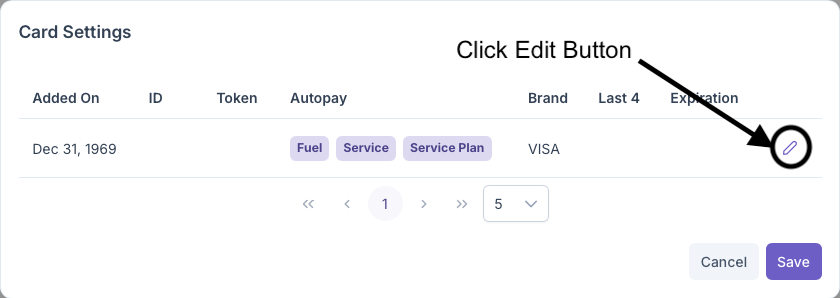
Clicking on the edit button will allow for a card to be edited for Autopay puroses. Once a card is added on to the account, the card itself cannot be edited. The Edit Card popup will then generate, which allows for autopay edits and will show the following information
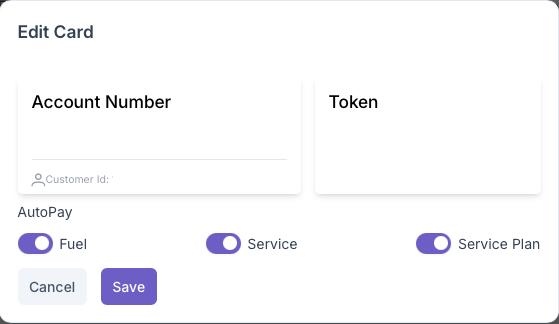
- Account Number - Shows the Customer Account Number
- Token - A placeholder number used for digital purchases
- Customer ID - An ID number assigned to the customer that isn't the account number
- Autopay - Here is where autopay can be edited for the card by toggling autopay on or off for each service: Fuel, Service and Service Plan
Once an autopay has been decided for each service, clicking on save will save the changes made to the card and clicking on cancel will cancel out any changes made. If a customer decides to have autopay features placed on their cards, the autopay box will now show each service with a card attached to the service. The customer also has the option to have each service have their own card if applicable. Once closed, the Card Settings popup must also be saved for any changes to take effect

This option can always be edited in the case of a customer getting a new card or even if the customer decides not to do autopay anymore
No comments to display
No comments to display