
Recent Transactions
Overview
This section of Billing shows all recent transactions that have been made on the account including payments, deliveries, service, subscriptions and etc. The section appears as a table with line items being transactions with the following columns
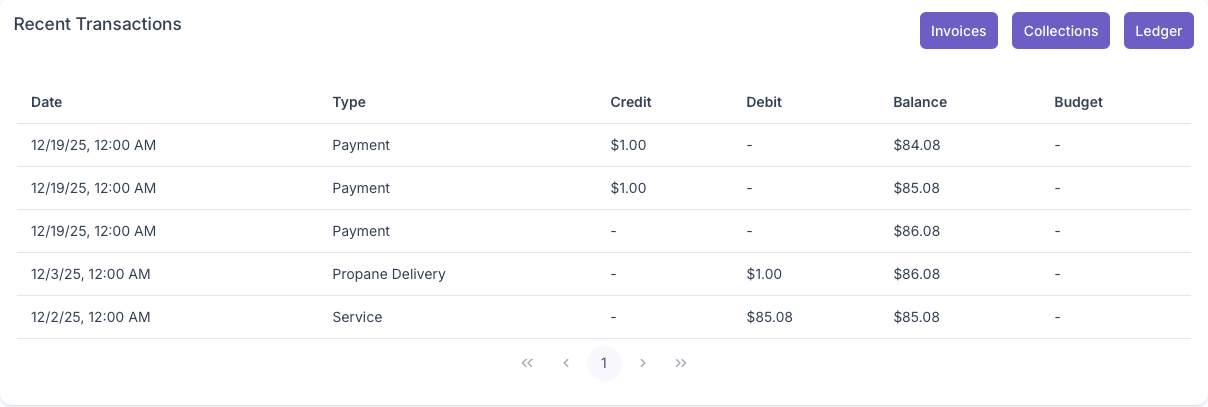
- Date - The Date of the transaction
- Type - The Type of transaction
- Credit - Any credit that was made on the transaction
- Debit - Shows the amount owed on the account
- Balance - What the current balance is on the account
- Budget - Shows the budget that the Customer is on
The Section also gives a more in depth look into Invoices, Collections and Ledgers by clicking on each one
Invoices
Clicking on invoices will bring up the Invoices page. Here a more detailed look at each invoice will be shown. The page will appear as a table with each invoice as a line item and with the following columns
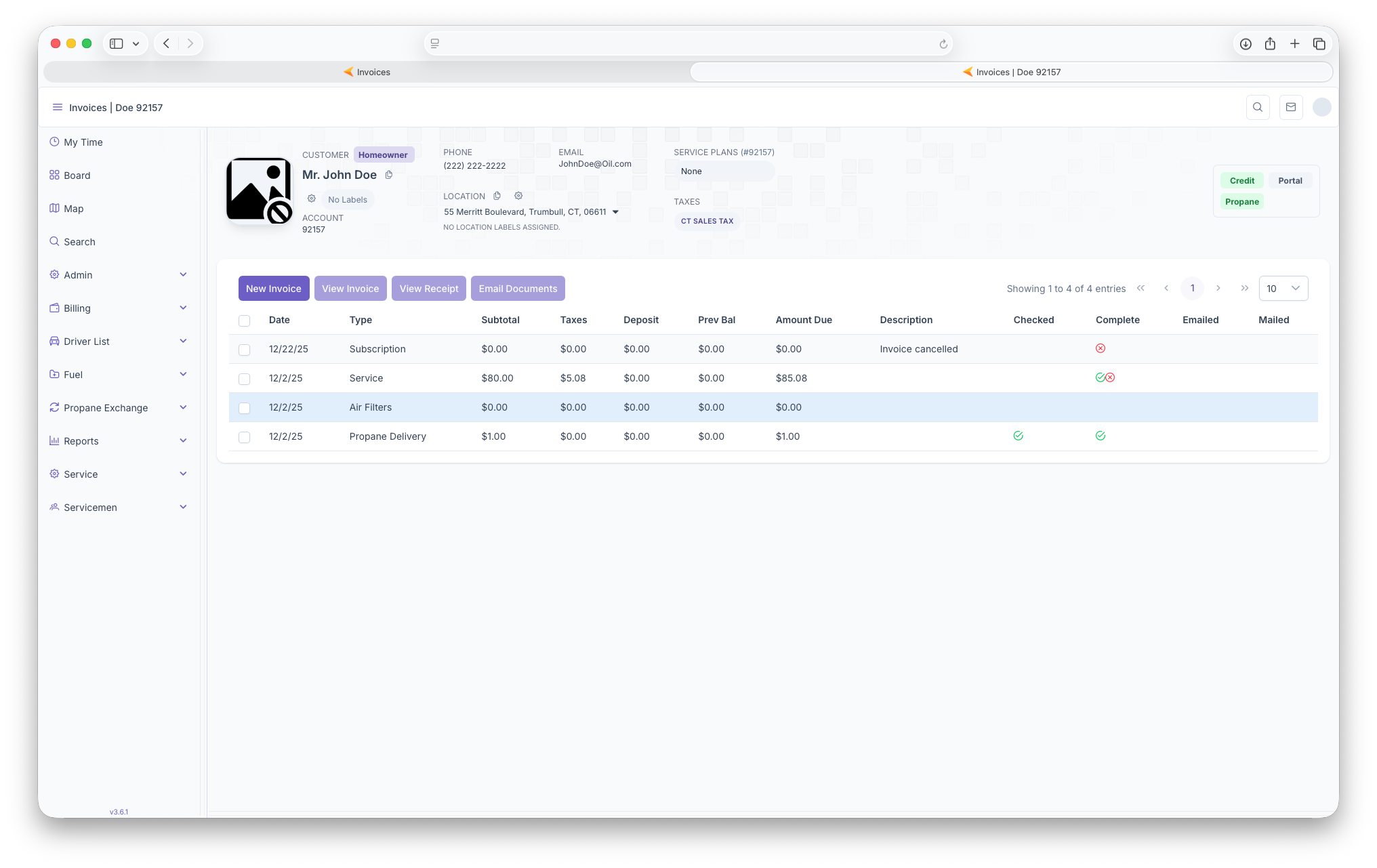
- Date - The date of the invoice
- Type - The type of service the invoice is for
- Subtotal - The subtotal for the service done
- Taxes - Taxes that were applied to the service
- Deposit - Any deposits made for the service
- Previous Balance - Any previous balances on the account
- Amount Due - Shows the total amount due
- Description - A description of actions taken on the invoice
- Checked - Shows if the work was completed
- Complete - Shows if the invoice was completed
- Emailed/Mailed - Shows if the invoice was sent to customer whether through Email or Mail
Along with showing the invoices, double clicking on an invoice will bring up the full details of the invoice itself. A more detailed look at invoices can be seen on the ... page. A new invoice can also be created here simply by clicking on the New Inoice button. A new line item will appear and can be edited by double clicking the new invoice. The invoices can also be exported by clicking on View Invoice which makes for easier printing and sharing. A receipt of the invoice can also be printed by clicking on View Receipt and finally the invoice can be emailed to the customer by clicking on Email Documents. An invoice must be selected by selecting the invoice with a check next to it to be able to perform the previous actions.
Collections
Clicking on the collections button will bring up the collections page for each invoice that was created for a completed project. The in depth look shows specifics for the invoice selected.
Invoice Details
This part of the page will show specifics of the Invoice selected. when generated, it will shows the following
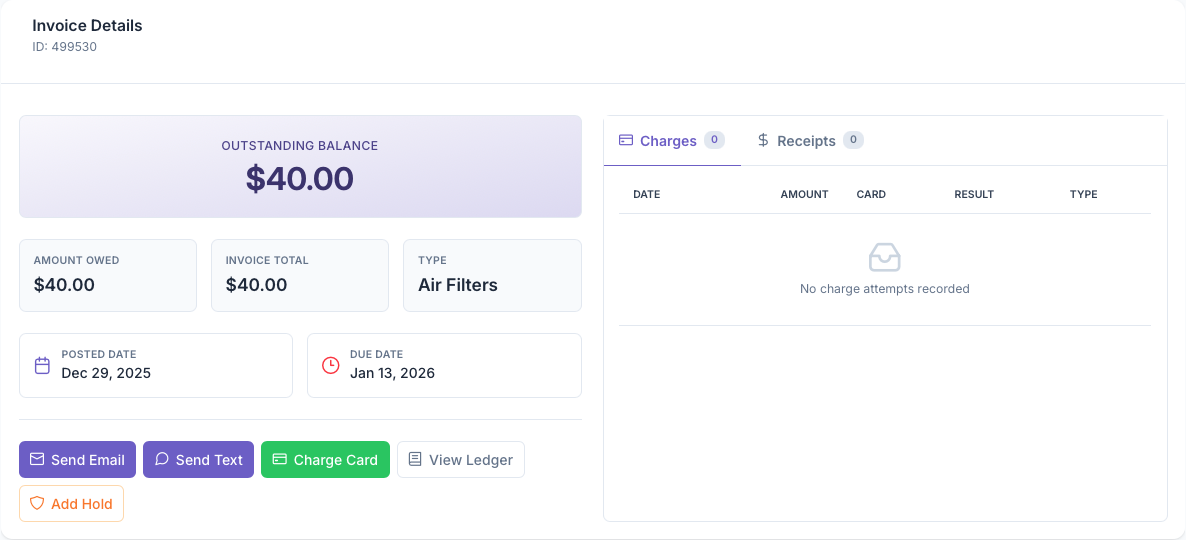
- ID - The ID Associated with the invoice
- Outstanding Balance - Shows the balance owed on the invoice
- Amount Owed - Shows the current amount owned
- Invoice Total - Shows the original total amount on the Invoice
- Type - What service was provided on the invoice
- Posted Date - The date that the Invoice was posted
- Due Date - When the total amount is due
The page then gives the option to take actions on the invoice
-
Send Email - Clicking here emails the customer a copy of the invoice
-
Send Text - Gives the option to send the customer a text of the invoice
-
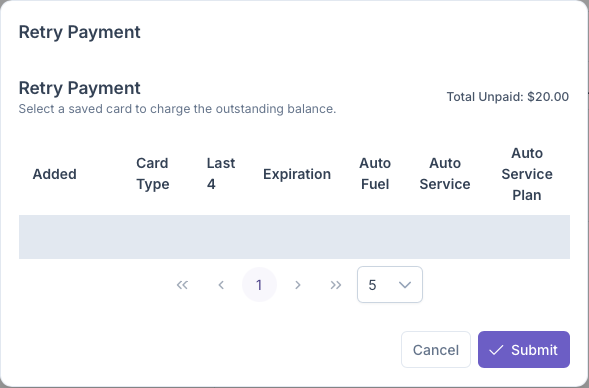
Charge Card - Clicking here allows the for the customers card on file to be charged for the invoice. The following pop up generates with the following information
- Added - When the card was added
- Card Type - The brand of the Card
- Last 4 - The last four digits of the card on file
- Expiration - The expiration date of the card
- If the card is aset up for auto-pay with the following - Fuel, Service and/or Service Plan
- View Ledger - Clicking here will bring up the customer Ledger page. A more in depth look can be seen under the Balance section of the Overview page
- Add Hold - Clicking here adds a credit hold on the account if a payment hasn't been made. See the Overview page under the holds section for a more detailed look
Next to that will be a Charge and Receipt tab which shows all Charges and Receipts associated with the invoice
-
Charges - Shows all charges that are made on that invoice and shows the following with each charge being a line item
- Date - The date of the charge
- Amount - The Amount that was charged
- Card - The card on file that was charged
- Result - shows if the payment went through
- Type - The Type of charge
-
Receipts - Shows the receipts of the payments made and shows the following with each receipt being a line item
- Date - Shows the date of the Receipt
- Amount - Shows the amount paid
- Card - Shows the card used for payment
- Created By - Shows who the receipt was created by
- Deposit - Shows the Deposit Number
A look at all collections can be seen on the billing section of the app and a more in depth look at Collections can be seen on the Collections guide
All Invoices
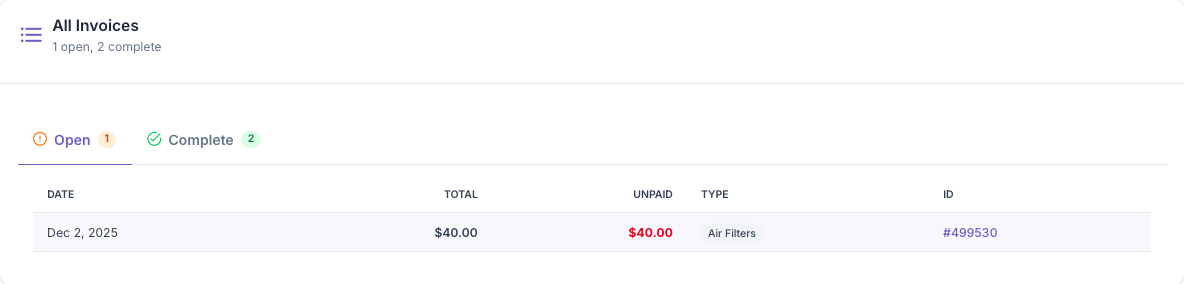
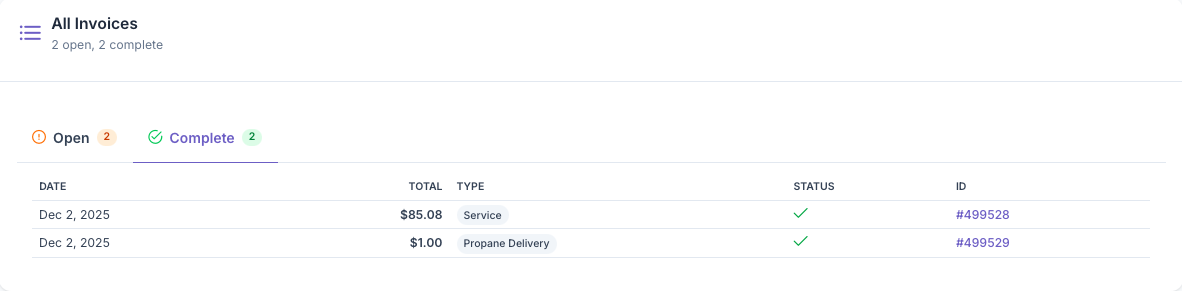
This section of the page shows all invoice that the customer has on file. This includes all open invoices that show up on the Open Tab and all completed invoices which are under the Complete Tab. Clicking on an invoice will generate all it's information that was shown in the Invoice Detals section above
-
Open - Clicking on the Open Tab will shows all invoices that are currently open and have an open balance and will generate with each open Invoice as a line item with the following information
- Date - Shows the date of the open invoice
- Total - Shows the total amount of invoice
- Unpaid - Shows the amount of the invoice that needs to be paid
- Type - Shows what the invoice is billing for
- ID - The ID generated for The Invoice
-
Complete - Clicking on the Complete Tab shows all completed invoices and will generate with each finished invoice as a line item with the following information
- Shows The Date the invoice was posted
- Total - Shows the total amount of the original invoice
- Type - The Type of service that was performed
- Status - Shows the status of the Invoice
- ID - The ID generated for the Invoice
No comments to display
No comments to display