
Sales Summary by Product
Sales Summary by Product
The Sales Summary by Product Report shows sales made by each product, including total amount, what each product/service costs and taxes. To reach the Sales Summary by Product page, click on reports on the side menu then click on Sales Summary by Product. Clicking on the three bars on the top left corner of the page will expand the side menu showing more details and making it easier to navigate. The page can then be filtered to show specific date ranges as well as by brands. TheDepending pageon willthe then showselection, the Overall Sales including,will be displayed which includes, a Subtotal, Tax and Total.an overall total. Fuel Items and Service Items will also begenerate displayedeach alongshowing withit's theirown individual Subtotals,Subtotal, Tax and Totals.overall NextTotal
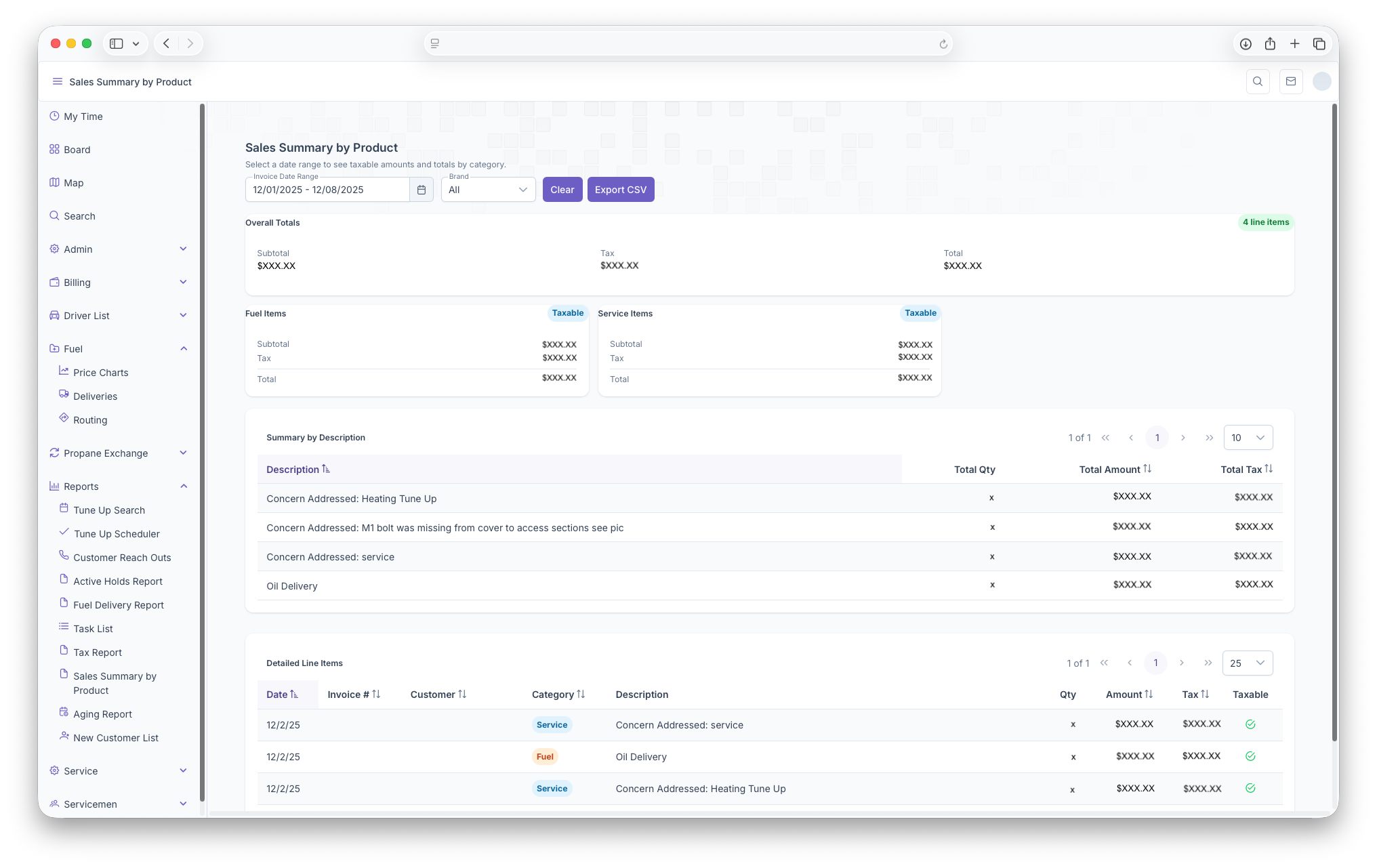
Following that, two tables will be generated as well, the first being a Summary by Description whichtable. The table will begenerate shownwith ineach line item being sum of all the followingsame columns,descriptions
- Description - Shows the description of the service
The Second table is the Detailed Line Items willwhich showshows all invoices as lines items with the following columns,columsn