
Service Order
Service Orders
Service orders are any customer concerns in which a tech is sent out to fix any problems with a system a customer owns.
What you will find on The Order Page
| Tab | Purpose |
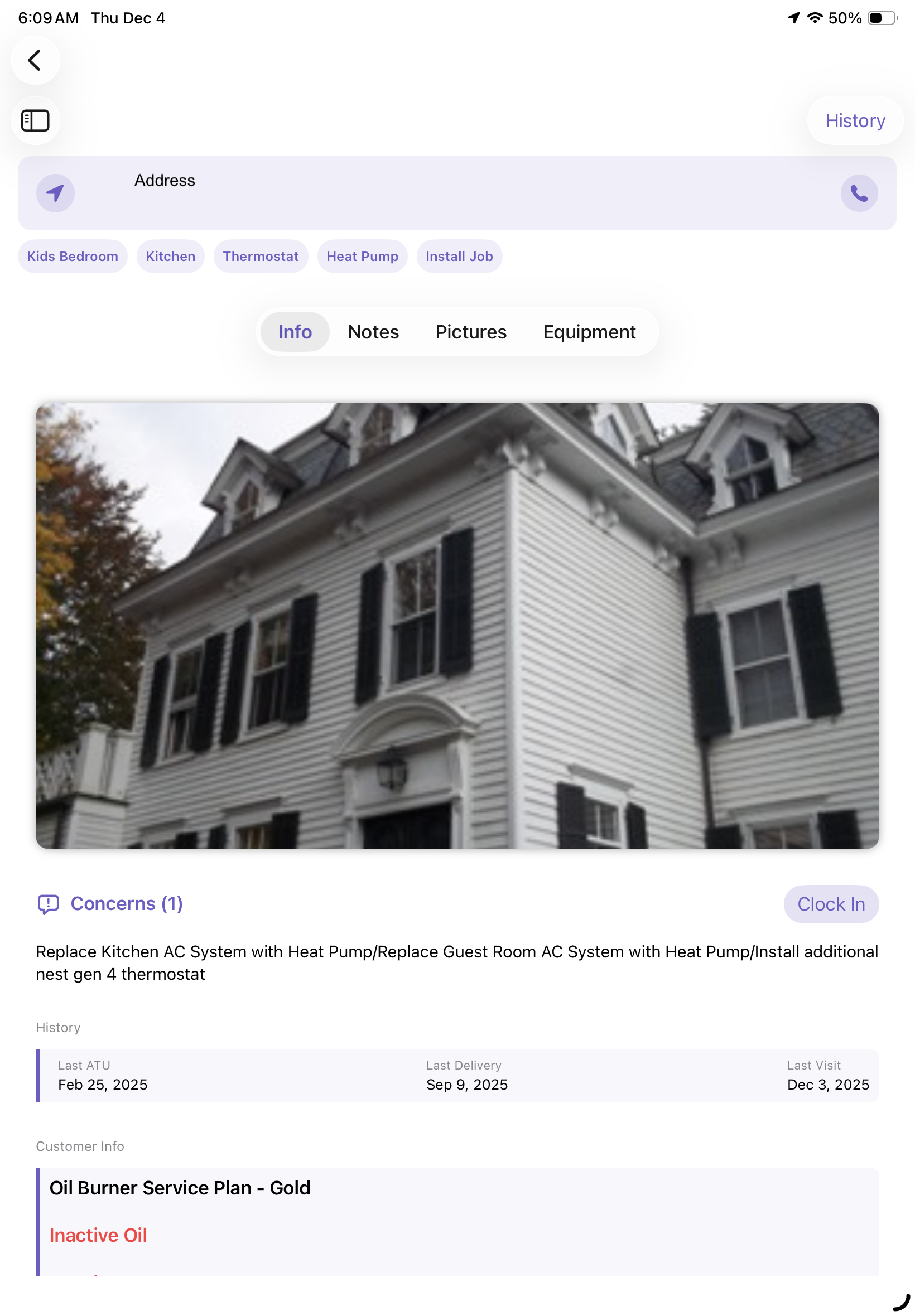
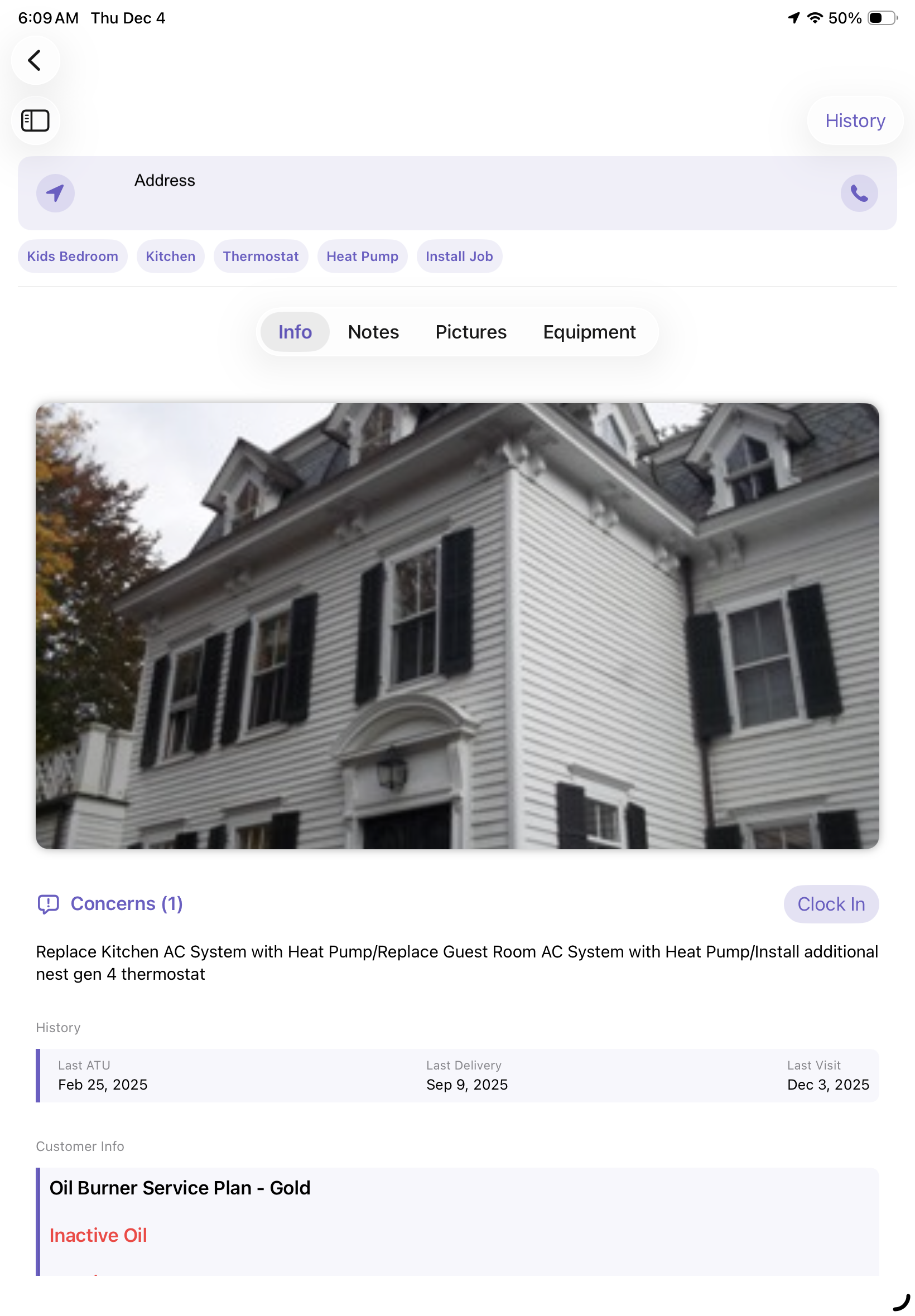
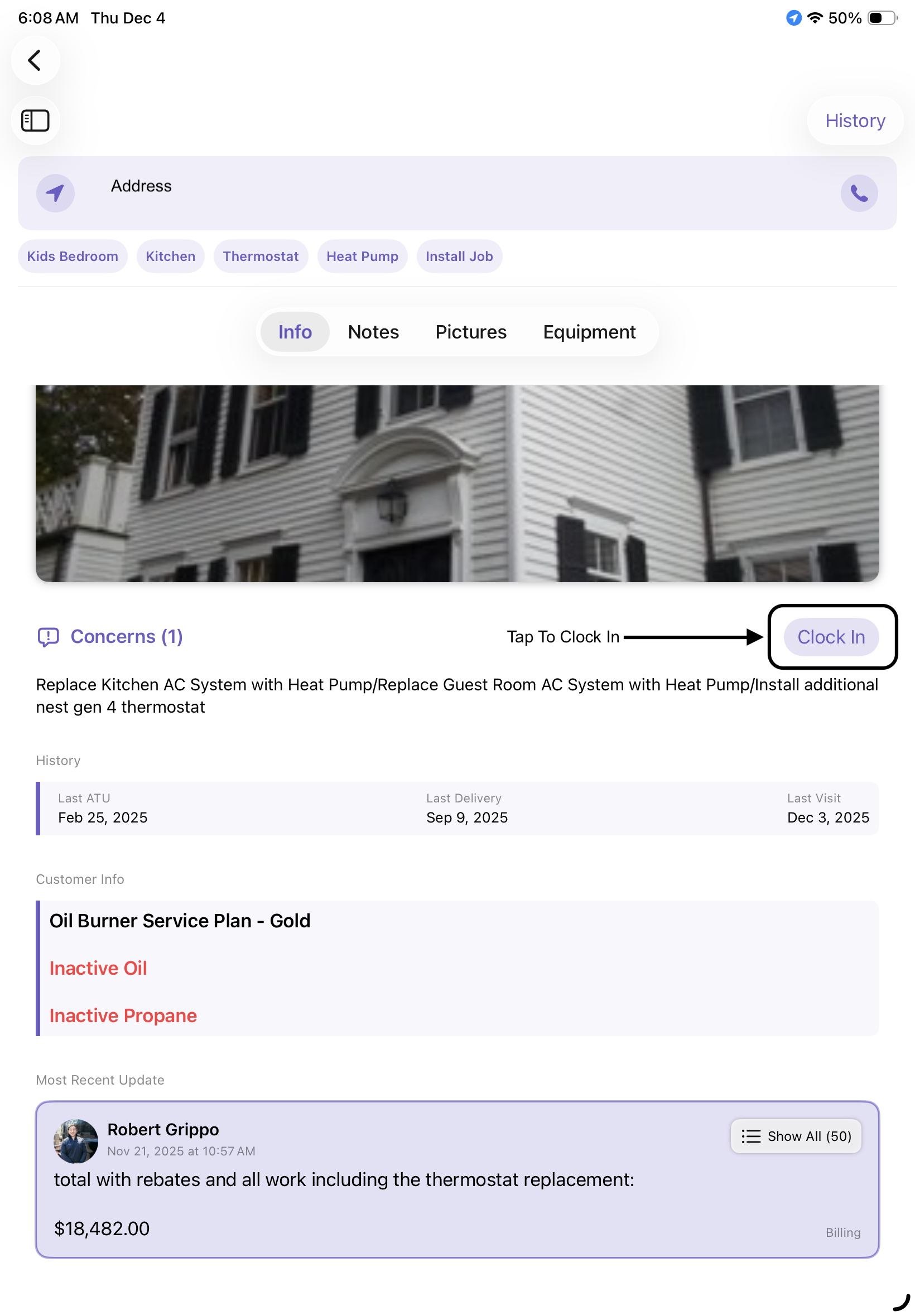
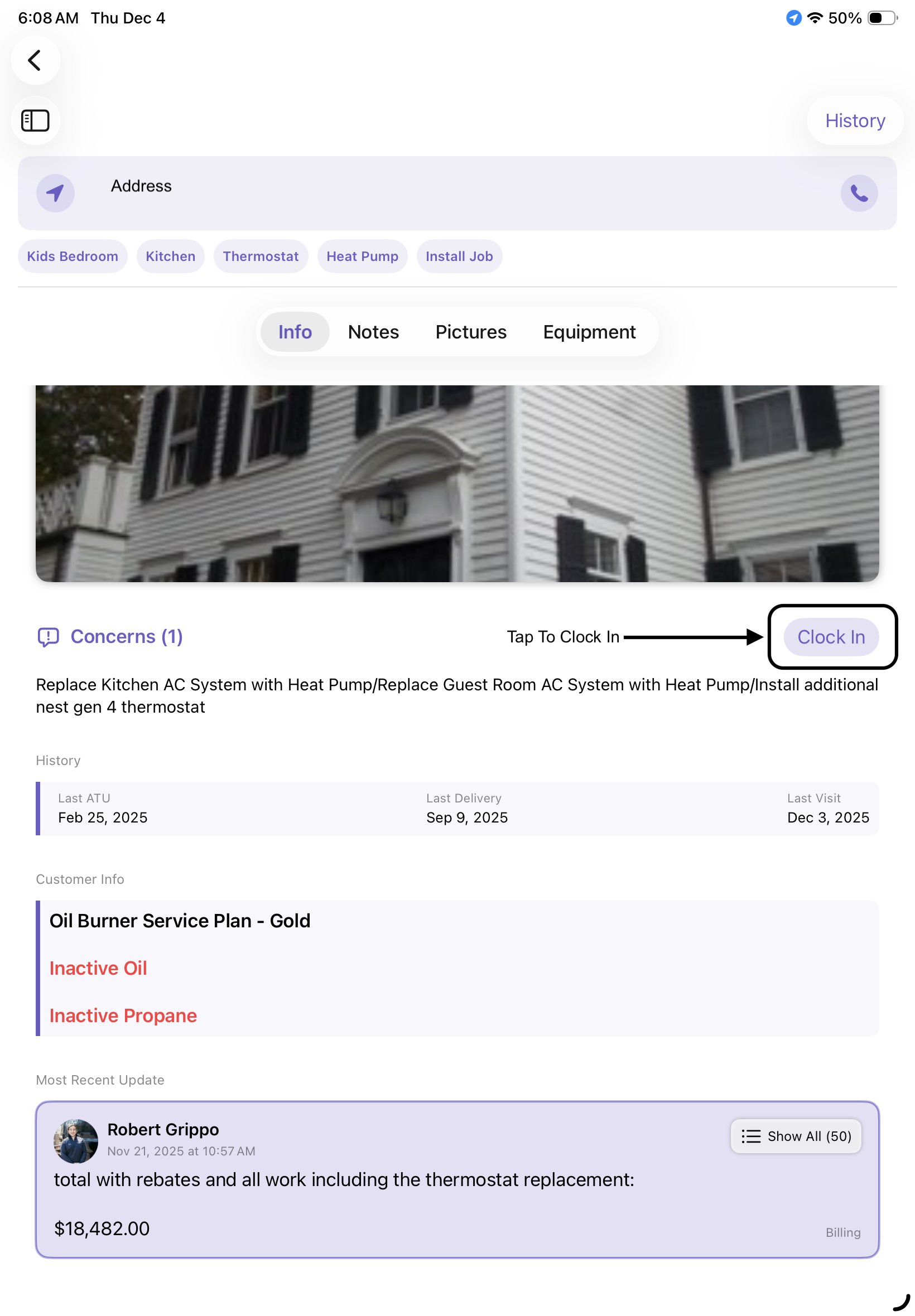
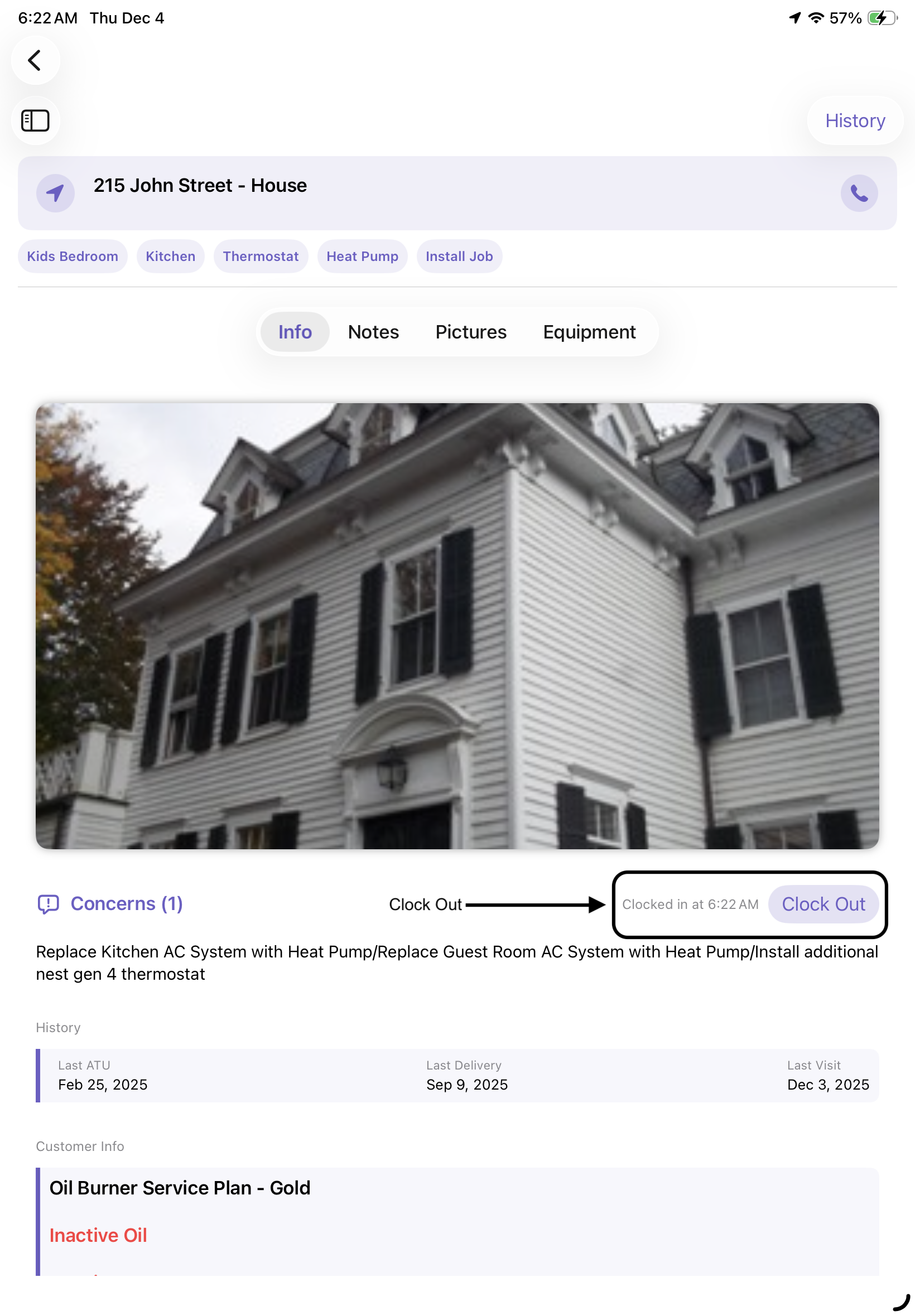
| Info Tab | Shows Customer Address, allows you to clock in, view Customer Concerns, History, Customer info and any updates |
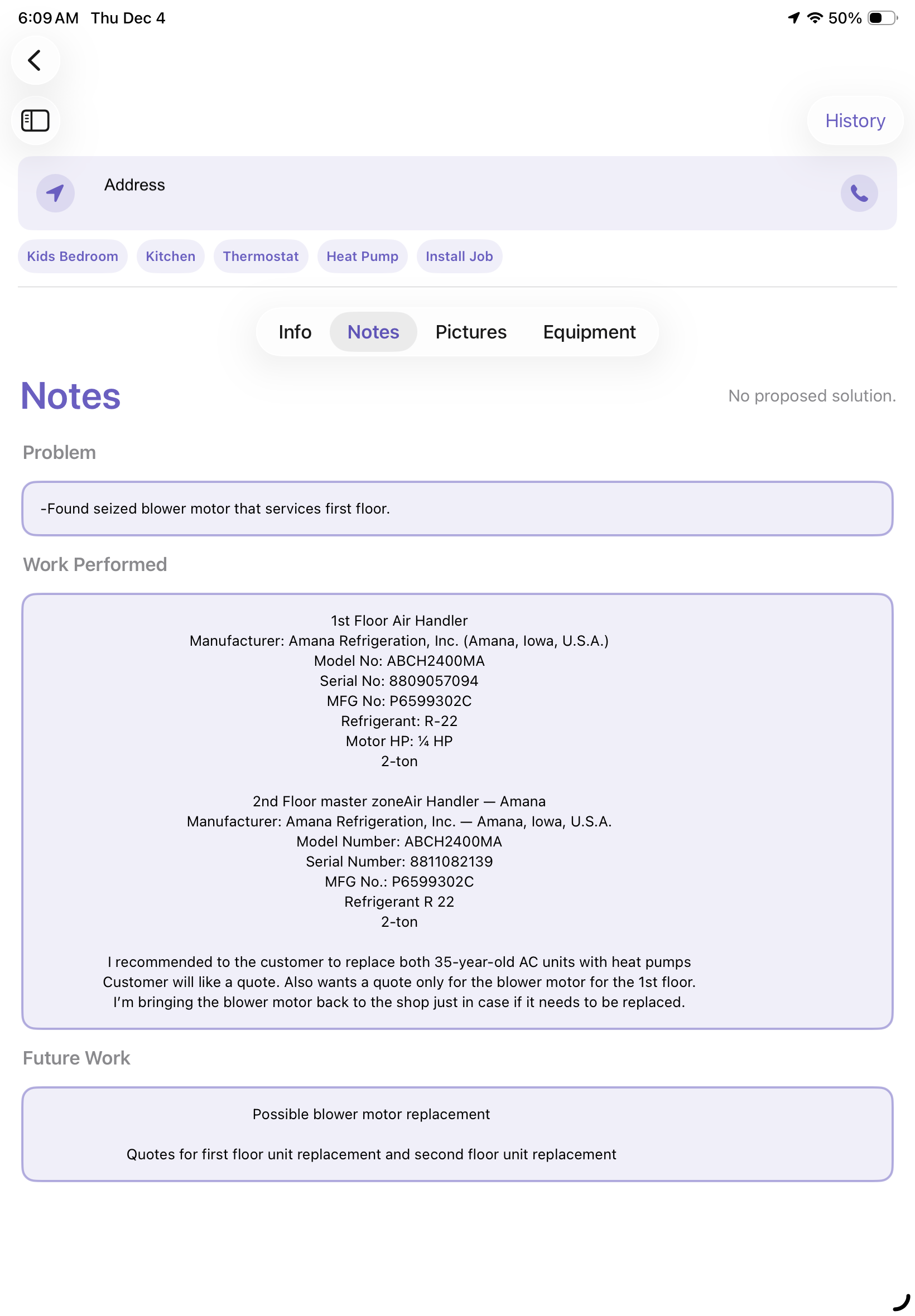
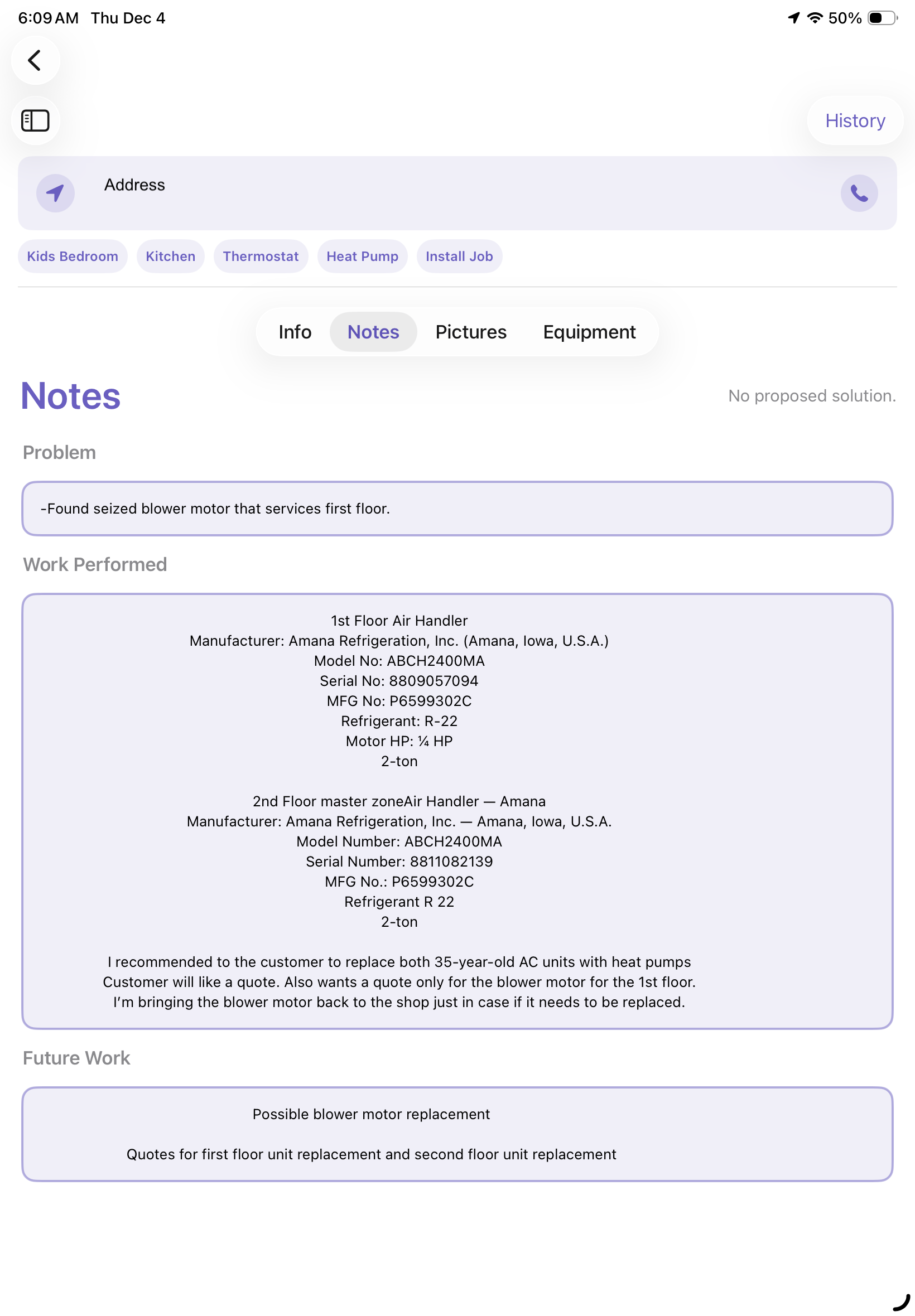
| Notes Tab | Input any problems found on the project, work that was preformed and future works that needs to get done |
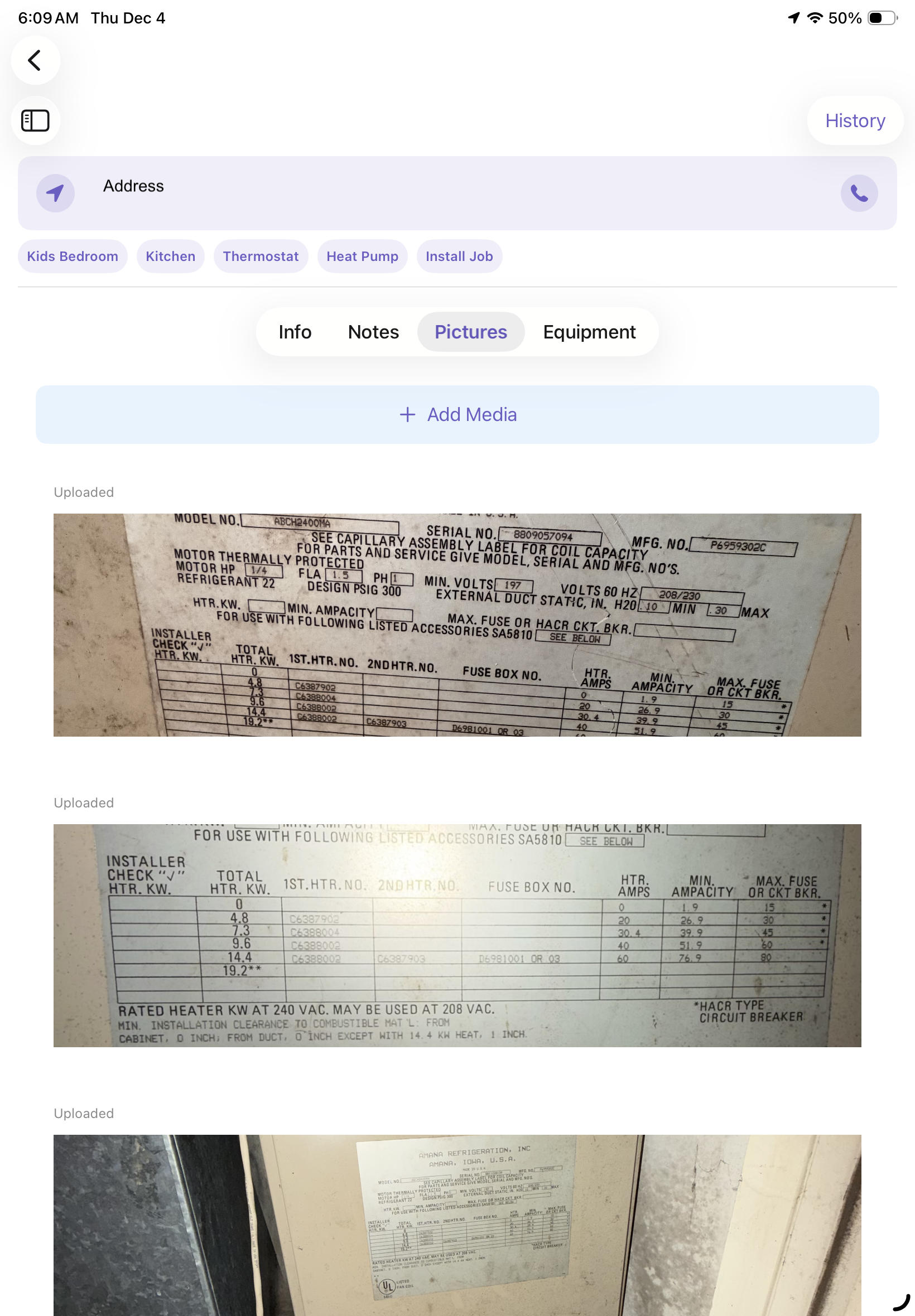
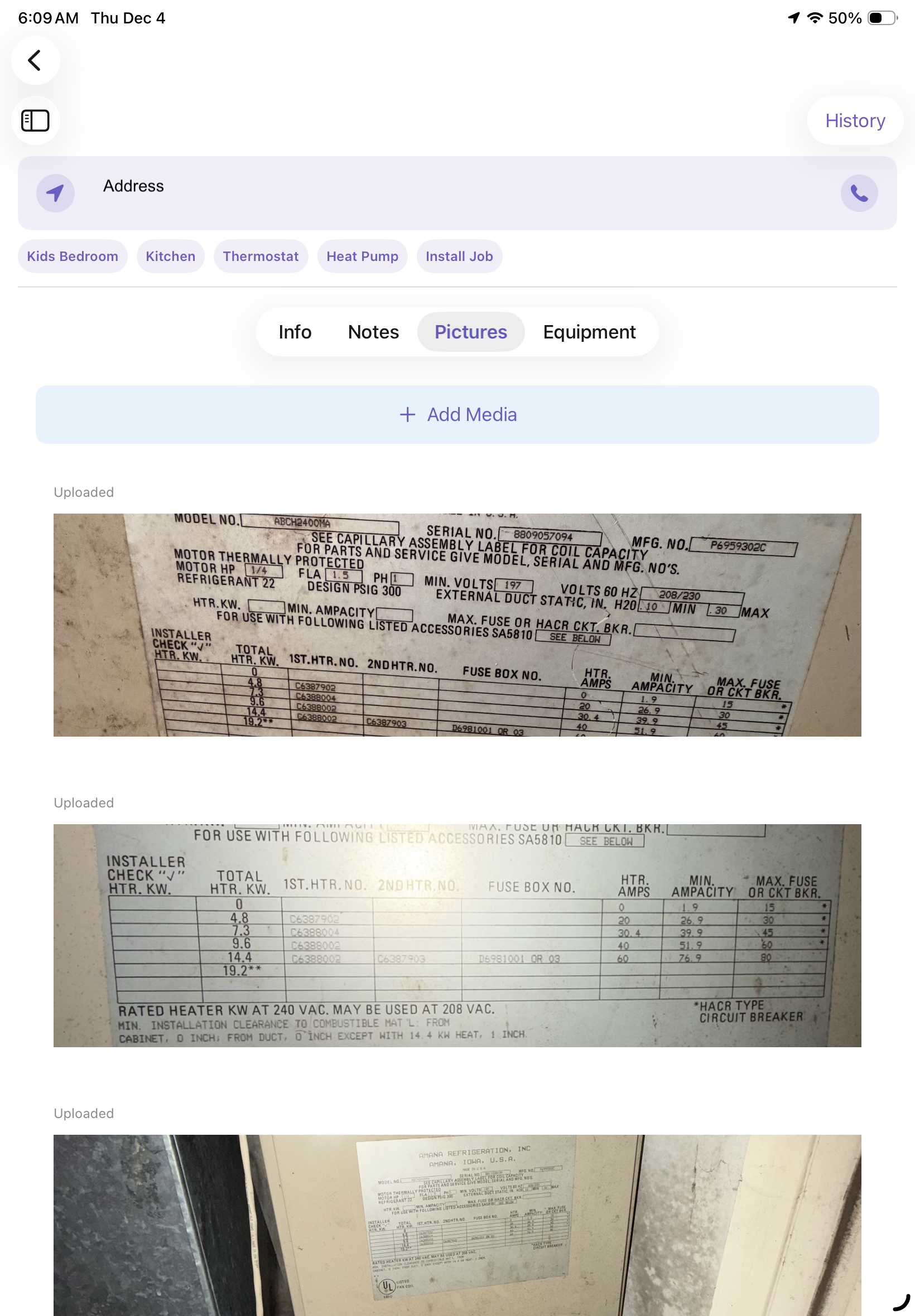
| Pictures | Upload pictures of work done, problems found, etc. |
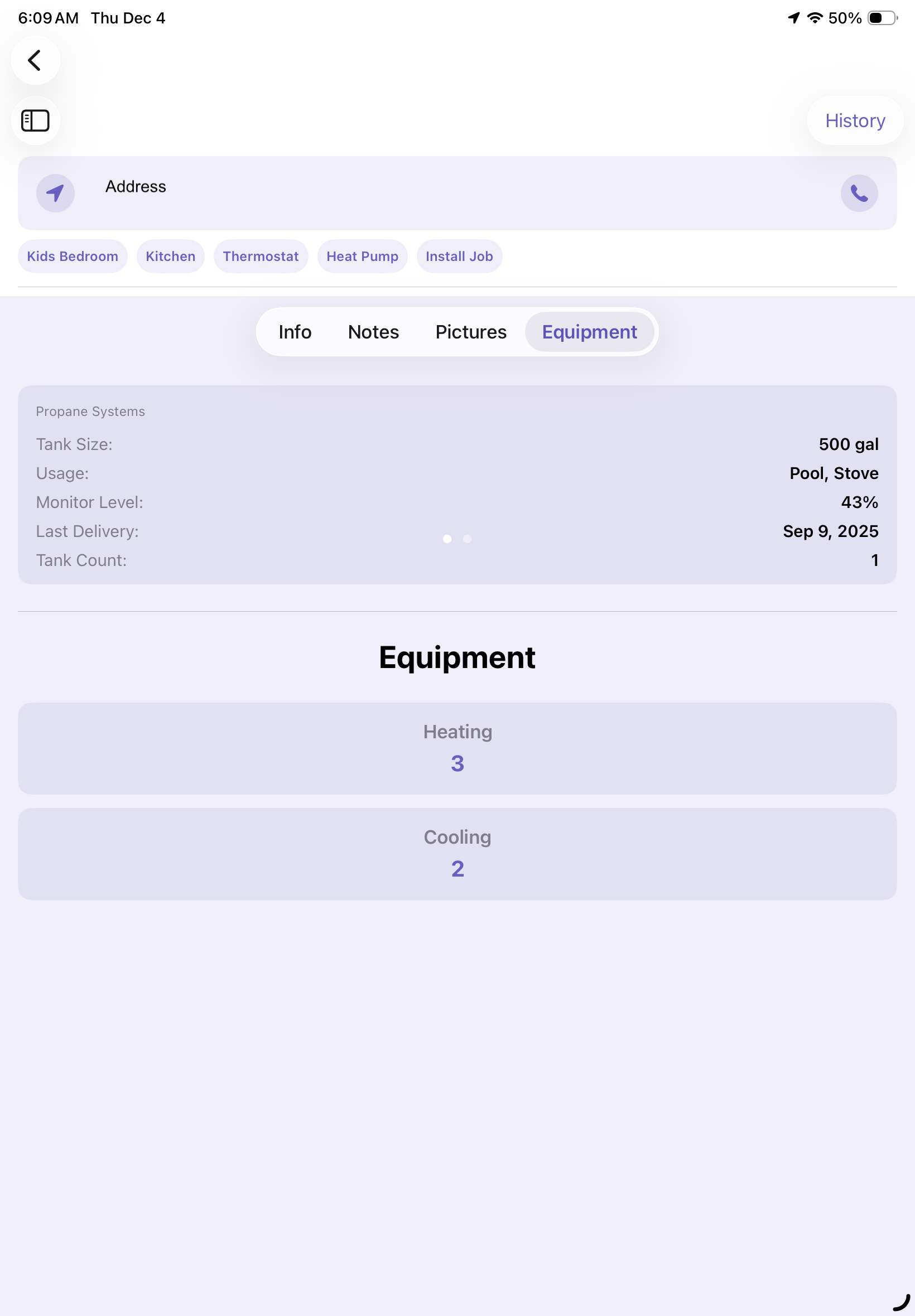
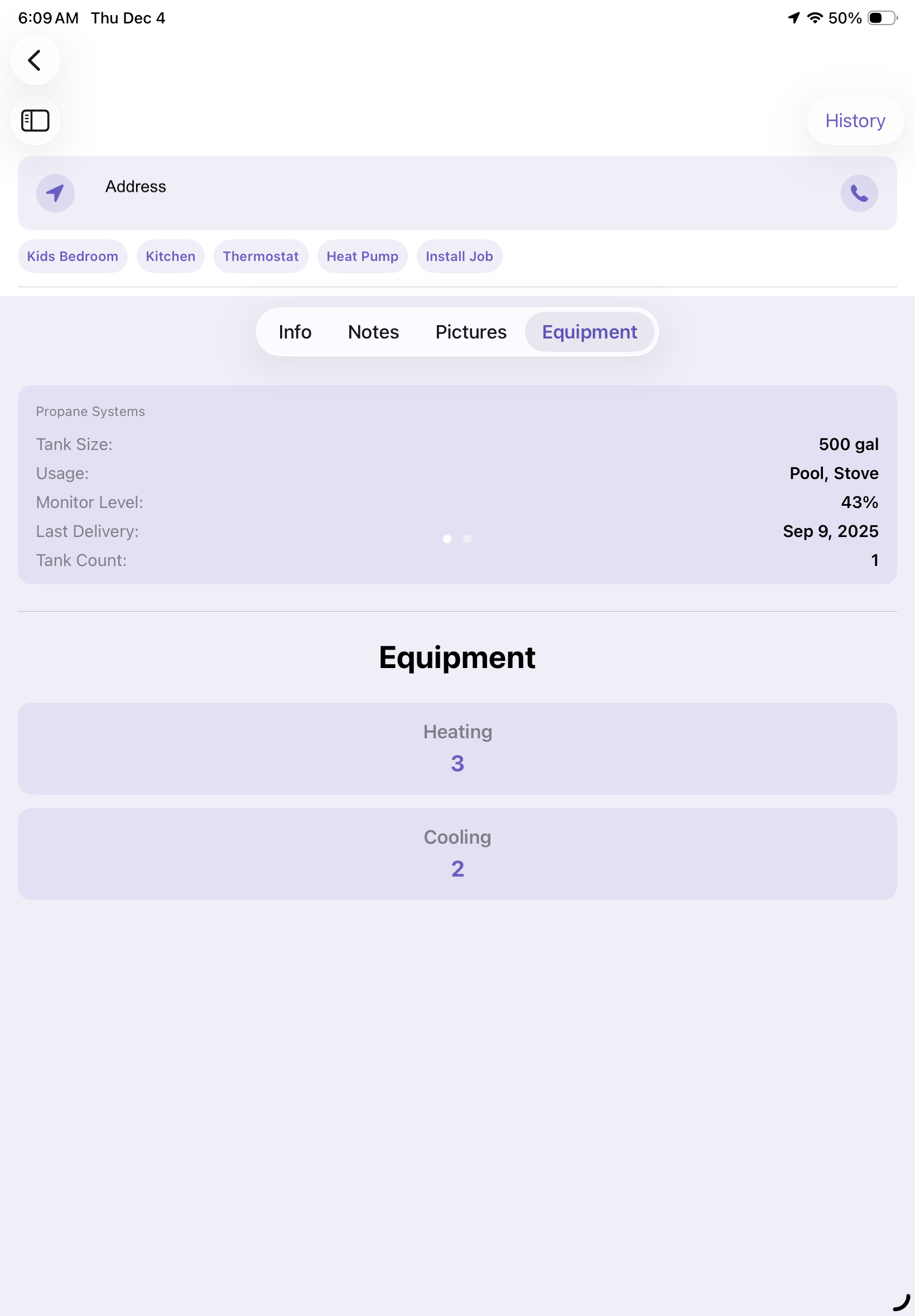
| Equip-ment | Shows what kind of equipment the customer has, eg. propane systems, oil systems, any heating or cooling units, etc. |
Selecting a Service Order
-
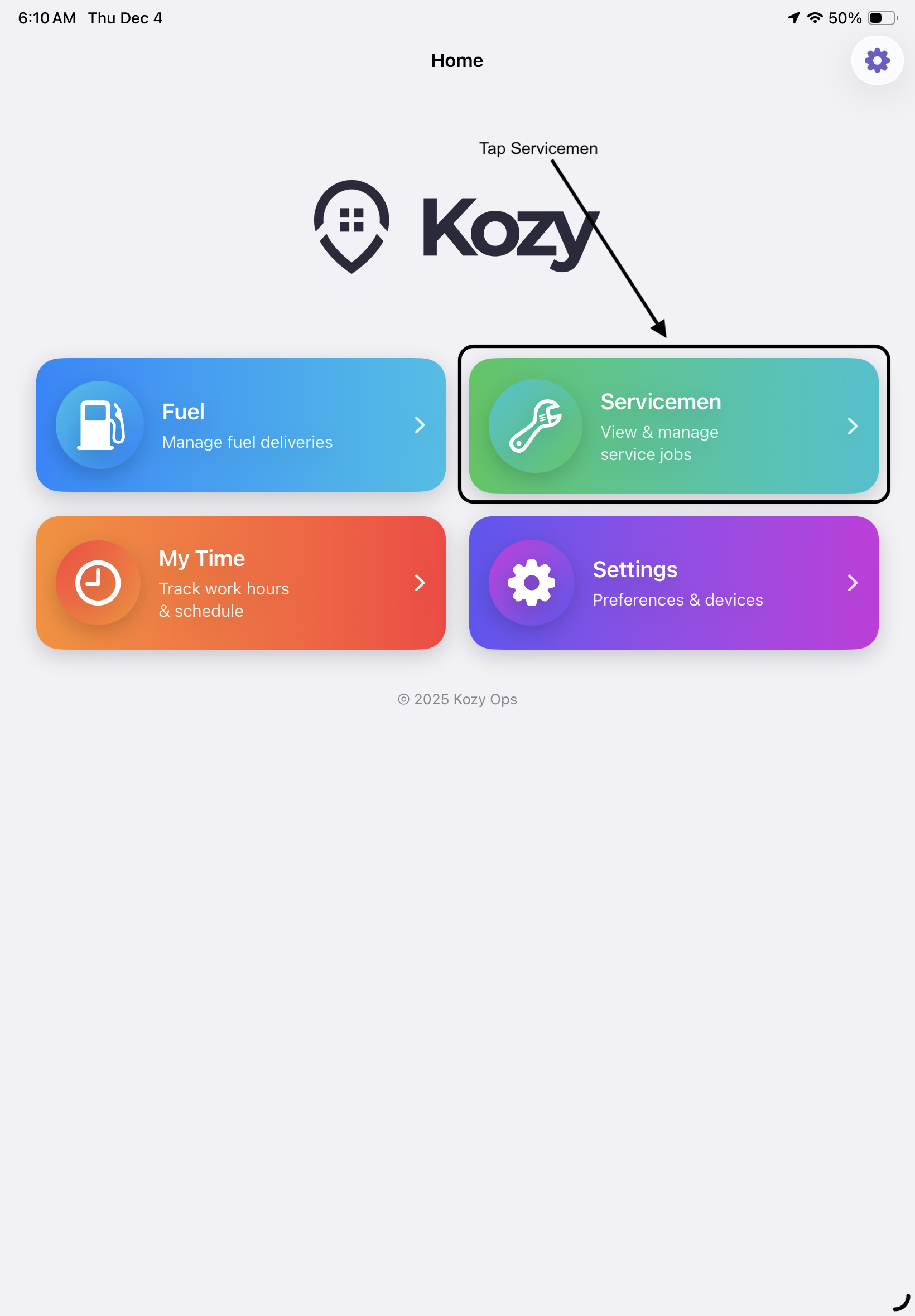
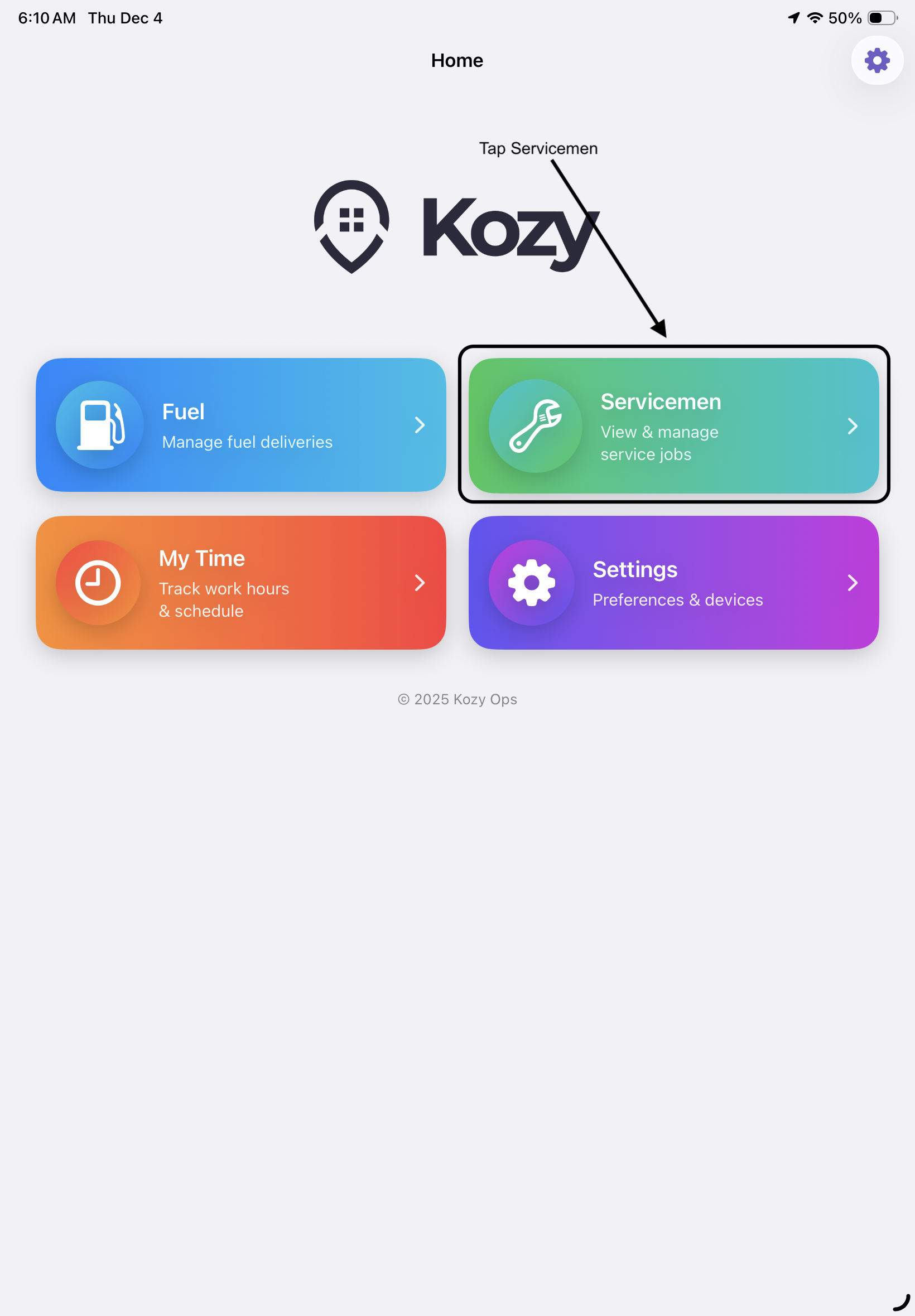
When on the main menu, tap on servicemen to bring up all orders associated with the tech.
-
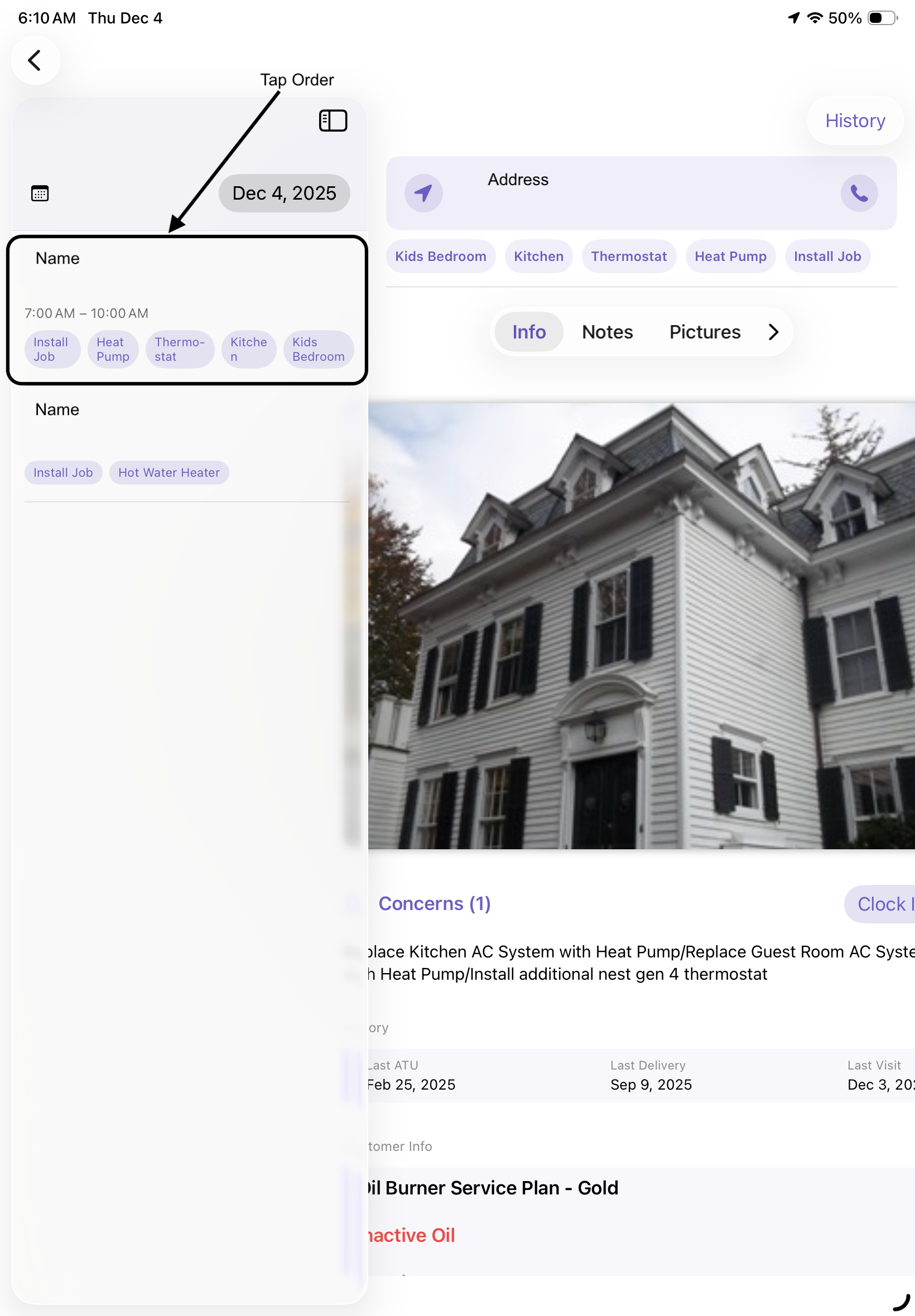
A list with all orders will then appear
-
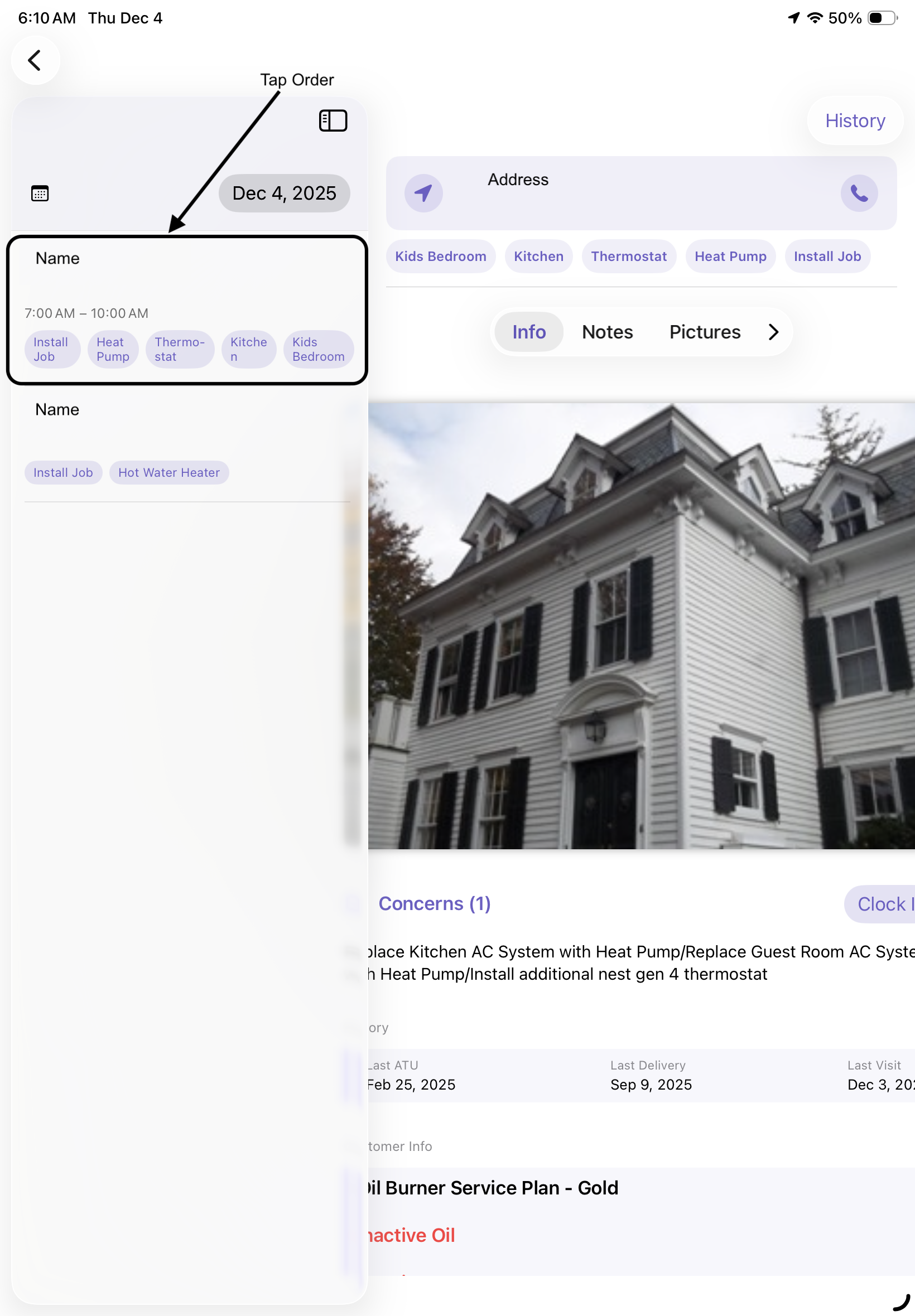
After selecting an order, you will be greeting with the Customer Order page
Performing a Service Order
-
On the info page you will begin by clocking in and reviewing all info on page before continuing your work
-
After work is performed, tap the notes page, fill out any problems found, what work was done and any future works that needs to be done
-
tap over to the pictures page and add any pictures of problems and any work that was completed.
-
if additional information is needed on equipment, click on the equipment page to see what the customer has in the building
-
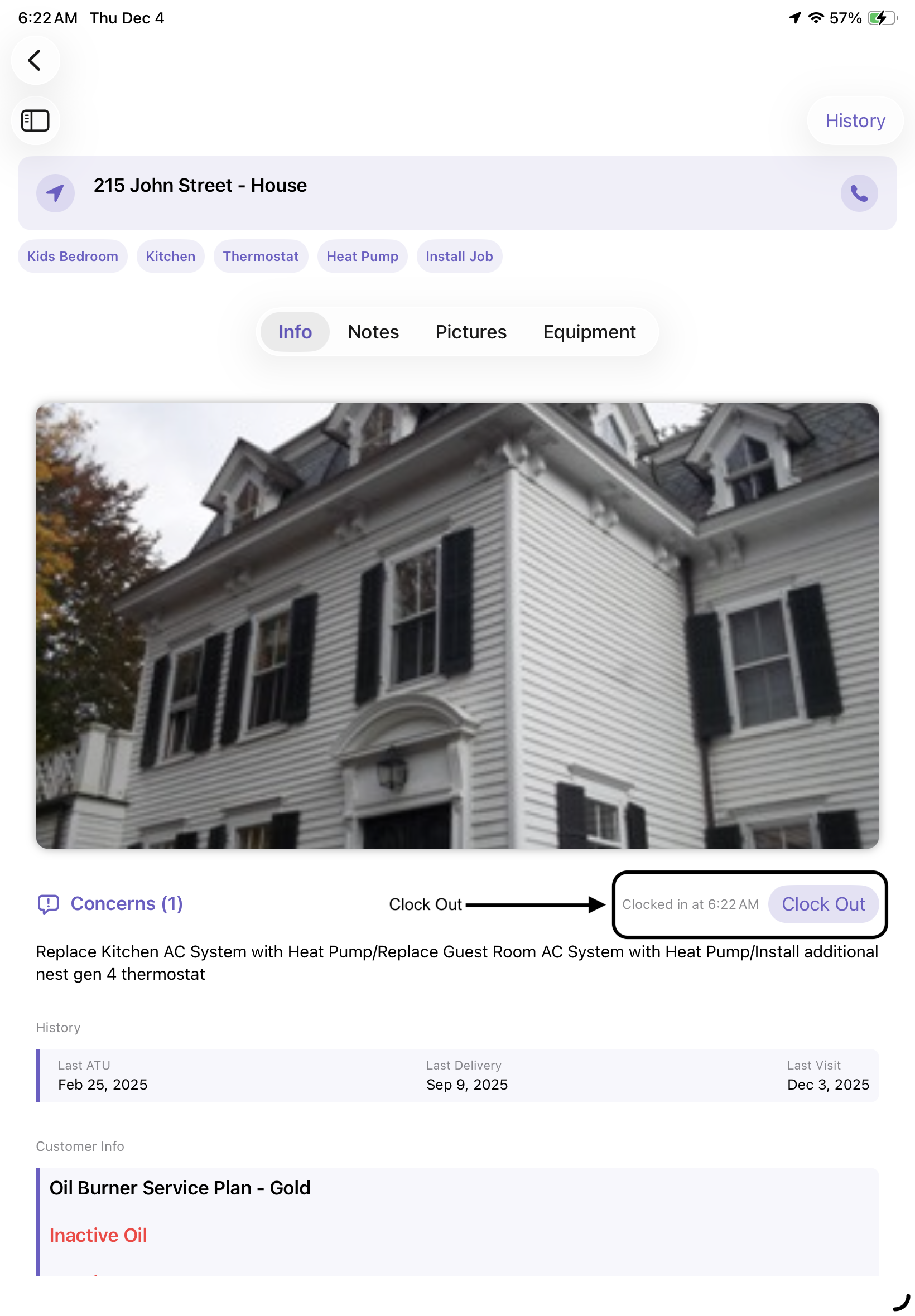
Once work is completed, head back to the info page and clock out so mobile device can send information back to the main webpage for invoicing and setting up future visits
No comments to display
No comments to display