
Driver Load View
Driver Load List Screen
Purpose: Displays all assigned routes and loads for the driver on the selected date.
Key Features:
- View all loads assigned for the day
- Switch between multiple loads using tabs or horizontal picker
- Displays estimated gallons, number of stops, and progress
- Supports both Oil and Propane delivery types
Screen Breakdown:
| Element | Description |
| Load Header | Shows truck number, delivery date, and load number |
| Summary Metrics | Displays estimated gallons, delivered gallons, remaining stops, and revenue (oil only) |
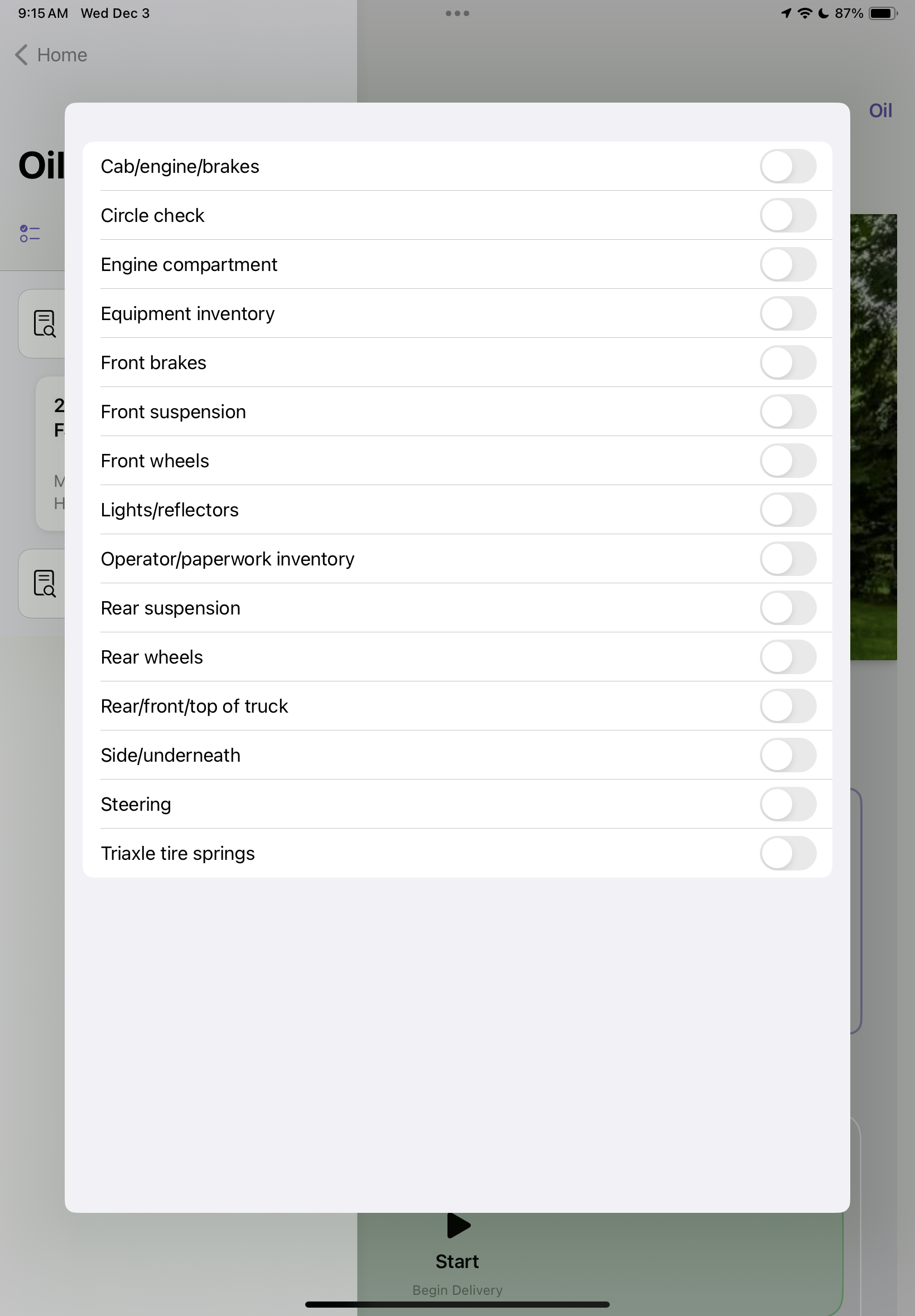
| Checklist Banner | Required pre-trip items such as inventory, safety checks, and mileage must be completed before deliveries begin |
| Delivery List | Scrollable list of customers with address, estimated gallons, and delivery status |
Preparing Route
-
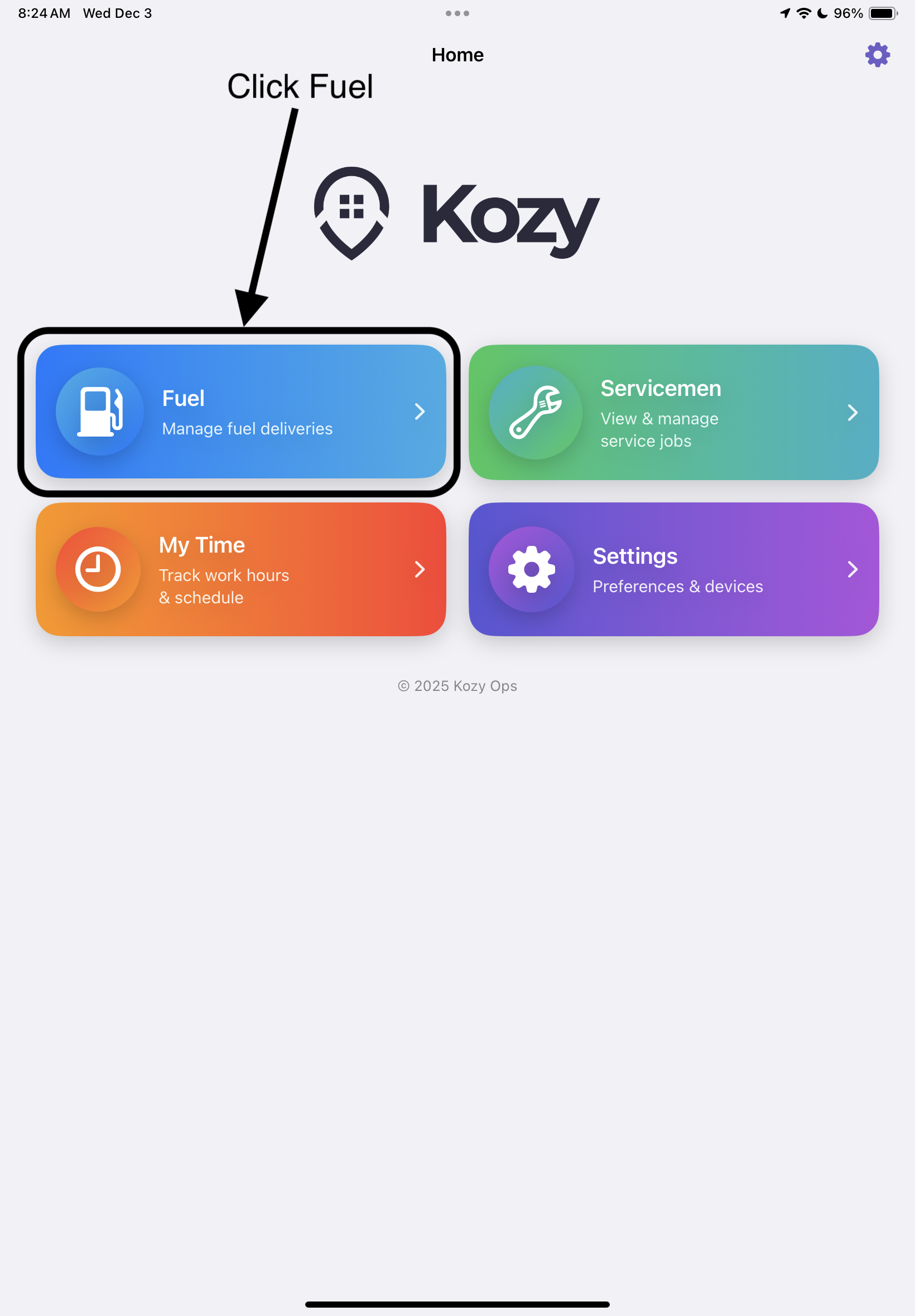
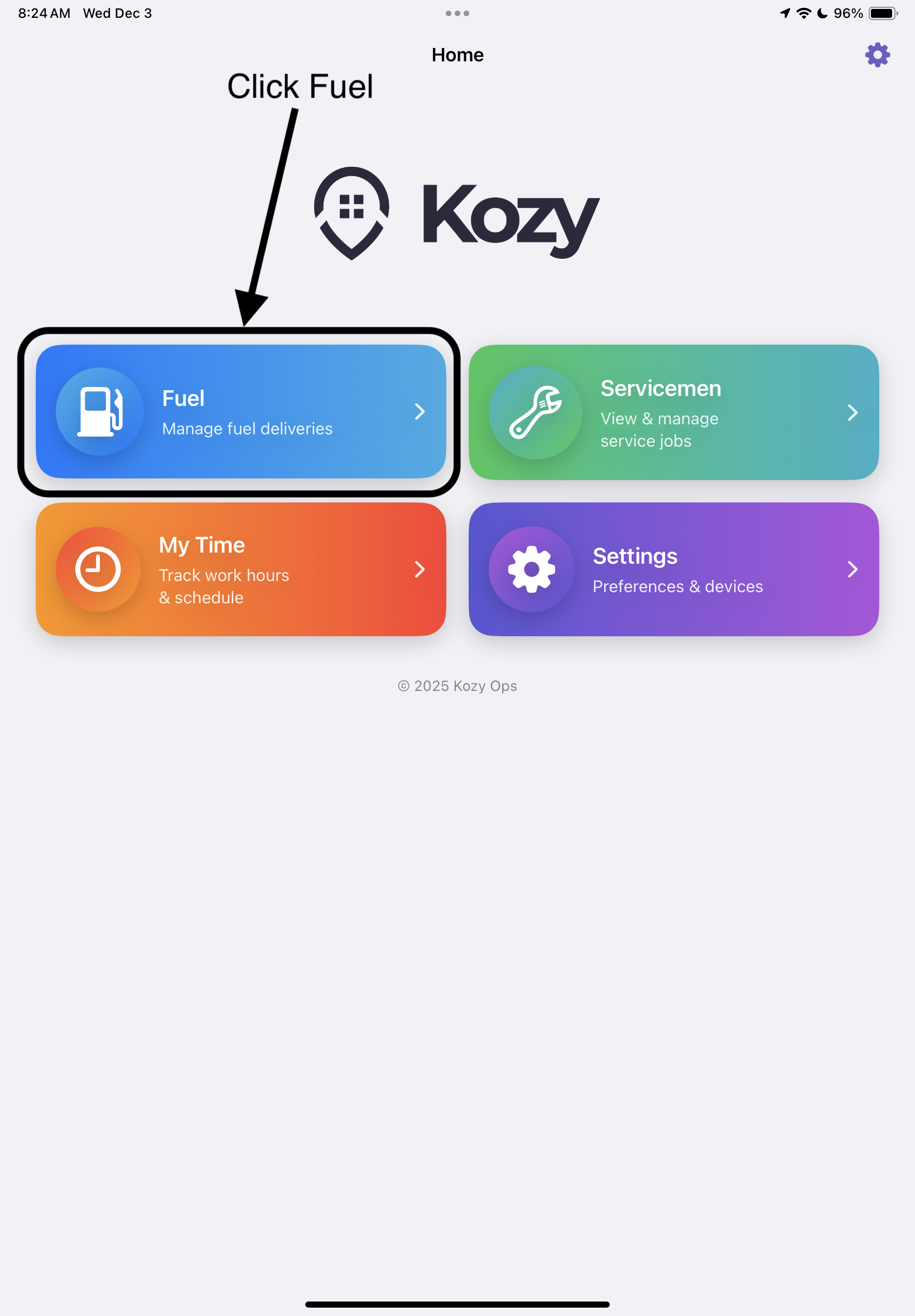
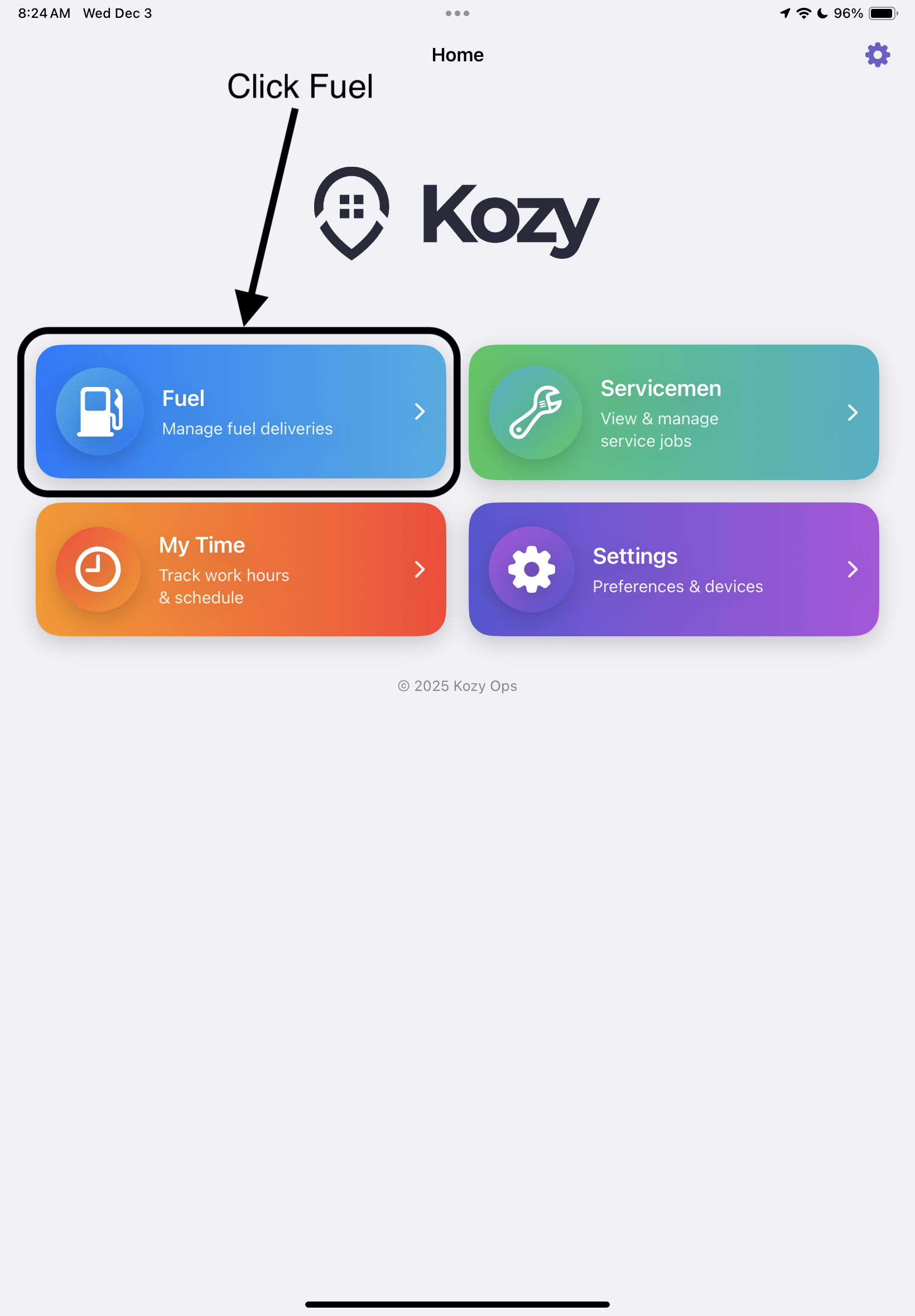
Tap the Fuel card on the Home Screen
-
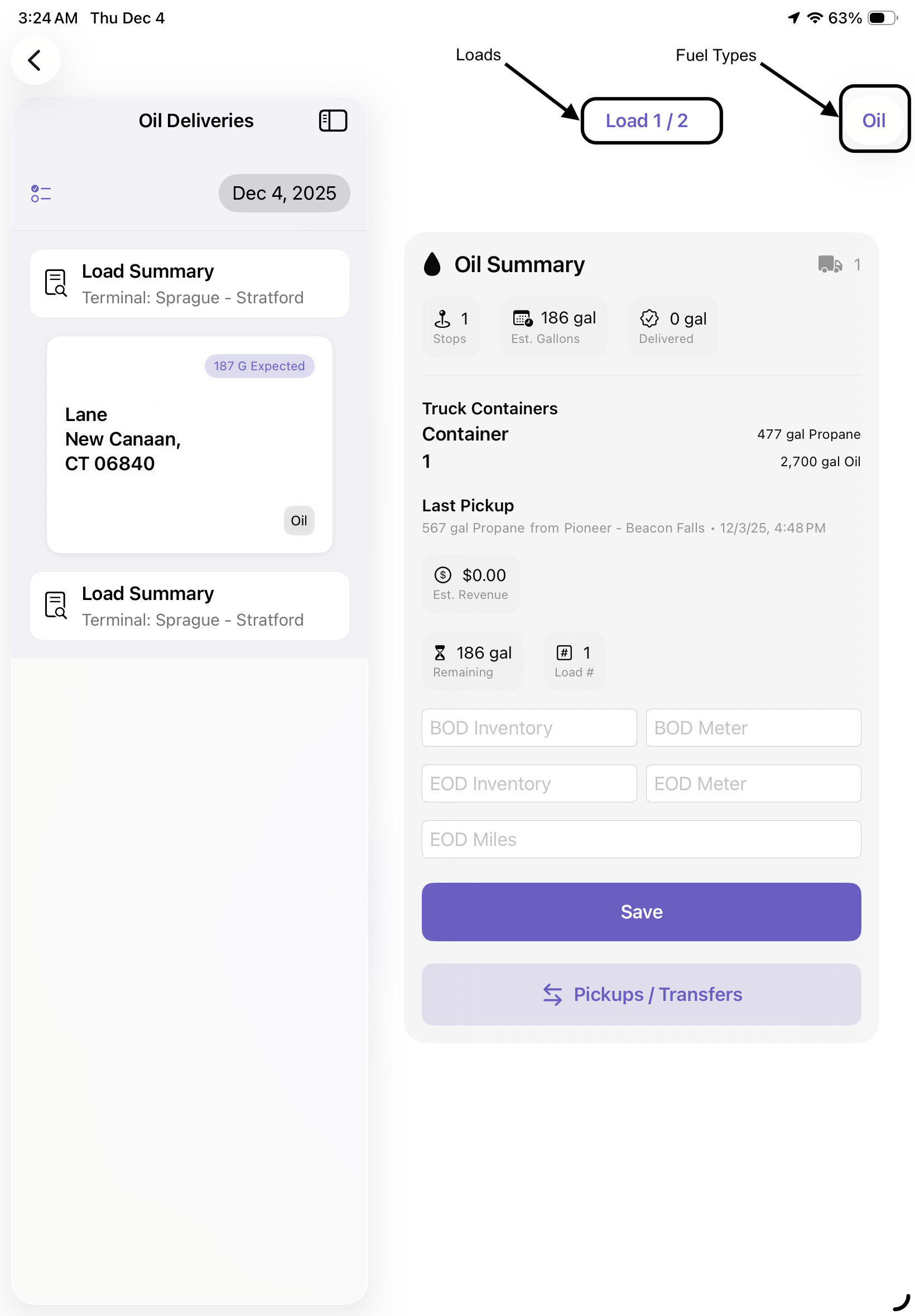
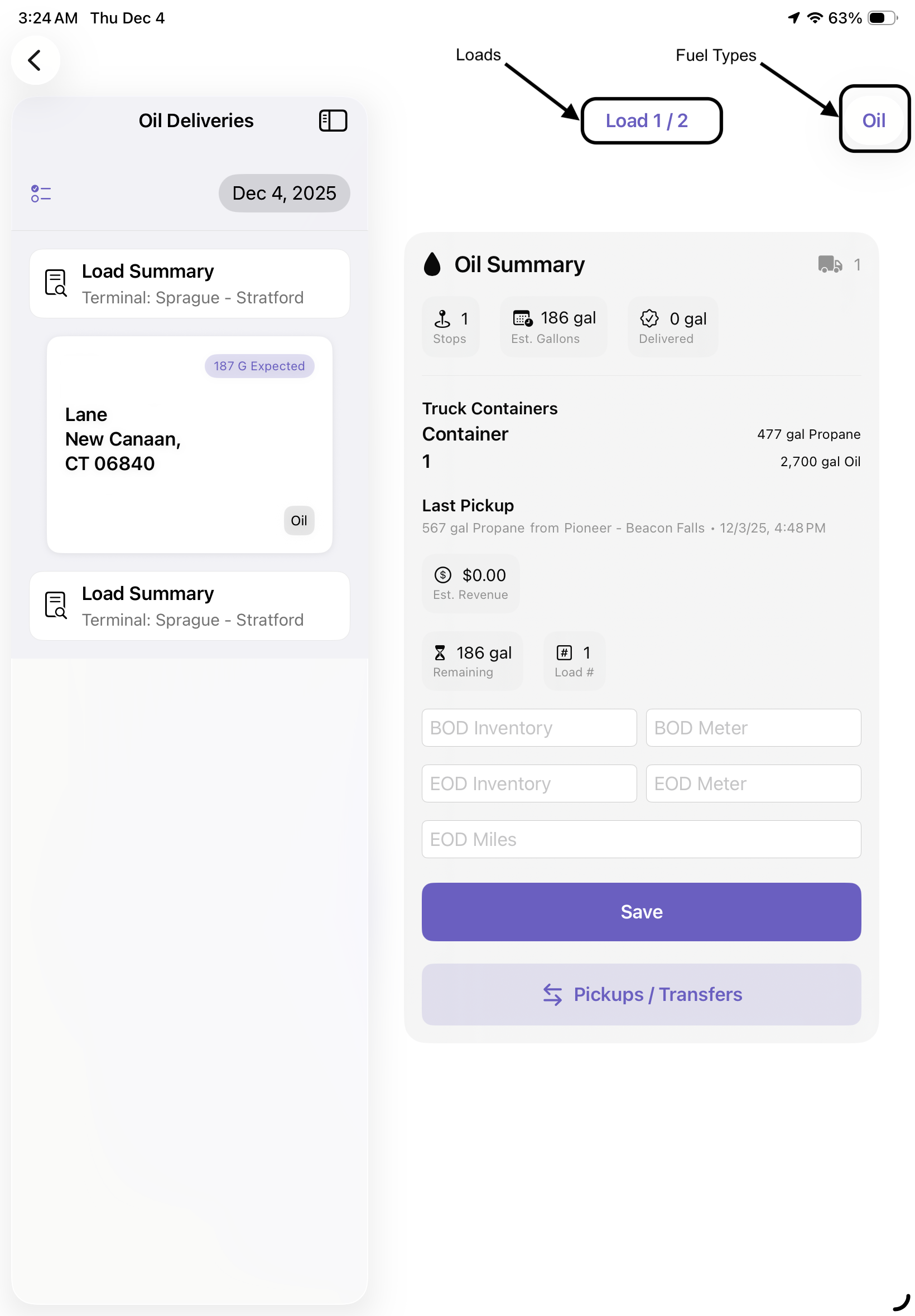
Next you'll be brought to the Driver Load screen, from here you'll tap your individual loads as well as Fuel types to see which terminals you should visit first and which truck you are assigned for the day. It is important you select both fuels so you can see how many terminals you must visit for Fuel pickup
-
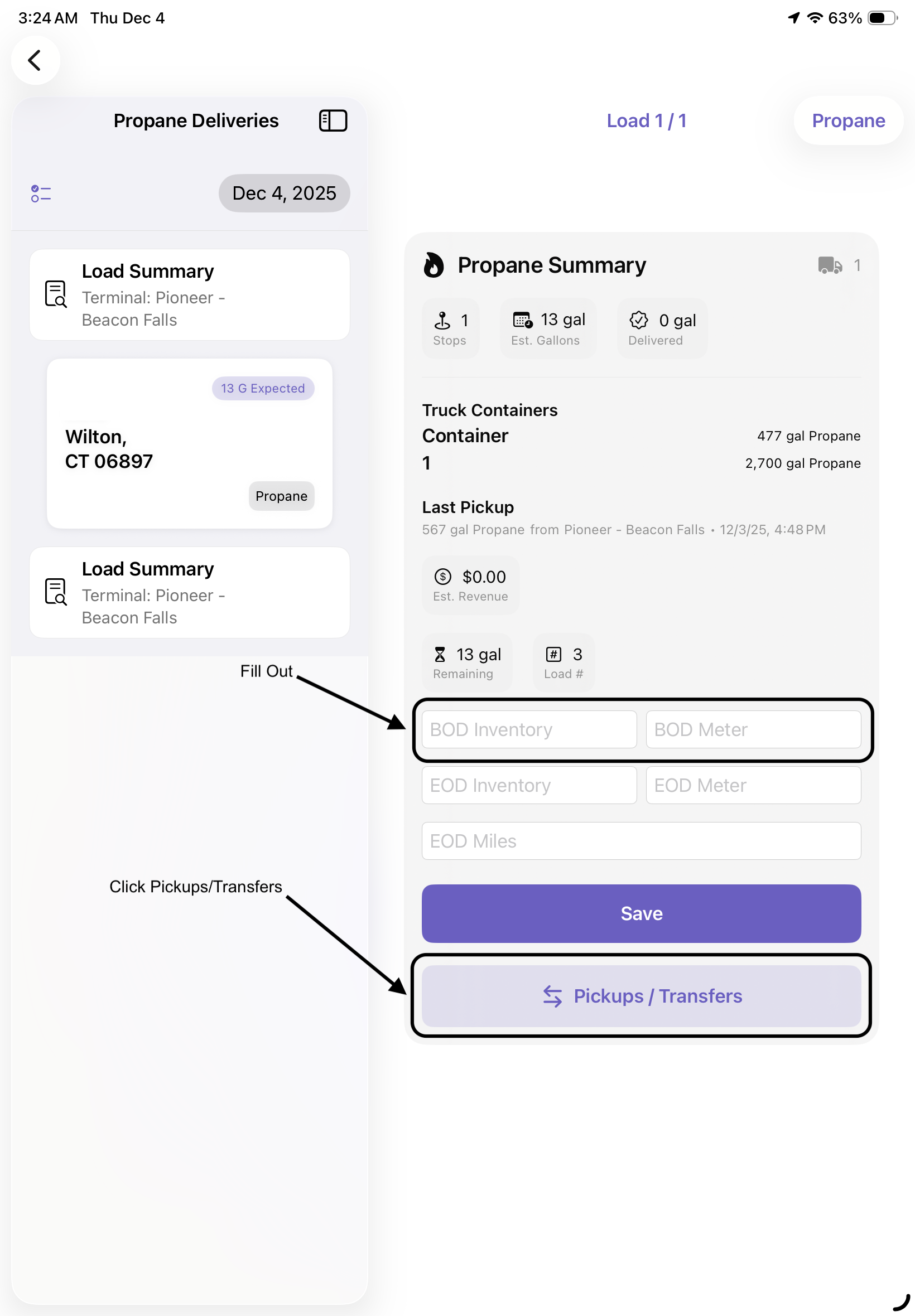
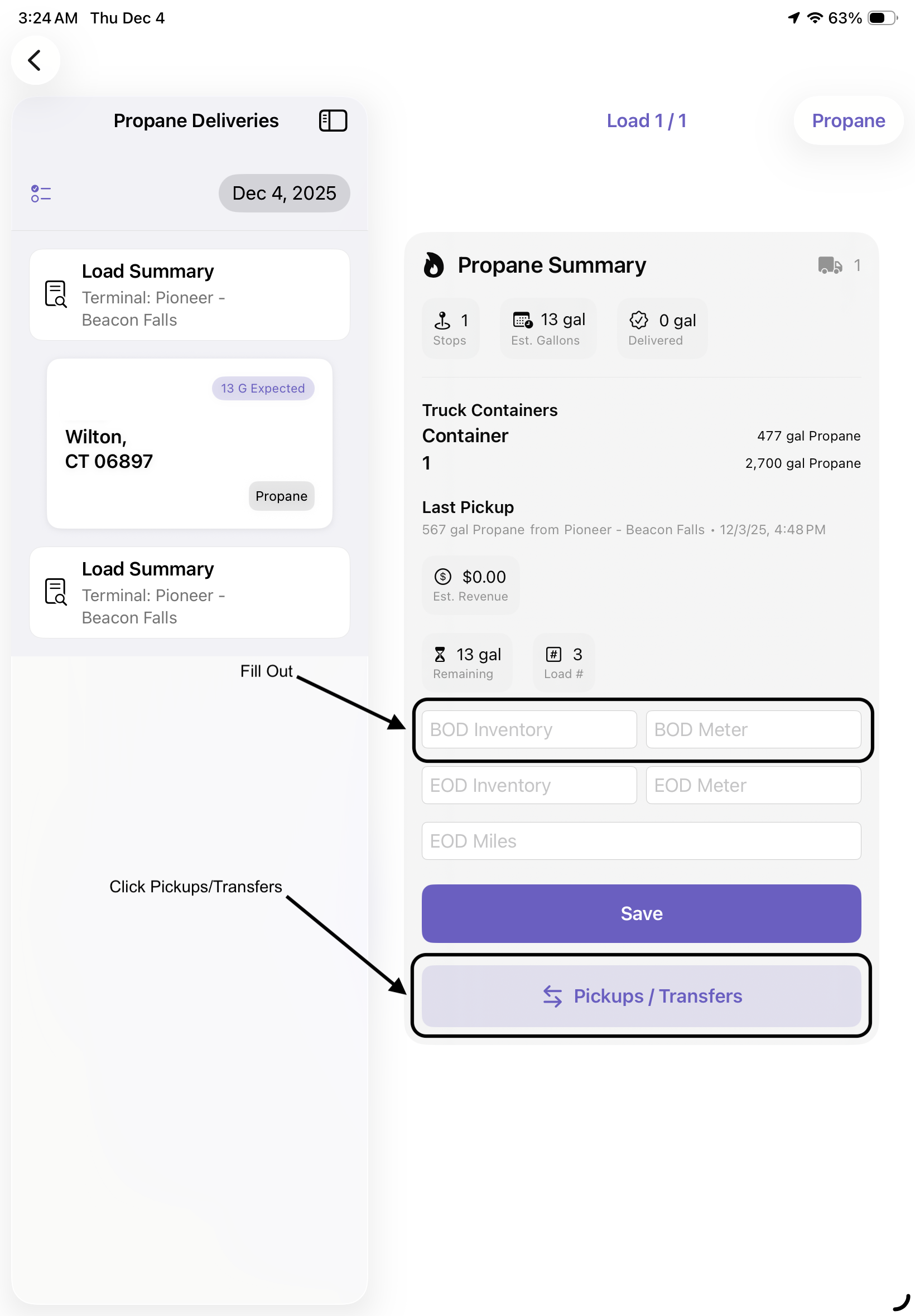
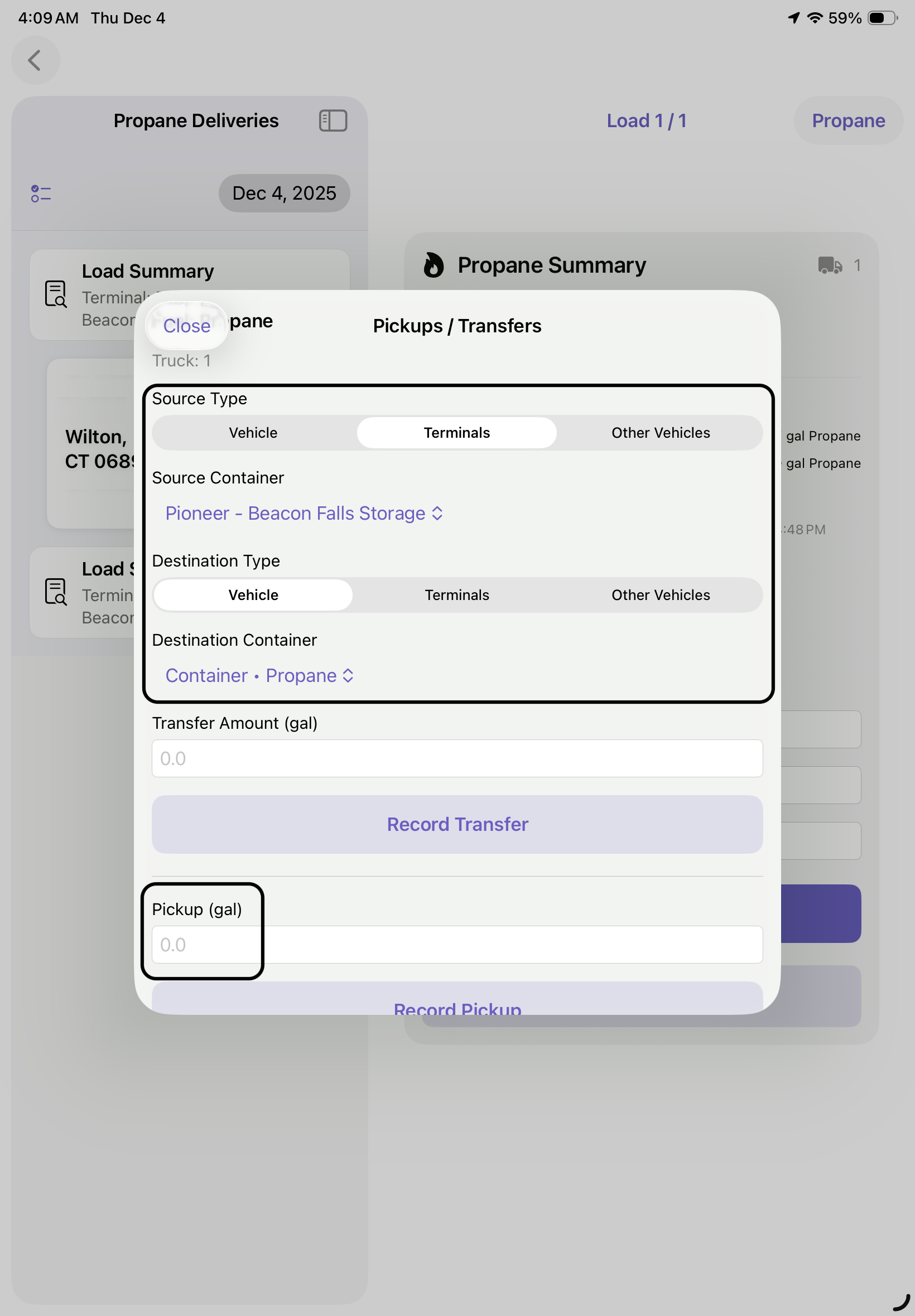
After arriving at each terminal tap on Pickups/Transfer then select Source Type (Terminal), Source Container, Destination Type (Vehicle) and Destination Container then record how many gallons you are picking up. Afterwards record your BOD Inventory and BOD Meter to keep track throughout the day. See below for how to Begin a Load
-
Next prepare route for each delivery and follow steps for Delivery View and complete each individual delivery
-
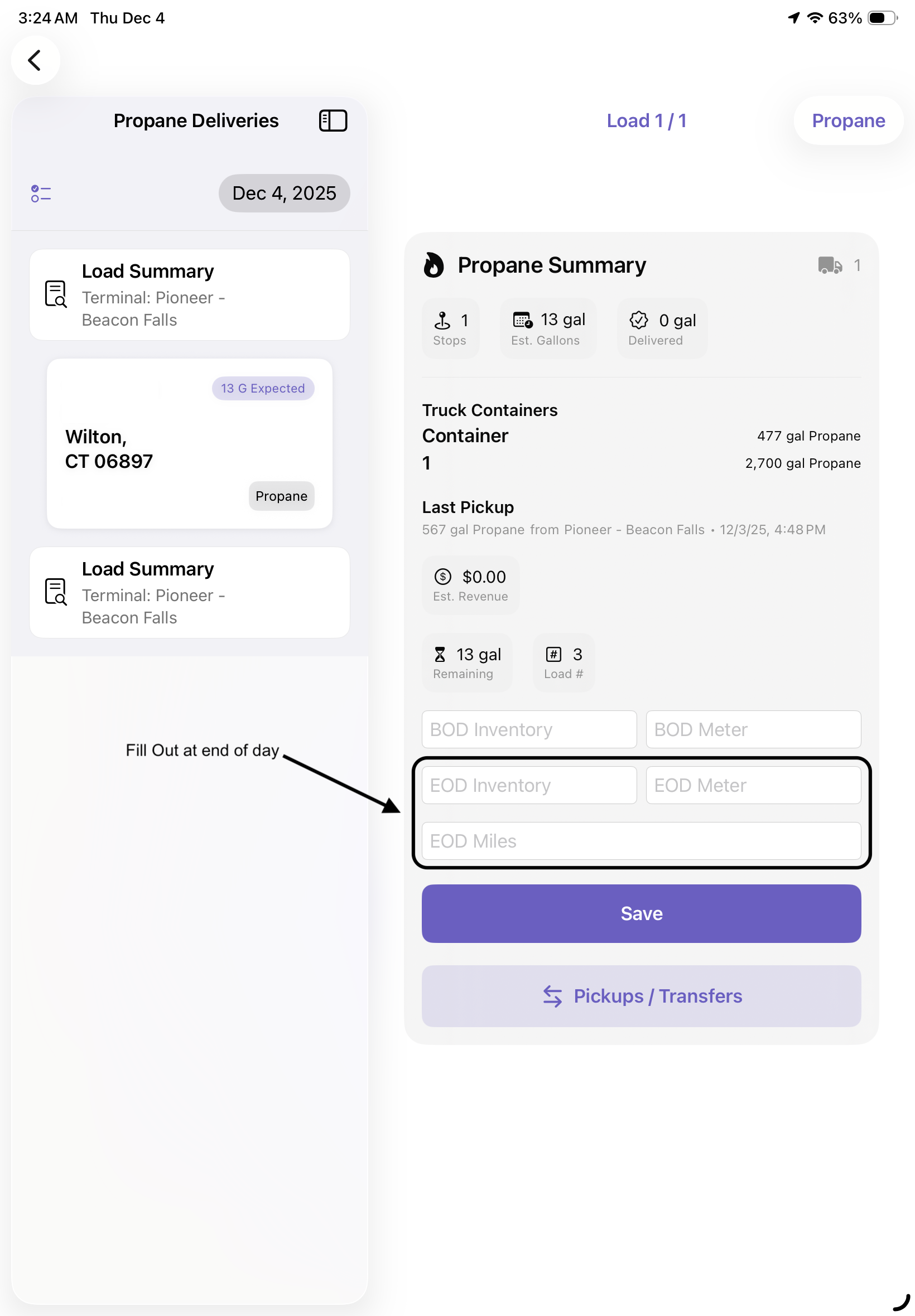
At the end of the day, update the EOD Inventory, EOD Meter and EOD Miles for both Fuel Types, if applicable
-
Following that, return to each terminal to return any left over fuel, then Tap Pickups/Transfer, select the source the fuel is coming from (Vehicle), The Source Container, The Destination Type (Terminal), The Destination Container and finally, record how many gallons are being transferred. These steps can also be followed if doing a transfer between other vehicles if approved
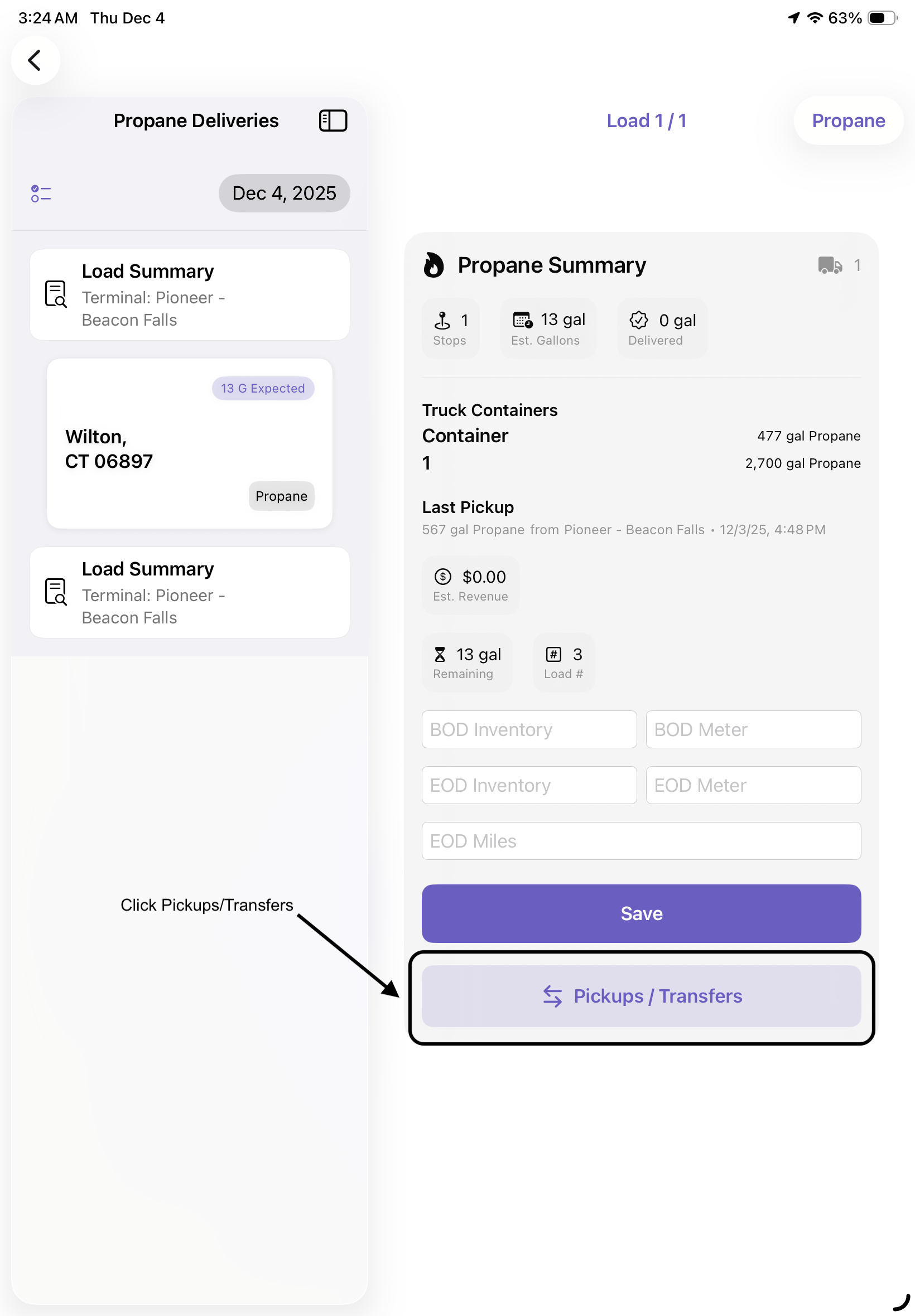
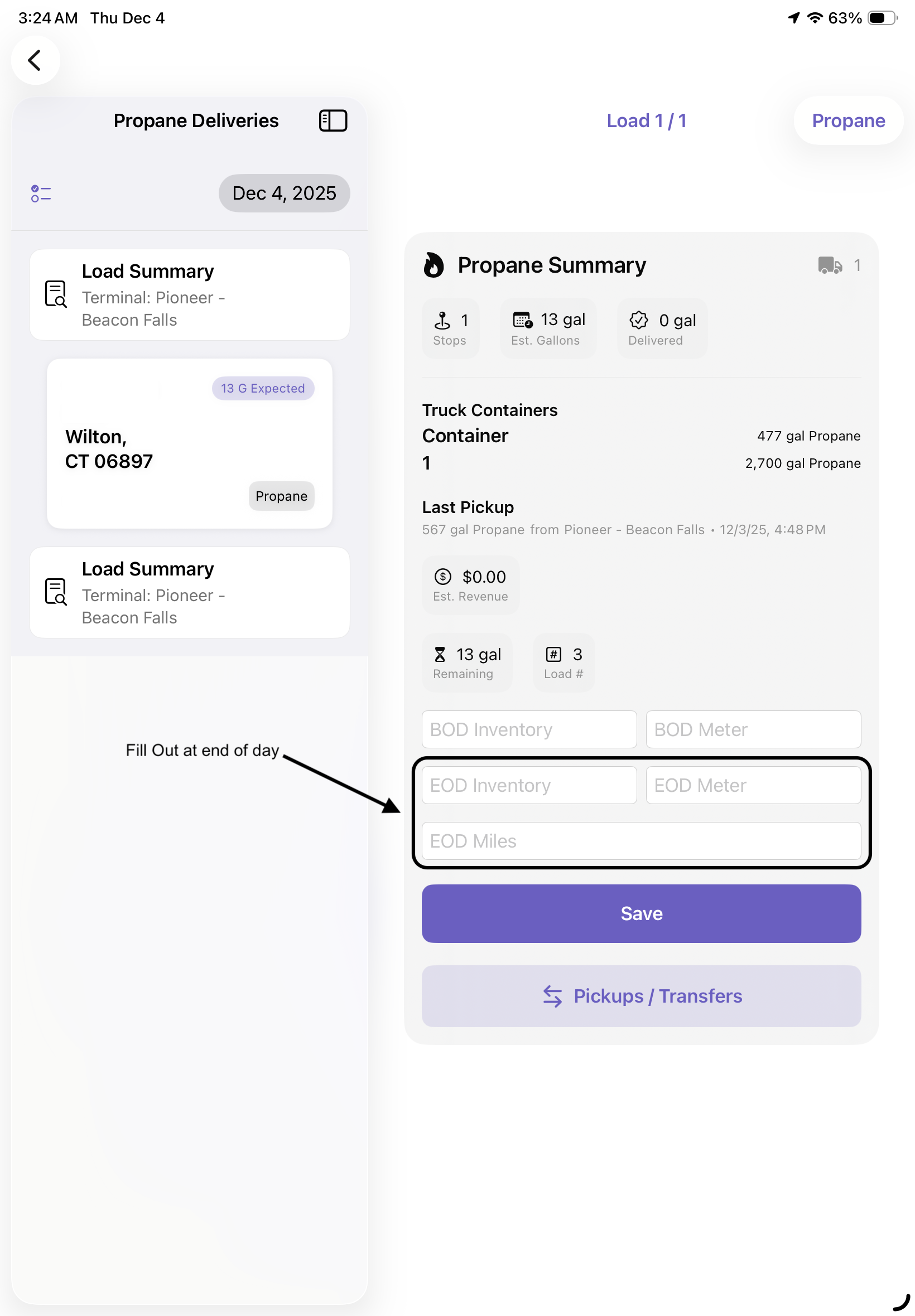
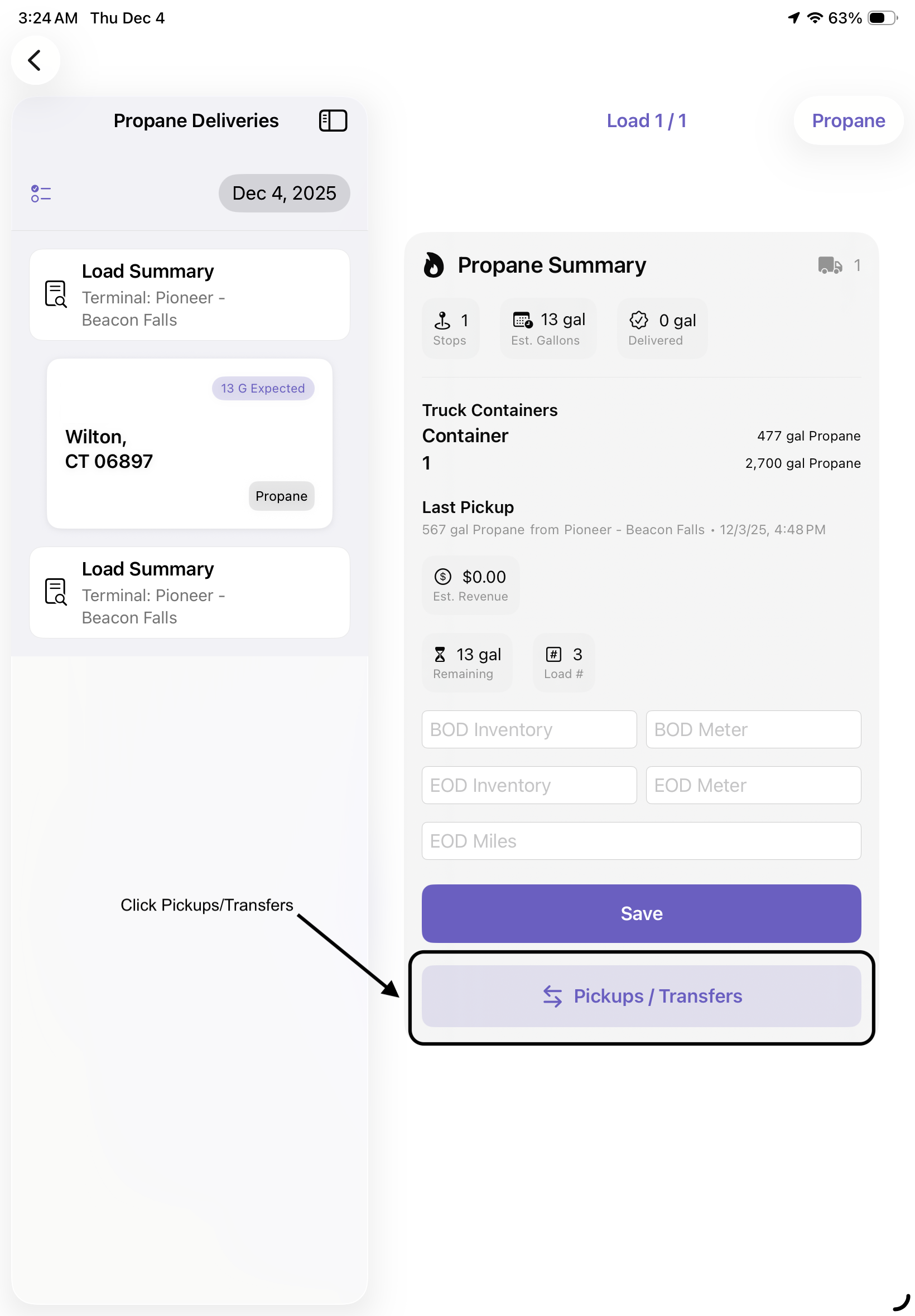
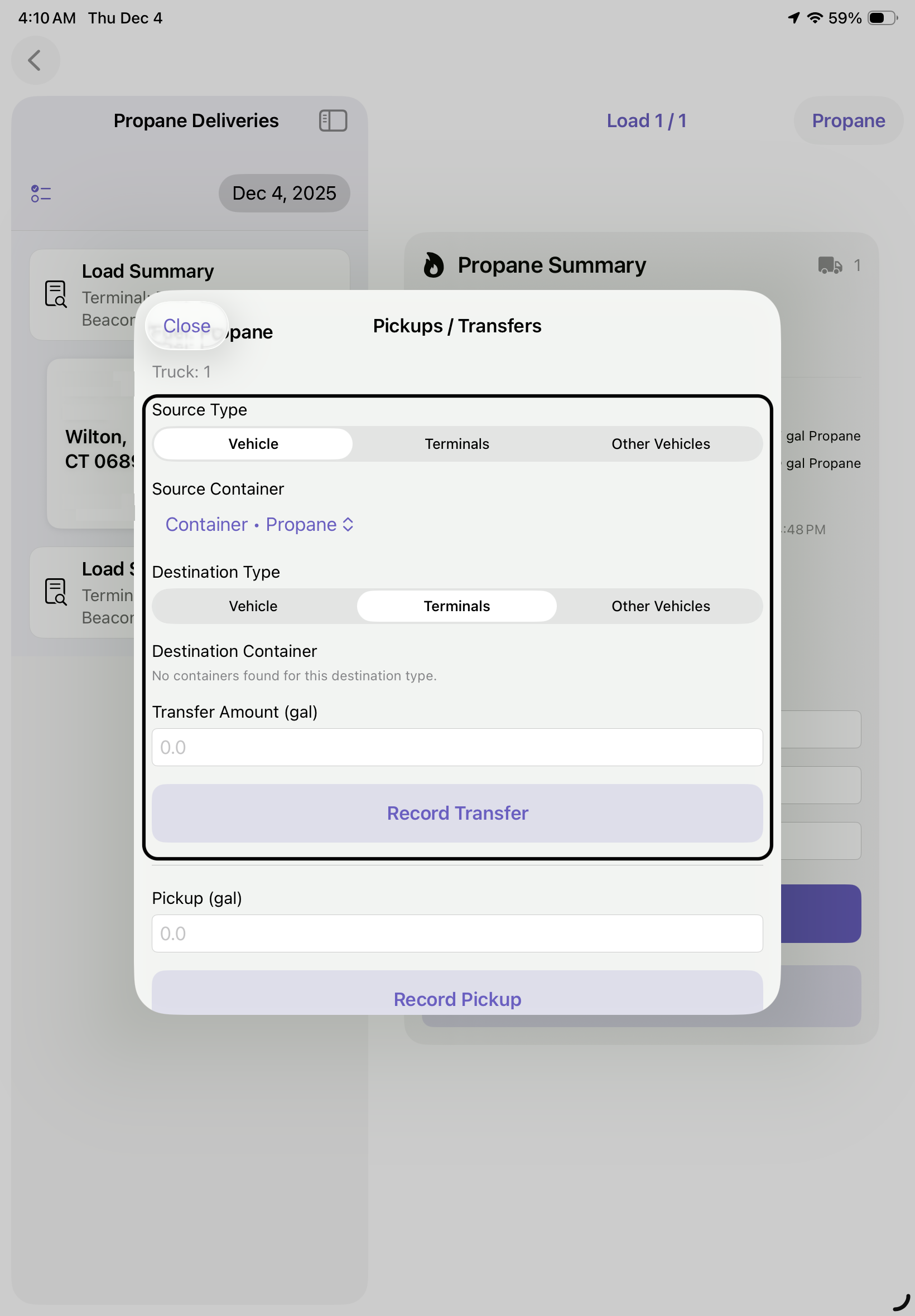
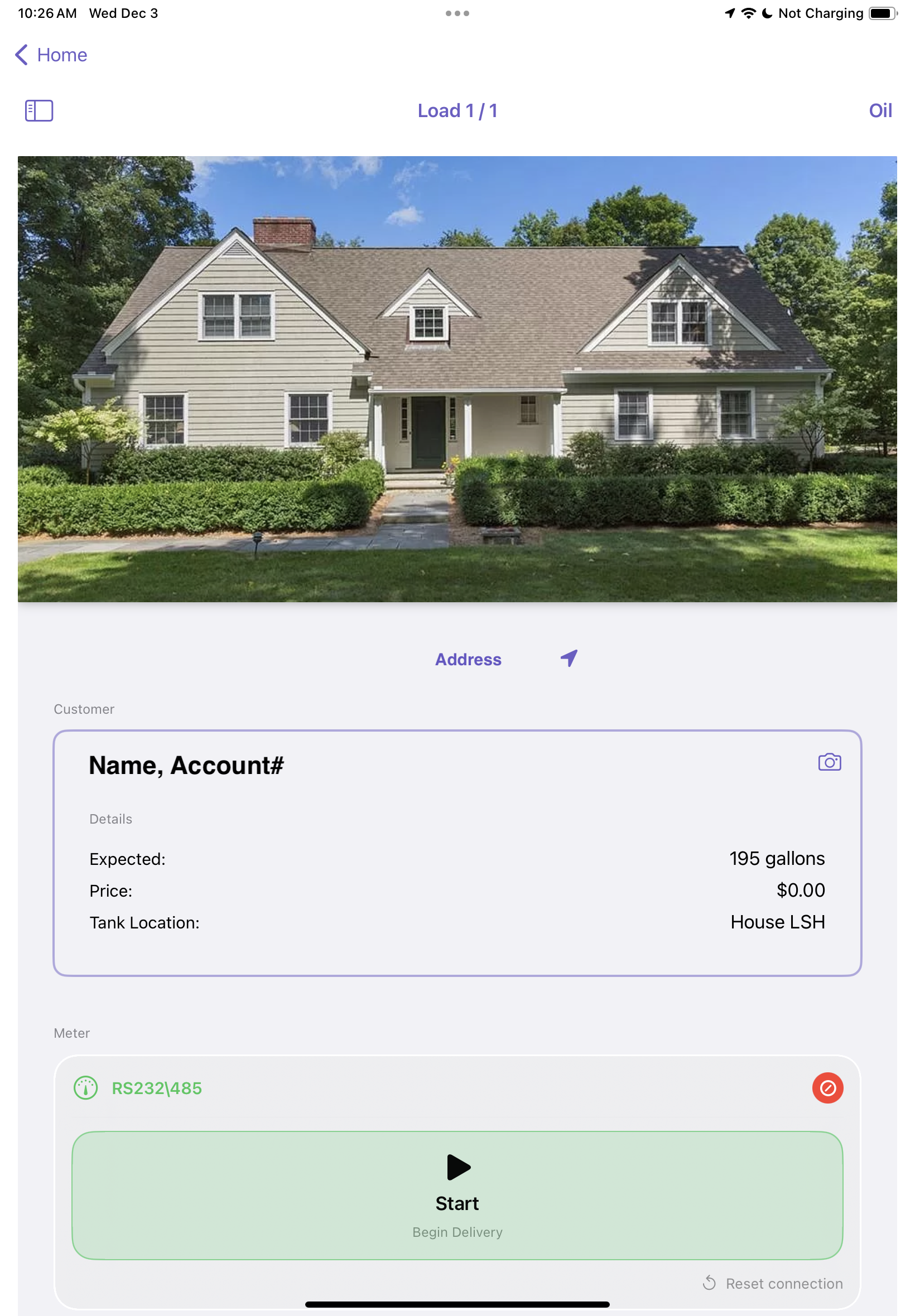
Steps to Begin a Load:
- Tap the Fuel card on the Home screen
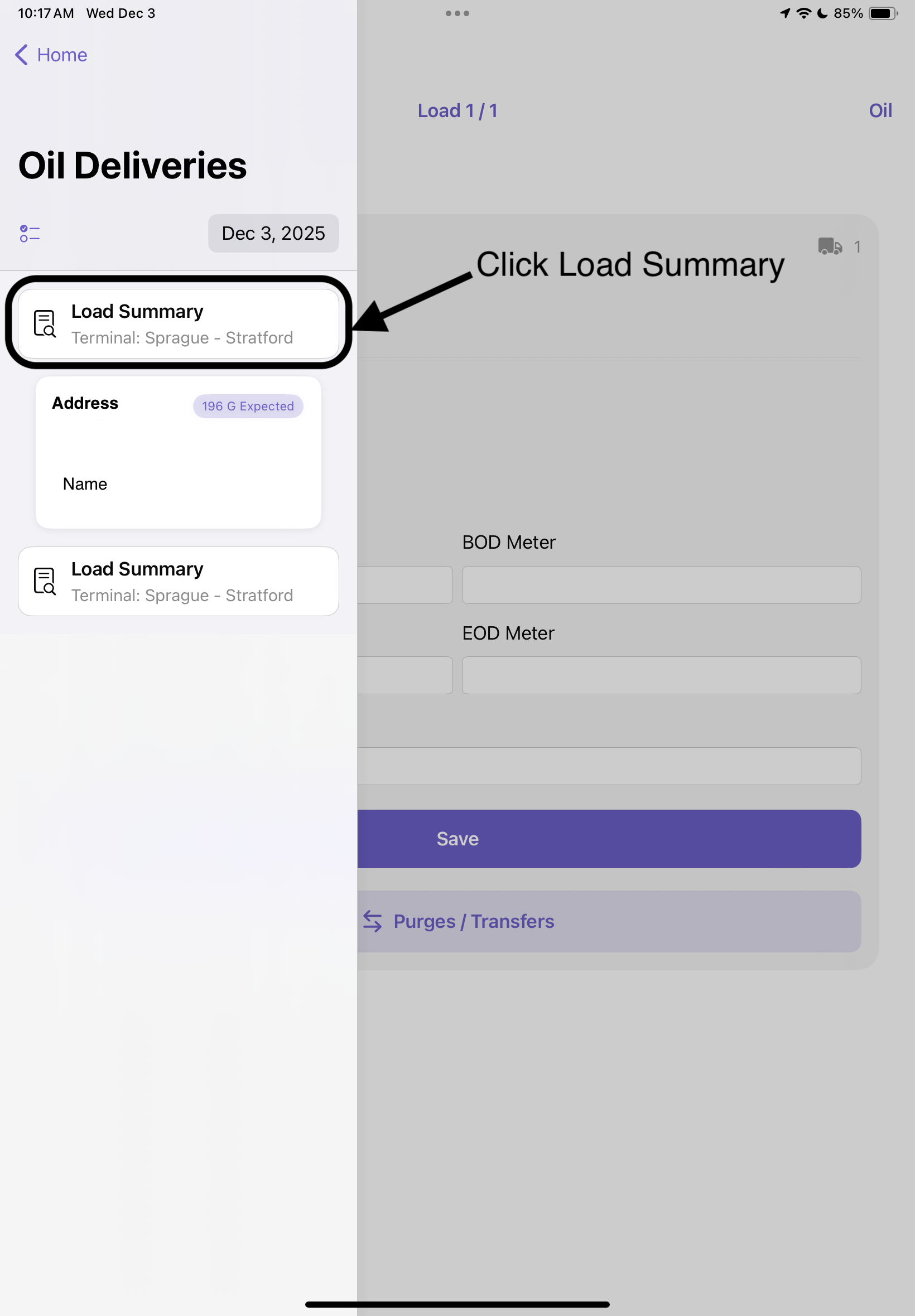
- Select the active load from the top navigation bar
- Complete any items in the Pre-Trip Checklist if displayed
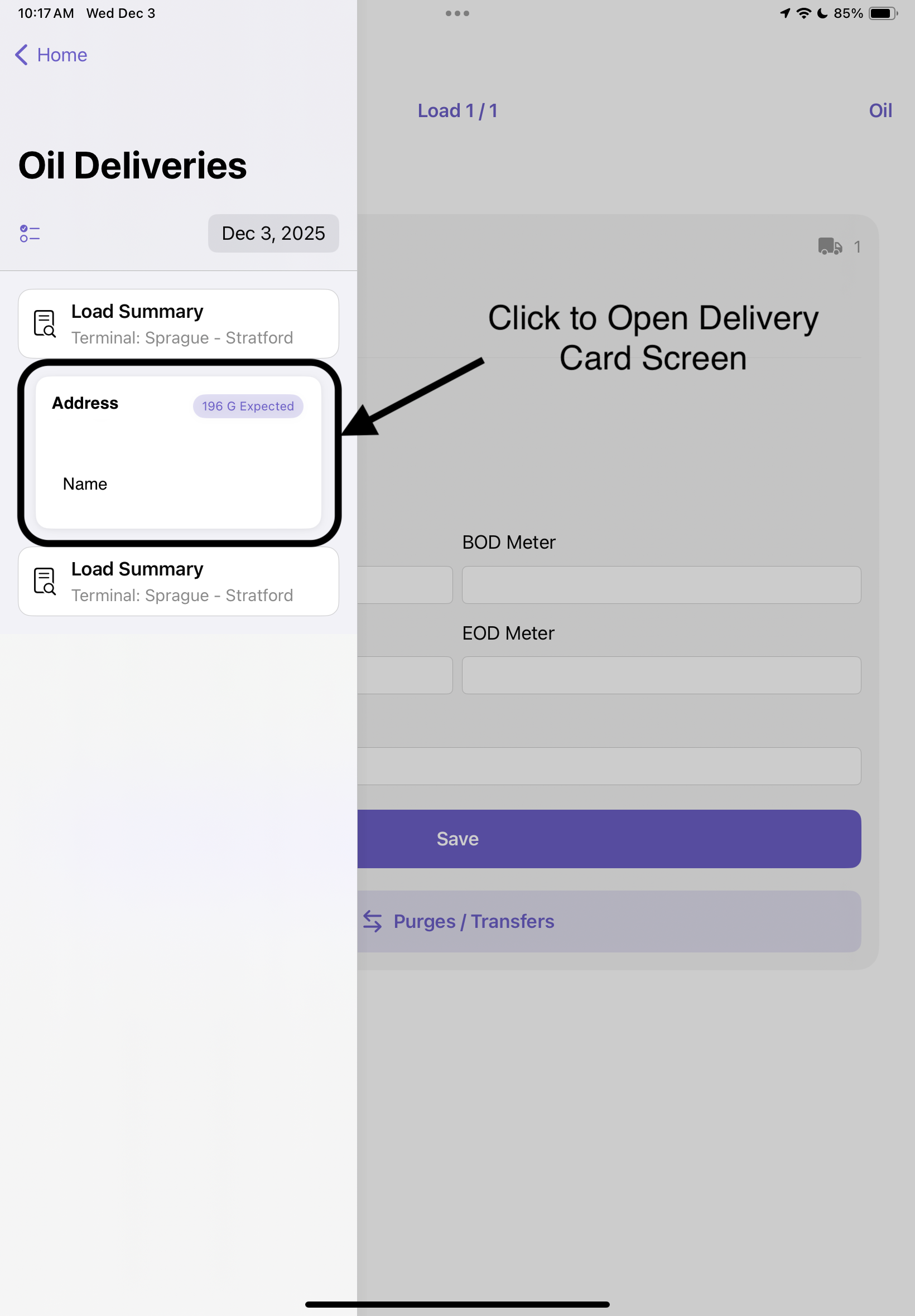
- Tap a delivery stop to open the Delivery Card screen
Accessing Load Summary on Webpage
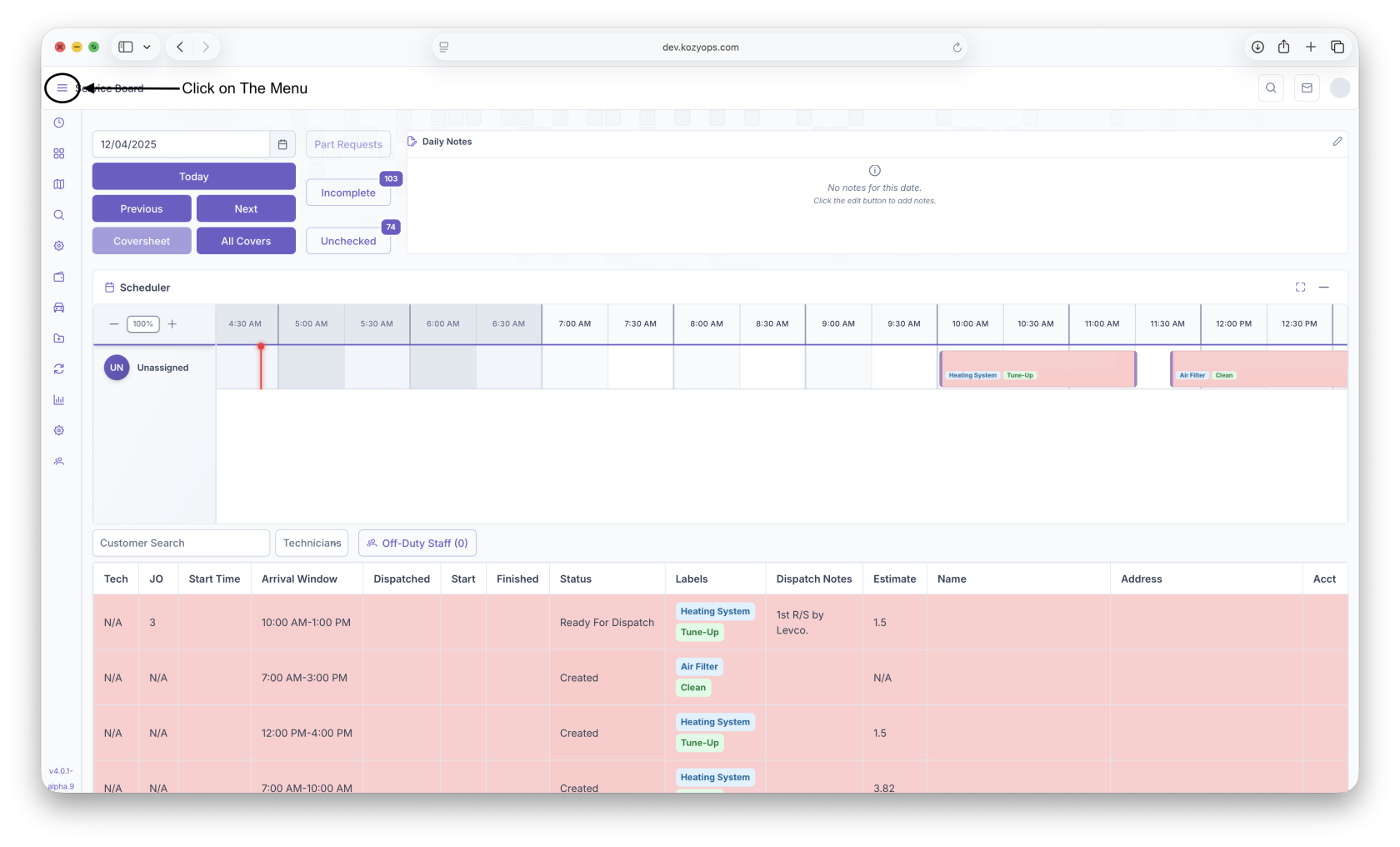
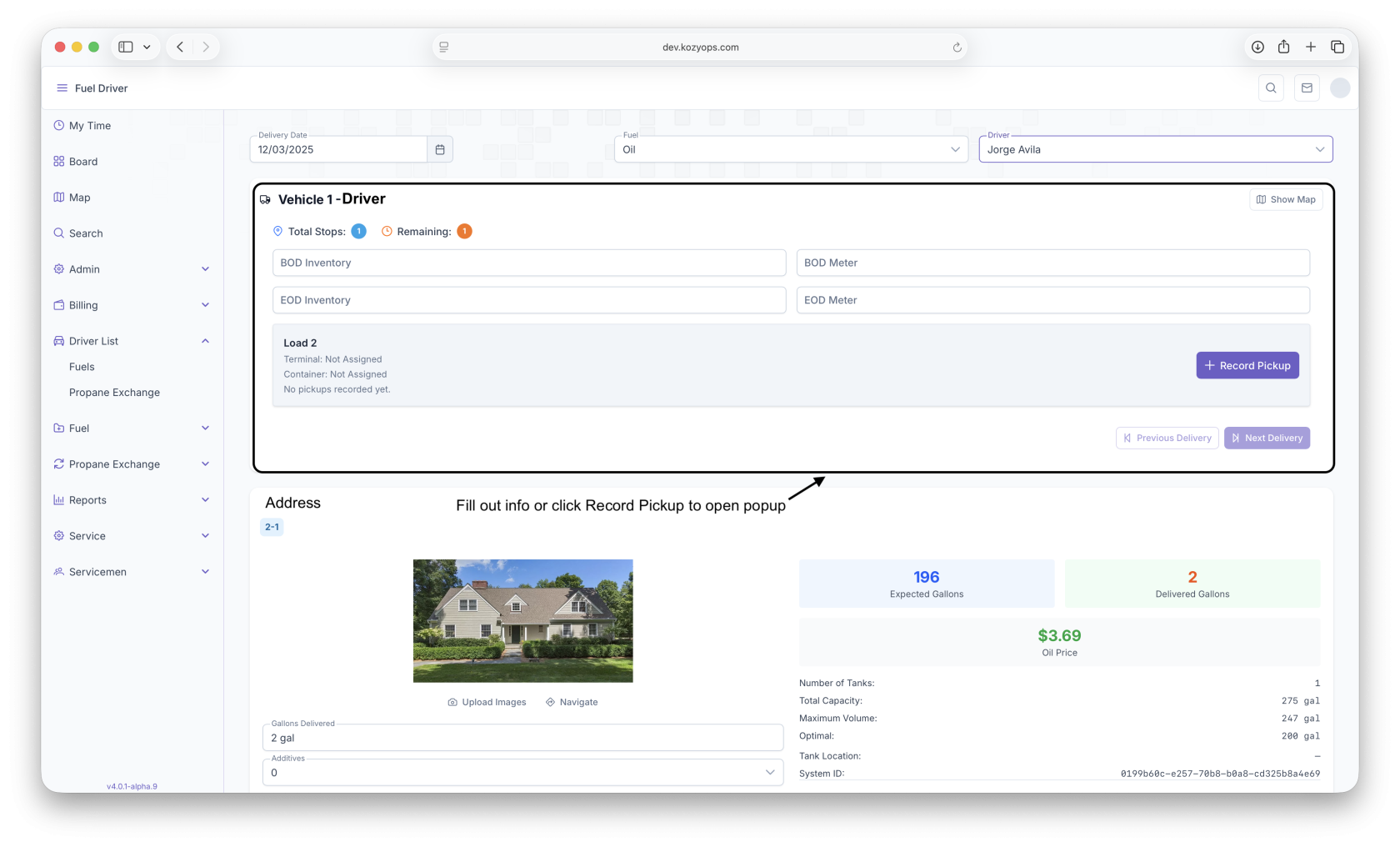
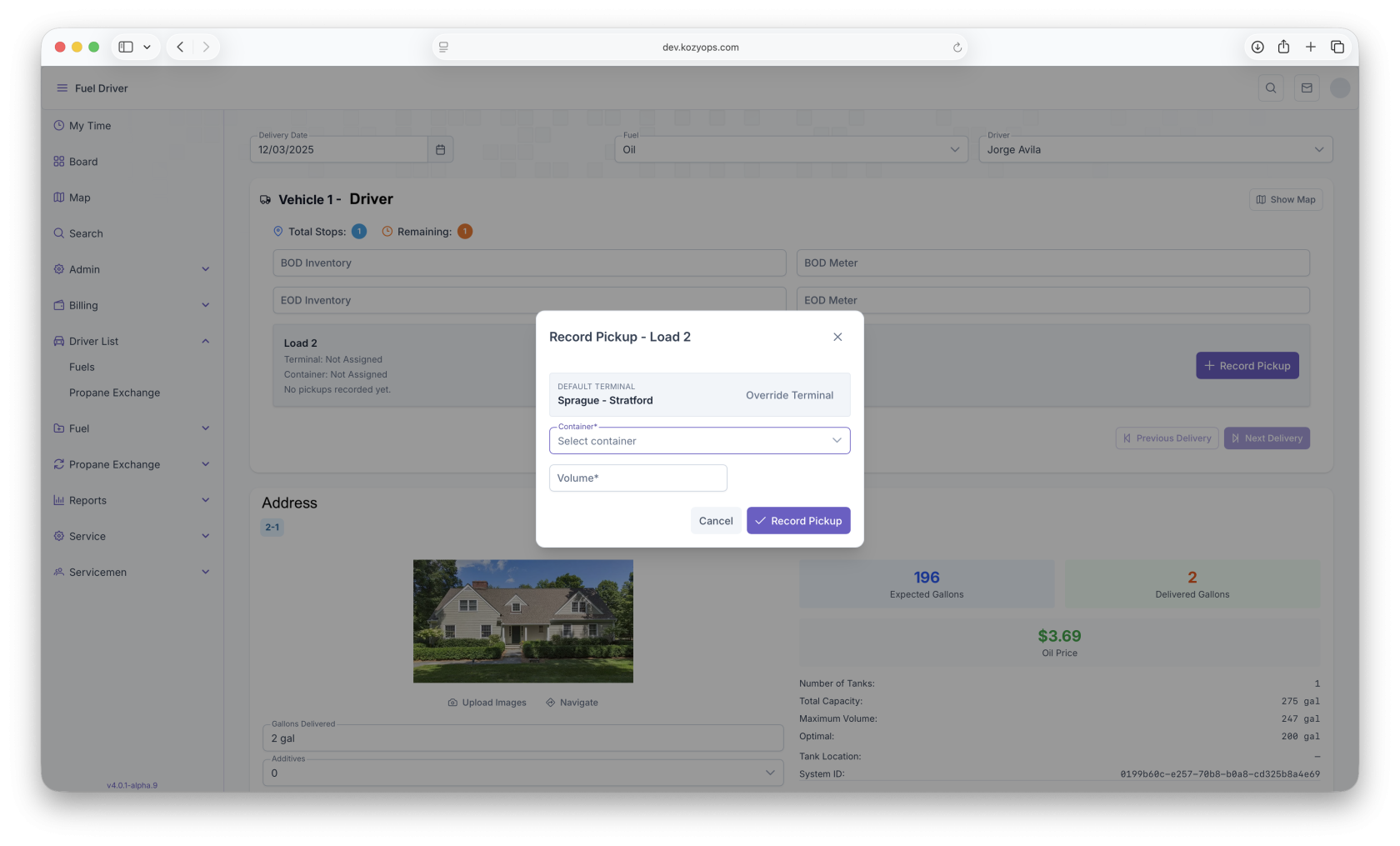
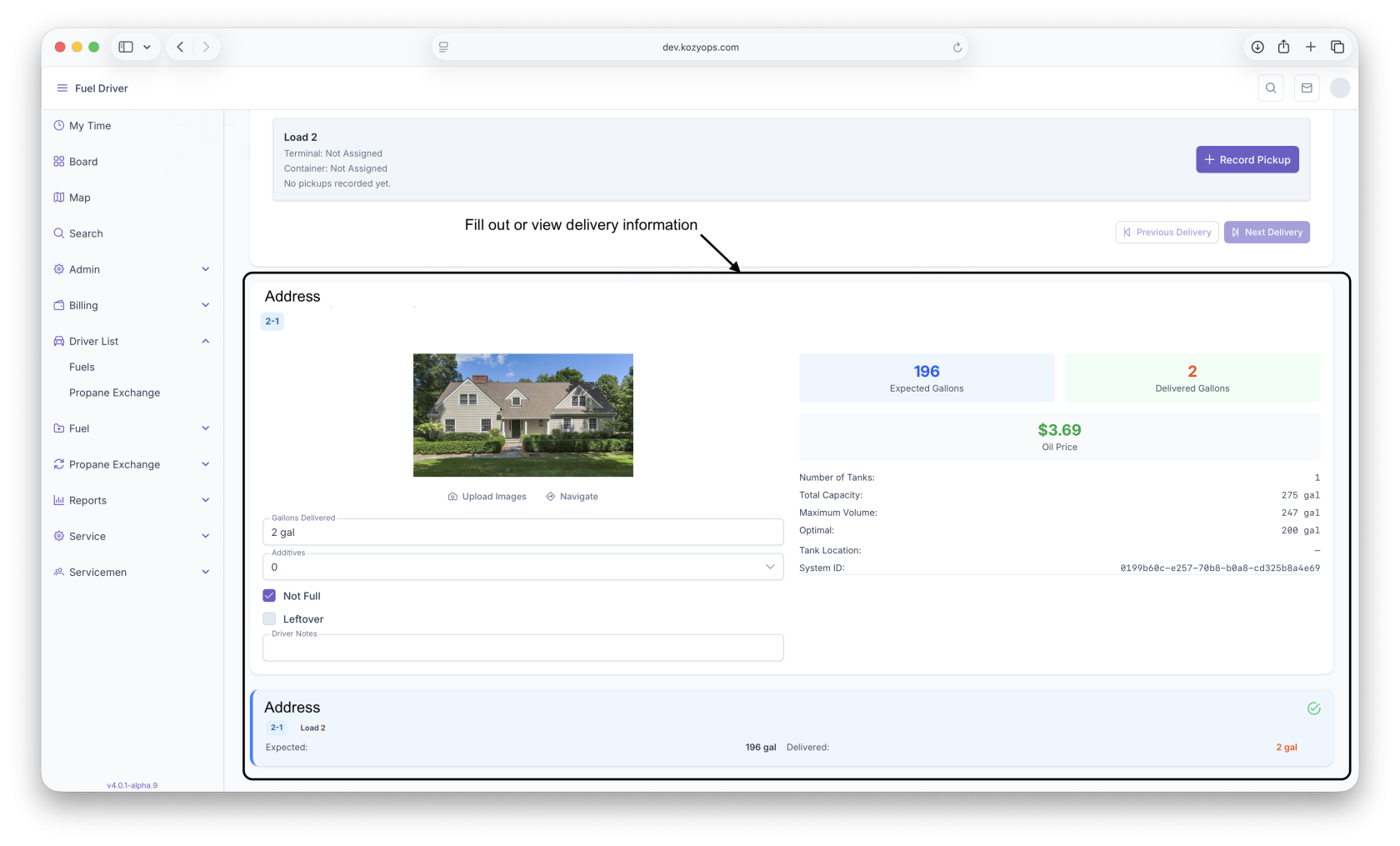
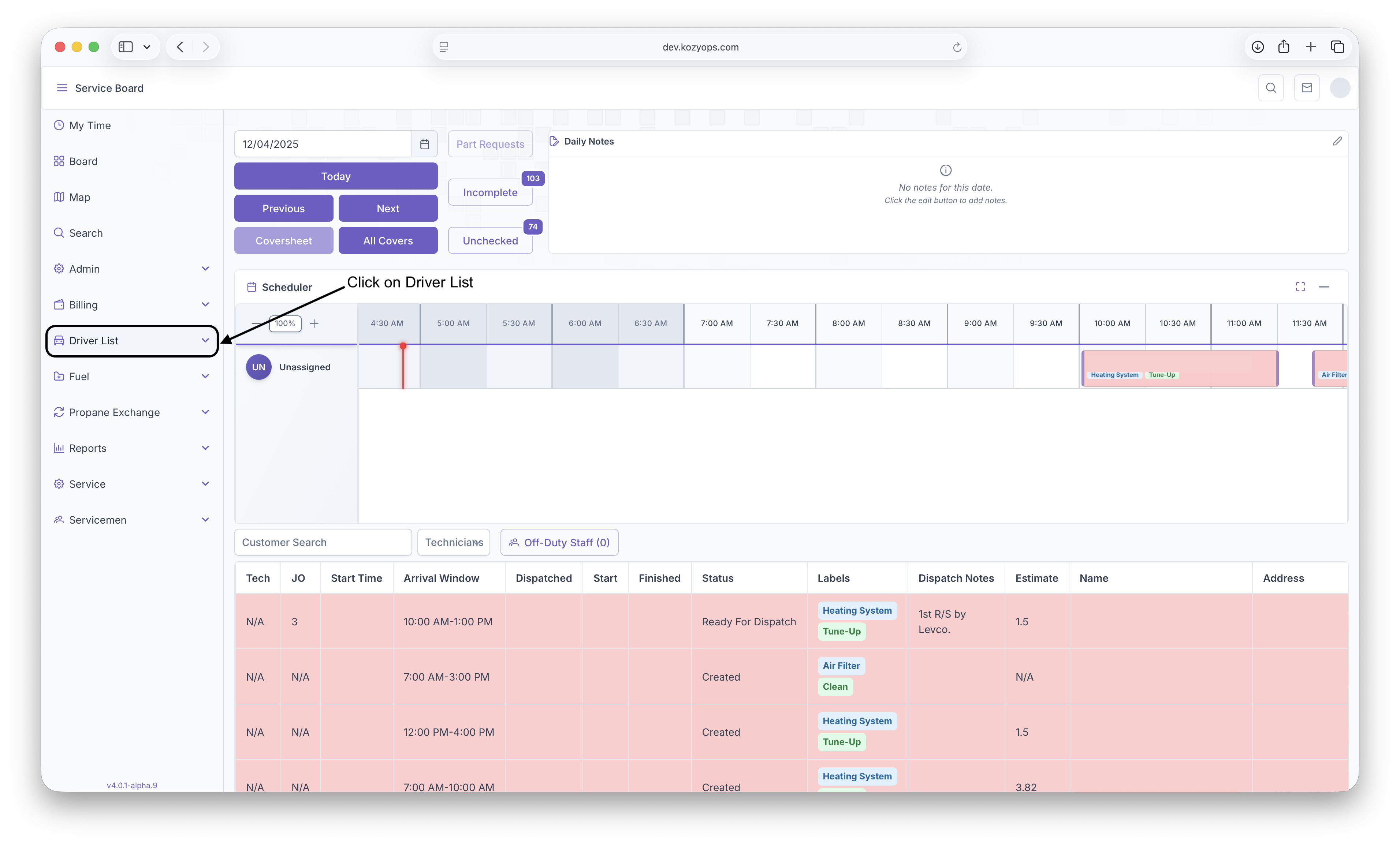
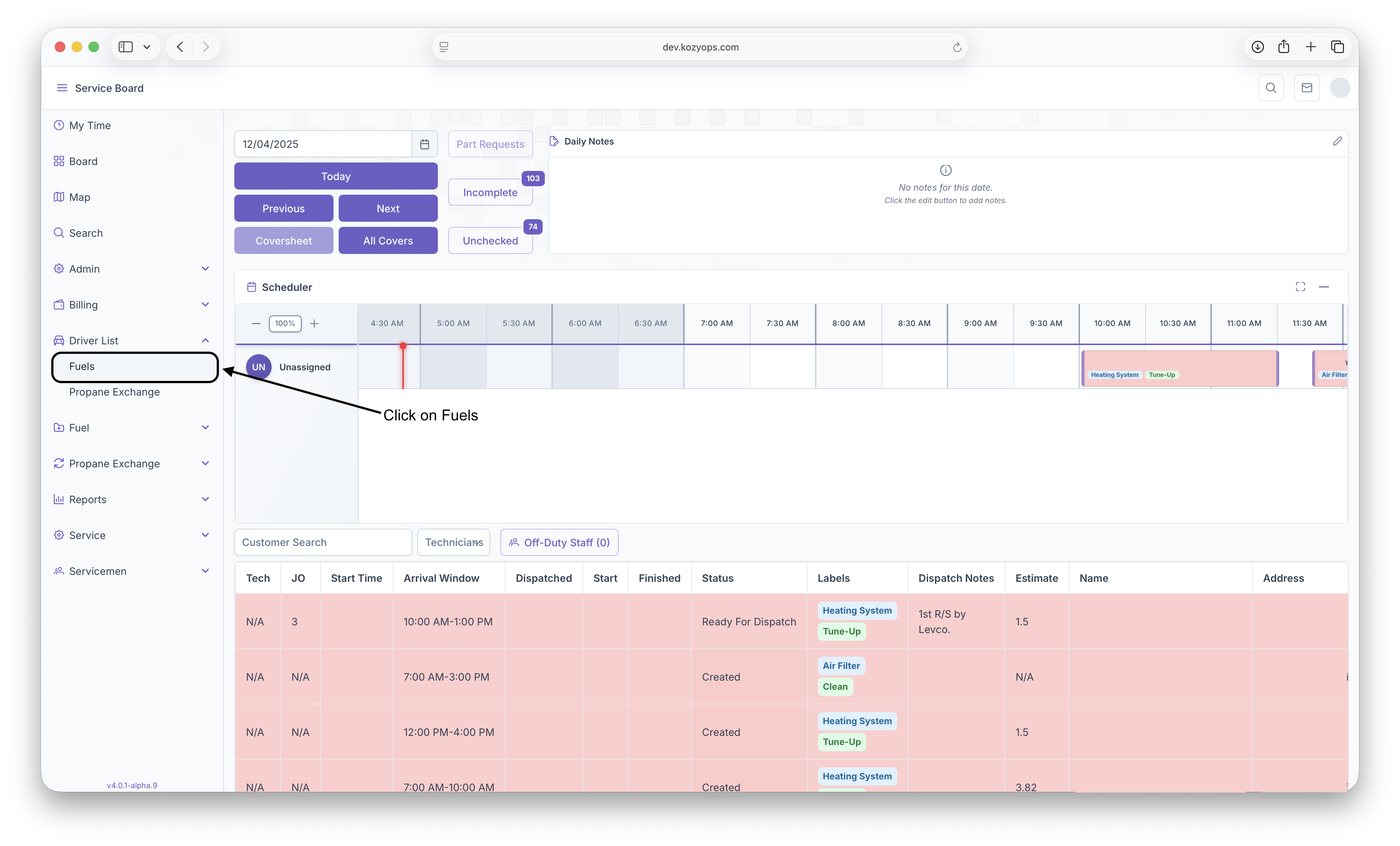
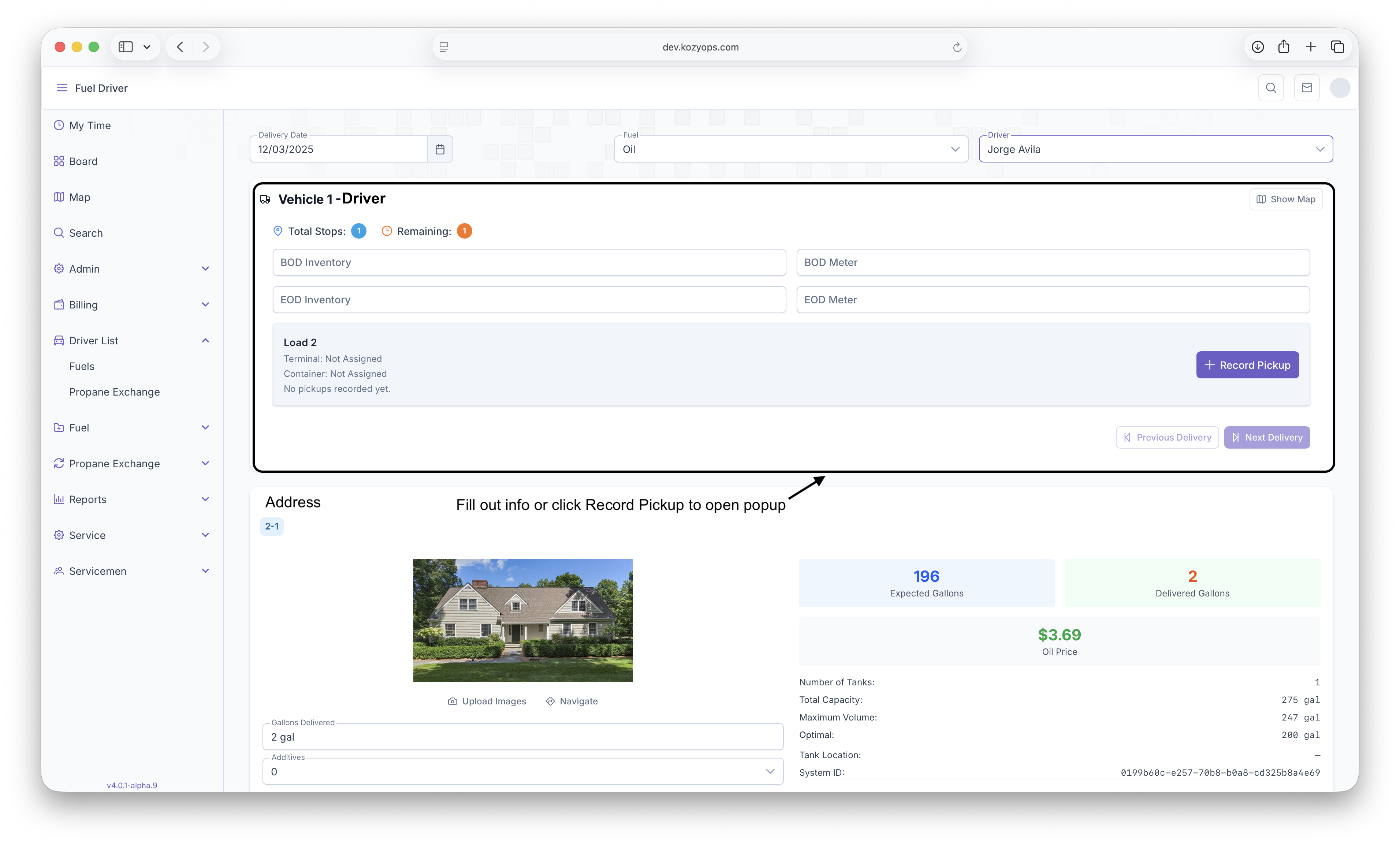
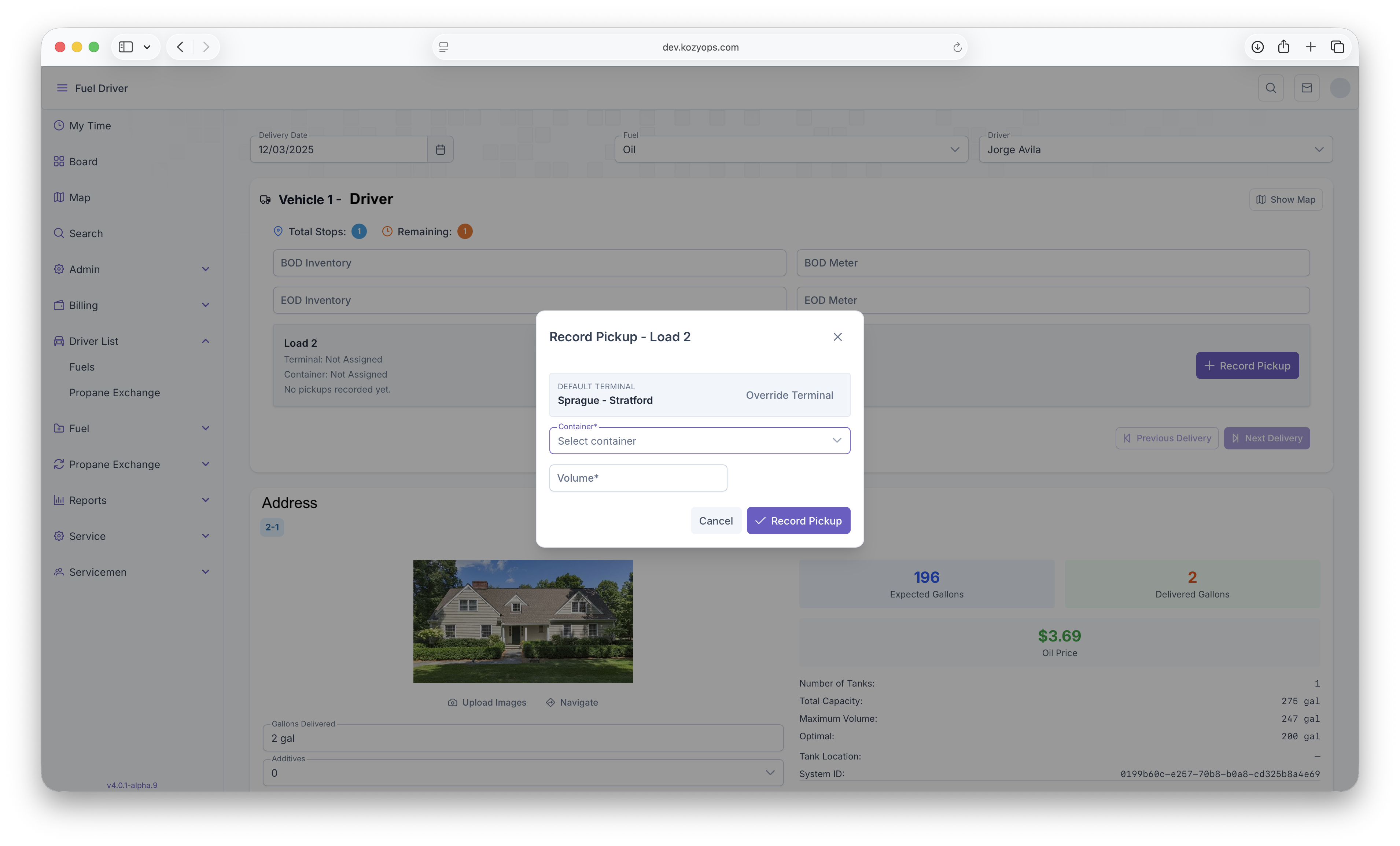
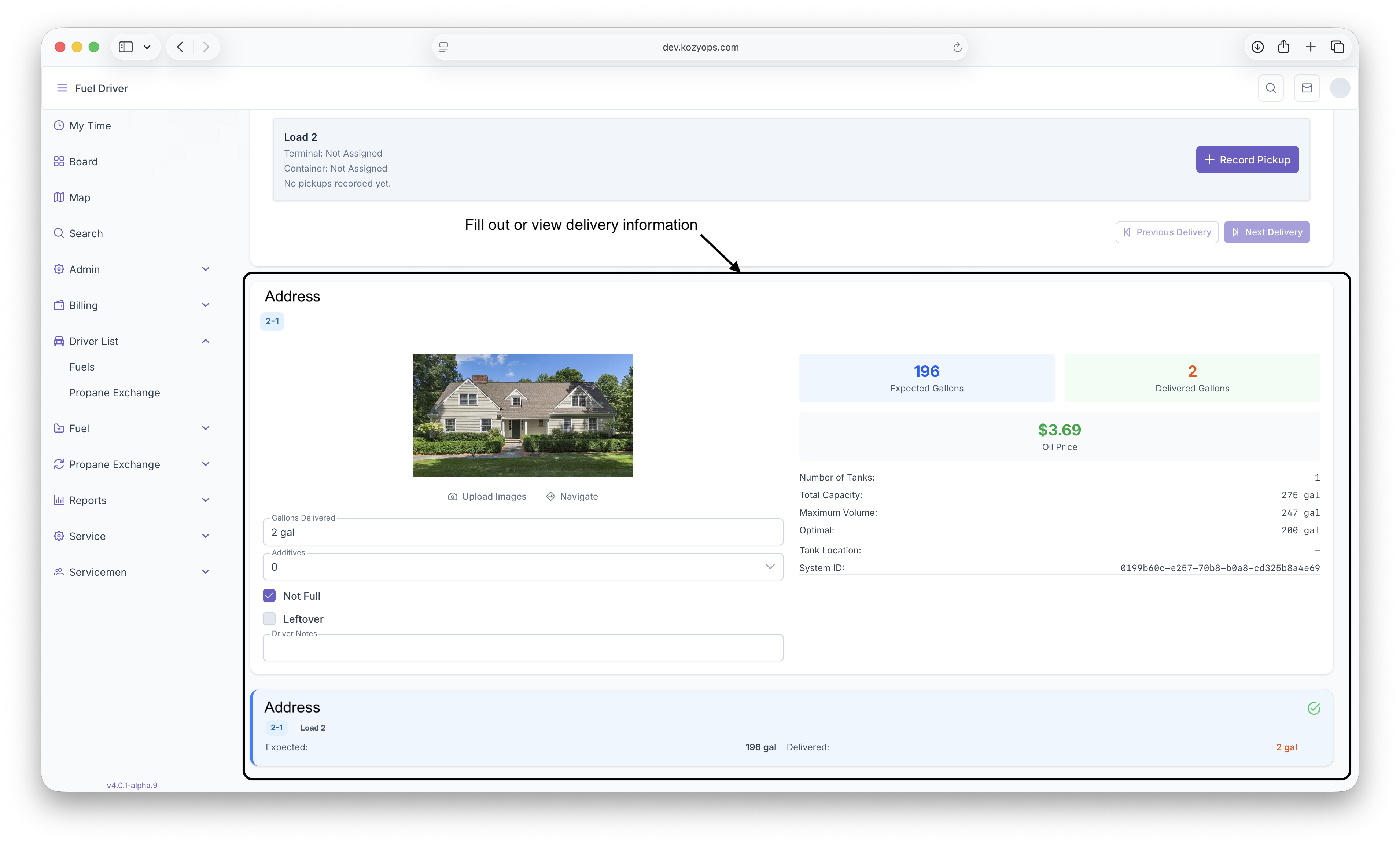
If for any reason the load summary isn't accessable on mobile, or if things need to be written out or just a preference for doing it on the website, here's how to acccess the load summary on the webpage. You can also record pickups and fill out how much was delivered, BOD and EOD Inventory, Meters and Milage
-
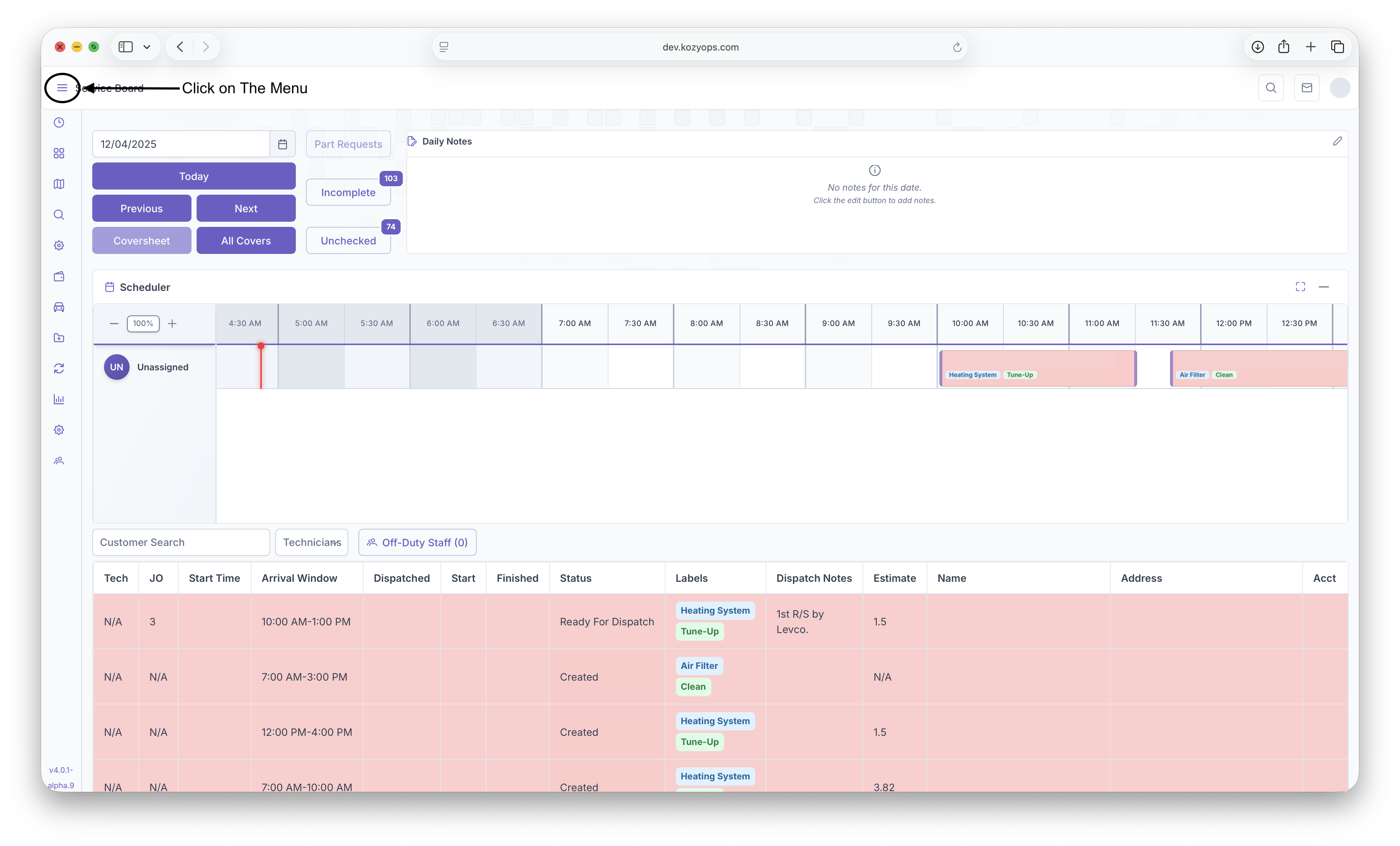
Click on the menu button
-
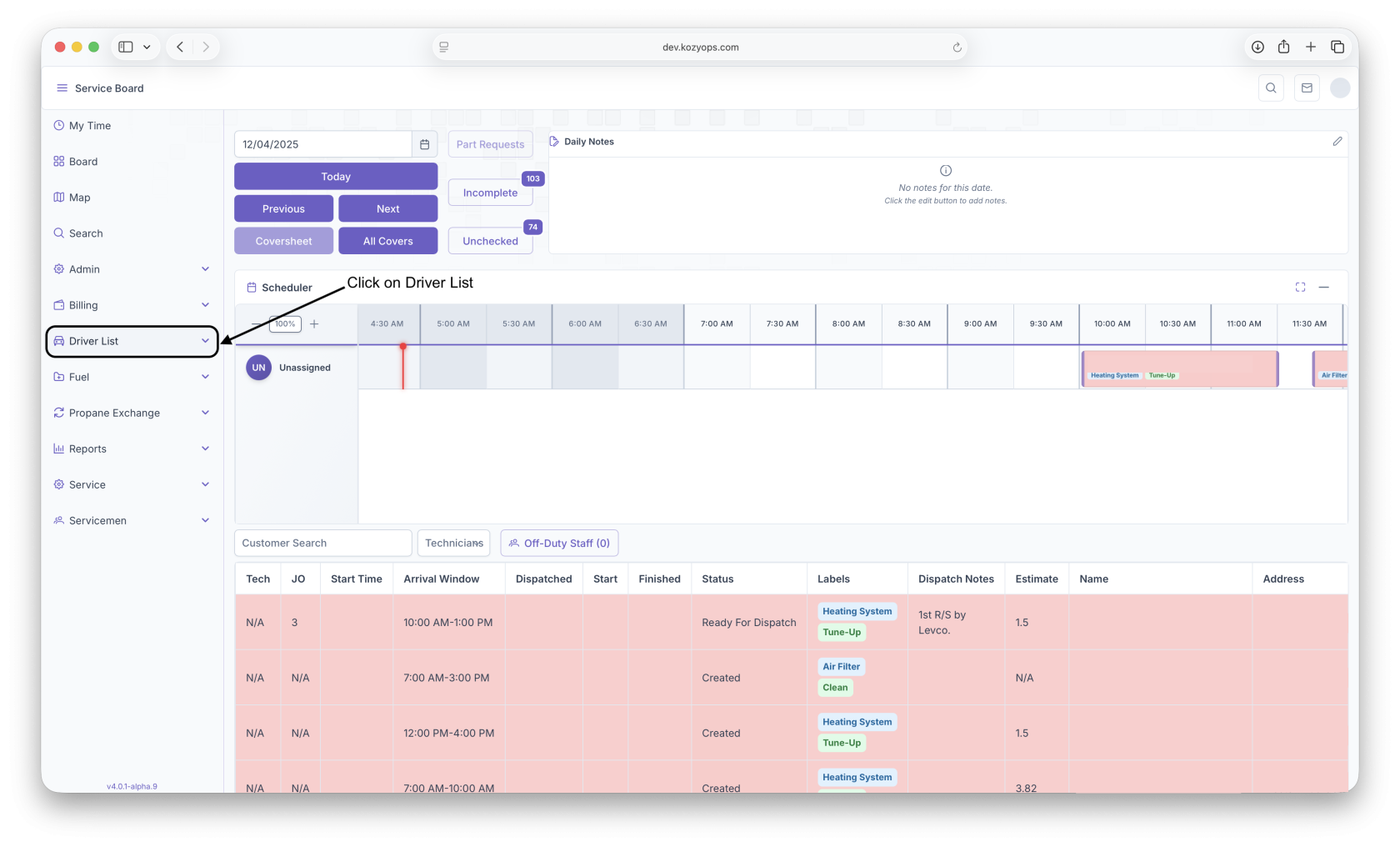
Click The Driver List Button
-
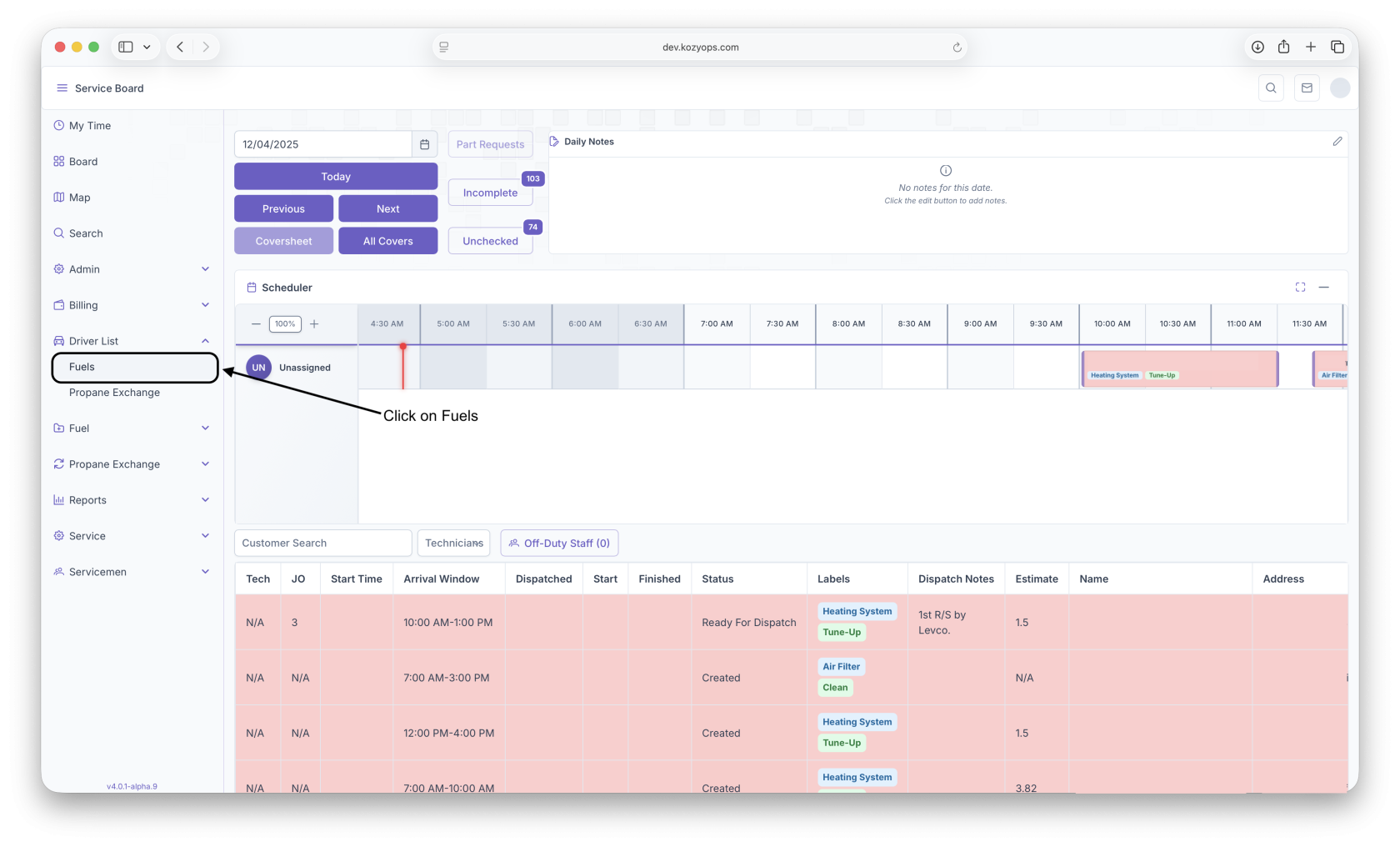
Click The Fuels Button
-
Fill out BOD or EOD info or click on Record Pickup
-
Fill out information and click on record pickup
-
fill out any delivery information
No comments to display
No comments to display