
Setting Up Routing
OverviewIntroduction
When Fuel deliveries are requested or set to auto deliver, The Routing page is used to place those orders on a load, then route in order for them to be delivered. The routing page can be reached by
- Clicking on the 3 bars on the top right corner to expand the side menu
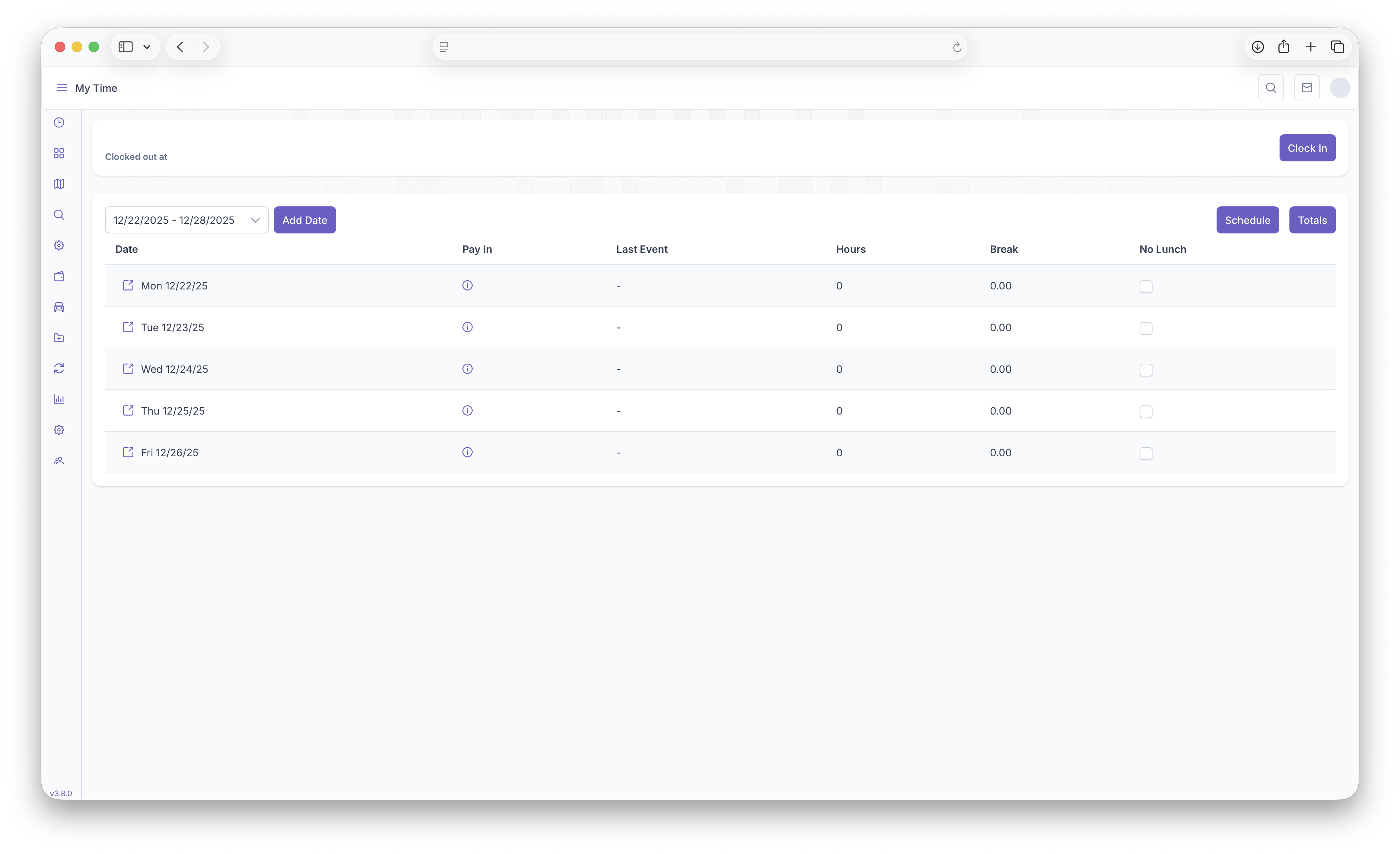
- The Clicking on the Fuel Dropdown
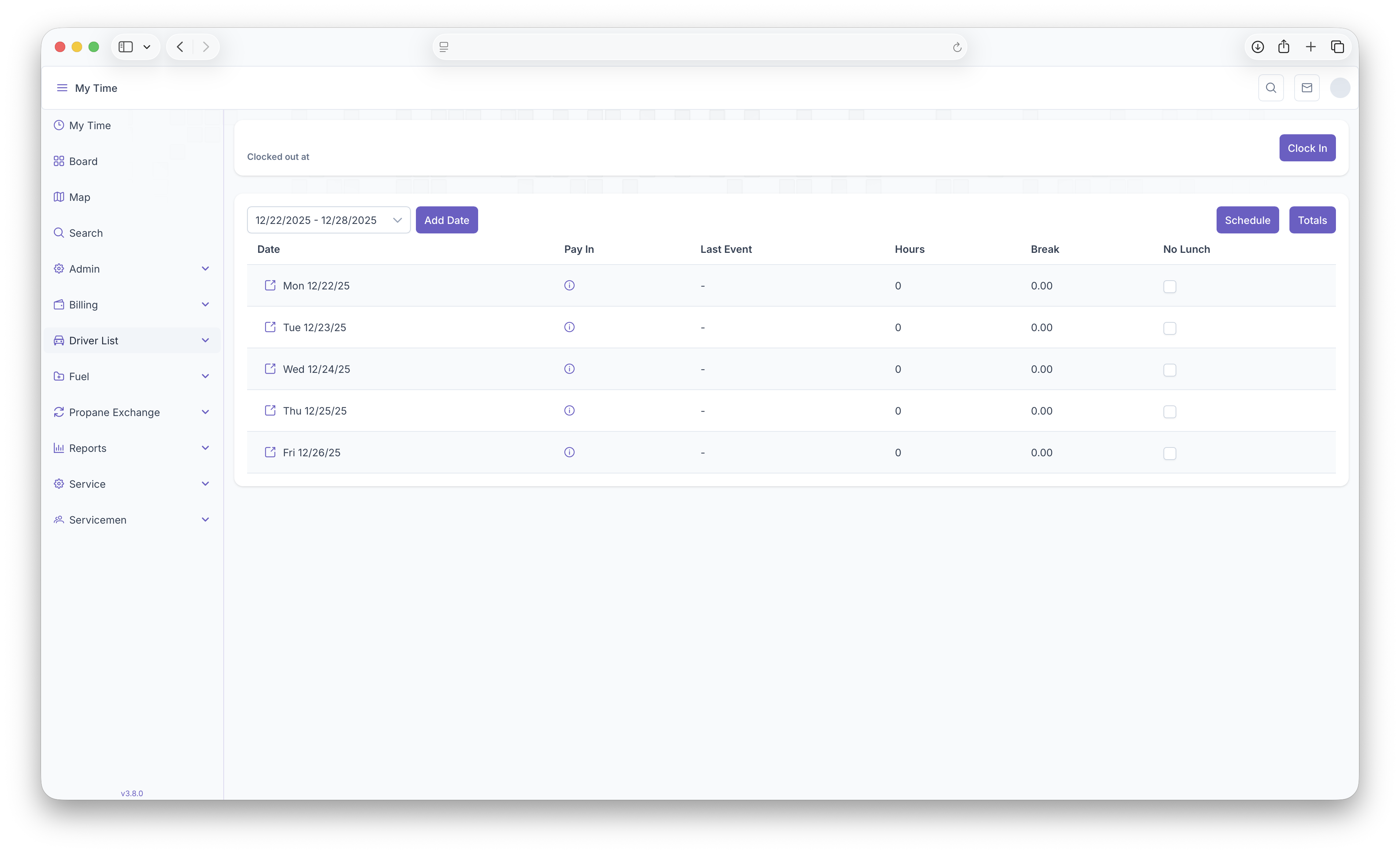
- Then clicking on Routing
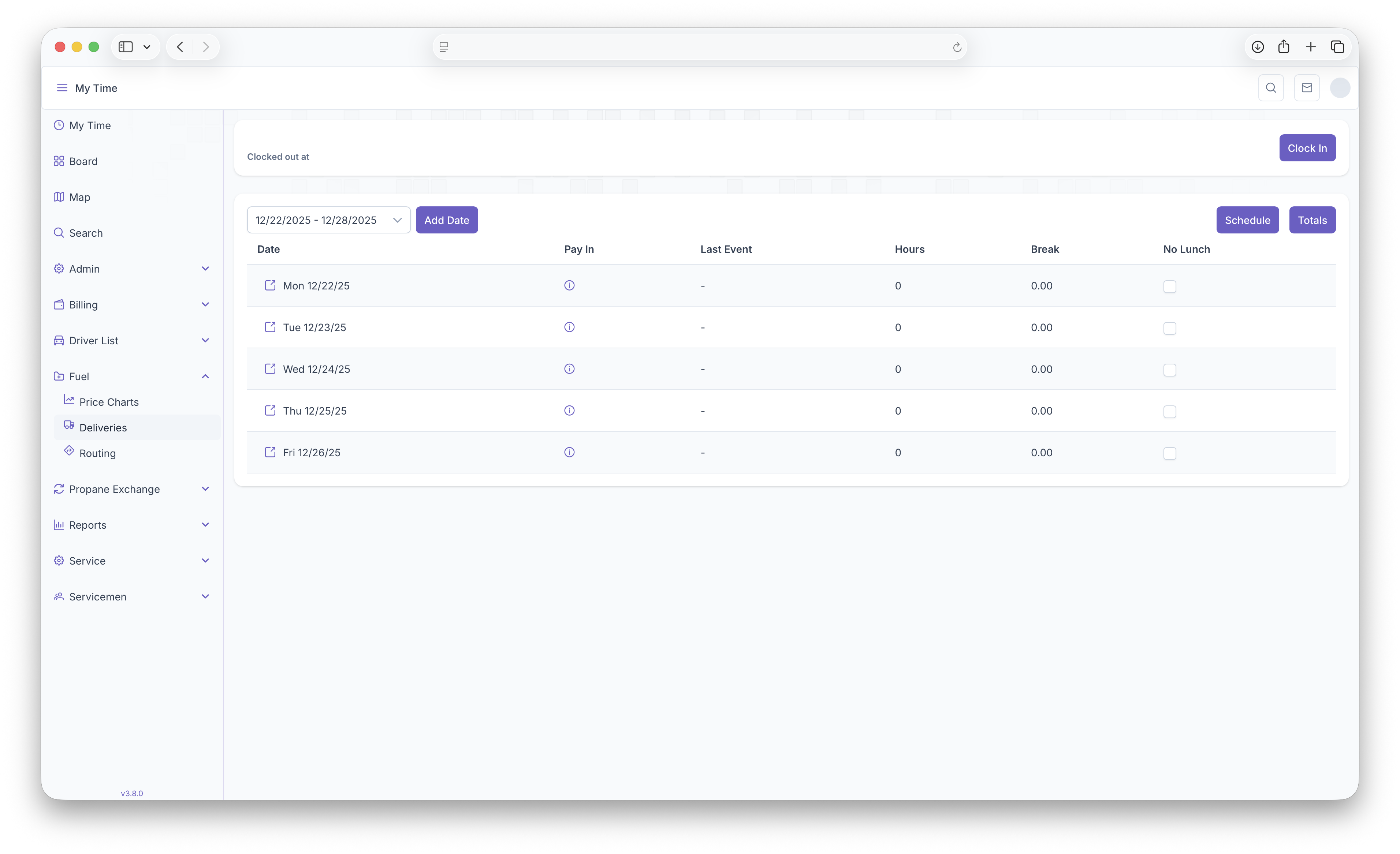
This will then bring up the routing map
Routing Map
The Routing map is now where all delivery request will show up, including manual and auto deliveries. Before getting started with setting up a route, a few things must be set prior to beginning
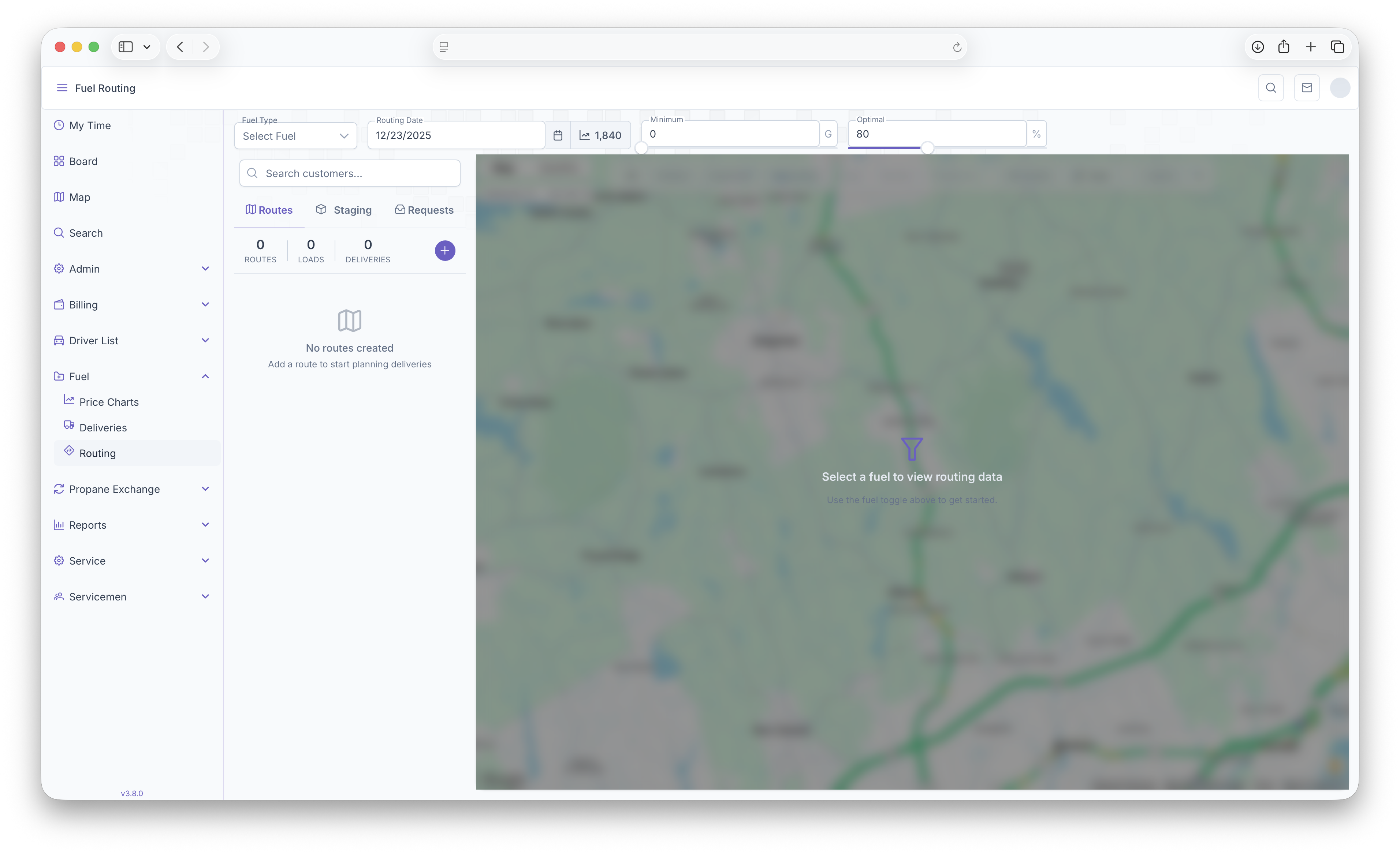
- Fuel Type - Select the fuel that's being routed for delivery
- Routing Date - The date the route is set to be delivered
- Minimum - Can be adjusted to show the minimum deliveries selected on the map
- Optimal - Can be adjusted to show the optimal deliveries selected on the map
These will be the first steps taken in order to start a route. The map will also show the current degree day next to the Routing Date. Once completed, The Routing Map will open up showing all Customers on the map.
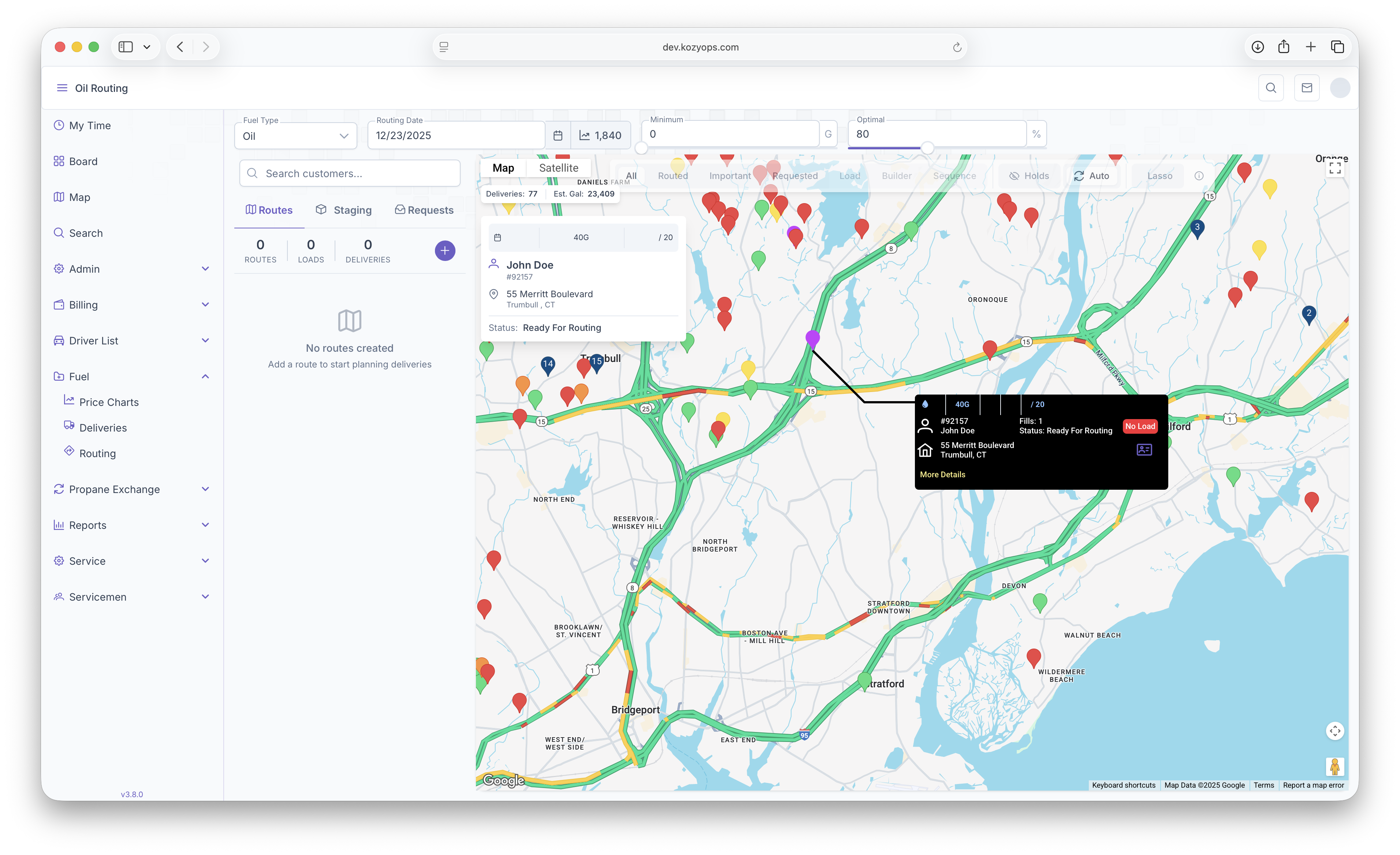
Customers on Map
Hovering over a marker will show a brief description of the customer on the map, this includes
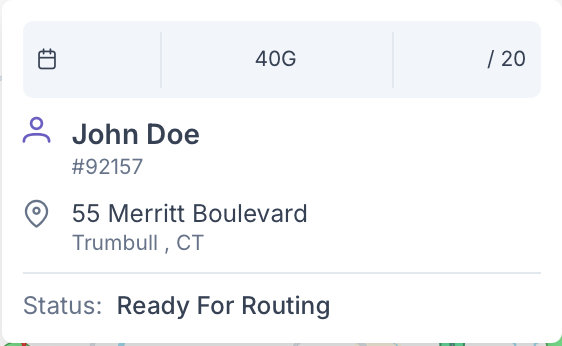
- Tank Size
- Expected Deliver/optimum Delivery
- The Customers Name
- Their Account Number
- Address
- Customer Status
Clicking on the marker will bring up a black box with more detail and options to take on the Customer. This box will be used later on for actual routing.
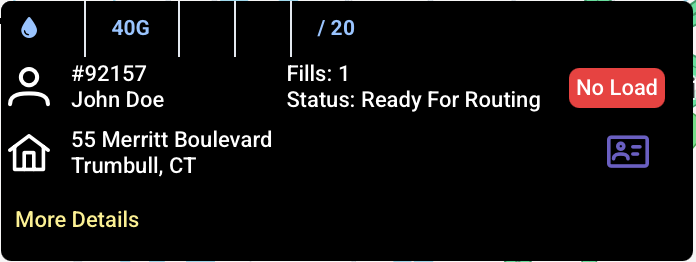
Additional options are that clicking on More Details will bring up a popup showing a more in depth look into the customers information which includes the extra following
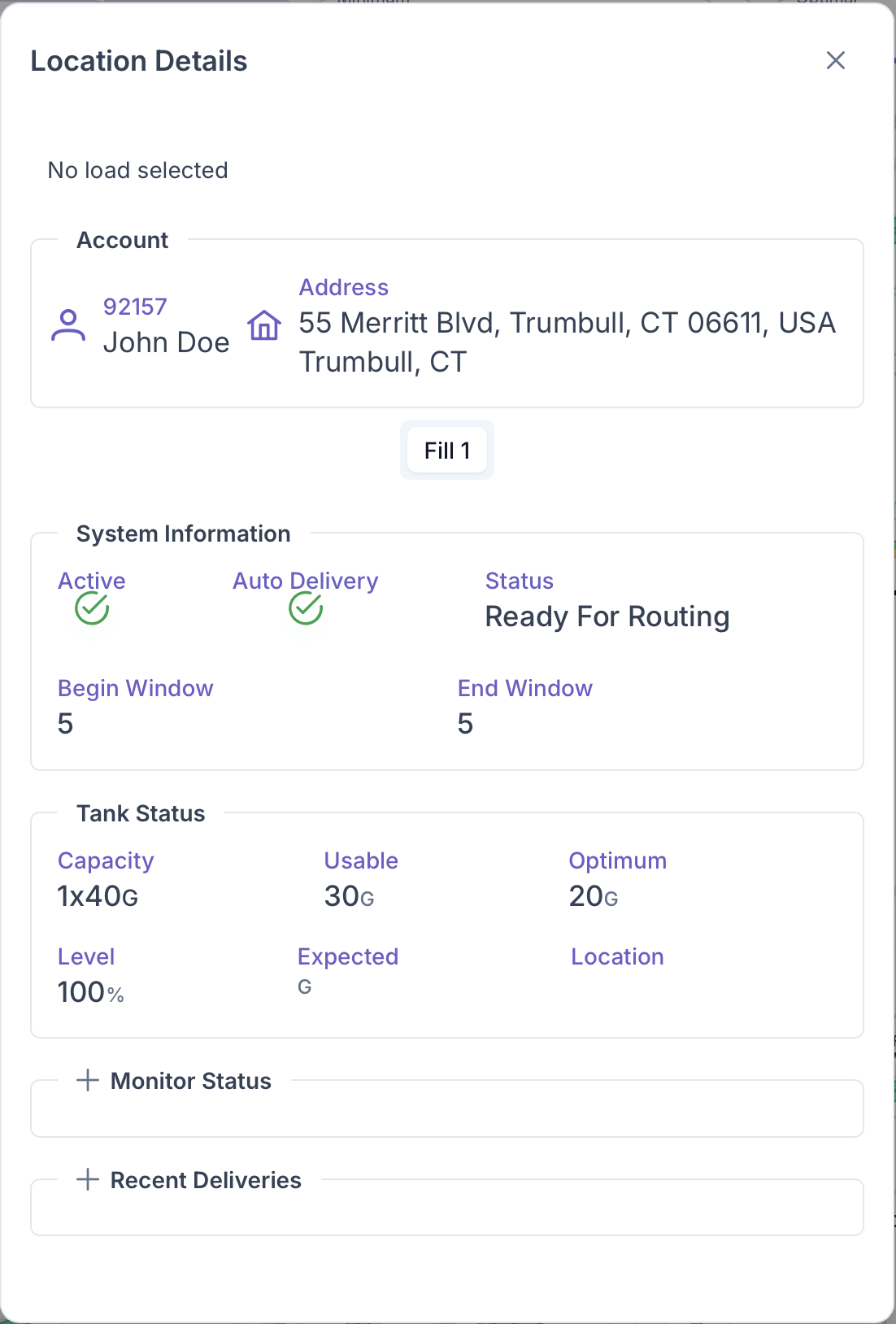
- System Information - This includes if the Customer's home is active, if it's set up for Auto Delivery, if it's ready for routing and the Degree Window for Delivery, including the Begin and End Window
- Tank Status - This includes Tank Capacity, the usable amount, the optimum fill, what level the tank is, expected delivery and the location of the tank on the property
- Monitor Status
- Recent Deliveries
Clicking on the Purple Card on the black customer box will pull up the Customer Account page.
Search
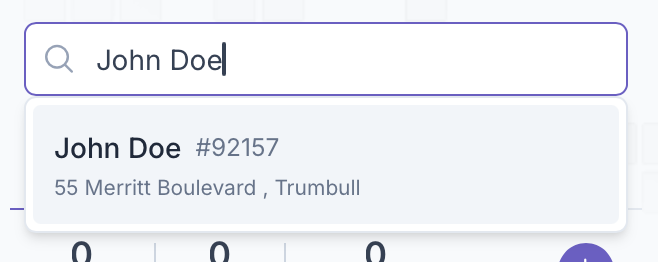
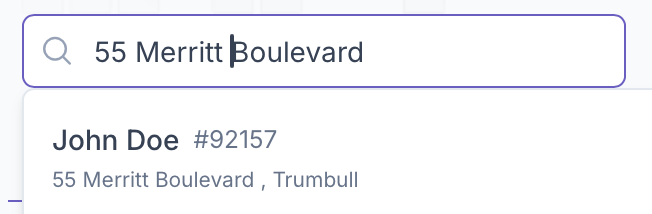
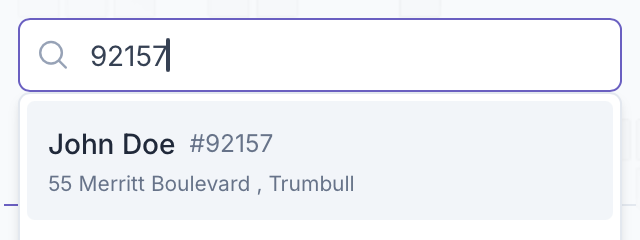
A customer can also be searched by using the search box right next to the map. They can be searched up by name, address or account number, this will handy for pulling up a customer without needing to search the map for a specific address
Map
The map itself has a lot of features itself outside of showing customer locations and adding them to routes. Starting with the top bar, the map can be toggled to show as a normal map or by toggling to satellite view, will show the map in a satellite image, still showing all customer locations

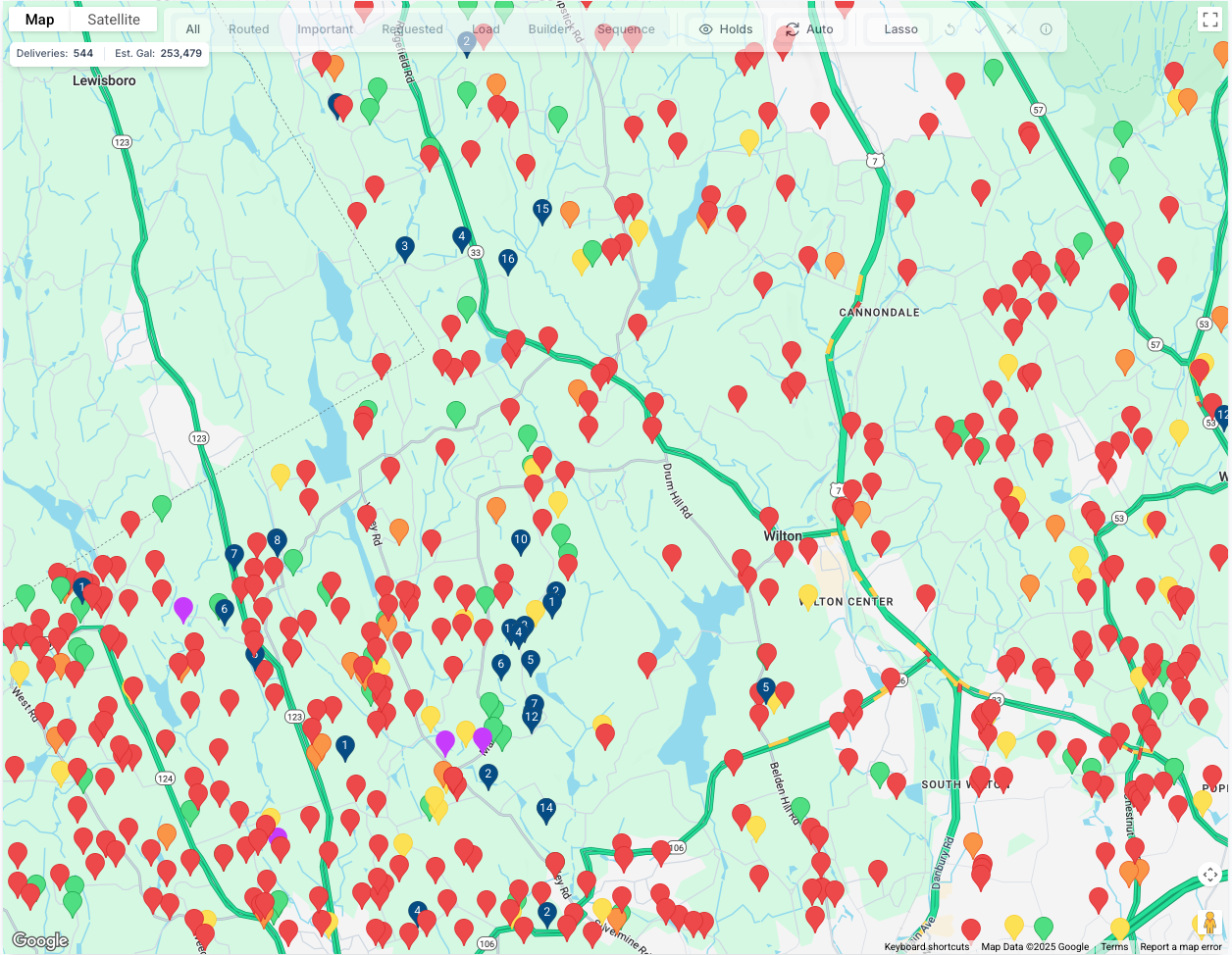
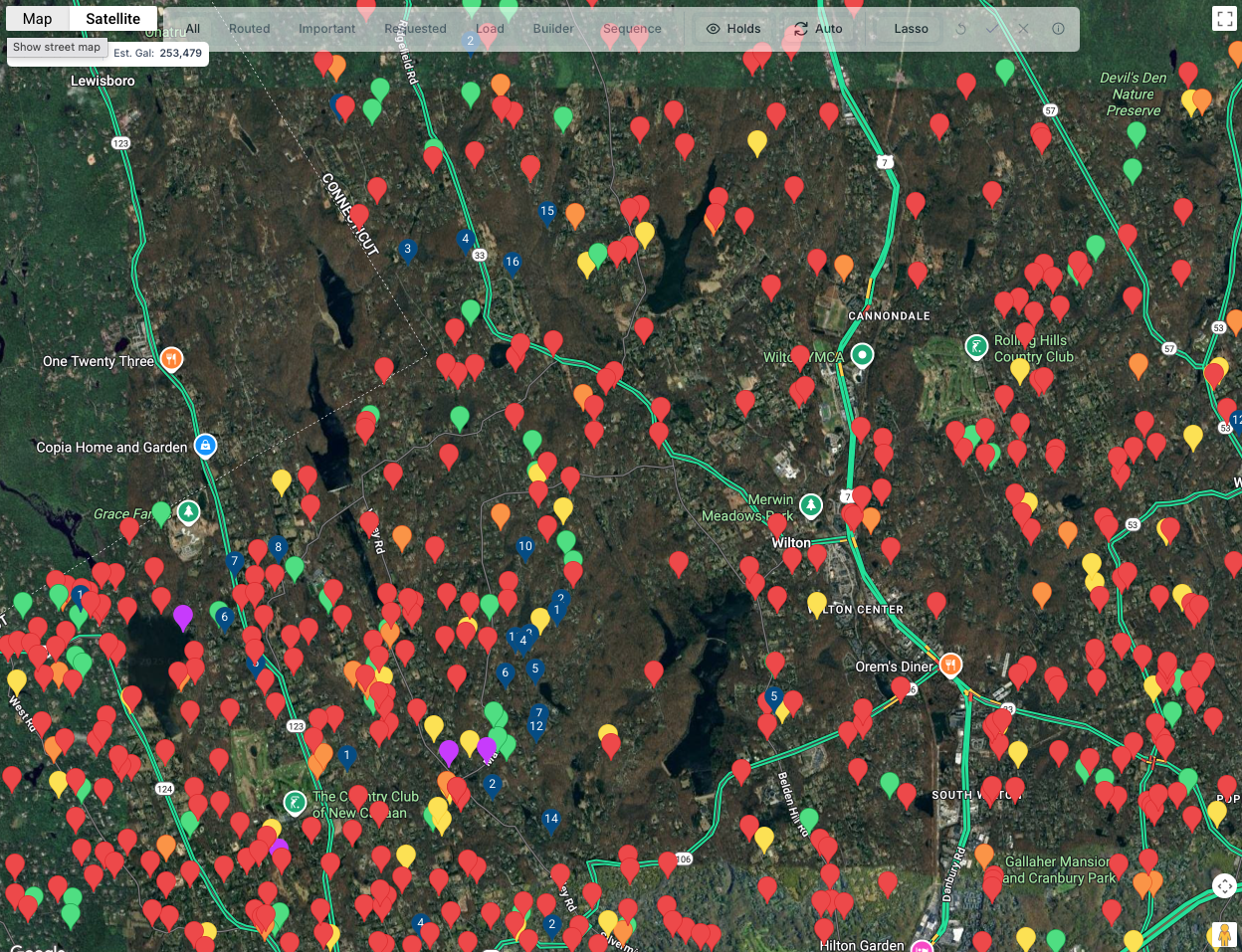
Below the Map and Satellite bar, is another bar that shows total number of potential deliveries on the map as well as total number of estimated gallons for the day.

Finally the filter bar, probably the more important bar before geting a route ready. The bar itself is divided into 3 sections each used for filtering purposes

The first sections is for filtering routes
- All - Shows all customers on the map for routing
- Routed - Shows only customers that have been added to routes
- Important - Shows the more pressing deliveries that need to be made
- Requested - Shows Deliveries that were requested by the customer
- Load - Shows loads that have been built but need to be added to a route
- Builder
- Sequence - Routes that have been loaded and sequenced showing a route
Next is the customer filter
- Holds - Shows customers on the map that have holds on their accounts
- Auto - Shows customers that have auto deliveries set up on their acount
Finally The Lasso tool, this tool is primarily used when setting up a load for a route. The tool allows for a "Lasso" to be made using points around a selected area. The points then create a zone and everything inside of the zone can then be added onto a load which can then be added to a route. The tool shows the following
- Undo - Clicking on it deletes a previous point added on the lasso
- Check - Clicking on the check will close out the Lasso and create a zone
- X - Clears out the created zone and allows for the creation of a new one
The map also features a legend to indicate what every color on the map signifies. Clicking on the explanation point on the bar will bring up the legend
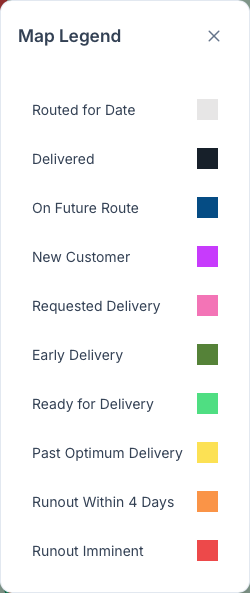
The map can also be shown in full screen by clicking on the box on the top right corner. With all that, Routes can now be set up
Creating Routes
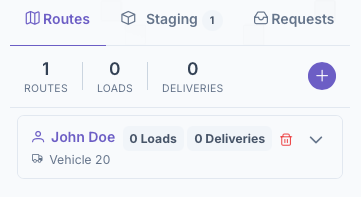
Once everything is all set, a route can now be created. Routes are created on the left side of the map on the routing toolbar. The toolbar is divided into 3 sections, Routes, Staging and Requests
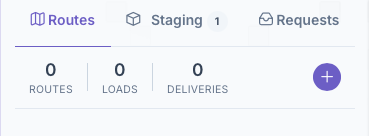
1. Routes
Setting up a route starts on the routes tab
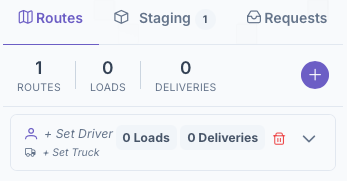
- Click on the add button to open up the Route Box
- Click on Set Driver and select a Driver then click on the check next to the name
- Click on Set Truck and set the truck for the driver and click on the check next to the truck
With that a route has been created and now a load must be generated to add to the route
2. Load
Next is setting up a load to add to a route. To start this process, click on the Staging tab next to the Routes tab to bring up the Staging toolbar
- Click on the add button to add a load to the unrouted loads list
- Next select a Load to work on and click on the arrow to bring up the Load Box dropdown
- From here a route can be assigned to the load or it can be done after, but once added, the load will be moved into the routes tab under the Route selected
- After which, if a route was added, continue back onto the routes tab and continue there by selecting the load under the route
- Click on Set Terminal then click the check after selecting one
- Click on Set Load Number and click the check after assigning a number
With that a load has now been created and added to a route. The Final step is assigning Customers to the load and sending off the load