
Setting Up Routing
Overview
When Fuel deliveries are requested or set to auto deliver, The Routing page is used to place those orders on a load, then route in order for them to be delivered. The routing page can be reached by
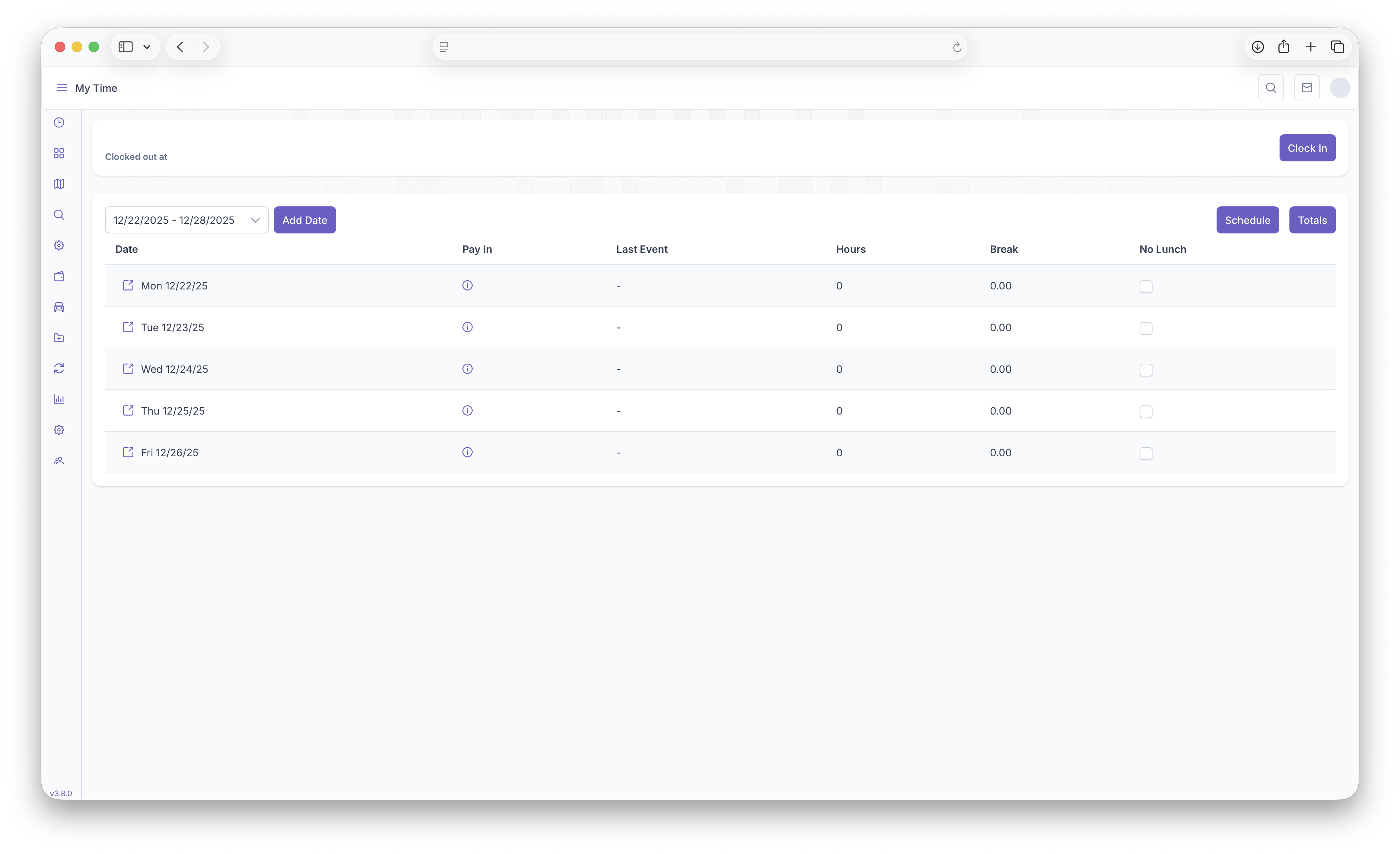
- Clicking on the 3 bars on the top right corner to expand the side menu
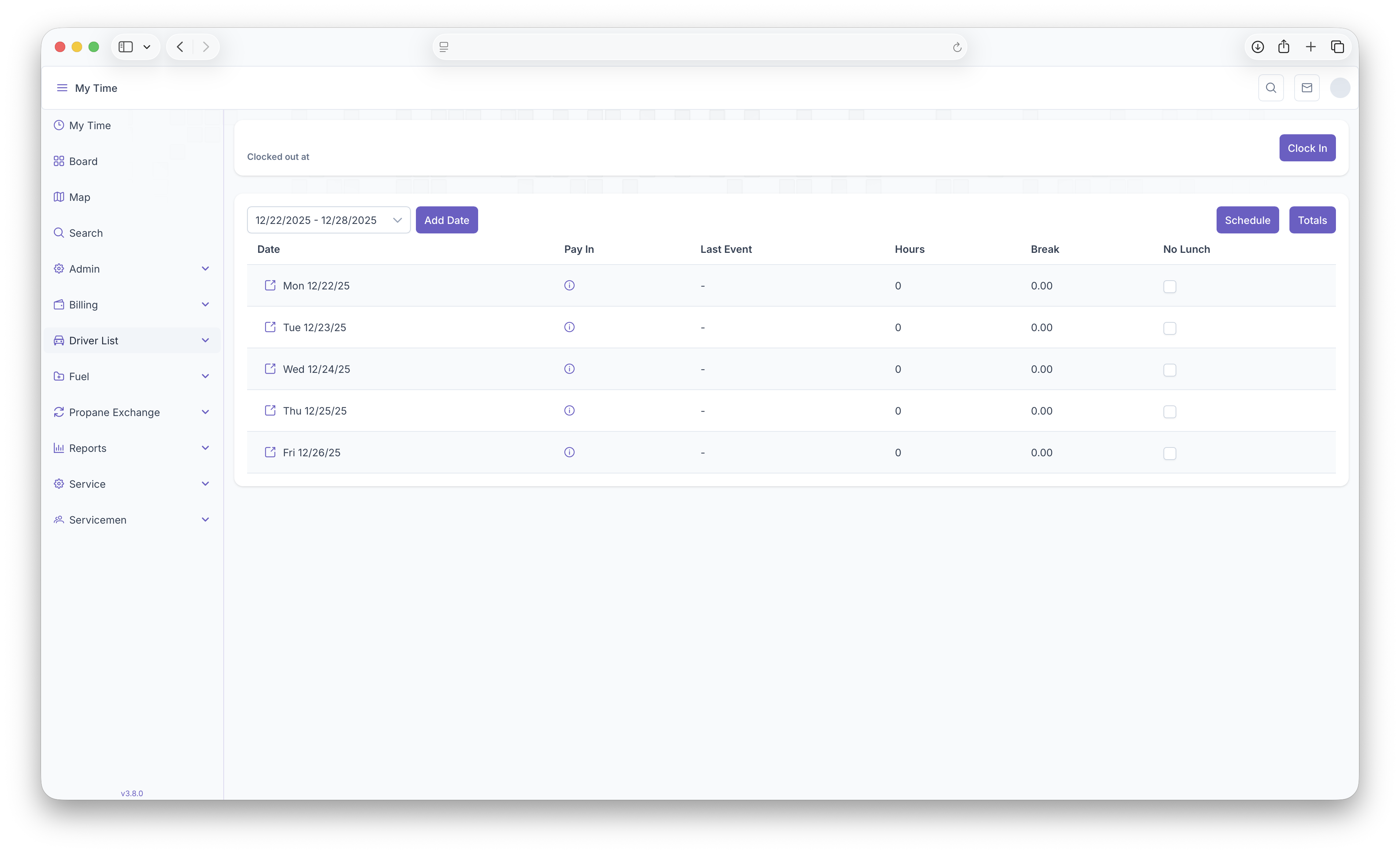
- The Clicking on the Fuel Dropdown
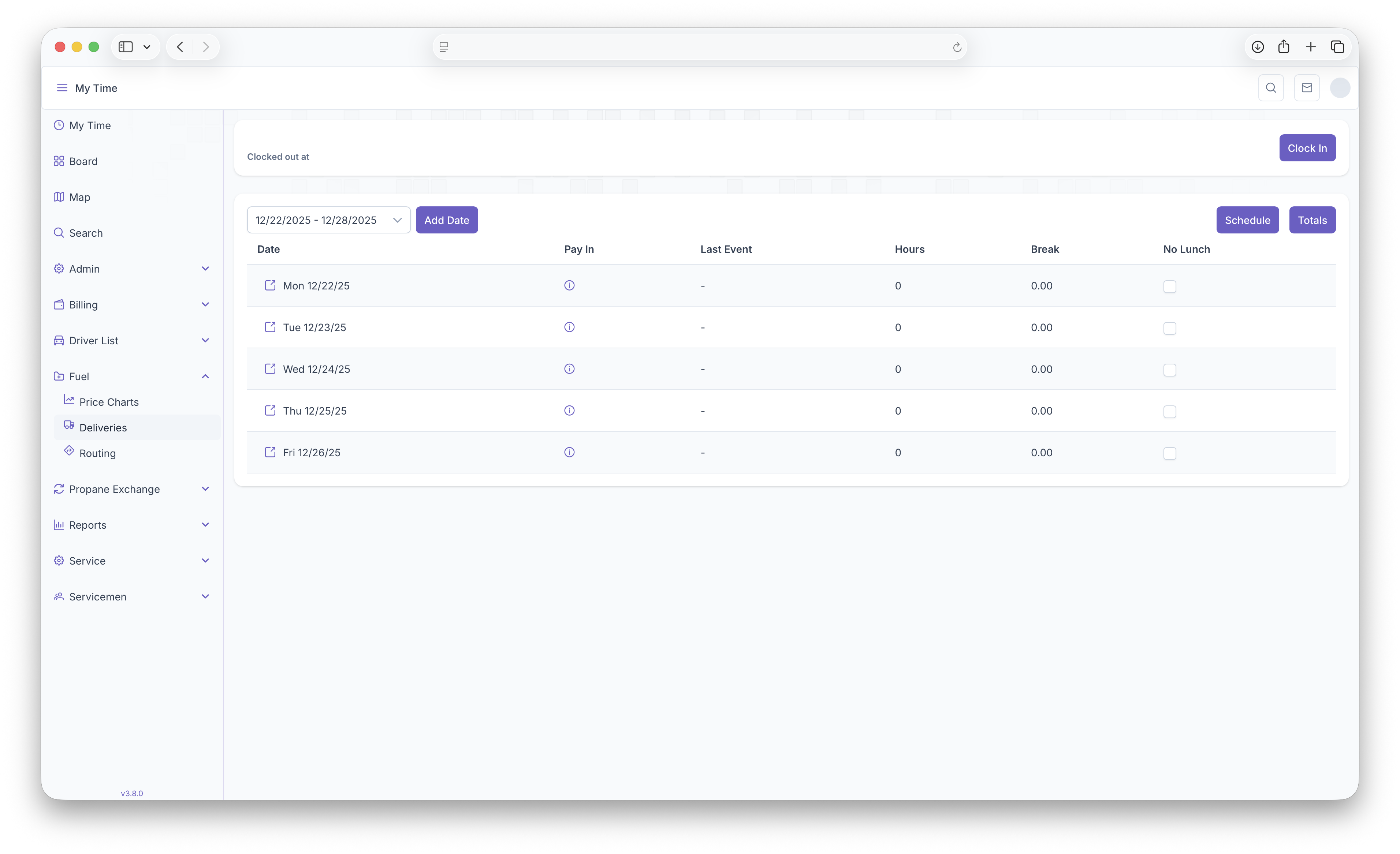
- Then clicking on Routing
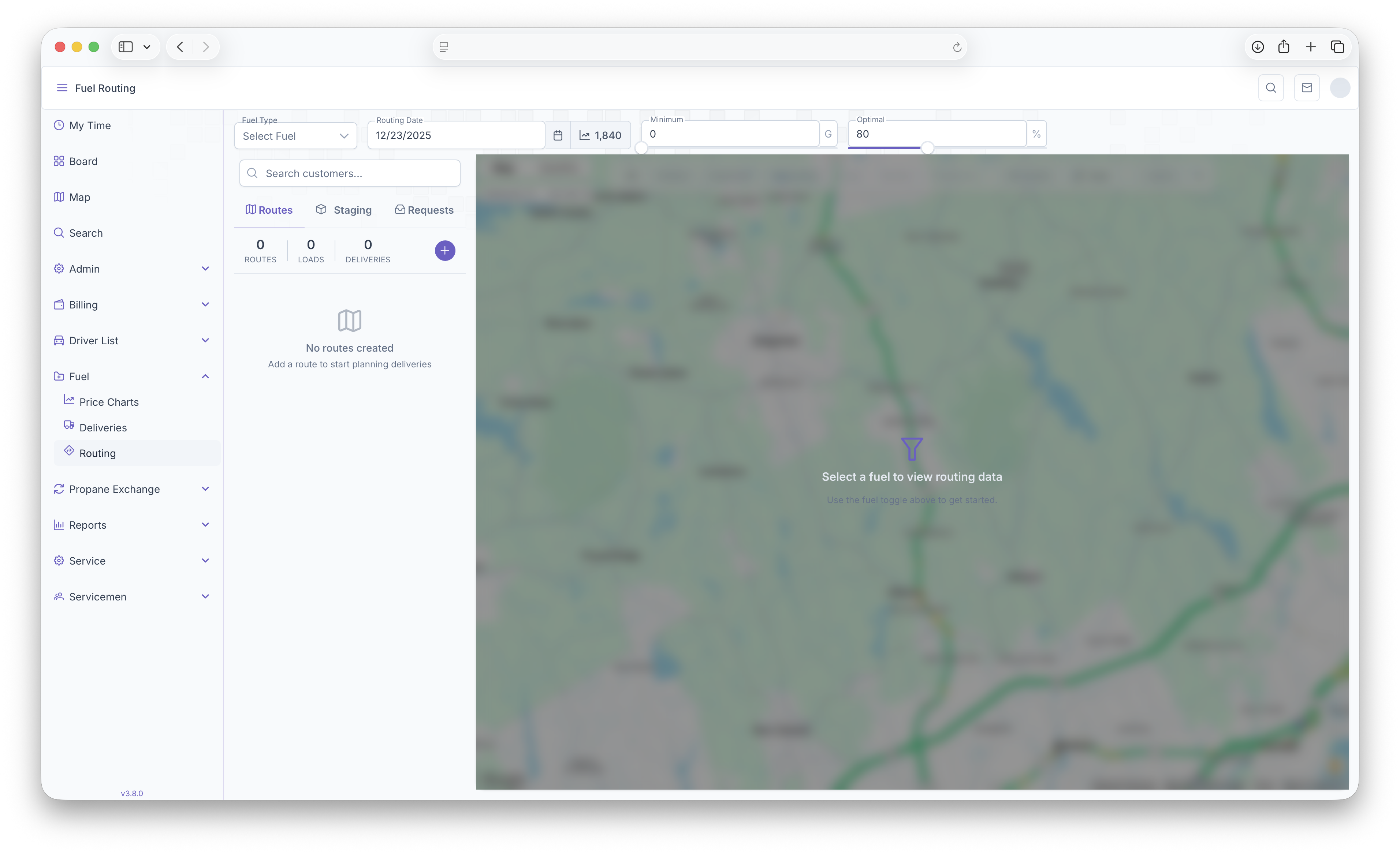
This guidewill then bring up the routing map
Routing Map
The Routing map is tonow helpwhere youall indelivery request will show up, including manual and auto deliveries. Before getting started with setting up a route forroute, a deliveryfew forthings Themust Customerbe set prior to beginning
Prerequisites
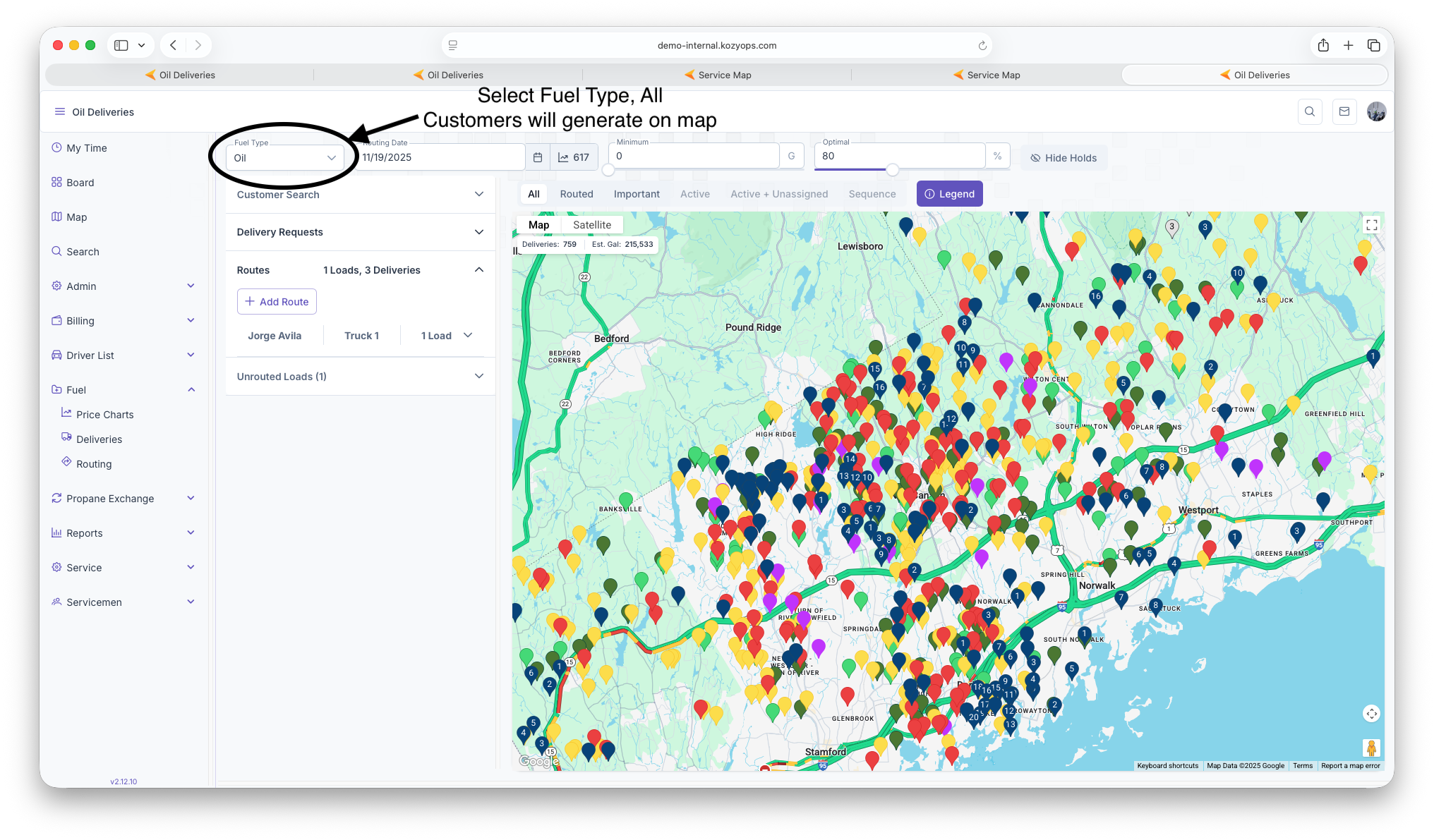
CustomerFuelisTypeactive- CustomerSelecthastherequestedfuelathat's being routed for delivery
SettingDate up- AThe Route
date Click- Can be adjusted to show the minimum deliveries selected on Menuthe map
These will be the first steps taken in order to start a route. The map will also show the current degree day next to Service Board

Click on Arrow next to Fuel to bring up dropdown
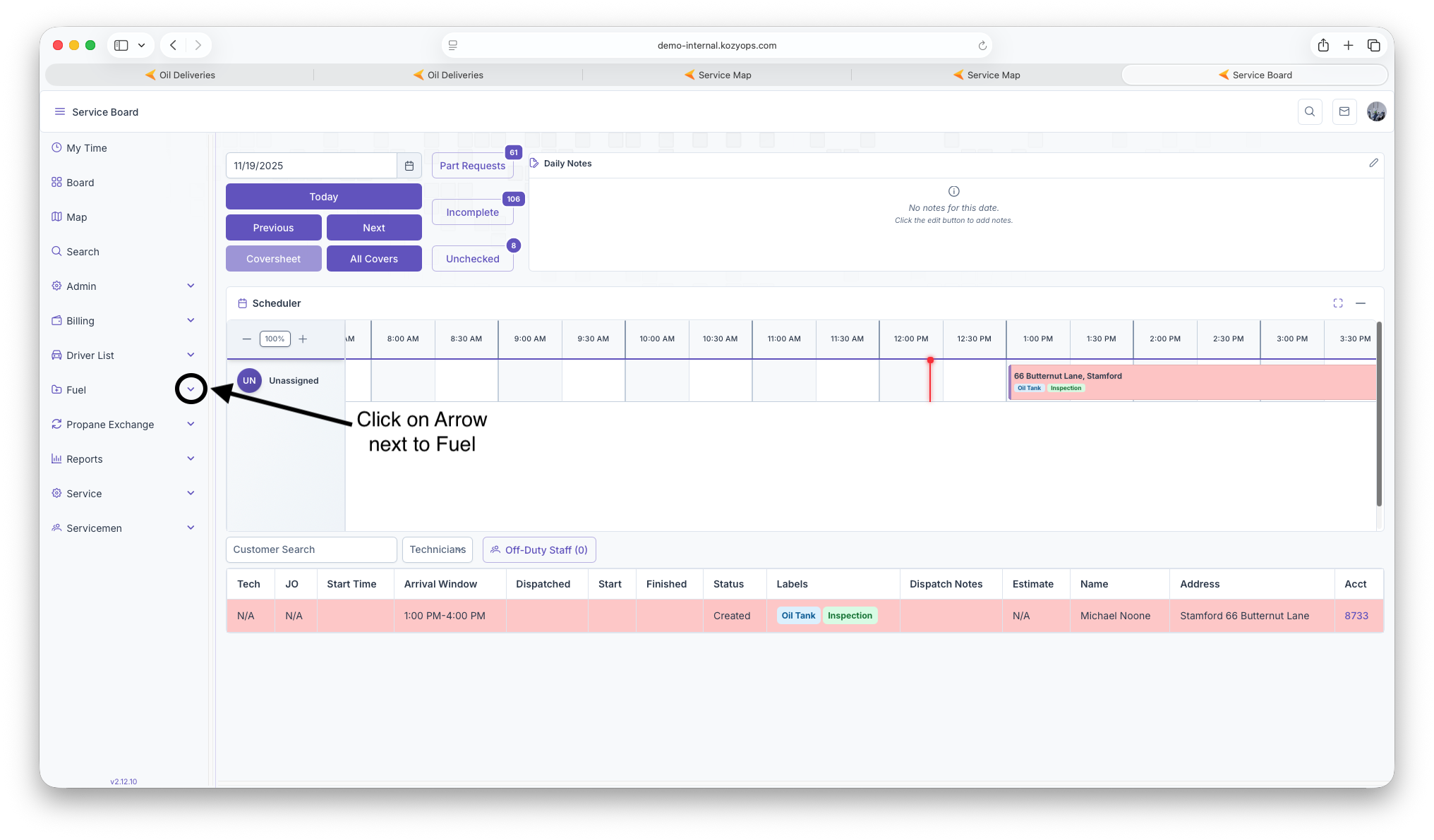
Click onthe Routing 
Select Fuel Type, then map will generate with Customers
Click Customer Search then fill out information

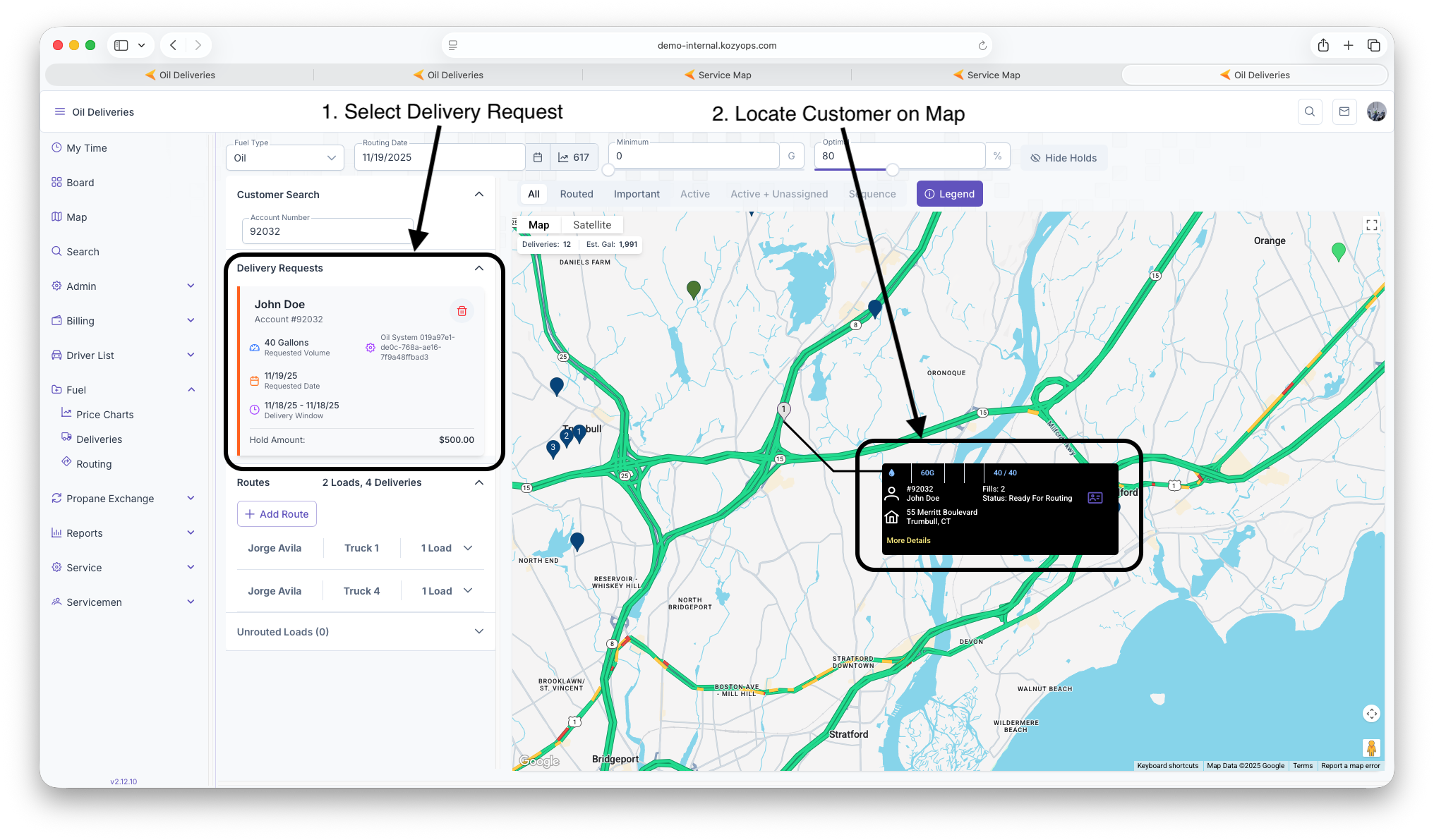
All Customer delivery requests will generate, select which delivery you want to route

Click on Delivery Request and all deliveries will generate, click on delivery you want routed, locate Customer on map
Click on Routes then click add route
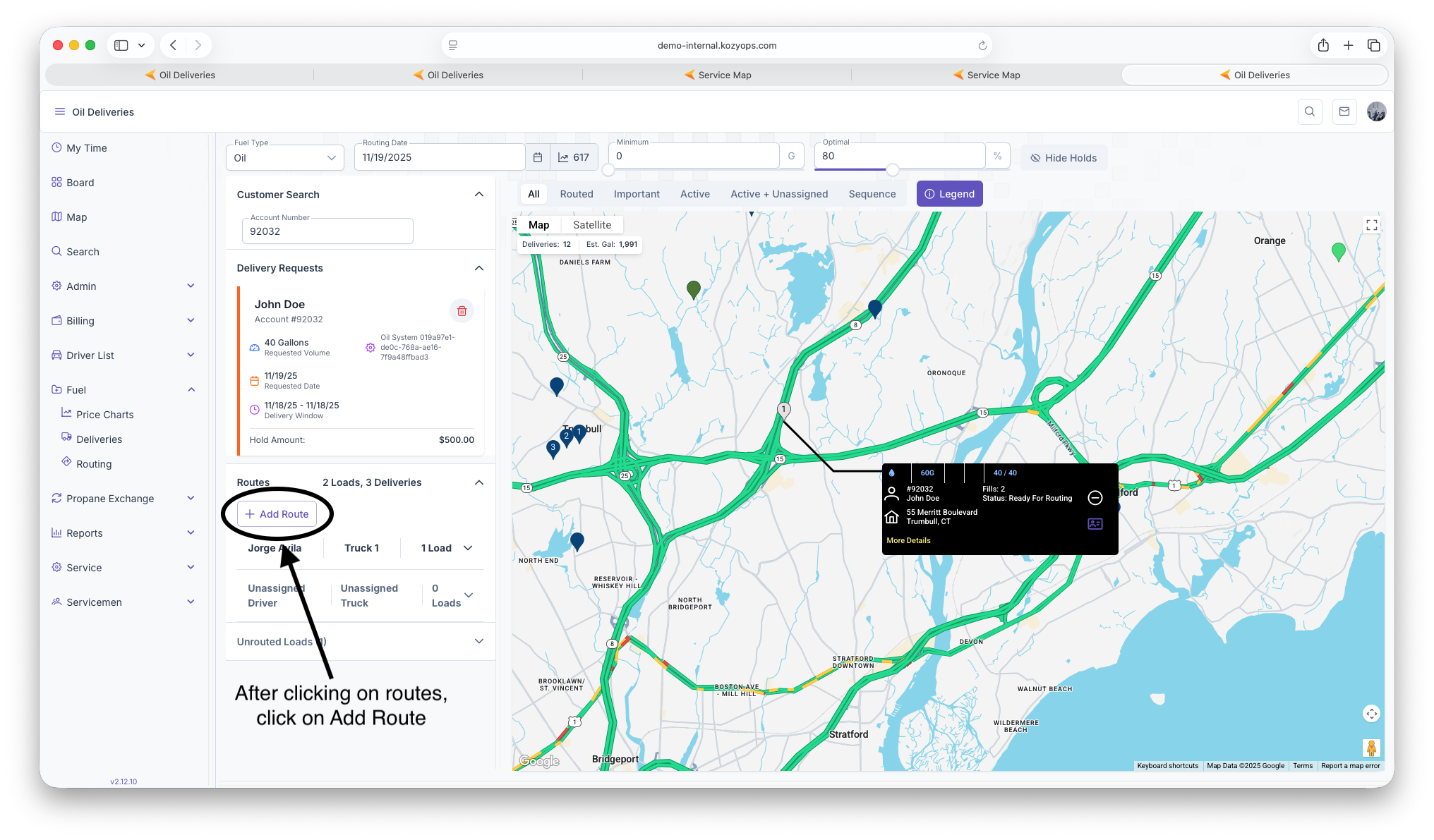
Click on unassigned driver and Add Driver and Truck Number
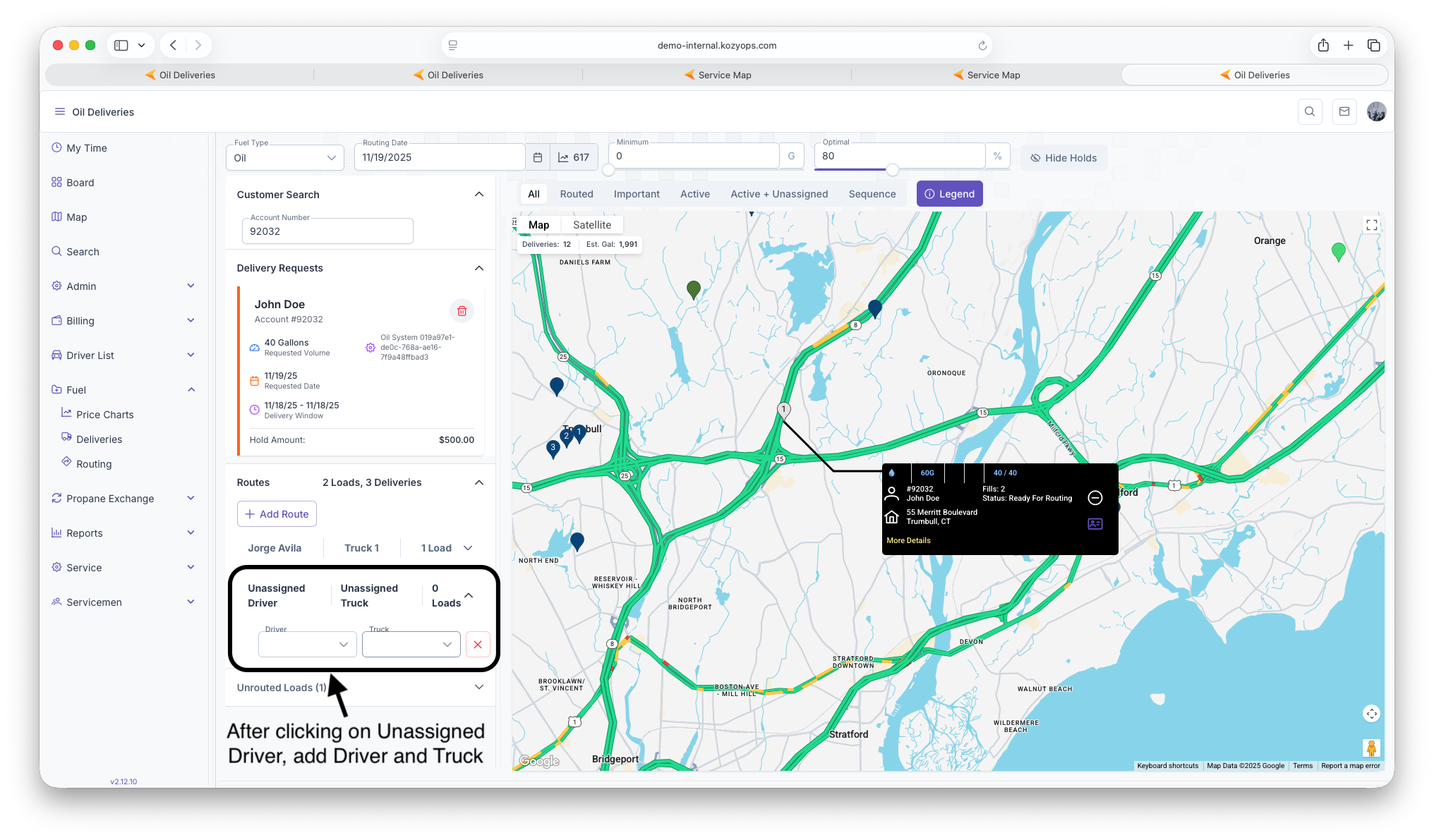
Click on unrouted loads and click Add Load, fill out Route, Load and Terminal
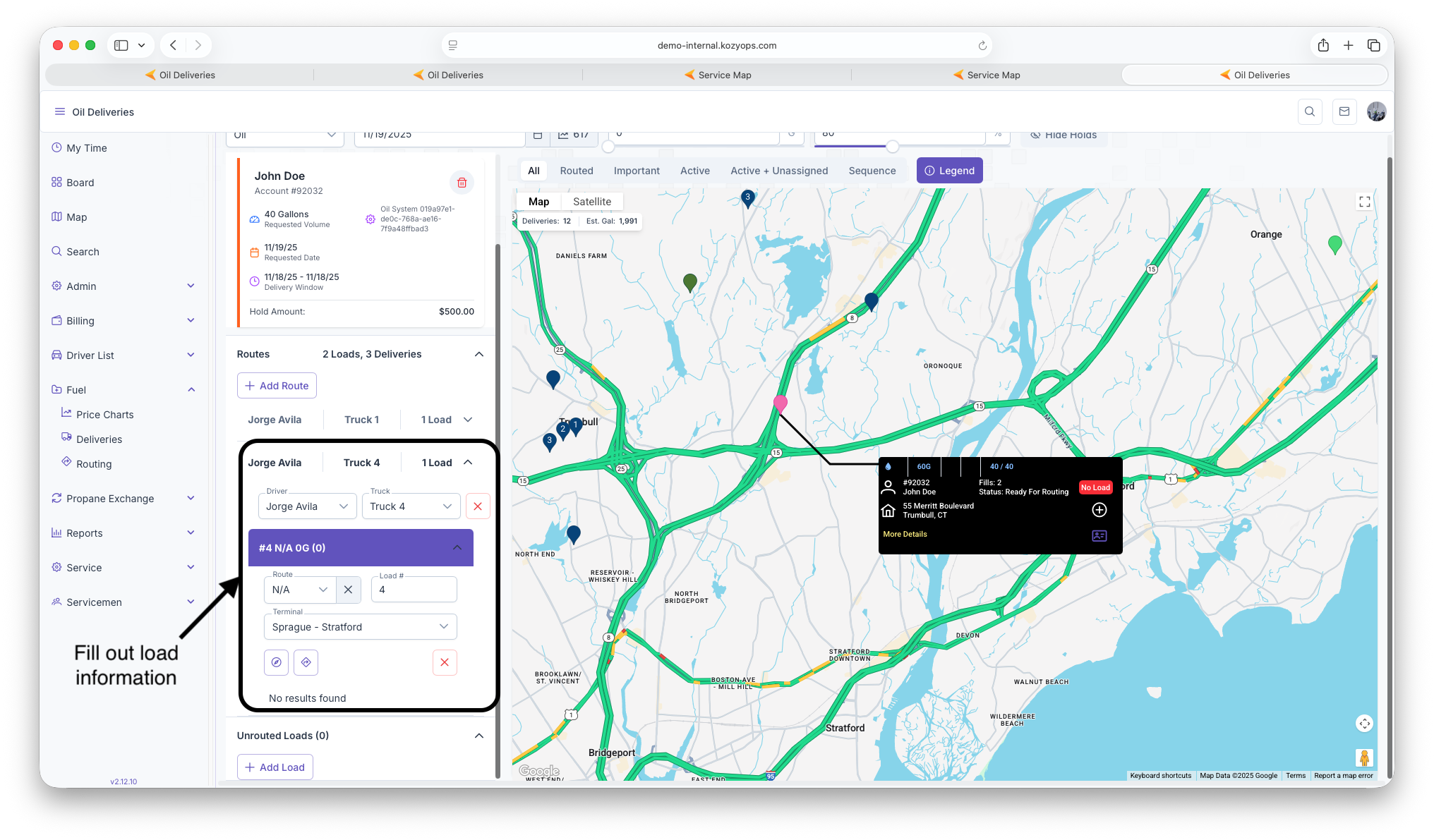
On Map on Customer Card, click on Add To Active Load. Once completed, Delivery will be ready for Routing

After adding Delivery, confirmation of Route will pop up
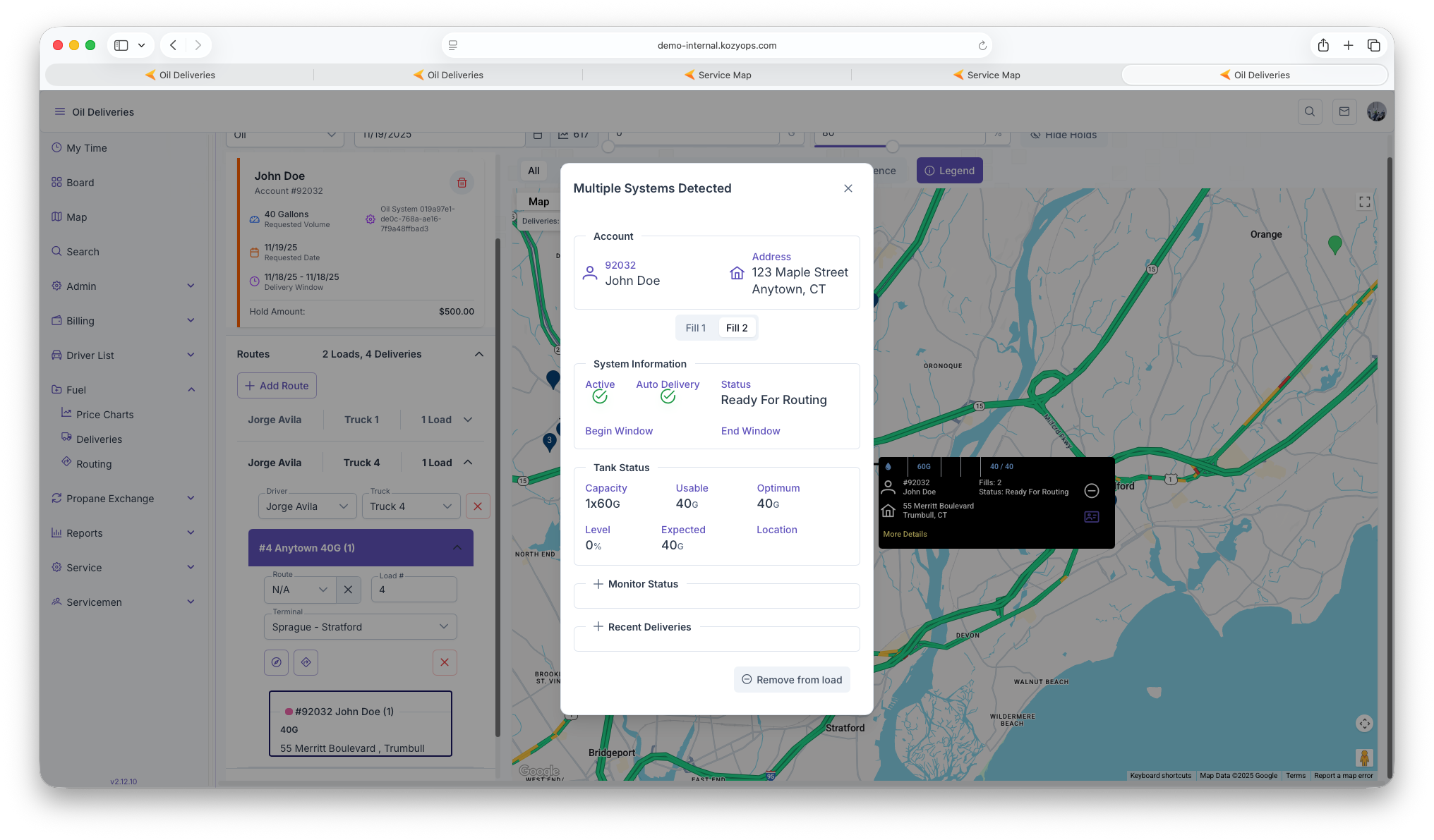
Viewing Route
After setting up route, when you click on The Auto Sequence button, a route will be created as seen

Deleteing Delivery Requests
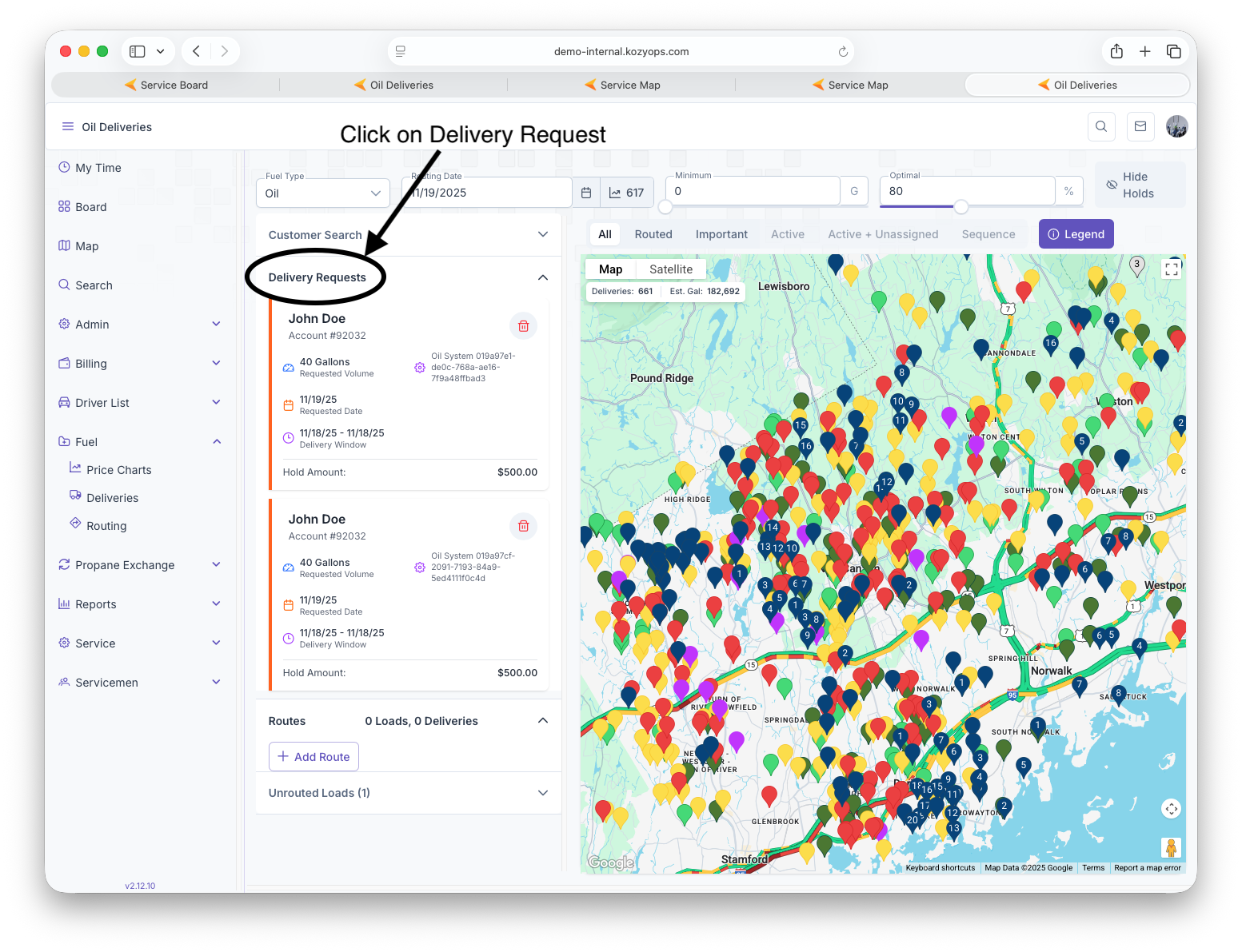
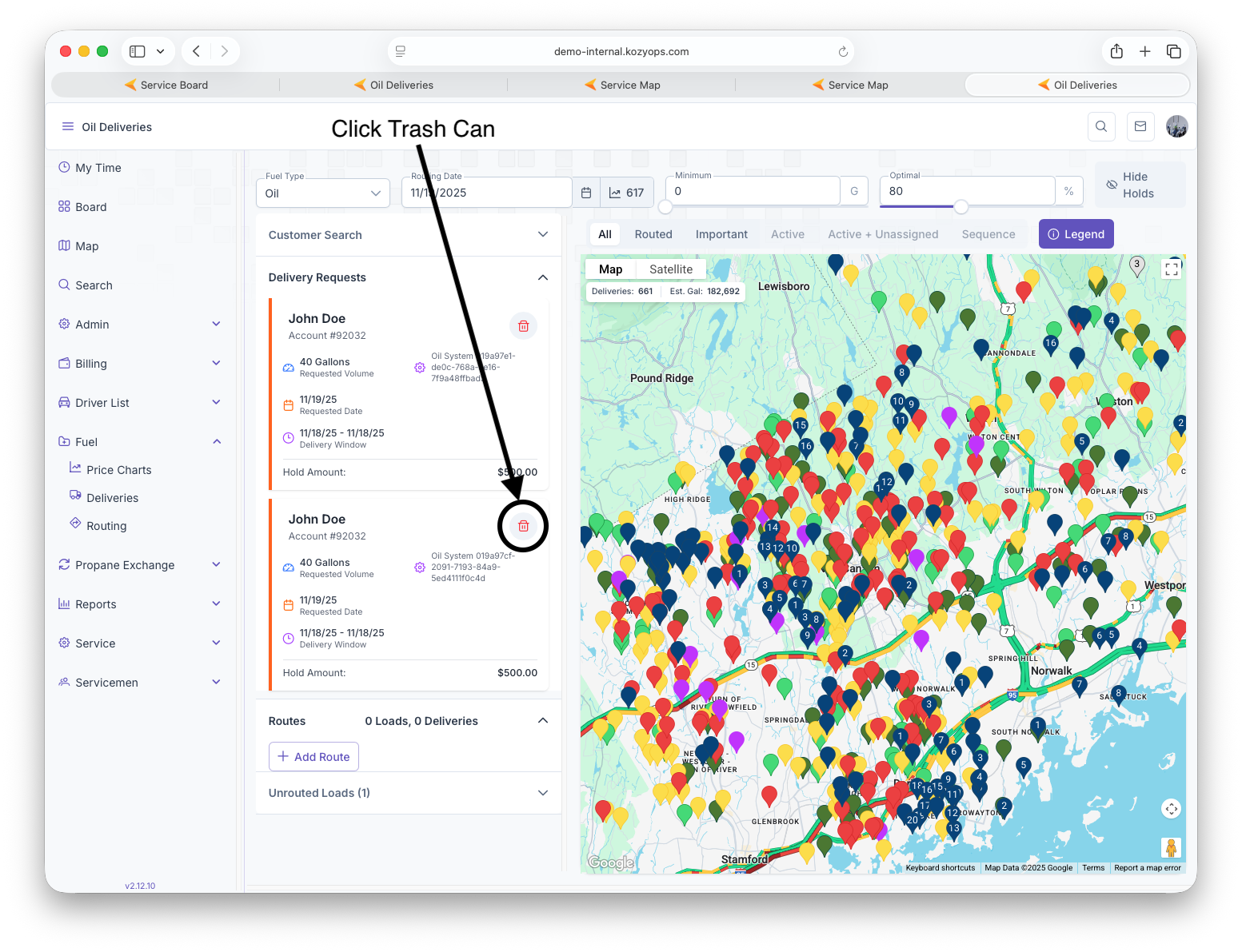
On the same page, click on Delivery Request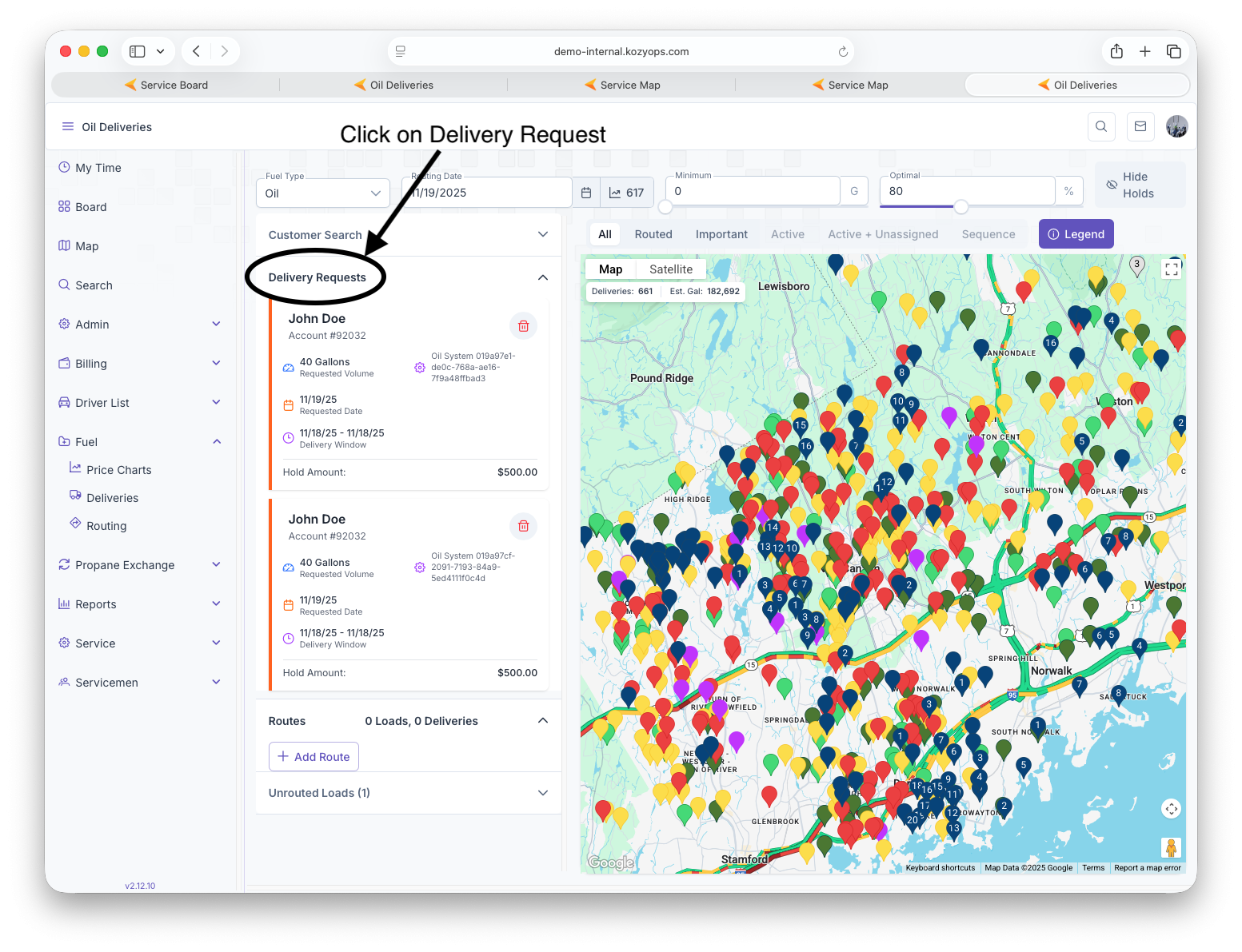
After requests generate, click on trash can on top right corner of Delivery Request you want to delete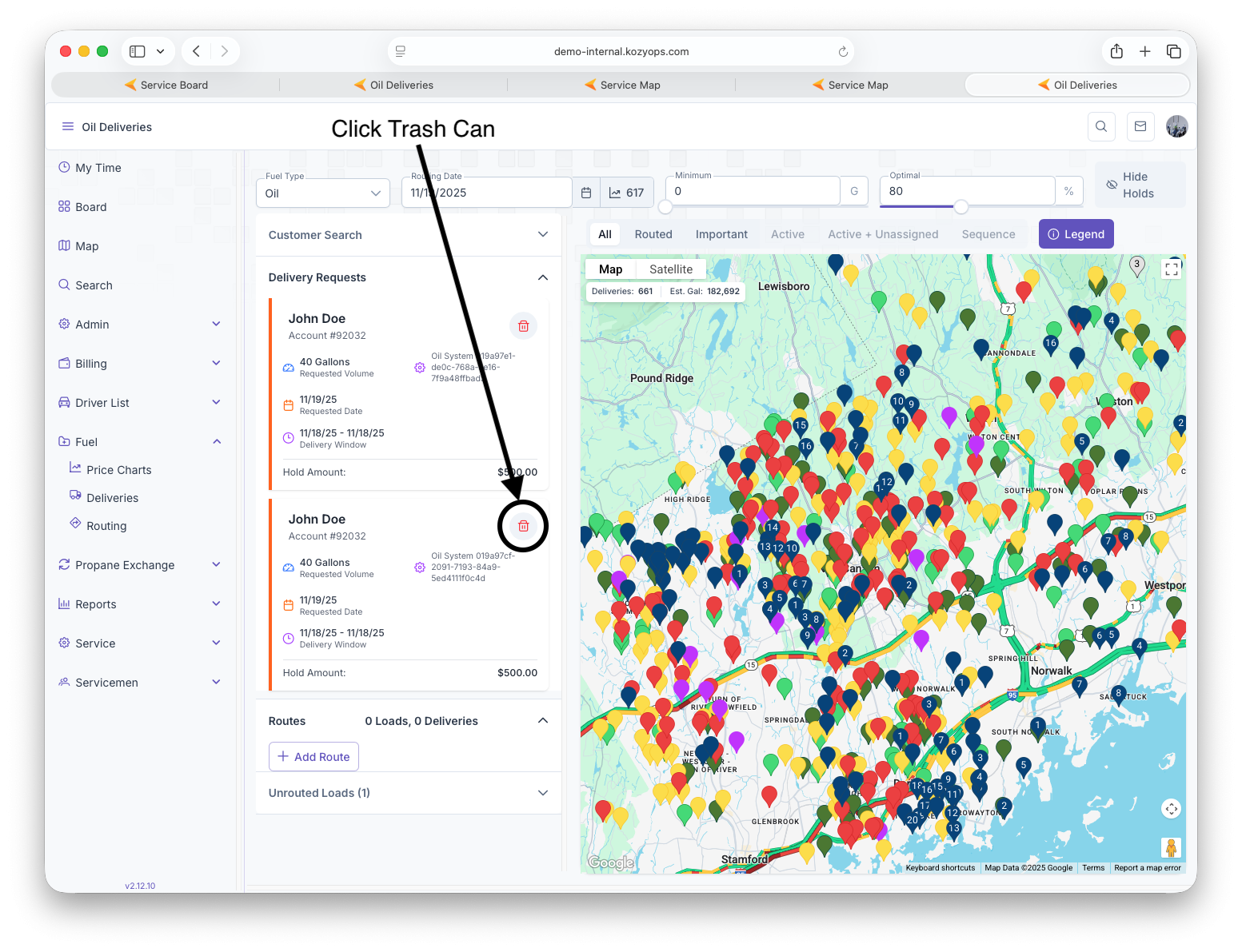
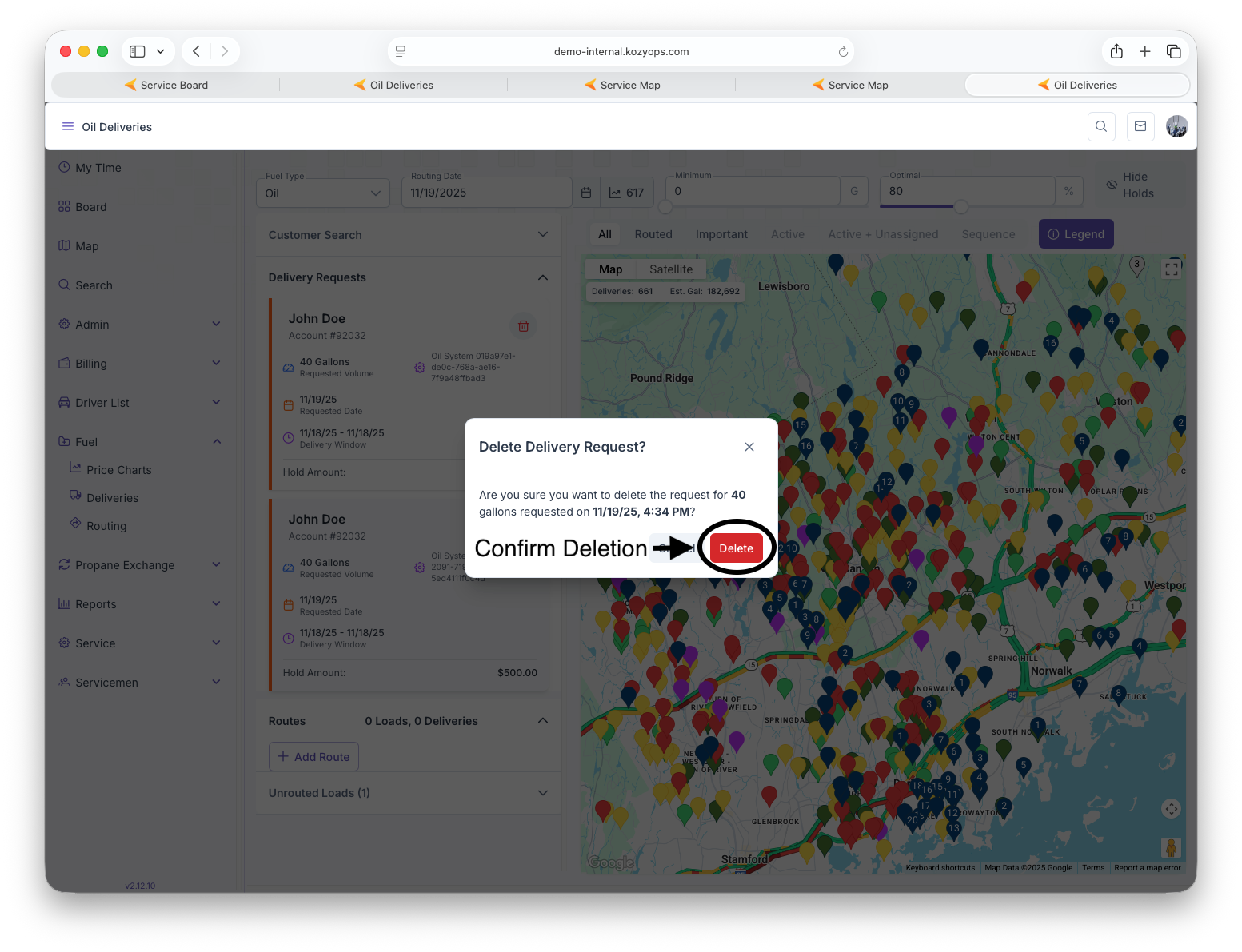
Confirm that you want to delete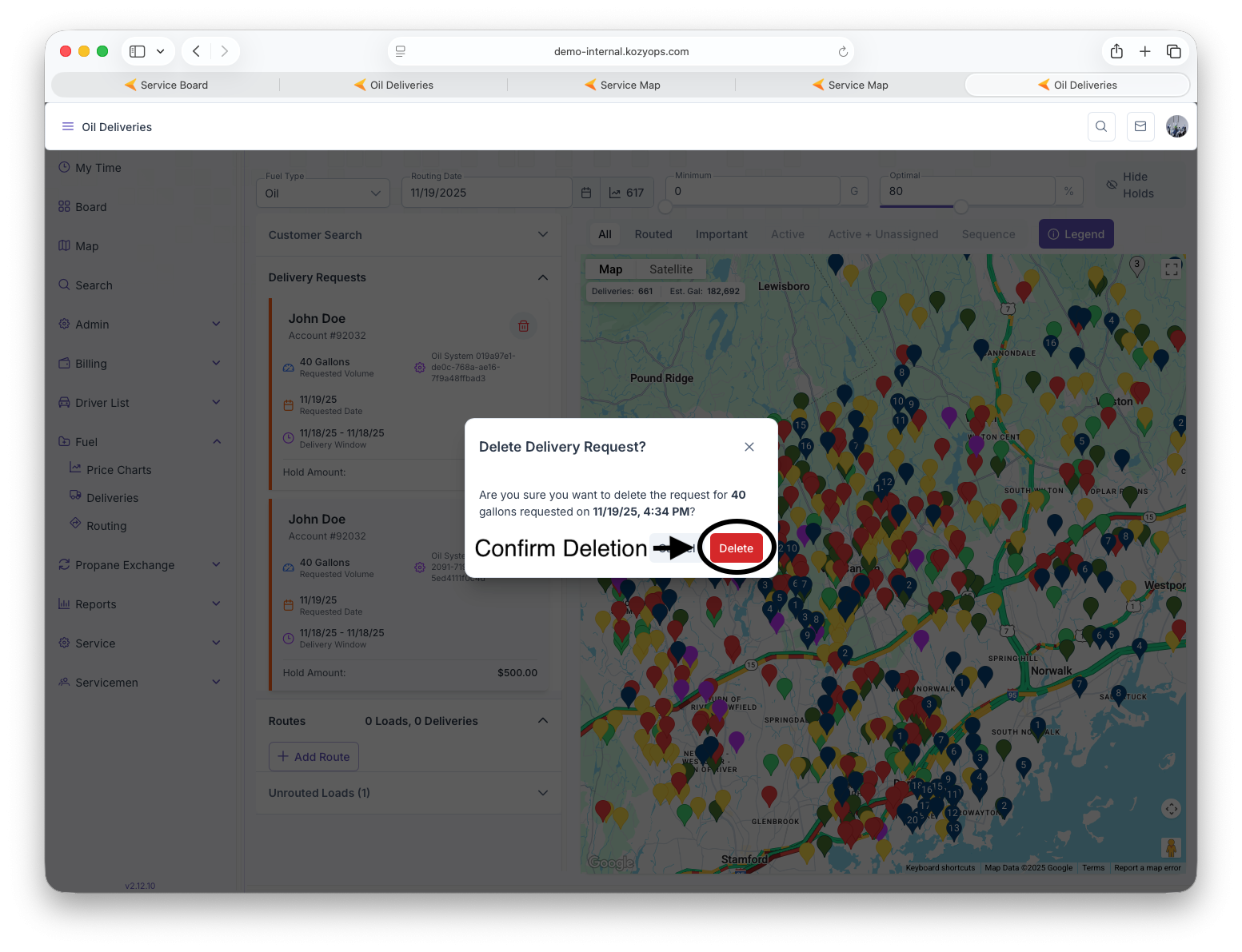
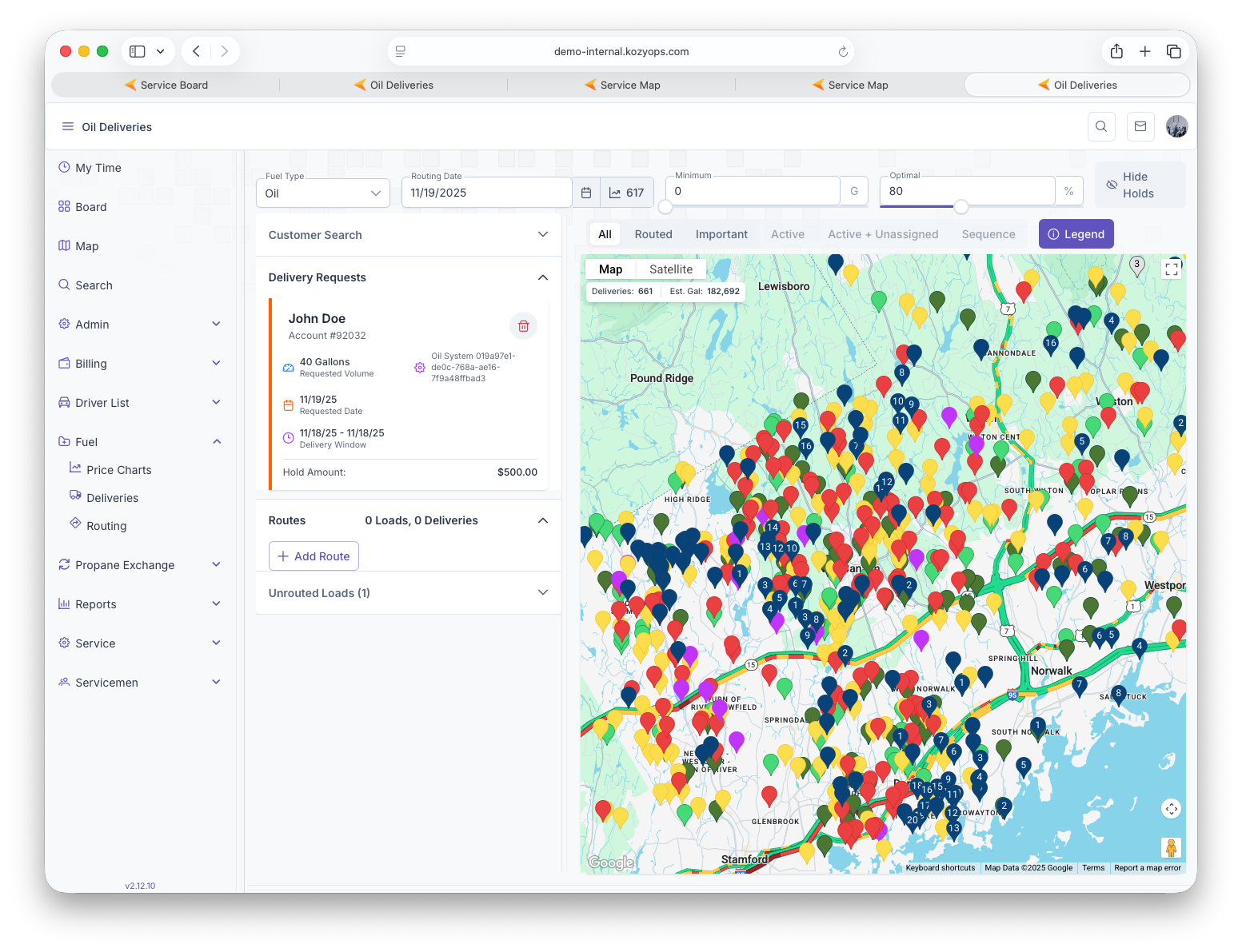
delivery will be deleted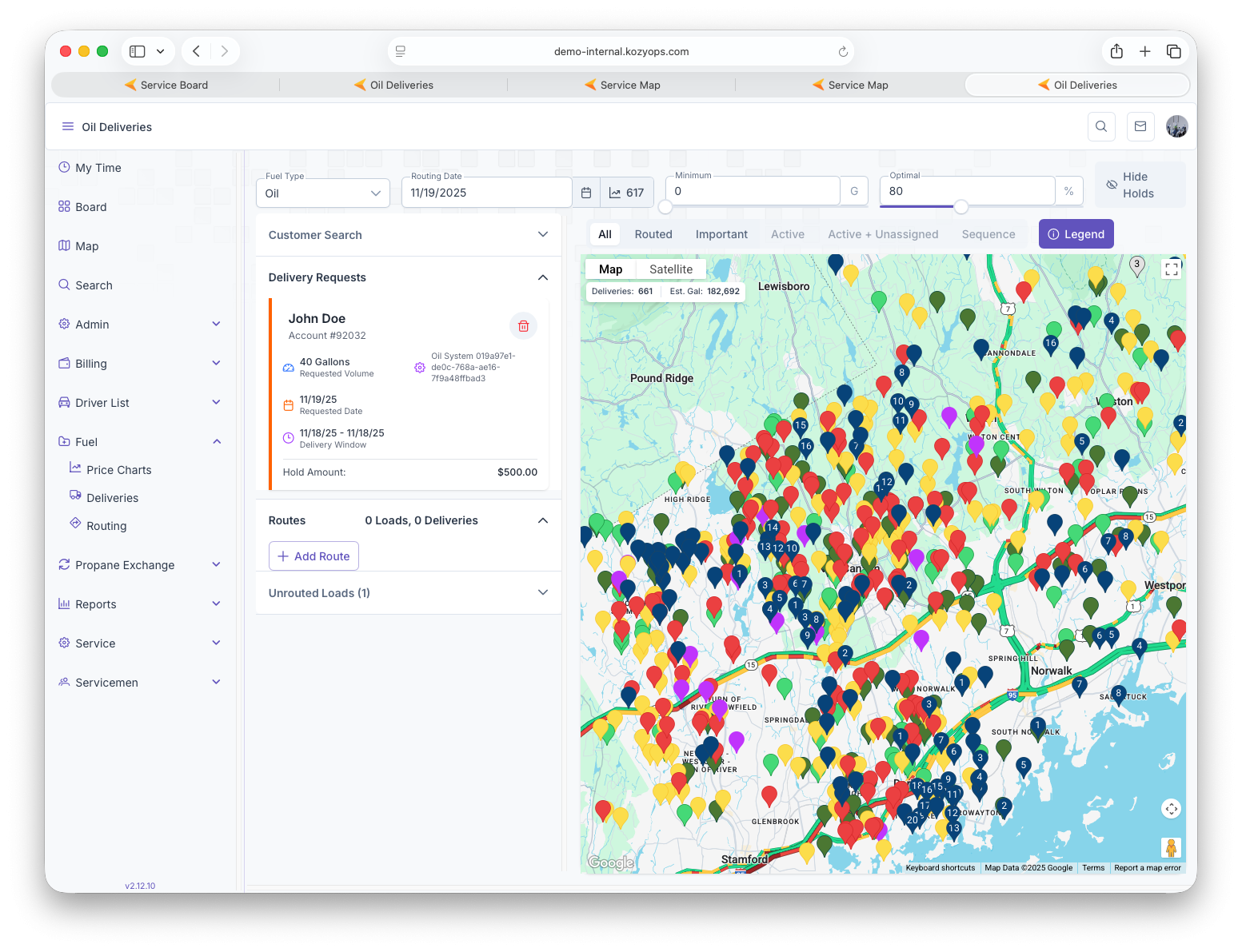
Deliveries
After setting up route, Deliveries can be viewed on Deliveries