
Checking Deliveries
Introduction
This guide will help with navigating to the Deliveries page as well as a breakdown of what deliveries look like after being routing. A guide on how to set up routes can be seen on the Setting Up a Route page.
Navigating to Deliveries page
To reach the deliveries page
-
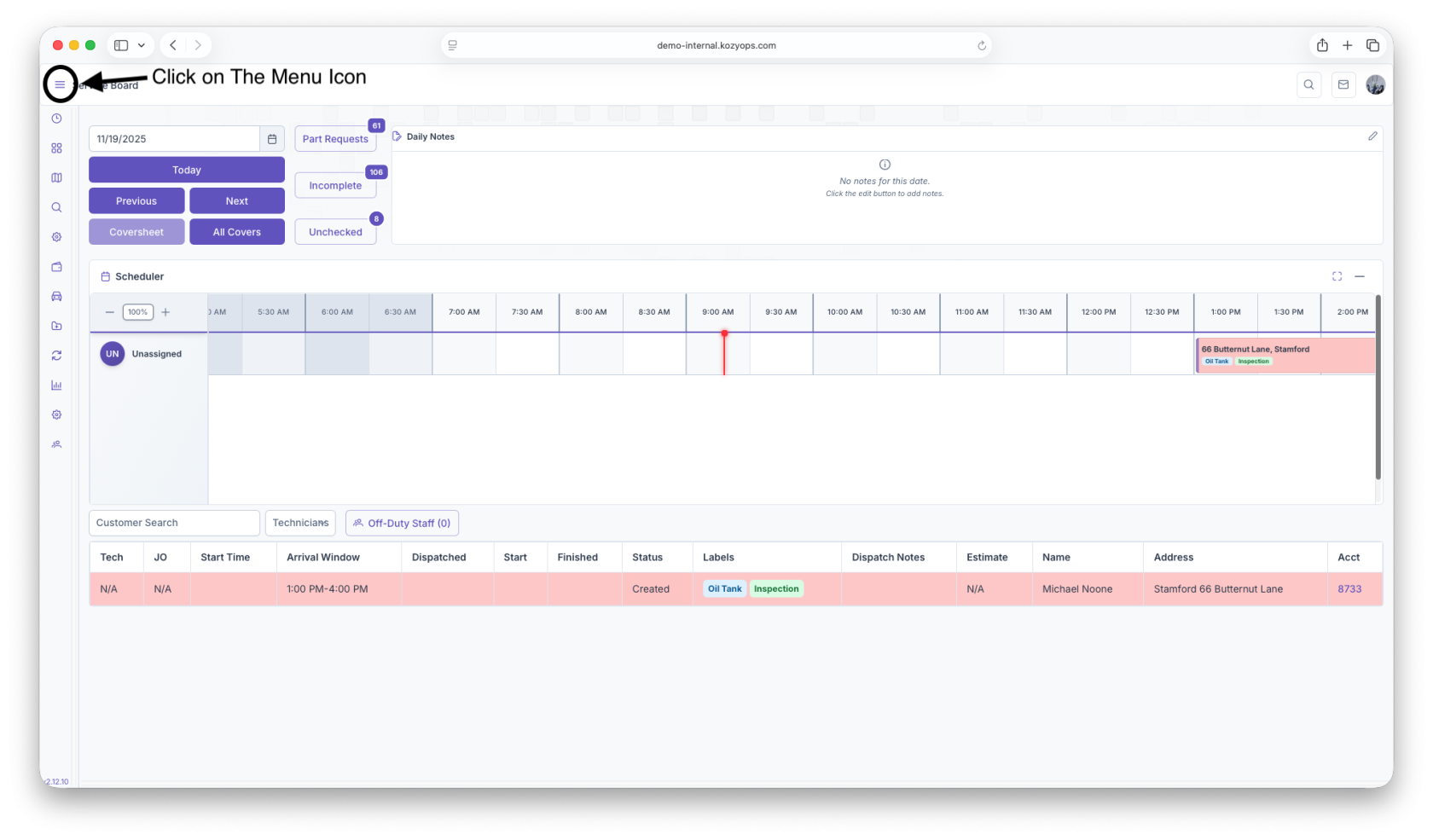
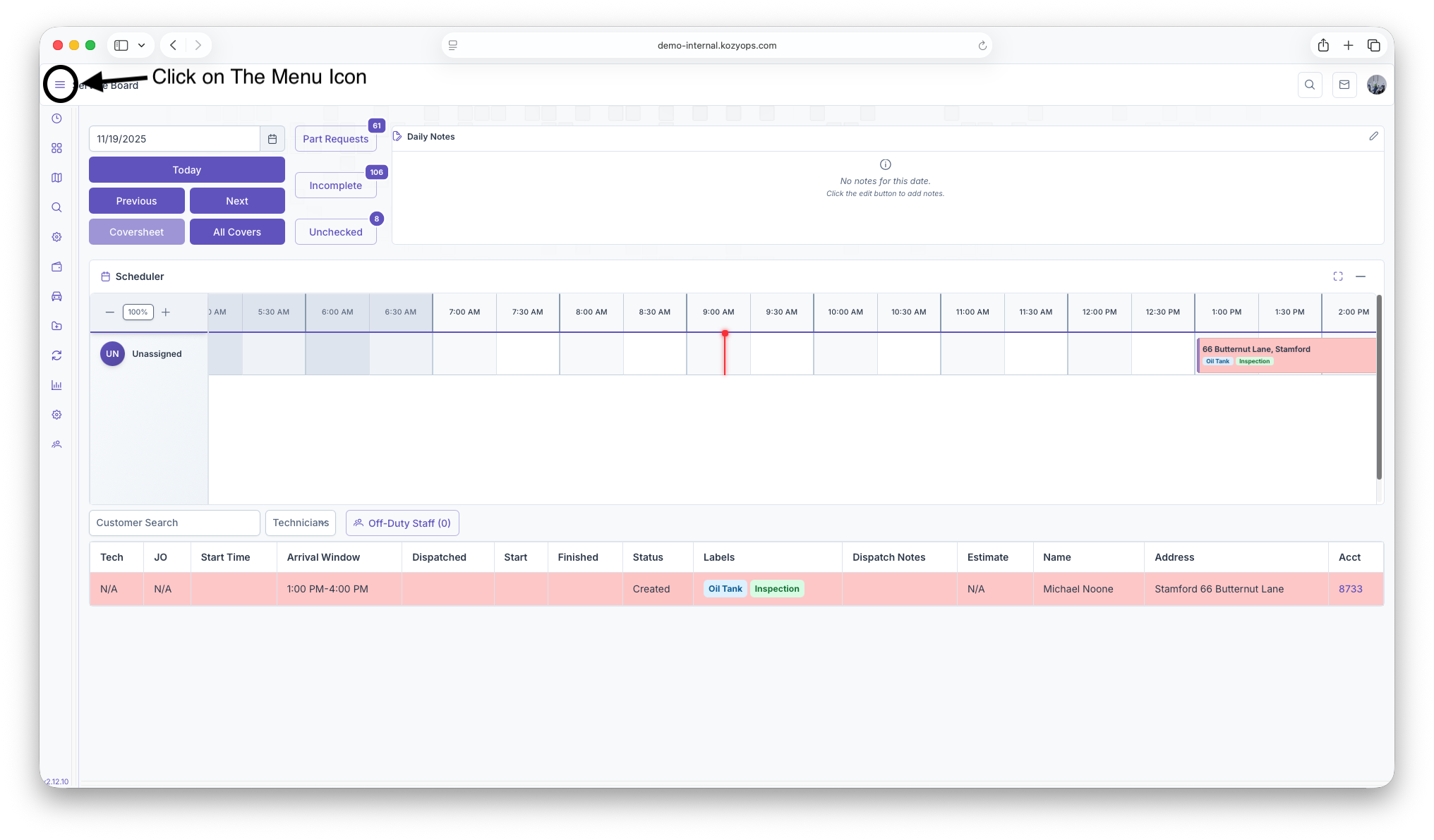
Click on the 3 lines on the top left corner of the page to expand the side menu
-
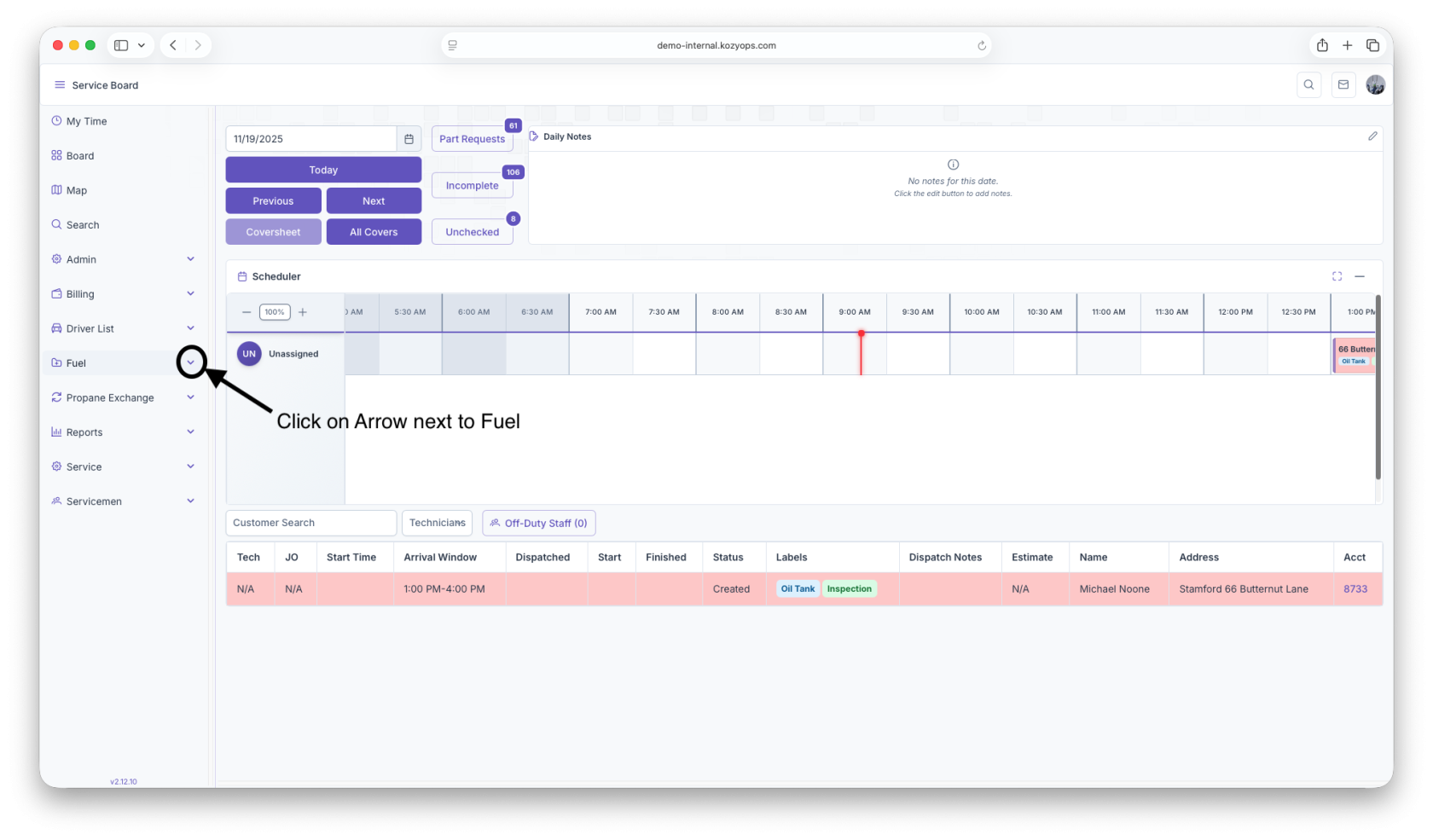
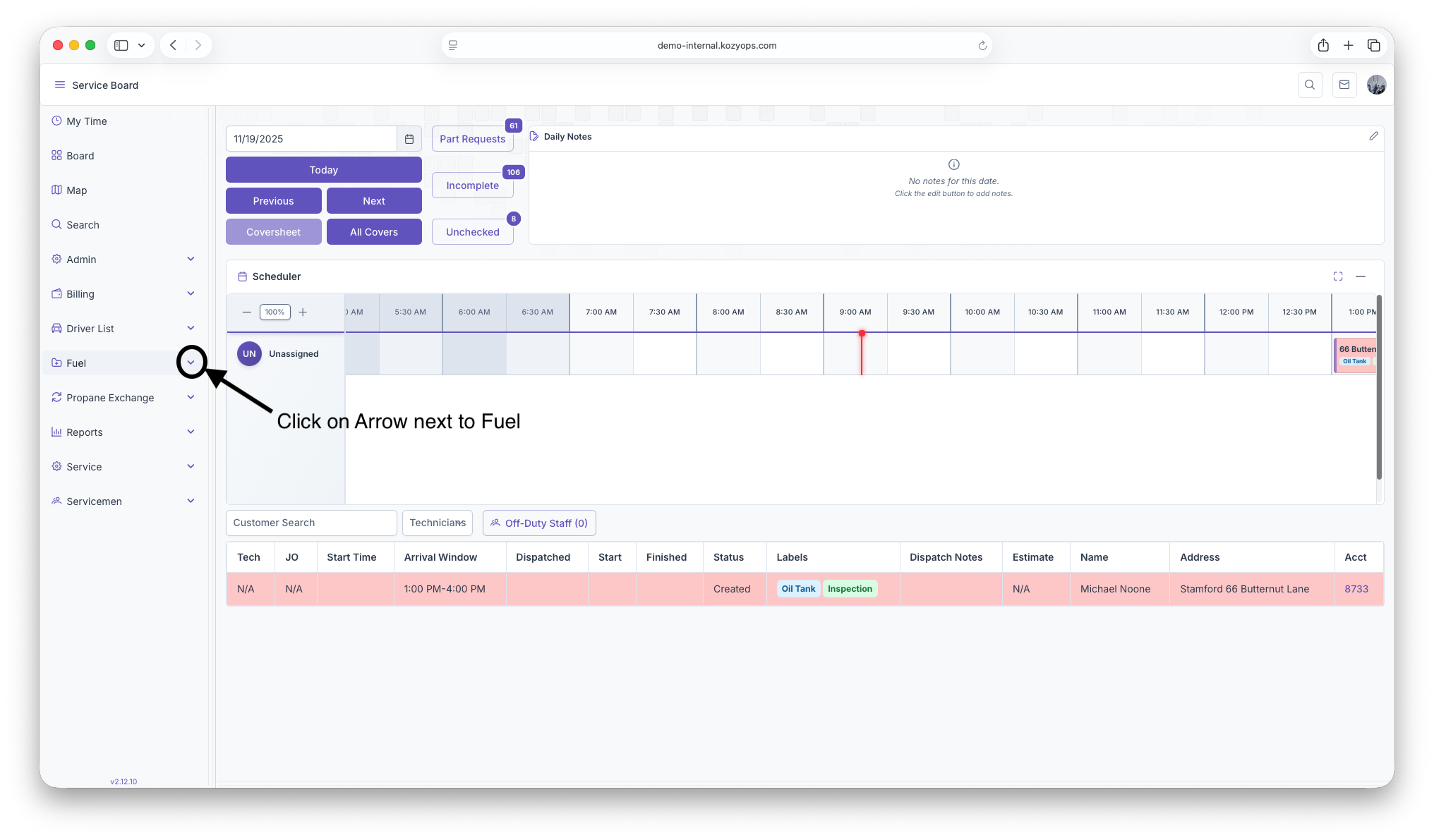
Then click on the dropdown arrow next to Fuel
-
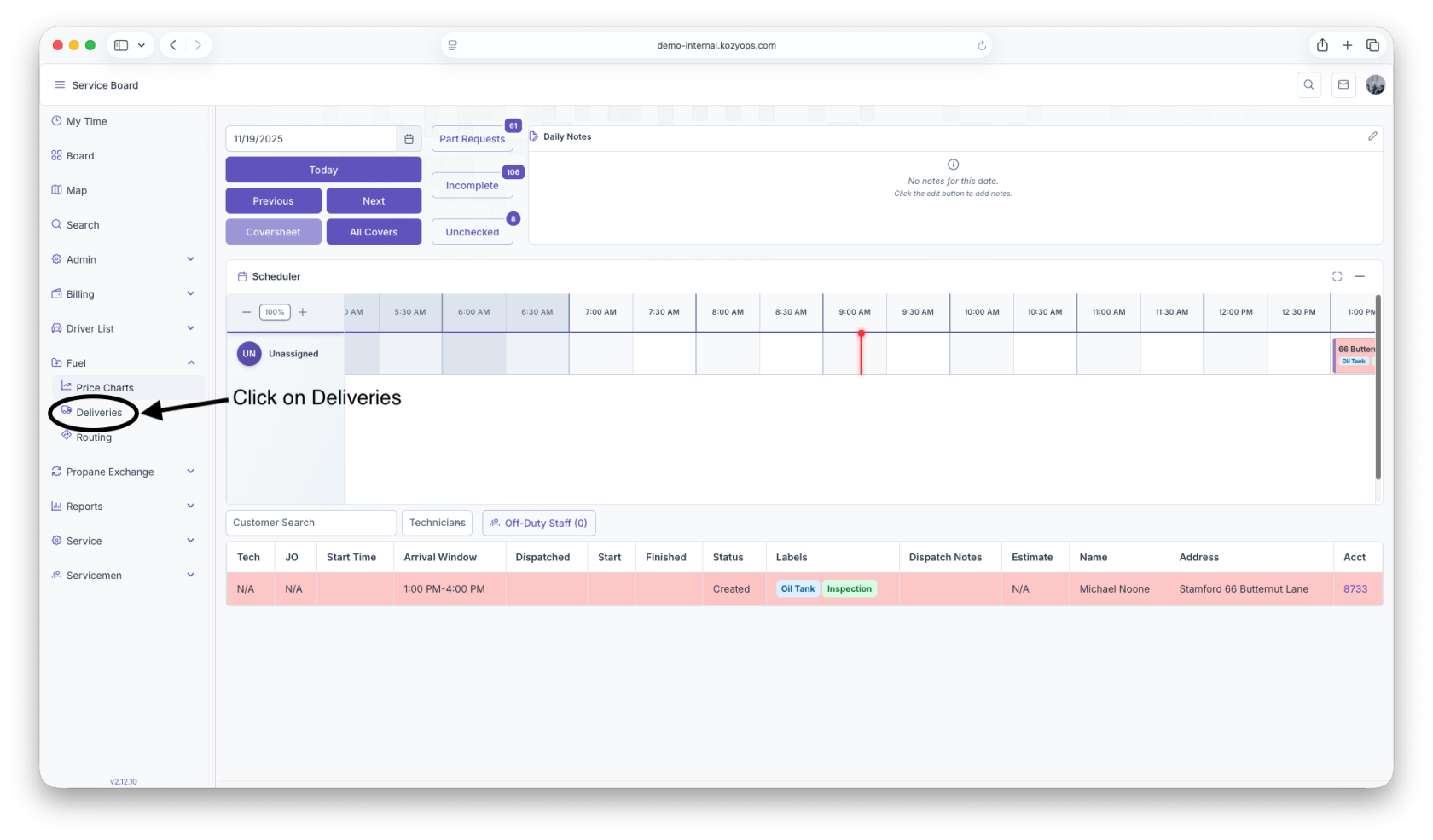
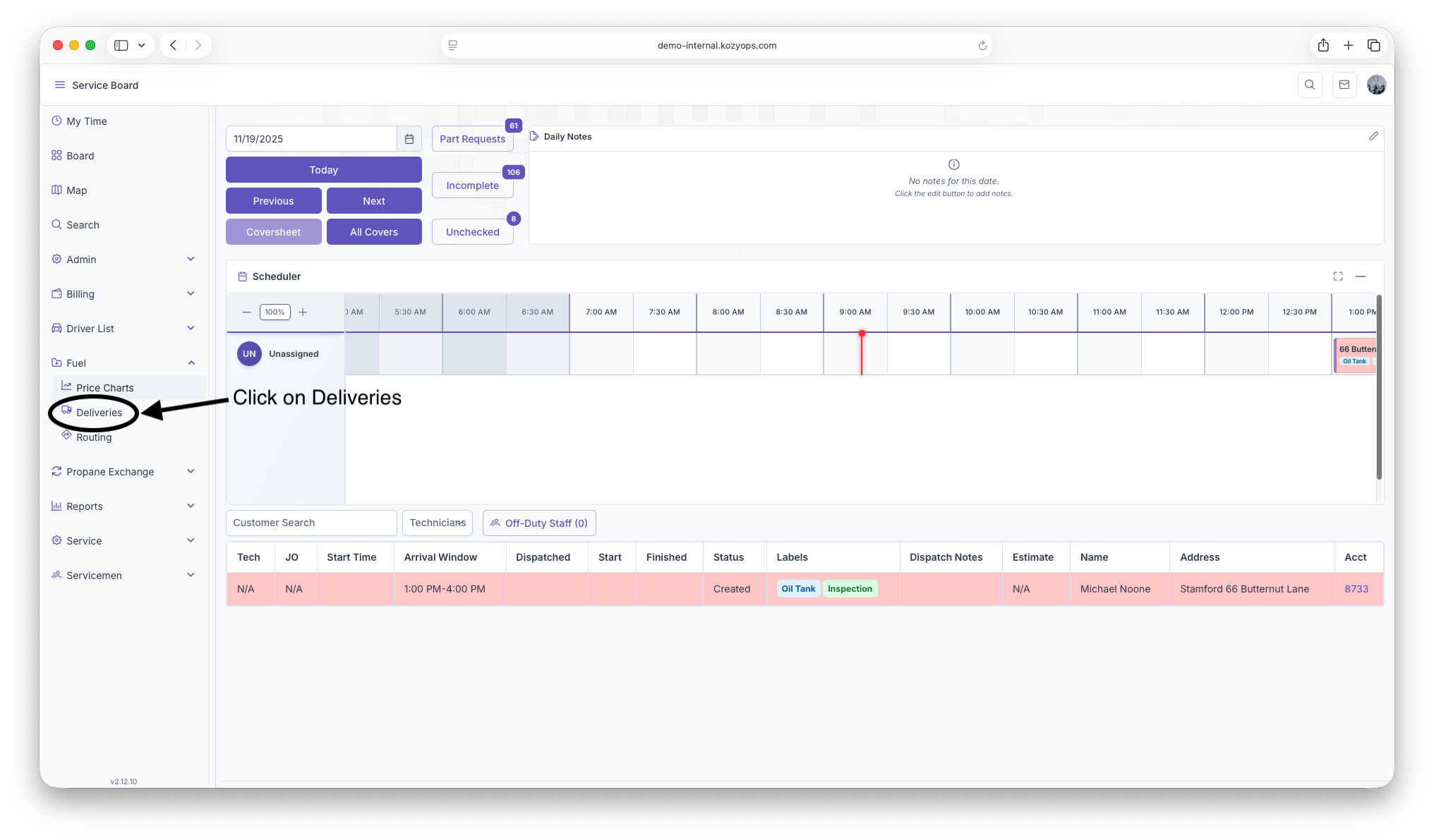
Click on Deliveries
Once on the page a table will generate with filters that shows all deliveries.
Deliveries Page
The Deliveries Report page shows all routed deliveries and allows for said deliveries to be priced and edited prior to completion. The page also allows for delivery tickets to be printed and for creating invoices for completed deliveries. When arriving on the page, the following filters need to be set to see the deliveries and all information associated with them
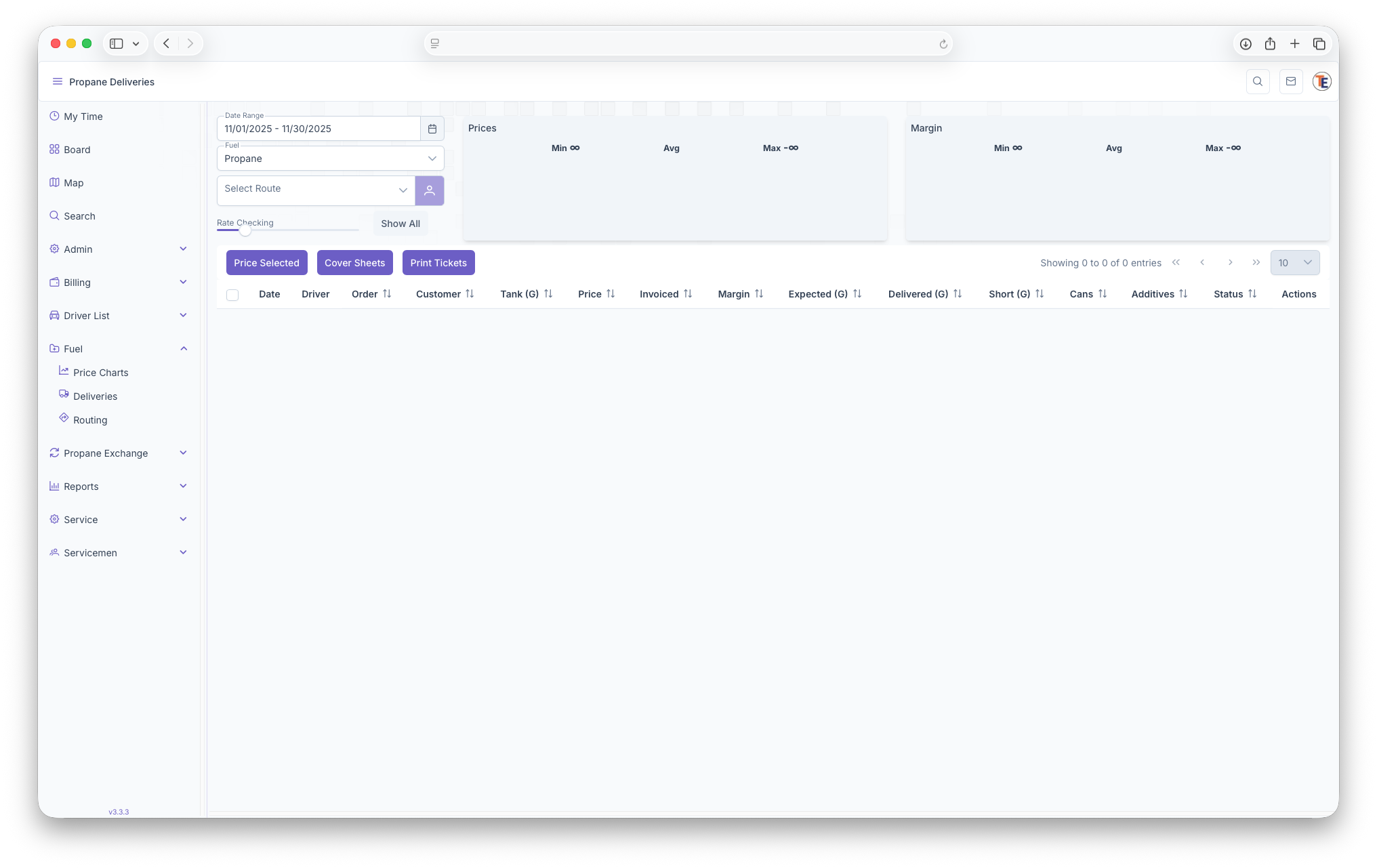
- Date Range - Shows deliveries that fall within the selected date range
- Fuel - Shows deliveries based on fuel type selected
- Route - Displays deliveries based on a chosen route
- Rate Checking - Filters based on the rates, clicking on Show All will display all deliveries that fall under the above filters selected
Once the filters are set, the top of the page will show a report on pricing as well as delivery stats and are shown as follows
- Pricing - Shows the Minimum, Maximum and Average pricing based on the selected filters
- Margin - Shows the Minimum, Maximum and Average Magins based on the selected filters
- Delivery Stats - Shows the stats for all deliveries that fall under the pre selected filters
- Estimated - Total amount of estimated gallons delivered
- Picked Up - Total amount of gallons picked up
- Delivered - Total amount delivered
- Avg/Delivery - The Average amount of gallons delivered per customer
- Succesful - Total Number of Successful deliveries
- Short - Total Number of Deliveries that were short
- Leftover - Total Number of Leftover Deliveries
- Pending - Total number of pending deliveries
- Checked - How many Deliveries were checked for Invoicing
- Billed - How many Deliveries were billed
- Routes - Shows the total number of routes
- Drivers - Shows the total number of drivers
The Deliveries will then be shown below all stats and filters as a table with each delivery as a line item and with the following columns
- Date - Shows the date of the delivery
- Order - Shows the order number of the delivery for that route. To the left of the order number will be the Load Number and to the right are the initials of the Driver
- Customer - Shows the Customer Account Number and their Name right below that
- Price - Shows the price per gallon, can be edited by clicking on the price after the delivery has been priced. See below for more information on Ticket Pricing
- Invoice - Shows a check if the invoiced was completed and a question mark if incomplete. Initially appears blank until an action is taken on the delivery
- Margin - Shows the profit that is made or will be made on the delivery
- Delivered (G) - How much was actually delivered, can be edited if need be by inputting the amount actually delivered. The left side of the Delivered Number shows the Expected amount of gallons to be delivered and the right shows the size of the System. If the Delivery is short, the amount the delivery was short by will appear on the right in between the amount delivered number and the size of the system
- Cans - How many cans were delivered
- Additives - How many additives were added to the delivery
- Status - The Status of the delivery
- Delivered - Delivery was successfully completed - Will appear as blank if expected amount was delivered and Yellow if delivered amount is over or under the expected amount
- Pending - Delivery is pending - Will appear as grey
- Leftover - Delivery was not completed and marked as leftover - Will appear as blue
- Short - The delivery was completed, but was short - Will appear as red and short amount must be input next to delivered gallons as seen above
- Actions - Actions that can be taken on the Delivery
- Checked - Clicking on the check will complete the delivery and create/update the invoice and will then appear as a lock
- Locked - Clicking on a delivery that's locked will change the delivery as unchecked and allow for changes to be made on the delivery
Each line item can be selected one at a time or in bulk and have the following actions taken on them
- Price Selected - Clicking here will price all the selected line items rather just one at a time
- Cover Sheets - Will export the information selected and create a Cover Sheet
- Print Tickets - Will generate a ticket for the delivery and export
Ticket Pricing
Ticket pricing allows for the option to override the final price or to reprice a delivery ticket before it's invoiced. To reach the ticket reprice, click on the priced ammount per gallon under the Price column of Deliveries. This can only be done after a delivery has been initially priced. After clicking on the price, the Ticket Pricing popup will appear and shows the following
- Rack Price - Shows the Rack Price for the fuel at the moment
- Recommended Price - Shows the price recommended for the customer to be charged
- Curent Margin - Shows the current profit that will be made from the delivery
- Final Margin - Shows what the final profit will be made from the delivery
- Final Price - Shows what the initial final price per gallon will be. If for any reason this needs to be overwritten, the price can be changed here. This will only be applied after clicking on Override Price
- Go to Pricing for This System - Clicking here will pull up the customers pricing screen
Once finished, clicking on Override Price will add the new final price for the customers delivery if applicable. If a last minute change was made, on the customers account such as an added promotion, clicking on Reprice Ticket will reprice the ticket with the added promotion.