
Checking Deliveries
Introduction
This guide will with navigating to the Deliveries page as well as breakdown of what deliveries look like after being routing. A guide on how to set up routes can be seen on the Setting Up a Route page.
Navigating to Deliveries page
To reach the deliveries page
-
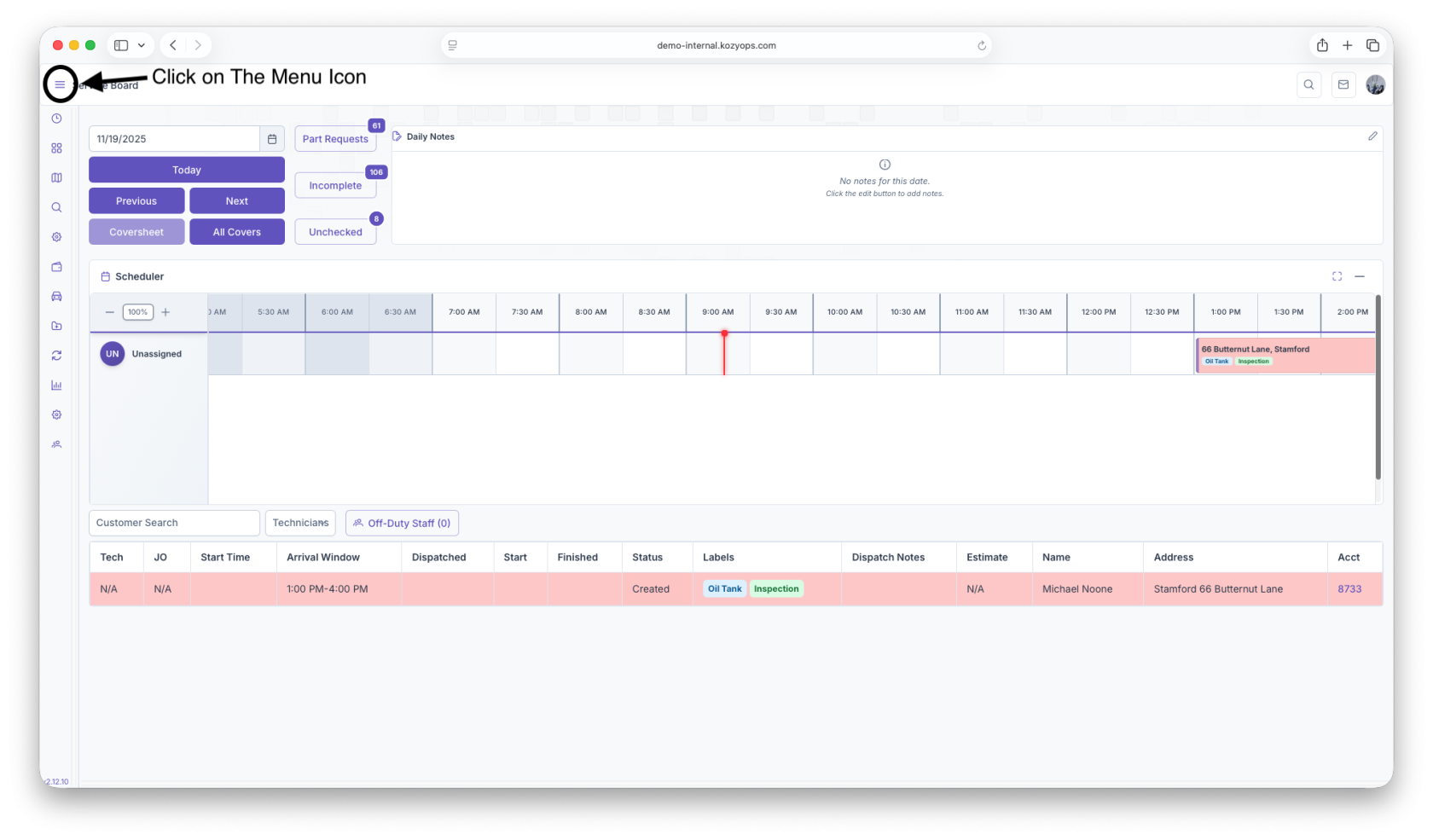
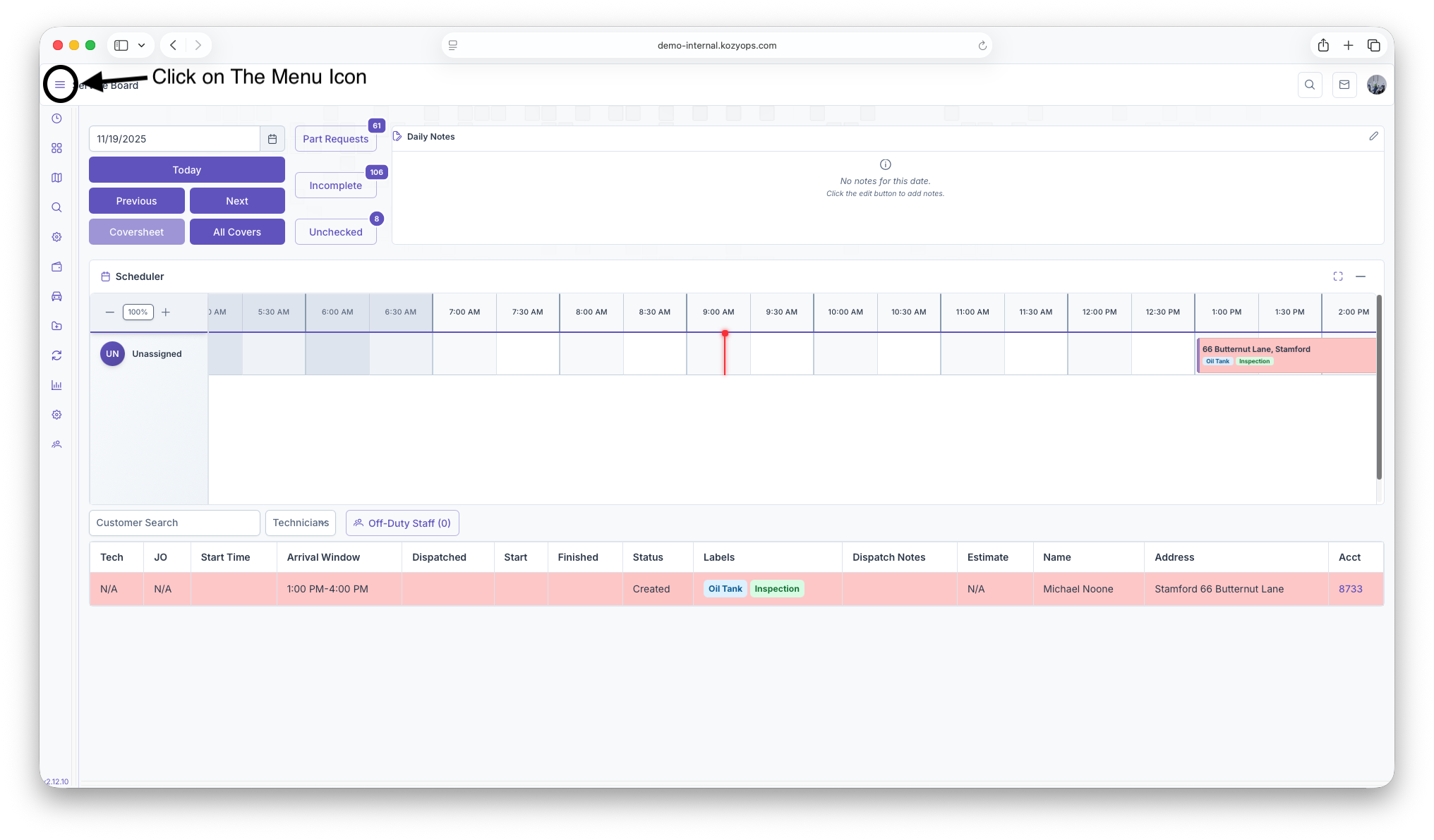
Click on the 3 lines on the top left corner of the page to expand the side menu
-
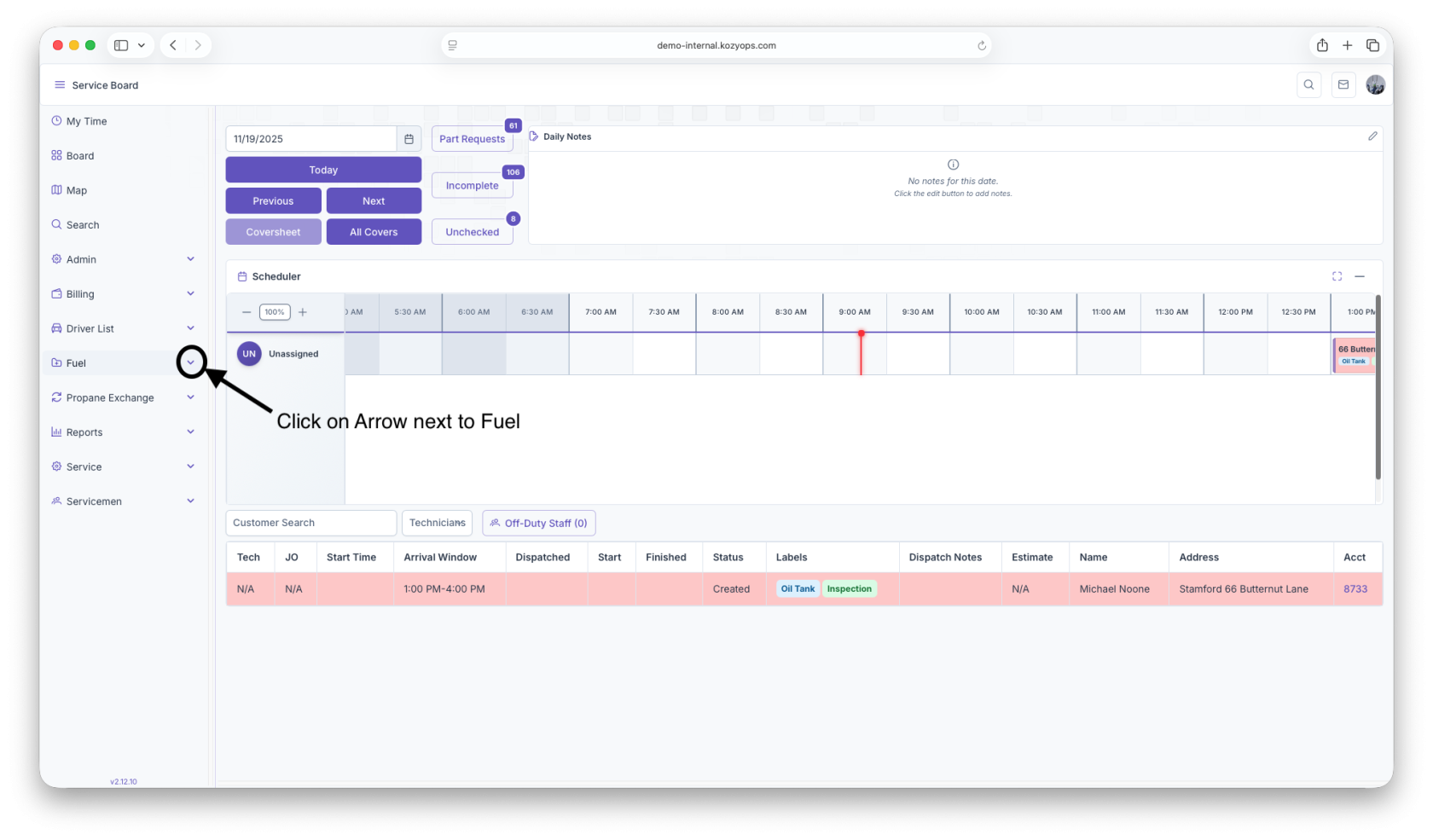
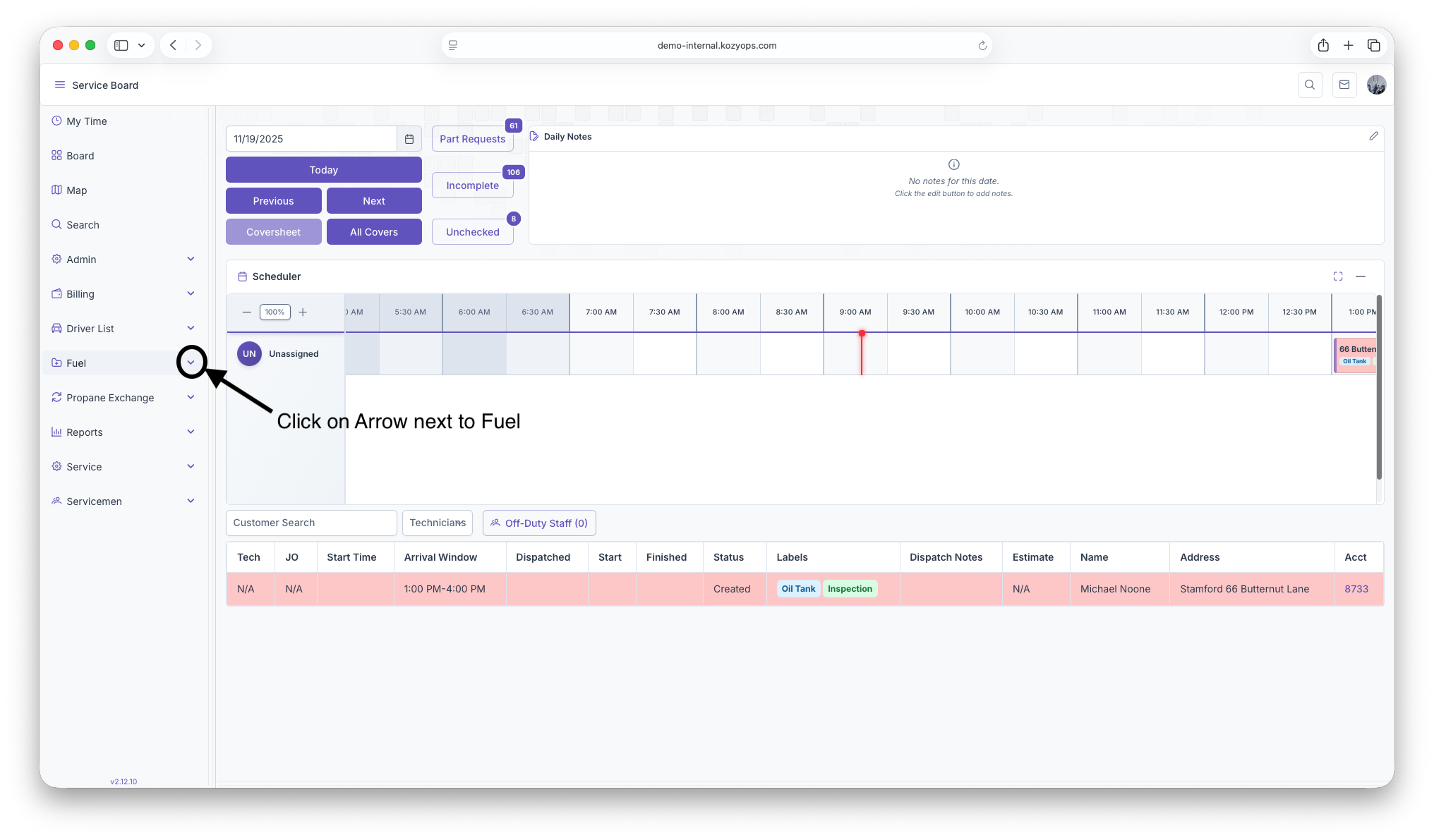
Then click on the dropdown arrow next to Fuel
-
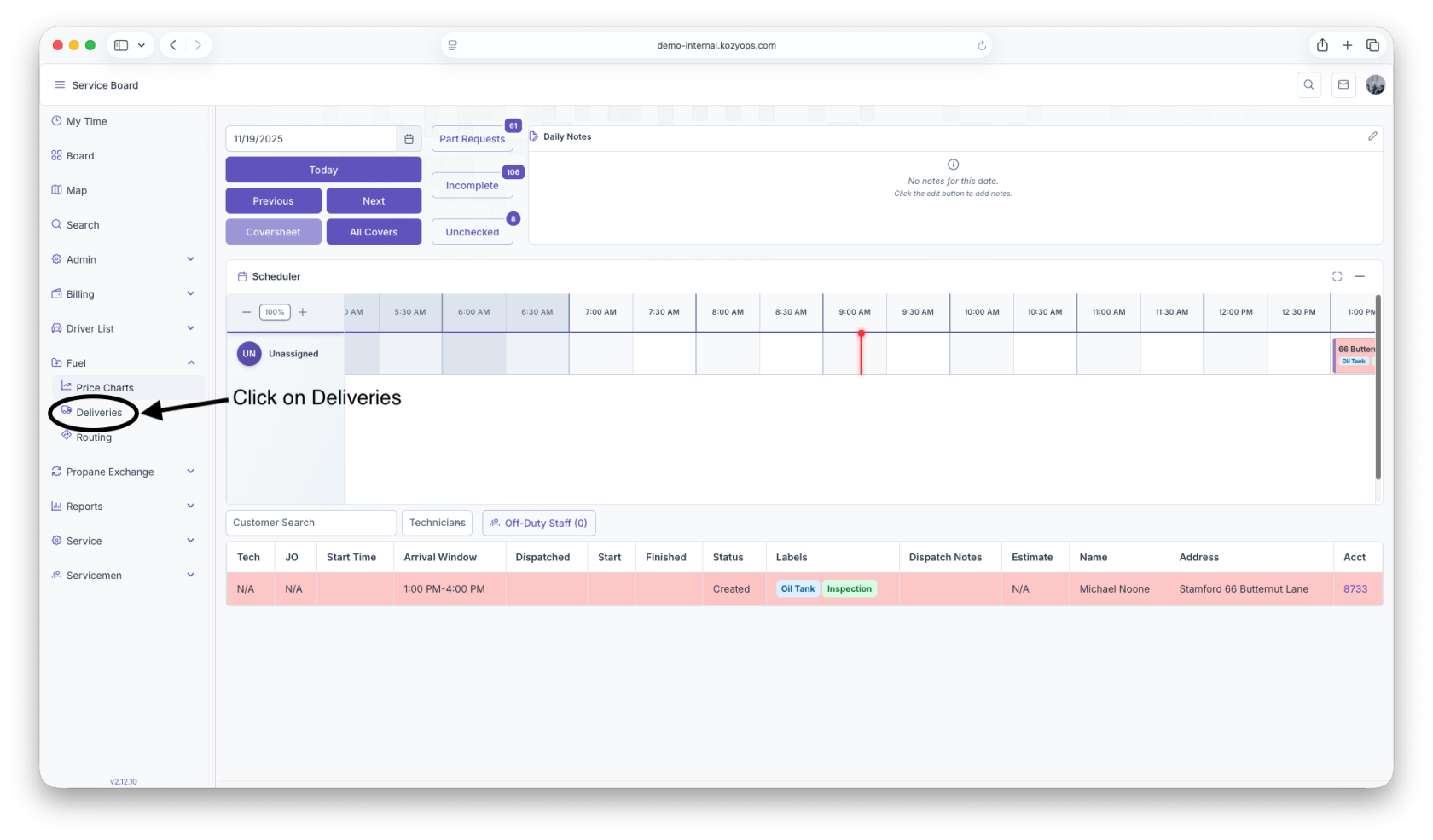
Click on Deliveries
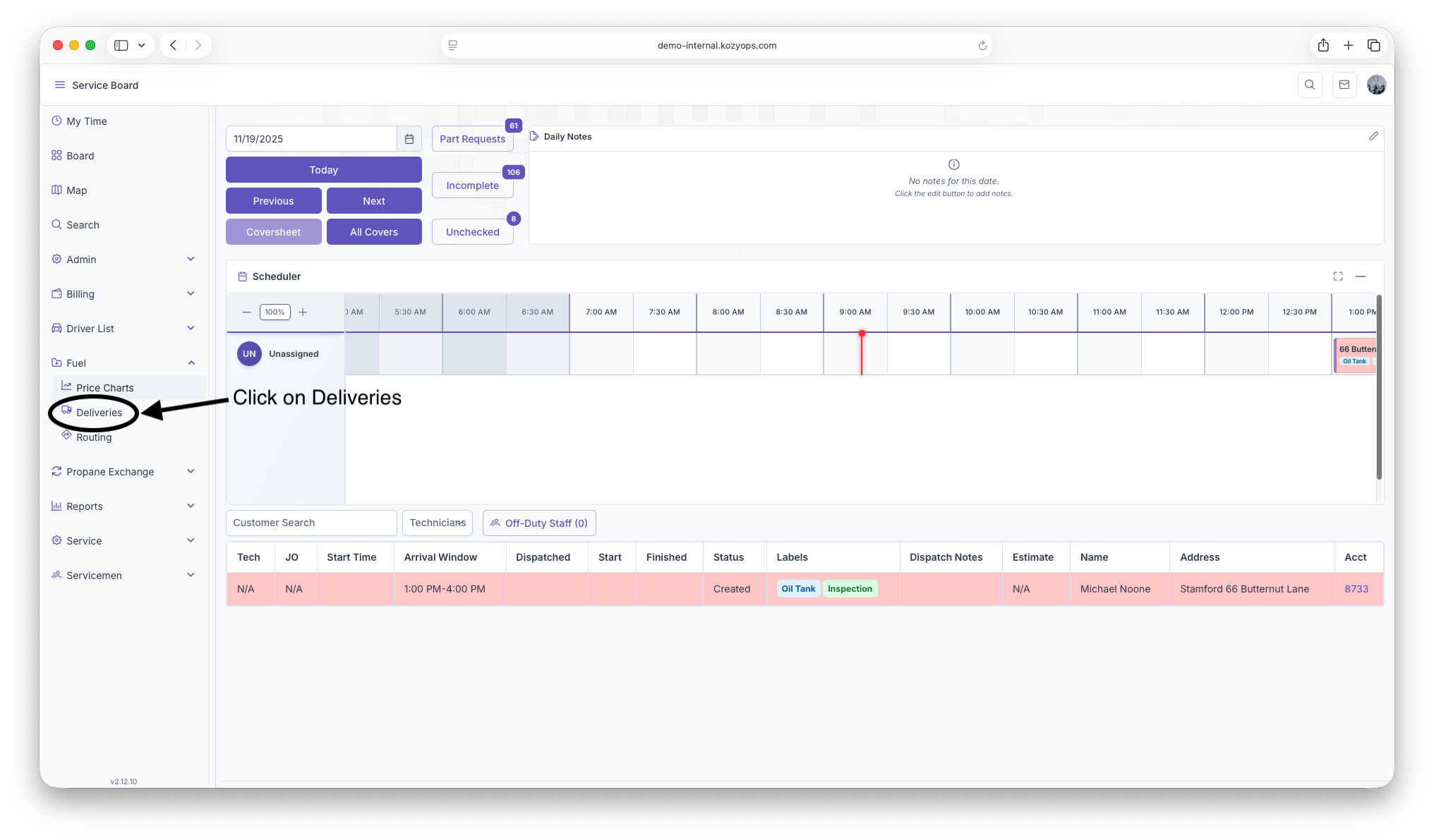
Once on the page a table will generate with filters that shows all deliveries.
Deliveries Page
The Deliveries Report page shows deliveries that have been routed and are being delievered, have been delivered, are going to be delivered or haven't been delivered. The page will then generate based on the following filters
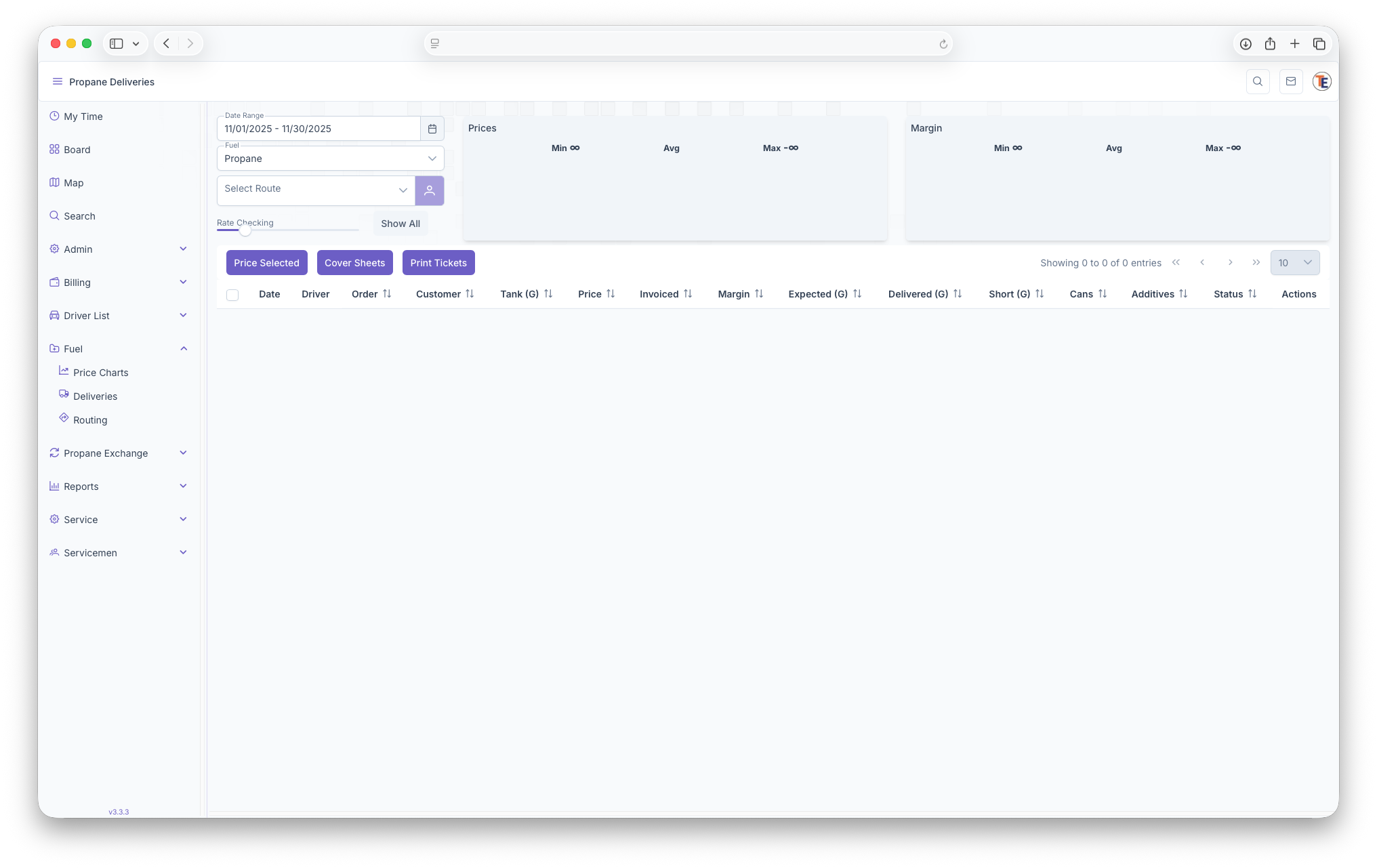
- Date Range - Displays deliveries for the selected range
- Fuel - Displays deliveries with the selected fuels
- Route - Displays deliveries made on specific routes
- Rate Checking - Filters based on the rates, clicking on show all will display all rates
Once the filters are set, the top of the page wil display Prices and Margins and will show a minimum, an Average and Max for both. Afterwards, the table that generates will show each delivery as a line item with the following columns
- Date - Shows the date of the delivery
- Driver - The driver that made or will make the delivery
- Order - Shows the order number of the delivery for that route
- Customer - Shows the Customer account and name
- Tank - Shows the size of the tank
- Price - Shows the price per gallon
- Invoice - If an Invoice was generated
- Margin - The profit made/will be made on the delivery
- Expected - The expected delivery amount
The Following can be edited
- Delivered - How much was actually delivered
- Short - The amount short for the delivery
- Cans - How many cans were delivered
- Additives - how many additives were added to the delivery
- Status - The Status of the delivery
- Actions - Actions that can be taken including pricing the delivery and creating an invoiced if delivered
Each line item can be selected one at a time or in bulk and have the following actions taken on them
- Price Selected - Clicking here will price all the selected line items rather just one at a time
- Cover Sheets - Will export the information selected and create a Cover Sheet
- Print Tickets - Will generate a ticket for the delivery and export