
Deliveries
Introduction
The Deliveries part on the Fuel section of the Customer Account is where Customer Delivery Request can be input when made by the customer and not in Auto Delivery. A history Search and Pricing search can also be made here by clicking on the History or Pricing tabs.
Deliveries
When first seeing this sction, all Fuel Delivery Requests that are made will show up here. They'll show up as line items with the following columns
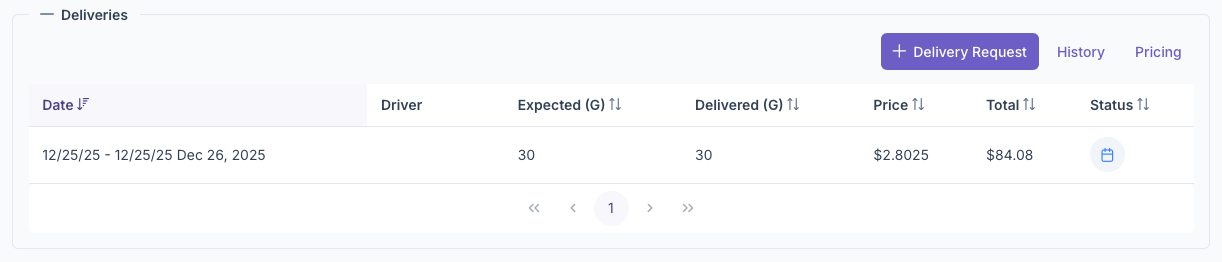
- Date - The date of the requested delivery
- Driver - The Driver selected to delivery the fuel
- Expected - How many gallons are expected to be delivered
- Delivered - How many gallons were delivered
- Price - How much per gallon
- Total - Total amount based on what was delivered
- Status - Shows the status of the request. Clicking on the status will also delete the request if not delivered yet
Delivery Request
Delivery Request for Customers can be made here. By clicking on the +Delivery Request, The Add Deliveries popup will appear and the following fields must be filled out
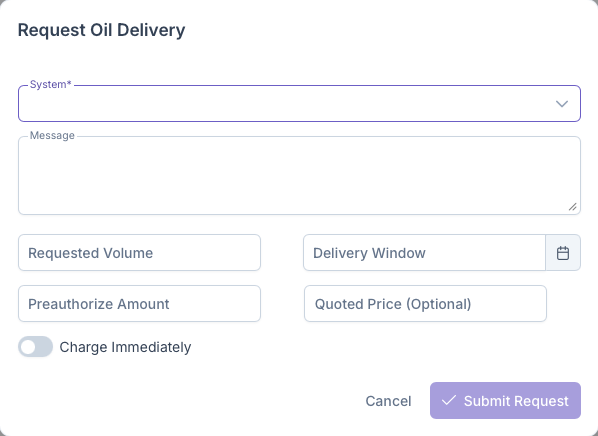
- System - Select a system the customer has that need a delivery
- Message - Any messages or notes regarding the request
- Requested Volume - How much was requested for Delivery
- Delivery Window - The given date window for a delivery
- Credit Card Hold Amount - The hold placed on the customers card for delivery
- Quoted Price - The price that was quoted for the customer when the delivery was requested
- Charge Card - Toggling here will allow a card to be charged for a delivery request if the customer wants to be charged right away. Toggling this on will expand the menu and now it will also show
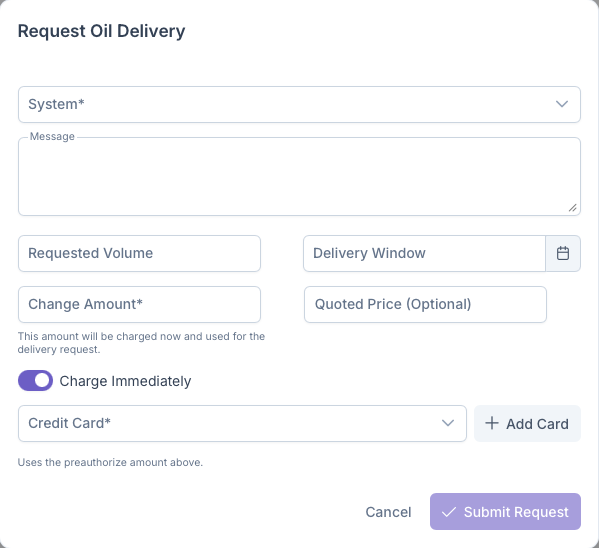
Once all fields have been filled out, clicking on Submit Request will create the delivery request.request and charge the customers card if the customer wanted to have it charged. This will show up partially filled on the Deliveries section and will fill up as the the order is routed, priced and delivered. This request will also show up on the request section of the Setting Up a Route page. Clicking on cancel will close out the window and delete any information filled out
Add Payment Card
If a customer chooses to have a card added to their account to use for a delivery request, the Add Payment Card popup will appear and the following information needs to be filled out
AutoPay Settings
History
Clicking on the History tab under Deliveries will bring up the Deliveries History for The Customer. Once brought up, it'll show all systems that the customer has and clicking on each one will bring up a detailed page for that systems delivery history. The page will show details about the following, The system itself, The Usage Rates, Delivery Windows, Delivery Analytics, Rate Configurations and Delivery History. A much more detailed view of this page can be seen on the Delivery History page.
Pricing
Clicking on the Pricing Tab under Deliveries will bring up the Pricing page for deliveries. Once brought up, a system can be selected which will then generate the pricing for that system. The Following information is then displayed, Pricing, Transitions, Services, Contracts, Custom Points and a graph depicting Recent deliveries. A much more in depth look at the pricing page can be seen on the Pricing page.