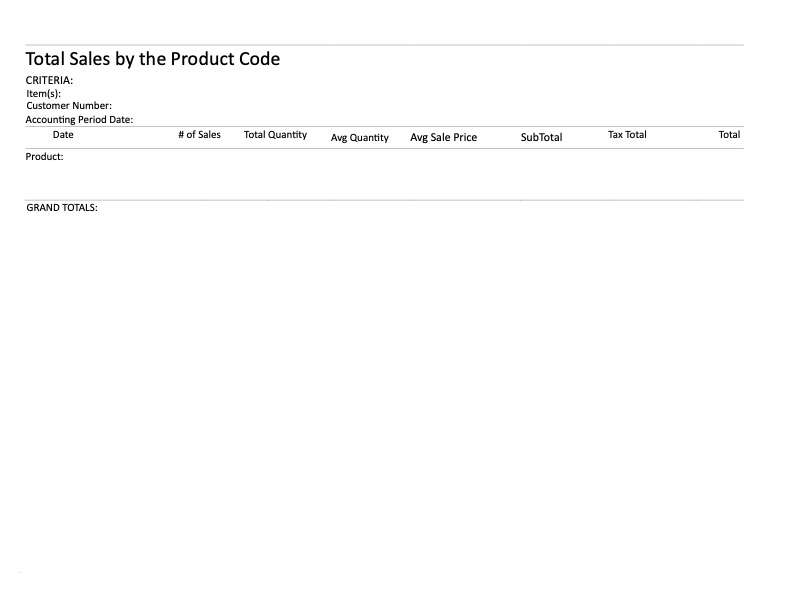
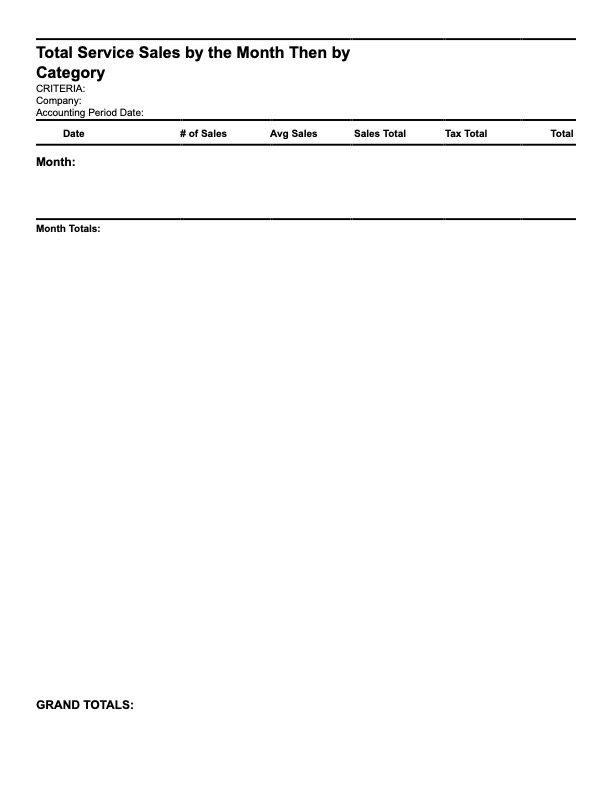
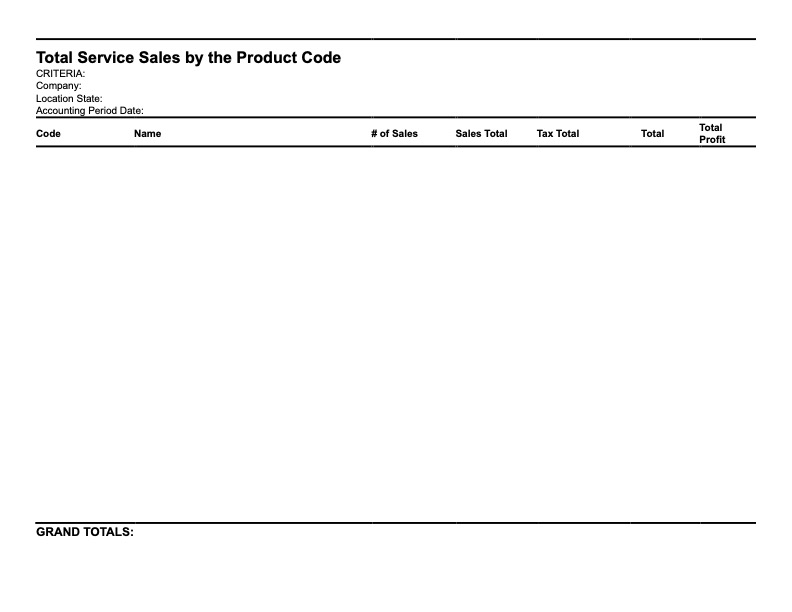
Taylor Reports in Sales Summary by Product
Sales Summary by Product and how they reflect Taylor Reports
The Sales Summary by Product Report shows sales made by each product, including total amount, what each product/service costs and taxes. To reach the Sales Summary by Product page, click on reports on the side menu then click on Sales Summary by Product. Clicking on the three bars on the top left corner of the page will expand the side menu showing more details and making it easier to navigate. The page can then be filtered to show specific date ranges as well as by brands. The page will then show the Overall Sales including, Subtotal, Tax and Total. Fuel Items and Service Items will also be displayed along with their individual Subtotals, Tax and Totals. Next will be the Summary by Description which will be shown in the following columns, Description, Total Quantity, Total Amount and Total Tax. Finally the Detailed Line Items will show the following columns, Date, Invoice Number, Customer, Category, Description, Quantity, Amount, Tax and Taxable.
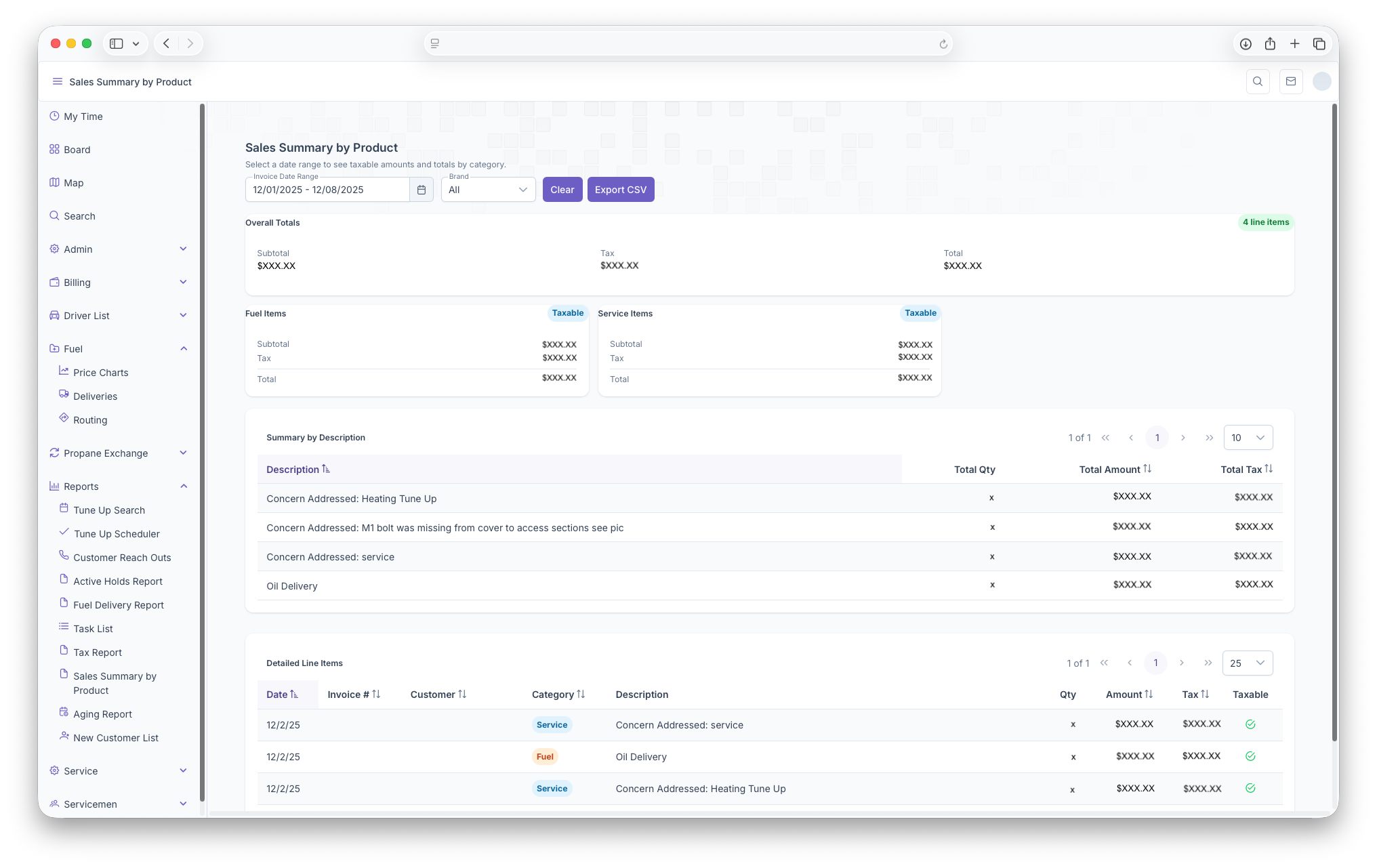
The Following Taylor Reports can be seen in KozyOps Sales Summary by Product Report
-
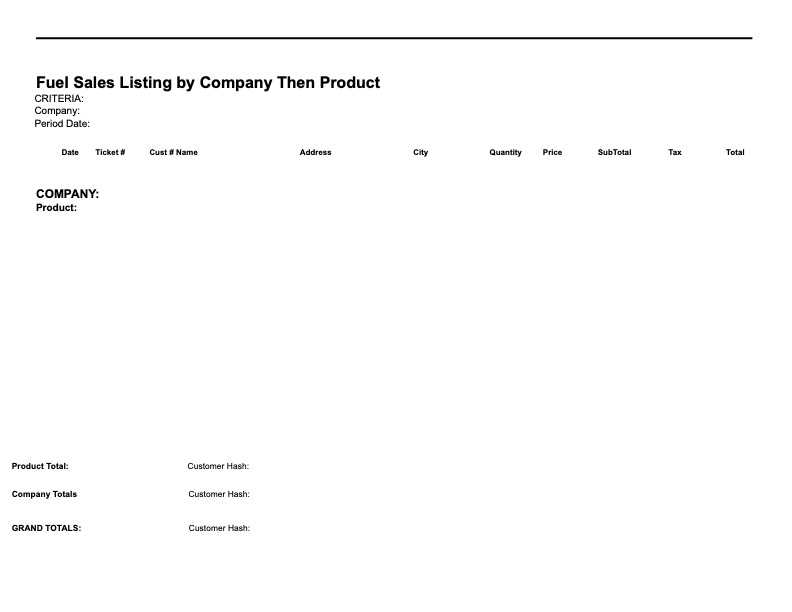
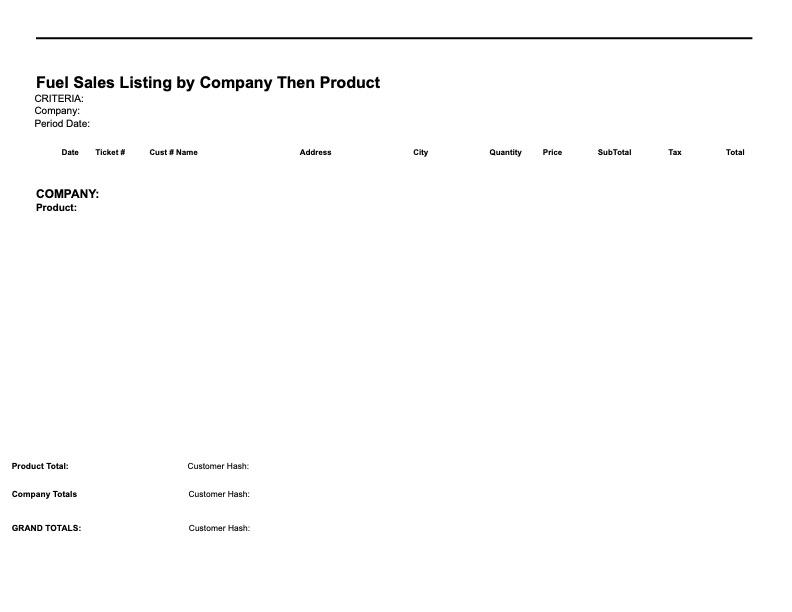
Fuel Sales Listing by Company Then Product
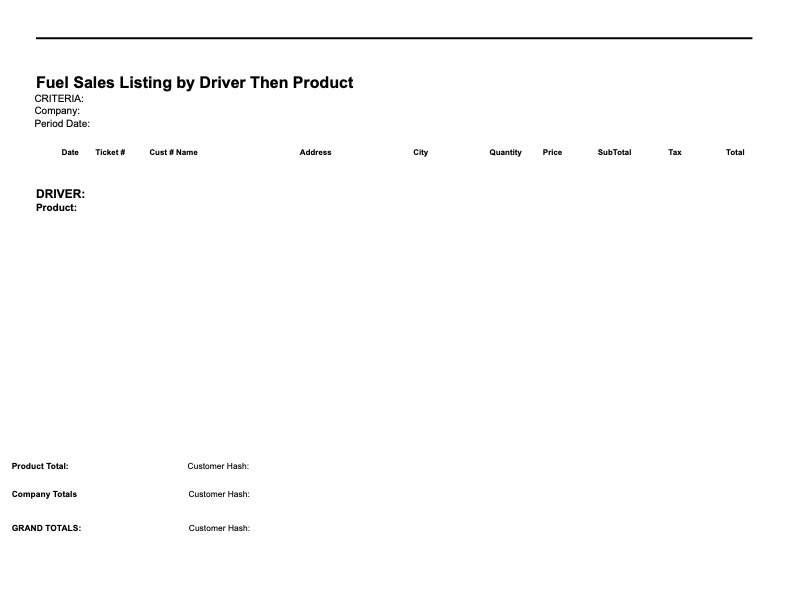
Fuel Sales Listing by Driver Then Product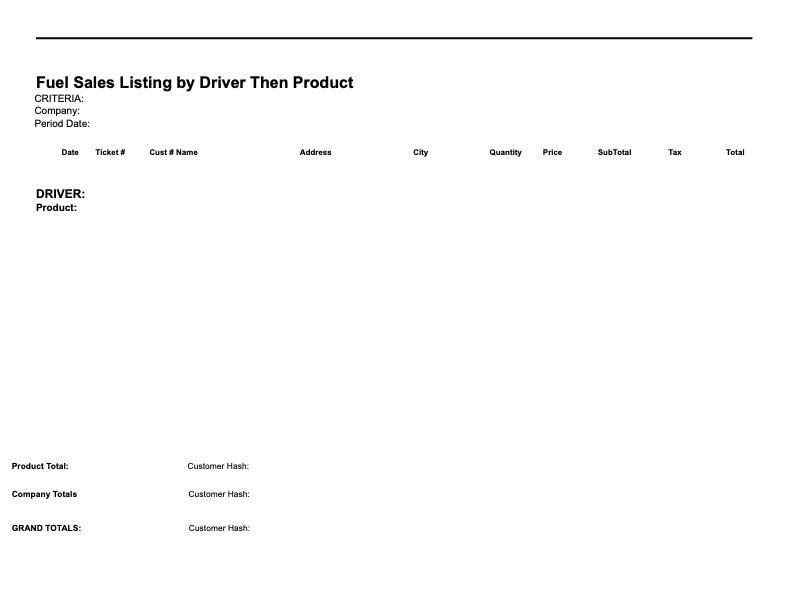
-
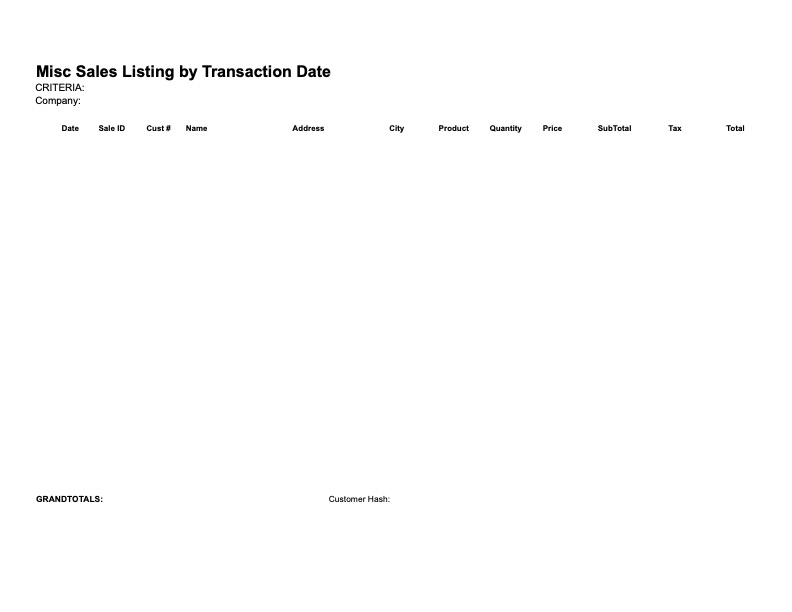
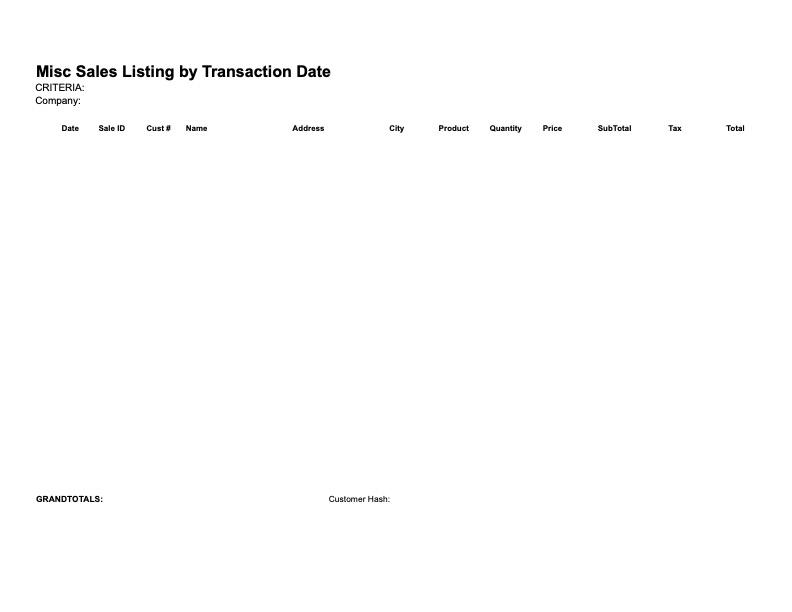
Miscellaneous Sales Listing by Transaction Date
-
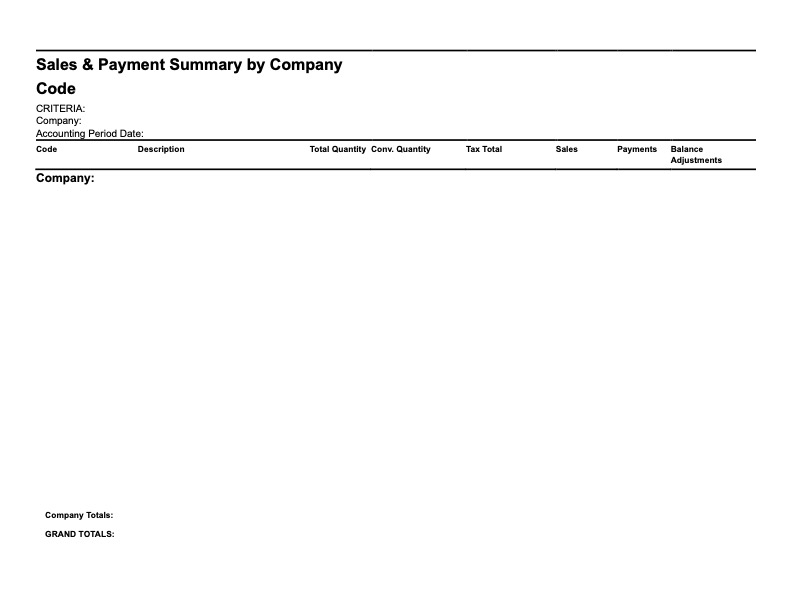
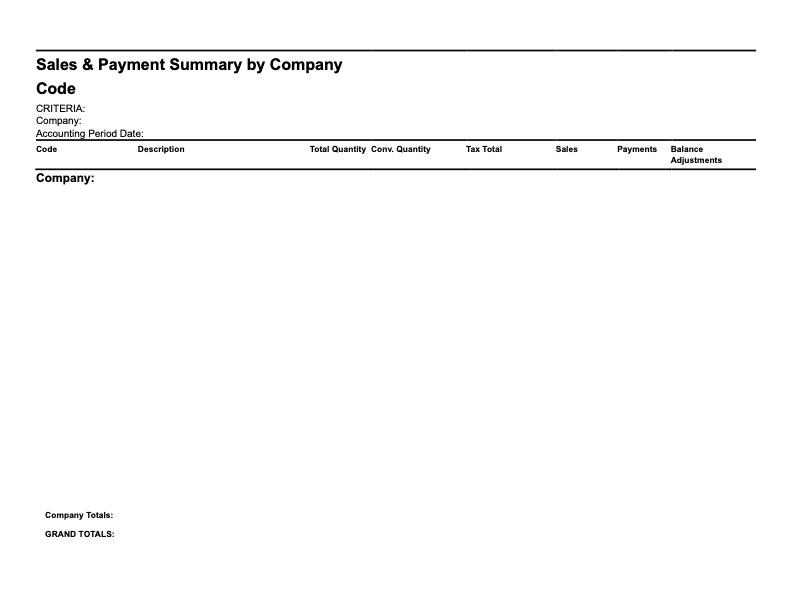
Sales and Payment Summary by Company Then Product Code
-
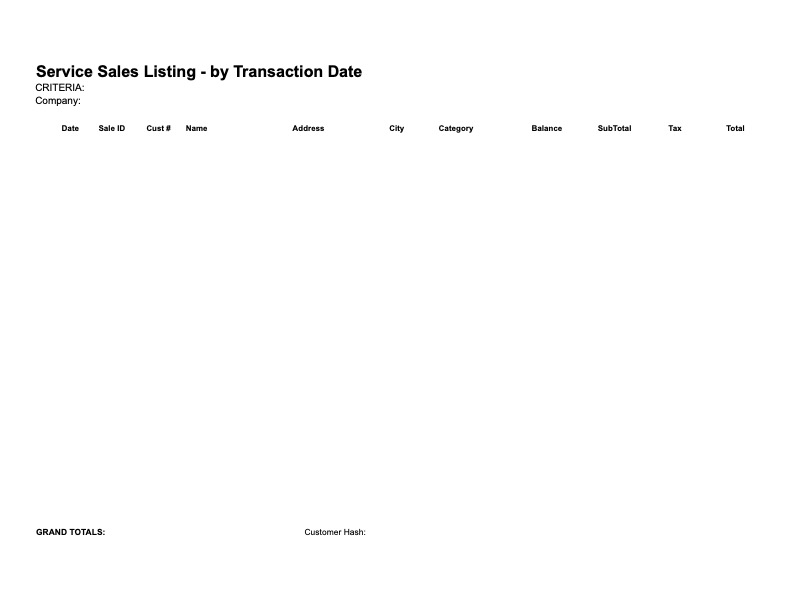
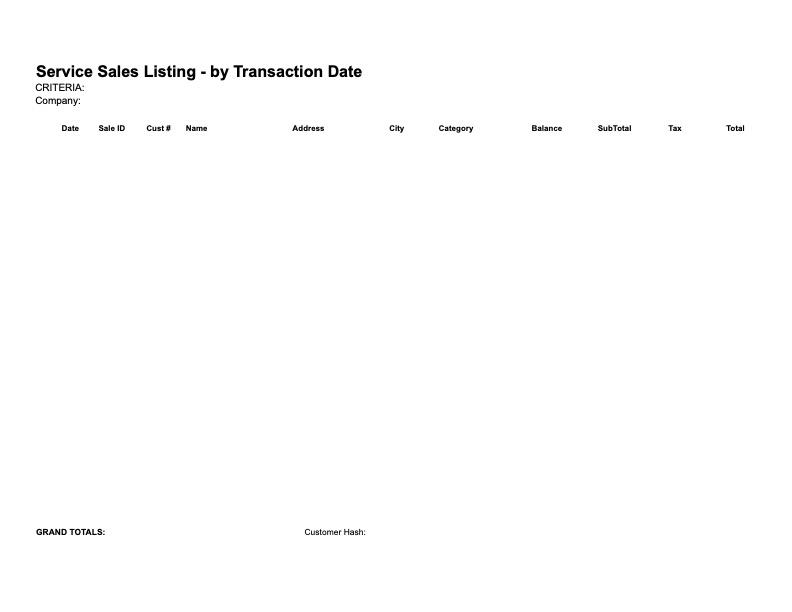
Service Sales Listing - by Transaction Date
-
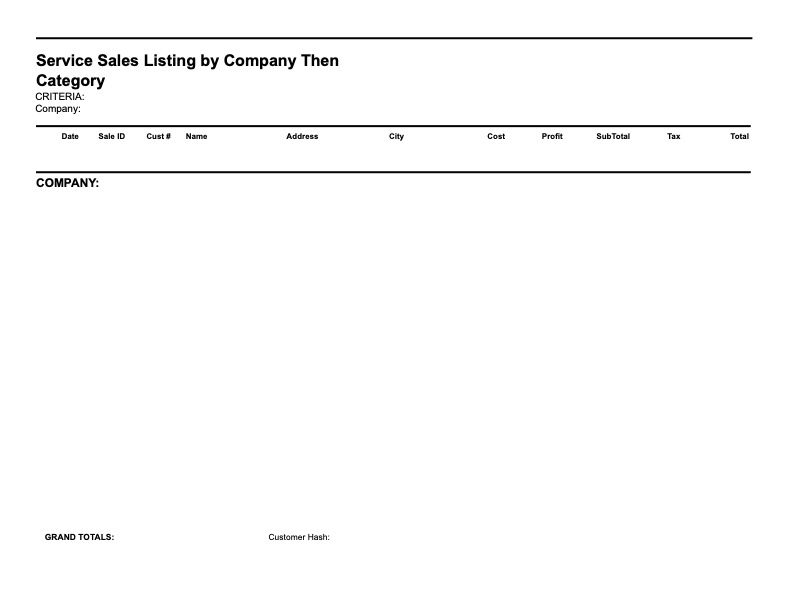
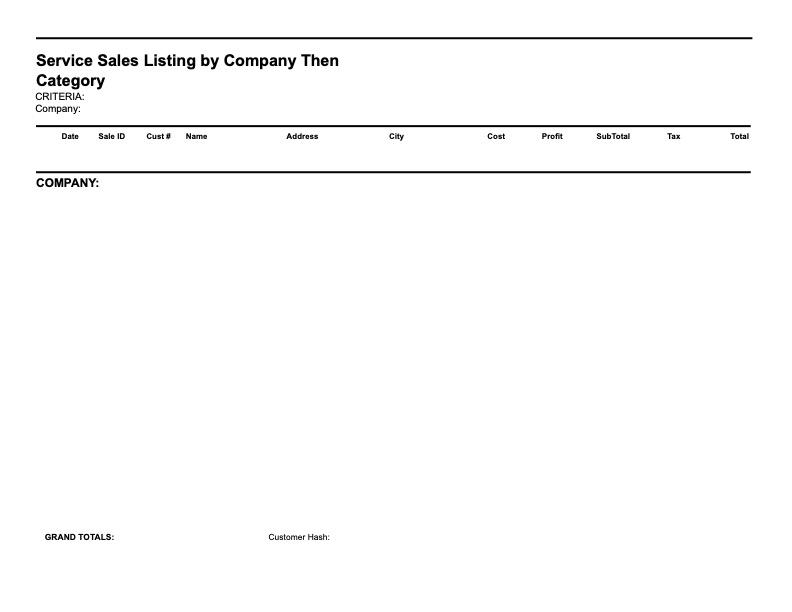
Service Sales Listing by Company Then Category
-
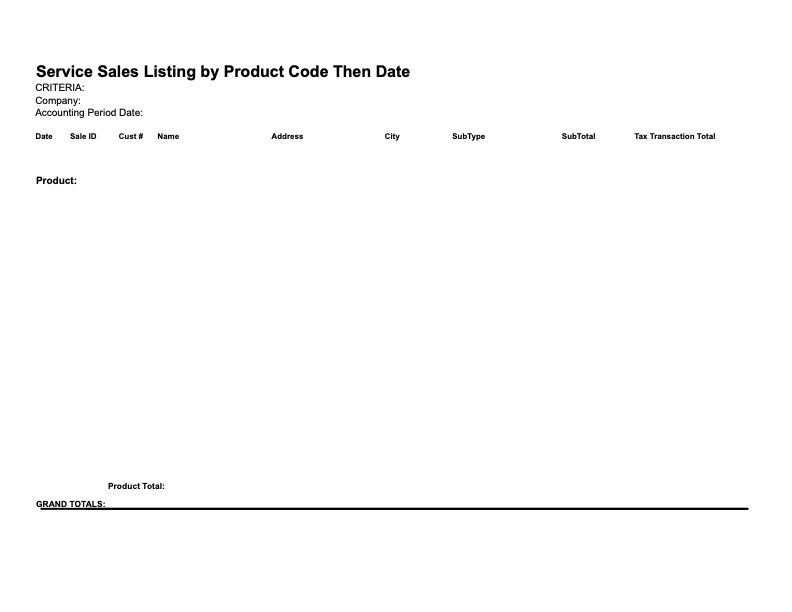
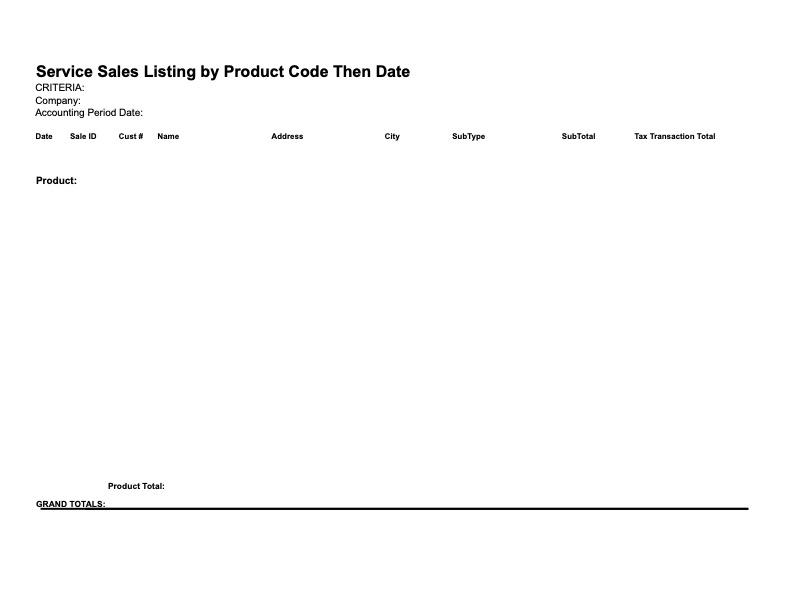
Service Sales Listing by Product Code Then Date
-
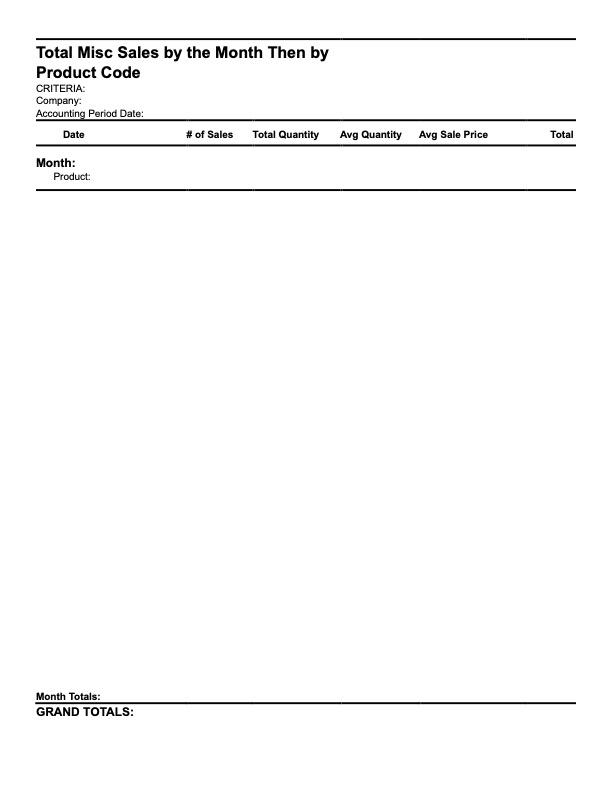
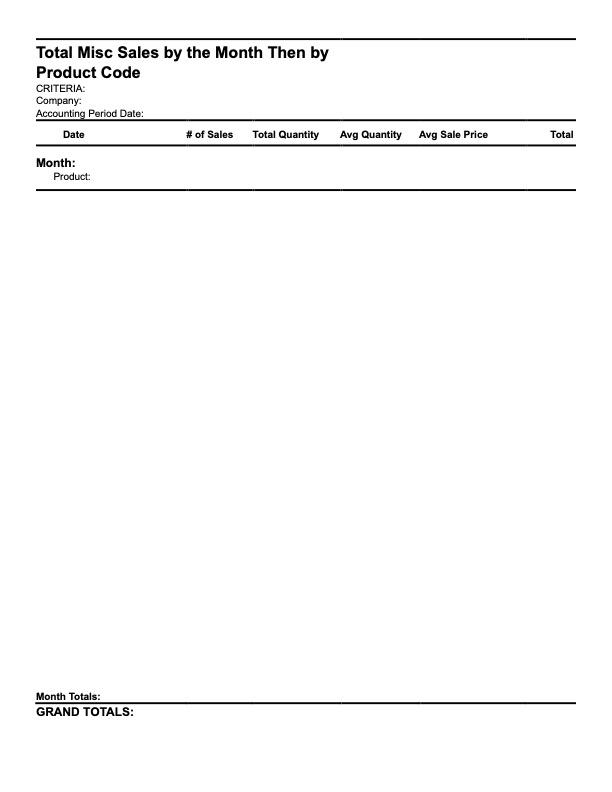
Total Miscellaneous Sales by the Month Then by Product Code
-
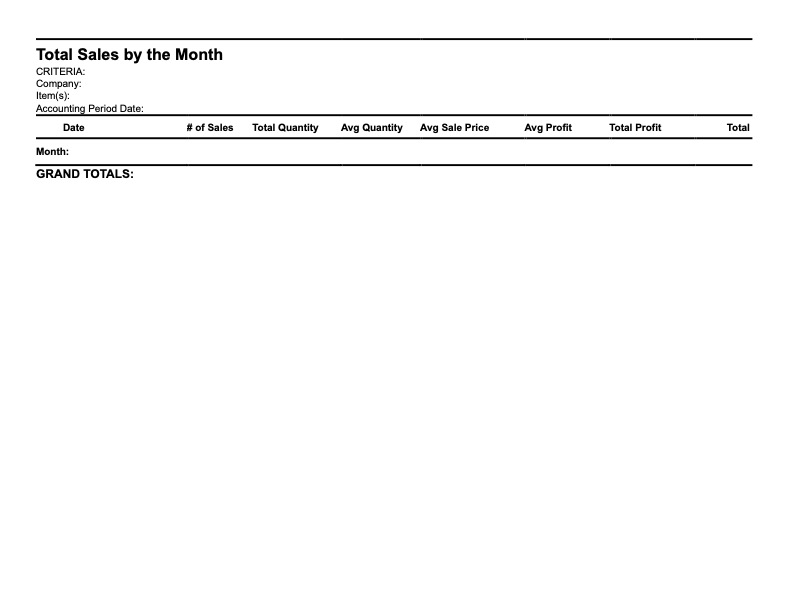
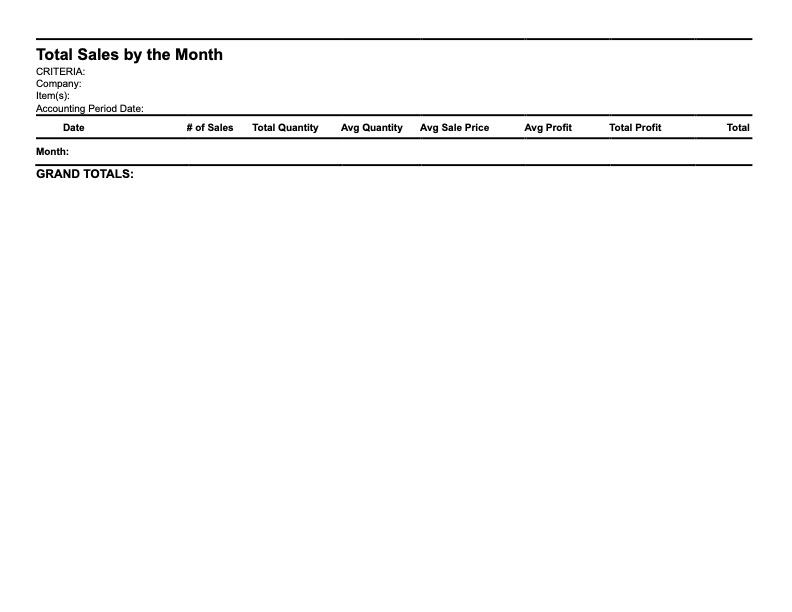
Total Sales by Month
-
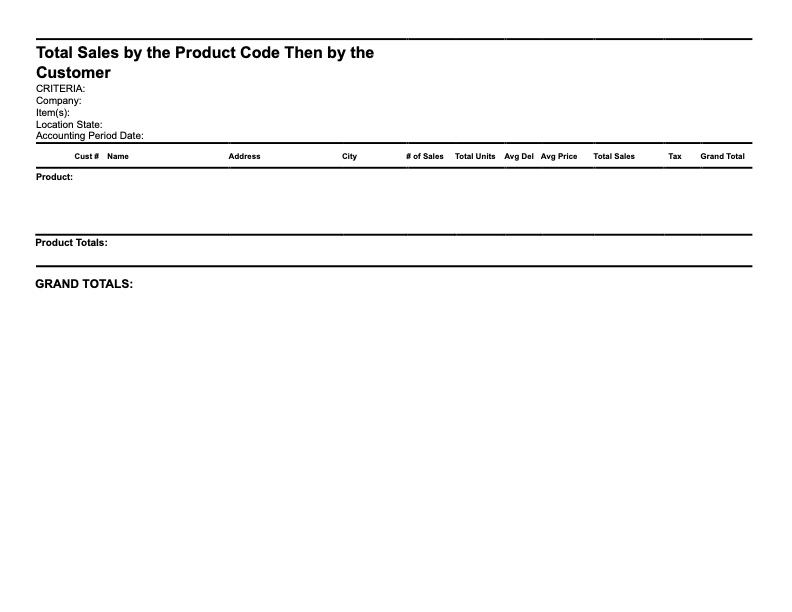
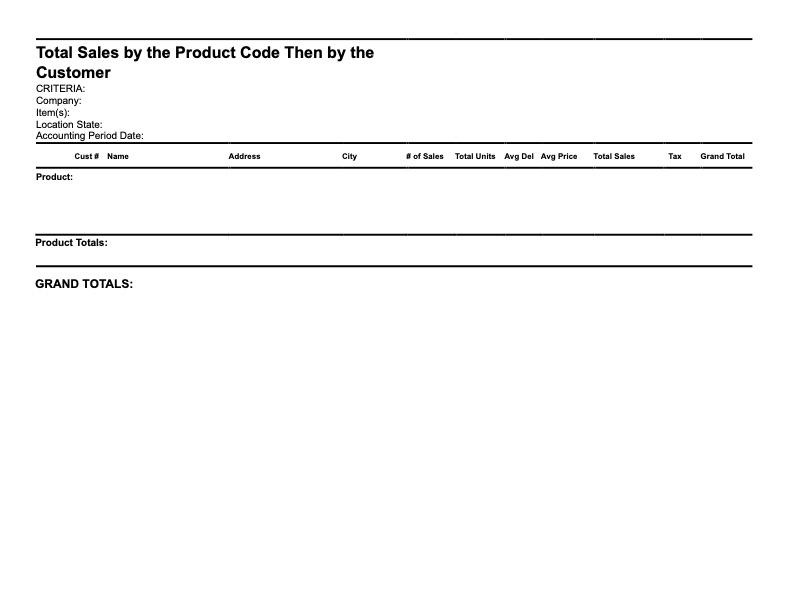
Total Sales by The Product Code Then by The Customer
-
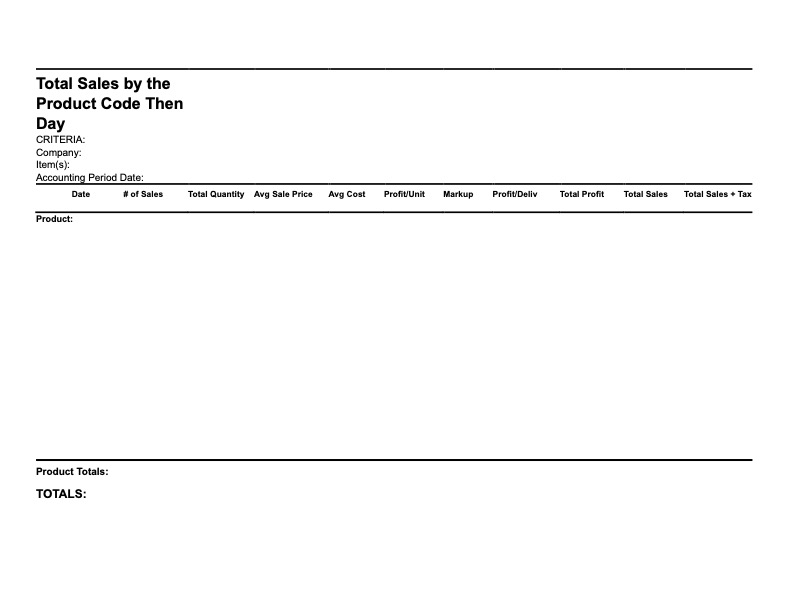
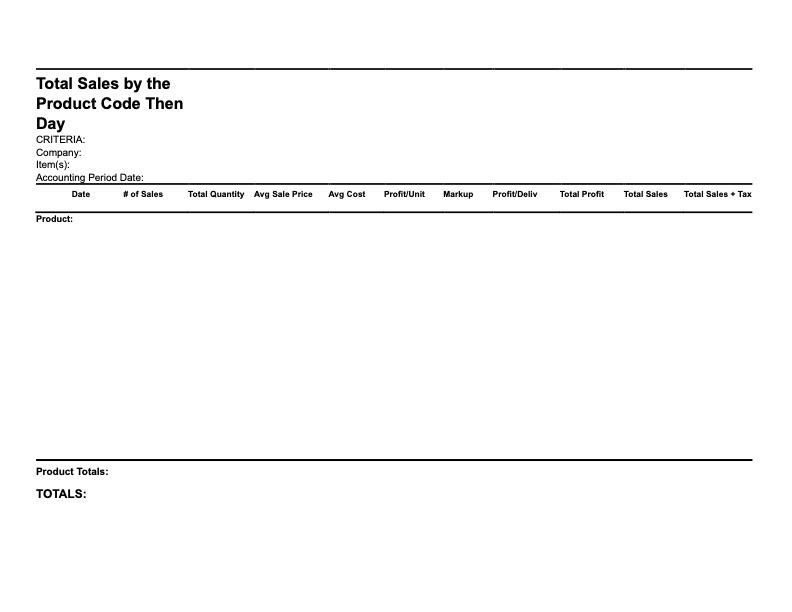
Total Sales by The Product Code Then by The Day
-
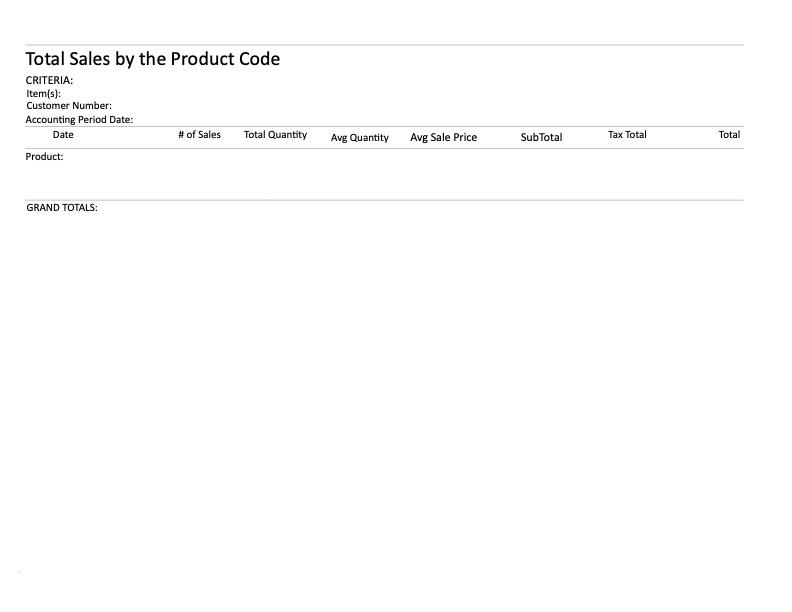
Total Sales by The Product Code Then by Customer
-
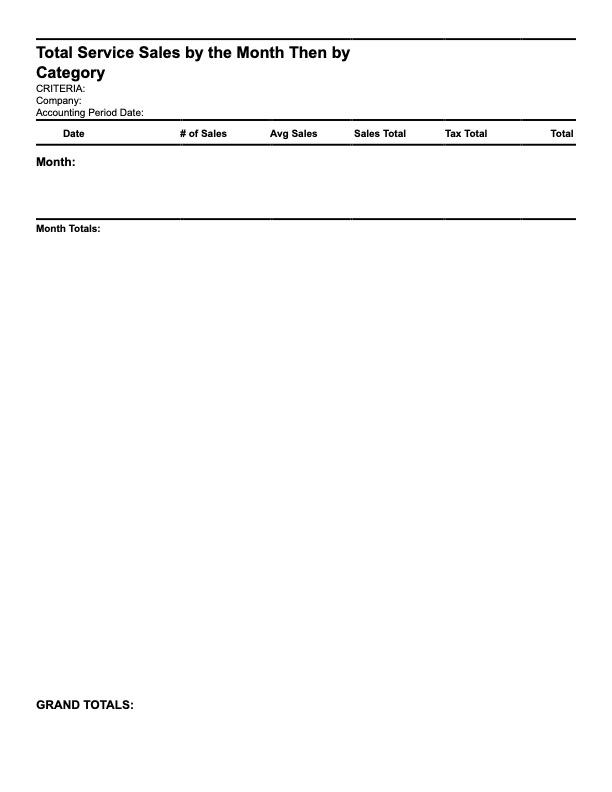
Total Service Sales by The Month Then by Category
-
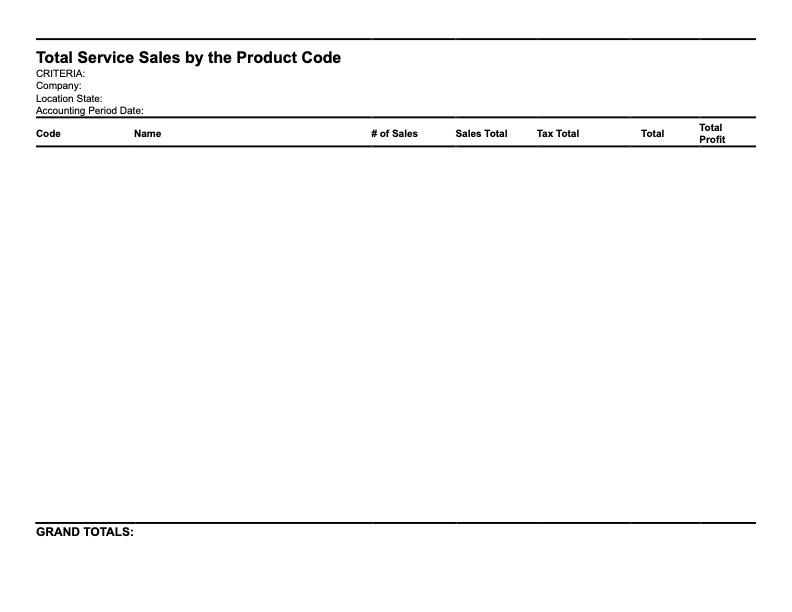
Total Service Sales by The Product Code