Taylor Reports in Invoices
Invoices and how they reflect Taylor Reports
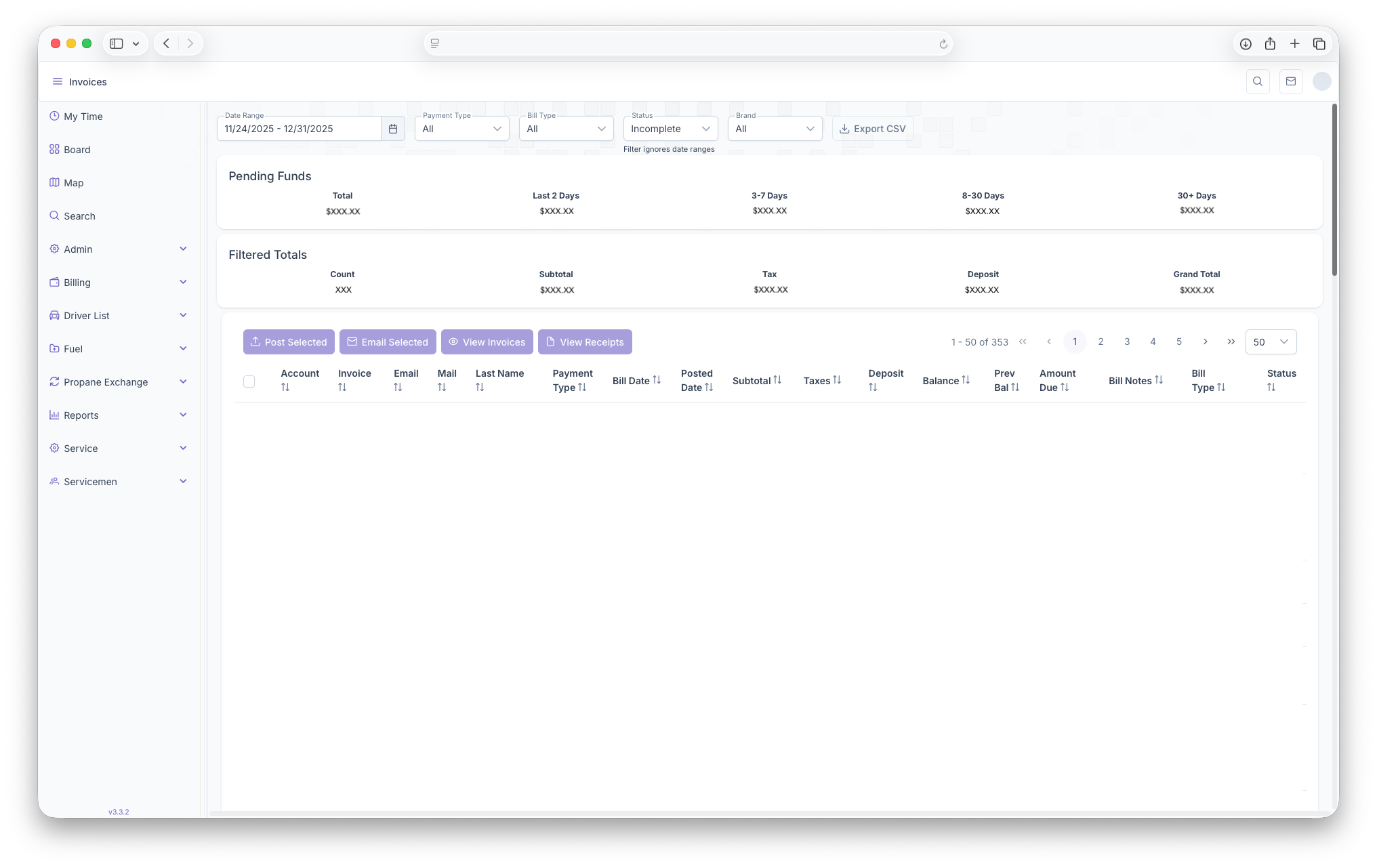
The invoice page can be used to see all invoices for customers and allows to see all total pending incoming funds as well as totals based on preset filters. To see The Invoices, on the KozyOpsside Appmenu, click on Billing then click on Invoices. Clicking on the three bars on the top left corner of the page also expands the side bar to show amore varietydetail offor informationeasier access. Once on the page, you'll be you'll be able to filter invoices by Date Range, Paymment Type, Bill Type, Status and aBrand. varietyNext ofyou wayswill be able to sortsee theAll informationpending forfunds convenientby access.Total, First the invoices can be pulled from Date Ranges, Payment Types, Bill Types and Status'. The invoices also show Pending Funds which are divided in total amount, the lastLast 2 days, 3-7 days,Days, 8-30 days and 30+ days. The followingpage informationwill then showsdisplay Account#,totals Invoice#,by Customerthe preset filters seen at the top of the page. This will show how many invoices in total, Subtotals, Tax, Deposits and Grand Totals. The report is then presented with the following columns, Account Number, Invoice Number, Email, CustomerMail, Address,Last Name, Payment Type, Bill Date, Posted Date, Subtotal, Taxes, Deposits,Deposit, Balance, Previous Balance, Ammount Due, Bill NotesNotes, Bill Types and Bill Type. Searches can also be sorted by the same information by clicking on the arrows next to each category typeStatus
The Following Taylor Reports can be seen in KozyOps Invoices reports
-
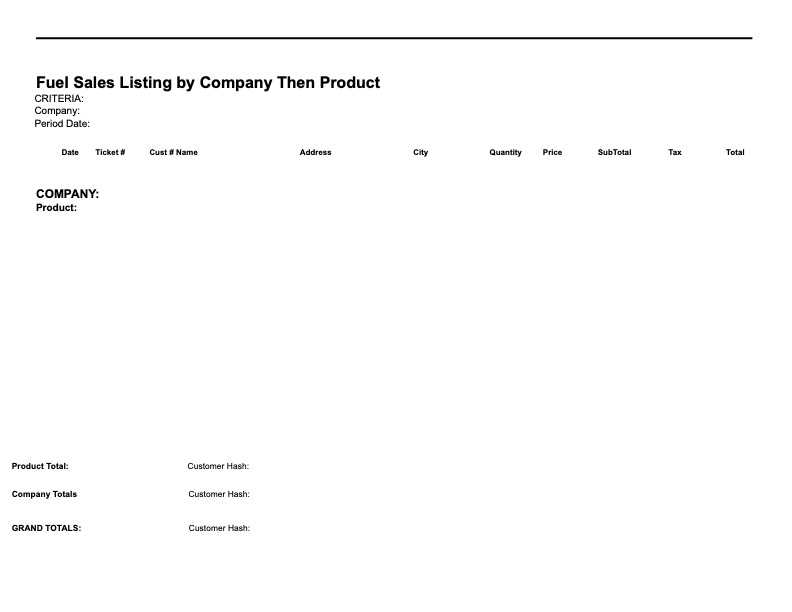
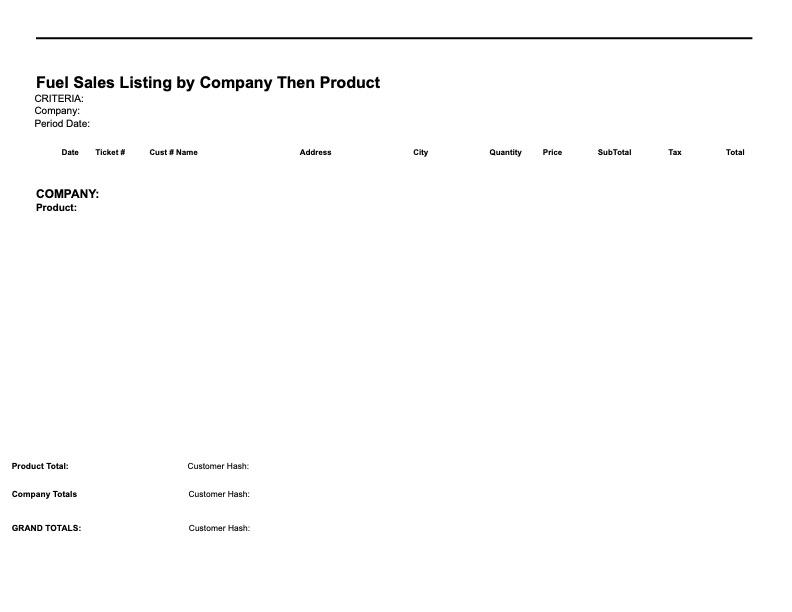
Fuel Sales Listing by Company Then Product
-
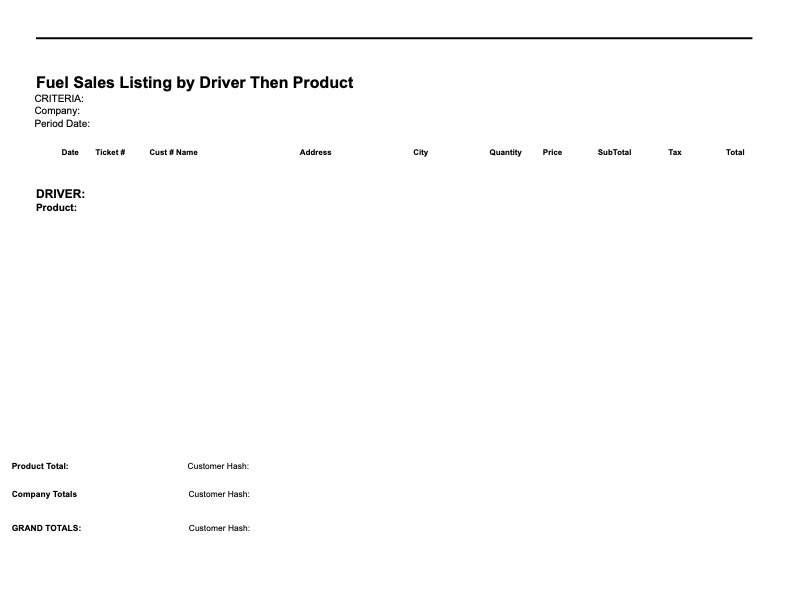
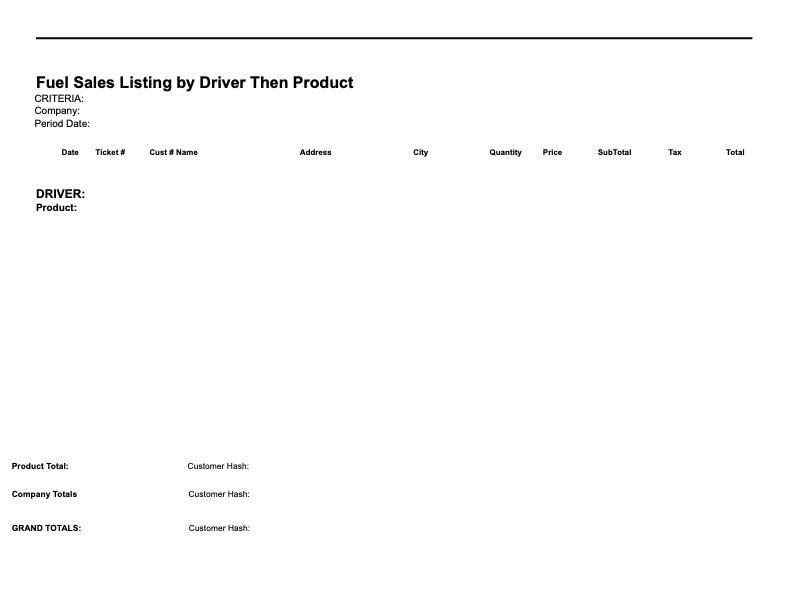
Fuel Sales Listing by Driver Then Product
-
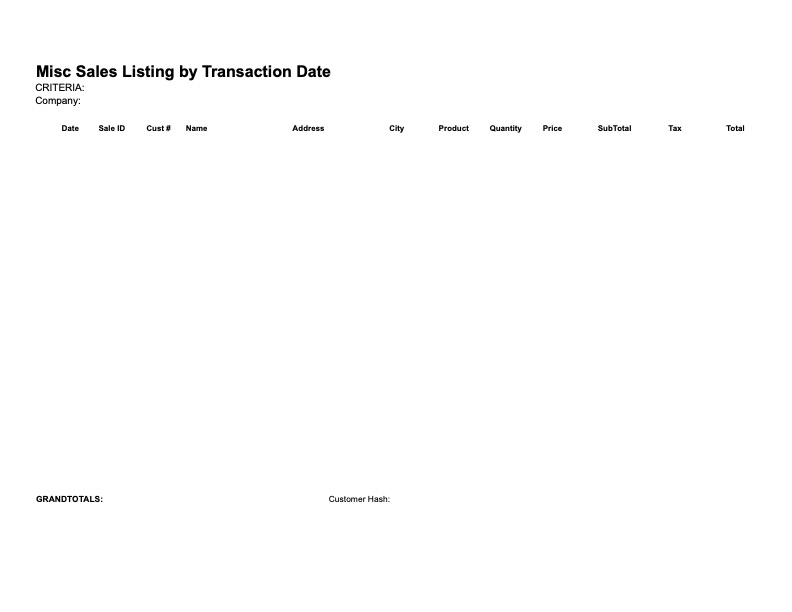
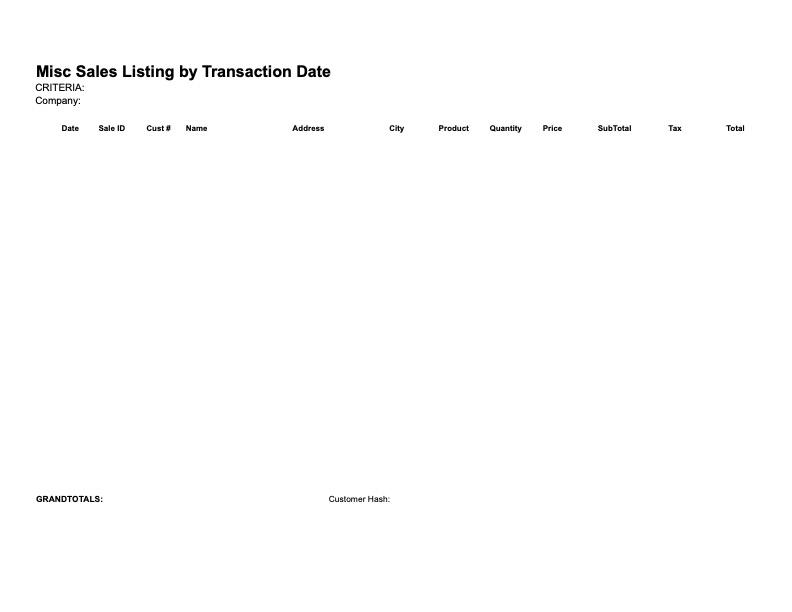
Miscellaneous Sales Listing by Transaction Date
-
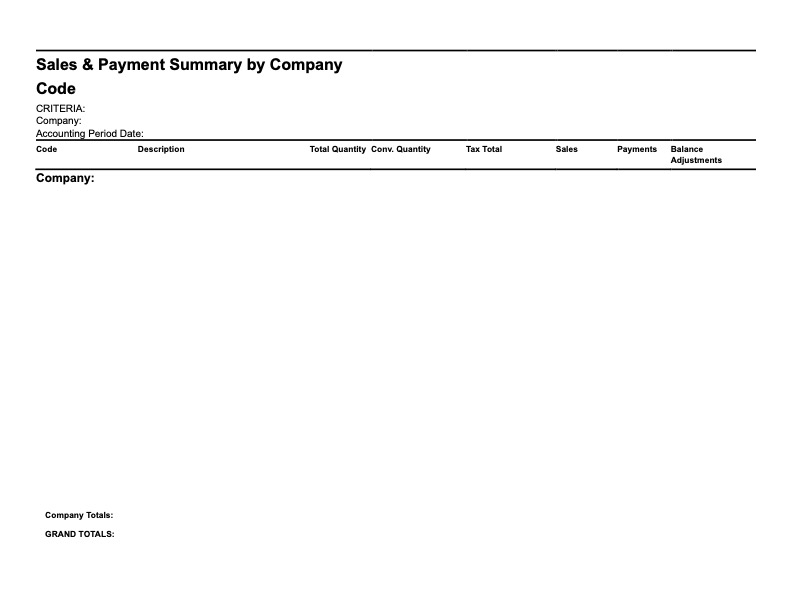
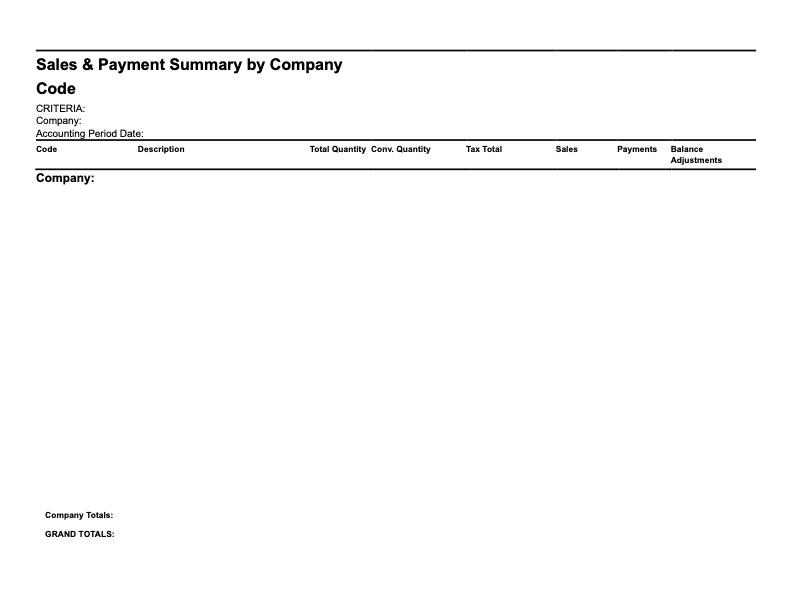
Sales and Payment Summary by Company Then Product Code
-
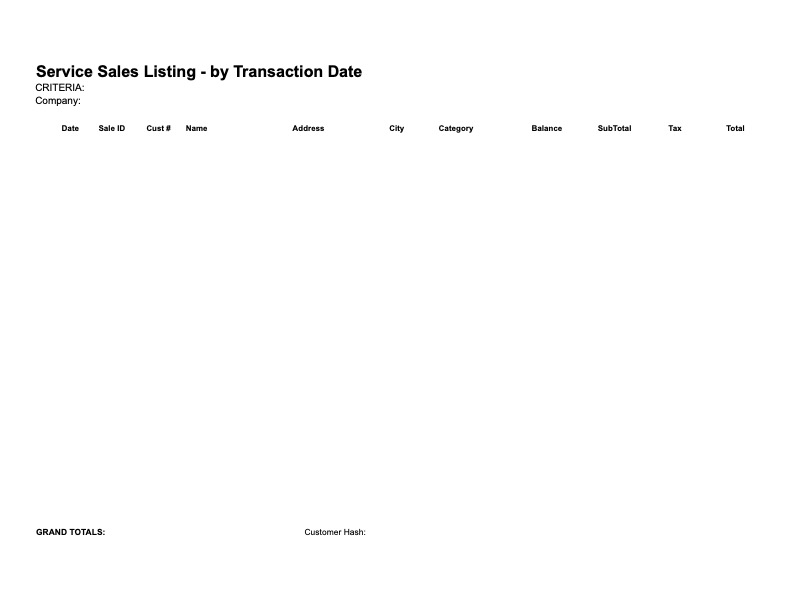
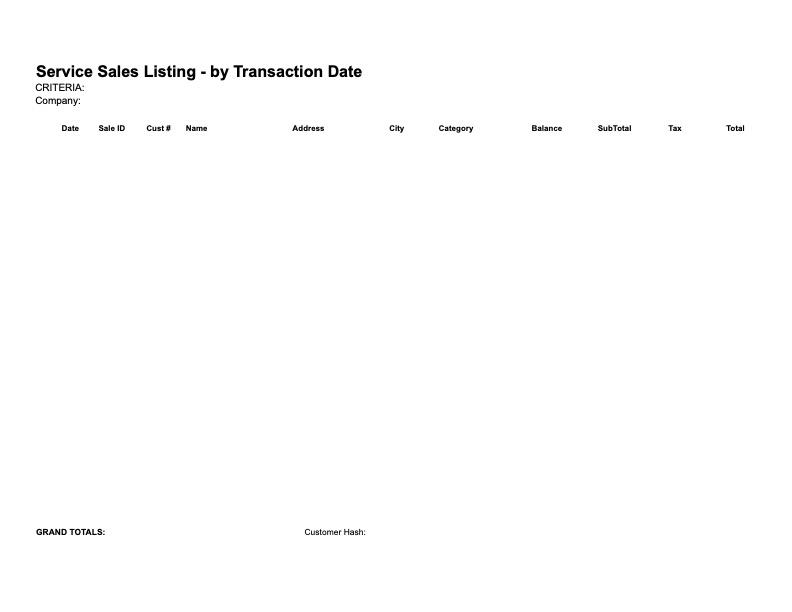
Service Sales Listing - by Transaction Date
-
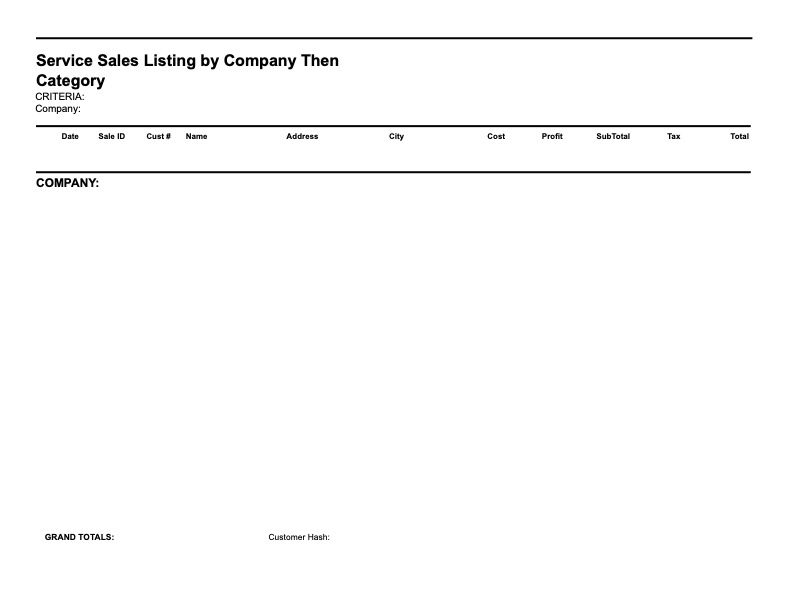
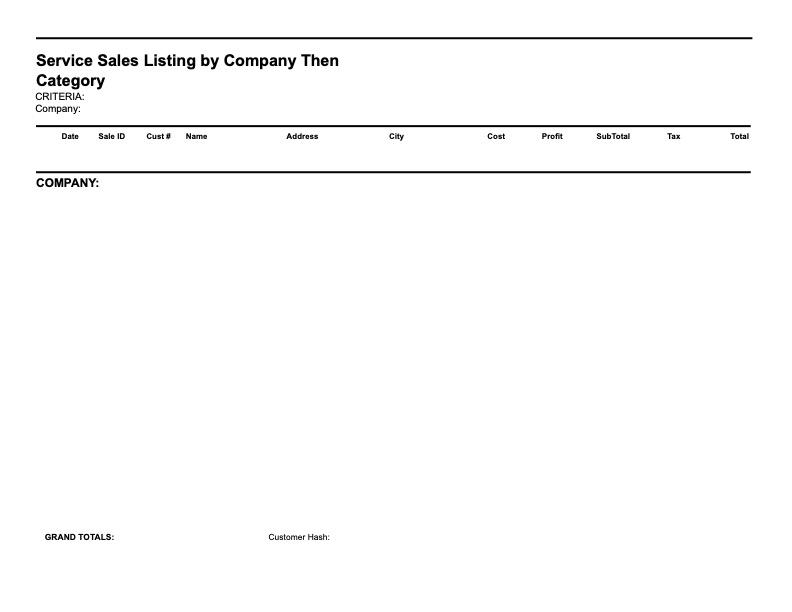
Service Sales Listing by Company Then Category
-
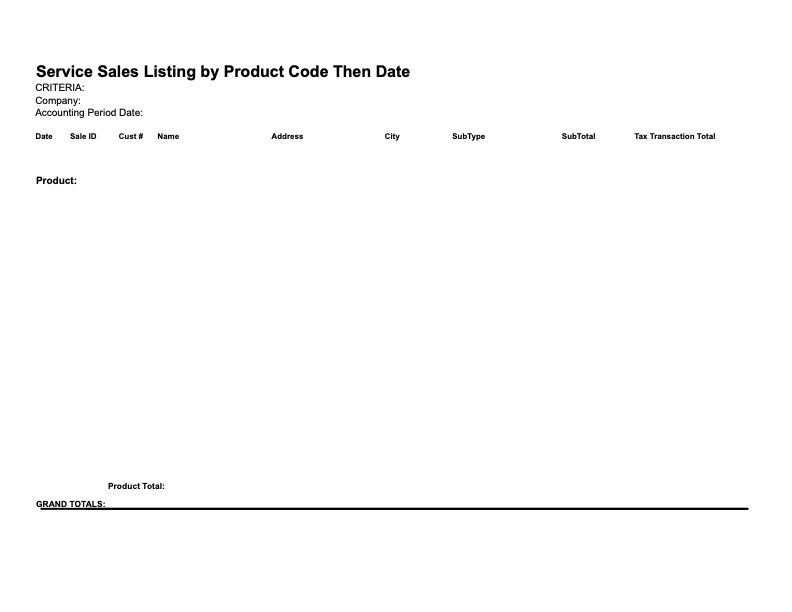
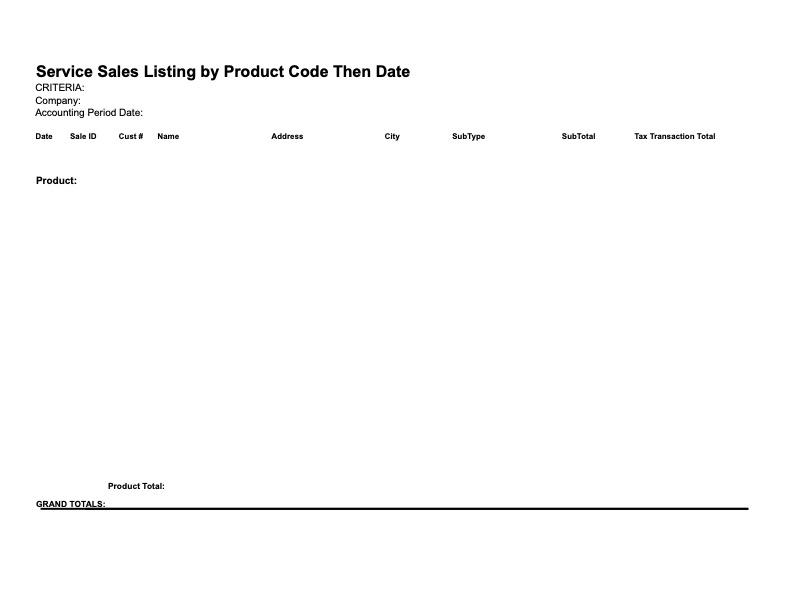
Service Sales Listing by Product Code Then Date
-
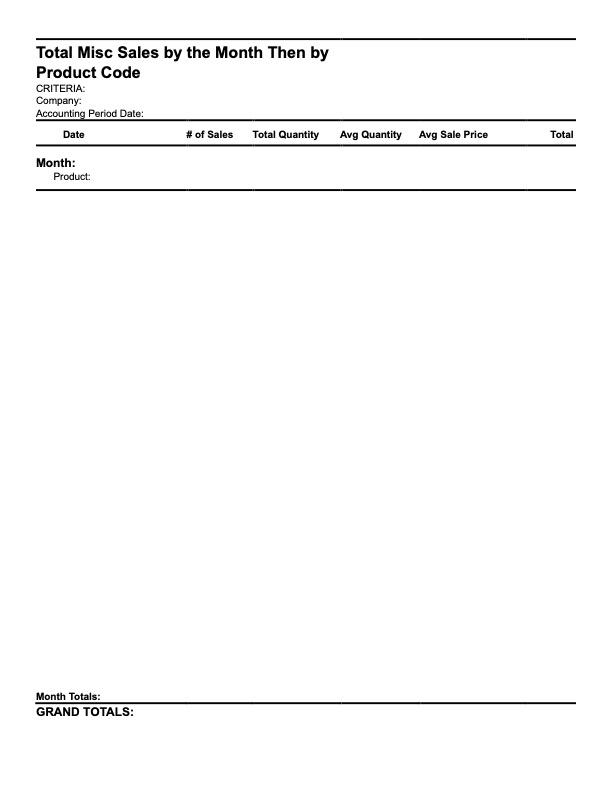
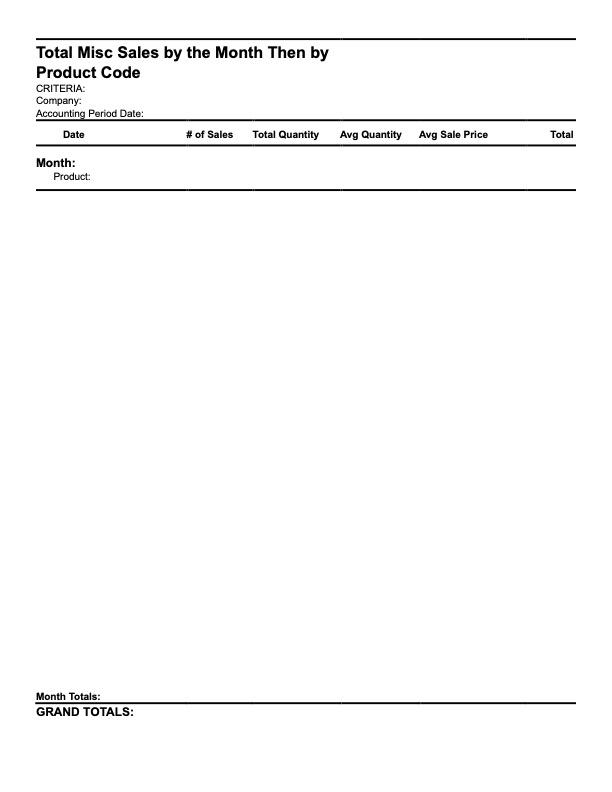
Total Miscellaneous Sales by the Month Then by Product Code
-
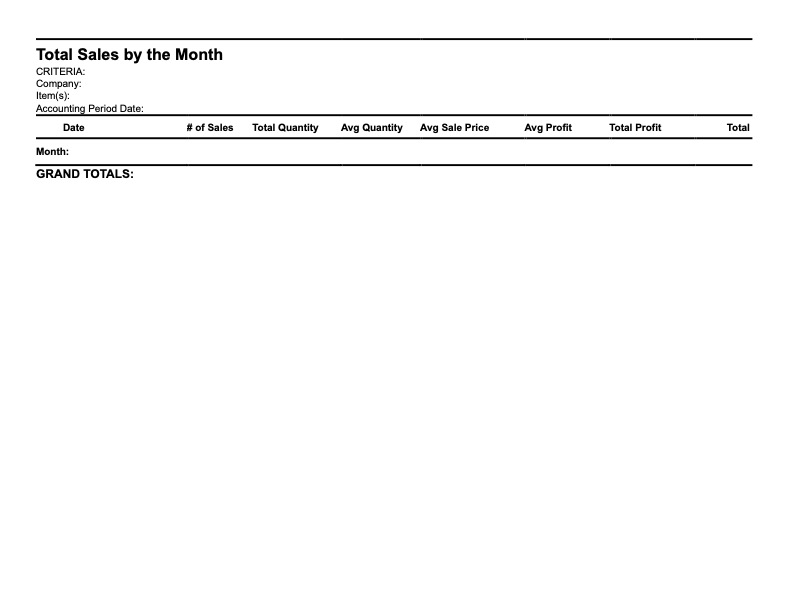
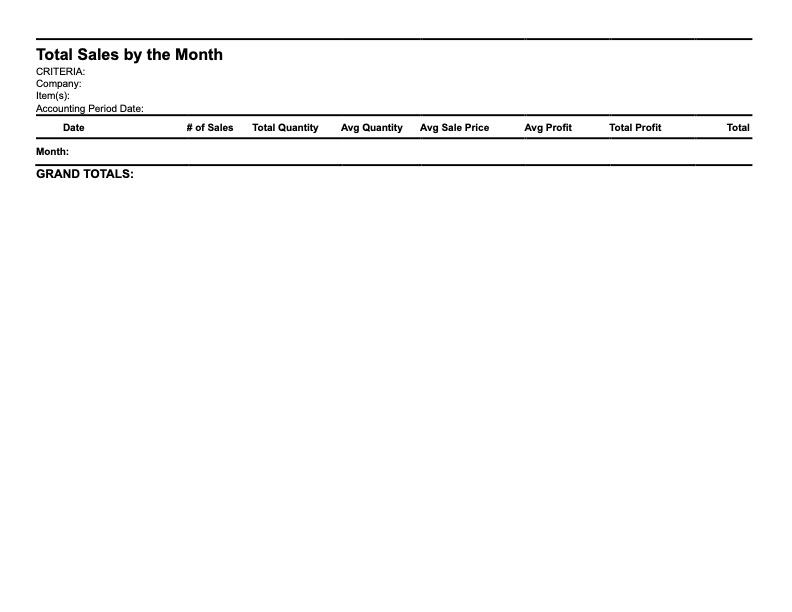
Total Sales by Month
-
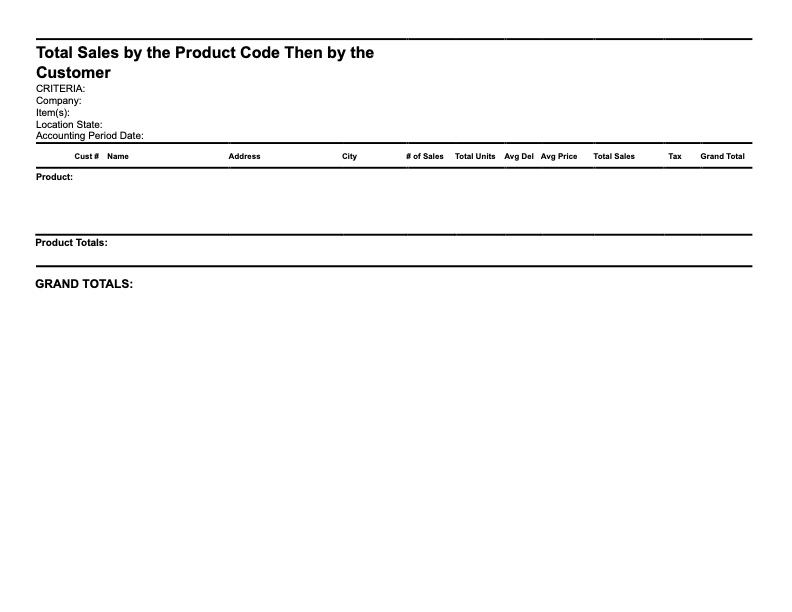
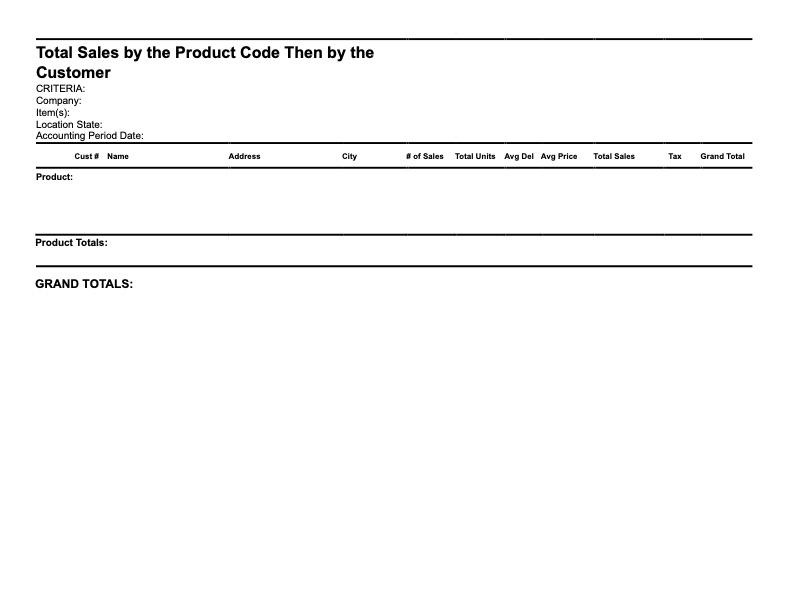
Total Sales by The Product Code Then by The Customer
-
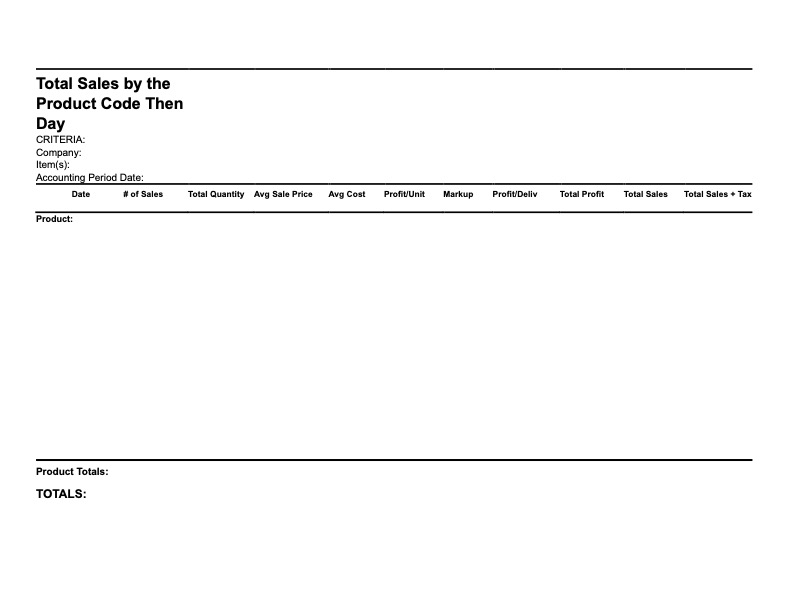
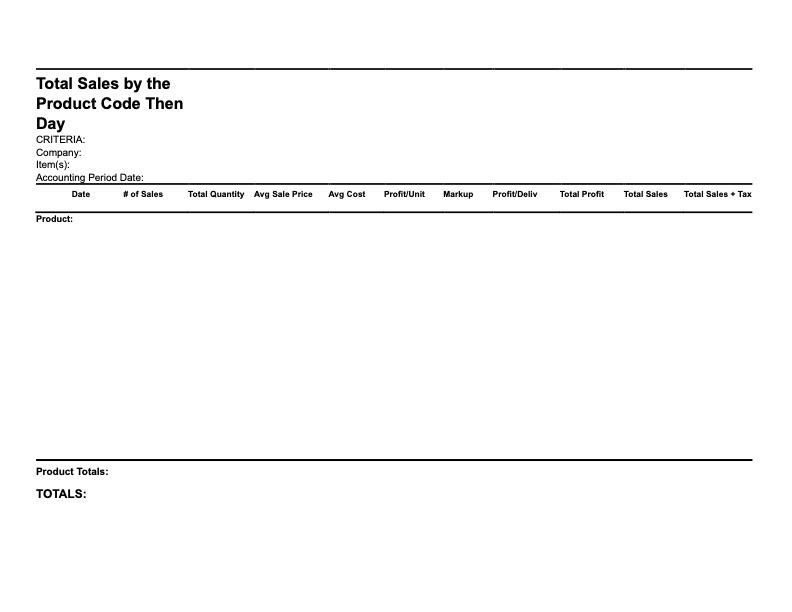
Total Sales by The Product Code Then by The Day
-
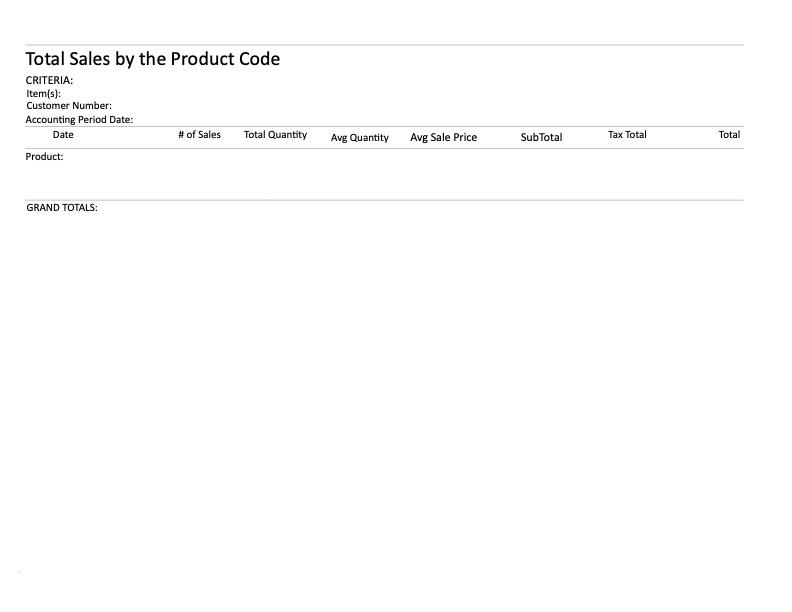
Total Sales by The Product Code Then by Customer
-
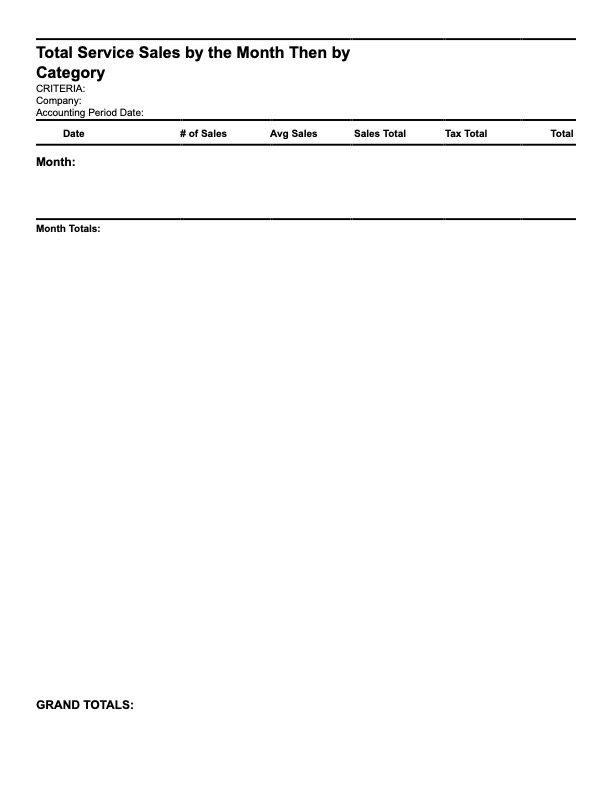
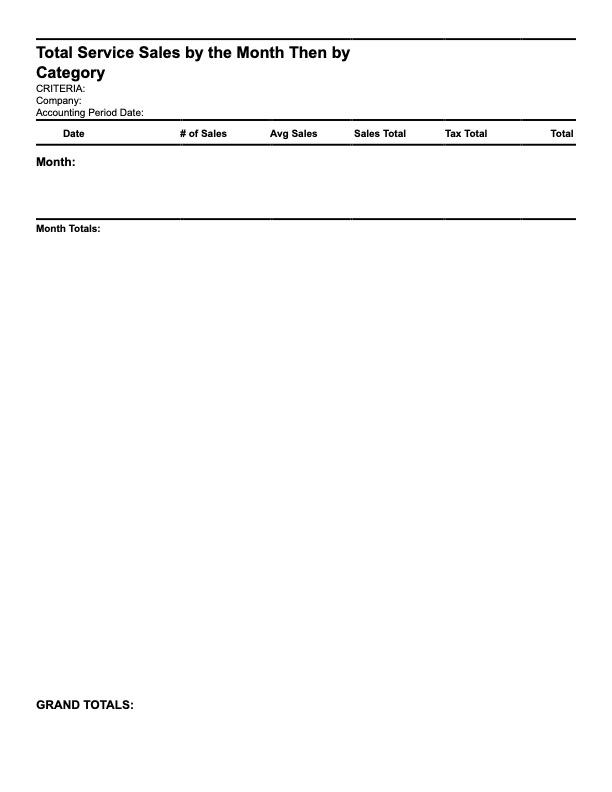
Total Service Sales by The Month Then by Category
-
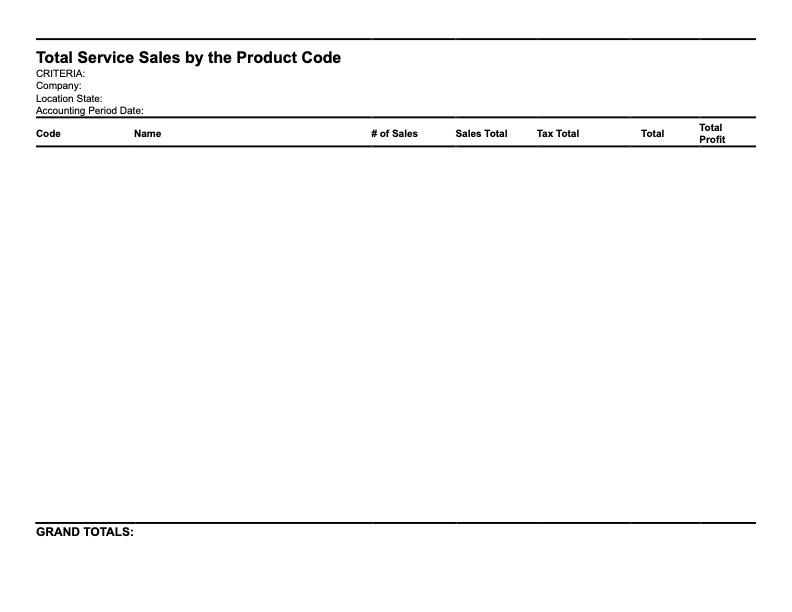
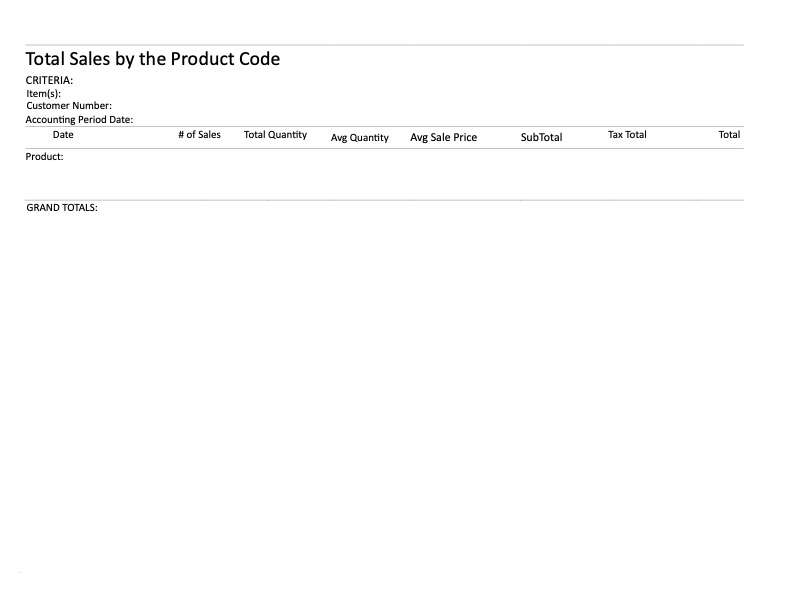
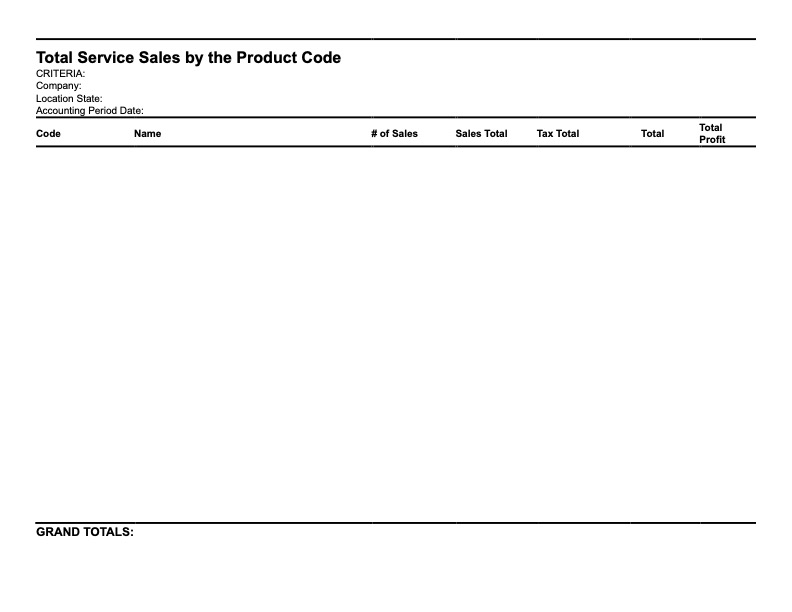
Total Service Sales by The Product Code