Taylor Reports in Install Calendar
Install Calendar and how they reflect Taylor Reports
The installInstall calendarCalendar shows projectsall Projects/Services that are scheduled that have been worked or need to be worked on. To reach the Install Calendar, click on the Service dropodown on the side menu then click on Install Calendar. Clicking on the three bars on the top left of the page expands the side bar to show more detail allowing for specificeasier days.navigation. CanThe Calendar can then be pulled updisplayed by Month, Week or Day,Day thenby clicking on said button on the top right of the page. Clicking on the Previous or Next bringsbuttons upallows the previouscalendar to jump to the next or nextprevious Month,month, Weekweek or Day.day depending on how the calendar is displayed. Clicking on Today jumps the calendar to the current month, week or day. Once selected, if there are projects/services on a given day, the calendar will show all work orders for each day. The pagework orders will then show Totalthe ProjectsAccouint Number, the Customer Name, what projects/Services need to be provided or have been, and Servicethe Visits.number Theof Calendar will then show Customerstechs for specificeach days,project. whatClicking ison gettingeach workedproject on,brings andup how many techs are assigned. Ifa more detailed information is needed on each job, just clickpage on the customer and you will be taken to the specifics of eachselected work orderorder. See...
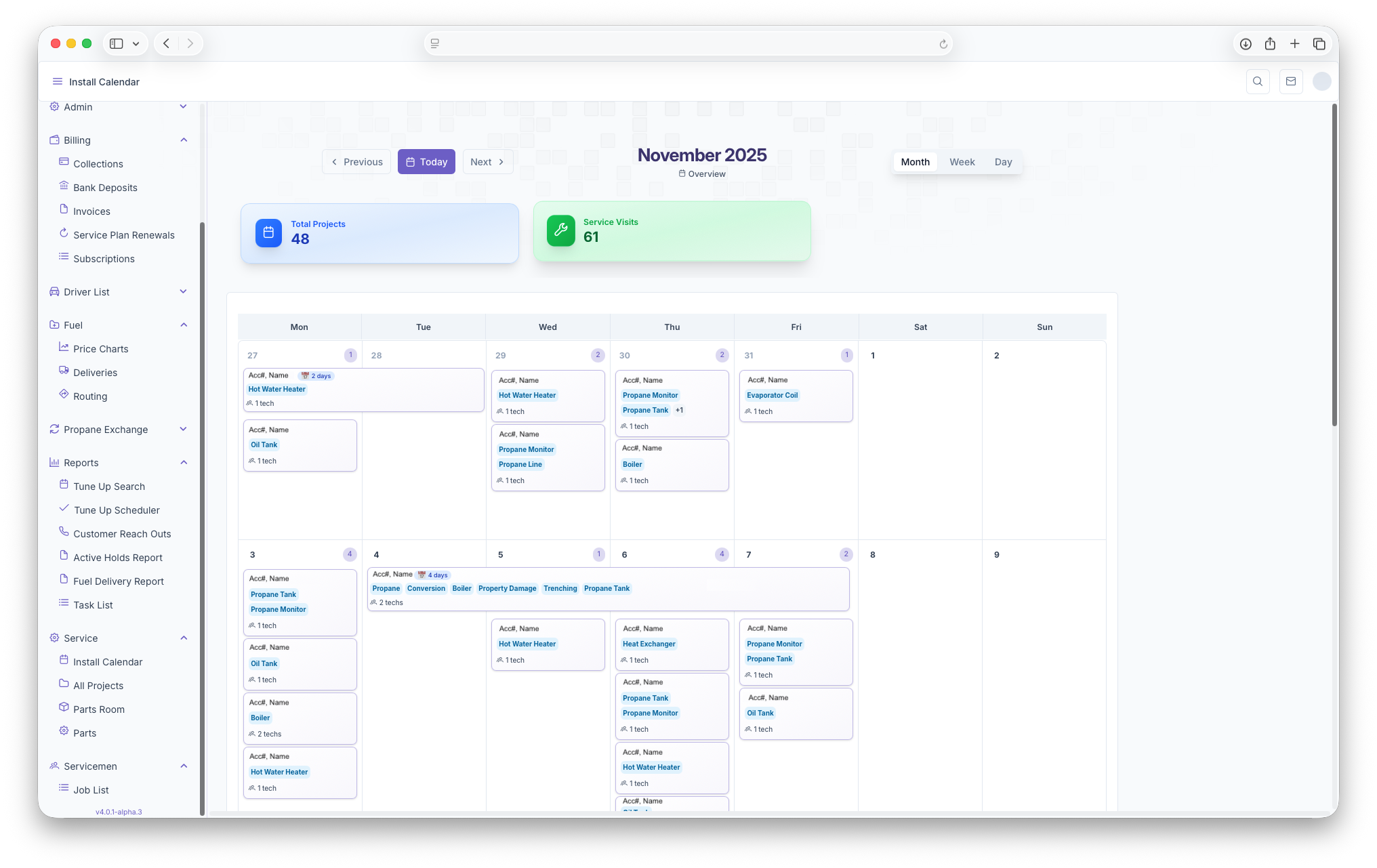
The Following Taylor Reports can be seen in KozyOps Install Calendar
-
Outstanding Work Orders - Order By Customer Name
-
Outstanding Work Orders - Order By Scheduled Date