Taylor Reports in Deliveries
Deliveries and how they reflect Taylor Reports
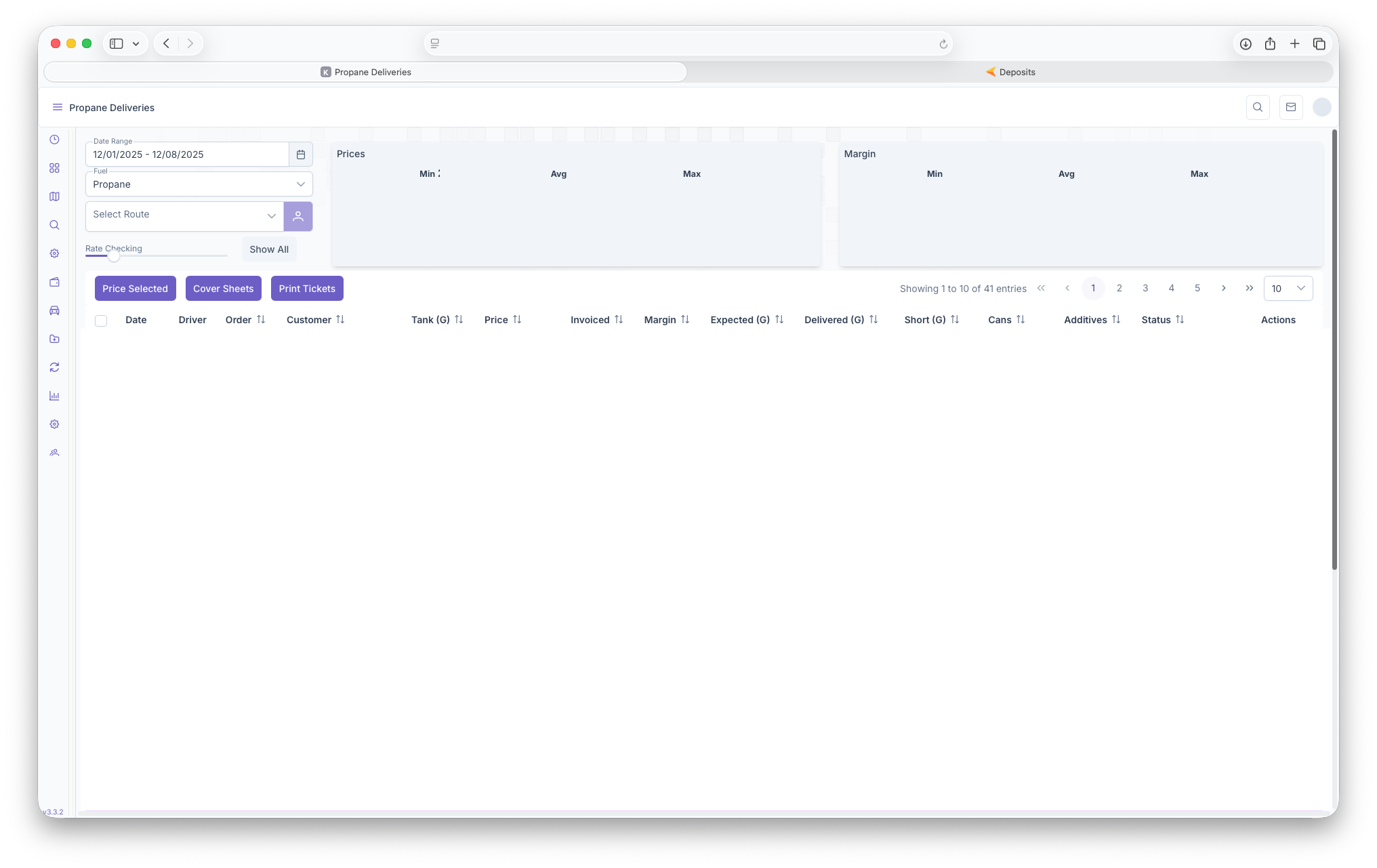
The Deliveries reportsReport page shows deliveries that have been routed and are being delievered, have been delivered, are going to be delivered or haven't been delivered. To reach the Delieveries page, on the side menu, click on the Fuel drop down, then select Deliveries. Clicking on the three bars on the top left corner of the page allows the side bar to be expanded for a more detailed view for easier access. Page can be filtered by Date Range, Fuel and Route. The page will then show aPrices varietywhich ofshow informationthe Minimum Price, Average Price and variousthe waysMax to pull up data.Price. The deliveries report lets you pull up data through Date Ranges, Fuel Type and Selected Routes. Fuel Prices and marginspage will also beshow generatedMargins afterthat selectingwill Fuelthen Type.show the Minimum Margin, the Average Margin and the Maximum Margin. The information presentedreport is then shownseperated withinto the following columns, Date, Driver, Order, Customer,Customer Tank(G),Number/Name, Tank, Price, Invoiced, Margins,Margin, Expected Delivery(G),Delivery, Delivered(G),what's howbeen muchDelivered, wasShortage, short(G),Cans, Cansany Addatives,Additives and current Status andof Actionsthe youdelivery. The option to price each delivery can takebe down by selecting a delivery and clicking on eachPrice Report.selected. TheCover reportsheets alsoand allowsTickets youcan tobe print the Reportsgenerated by pricingclicking the deliveries, look aton Cover Sheets and printPrint outTickets ticketsbuttons whichfor giveseasier additionalprinting informationand on the deliverysharing
The Following Taylor Reports can be seen in KozyOps Deliveries reports
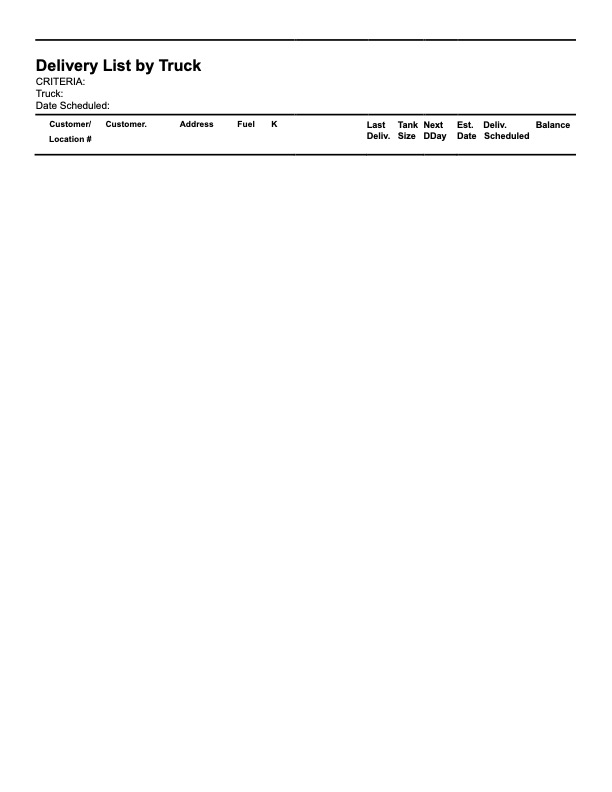
- Delivery List by Truck
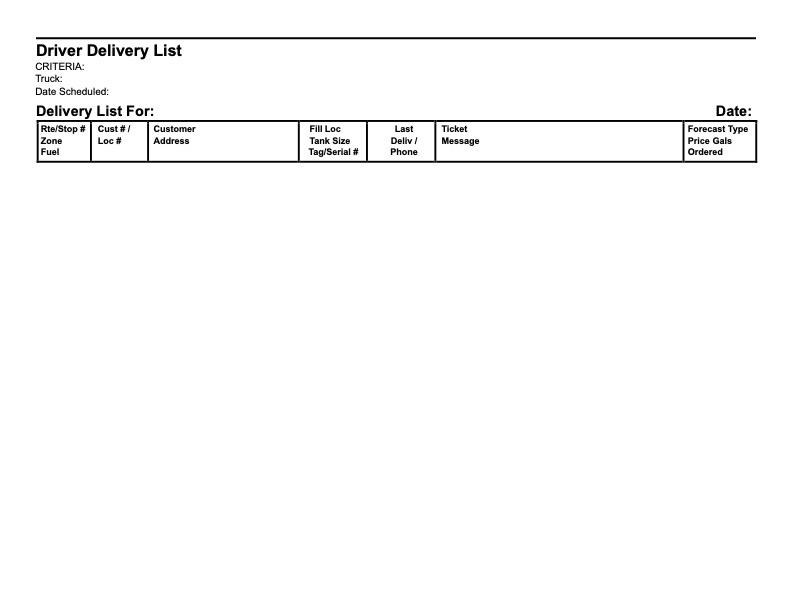
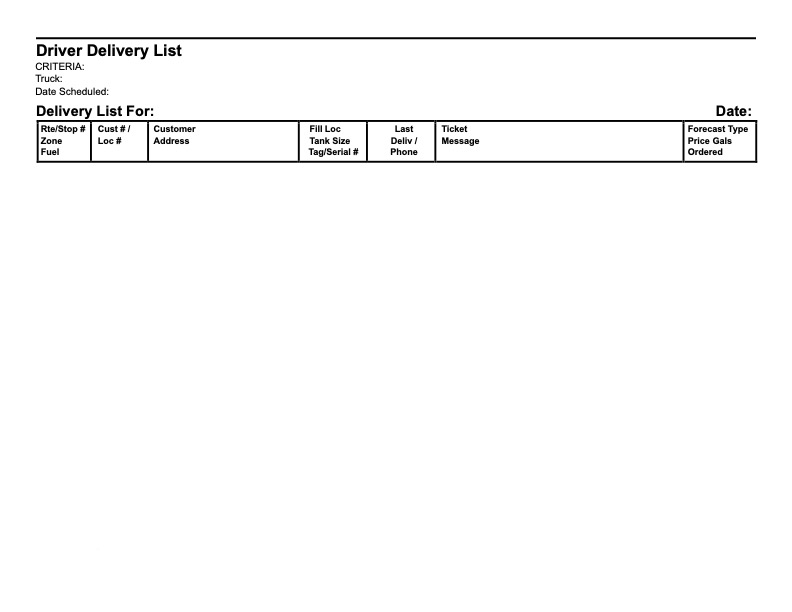
- Driver Delivery List