Taylor Reports in Bank Deposits and Receipts
Bank Deposits and how they reflect Taylor Reports
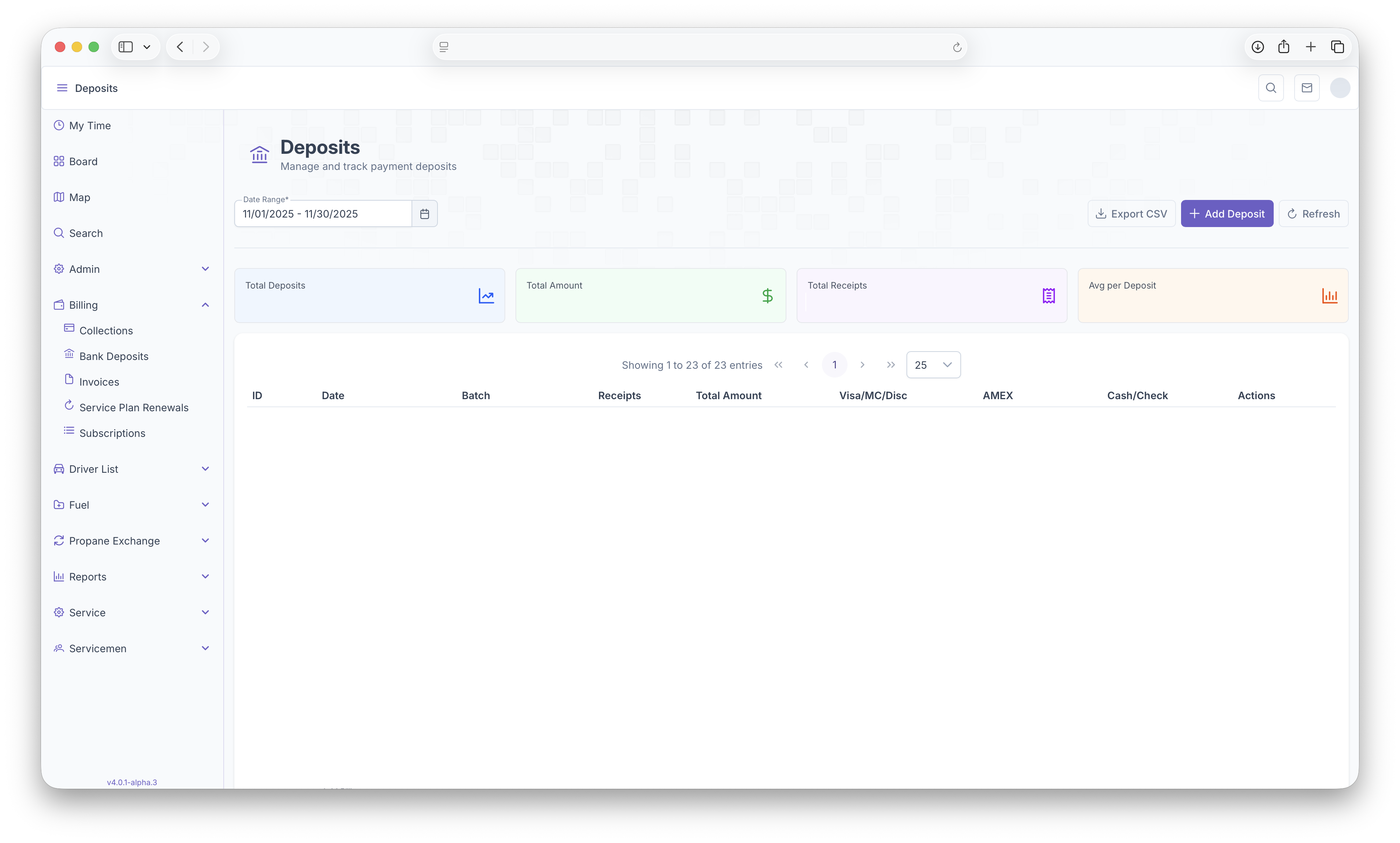
The Bank Deposits reportspage showcan abe varietyused to manage and track all payment deposits. To reach the Bank Deposits page, on the side menu, click on Billing then click on Bank Deposits. Clicking on the three side bars on the top left corner of information,the inpage particularallows paymentsthe side bar to be expanded for easier access. The page can be filtered by date ranges which then shows Total Deposits, Total Amount, Total Receipts and Average Per Deposits. The report then displays with the following columns, Deposit ID, Date, Batch, Number of Receipts, Total Amount, and how much was paid with Visa/MC/Disc, AMEX and Check/Cash. The actions column allows you to expand the information on each deposit, clicking on the deposit line also expands the information for that havedeposit. beenOnce made byexpanded, the customer.receipts First,page the reports canwill be pulled up bywhich datethen ranges.shows all receipts within that deposit, see Receipts below for more details. The report willcan also be exported into document format for easier printing or sharing by clicking on the Export CSV button on the top right corner of the page. Here, if no deposits exist for a given day, clicking on the Add Deposit button adds a deposit to that day which can then showhave Totalreceipts Deposits,added Totalon Ammount,to Totalit, see Receipts below for eachadditional Deposit, and an Average per Deposits. The Following then shows ID#, Date, Batch, Reciepts, Total Amounts, then payment types, Visa/MC/Disc, Amex, Cash/Check and Actions.information. Clicking on Refresh allows for a refresh of the Actionspage if any deposits or onreceipts were added to the Deposits themselves will pull up each indivivdual receipt for each deposit.system.
Receipts
After clicking on the Actionsdeposit or selecting an action on the Deposits,deposit, eachall individualreceipts Customerfor receiptthat informationdeposit will then beappear. pulledThe up.top Fromof therethe specificpage recieptdisplays informationThe Deposit ID, The Date, Total and then how much was paid with Visa/MC/Disc, AMEX and Check/Cash. The page can then be pulled upfiltered by selecting a Receipt Type. If applicable, clicking on Receiptthe Type.Add button allows for additional receipts to be added to the deposit. The receiptsReceipts report will the then showbe ID#,presented Thewith Ammountwith Paid,the following columns, Receipt ID, the Amount, Customer Name, Account Number, any Comments, Manual and Time. List can then be sorted by clicking on the arrows next to each category
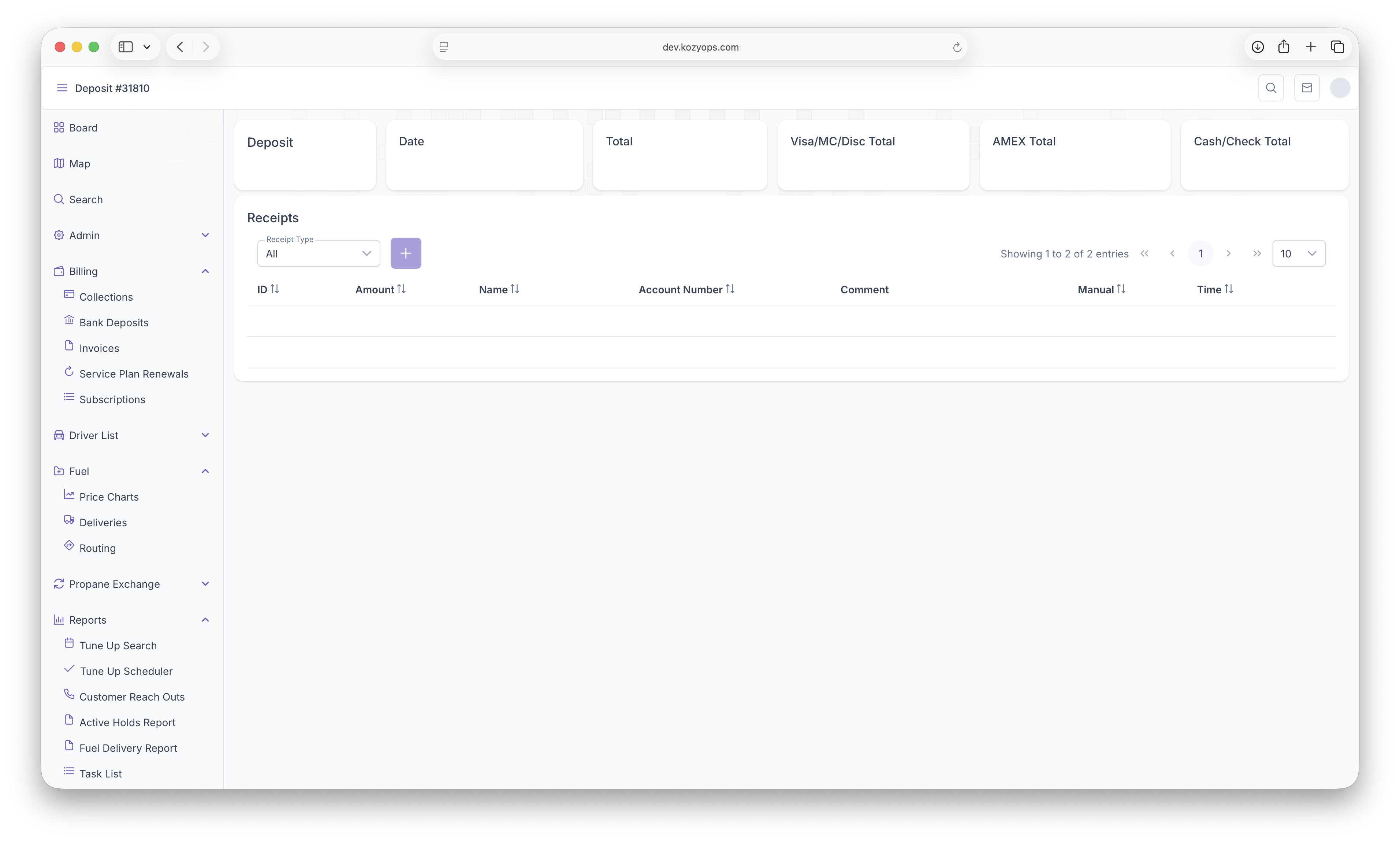
The Following Taylor Reports can be seen in KozyOps Bank Deposits and Receipts reports
-
Customer Aging Reports
-
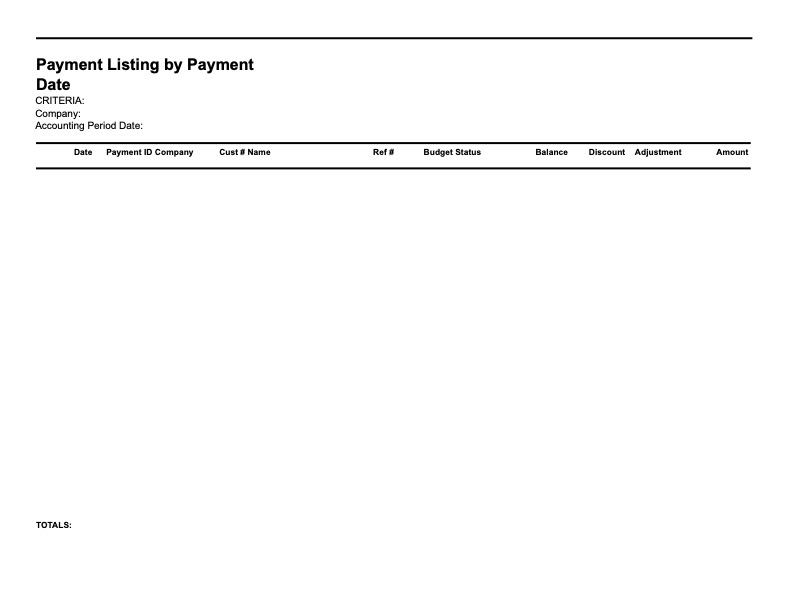
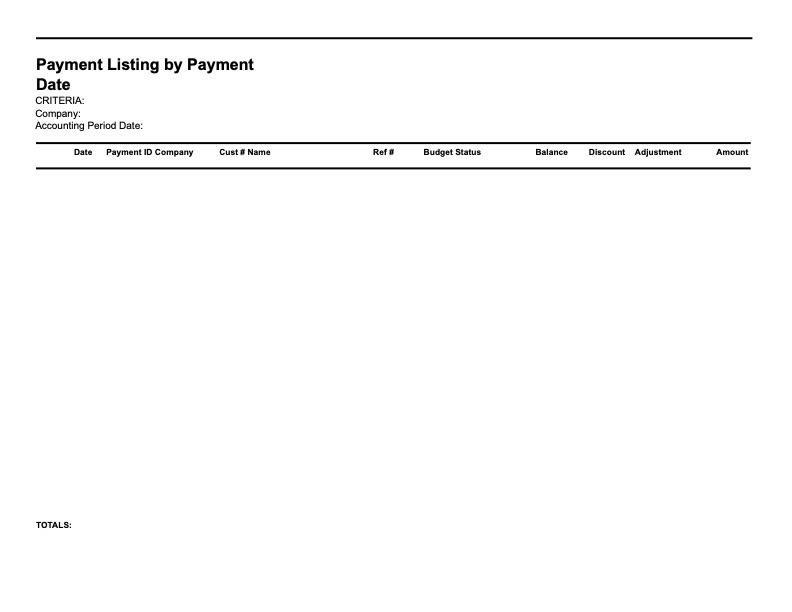
Payment Listing by Payment Date
-
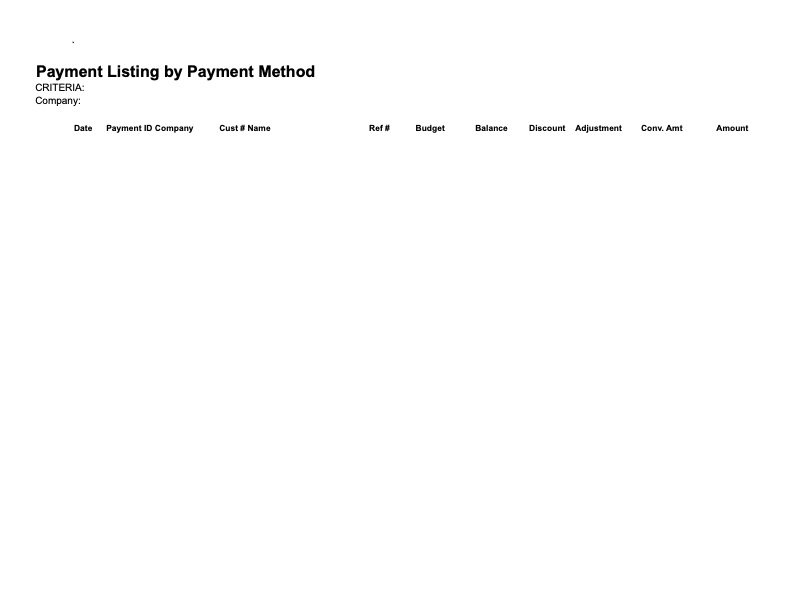
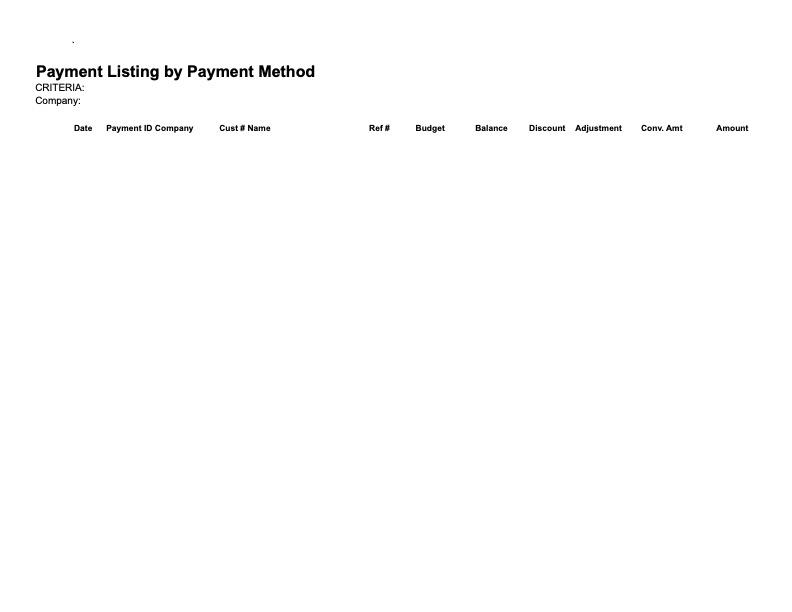
Payment Listing by Payment Method
-
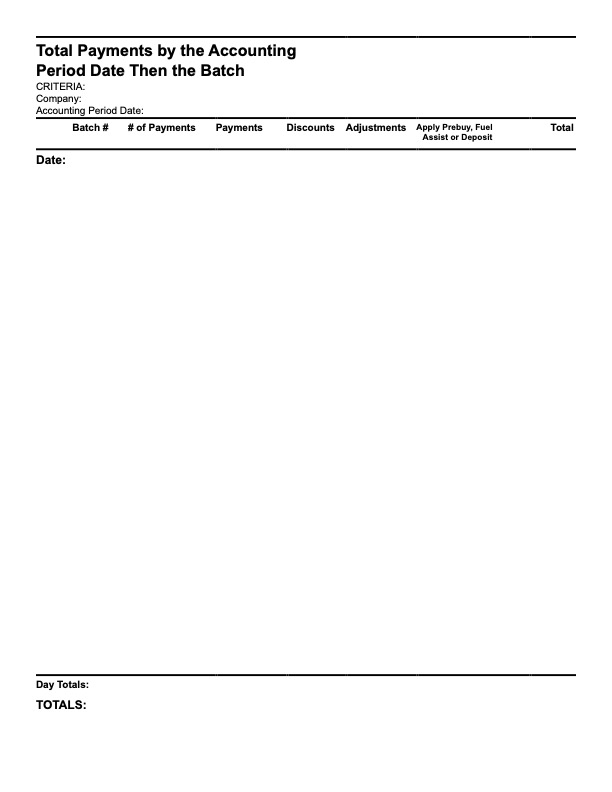
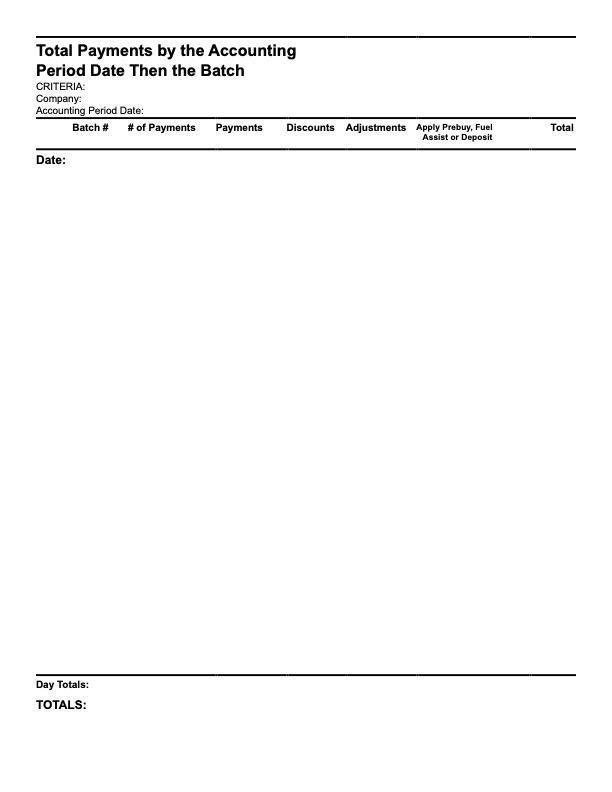
Total Payments by The Accounting Period Date Then The Batch
-
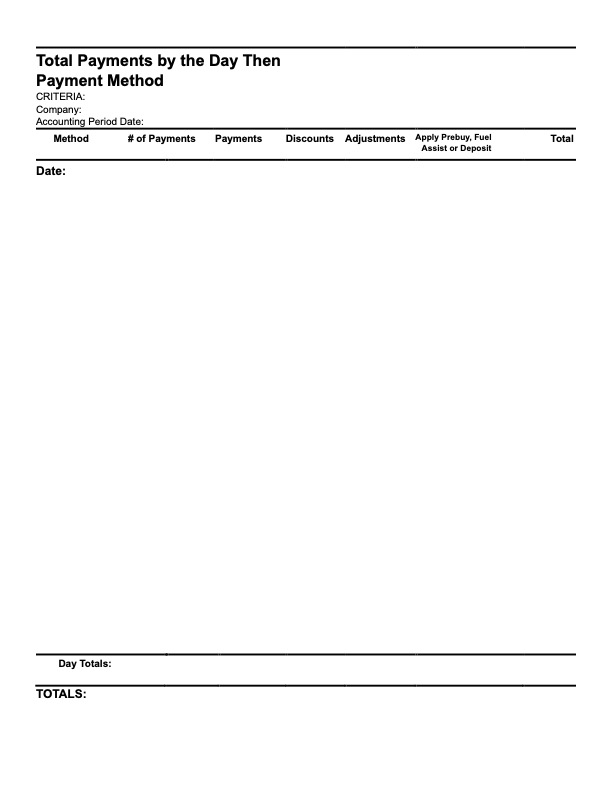
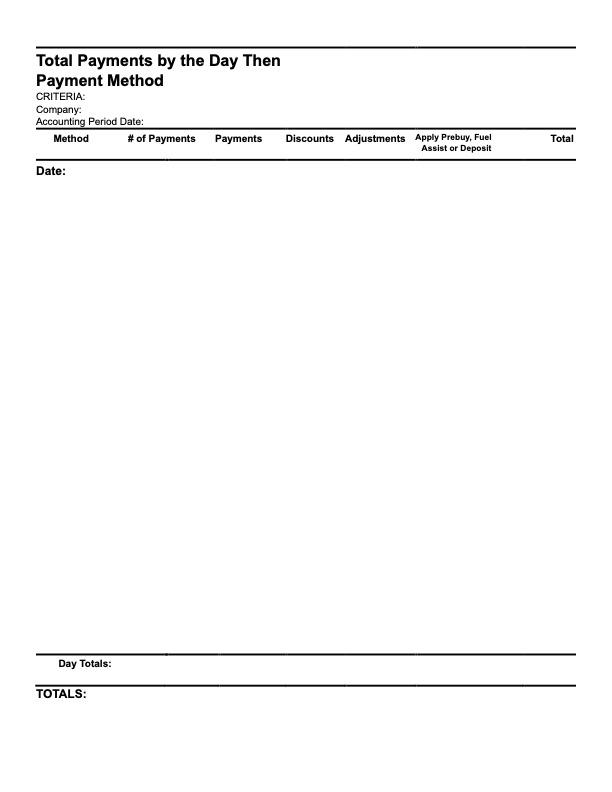
Total Payments by The Day Then Payment Method
-
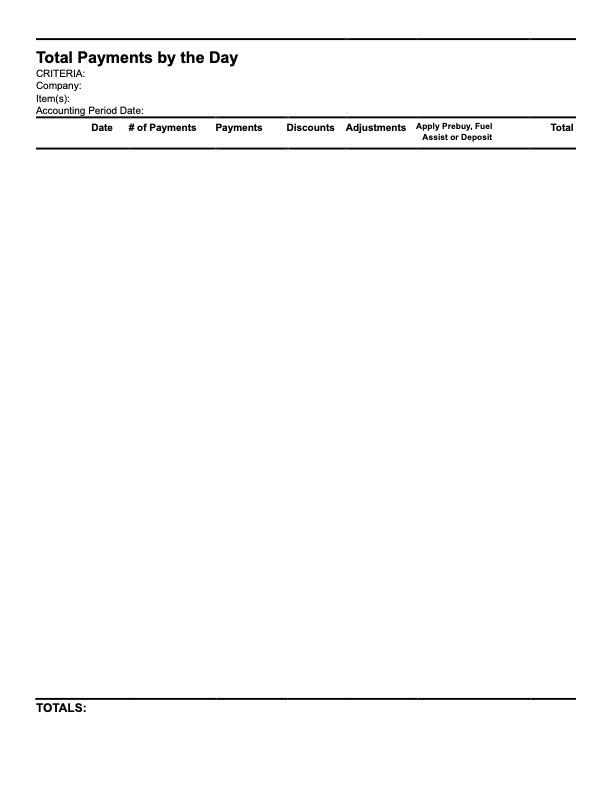
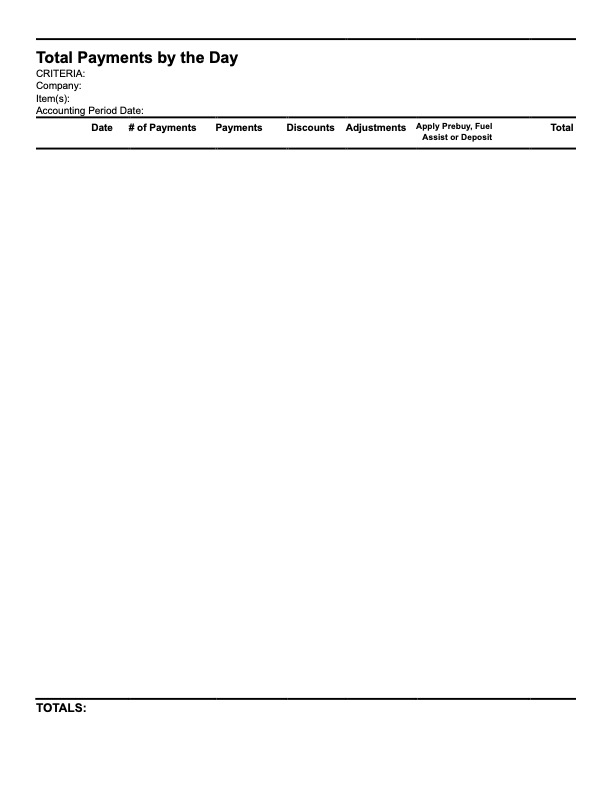
Total Payments by the Day