
Account Search
Overview
Account Search helps you locate customer records by any identifying detail such as name, account number, email, phone number, or address. The page is split into two primary sections:
- Search Panel at the top for entering search terms.
- Search Results below, showing matching accounts and their details.
Performing a Search
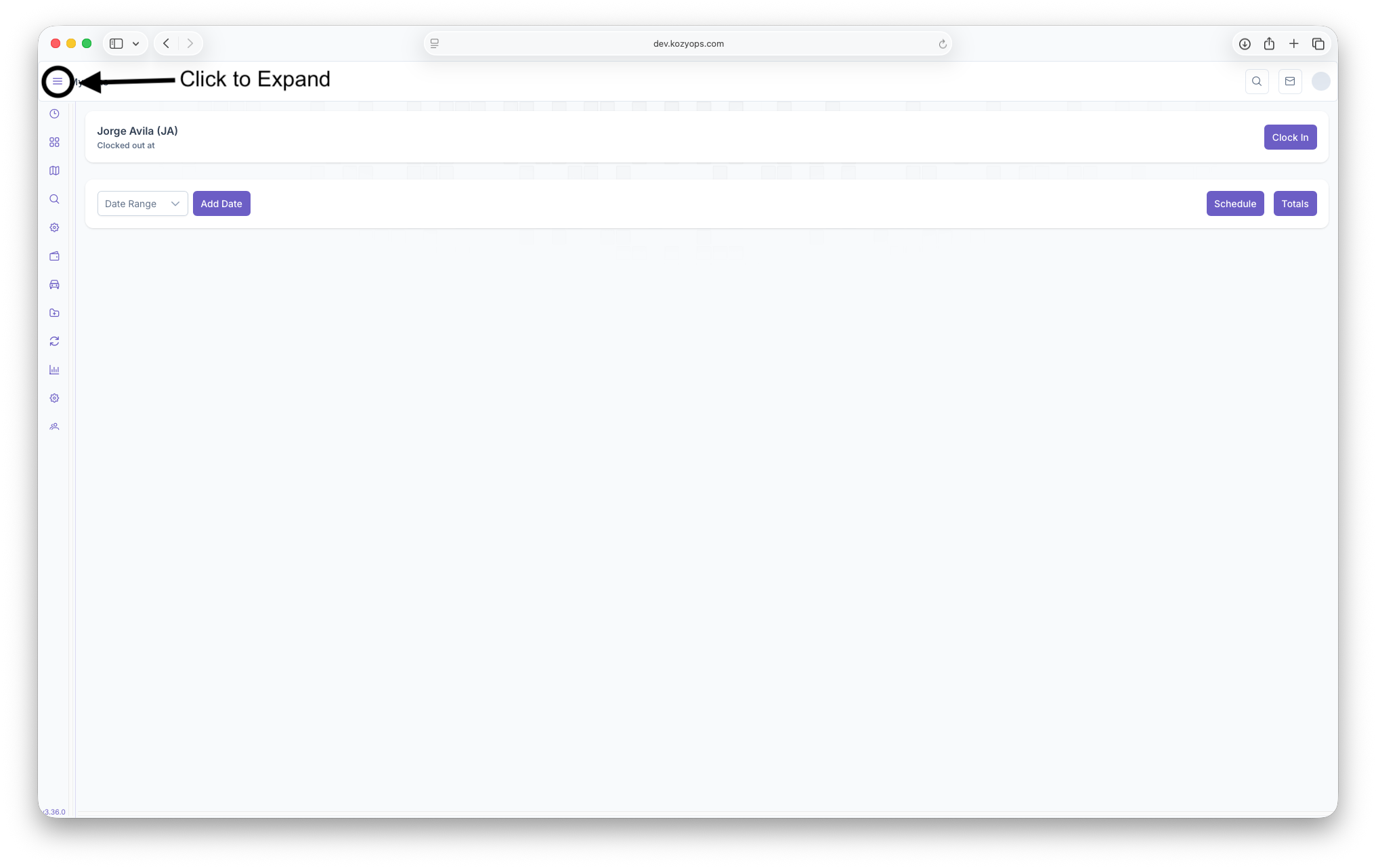
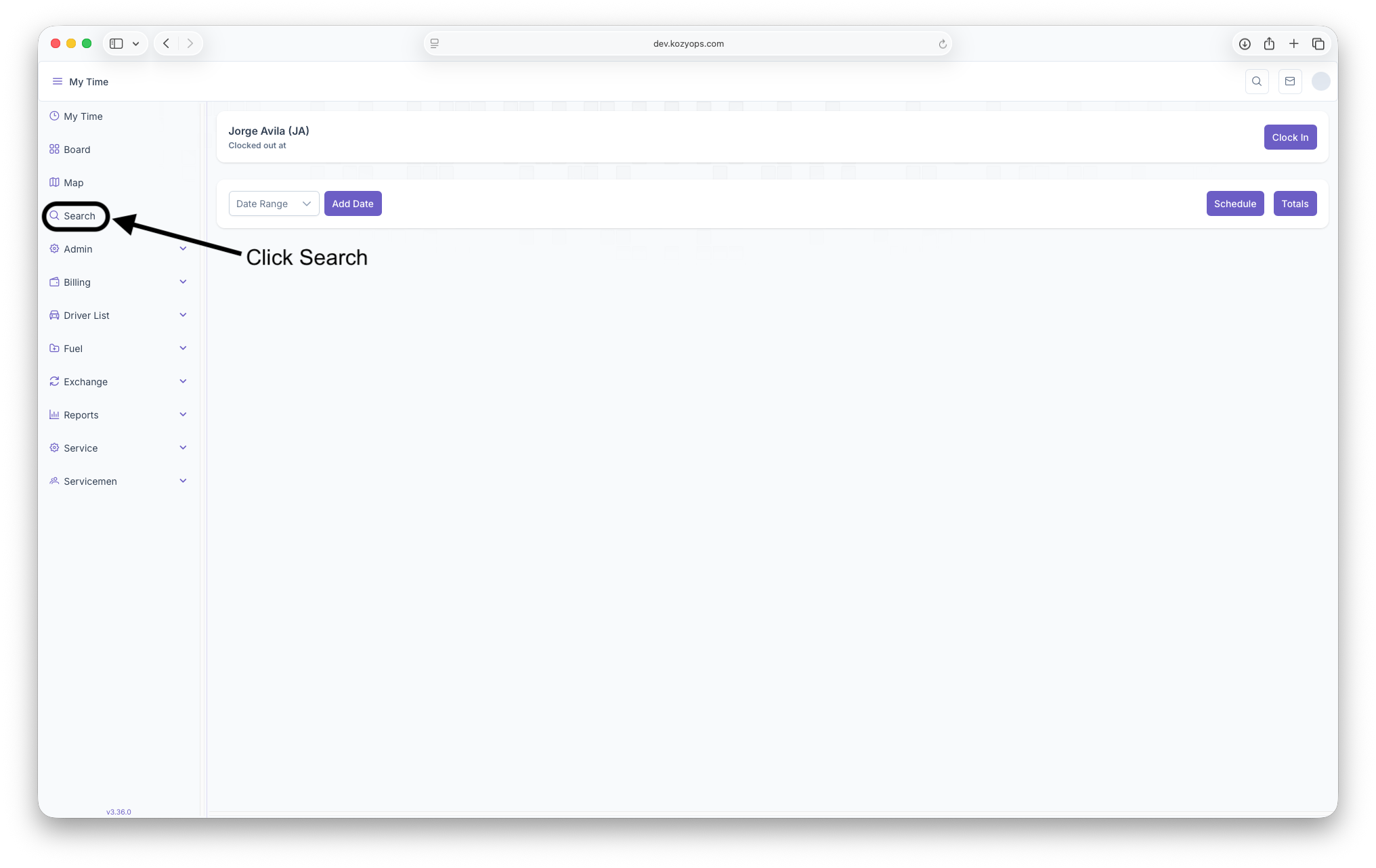
- Open the Account Search page from the navigation menu.
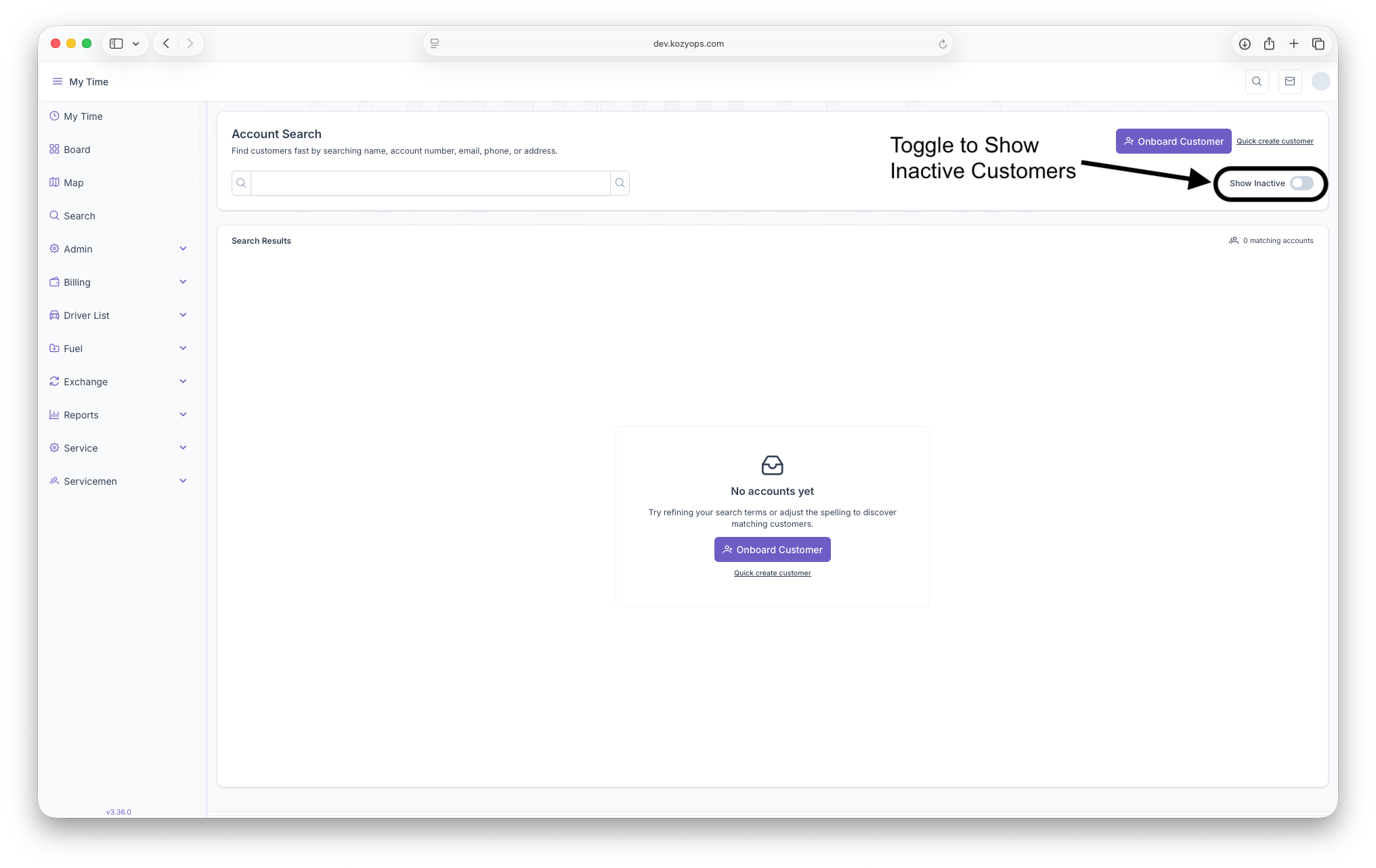
- Toggle "Show Inactive" to also populate inactive Customers
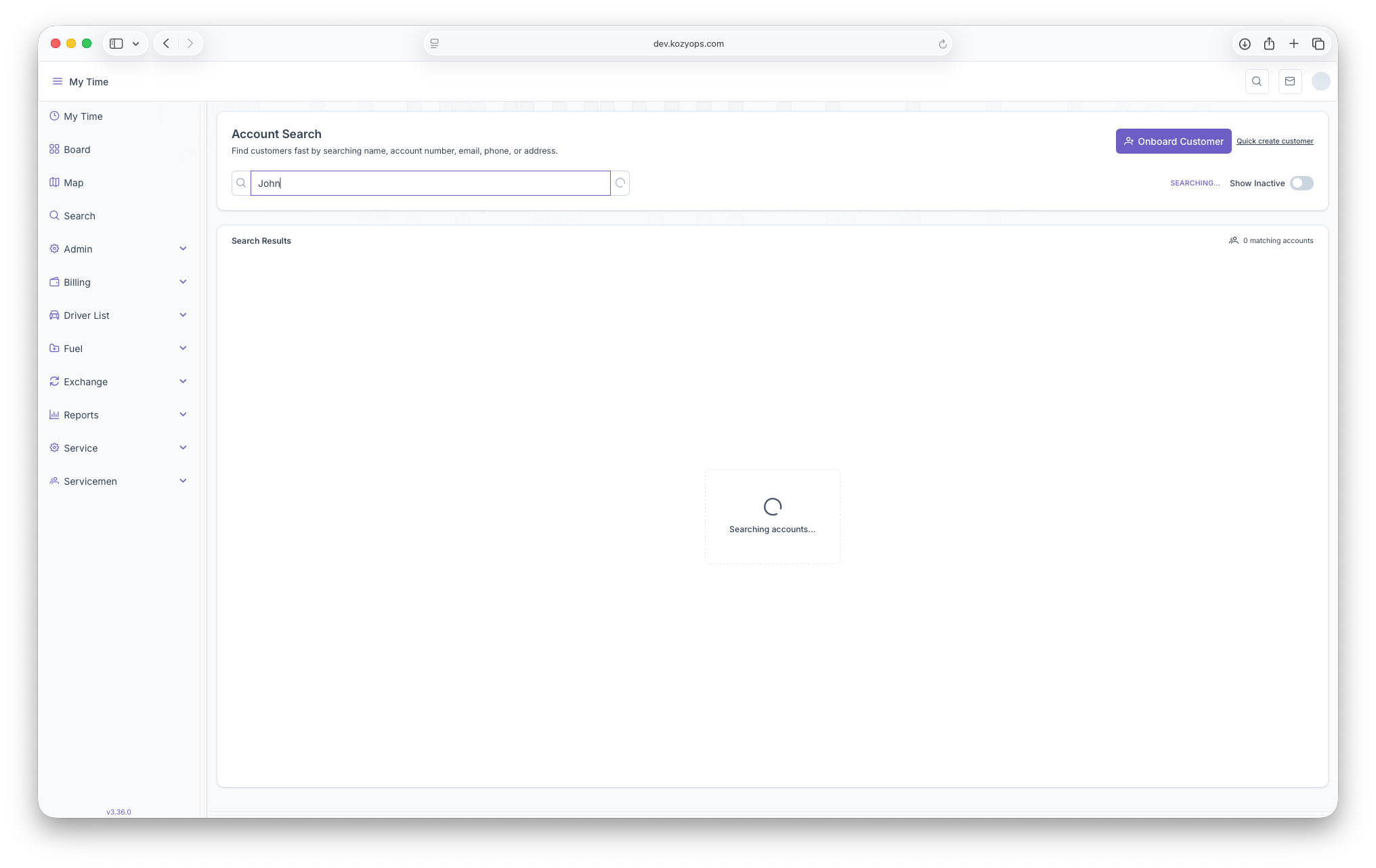
- Enter any keyword in the search field. You can type:
- Customer first or last name
- Account number
- Company name
- Phone number (with or without formatting)
- Email address
- Street, city, state, or ZIP code
- Results update automatically as you type. A "Searching..." message appears while the system looks up matches.
Creating a New Customer
- Use the Quick Create Customer or Onboard Customer buttons in the header to open the new customer workflow.
Understanding Search Results
The results table appears once matches are found. Each row represents a customer account with the following information:
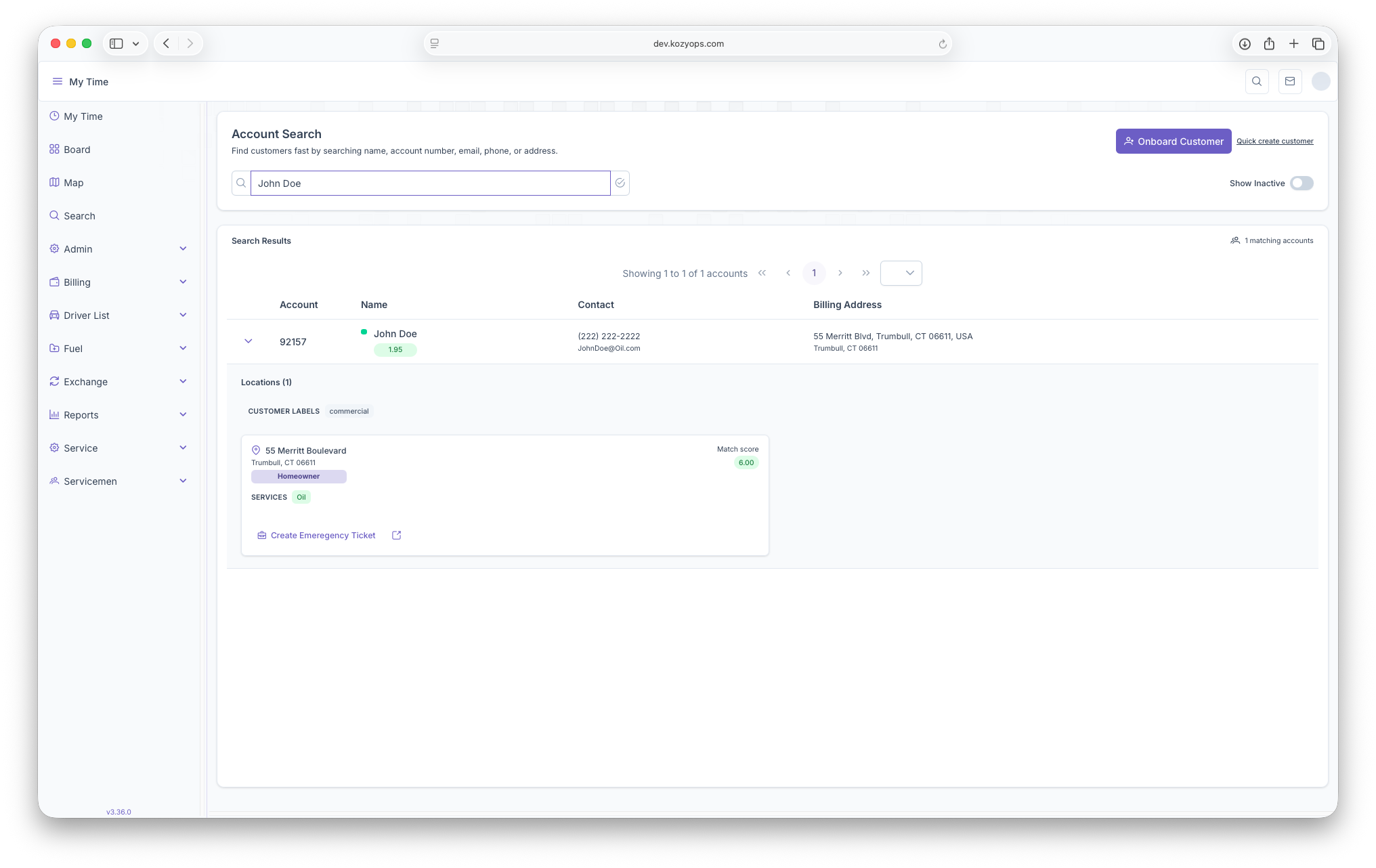
- Account: Account number and associated company name when available.
- Name: Primary contact's full name and an optional match score badge that indicates relevance (higher is better).
- Contact: Primary phone number (formatted automatically) and the first email address on file. "No email on file" appears if none is stored.
- Address: Main service address for the account.
- Labels: Customer tags that help categorize the account. "No labels" shows when none are assigned.
- Actions: Open the account in a new tab using the external-link icon.
Selection and Highlighting
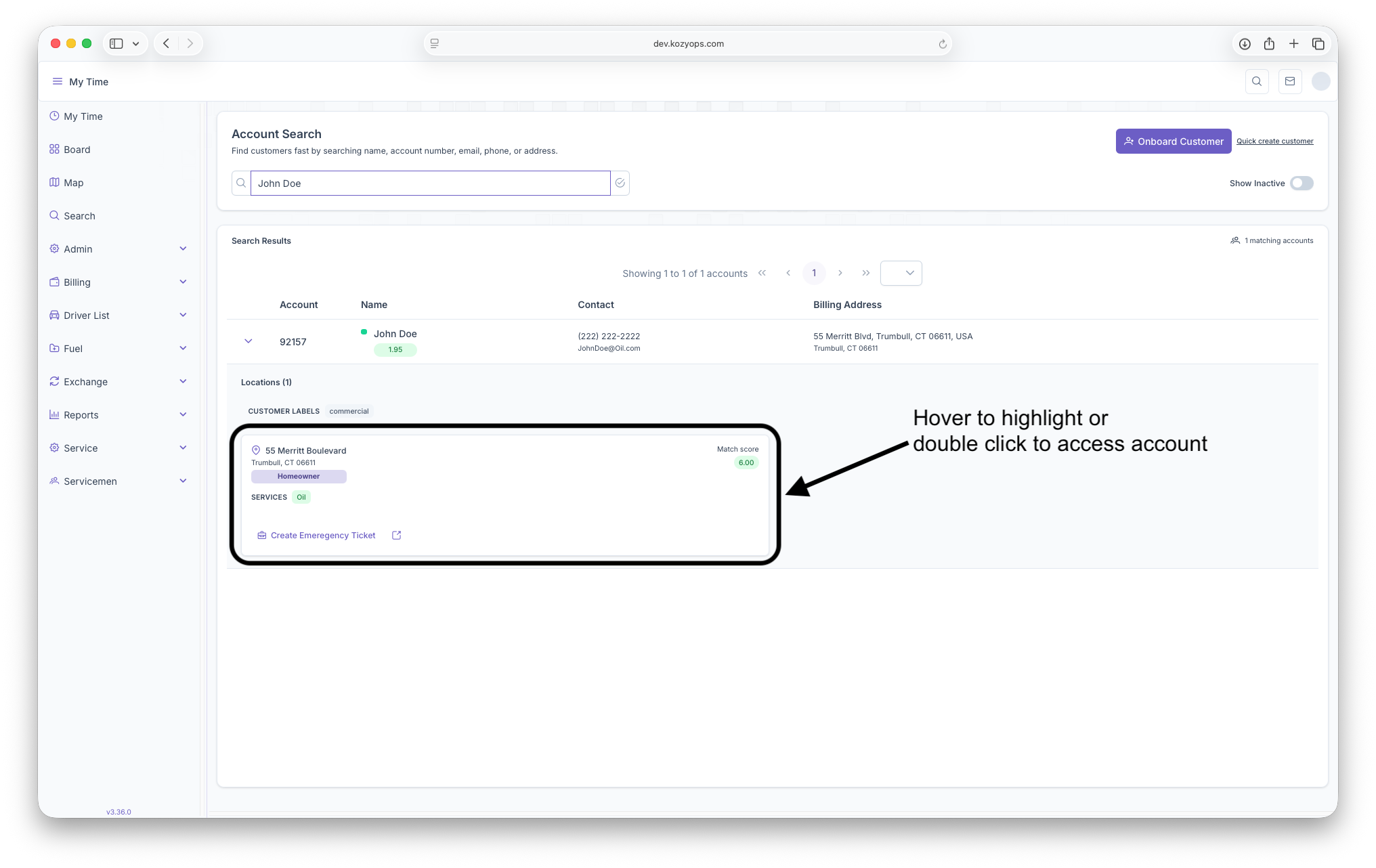
- Click anywhere on a row to select it. The selected row is highlighted for context.
- Double-click a row (or use the external-link icon) to open the full account view in a new tab.
- Middle-click (or Ctrl+click) also opens the account without losing your search context.
Viewing Account Locations
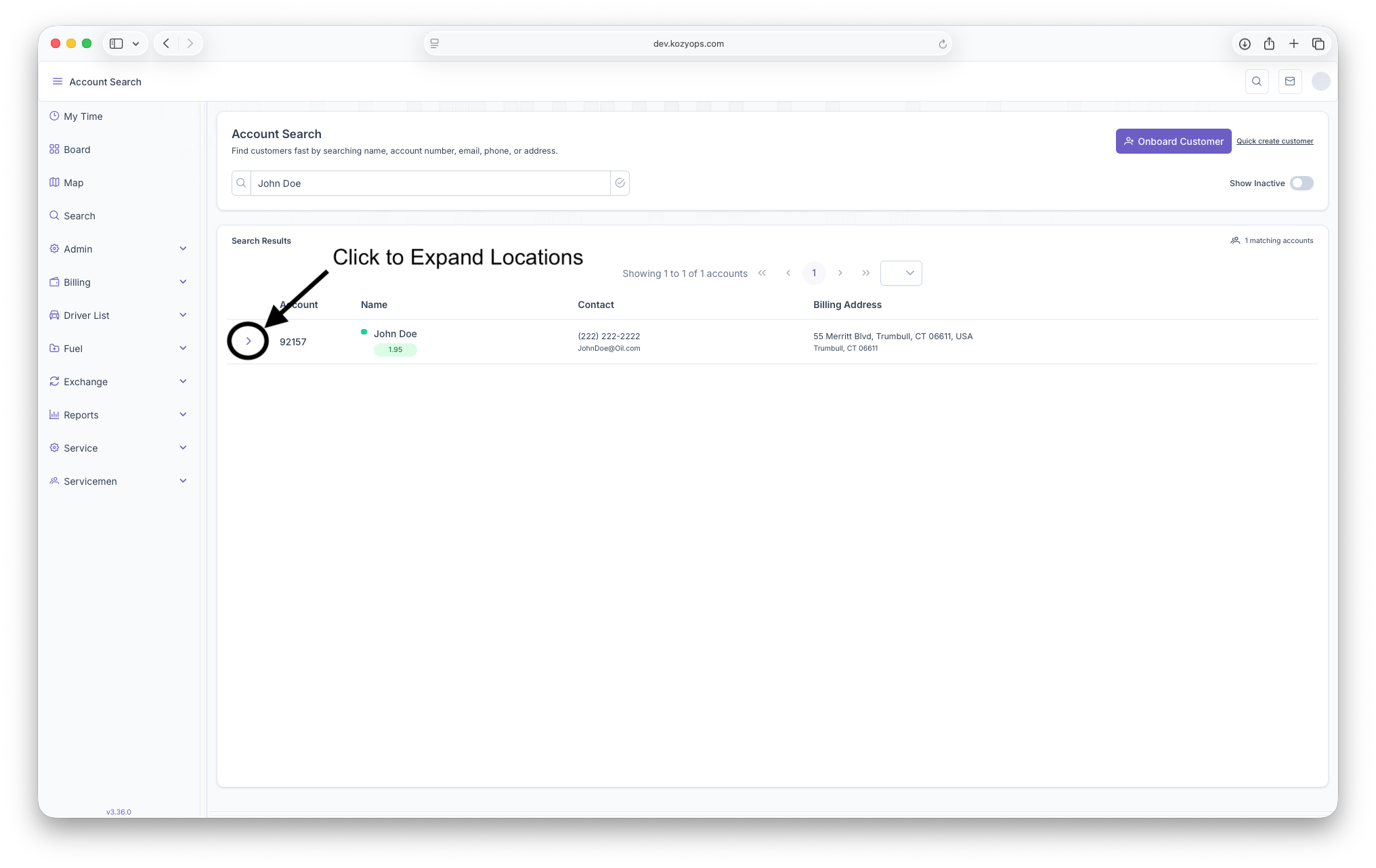
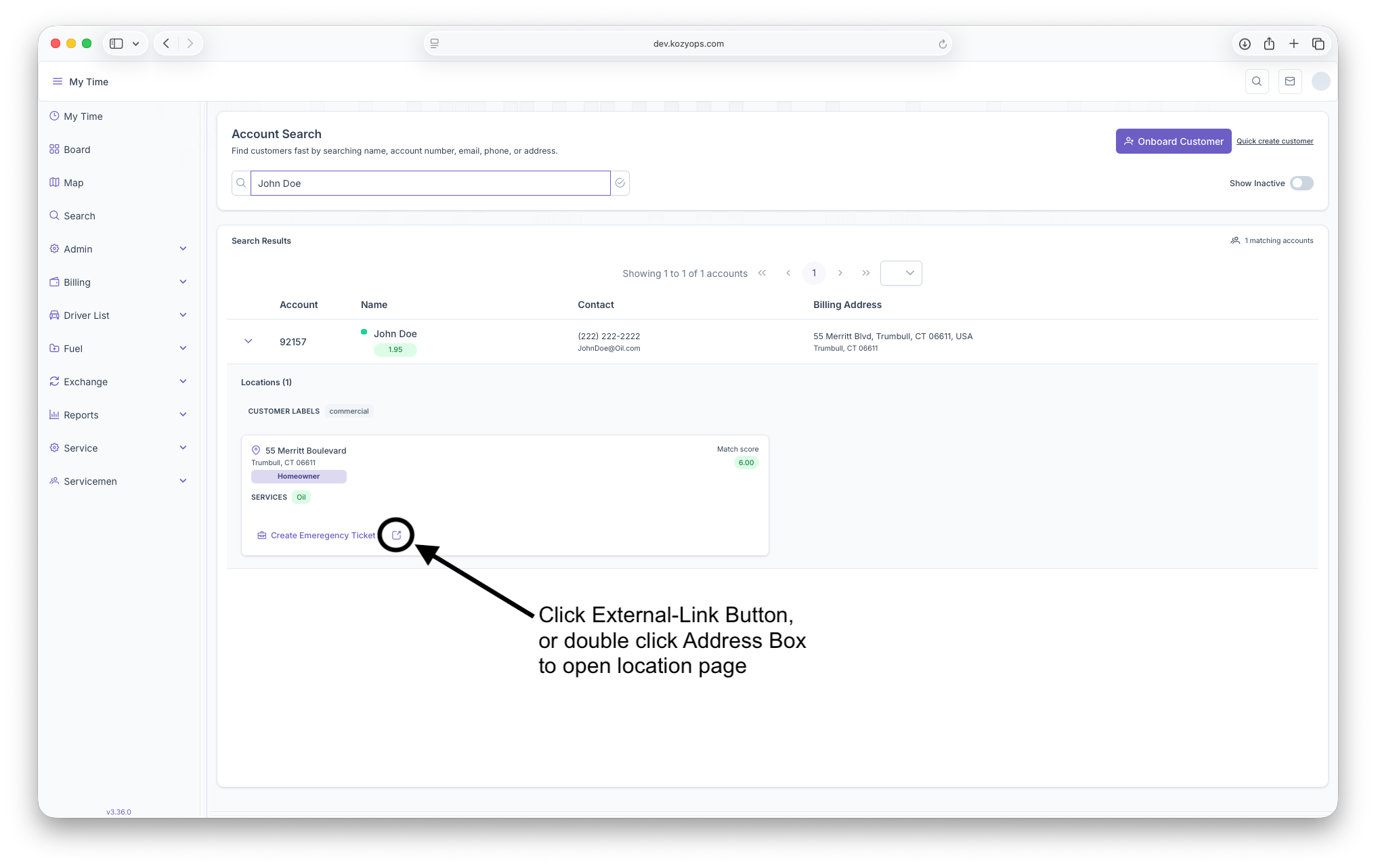
If an account has multiple locations, a chevron button appears in the first column.
- Select the chevron to expand the account.
- The expanded panel lists every location with:
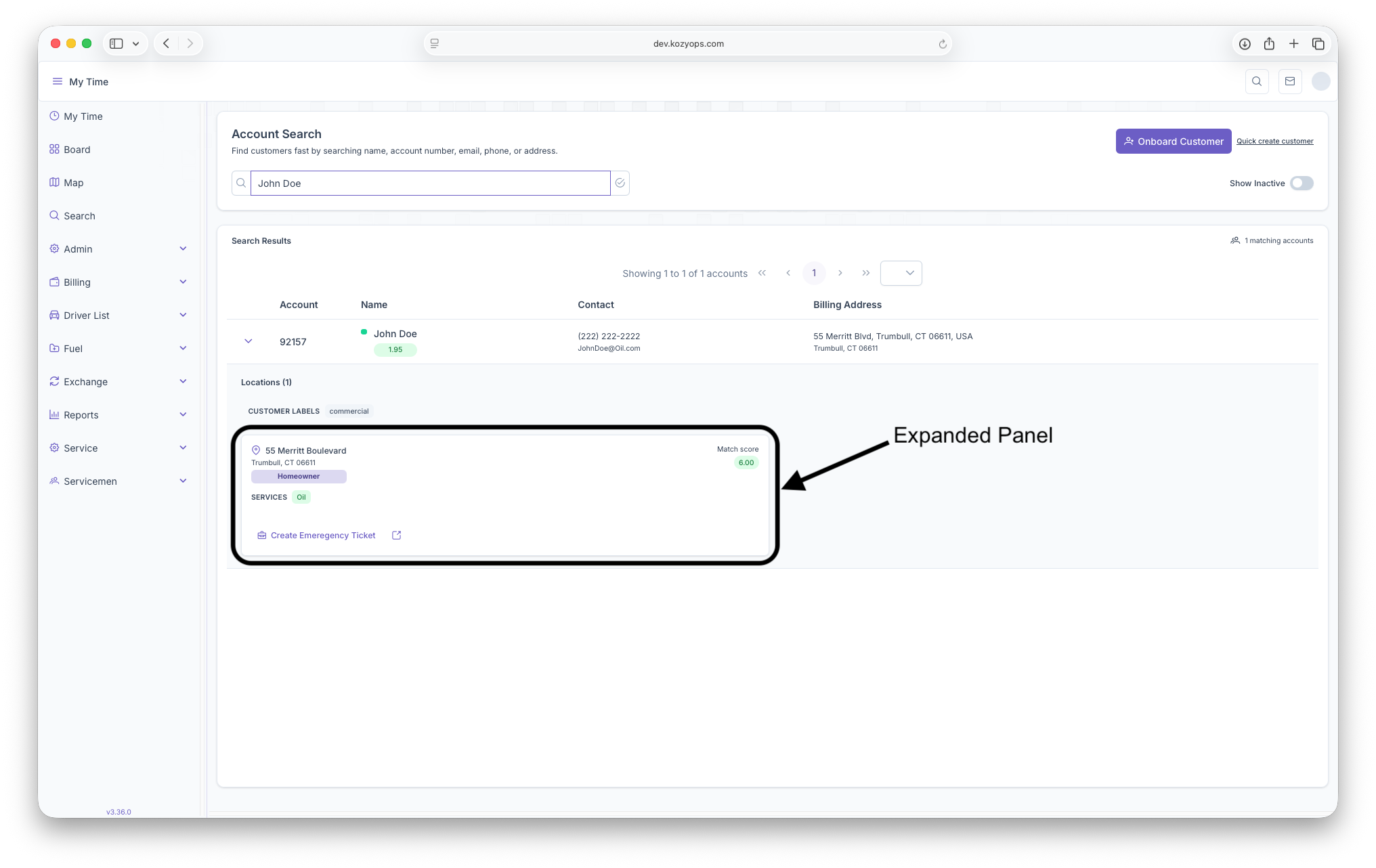
- Street address lines and city/state/ZIP
- Relationship tag (for example, "Billing" or "Service"), when available
- Match score badge for the specific location
- Service indicators showing whether oil and/or propane services are active
- Use the external-link button within a location card to open that specific location page when an ID is available.
Creating a Service Visit (Realm Levels Below 10)
Users with the appropriate realm level can start a new service visit from an expanded location:
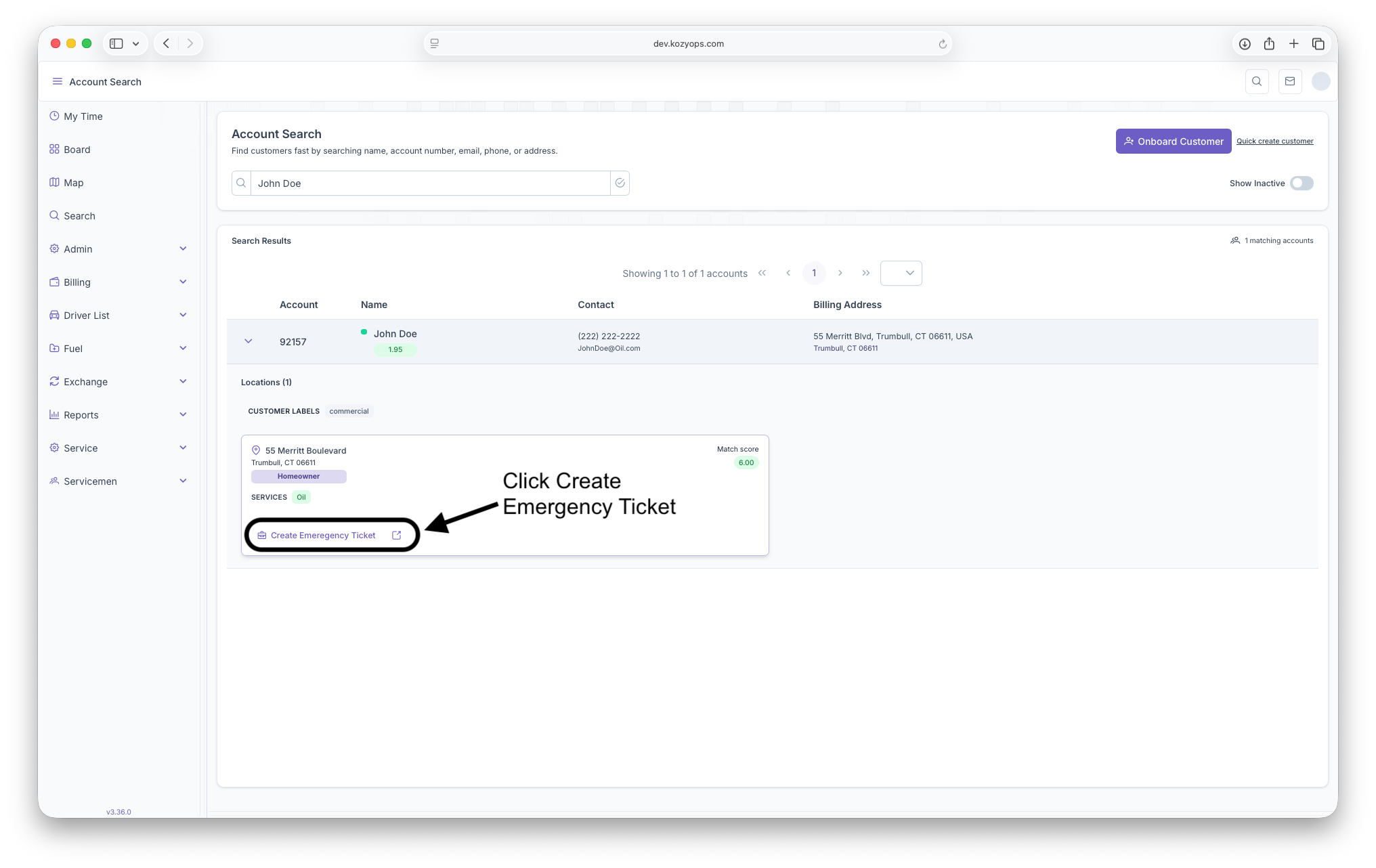
- Select Create Emergency Ticket within the desired location card.
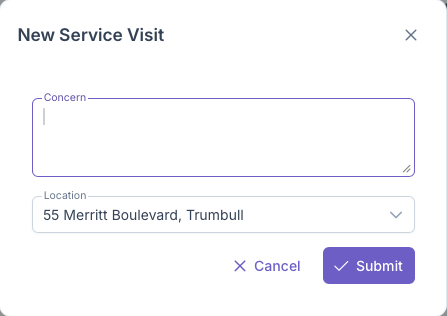
- A dialog opens requesting:
- Concern: Describe the customer's issue or request.
- Location: Choose the relevant customer location from the dropdown. Options load automatically.
- Choose Submit to create the visit or Cancel to close the dialog.
The dialog indicates loading states (spinner on the Submit button) when a visit is being created.
Tips for Effective Searching
- Enter multiple terms (for example, street name plus city) to narrow the results list.
- Use parts of a phone number or email if you do not have the full value.
- Expand accounts to view location-level service details before opening the full record.
- If no results appear, adjust spelling or try an alternate identifier.
Empty and Loading States
- When no accounts match, the page displays an empty state with quick access to Create Customer.
- While the system searches, a spinner appears in the results area to confirm the request is in progress.
What you can search by
You can enter one or more words in any order. Search is case-insensitive and ignores punctuation.
- Name
- First and/or last name
- Account number
- Type the digits (e.g.,
123456)
- Type the digits (e.g.,
- Phone number
- Type any part of the number; digits only also work (e.g.,
617555,5551212,1234) - Last 4 or last 6 digits will match at a higher confidence
- Type any part of the number; digits only also work (e.g.,
- Email address
- Full email (e.g.,
alex@example.com) or parts (e.g.,alex example)
- Full email (e.g.,
- Address
- Street, city, state, ZIP (any combination)
- Examples:
123 Main,Boston MA,10001
- Labels and related info
- Customer labels (e.g.,
VIP,COD) - Location labels
- Promotions (by name)
- Taxes (by tax name)
- Services (by service type)
- Relationship type to a location:
homeowner,tenant,priceCustomer,fuelCustomer,serviceCustomer
- Customer labels (e.g.,
Tip: Combine terms to narrow results. For example: acme john boston 02110.
How matching works
The system uses a blend of matching methods to catch both exact and “close” matches:
- Smart text search across customer and location info (company, people, addresses, labels, promotions, taxes, services)
- Prefix matching for partial words (e.g.,
alexmatches “Alexander”) - Fuzzy matching for near matches (helpful for typos)
- Number-aware matching for phones and accounts
- Any digit sequence in your query is checked against phone numbers
- Account numbers match on exact or starting digits
- Special handling for
oil.mast_123456style account entries
If your query is empty or only spaces, no results are returned.
Ranking - why some results appear first
Results are scored and sorted so the most relevant show up first. In addition to text relevance, we boost:
- Exact or strong account matches
- Exact account digits: biggest boost
- Account starts with your digits: medium boost
- Customers with active services: small boost
- Within each customer, their locations are ordered by:
- How well the location text matches your search (address, labels, promos, taxes, services)
- Relationship type (e.g., Homeowner ranks higher than ServiceCustomer)
- Whether the location has active services
What the results show
Each result is a Customer with:
- Company, first and last name
- Account number
- Primary address fields
- Phone numbers and emails
- Customer labels
- Locations related to the customer, each with:
- Relationship type (Homeowner, Tenant, etc.)
- Labels, Taxes, Promotions, Services
- Service count (how many active services at that location)
Note: Only current relationships and active services are shown. Deleted records are excluded.
Examples
- Search by name:
alex fox,acme corp - Search by address:
123 main,southbury ct,10001 - Search by phone:
5551212,617555,-1212 - Search by email:
alex@example.com,alex example - Search by account:
123456,oil.mast_123456 - Search by labels or activity:
vip,cod,homeowner,promotion spring special,service heating
Tips for better results
- Enter multiple terms to narrow down (e.g.,
acme john 02110) - For phone numbers, it’s fine to type only the digits you know
- For account numbers, type the full number when possible; partials still help
- If you’re not seeing results, simplify your terms or try a different piece of info (phone, email, or address)
Troubleshooting
- “No results”
- Check for typos, try fewer words, or search by a different field (phone digits, email, account)
- “Too many results”
- Add more terms (e.g., city and ZIP), or include a phone/email piece you know
- “Wrong order”
- Exact account matches and active-service customers are boosted; add more specific terms to re-rank
If you have questions or think a record is missing, contact your administrator—some data (deleted, inactive, or non-current relationships) is intentionally hidden from search.
No comments to display
No comments to display