Customer portal
To create your customer portal, go to your companies portal. There you will be asked to register for an account.
Add in your personal information or company information and select next
Create account by adding in your email and creating a password.
Go to the login page and sign into your new account.
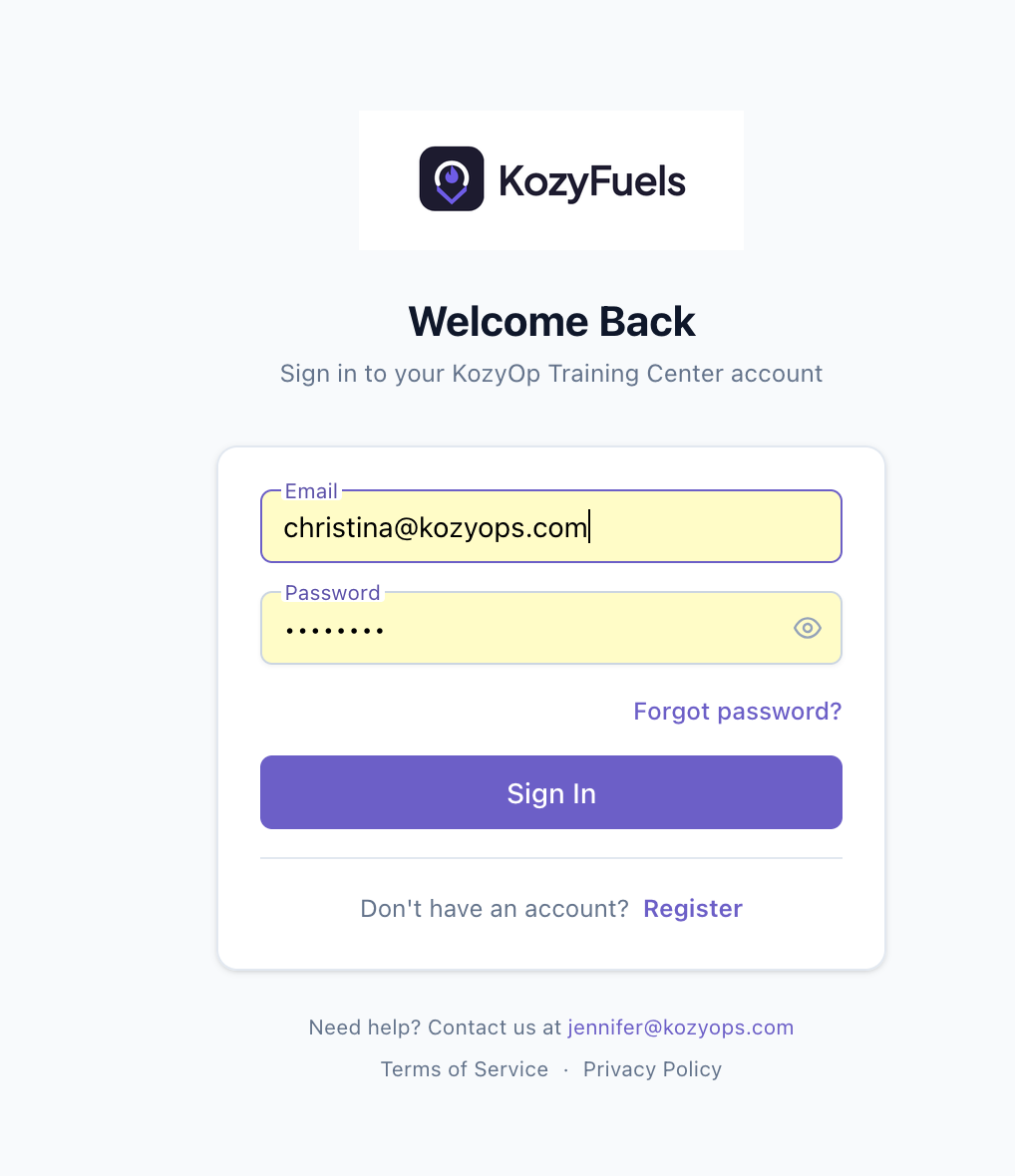
If you forgot your password, click forgot password to send reset information to the email associated with the portal. If you are unsure of which email is associated, call up your provider and they can let you know.
When signed in, you will see your account information.
Use the Three dashes in the upper left corner to maneuver through the various tabs on the portal.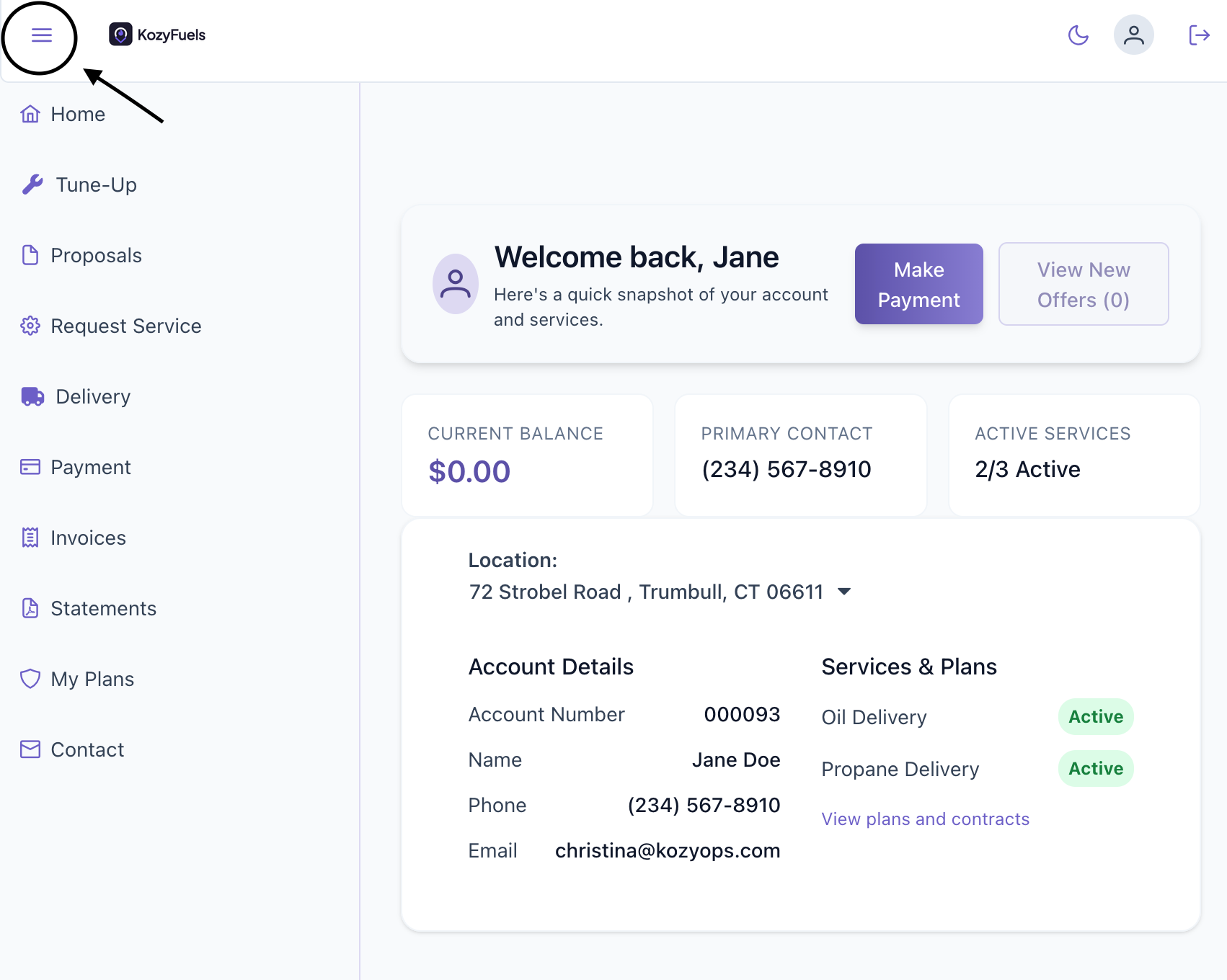
If you have multiple properties, click the drop down under location to view other properties information.
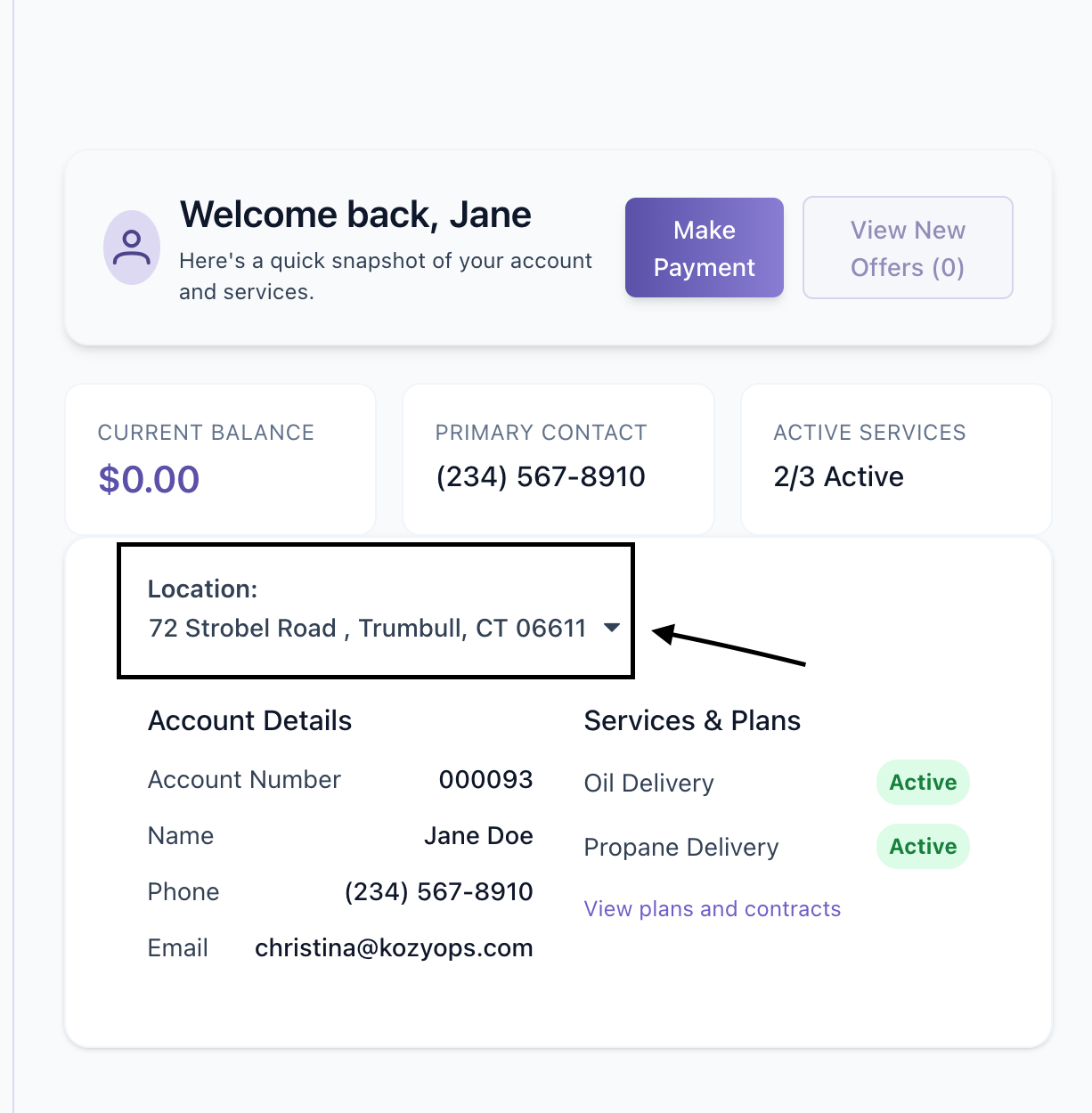
Note the quick buttons on the overview page where you can make a payment to view new offers (proposals ei. Budget contracts, installation quotes, fuel contracts etc)
From the side bar
You can request an annual tune up (if applicable to your company)
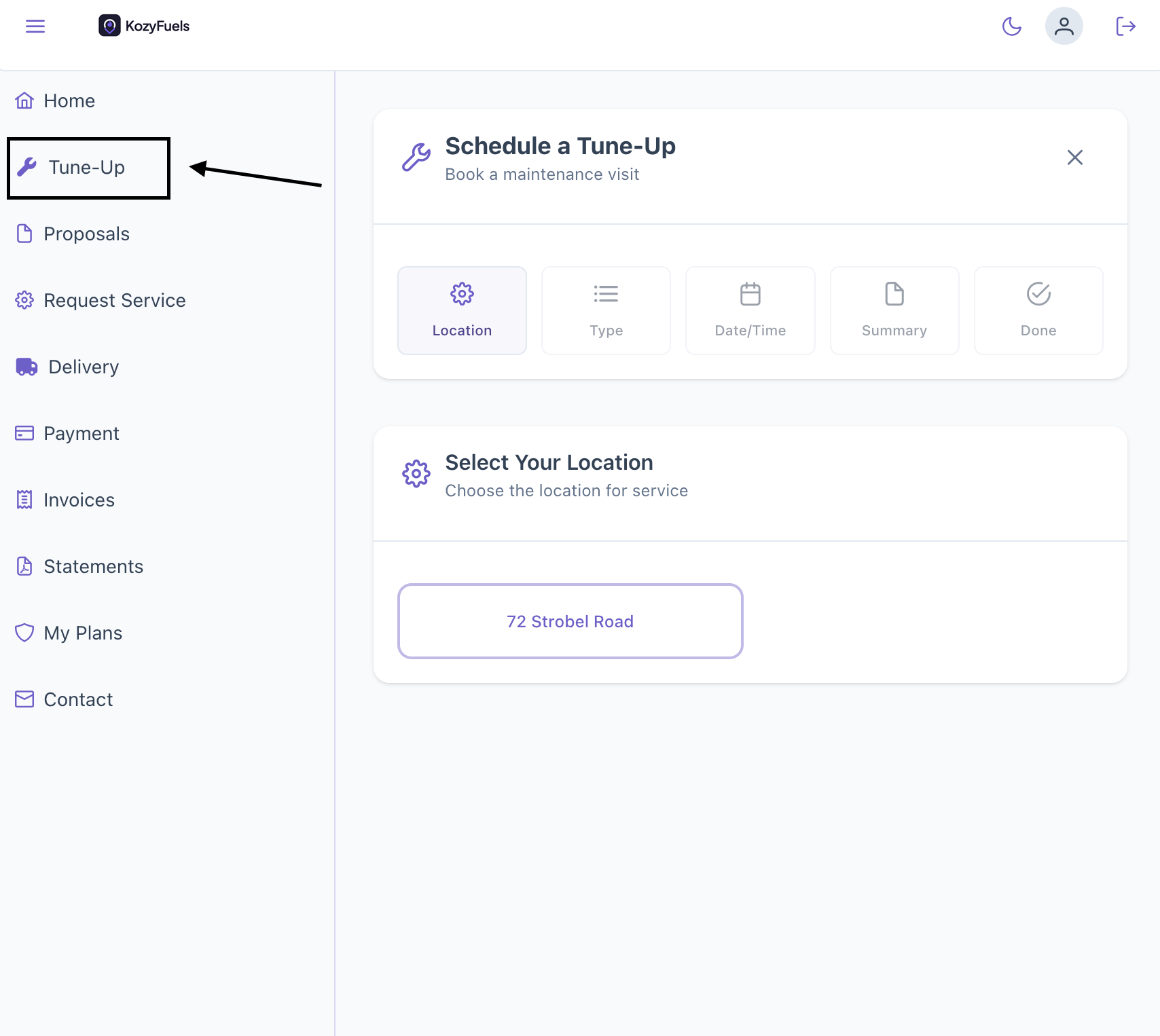
Fill out the information on your requested type and date and notes for which location and submit.
Proposals are where you will see any offers sent over by your company. Ei. Budget plans, Fuel contracts, service quotes.
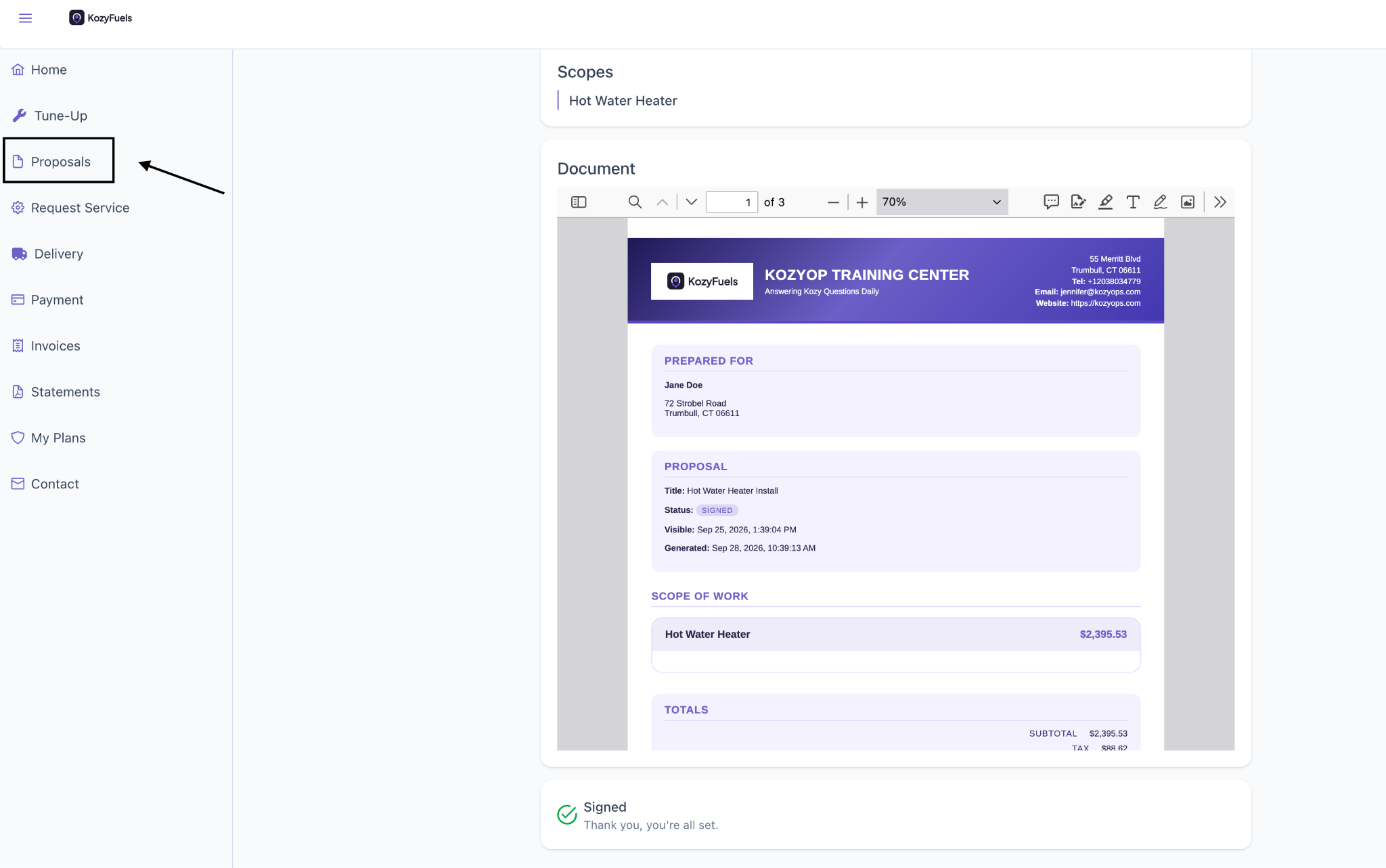
You will be able to sign off any any documents that are required here.
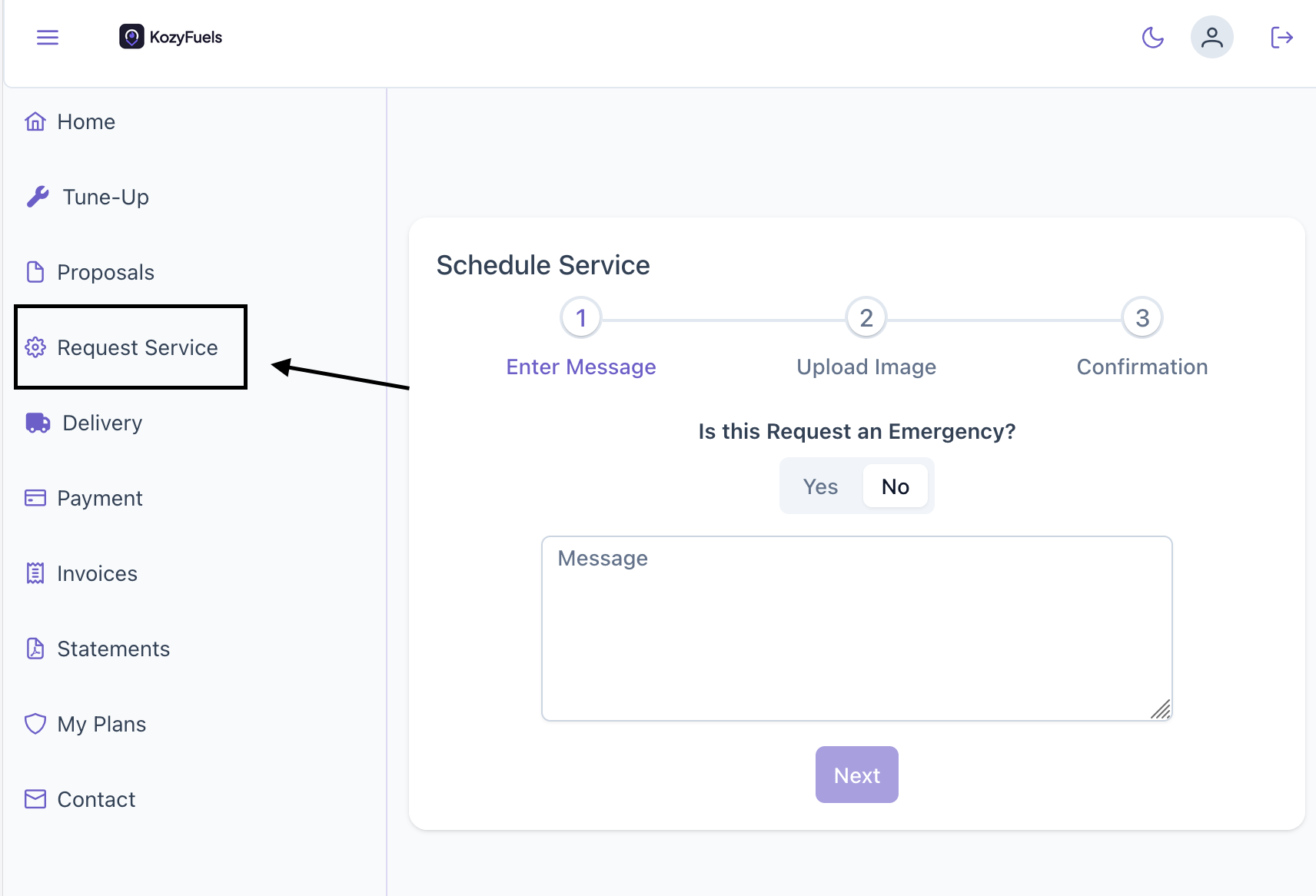
Requested service you are able to request any service needs.
Upload a photo of the issue at hand and confirm the request.
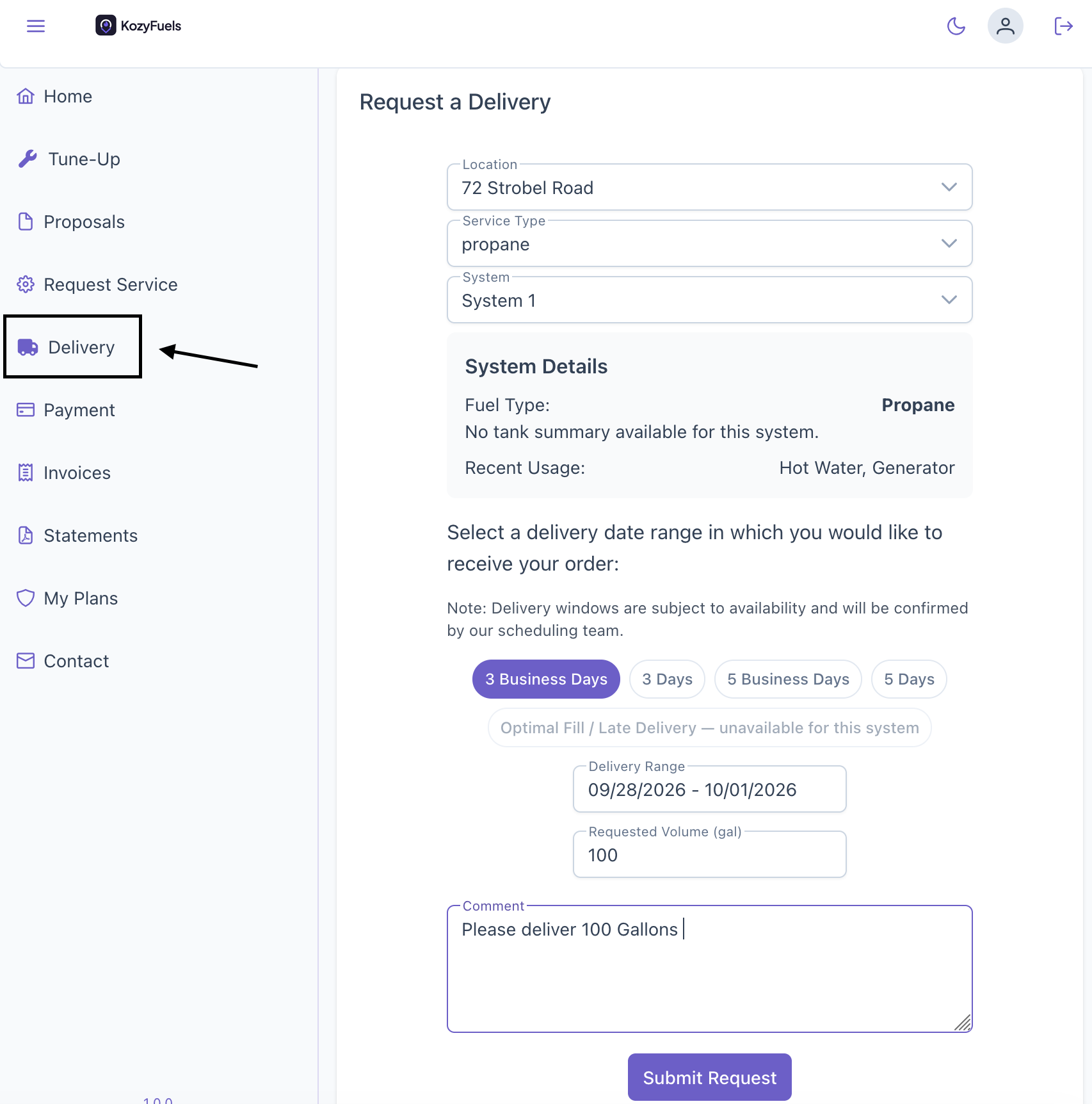
Delivery allows you to request a delivery for a specific location
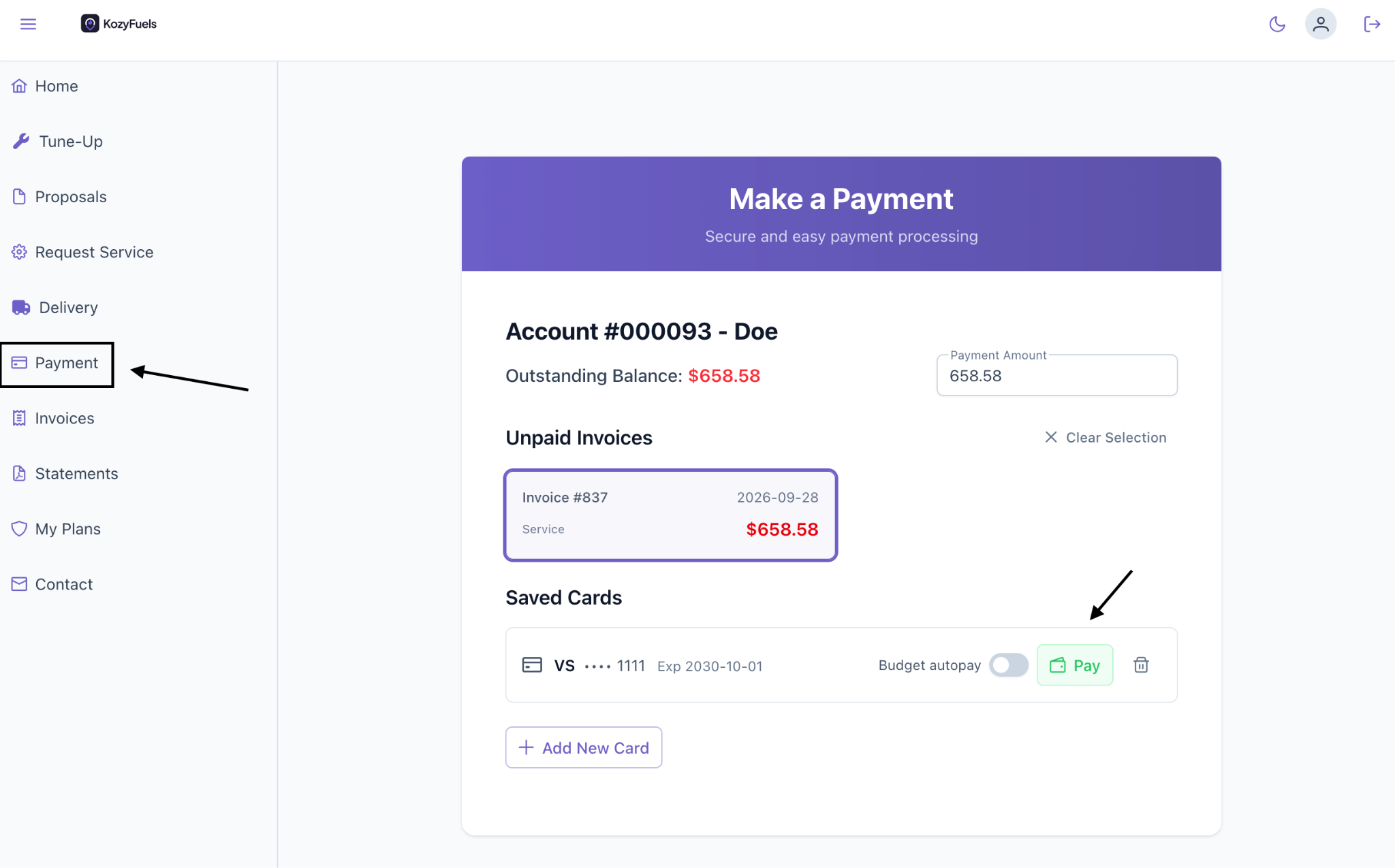
Payment allows you to make a payment on any open invoices. Note any due invoices will be isted in red. You can select which one youd like to pay for with a card on file by hitting the pay button. You can adjust the amount of payment at the top if needed by typing in a new amount.
To add a new card, click add new card button or to delete a card, hit the trash can button. If you want a card to be on autopay for a budget plan, toggle on the budget auto pay feature.
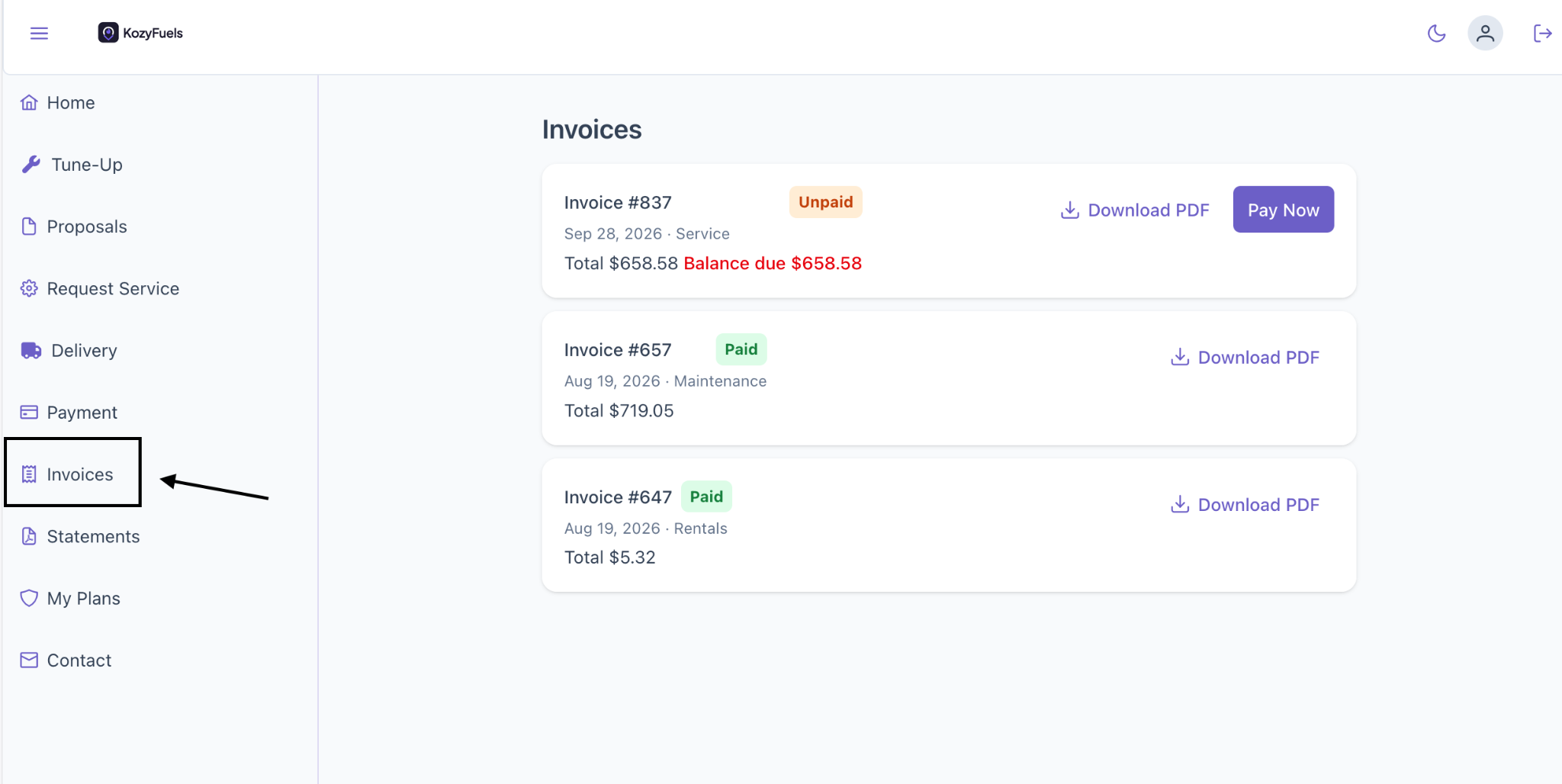
Invoices allows you to voice any unpaid or paid invoices. You can download invoices for your own records. Or select pay now to pay from this screen.
Statements allows you to create a PDF statement of your account activity for the period you choose.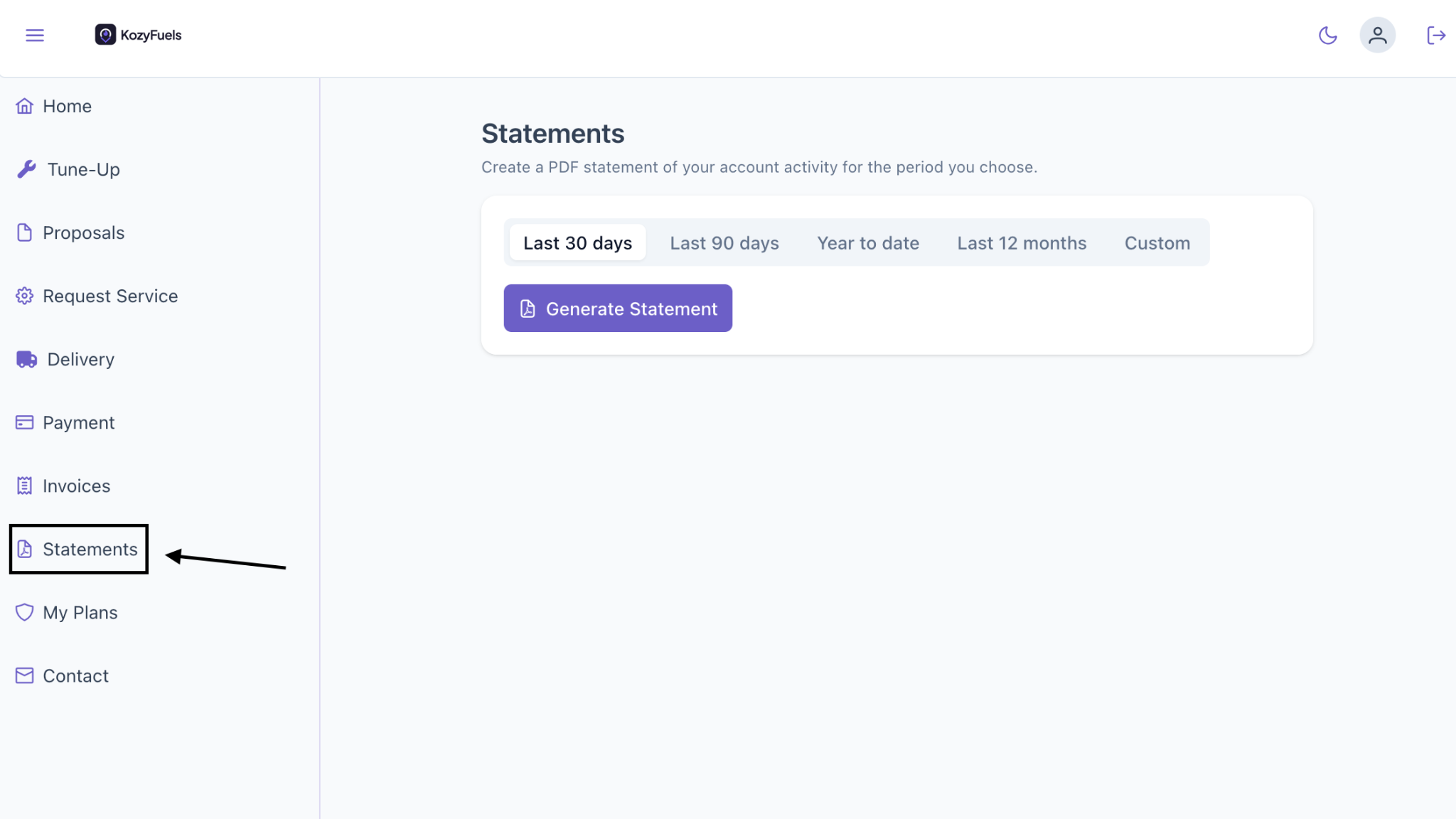
My Plans allows you to view any plans that are active on your account, ei, service plans, budget plans, fuel contract plans.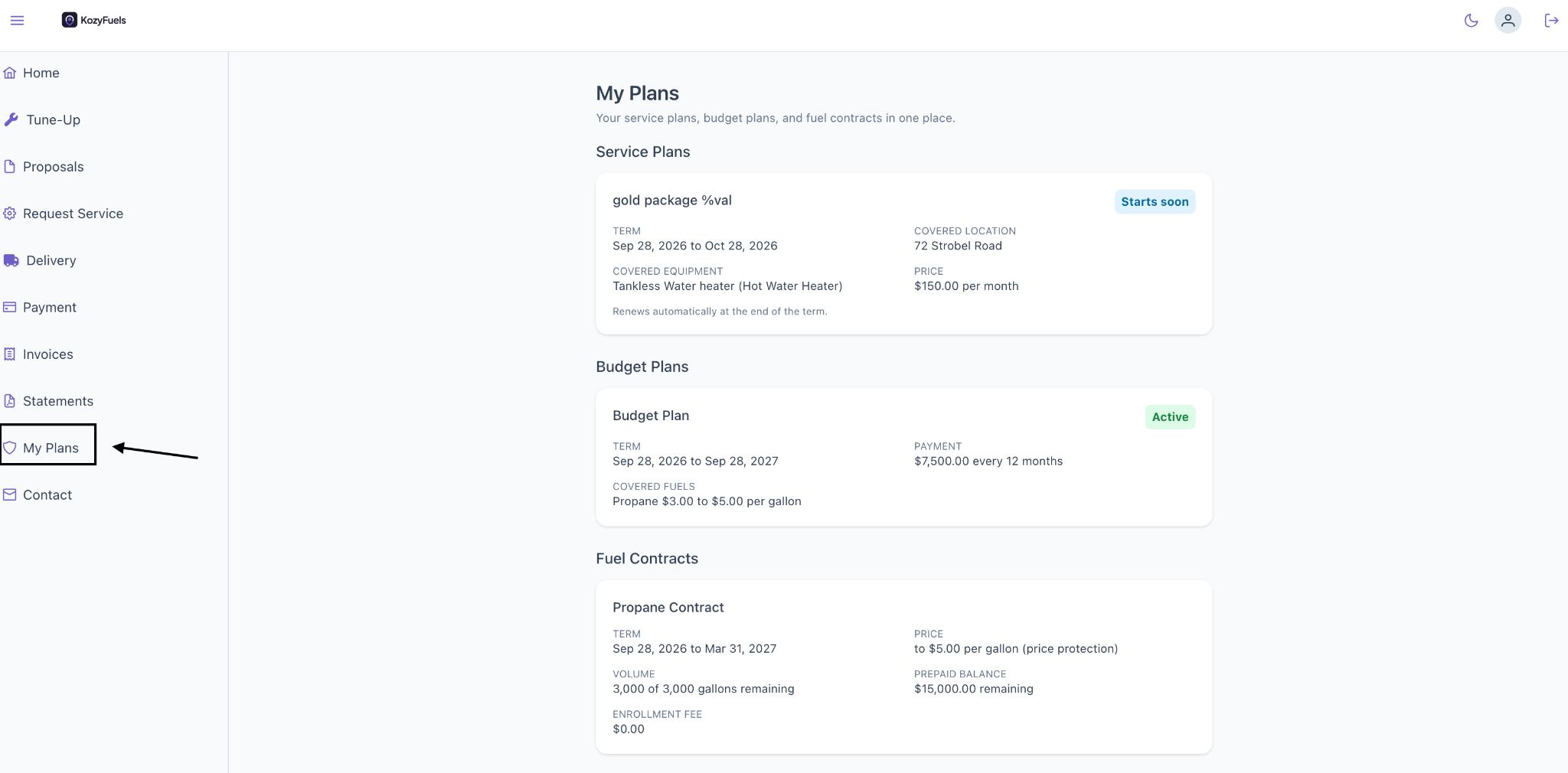
Contact allows you to contact your company for any further information.
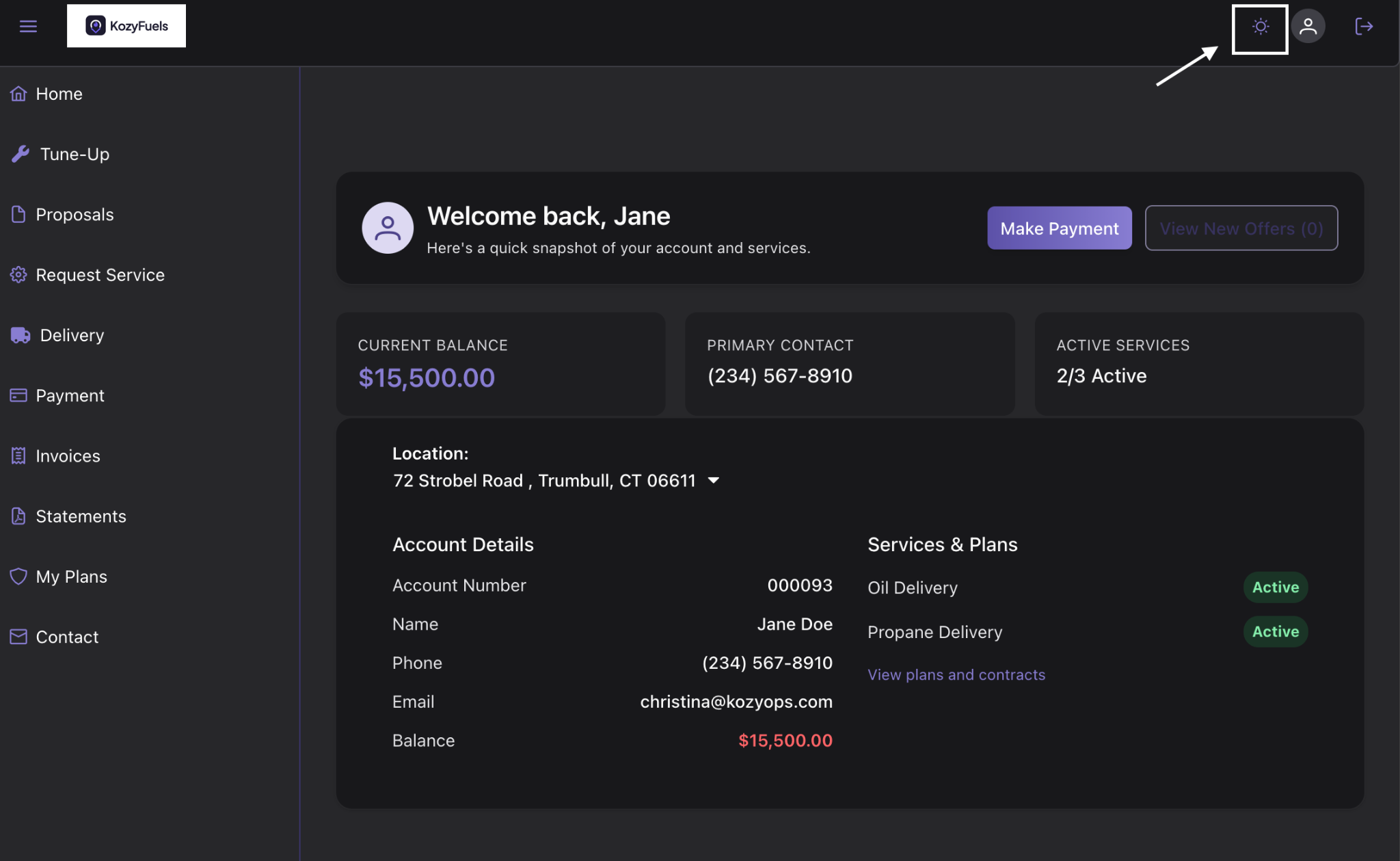
To turn your portal into “night mode” for those who are light sensitive select the moon icon this will change the page to night mode. To change it back select the sun icon. TO sign out, select the exit icon to the right.