
Delivery View
The Delivery Card is the central interface where drivers perform and record an individual delivery.
Sections Within the Delivery Card:
| Section | Purpose |
| Customer Information | Shows address, account number, and allows tapping to open maps |
| Ticket Notes | Displays any special instructions or warnings from dispatch |
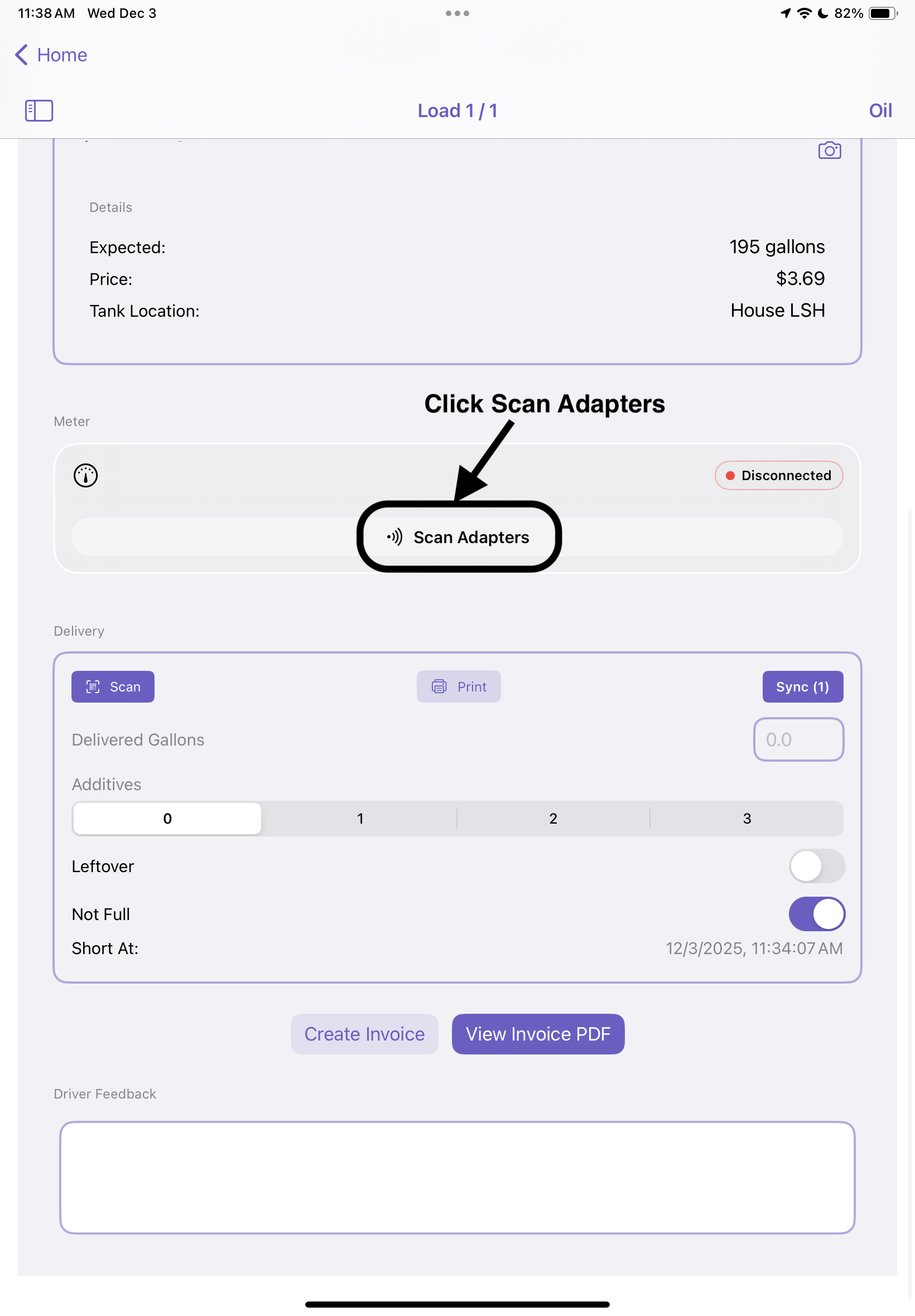
| Meter Section | Used to connect to a Bluetooth fuel meter, start and end deliveries, and print tickets |
| Delivery Input Section | Allows manual entry of delivered gallons, additives, and flags (short or leftover) |
| Driver Notes | Optional section to record observations or issues encountered |
Performing a Delivery with a Meter
Step 1: Connect to Meter
- Ensure the meter is powered on
- Click on Scan Adaptors
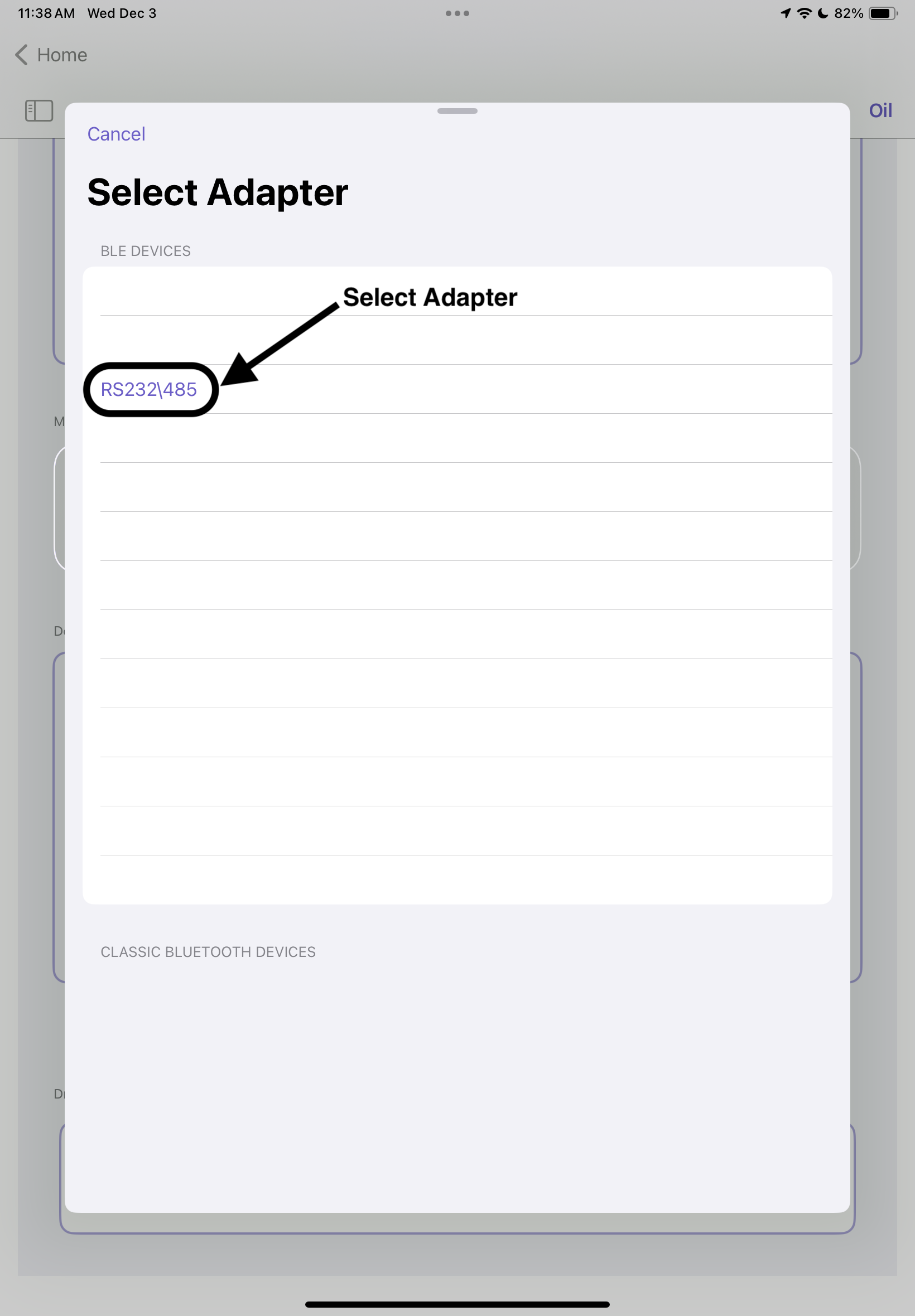
- Select Adaptor from generated list
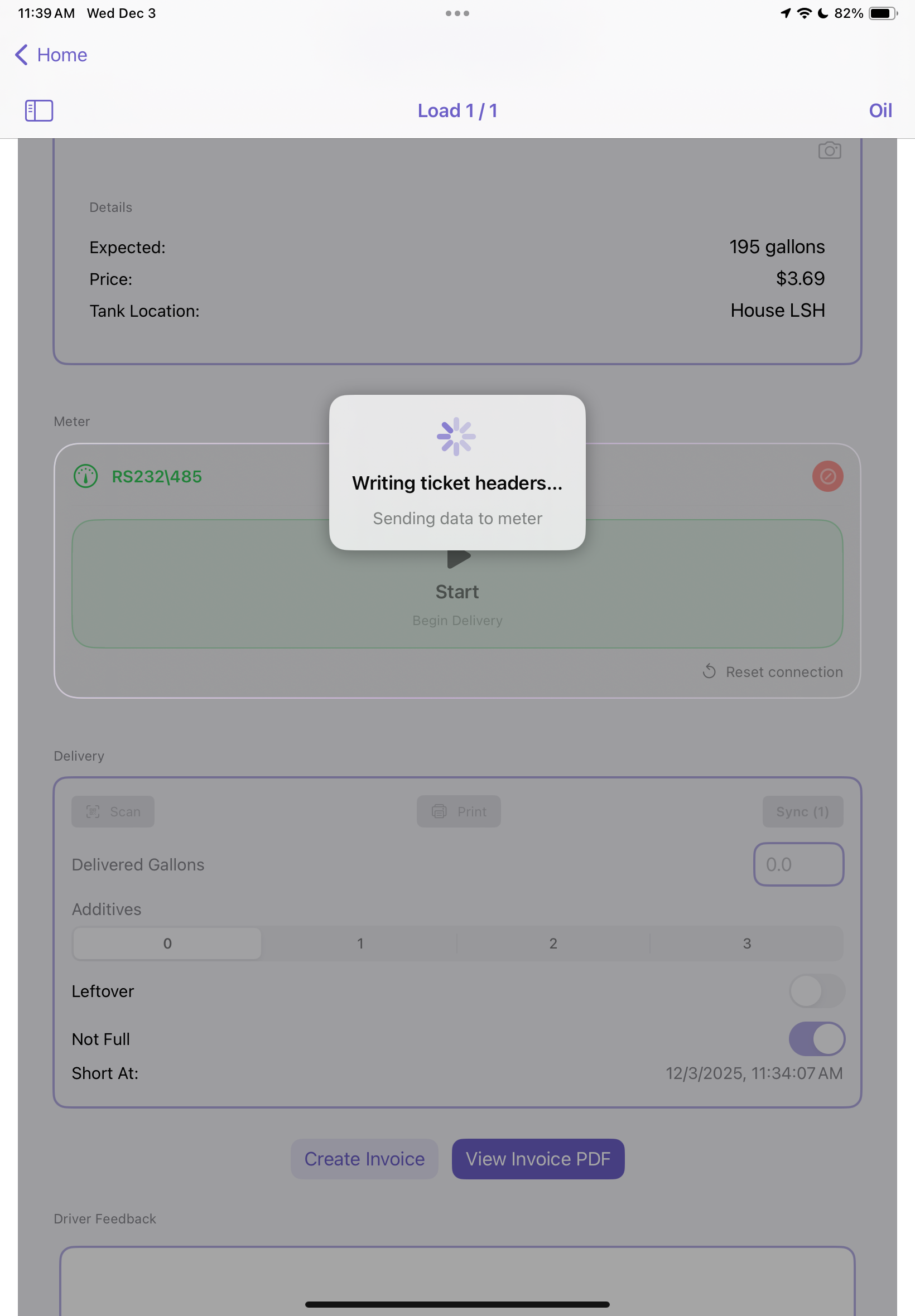
- After connecting to meter, two loading screens will pop up, wait for both to clear before beginning the next step
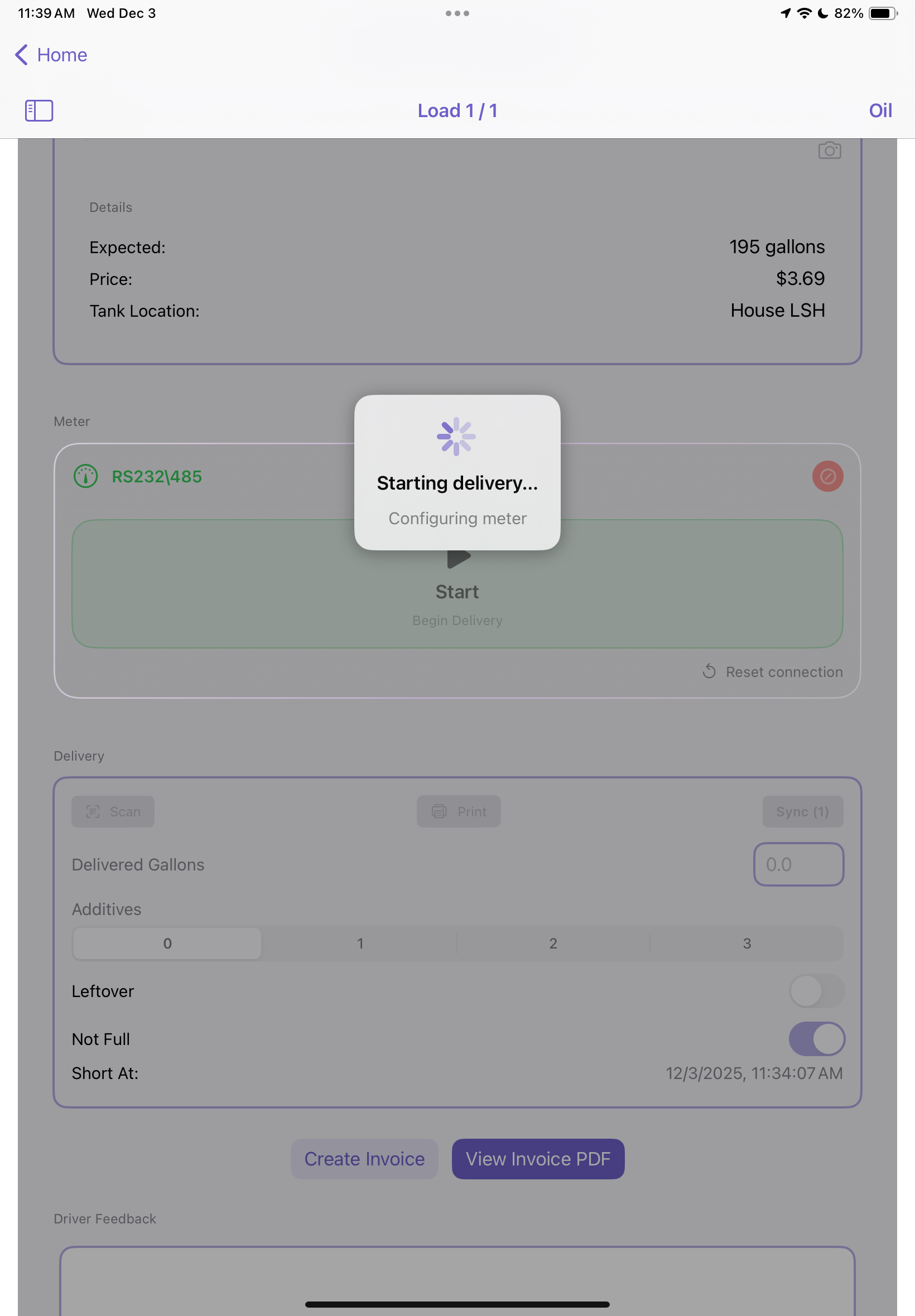
- Tap Start Delivery
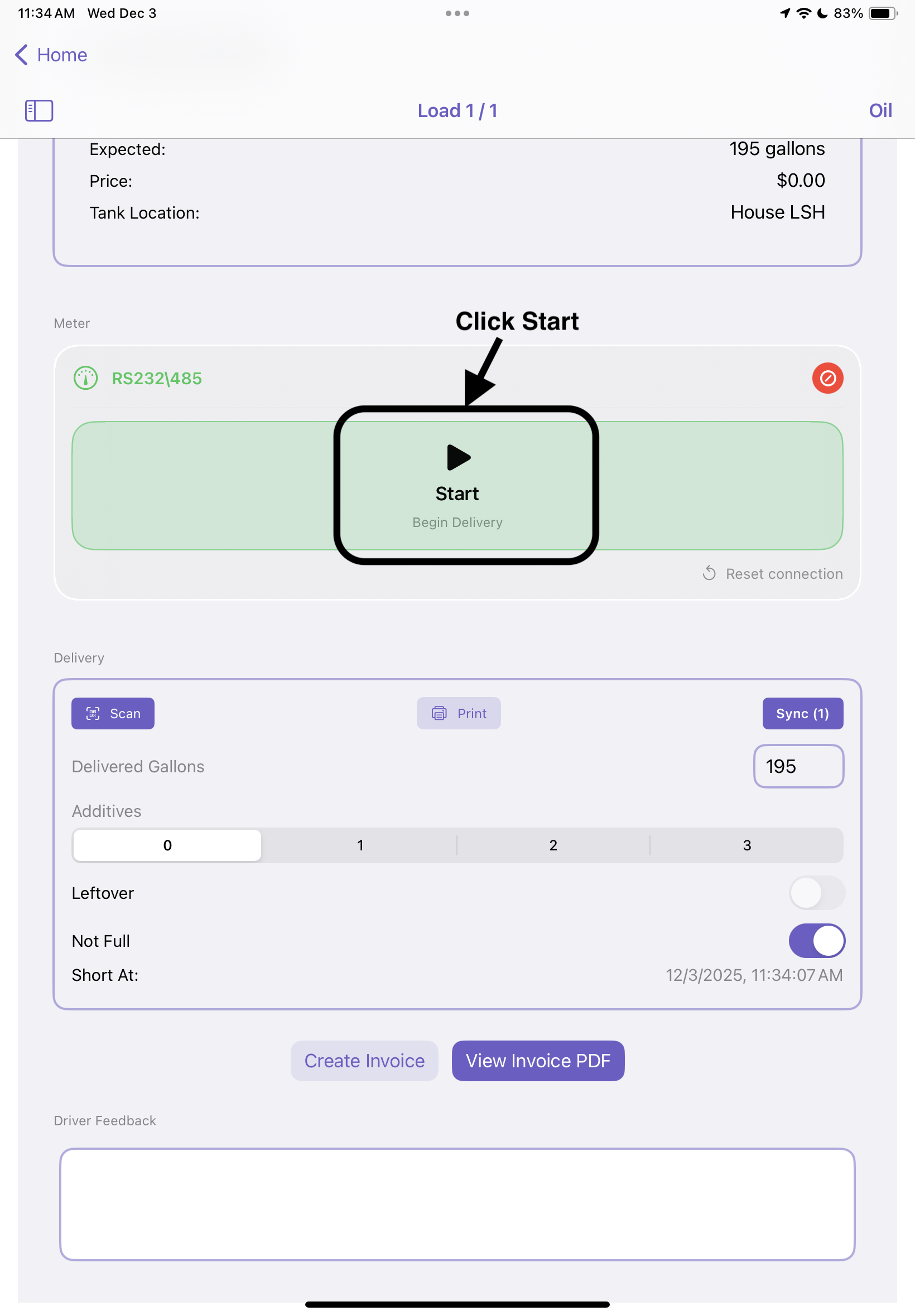
- The meter will automatically begin pumping and capturing gallons
Step 2: Monitor Gallons
- Gallons are automatically updated live on the screen
- If Bluetooth signal is lost, the system will inform you and pause the meter process
Step 3: End Delivery
- Tap End Delivery to finalize the ticket
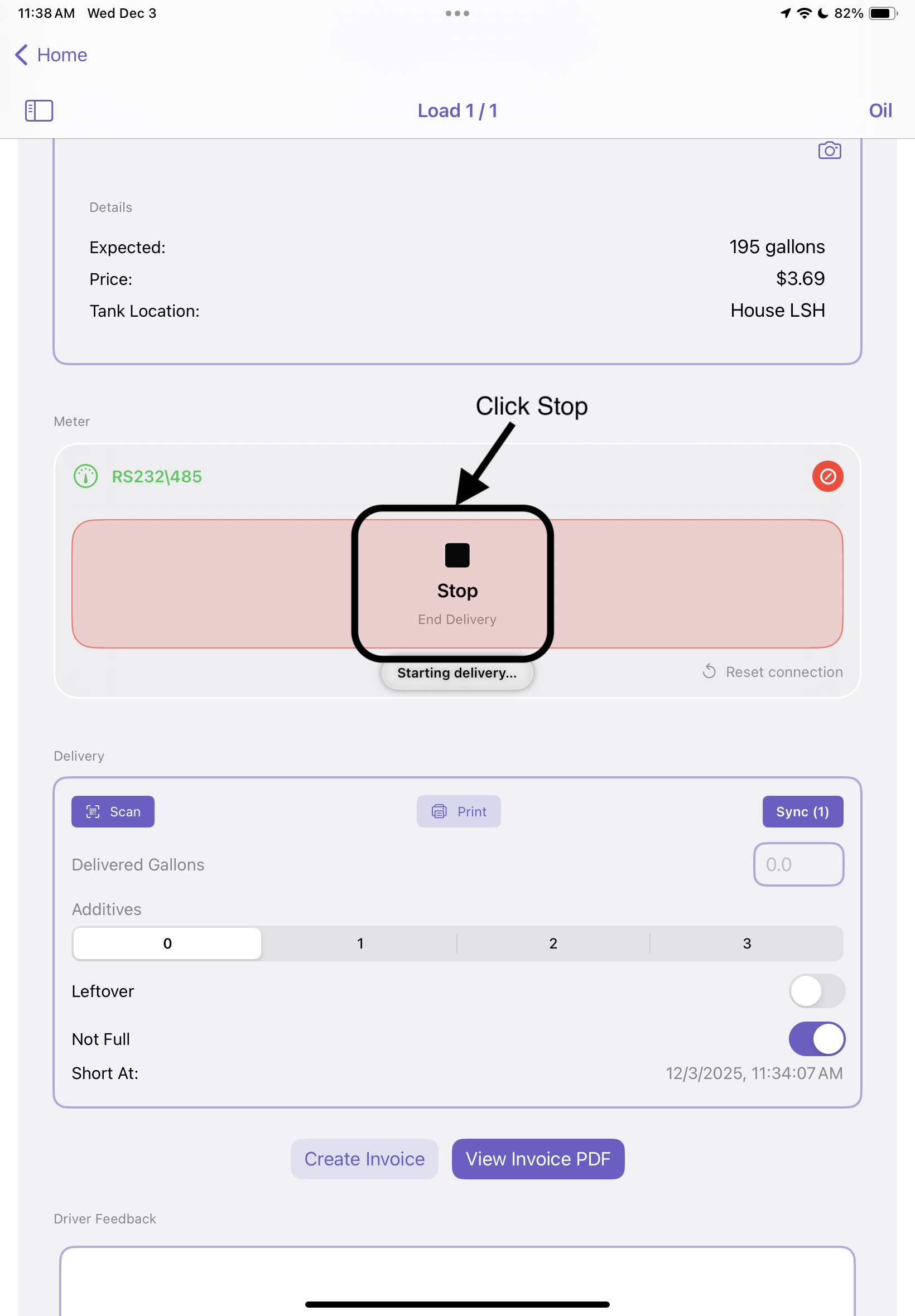
- Ticket headers are sent to the meter (customer name, pricing, etc.) and two loading screens will appear, wait for them to clear before continuing
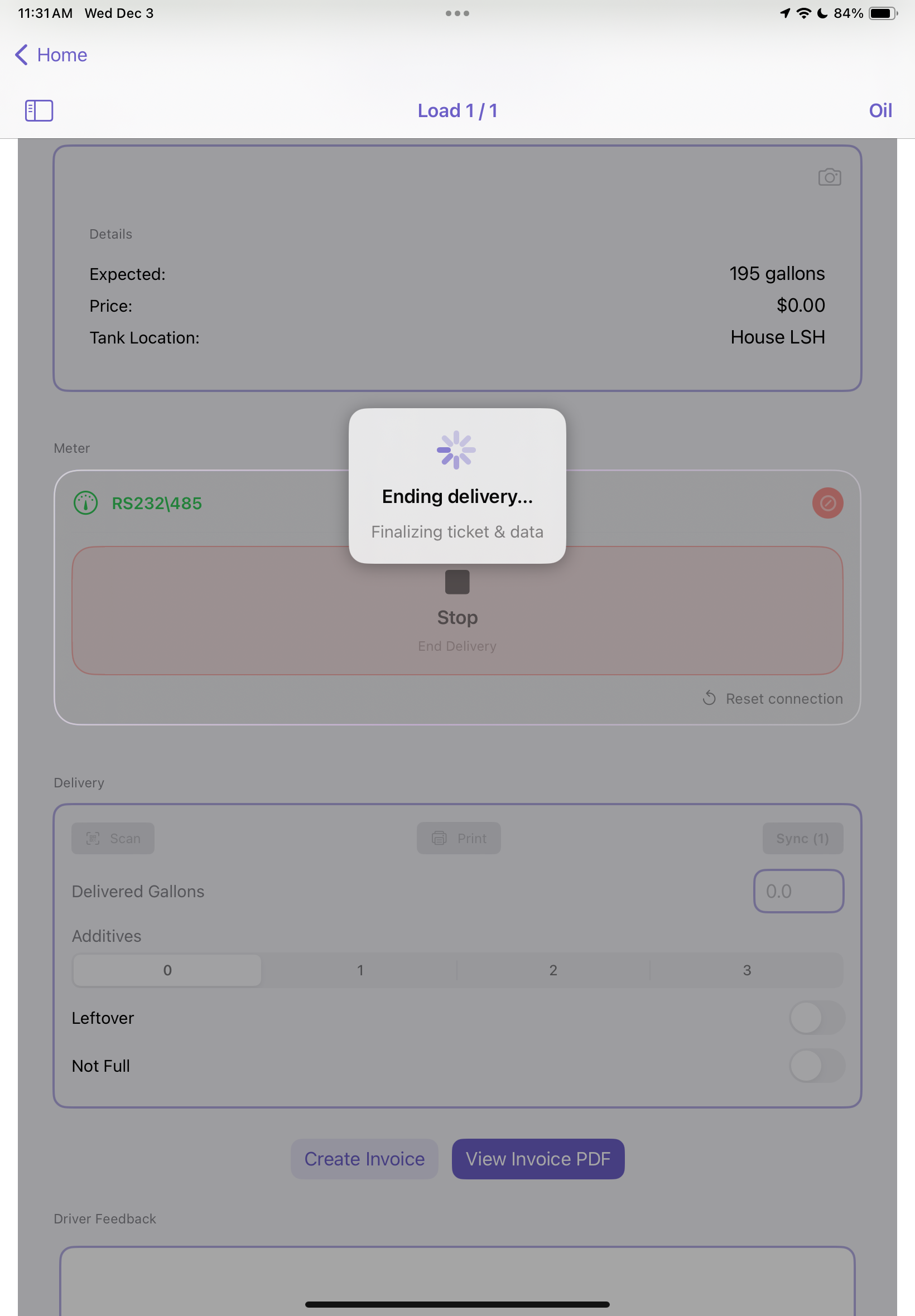
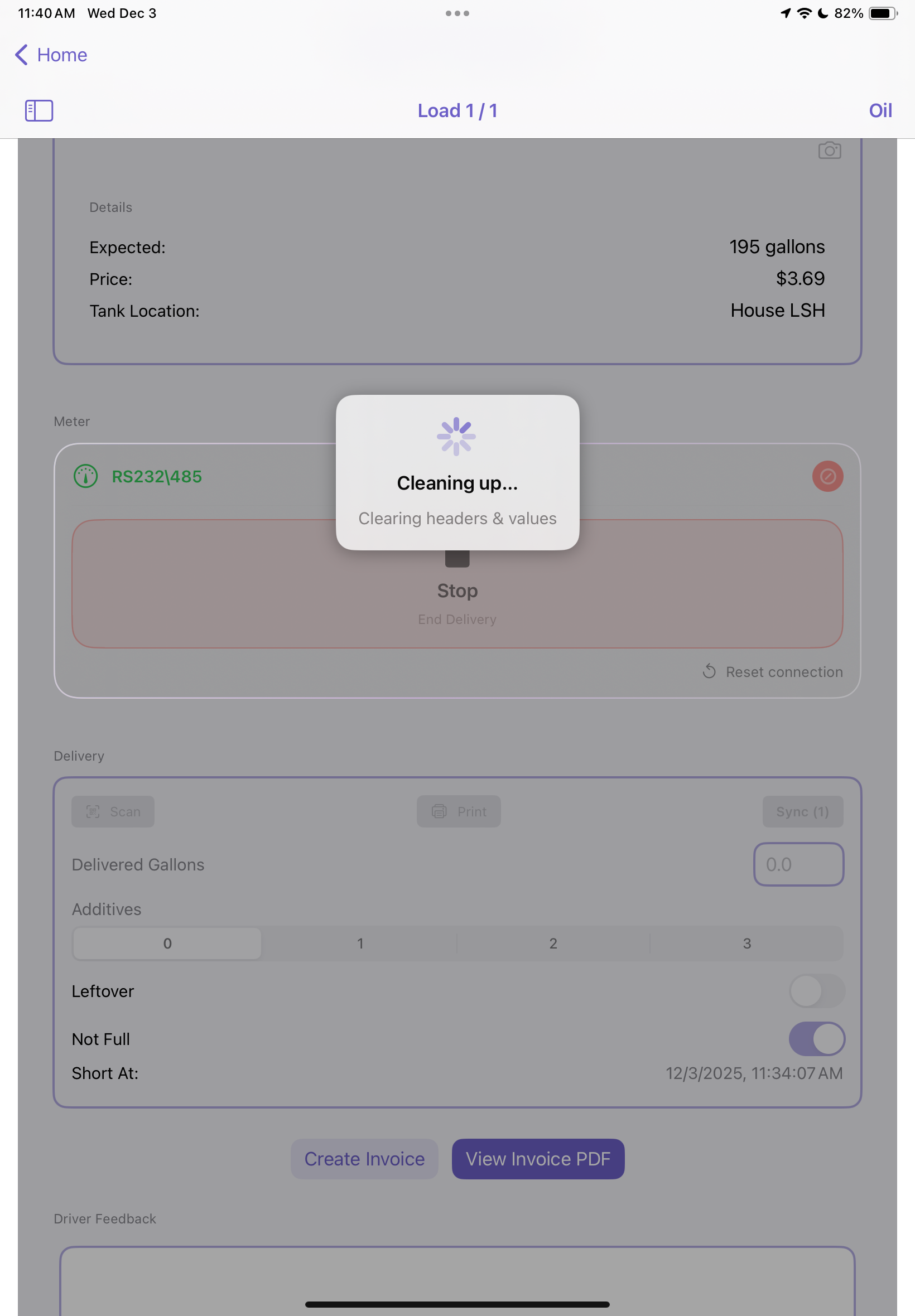
- A printed ticket is generated automatically
Step 4: Save Delivery
- The delivery is automatically recorded and synced with the server if online
Performing a Delivery Manually (No Meter)
Step 1: Enter the number of gallons delivered in the Delivered Gallons field
Step 2: Set Additives, Leftover, or Not Full as applicable
Step 3: Tap Print to generate a delivery ticket
Step 4: Tap Sync to ensure data is sent to dispatch
Key Buttons and Their Functions
| Button | Function | When to Use |
| Start Delivery | Begins meter pumping session | When starting customer delivery using Bluetooth meter |
| End Delivery | Ends meter session, prints ticket | After pumping is complete |
| Prints ticket manually | For manual entry or reprints | |
| Scan | Scans QR codes for delivery confirmation | Certain propane systems require QR validation |
| Sync Pending | Uploads any locally stored offline deliveries | Use after working offline |
Offline Mode and Sync
If an internet connection is unavailable, the system will automatically store delivery data locally.
Syncing Offline Deliveries:
- Complete your delivery as usual (data is stored on the device)
- A Sync Pending badge appears at the bottom of the Delivery Card
- When internet is restored, tap Sync to upload the data
- Confirmation will display once the sync is successful
End-of-Load Summary
Once all deliveries are complete:
Best Practices: ✅ Always verify customer address before starting delivery
✅ Ensure meter is connected before pumping
✅ Print ticket immediately to comply with regulations
✅ Use Sync Pending button before ending the shift