
Delivery View
The Delivery Card is the central interface where drivers perform and record an individual delivery.
Sections Within the Delivery Card:
| Section | Purpose |
| Customer Information | Shows address, account number, and allows tapping to open maps |
| Ticket Notes | Displays any special instructions or warnings from dispatch |
| Meter Section | Used to connect to a Bluetooth fuel meter, start and end deliveries, and print tickets |
| Delivery Input Section | Allows manual entry of delivered gallons, additives, and flags (short or leftover) |
| Driver Notes | Optional section to record observations or issues encountered |
Performing a Delivery with a Meter
Step 1: Connect to Meter
Ensure the meter is powered on
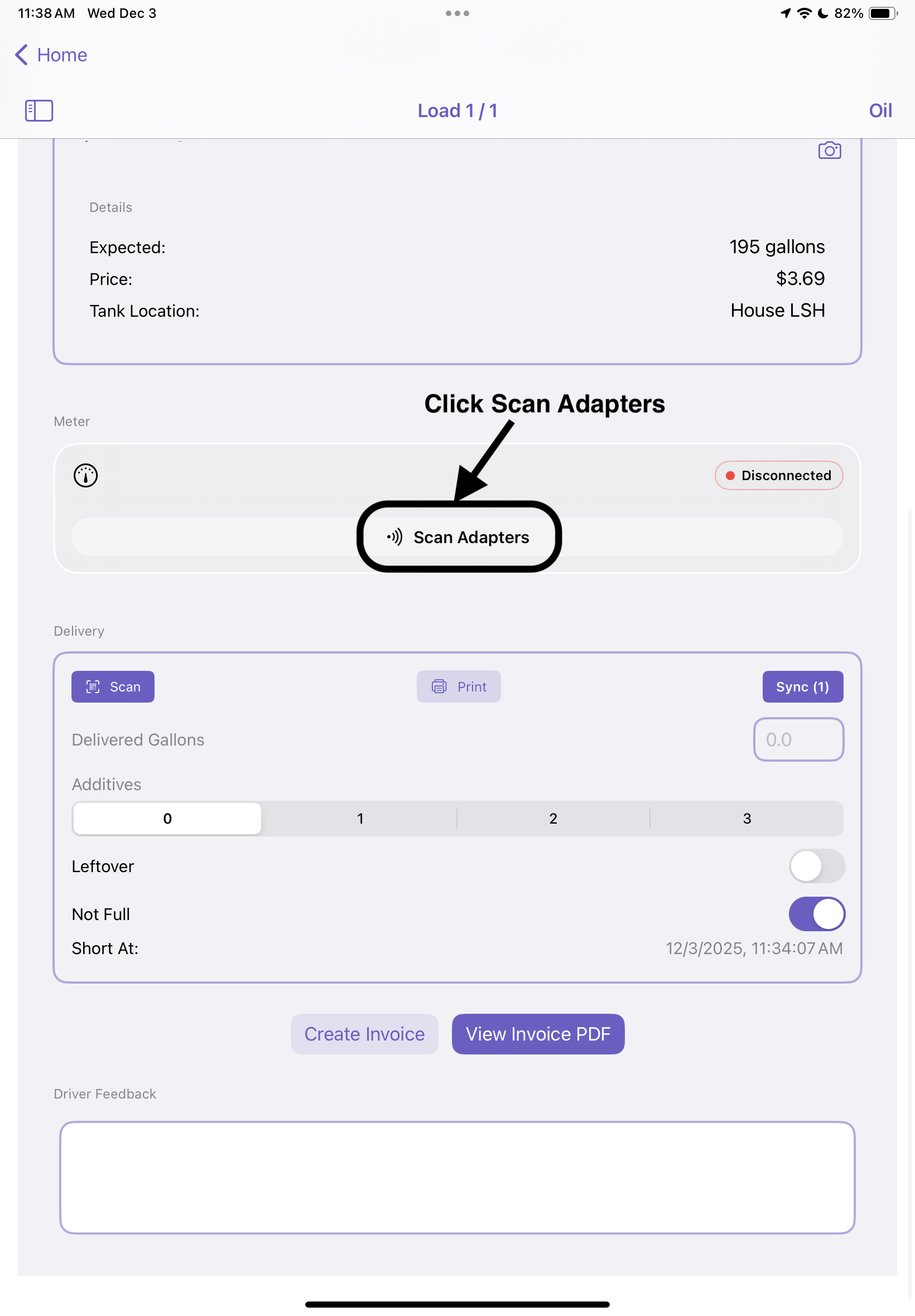
Click on Scan Adaptors
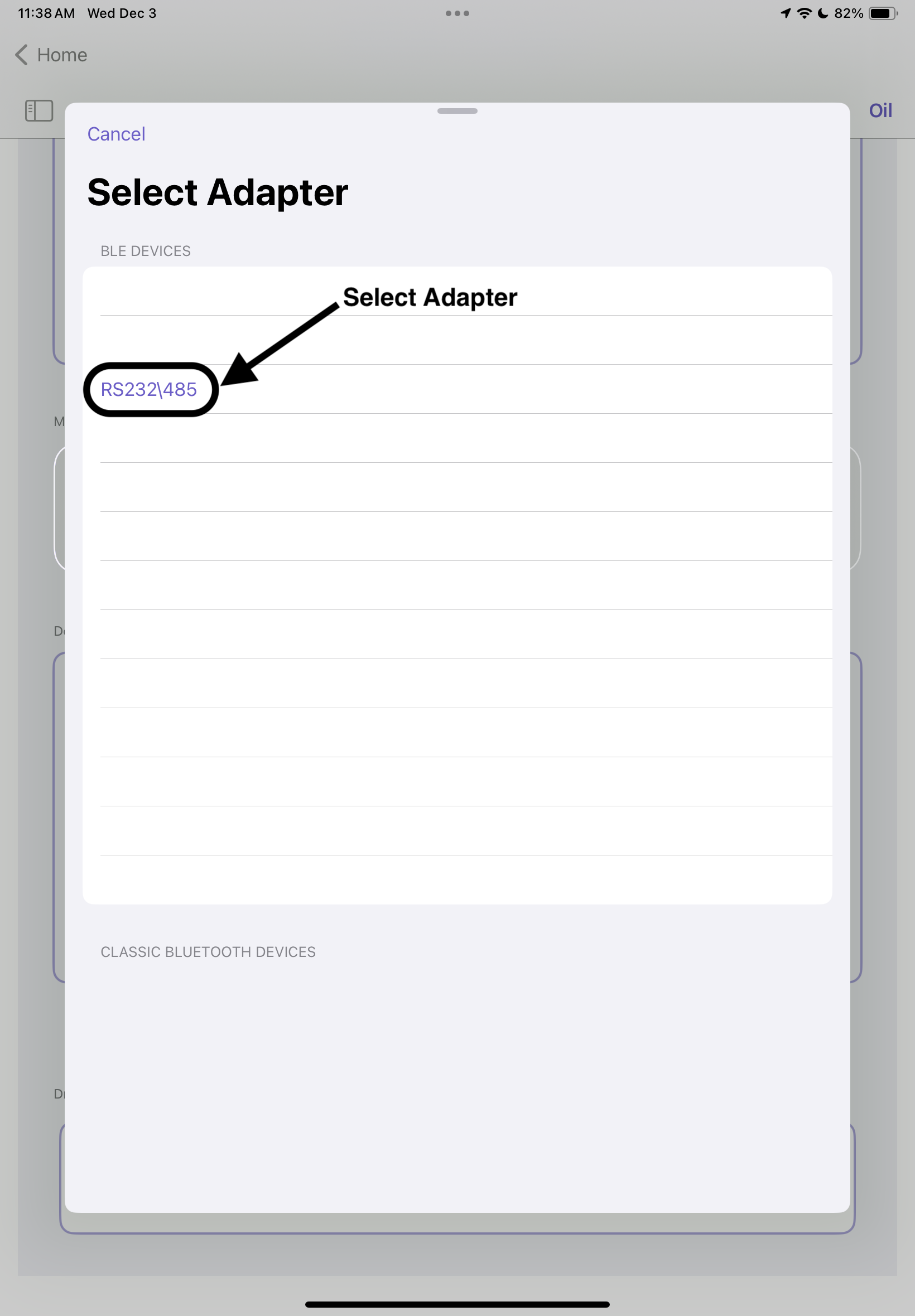
Select Adaptor from generated list
Tap Start Delivery
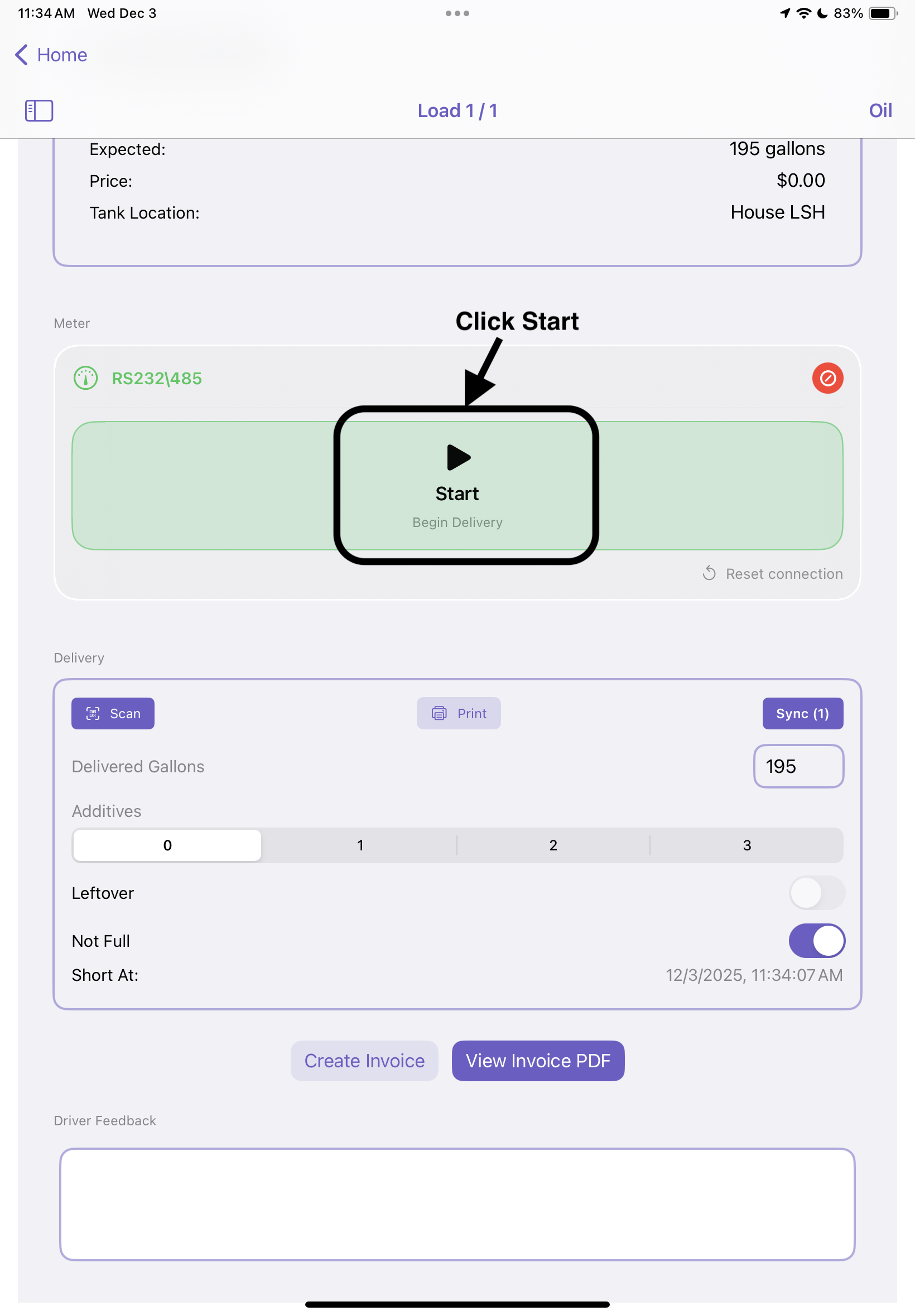
The meter will automatically begin pumping and capturing gallons
Step 2: Monitor Gallons
- Gallons are automatically updated live on the screen
- If Bluetooth signal is lost, the system will inform you and pause the meter process
Step 3: End Delivery
- Tap End Delivery to finalize the ticket
- Ticket headers are sent to the meter (customer name, pricing, etc.)
- A printed ticket is generated automatically
Step 4: Save Delivery
- The delivery is automatically recorded and synced with the server if online
Performing a Delivery Manually (No Meter)
Step 1: Enter the number of gallons delivered in the Delivered Gallons field
Step 2: Set Additives, Leftover, or Not Full as applicable
Step 3: Tap Print to generate a delivery ticket
Step 4: Tap Sync to ensure data is sent to dispatch
Key Buttons and Their Functions
| Button | Function | When to Use |
| Start Delivery | Begins meter pumping session | When starting customer delivery using Bluetooth meter |
| End Delivery | Ends meter session, prints ticket | After pumping is complete |
| Prints ticket manually | For manual entry or reprints | |
| Scan | Scans QR codes for delivery confirmation | Certain propane systems require QR validation |
| Sync Pending | Uploads any locally stored offline deliveries | Use after working offline |
Offline Mode and Sync
If an internet connection is unavailable, the system will automatically store delivery data locally.
Syncing Offline Deliveries:
- Complete your delivery as usual (data is stored on the device)
- A Sync Pending badge appears at the bottom of the Delivery Card
- When internet is restored, tap Sync to upload the data
- Confirmation will display once the sync is successful
End-of-Load Summary
Once all deliveries are complete:
Best Practices: ✅ Always verify customer address before starting delivery
✅ Ensure meter is connected before pumping
✅ Print ticket immediately to comply with regulations
✅ Use Sync Pending button before ending the shift