Fuel Drivers Daily Life Metered
Your app should already be setup with your truck for the day. You will be using the app.
1. Login to the app (if you are not already logged in).
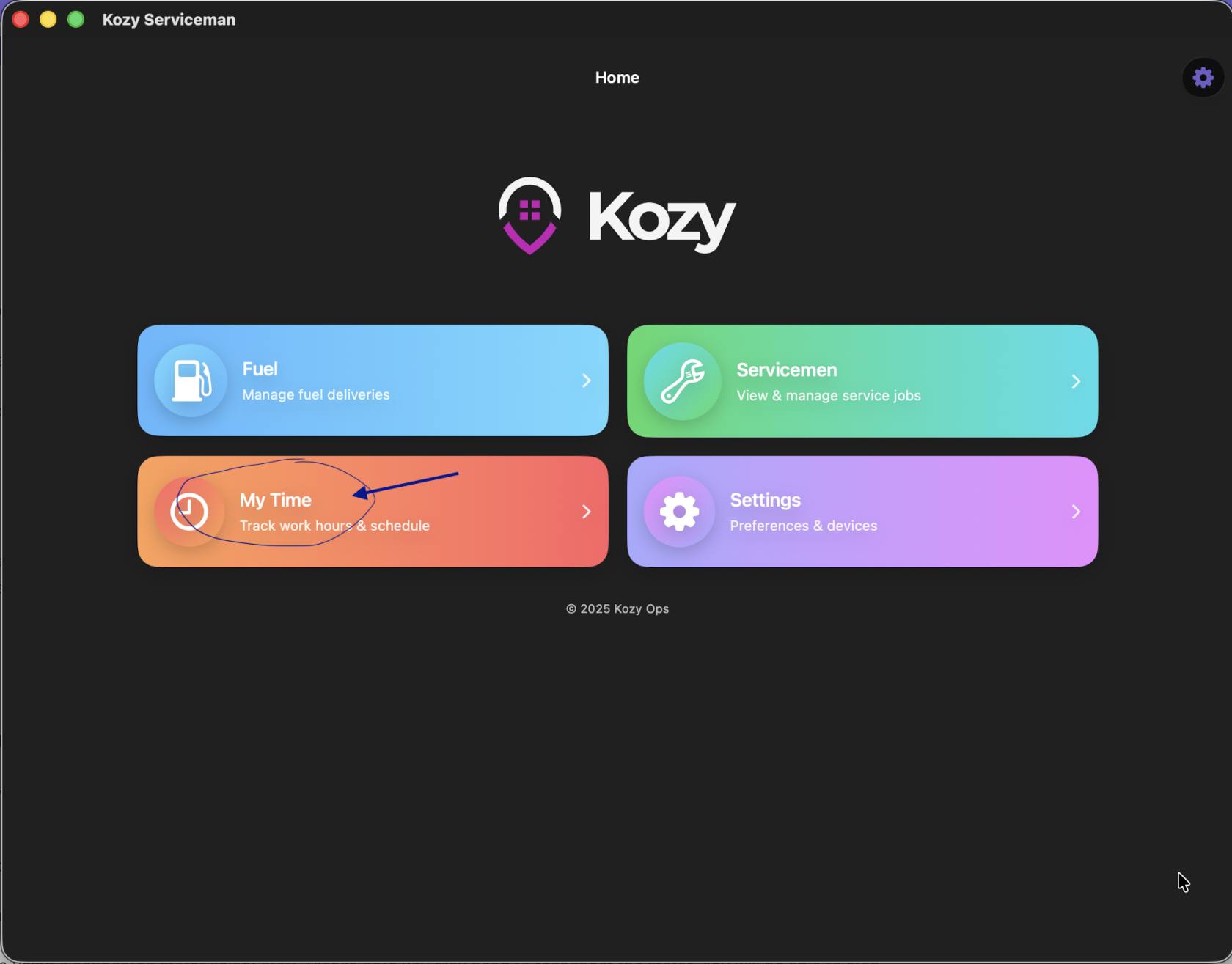
2. IF your company tracks time in Kozy - select My Time and Clock In
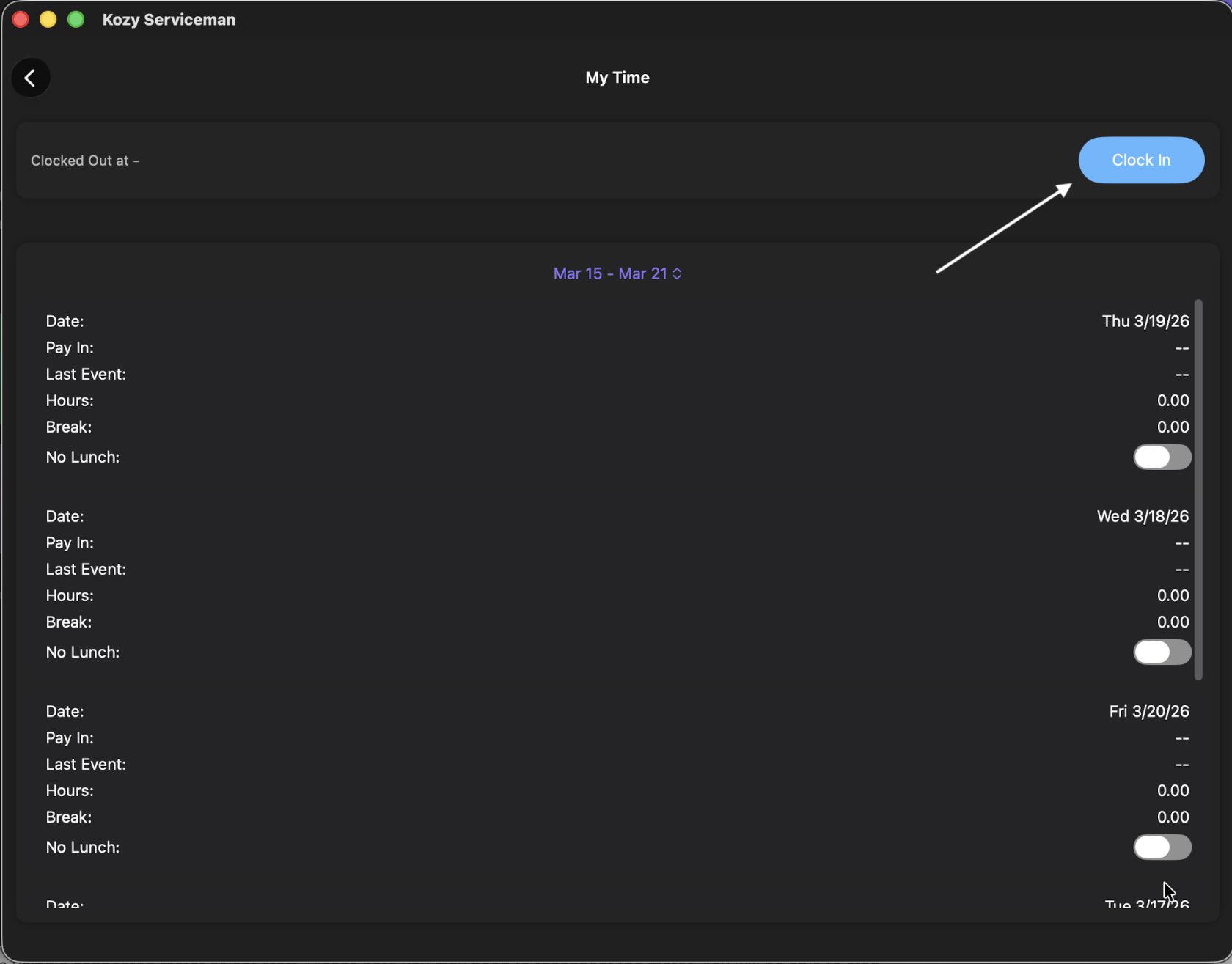
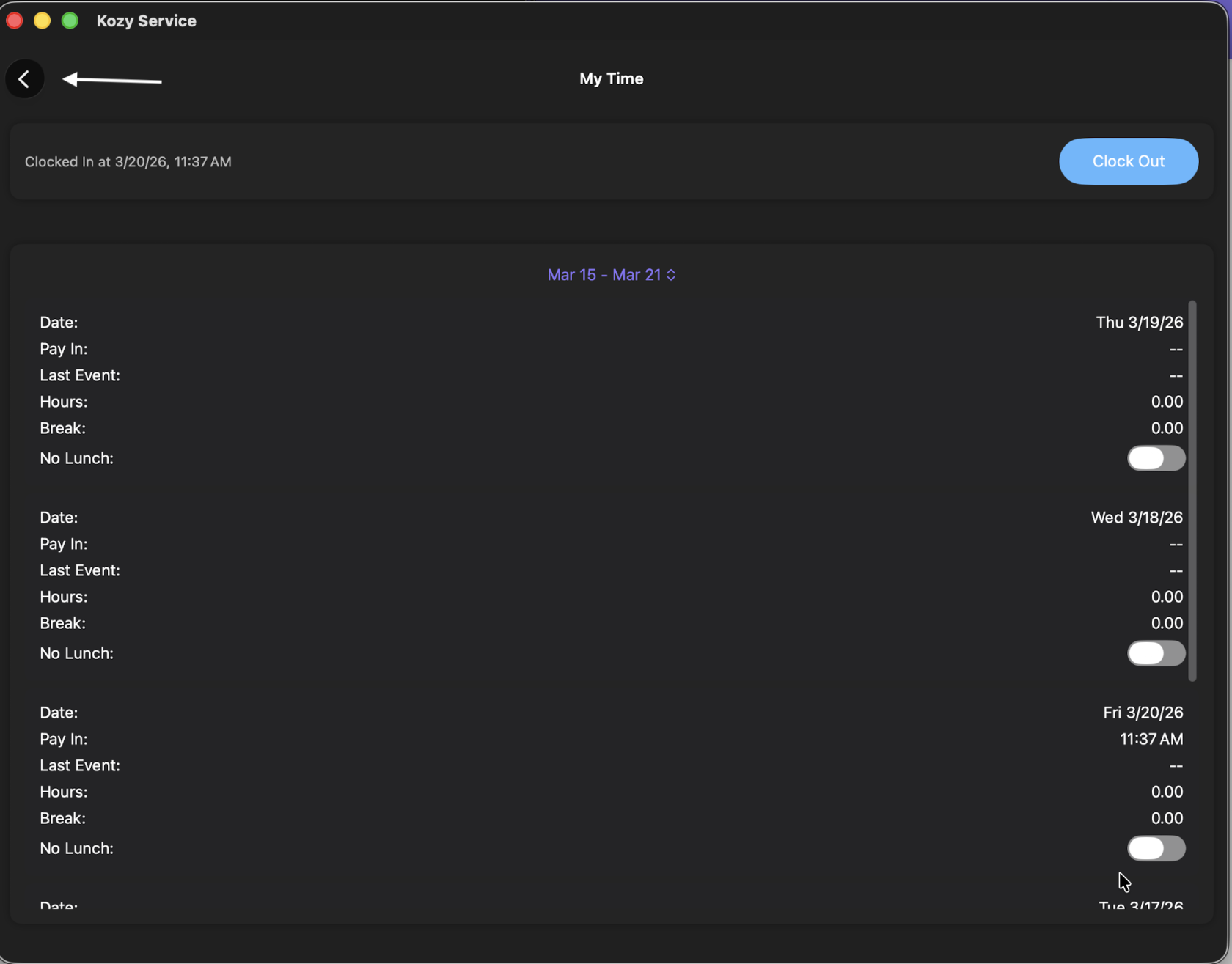
3. Hit the back button to return to the home screen.
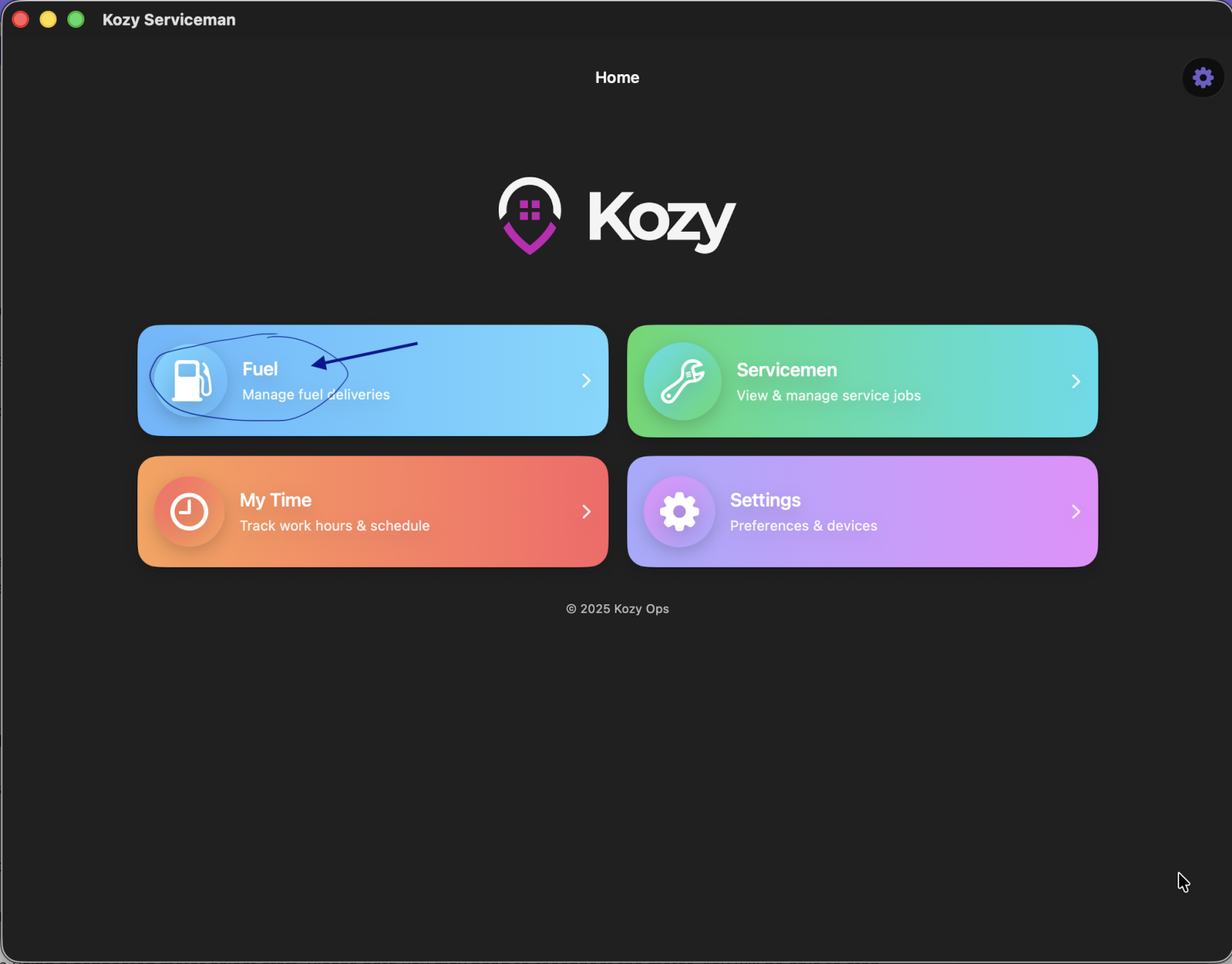
4. Select Fuel
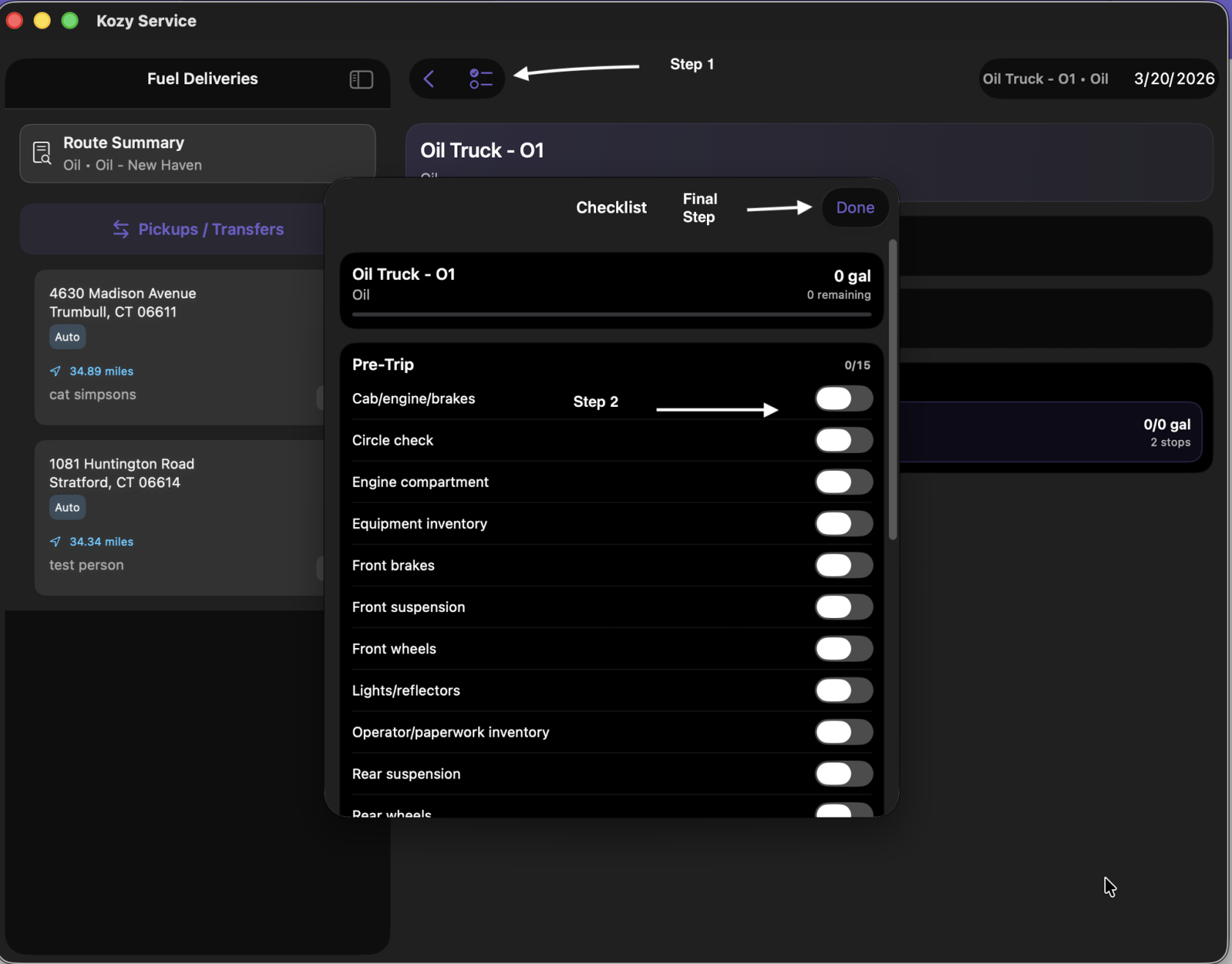
5. IF you are tracking Pre trip in Kozy - select the := icon next to the word Fuel Deliveries at the top and slide for inspection report. Click Done when completed.
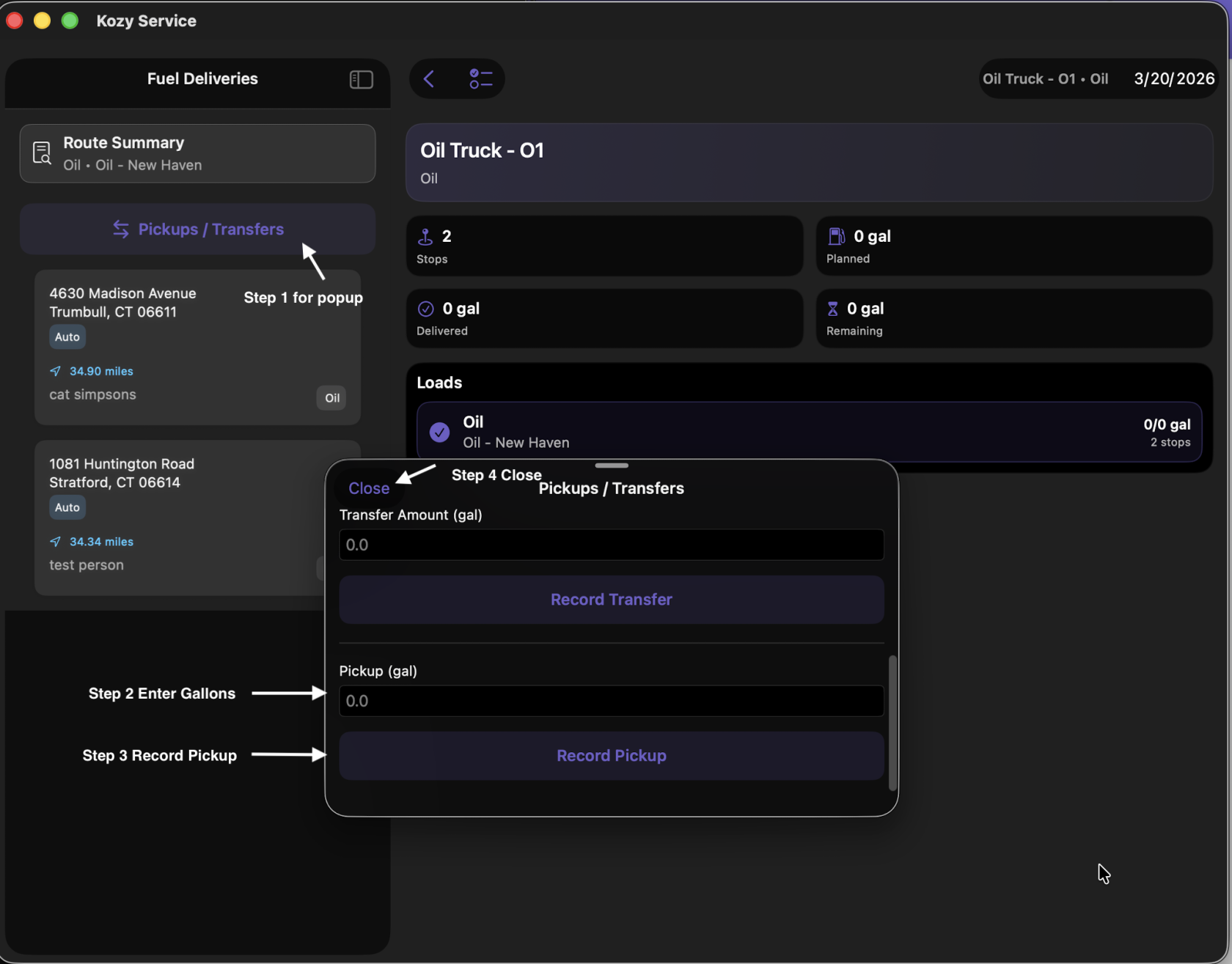
6. To Record a Pickup select Pickups/Transfers
7. The terminal you need to fill your Vehicle is at the top of the list.
8. Select Pickup/Transfers once you pickup your fuel load(s).
9. Enter how many gallons your Pickup (gal) at the bottom and Record Pickup. Close.
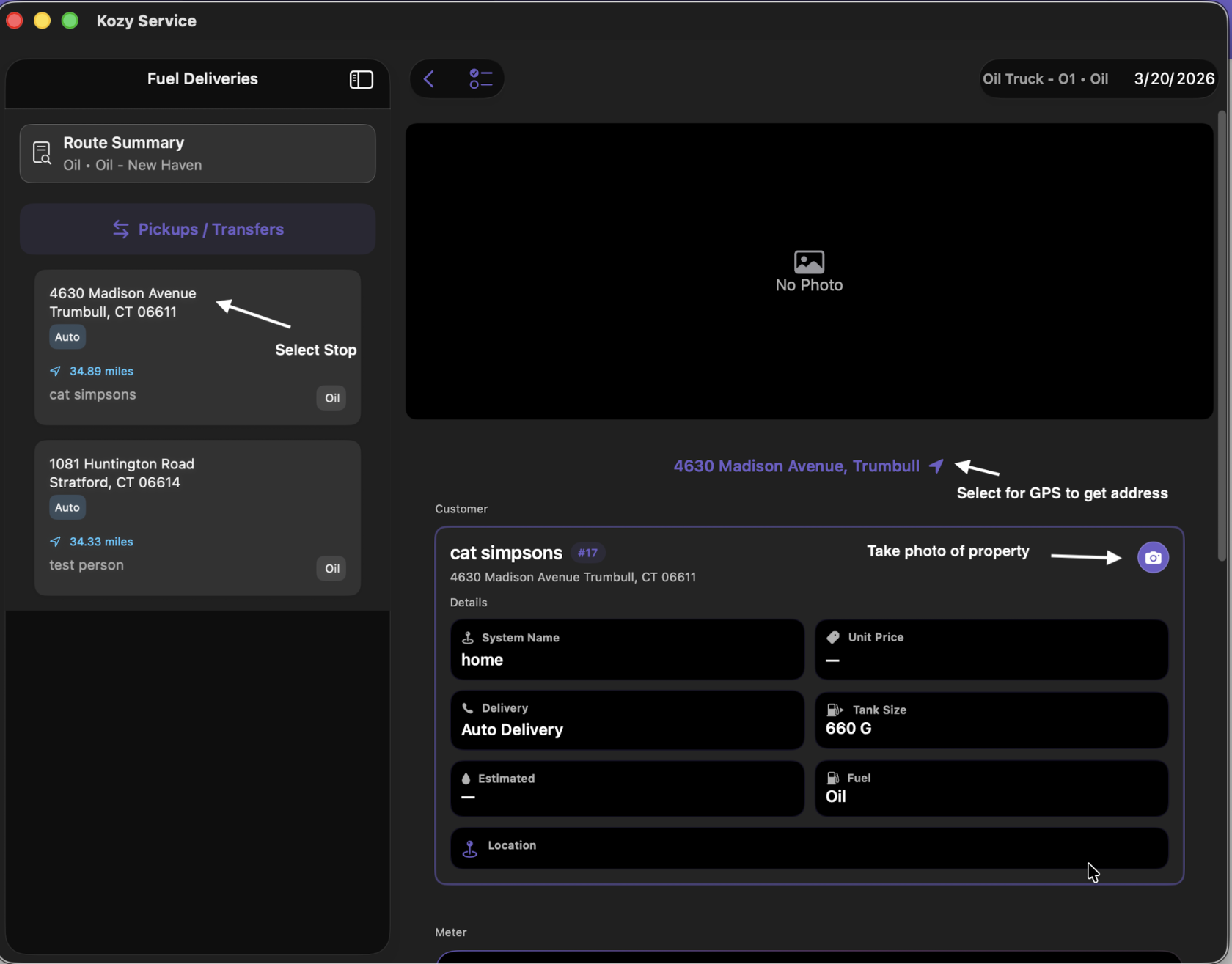
10. Select your first stop. This will show you the address (click the arrow for Google Maps to direct you), a picture of the property (if previously added) and expected delivery.
11. Scroll down to see 2 options for delivered gallons:
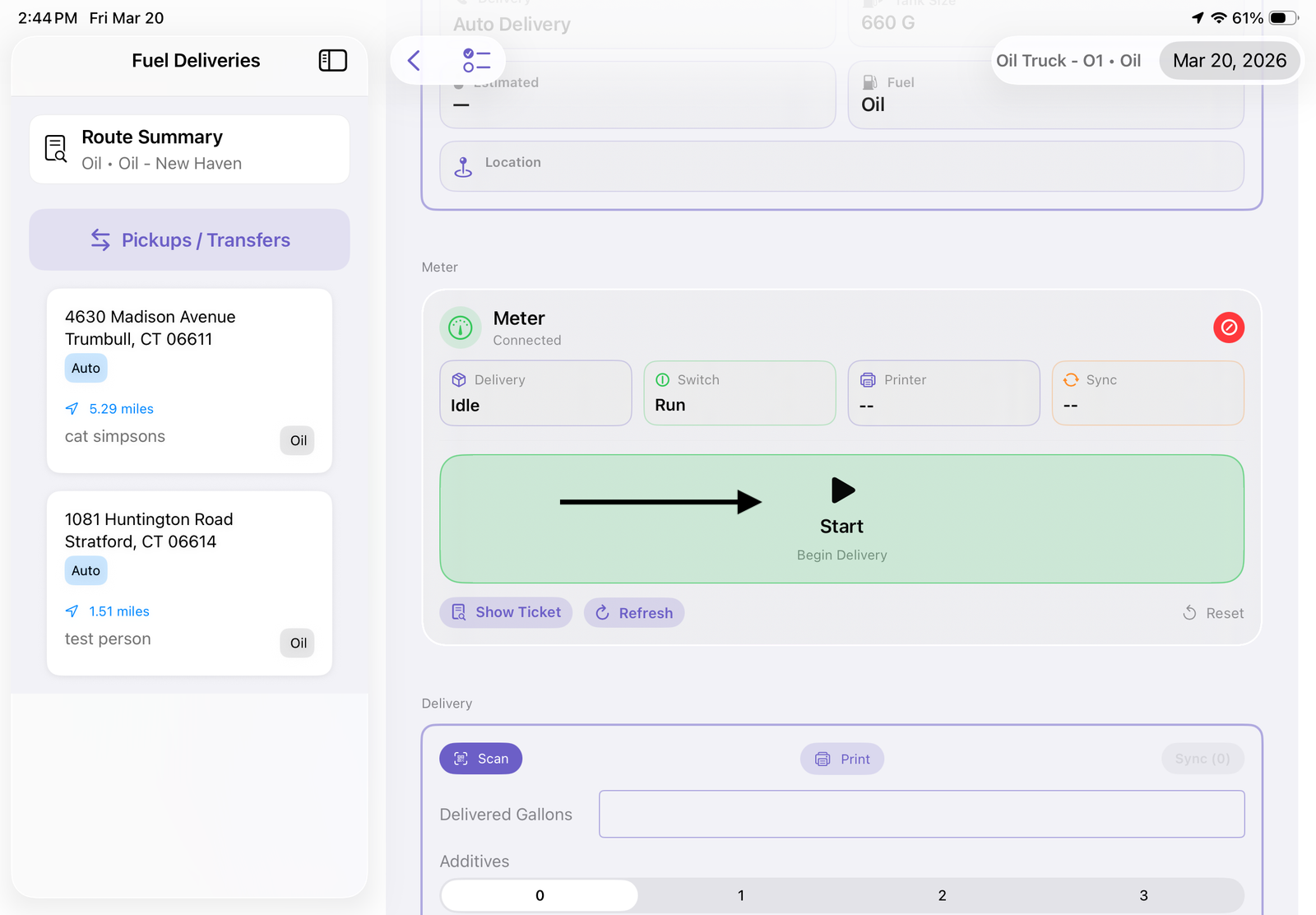
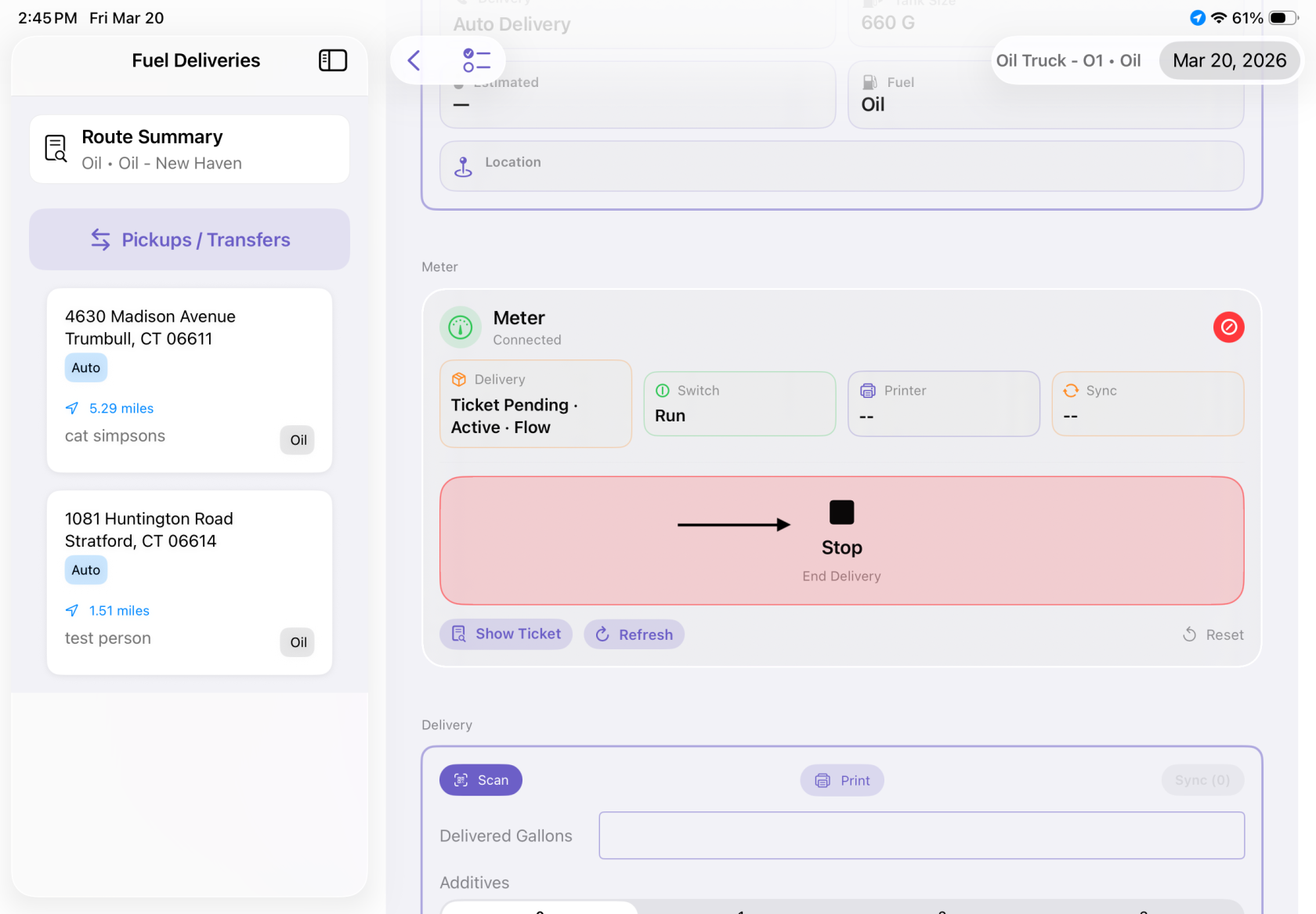
A. If you are using a connected meter select start. Please note you may need to reconnect the meter. You will be able to stop it here as well and it will automatically fill in the delivery information.
B. If you do not have a connected meter please manually enter the number of gallons delivered.
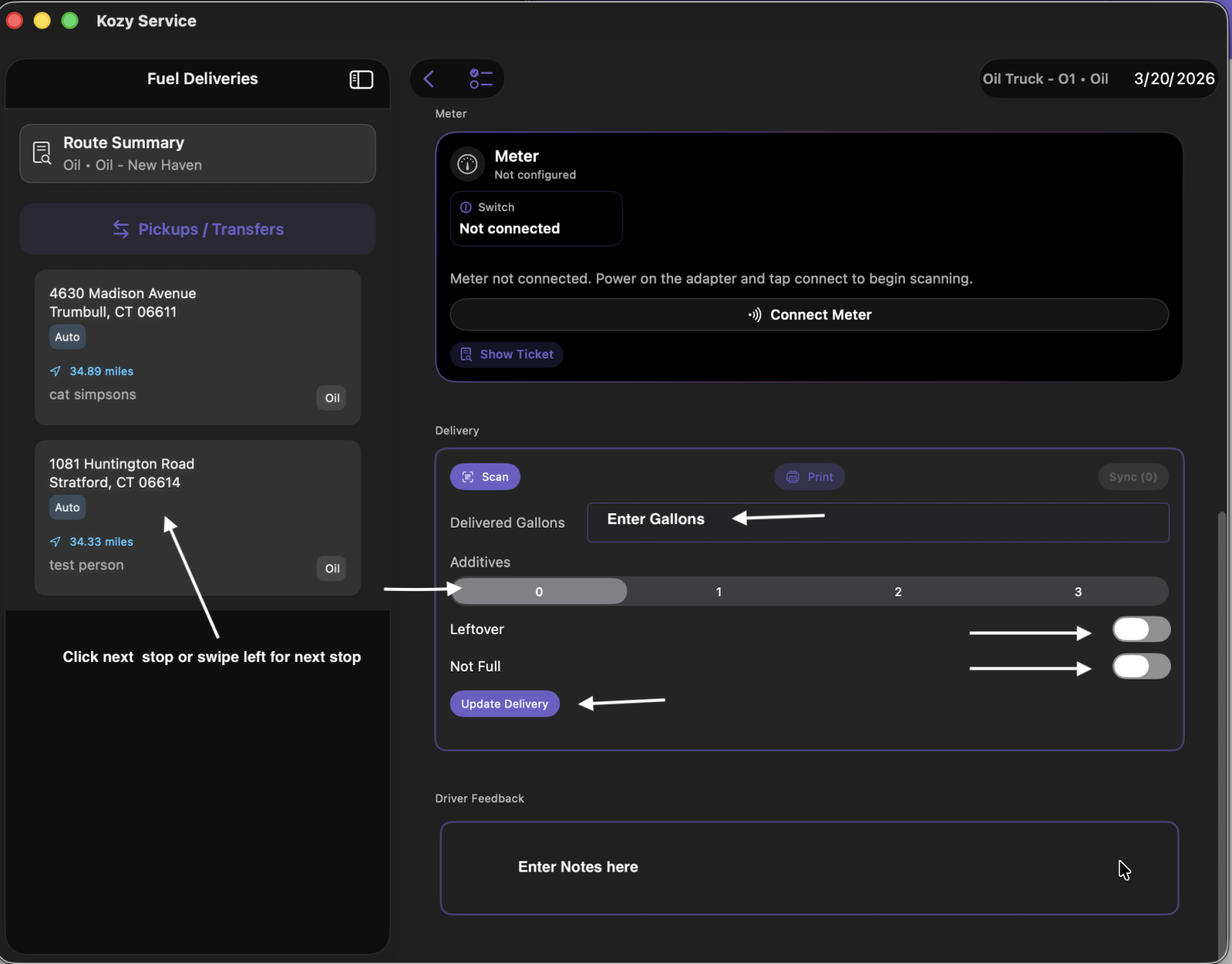
12. Scroll down to enter additives (if used), select if this is leftover or not full. Leave notes or feedback if needed.
13. Swipe left for the next stop or select the next one by hand. Repeats 11&12. Continue until all deliveries are completed.
14. IF you are tracking Post trip in Kozy - select the := icon next to the word Fuel Deliveries at the top and enter closeout details. Click Done when completed.
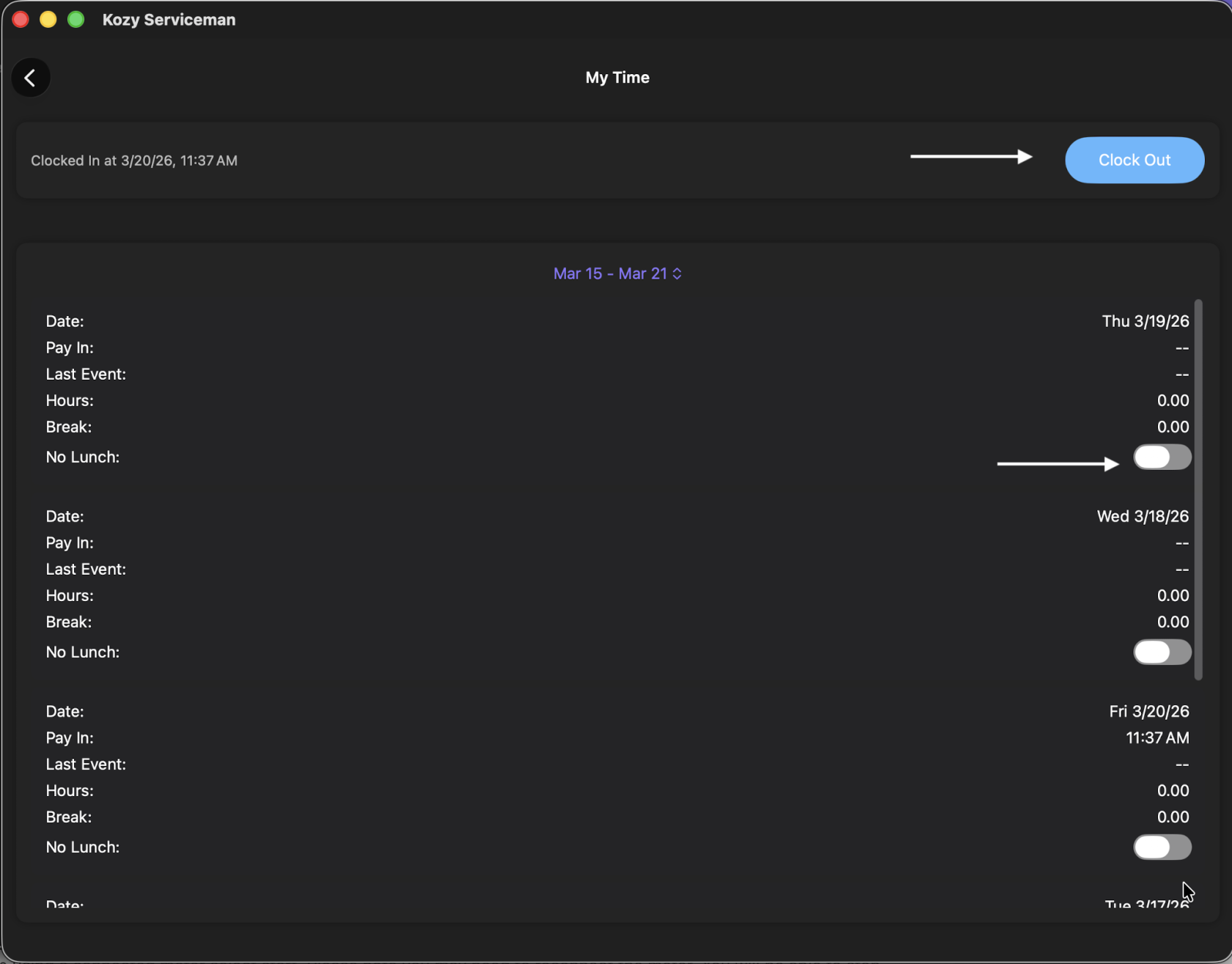
15. IF you are tracking time - from the home screen select My Time - Clock Out. Remember if you skipped lunch to select the slider for the day.