Manage Location Settings
Introduction
After a location has been created, settings on the location can be edited which include, Labels, Promotions, Taxes, Customers, Service Zones, Notes and Address. If a Customer has more than one location on their account, these location settings must be adjusted for all locations as each location essentially serves as another account under the customer. With the exception of Customers, Notes and Address, the other settings are based on settings set by the company on the Settings chapter.
Labels
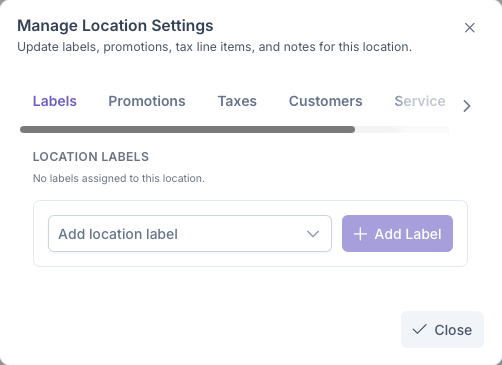
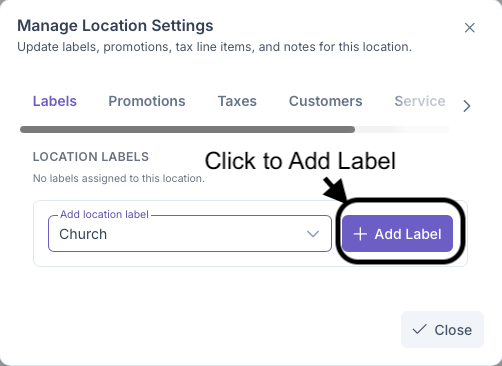
Clicking on the Labels tab will bring up the add location labels section. Here a label can be assigned to the location based on one created by the company under the Label section under Admin. Labels are primarily used to identify the type of location the customers address is, eg, a house, an appartment, a church etc. To set a label
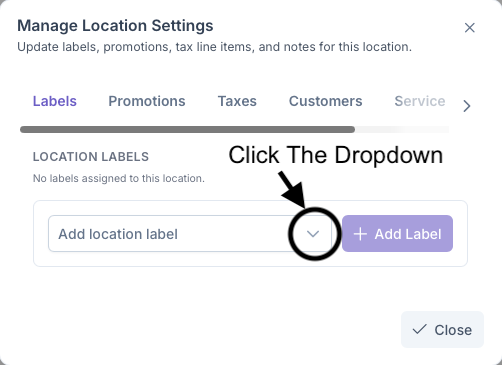
- Click on the Add Location Label Dropdown to bring up a list of pre set labels
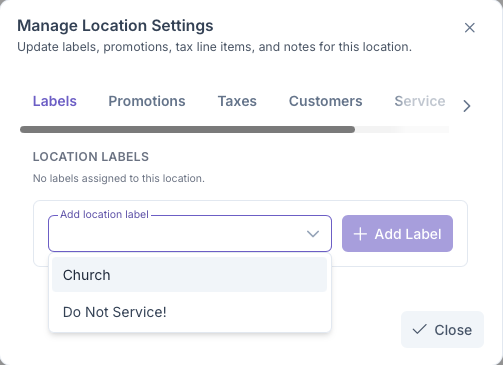
- Select a label for the location
- Click on Add Label to add label to the location
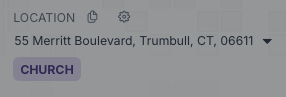
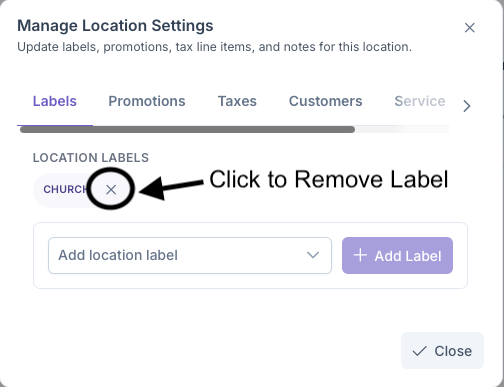
Once added, the location will now generate with a label under it. The label can be removed simply by clicking the X next to the label
Promotions
Clicking on the Promotions tab will bring up the Add Promotions sections. Here Promotions can be assigned to the customers locations, such as discounts for being a first time user or being an suto pay customer. These settings are pre set in the Promotions sections under Admin, A more indepth look into how to set Promotions can be seen on the Promotions page. To set a Promotion
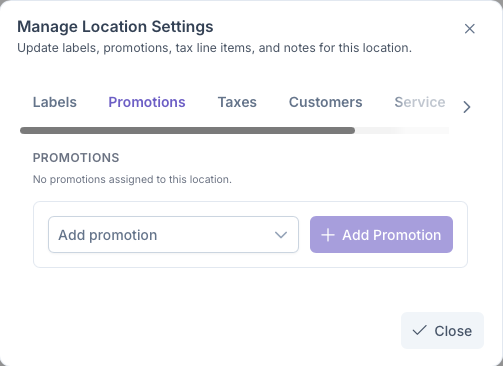
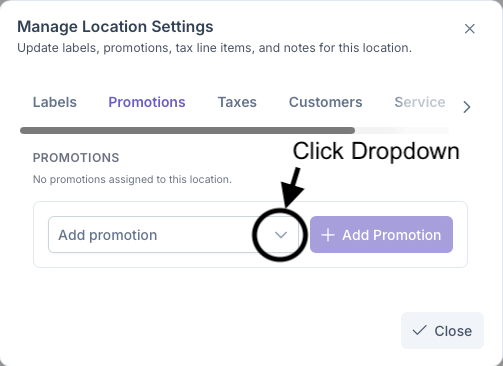
- Click on the Add Promotion Dropdown to bring up a list of pre set promotions
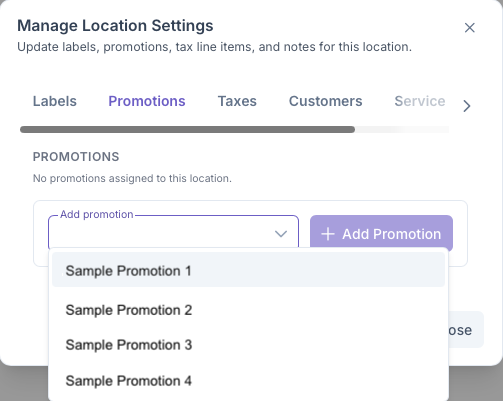
Select a Promotion to attach to the address
Click Add Promotion to add The Promotion to the Address
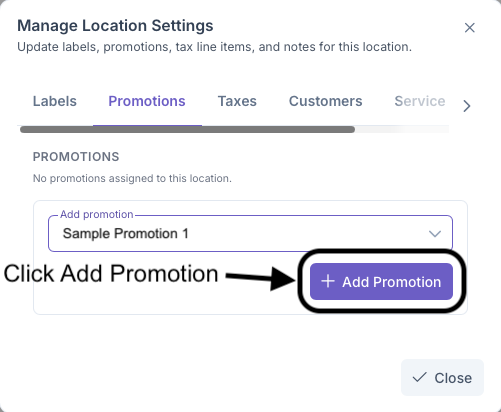
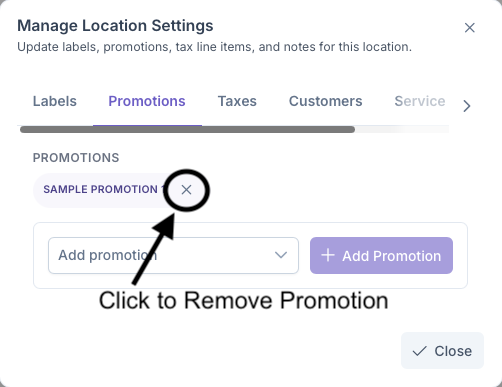
Once added, a promotion will now be applied to the customers account if they meet the criteria set when the promotion was created by the company. A promotion can deleted from the account by clicking on the X next to the promotion