
Location Management
Overview
This guide explains how to create and edit service locations for customers in the Kozy system.
Locations represent physical addresses where services are performed. Each location can be linked to multiple customers with different relationship types (homeowner, tenant, etc.). The location management system includes:
- Google Places integration for accurate address lookup
- Interactive map with draggable markers for precise coordinates
- Existing location detection to prevent duplicates
- Full address editing capabilities
Creating a New Location
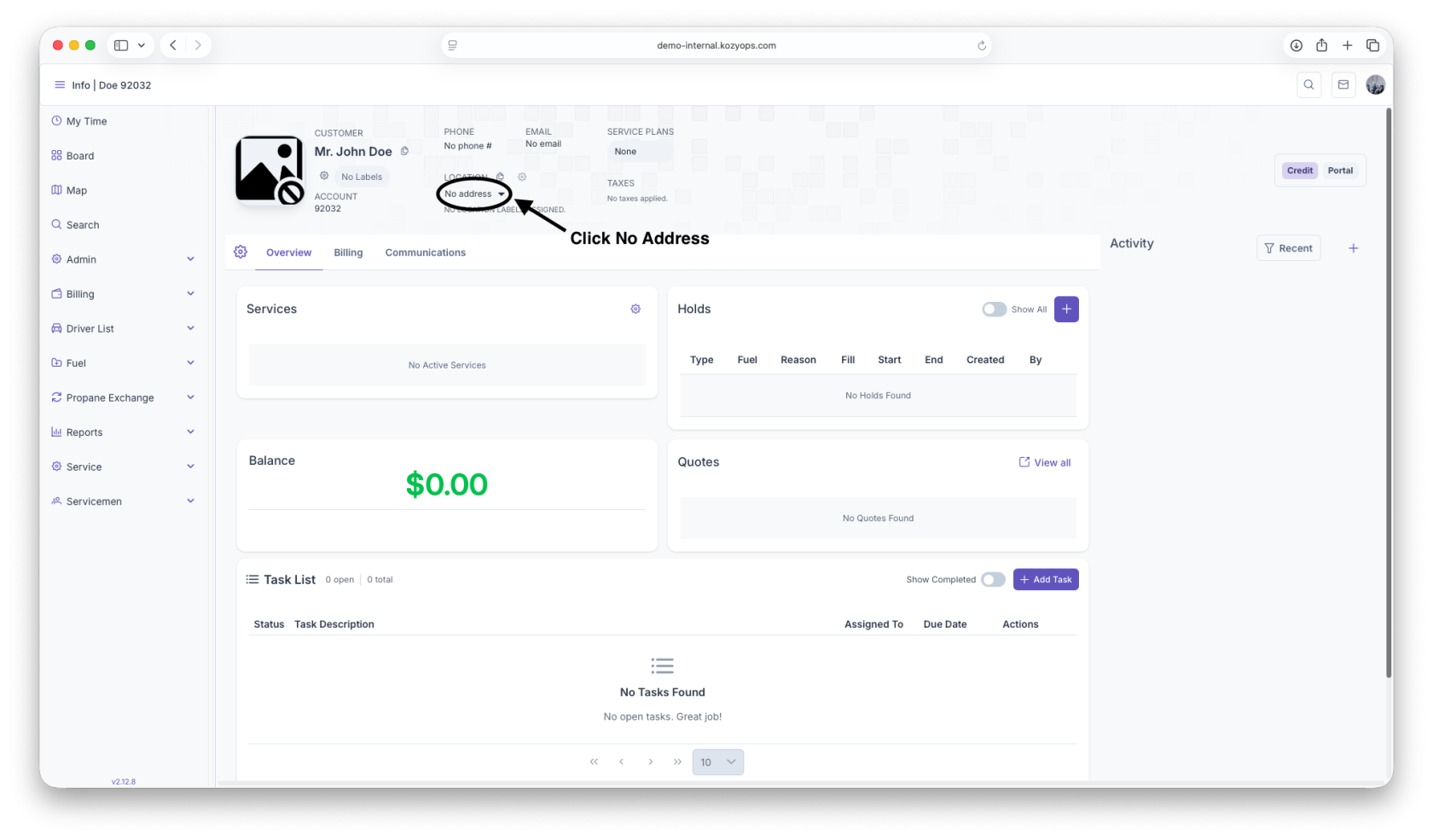
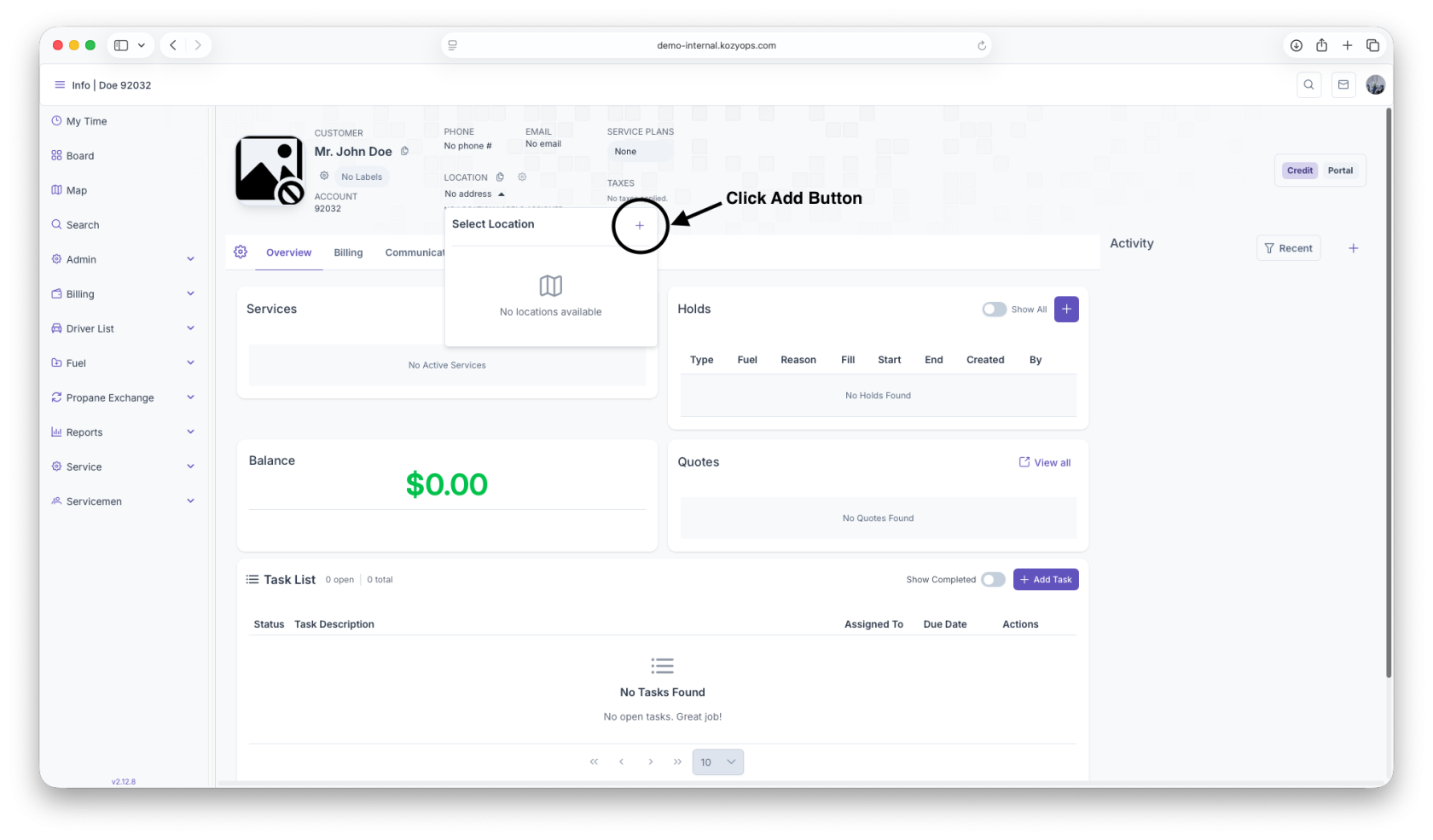
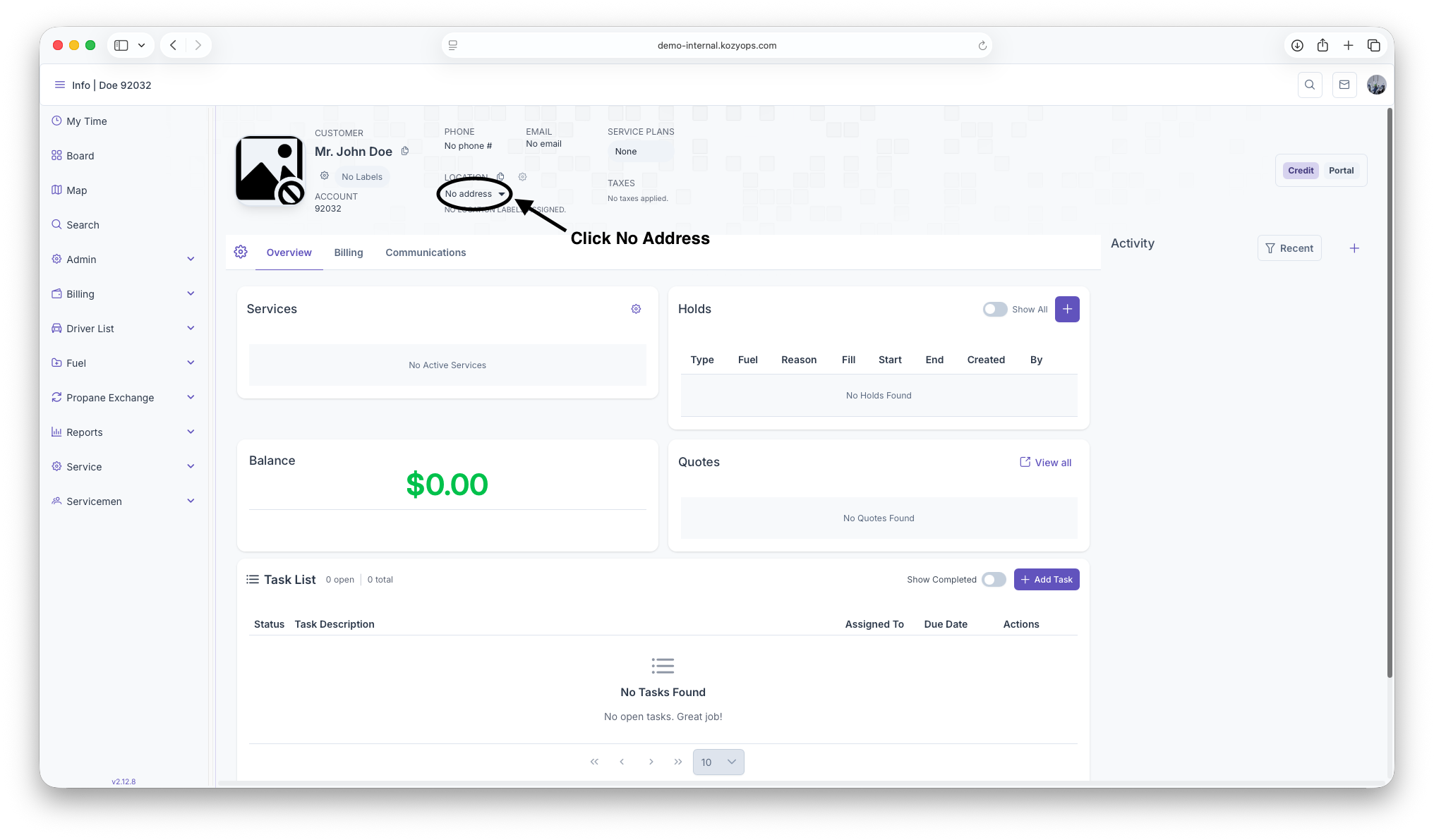
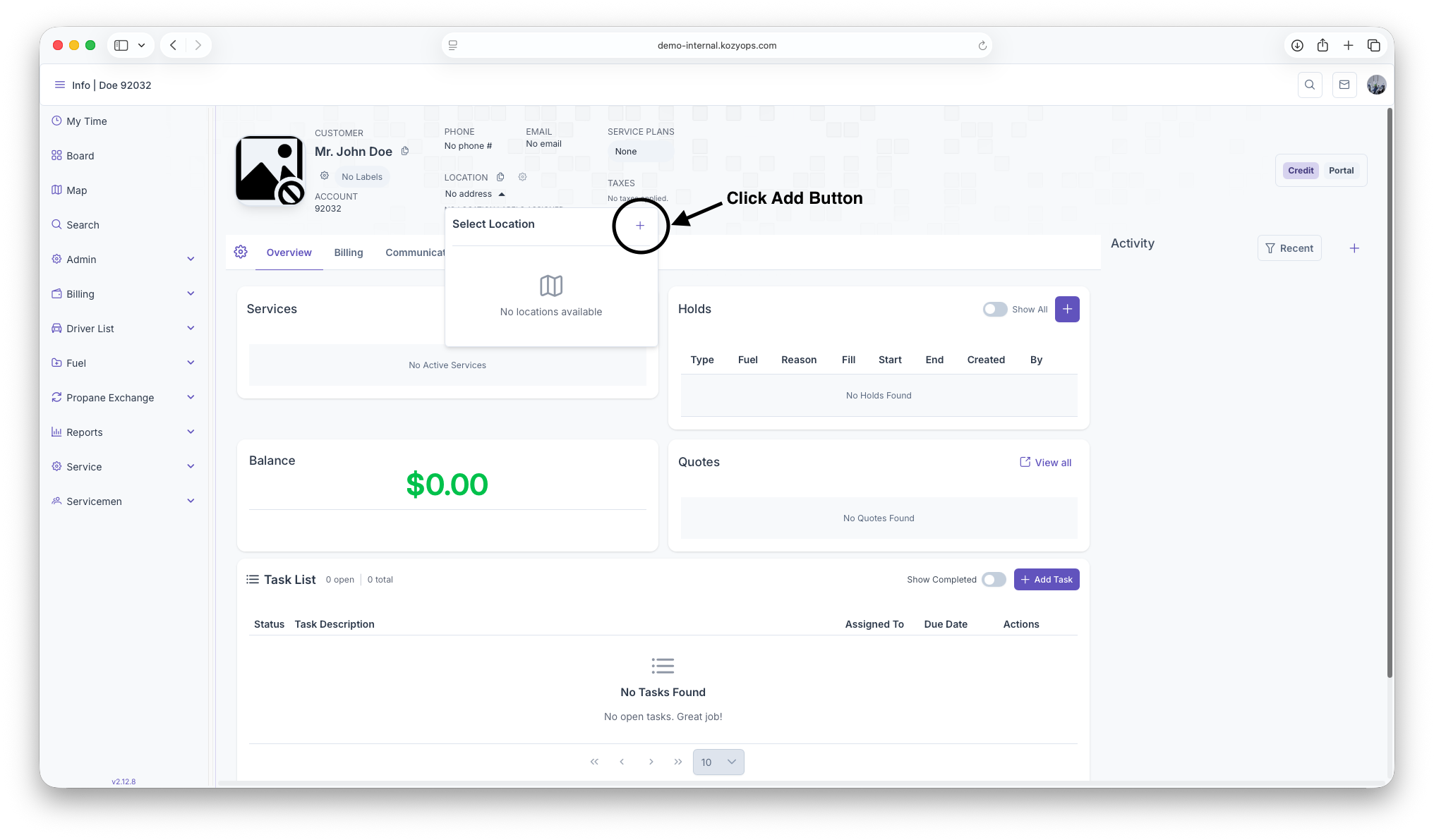
Step 1: Open the Add Location Dialog
- Navigate to the customer's profile
- Click the "Add Location" button in the locations section
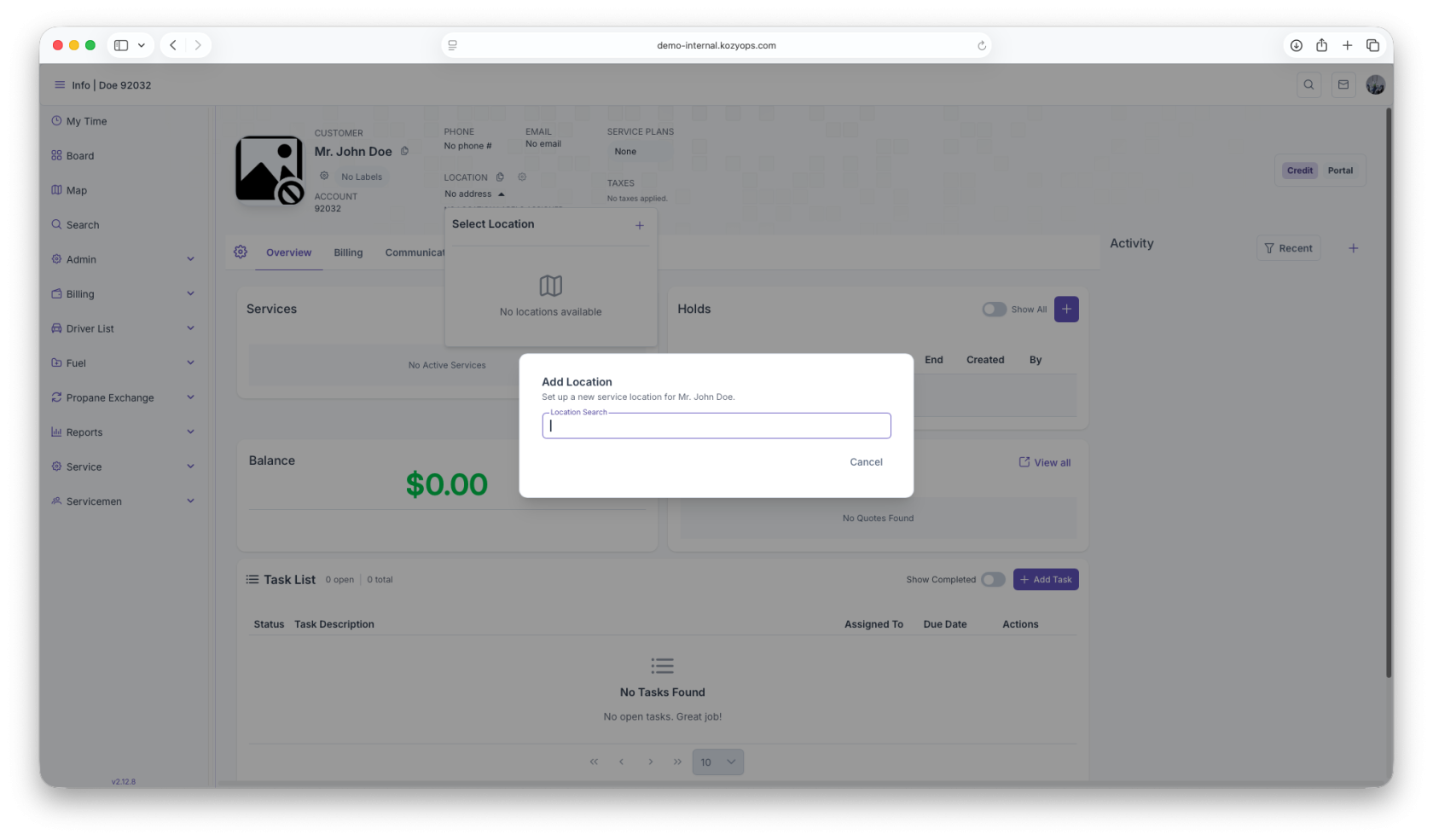
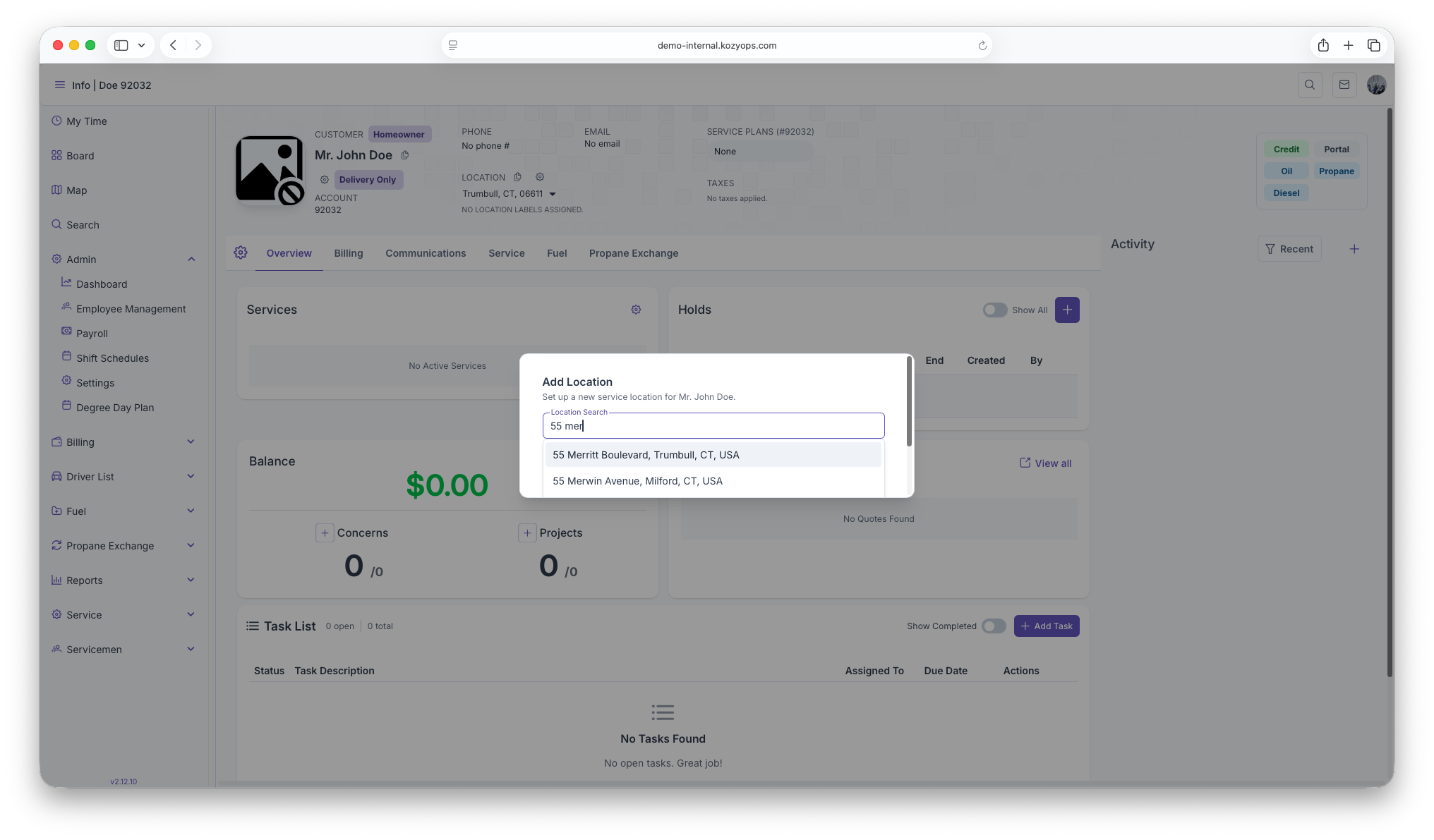
Step 2: Search for an Address
-
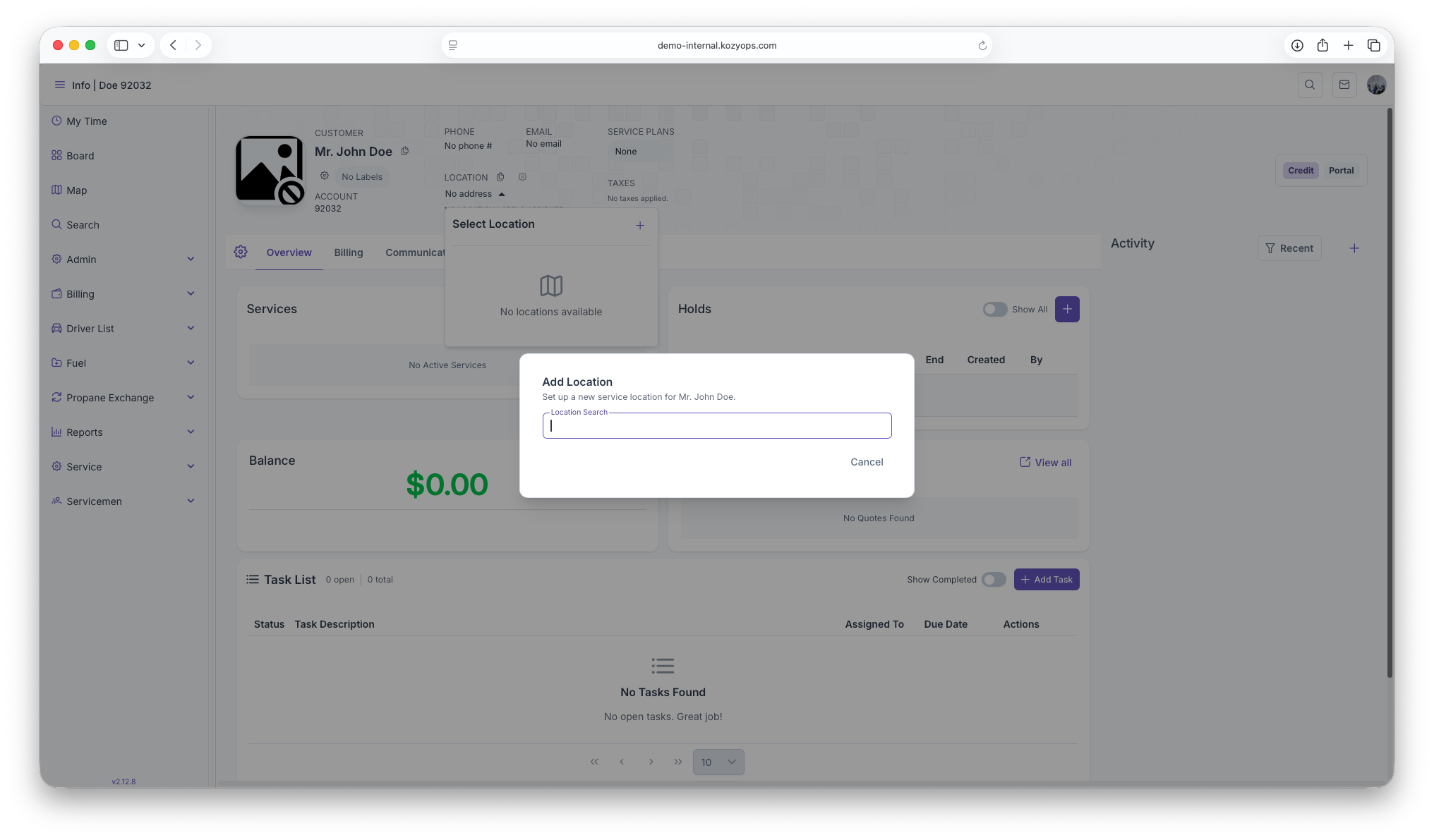
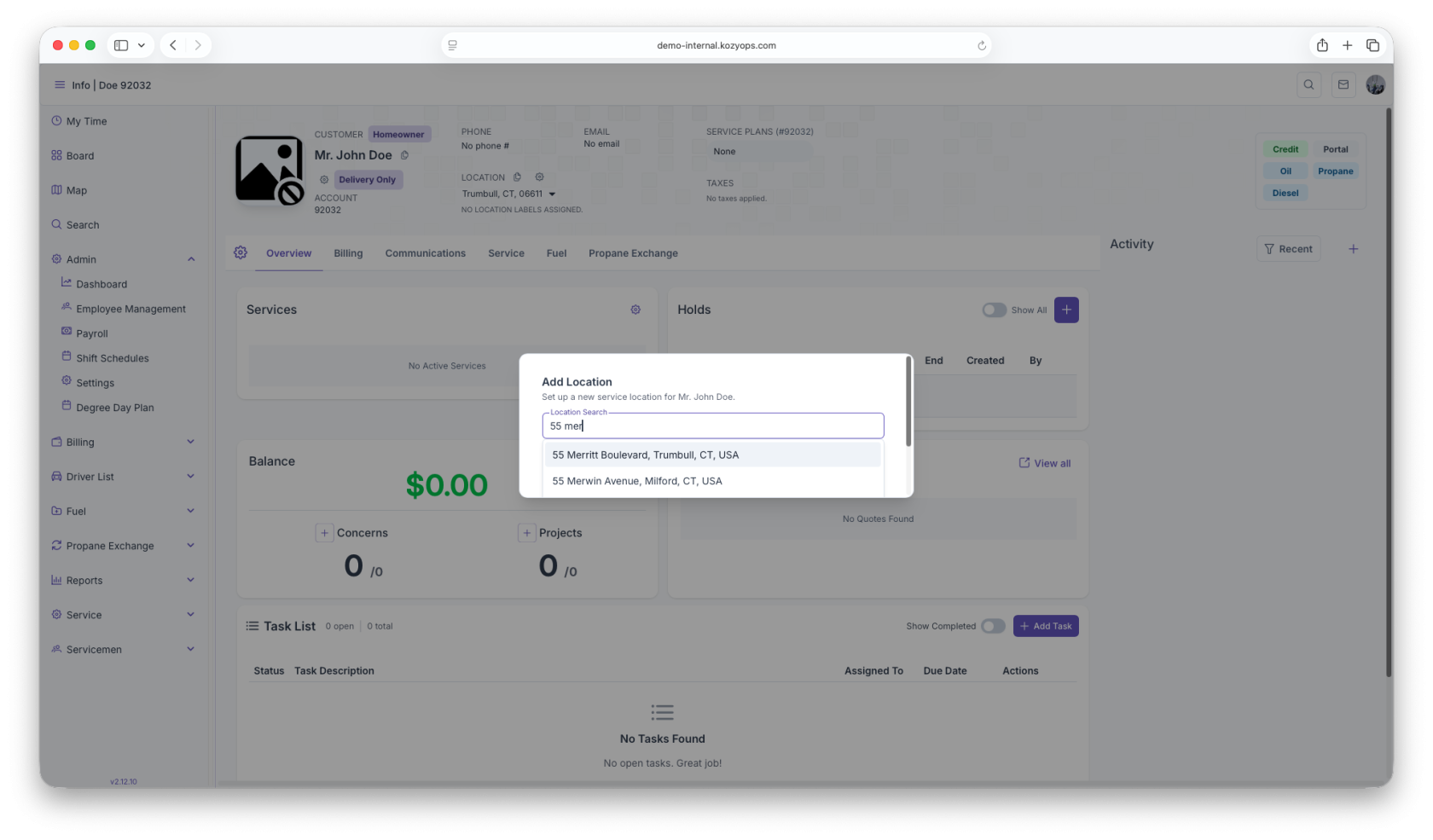
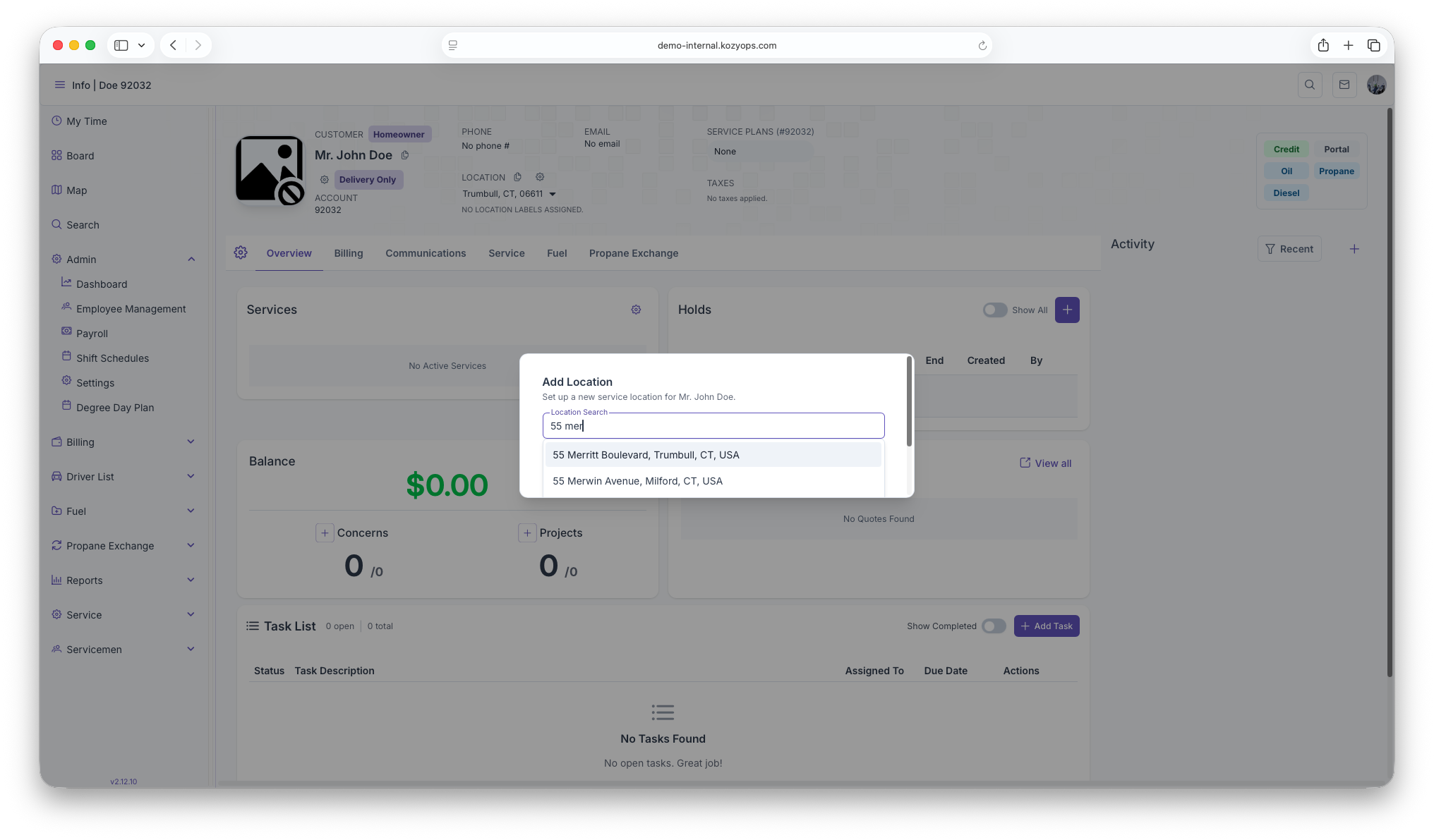
Type the address in the Google Places search field
-
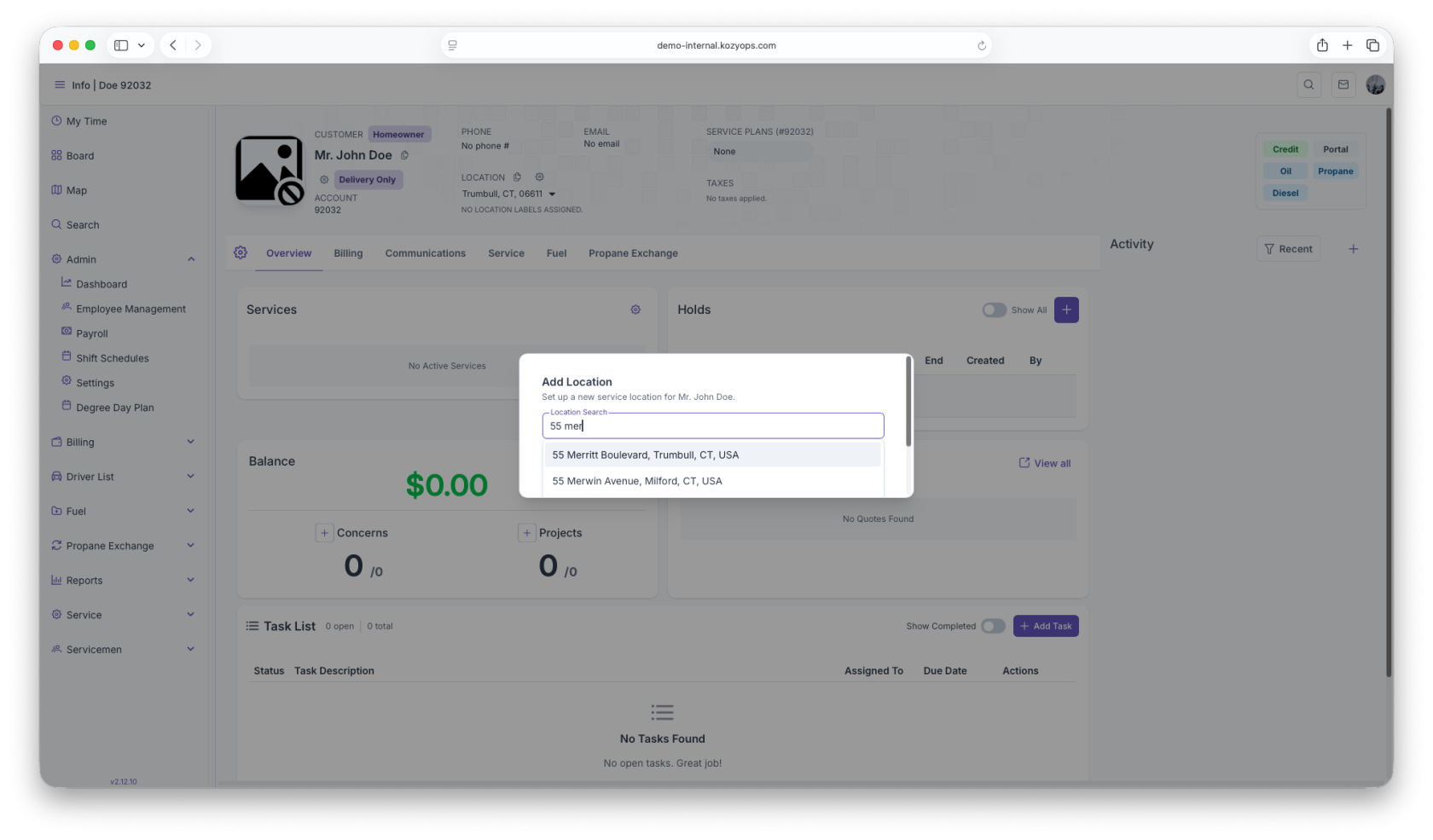
Select the correct address from the autocomplete dropdown
-
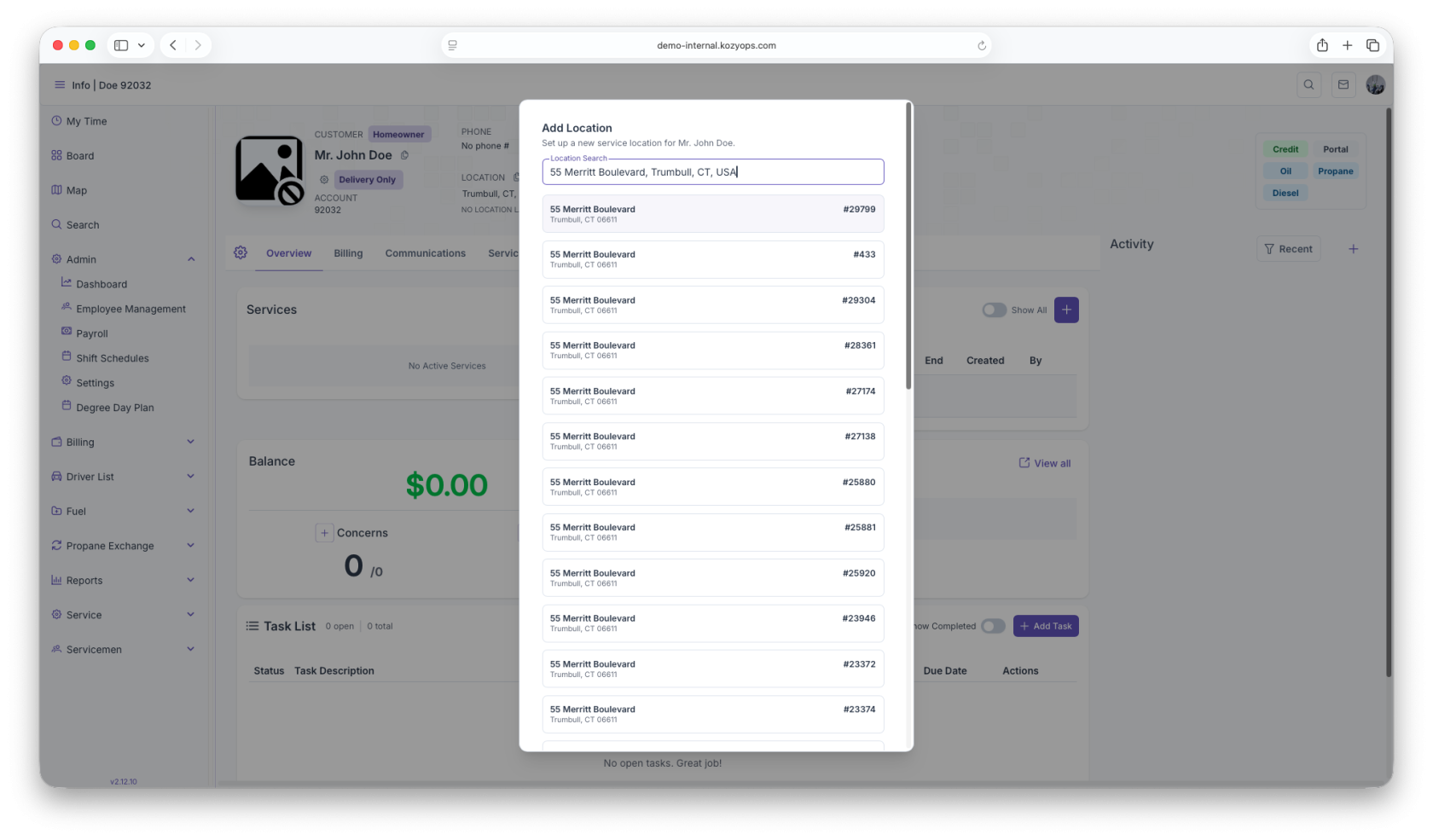
The system will automatically:
- Parse the address into components (street, city, state, ZIP)
- Retrieve GPS coordinates (latitude/longitude)
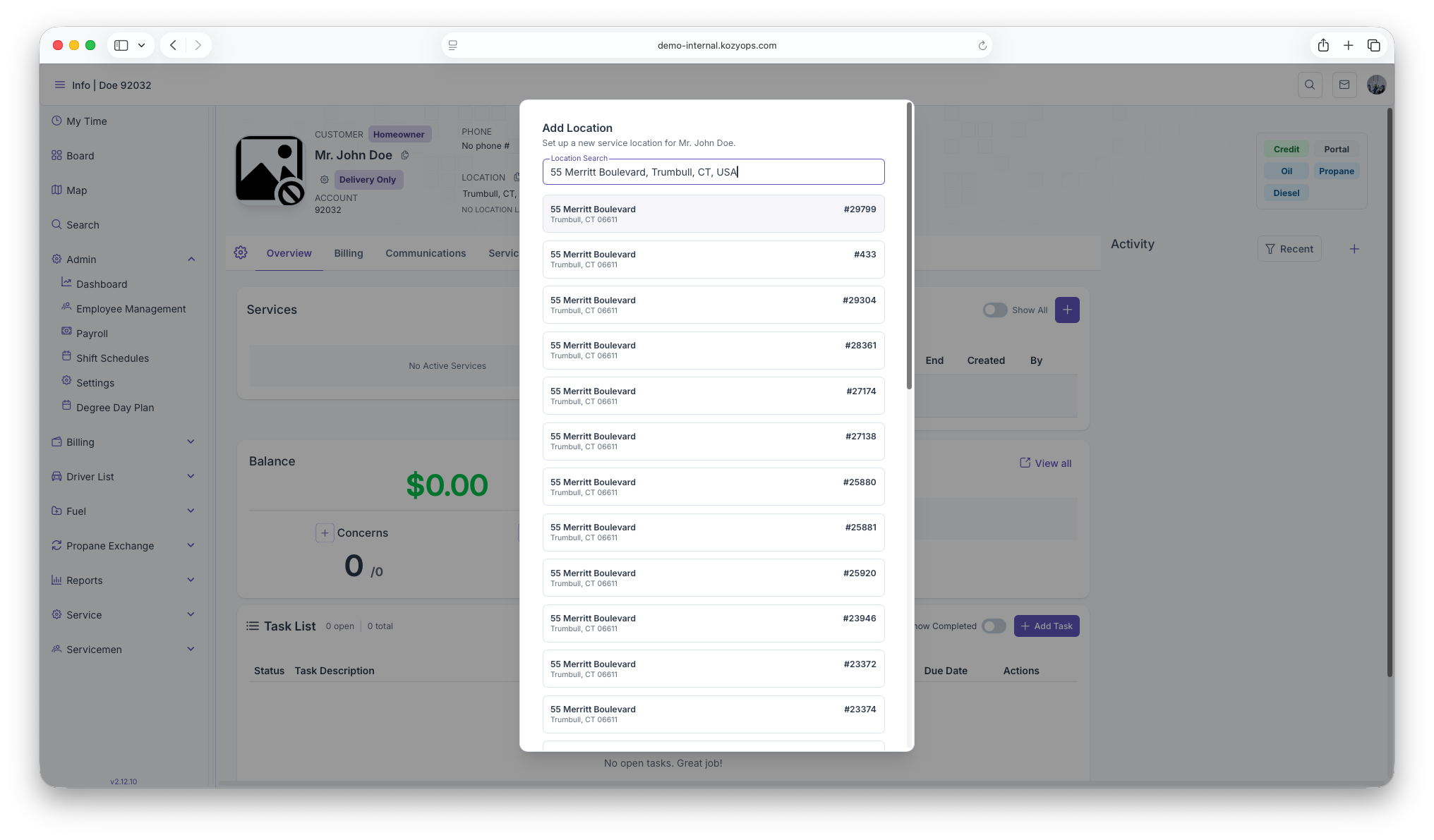
- Search for existing matching locations
Step 3: Link to Existing Location (if found)
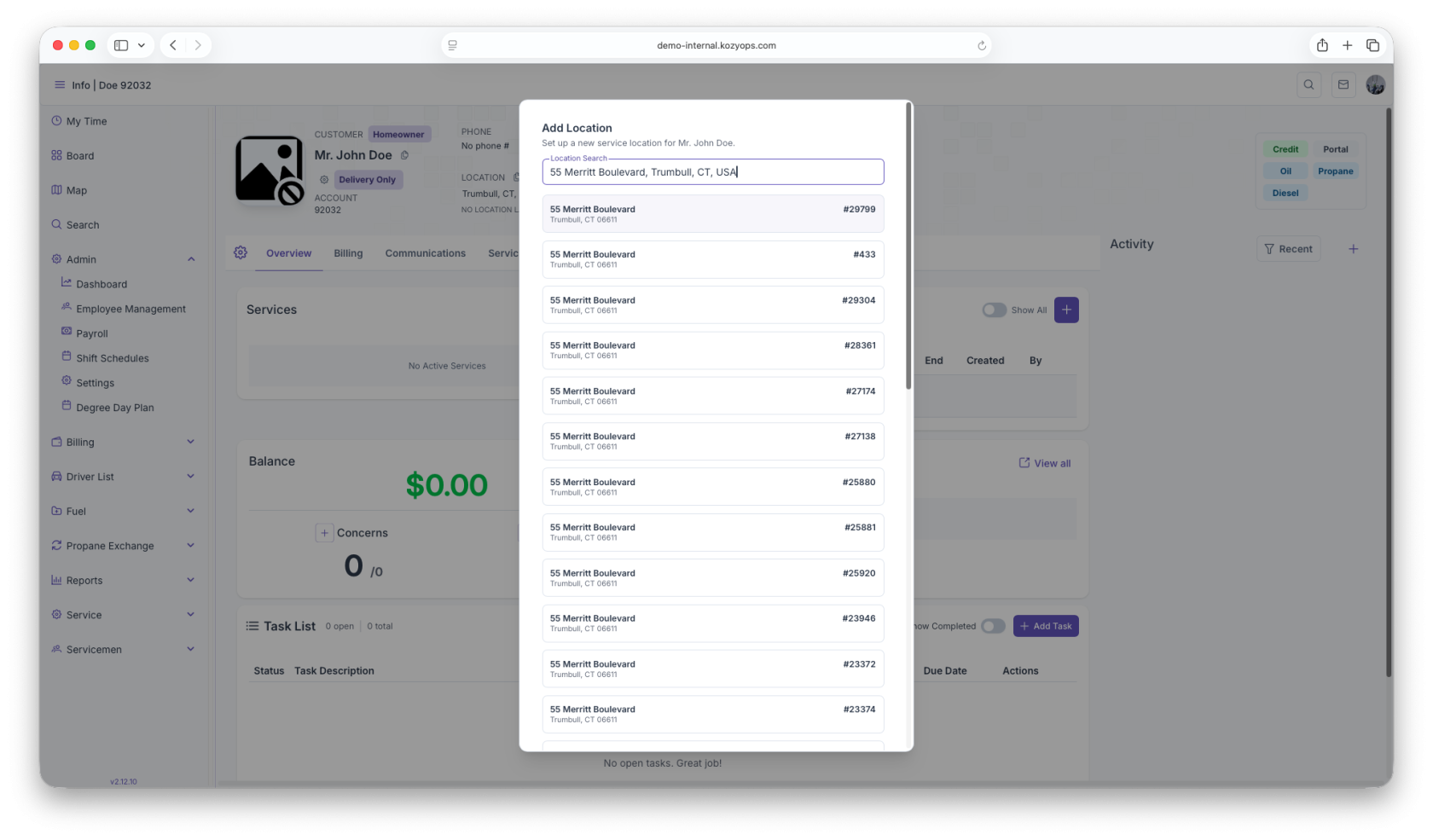
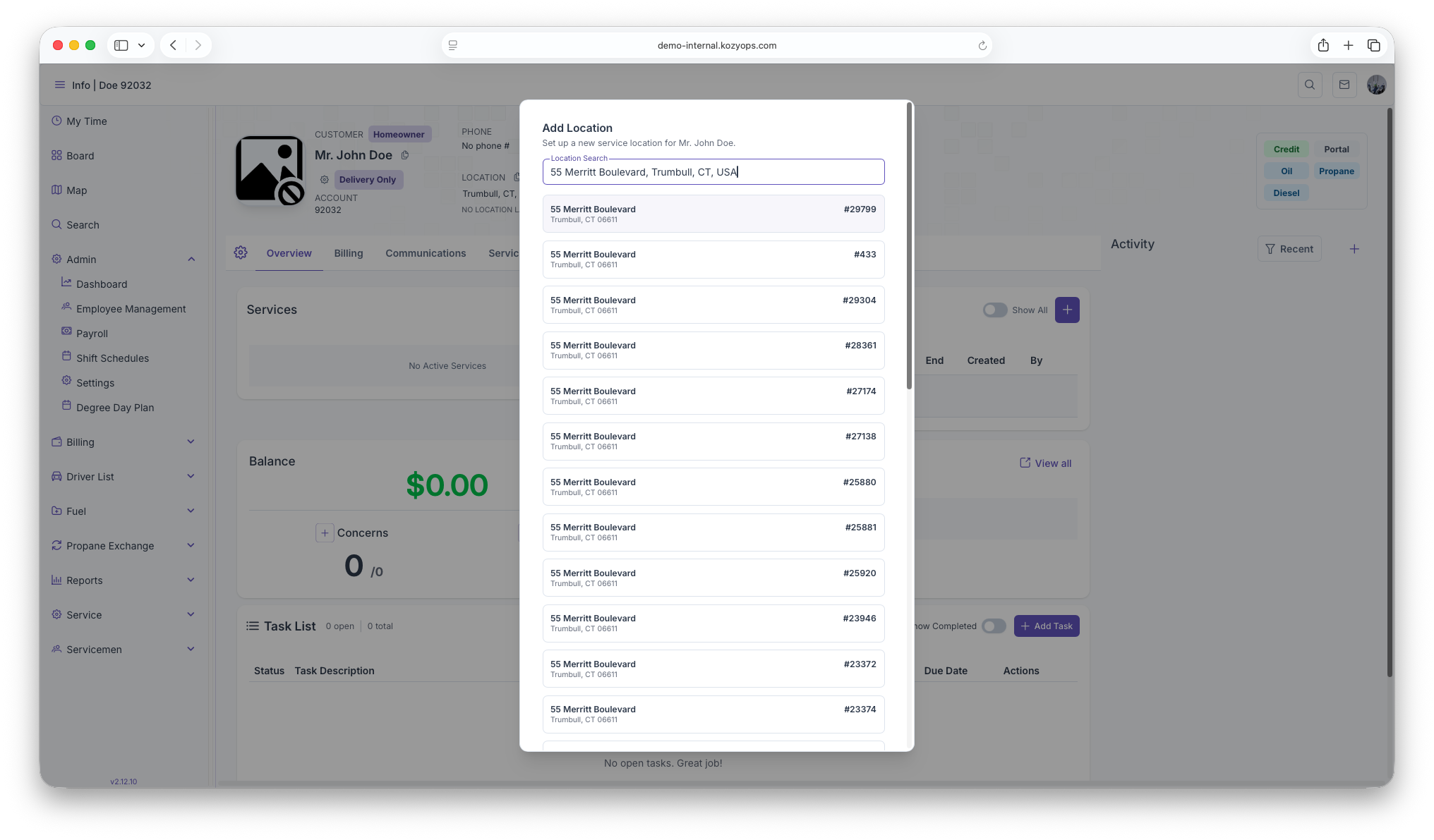
If the system finds matching locations in the database:
-
Review the matches displayed in the
-
Select the correct location (if applicable)
-
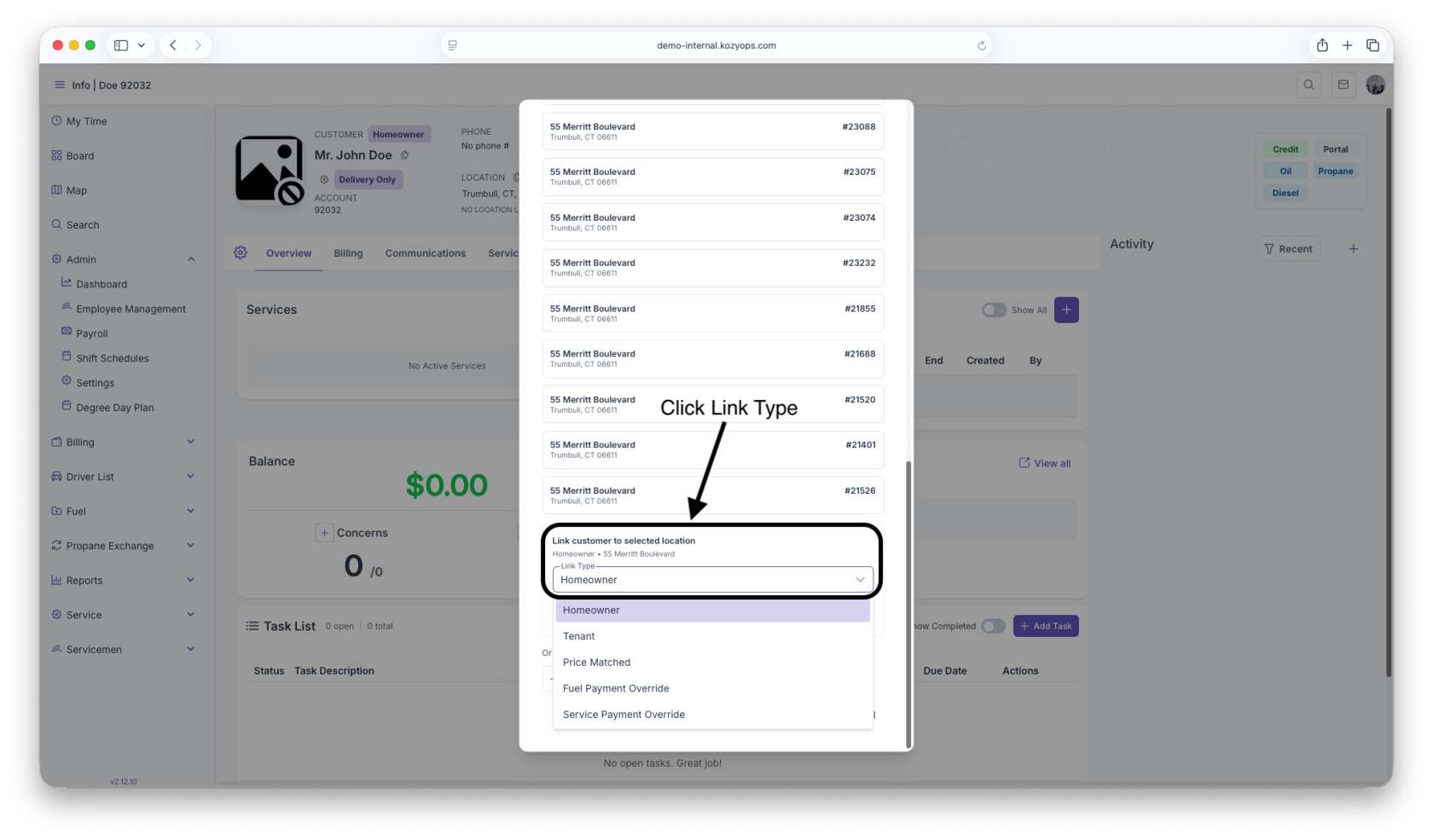
Choose the relationship type:
- Homeowner
- Tenant
- Price Matched
- Fuel Payment Override
- Service Payment Override
-
Click "Link Customer"
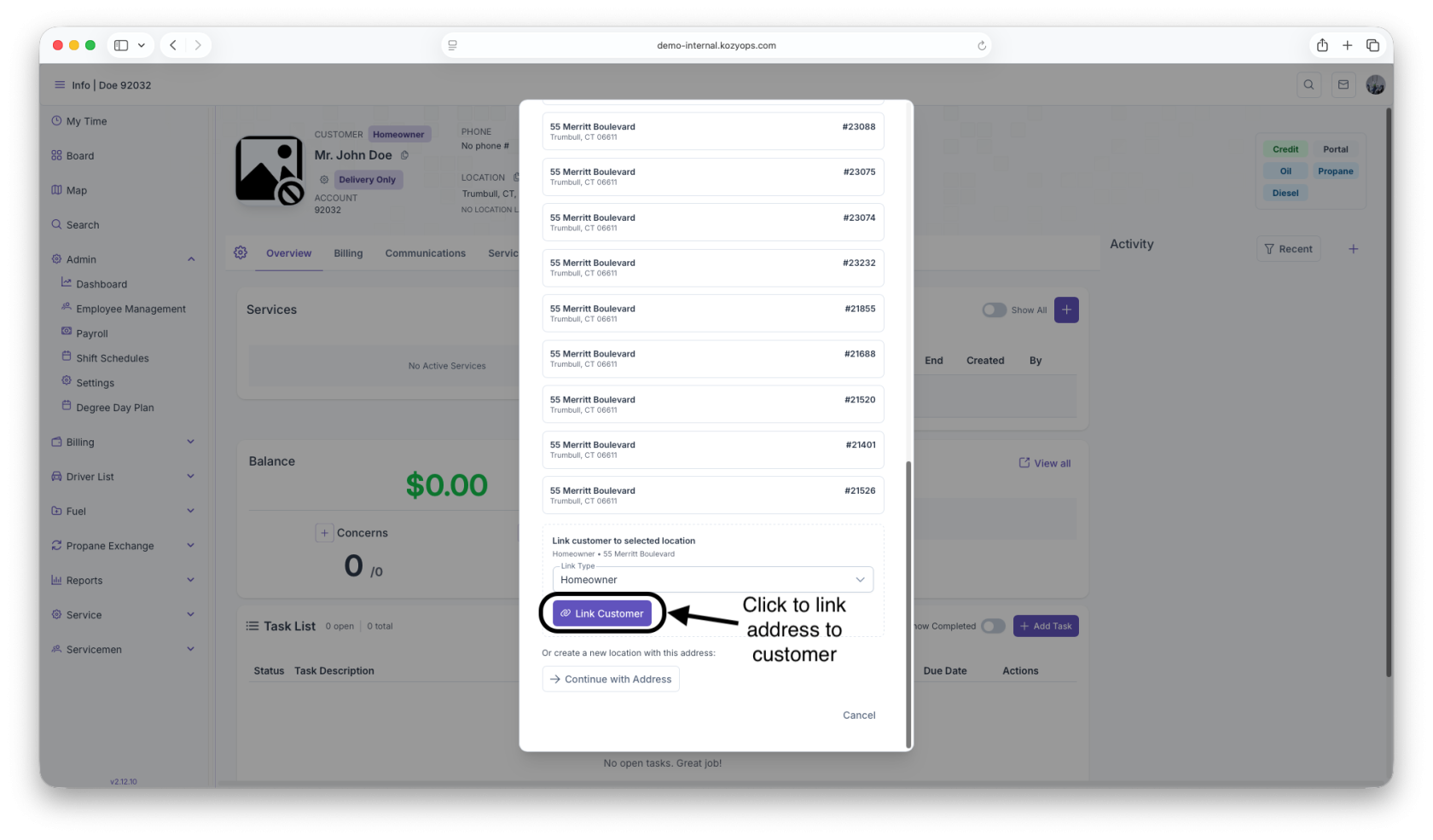
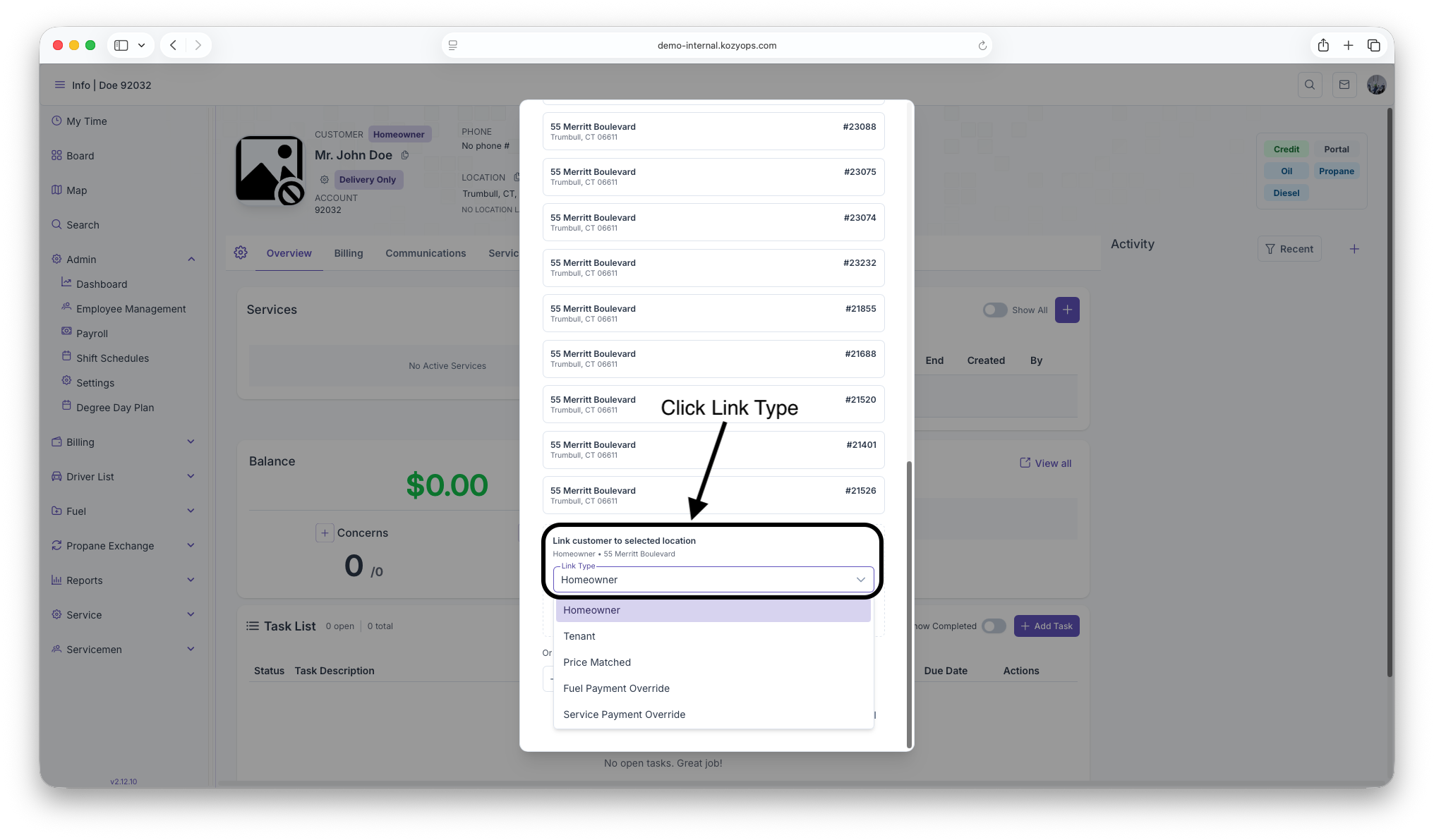
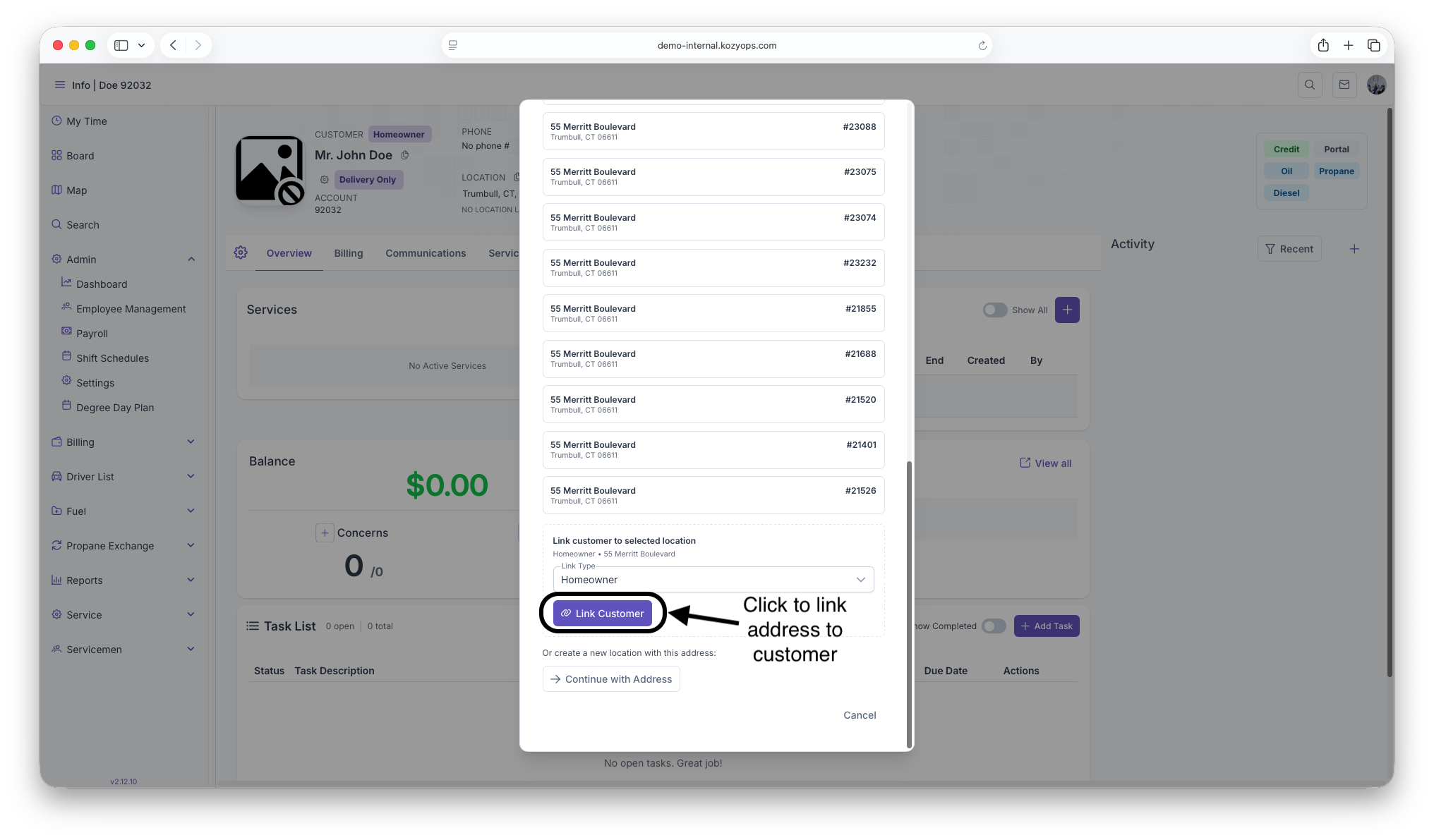
Note: Linking to an existing location maintains data consistency and prevents duplicate addresses in the system.
Step 4: Create a New Location (if no matches)
If no existing locations are found, or the matches are incorrect:
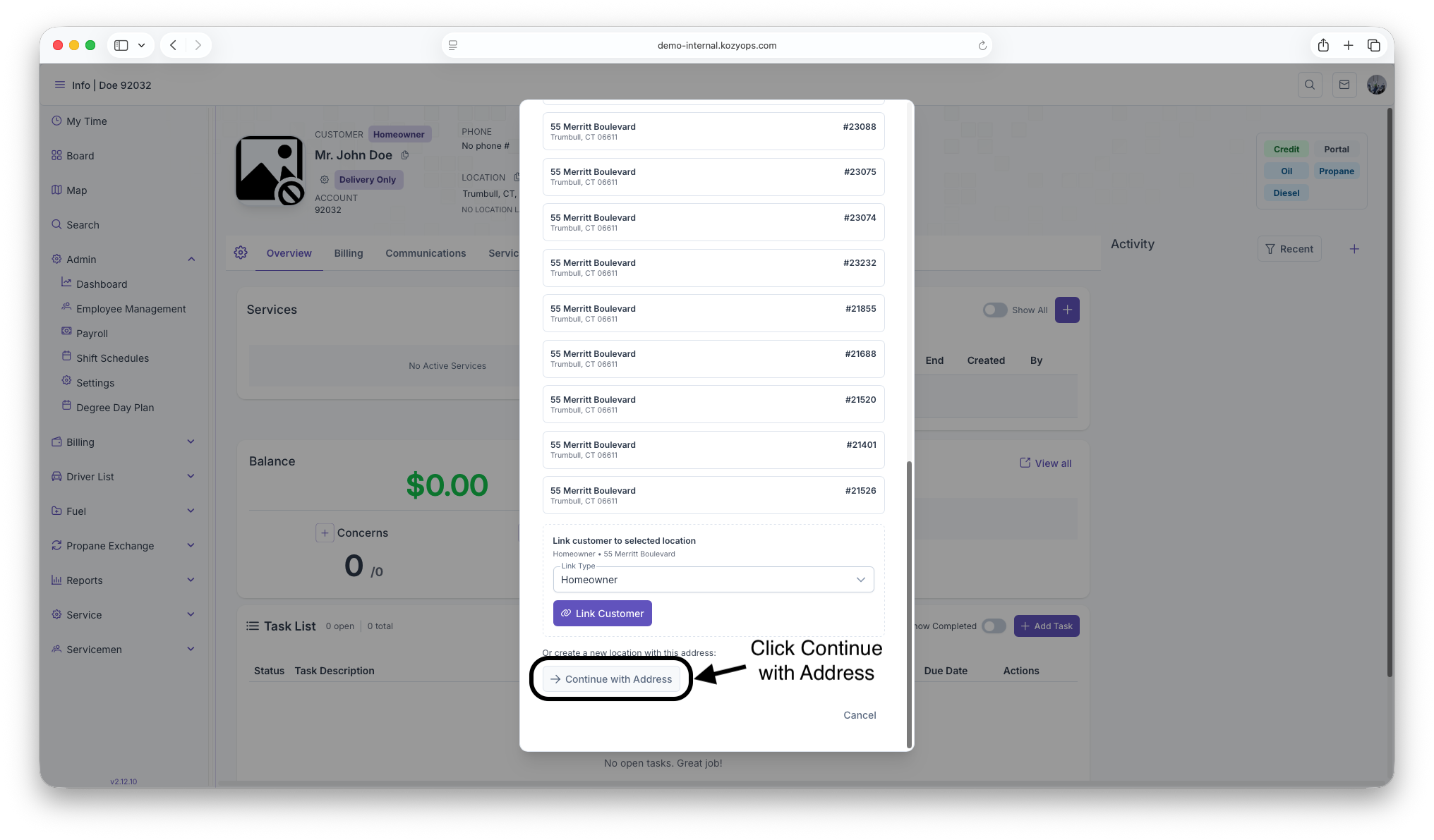
- Click "Continue with Address"
- The Edit Address Details form will appear
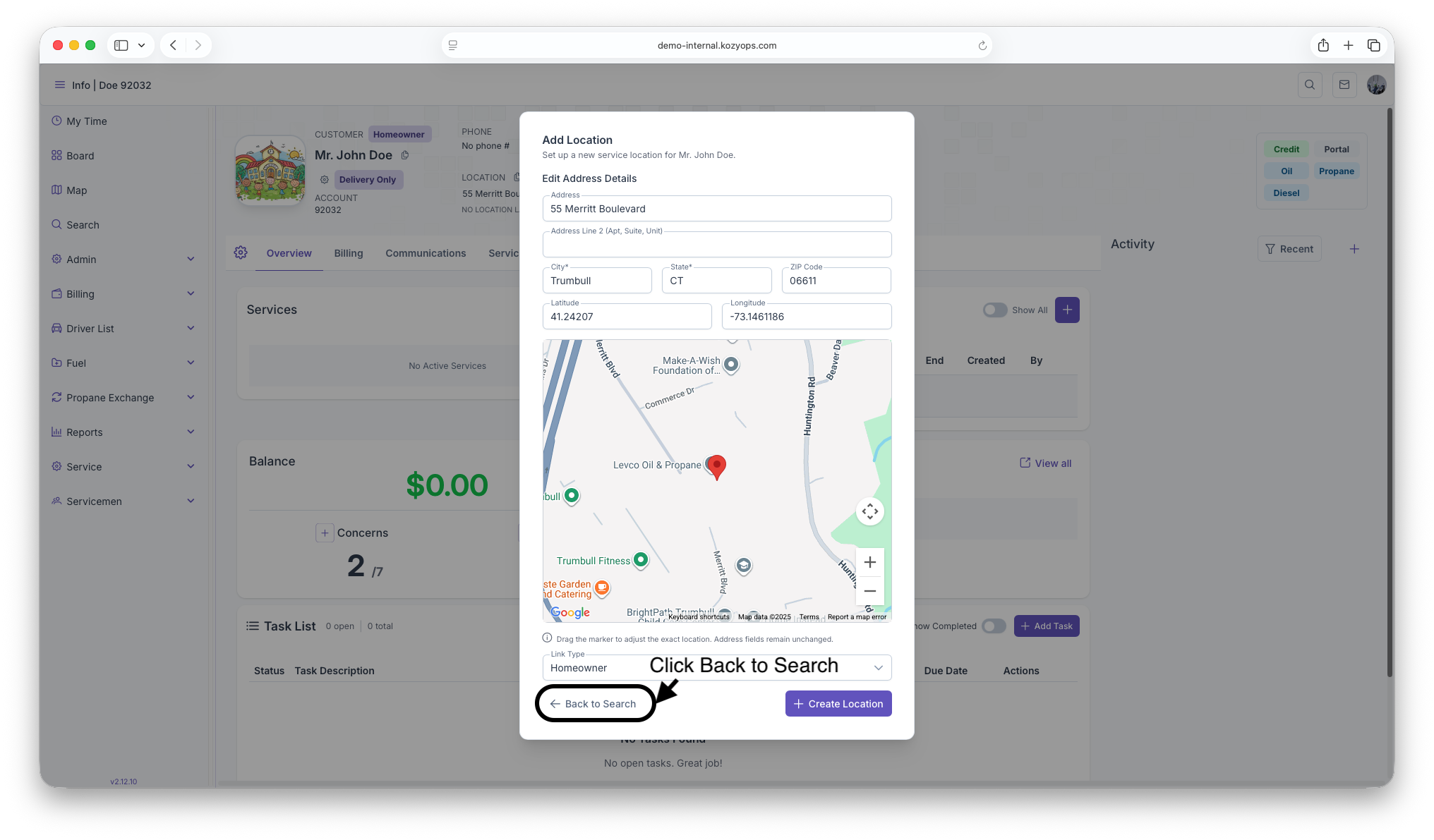
Step 5: Edit Address Details
The form displays all address components with the following fields:
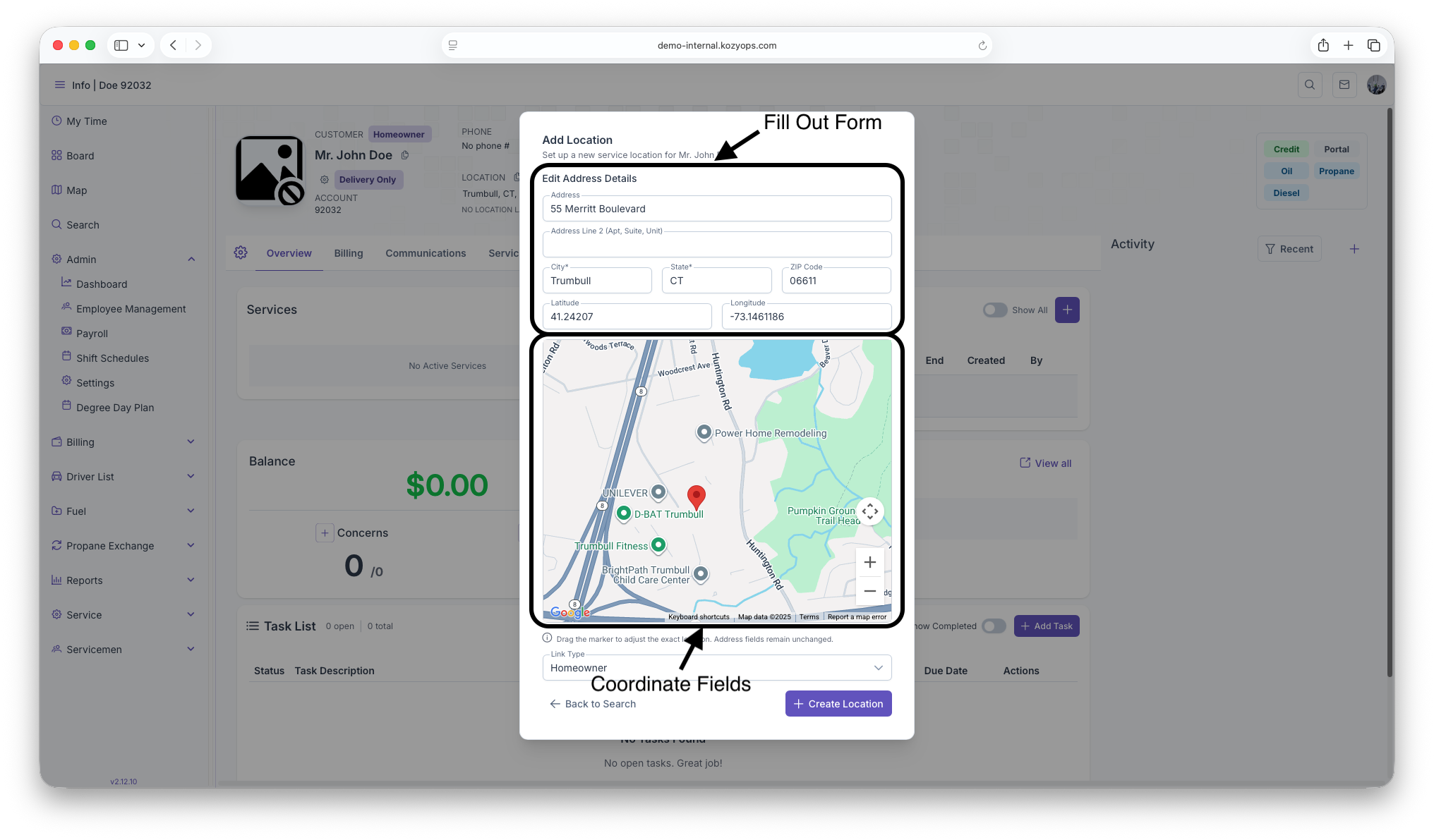
Address Fields:
- Street Number (e.g., "123")
- Street* (required, e.g., "Main St")
- City* (required, e.g., "Springfield")
- State* (required, e.g., "MA")
- ZIP Code (e.g., "01101")
Coordinate Fields (read-only):
- Latitude (displayed with 8 decimal precision)
- Longitude (displayed with 8 decimal precision)
Required fields are marked with an asterisk (*).
Step 6: Adjust Location on Map
An interactive Google Map displays below the form:
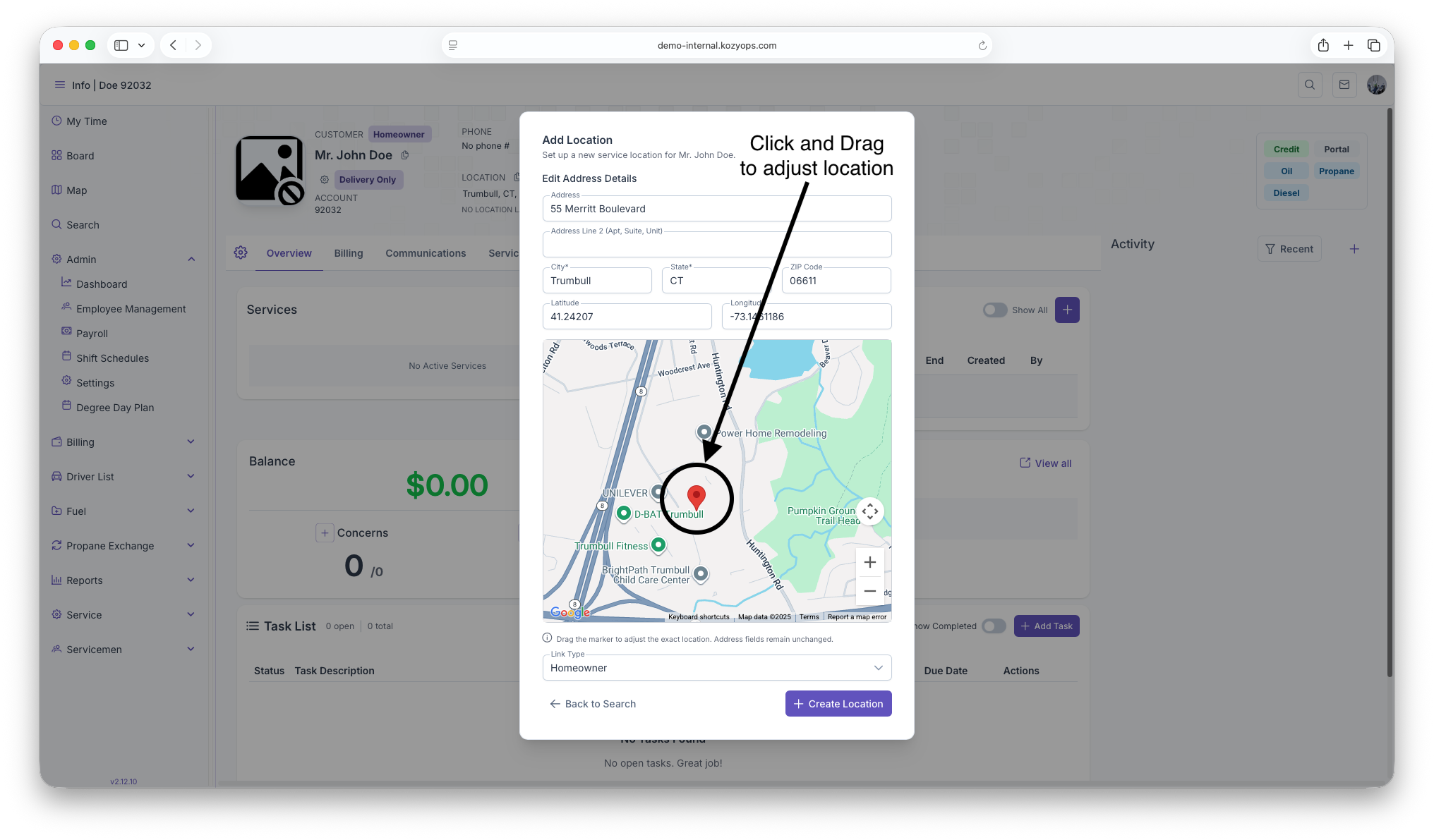
- View the marker at the initial coordinates from Google Places
- Drag the red marker to adjust the exact location
- This is useful when the address pin is slightly off
- Only the coordinates update—address fields remain unchanged
- Use zoom controls to get a better view
Tip: Accurate coordinates are important for route planning and service dispatch.
Step 7: Select Relationship Type
Choose how this location relates to the customer:
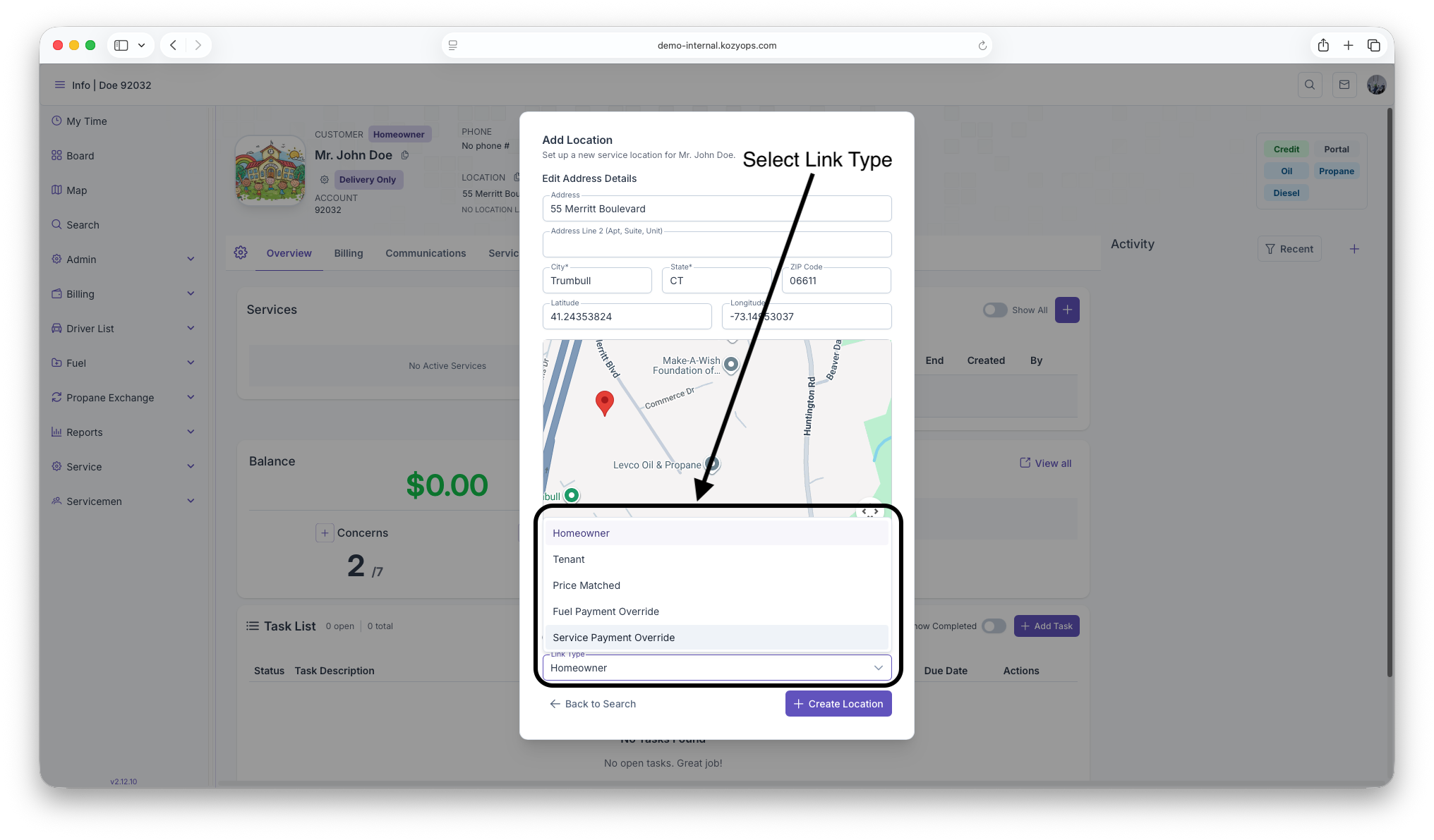
- Homeowner - Customer owns the property
- Tenant - Customer rents/leases the property
- Price Matched - Uses customer's pricing for this location
- Fuel Payment Override - Custom fuel payment settings
- Service Payment Override - Custom service payment settings
Step 8: Create the Location
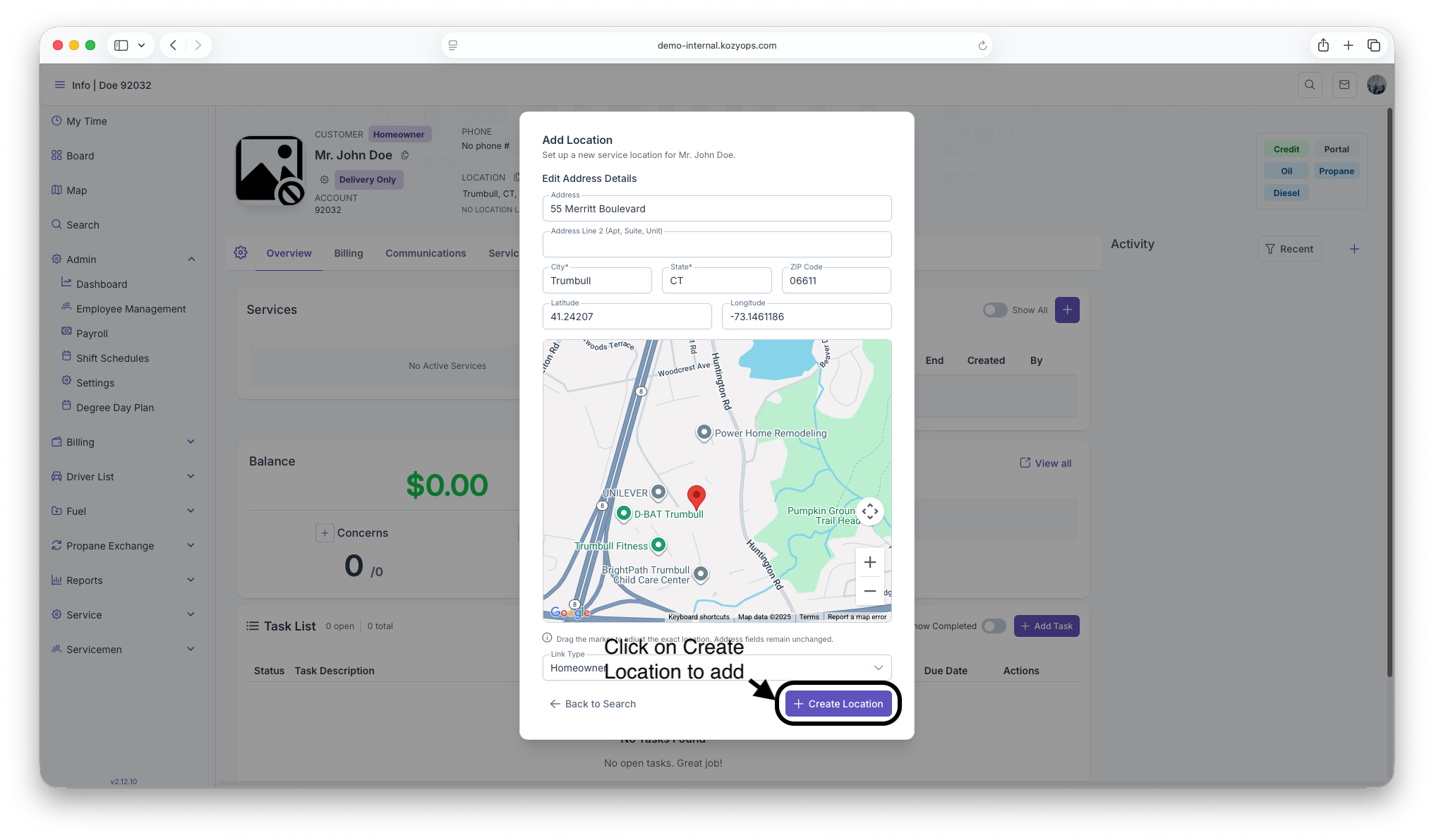
- Review all address details and coordinates
- Click "Create Location"
- The system will:
- Create the new location in the database
- Link it to the customer with the selected relationship type
- Close the dialog
- Refresh the customer's location list
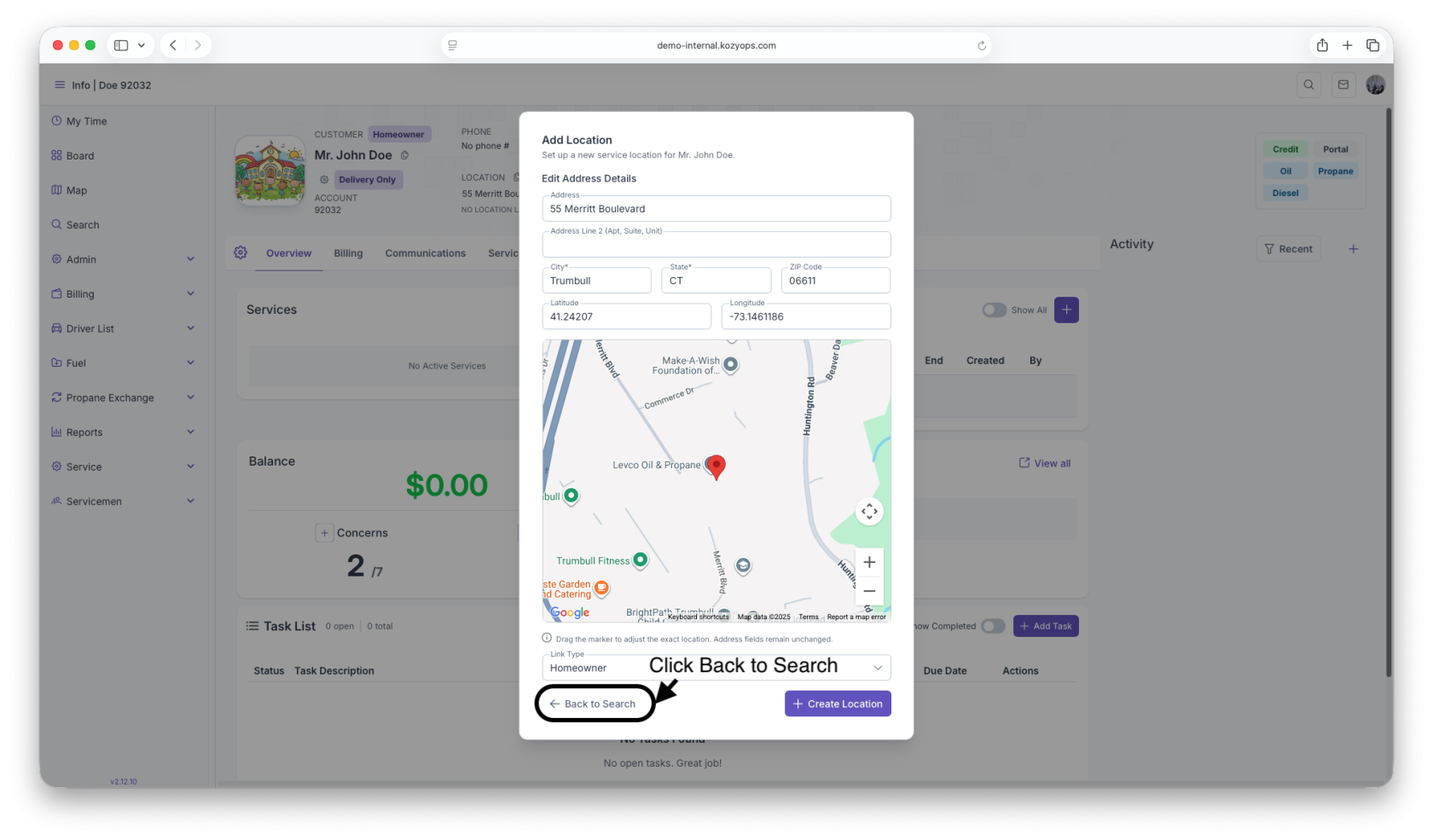
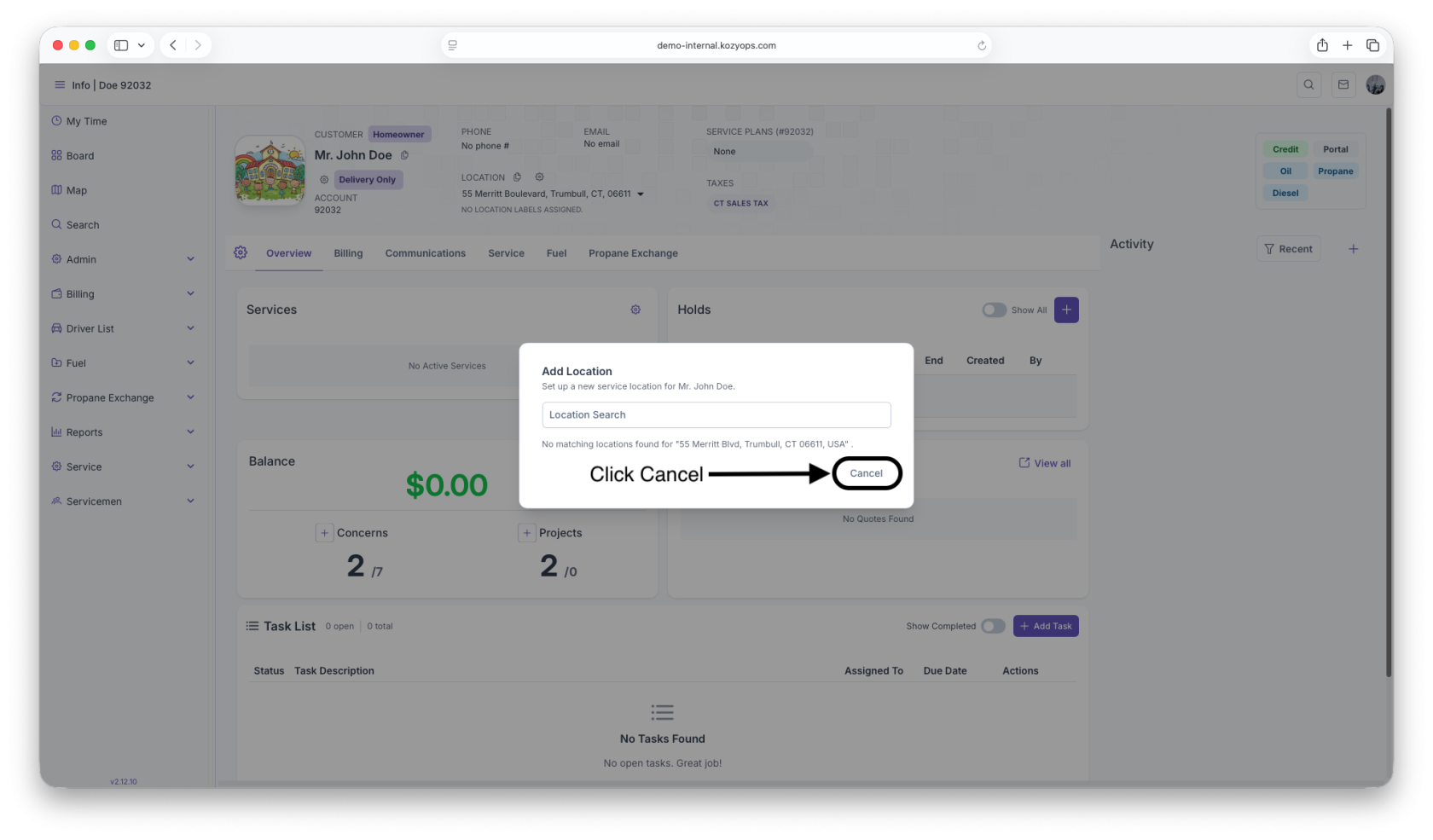
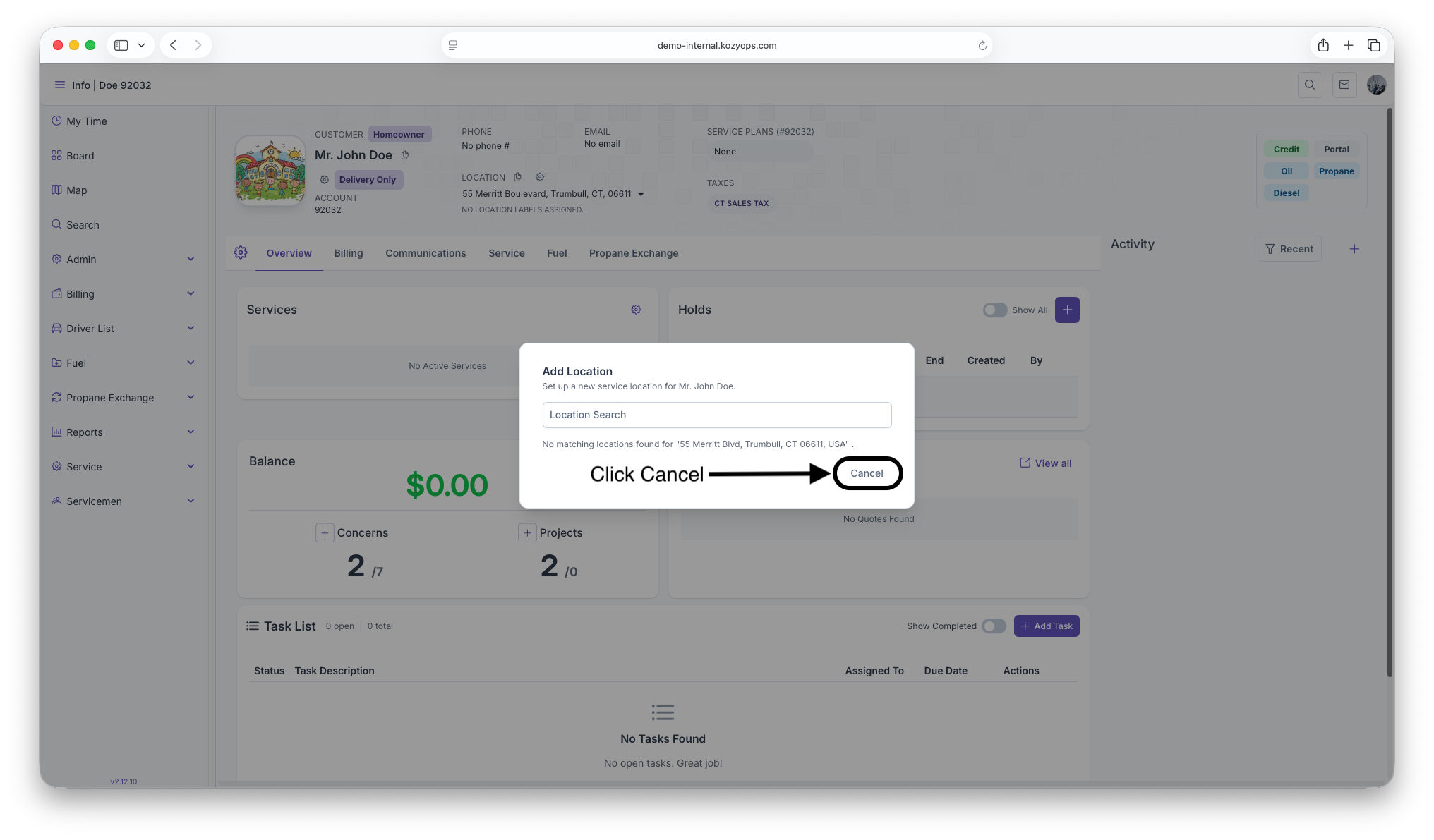
Canceling
-
Click "Back to Search" to return to the address search
-
Click "Cancel" to close the dialog without saving
Editing an Existing Location
Step 1: Open Location Settings
Step 2: Navigate to the Address Tab
The Location Settings dialog has multiple tabs:
- Labels
- Taxes
- Customers
- Notes
- Address ← Select this tab
Step 3: Review Current Address
The Address tab displays:
- Current full address (street, city, state, ZIP)
- Current GPS coordinates (latitude/longitude)
Step 4: Open the Edit Dialog
Click "Edit Address & Coordinates"
The edit dialog opens with all fields pre-populated.
Step 5: Modify Address Details
Editable Fields:
- Street Number
- Street (required)
- City (required)
- State (required)
- ZIP Code
- Latitude (updated by dragging map marker)
- Longitude (updated by dragging map marker)
Making Changes:
- Type directly in any address field to update it
- Drag the map marker to adjust coordinates precisely
- Zoom the map for better accuracy
Important: When you drag the marker, only the latitude/longitude change. The address fields do NOT auto-update to maintain your manual entries.
Step 6: Save Changes
- Review all modifications
- Click "Update Location"
- The system will:
- Update the location in the database
- Close the edit dialog
- Refresh the Location Settings dialog
- Show a success message
Canceling
Click "Cancel" to close the dialog without saving changes.
Best Practices
Address Entry
✅ Do:
- Use Google Places autocomplete for initial address lookup
- Verify the address components are correct
- Check that city, state, and ZIP are properly filled
- Use standard postal abbreviations (e.g., "St" not "Street")
❌ Don't:
- Manually type addresses without using Google Places first
- Leave required fields empty
- Use non-standard address formats
- Enter apartment numbers in the street number field
Coordinate Adjustment
✅ Do:
- Zoom in on the map before adjusting the marker
- Drag the marker to the exact building/entrance location
- Use satellite view (if available) for precision
- Verify coordinates match the visible location
❌ Don't:
- Skip coordinate adjustment for rural/ambiguous addresses
- Place markers on roads instead of buildings
- Ignore coordinate discrepancies
Linking vs. Creating
✅ Do:
- Always review existing location matches before creating new ones
- Link to existing locations when the address matches exactly
- Consider minor variations (Apt 1 vs Unit 1) as the same location
- Use different relationship types for the same location when appropriate
❌ Don't:
- Create duplicate locations for the same address
- Ignore existing location matches without reviewing them
- Link to locations with different addresses
Common Scenarios
Scenario 1: Multiple Customers at One Address
Example: A landlord owns a building, and tenants also need service.
Solution:
- Create the location linked to the landlord as "Homeowner"
- For each tenant, open the Add Location dialog
- Search for the same address
- Select the existing location from matches
- Link each tenant as "Tenant"
Result: One location with multiple customer relationships.
Scenario 2: Google Places Returns Wrong Coordinates
Example: Address autocomplete works, but the map marker is 100 feet off.
Solution:
- Proceed with the Google Places address
- Click "Continue with Address"
- Zoom in on the interactive map
- Drag the marker to the correct building location
- Create/update the location with accurate coordinates
Scenario 3: Address Not Found in Google Places
Example: New construction or rural address not in Google's database.
Solution:
- Find the closest known address in Google Places
- Click "Continue with Address"
- Manually edit all address fields to the correct values
- Drag the map marker to the approximate location
- Create the location
Note: For addresses without Google data, you may need to manually enter latitude/longitude from another source or estimate using the map.
Scenario 4: Need to Fix Typo in Existing Address
Example: Street name misspelled or wrong ZIP code.
Solution:
- Open Location Settings for the affected location
- Go to the "Address" tab
- Click "Edit Address & Coordinates"
- Correct the typo in the appropriate field
- Click "Update Location"
Result: The address is corrected for all customers linked to this location.
Field Reference
Address Component Fields
| Field | Required | Format | Example | Notes |
|---|---|---|---|---|
| Street Number | No | Numeric or alphanumeric | "123", "123A" | Leave empty if N/A |
| Street | Yes | Text | "Main St" | Use standard abbreviations |
| City | Yes | Text | "Springfield" | Full city name |
| State | Yes | 2-letter code | "MA" | Uppercase state abbreviation |
| ZIP Code | No | 5 or 9 digits | "01101", "01101-1234" | Include ZIP+4 if known |
| Latitude | Yes | Decimal degrees | "42.101234" | Auto-filled, read-only in form |
| Longitude | Yes | Decimal degrees | "-72.589876" | Auto-filled, read-only in form |
Relationship Types
| Type | Use Case | Billing Impact |
|---|---|---|
| Homeowner | Property owner receiving service | Uses customer's default billing |
| Tenant | Renter/lessee receiving service | Uses customer's default billing |
| Price Matched | Special pricing applies | Uses custom pricing for this location |
| Fuel Payment Override | Custom fuel billing | Overrides default fuel payment terms |
| Service Payment Override | Custom service billing | Overrides default service payment terms |
Troubleshooting
"No matching locations found" appears immediately
Cause: The address search didn't complete or returned no database matches.
Solution: This is normal for new addresses. Click "Continue with Address" to proceed with creating a new location.
Map marker won't drag
Cause: Map hasn't fully loaded or browser issue.
Solution:
- Wait a few seconds for the map to fully render
- Try zooming in/out
- Refresh the browser if problem persists
Required field validation errors
Cause: Street, City, or State fields are empty.
Solution:
- Review the error message
- Fill in all required fields (marked with *)
- Ensure no fields are blank or contain only spaces
Address fields show wrong information after Google search
Cause: Google Places parsed the address incorrectly.
Solution:
- Click "Continue with Address"
- Manually correct any incorrect fields
- Proceed with creating the location
Can't find the edit button
Cause: Looking in the wrong location.
Solution:
- Open the Location Settings dialog (gear icon next to location)
- Click the "Address" tab at the top
- The "Edit Address & Coordinates" button is in the center panel
Tips for Efficiency
- Use keyboard shortcuts: Tab through form fields quickly
- Zoom before dragging: Zoom in on the map before adjusting markers for precision
- Batch similar addresses: When adding multiple locations in the same area, adjust map zoom once and keep it
- Review matches carefully: Linking takes seconds; creating duplicates causes long-term issues
- Verify on save: Always review the success message to confirm the operation completed
Related Documentation
Last updated: October 24, 2025