Bank Deposits and Receipts
Bank Deposits
The Bank Deposits page can be used to manage and track all payment deposits. To reach the Bank Deposits page, on the side menu, click on Billing then click on Bank Deposits. Clicking on the three side bars on the top left corner of the page allows the side bar to be expanded for easier access. The page can be filtered by date ranges whichand will then showsshow the following
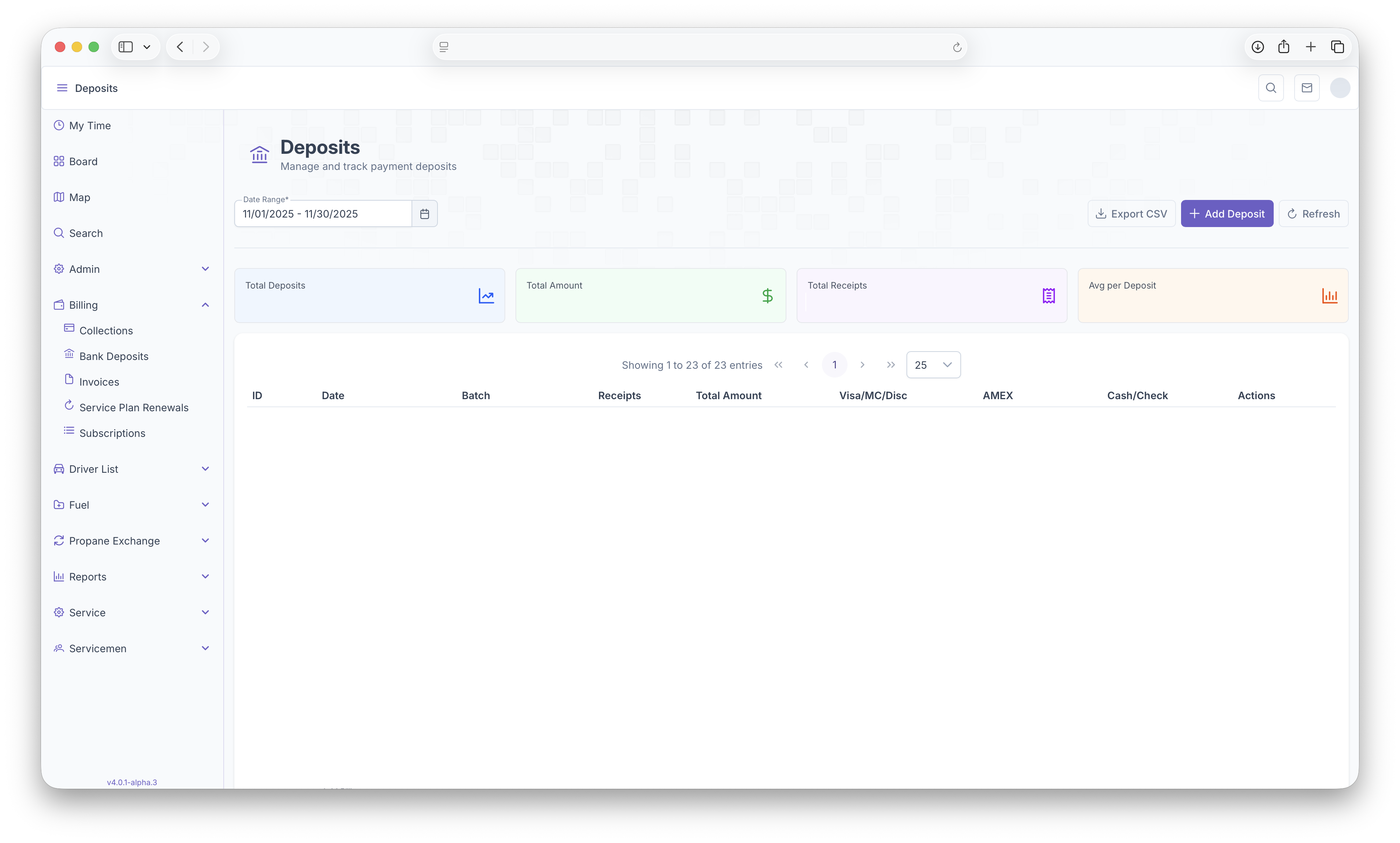
Following that a table will be generated with each deposit as a line item with the following columns,columns
A deposit can be opened by clicking on one of the receiptsactions pageor willby besimply pulledclicking upon whicha thendeposit showsline allto receiptsshow withina thatmore deposit,in seedepth Receiptslook at each receipt. See below for more details.information on receipts. The reportDeposits page can also be exported into document format for easier printing or sharing by clicking on the Export CSV button found on the top right corner of the page. Here,Clicking ifon noAdd depositsDeposits existwill add a deposit for the current day. Only one deposit can be created for a givenday day,and clickingreceipts can only be added on the Addday Deposit button adds athe deposit towas that day which can then have receipts added on to it, see Receipts below for additional information.created. Clicking on Refreshrefresh allows for awill refresh of the page if any deposits oras receipts wereare added tothrought the system.
Receipts
After clicking on the deposit or selecting an action on the deposit, all receipts for that deposit will then appear. The top of the page displays Thethe following
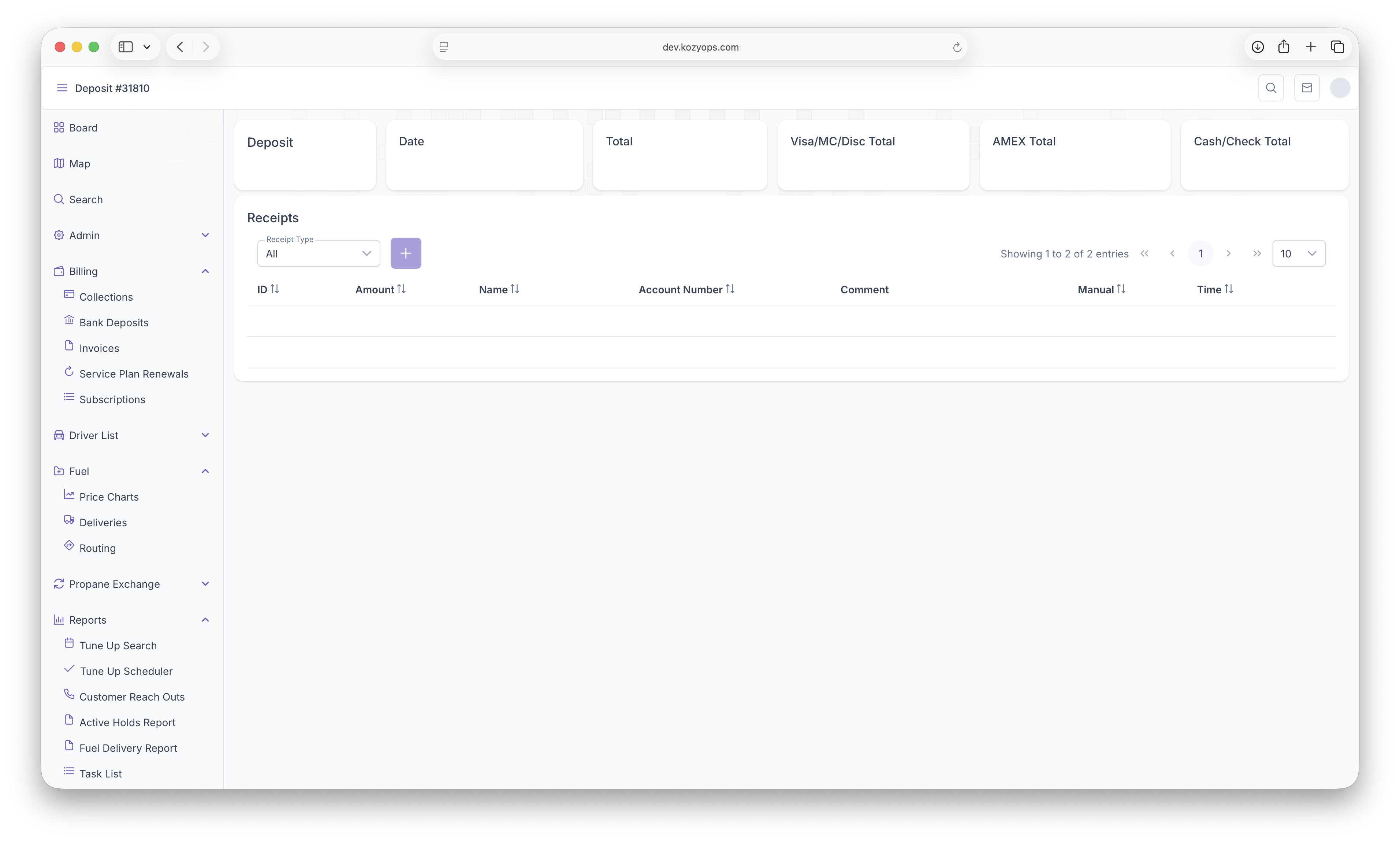
The page can then be filtered by selecting a Receipt Type. Filters include All Receipts, Visa/MC/Disc, AMEX, Cash/Card or All Manual. The page will then generate a table with each receipt as a line item and with the following columns
Receipts can be added to the deposit by clicking on the Add button allows for additional receipts to be addednext to the deposit.date Thefilter. Clicking on the add button will bring up the custmer search for whom the receipt is being added for.
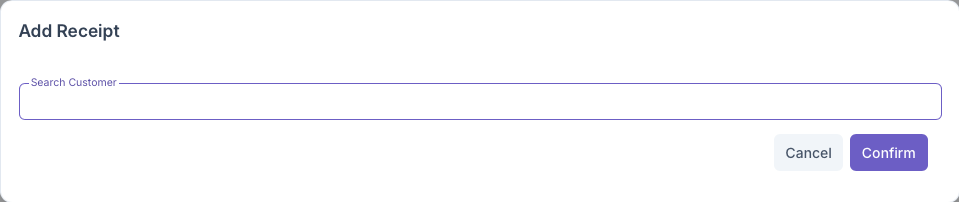
A customer can be searched by name, account number or even address. After filling out the field, the customer will appear below the search line
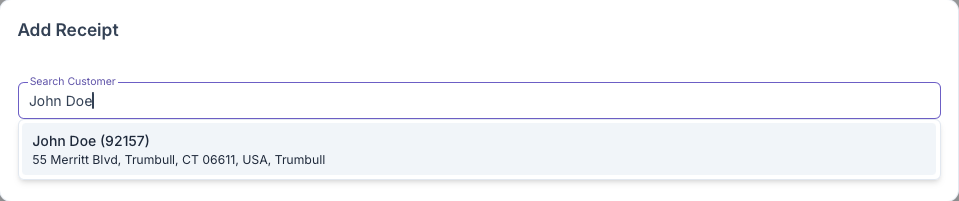
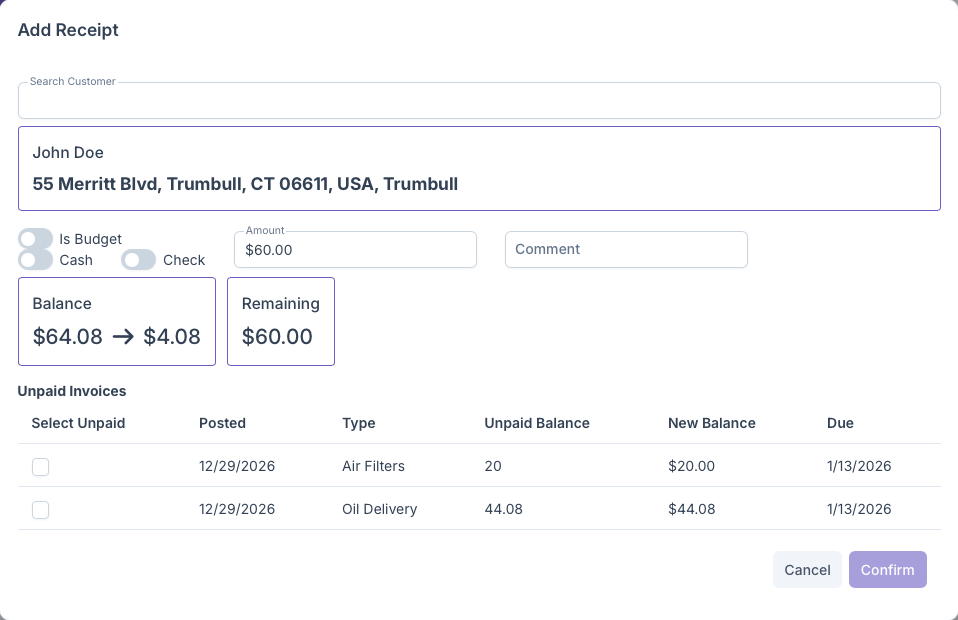
Once the customer appears, clicking on the customer will generate the full Add Receipts reportpopup willand the then be presented with withshows the following