
Bank Deposits and Receipts
Bank Deposits
The Bank Deposits page can be used to manage and track all payment deposits. To reach the Bank Deposits page, on the side menu, click on Billing then click on Bank Deposits. Clicking on the three side bars on the top left corner of the page allows the side bar to be expanded for easier access. The page can be filtered by date ranges and will then show the following
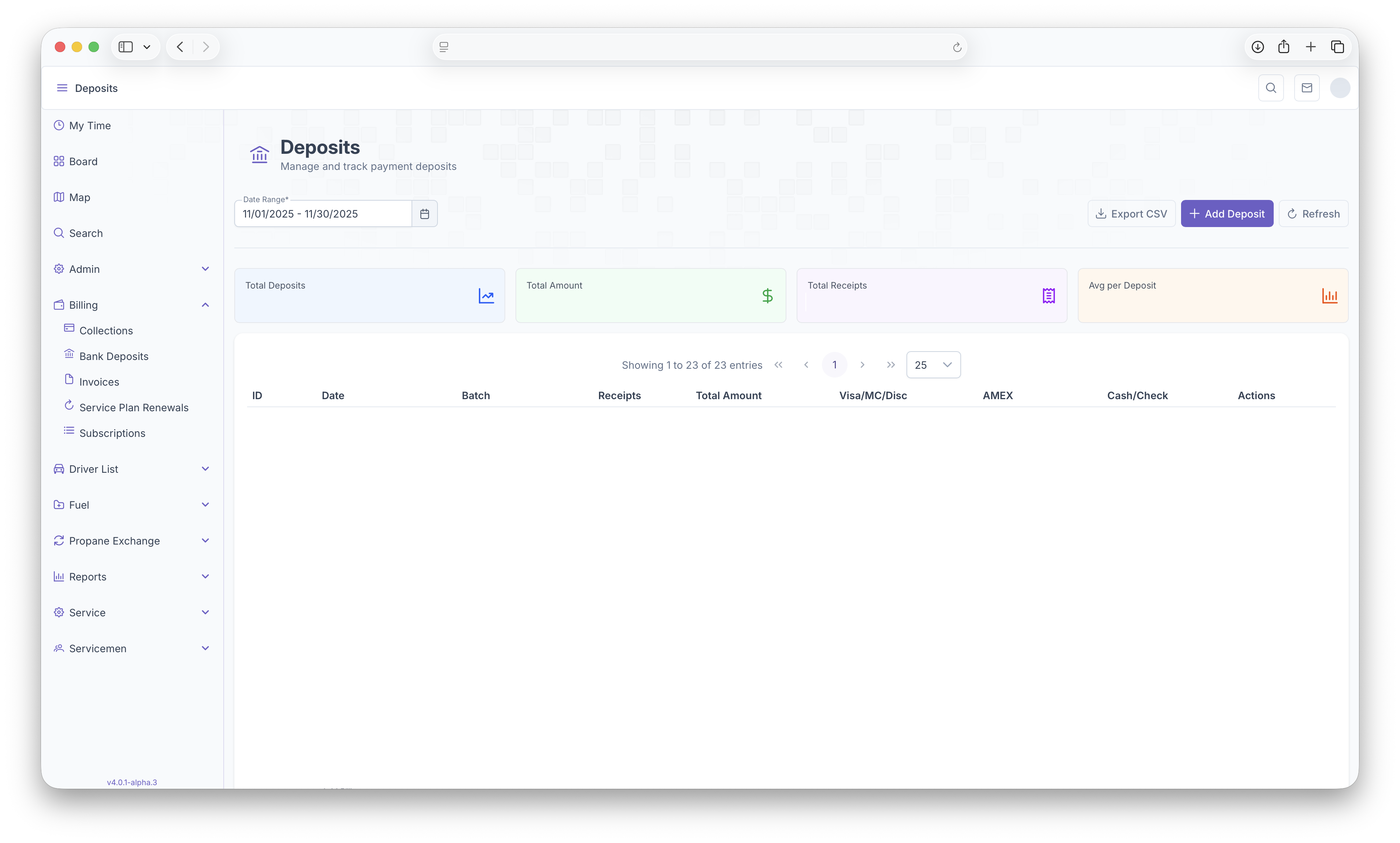
- Total Deposits - Shows the total deposits made within the selected date range
- Total Amount - Total Amount deposited within the selected date range
- Total Receipts - Total number of receipts
- Average Per Deposits - The average amount for each deposit
Following that a table will be generated with each deposit as a line item with the following columns
- Deposit ID - The ID assigned to each deposit
- Date - The date the deposit was created
- Batch - The Batch number of the deposit
- Number of Receipts - How many receipts are in the deposit
- Total Amount - The Total amount that was deposited
- Visa/MC/Disc - How much was deposited through these cards
- AMEX - How much was deposited through Amex
- Check/Cash - How much was deposited through cash or check
- Actions - Actions that can be taken on each deposit, view the details of the deposit or open the deposit on a new tab
A deposit can be opened by clicking on one of the actions or by simply clicking on a deposit line to show a more in depth look at each receipt. See below for more information on receipts. The Deposits page can also be exported for easier printing or sharing by clicking on the Export CSV button found on the top right corner of the page. Clicking on Add Deposits will add a deposit for the current day. Only one deposit can be created for a day and receipts can only be added on the day the deposit was created. Clicking on refresh will refresh the page as receipts are added throught the day
Receipts
After clicking on the deposit or selecting an action on the deposit, all receipts for that deposit will then appear. The top of the page displays the following
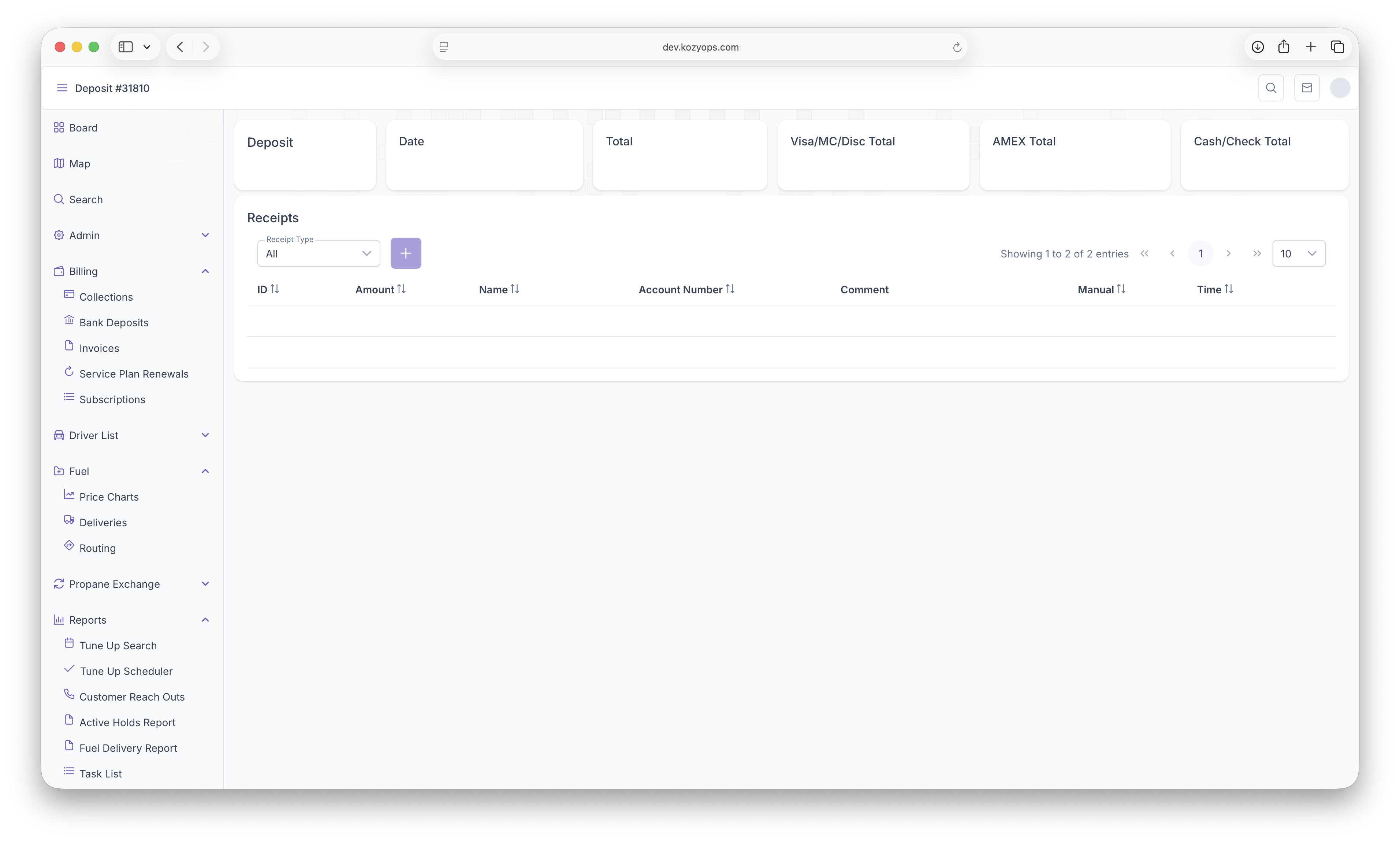
- Deposit ID - The ID assigned to the deposit
- The Date - The date the deposit was created
- Total - The total amount of the deposit
- Visa/MC/Disc - The total amount paid through these cards
- AMEX - Total amount paid by AMEX
- Cash/Check - Total amount paid by cash or check
The page can then be filtered by selecting a Receipt Type. Filters include All Receipts, Visa/MC/Disc, AMEX, Cash/Card or All Manual. The page will then generate a table with each receipt as a line item and with the following columns
- Receipt ID - ID Assigned to each receipt0
- the Amount - The amount that was paid by the customer
- Customer Name - Name of the customer
- Account Number - The Customers account number
- Comments - Any comments made on the receipt
- Manual - If the payment was manually input
- Time - When the receipt was created
Receipts can be added to the deposit by clicking on the Add button next to the date filter. Clicking on the add button will bring up the custmer search for whom the receipt is being added for.
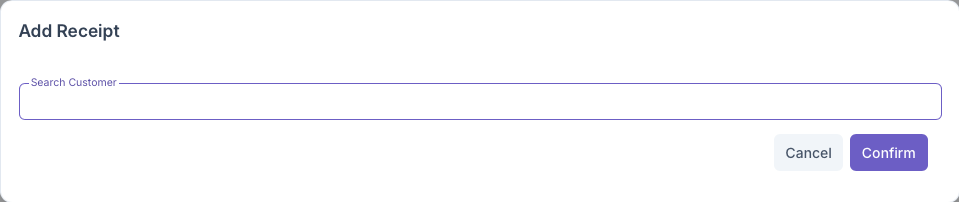
A customer can be searched by name, account number or even address. After filling out the field, the customer will appear below the search line
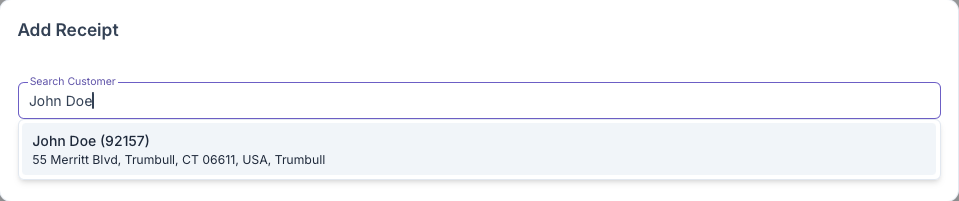
Once the customer appears, clicking on the customer will generate the full Add Receipts popup and shows the following
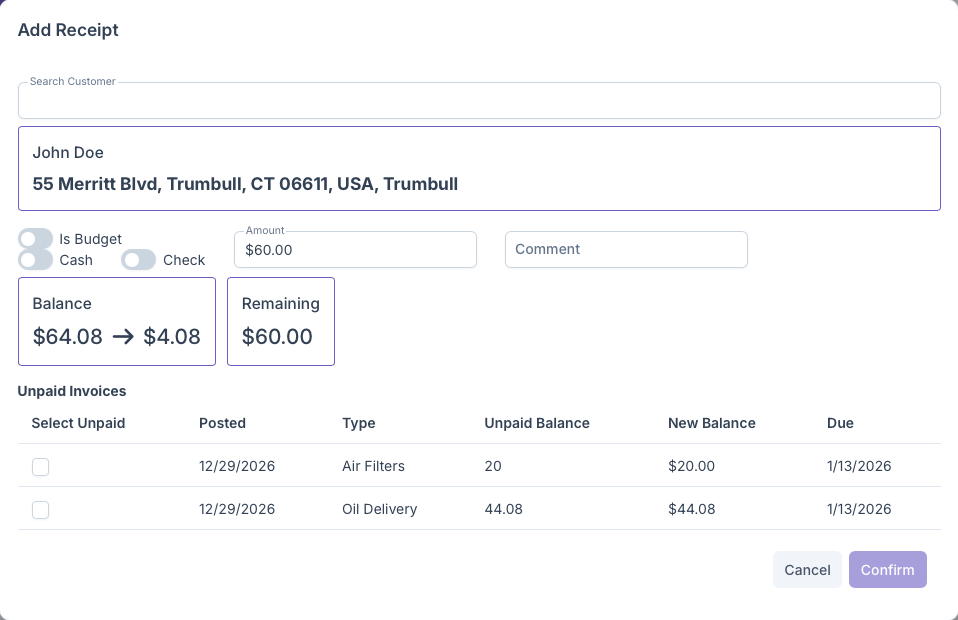
- Search Customer - gives the ability to change customers by search
- Customer - Shows the customers name and address
- Toggle - Gives the option to toggle if a customer is Budget for their payment, paying