Bank Deposits and Receipts
Bank Deposits
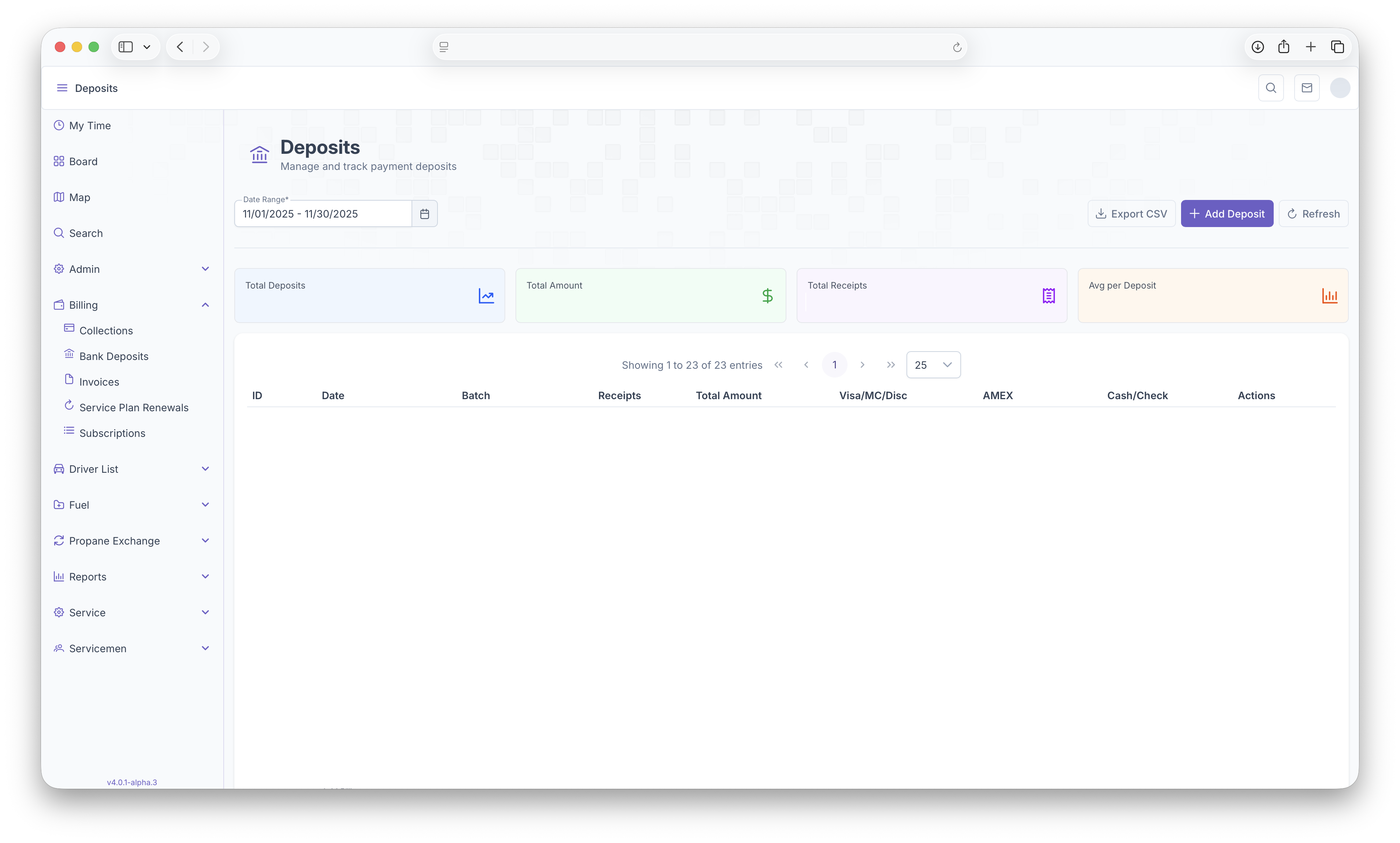
The Bank Deposits page can be used to manage and track all payment deposits. To reach the Bank Deposits page, on the side menu, click on Billing then click on Bank Deposits. Clicking on the three side bars on the top left corner of the page allows the side bar to be expanded for easier access. The page can be filtered by date ranges which then shows Total Deposits, Total Amount, Total Receipts and Average Per Deposits. The report then displays with the following columns, Deposit ID, Date, Batch, Number of Receipts, Total Amount, and how much was paid with Visa/MC/Disc, AMEX and Check/Cash. The actions column allows you to expand the information on each deposit, clicking on the deposit line also expands the information for that deposit. Once expanded, the receipts page will be pulled up which then shows all receipts within that deposit, see Receipts below for more details. The report can also be exported into document format for easier printing or sharing by clicking on the Export CSV button on the top right corner of the page. Here, if no deposits exist for a given day, clicking on the Add Deposit button adds a deposit to that day which can then have receipts added on to it, see Receipts below for additional information. Clicking on Refresh allows for a refresh of the page if any deposits or receipts were added to the system.
Receipts
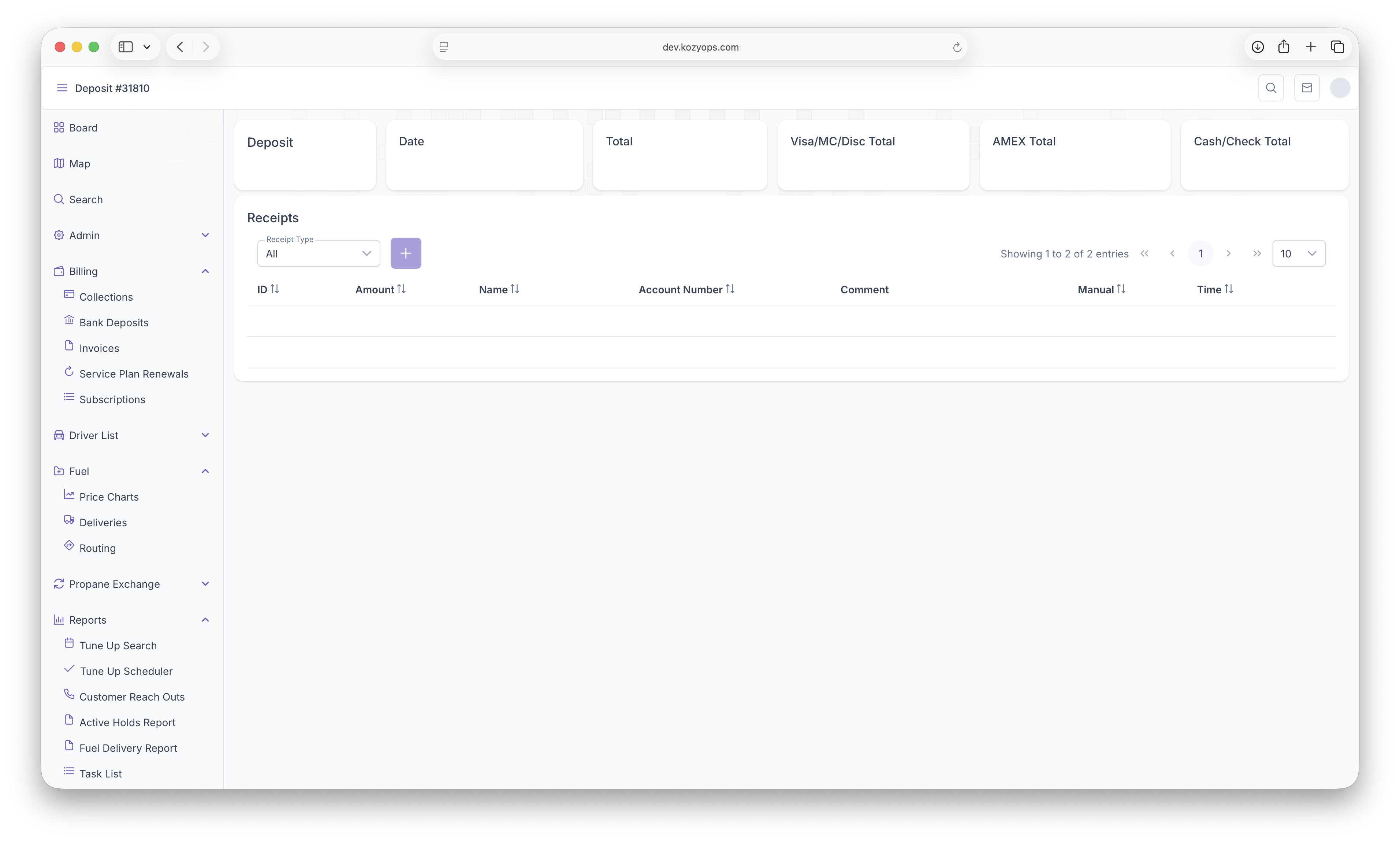
After clicking on the deposit or selecting an action on the deposit, all receipts for that deposit will then appear. The top of the page displays The Deposit ID, The Date, Total and then how much was paid with Visa/MC/Disc, AMEX and Check/Cash. The page can then be filtered by selecting a Receipt Type. If applicable, clicking on the Add button allows for additional receipts to be added to the deposit. The Receipts report will the then be presented with with the following columns, Receipt ID, the Amount, Customer Name, Account Number, Comments, Manual and Time.
The Following Taylor Reports can be seen in KozyOps Bank Deposits and Receipts reports
-
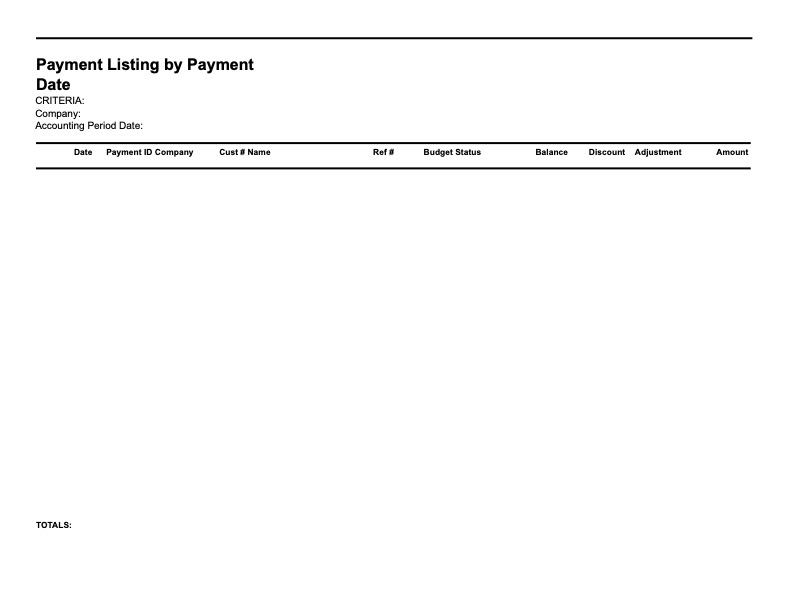
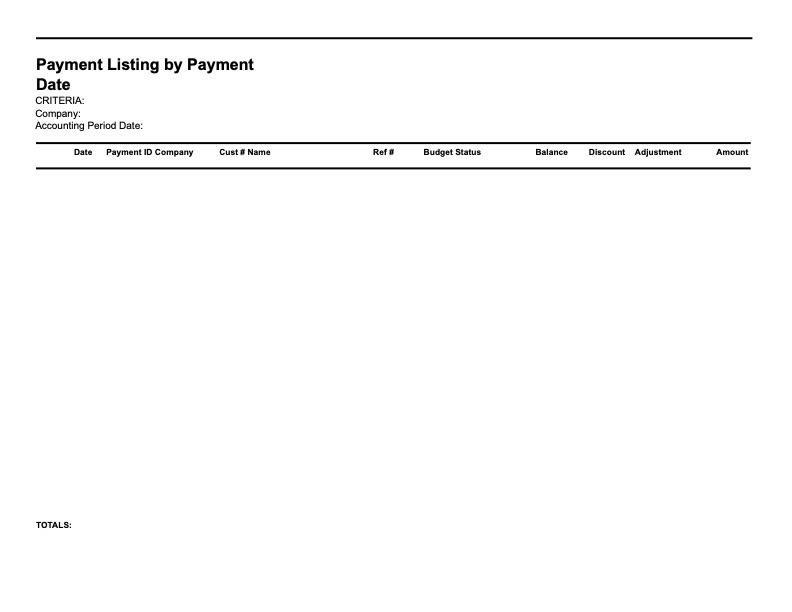
Payment Listing by Payment Date
-
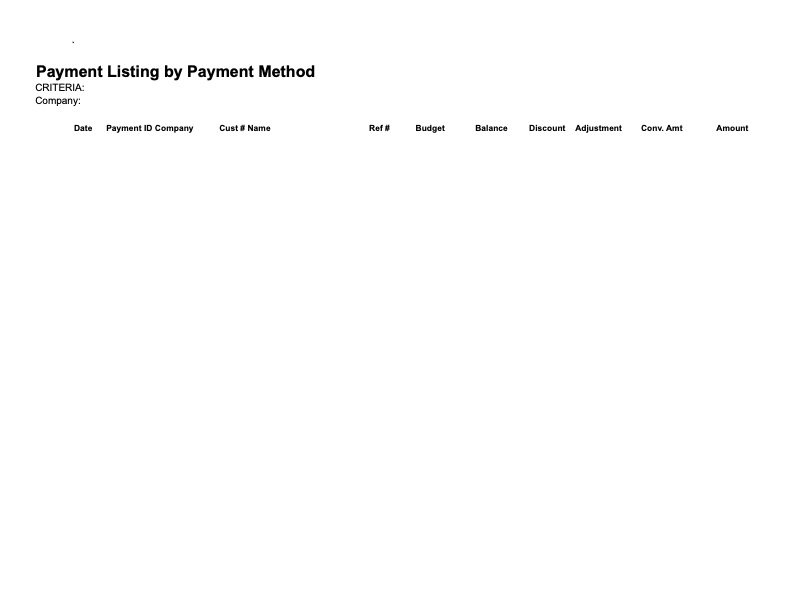
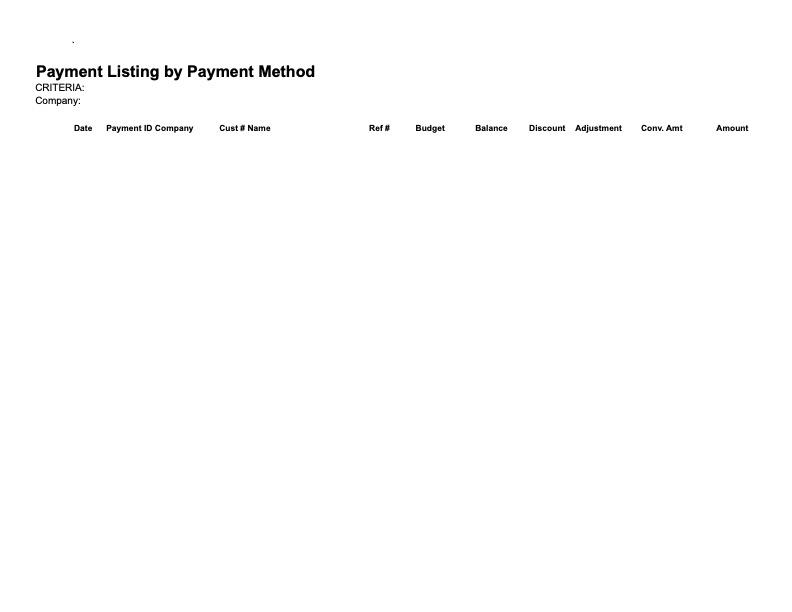
Payment Listing by Payment Method
-
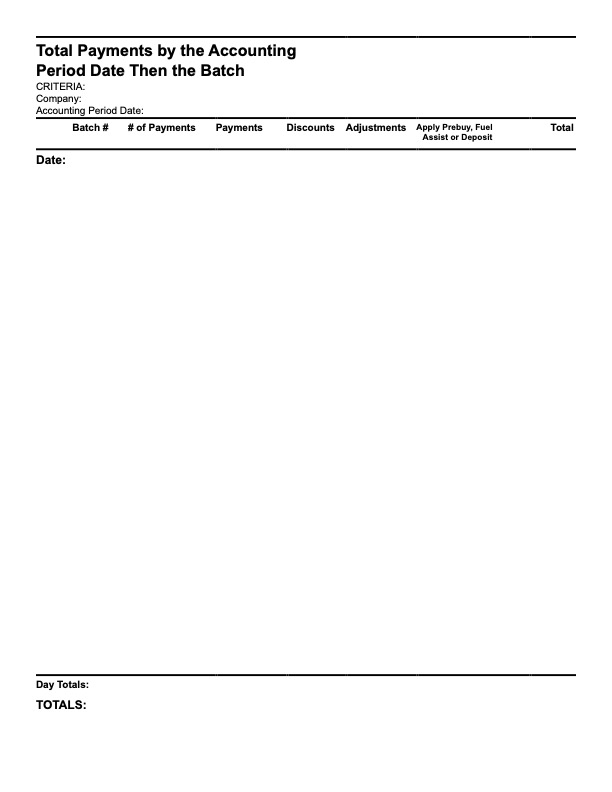
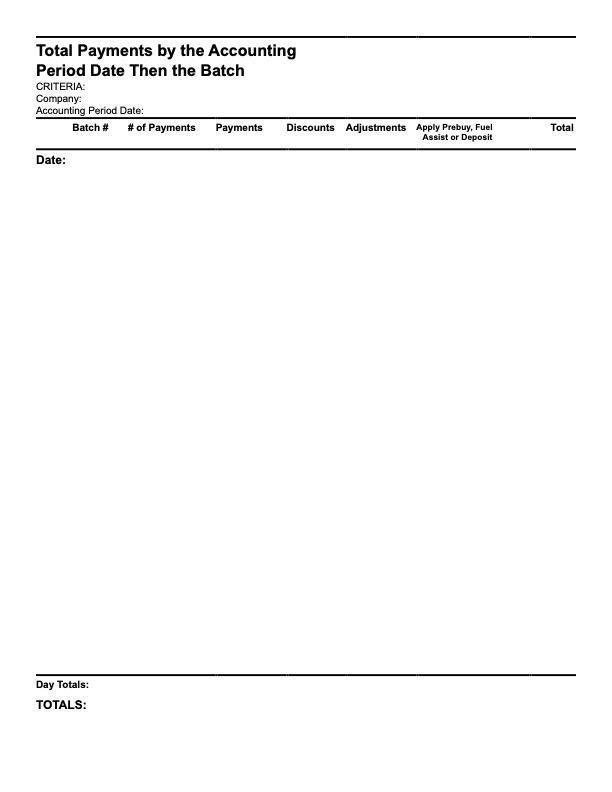
Total Payments by The Accounting Period Date Then The Batch
-
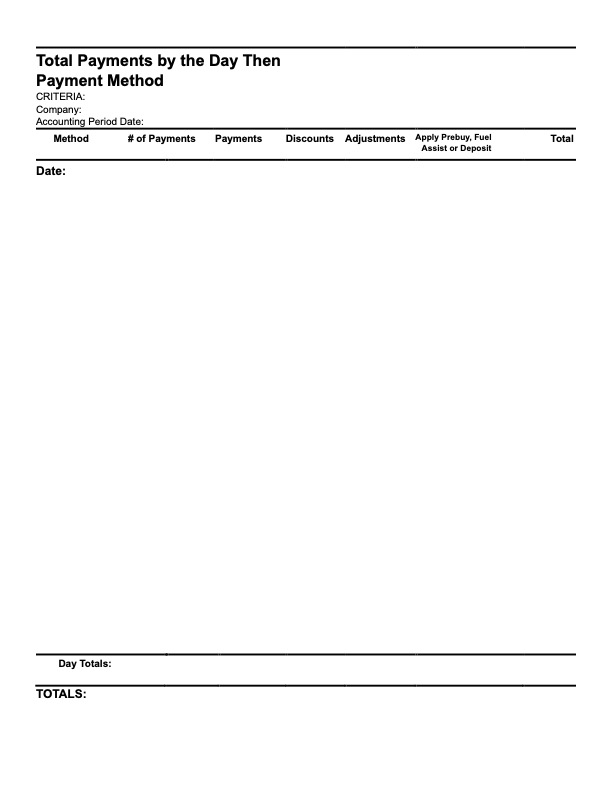
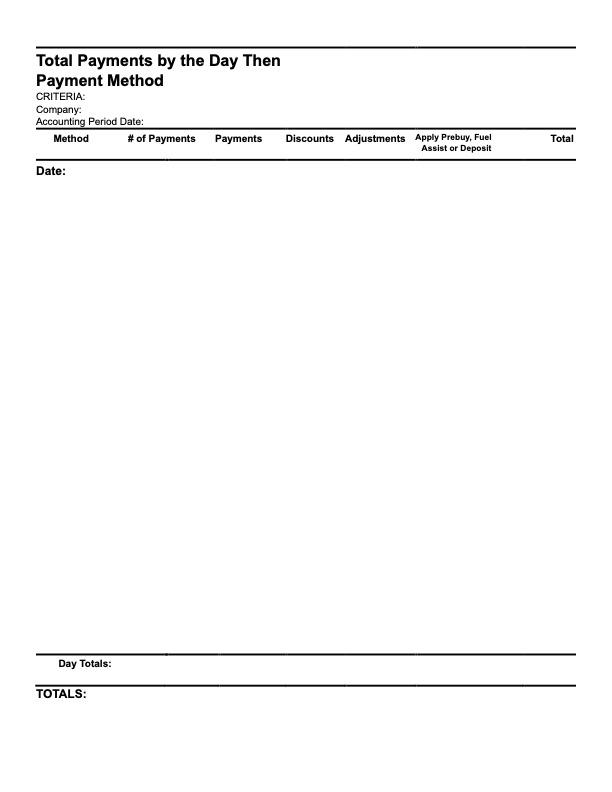
Total Payments by The Day Then Payment Method
-
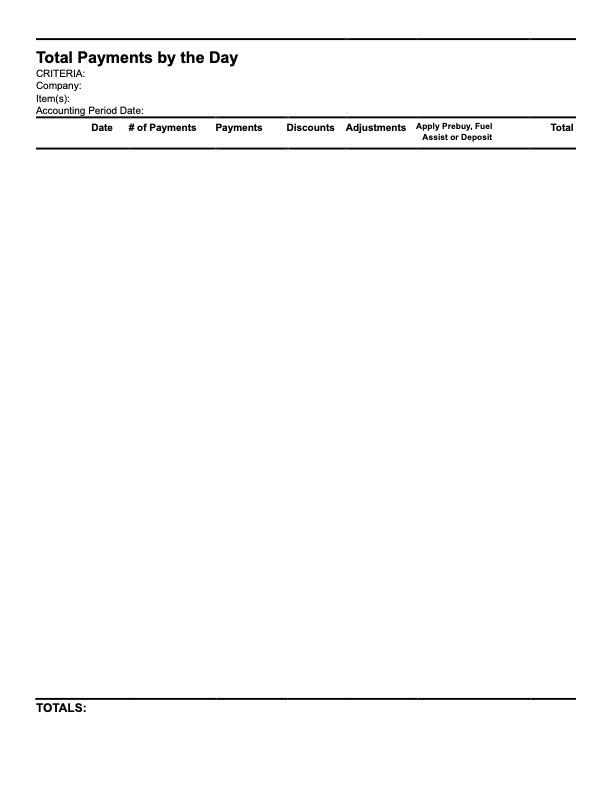
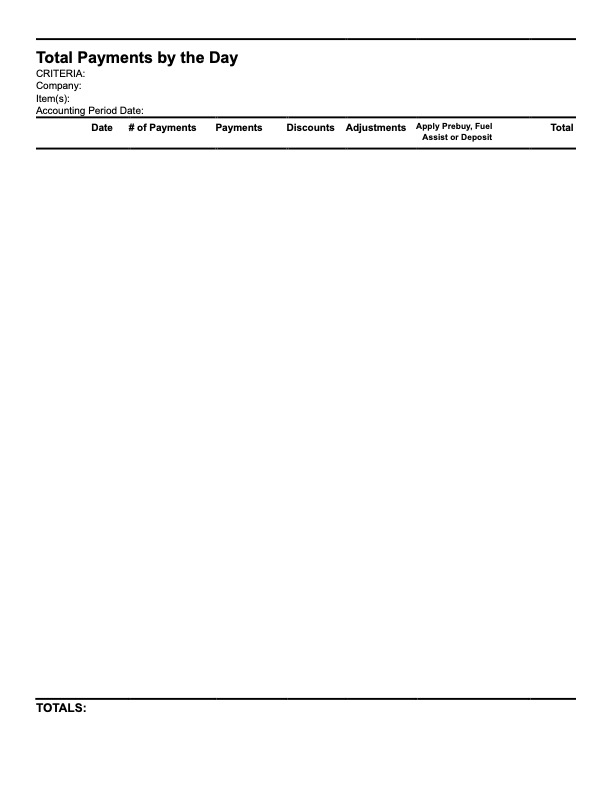
Total Payments by the Day