Servicemen
Service Job List & Workflow
Introduction
This guide explains how to navigate the service job list, open individual service visits, and work inside each tab. It is written for field technicians and dispatchers who manage day-of service work in Kozy Web.
Getting to the Service Job List
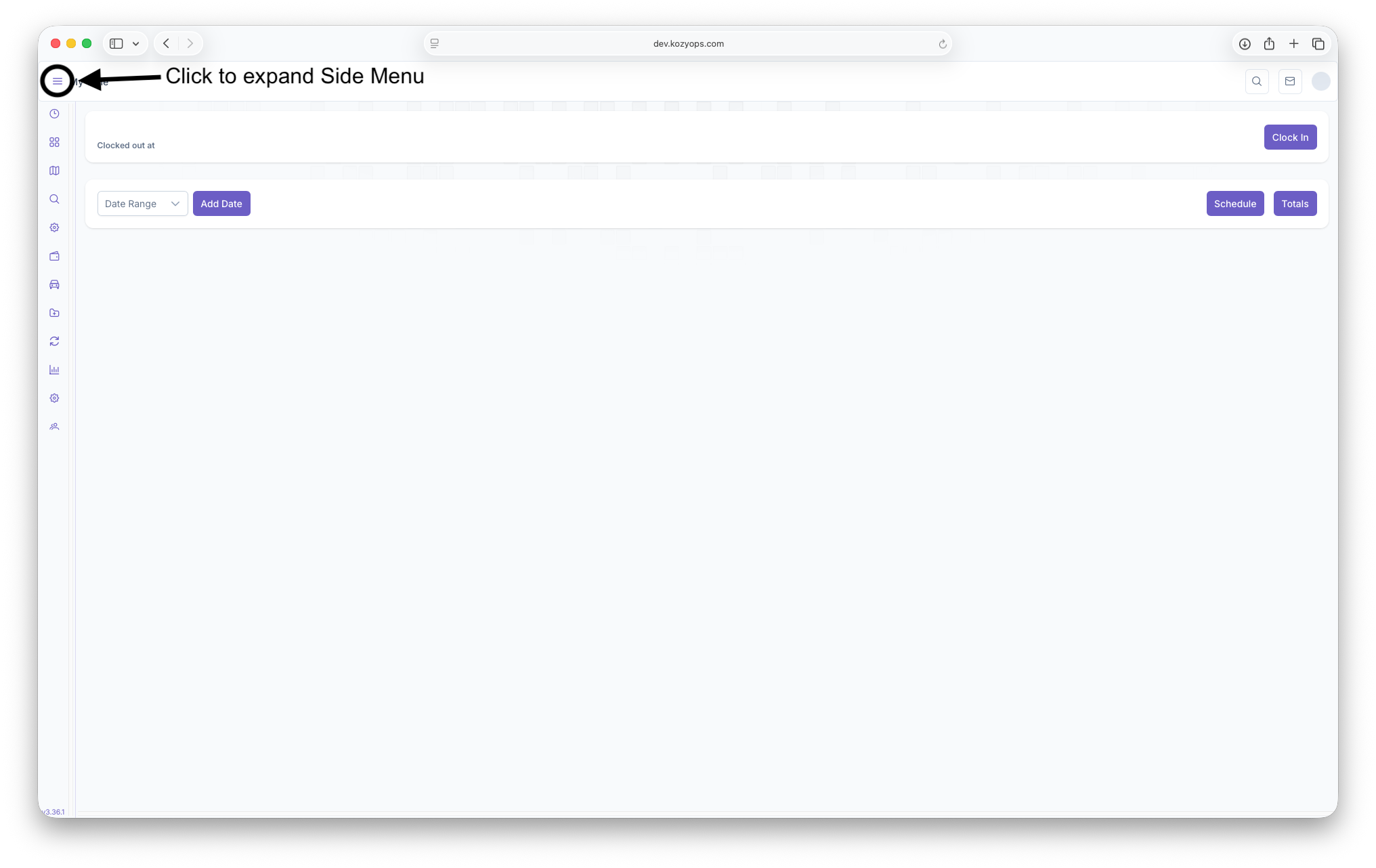
- Open the Serviceman area from the main navigation sidebar.
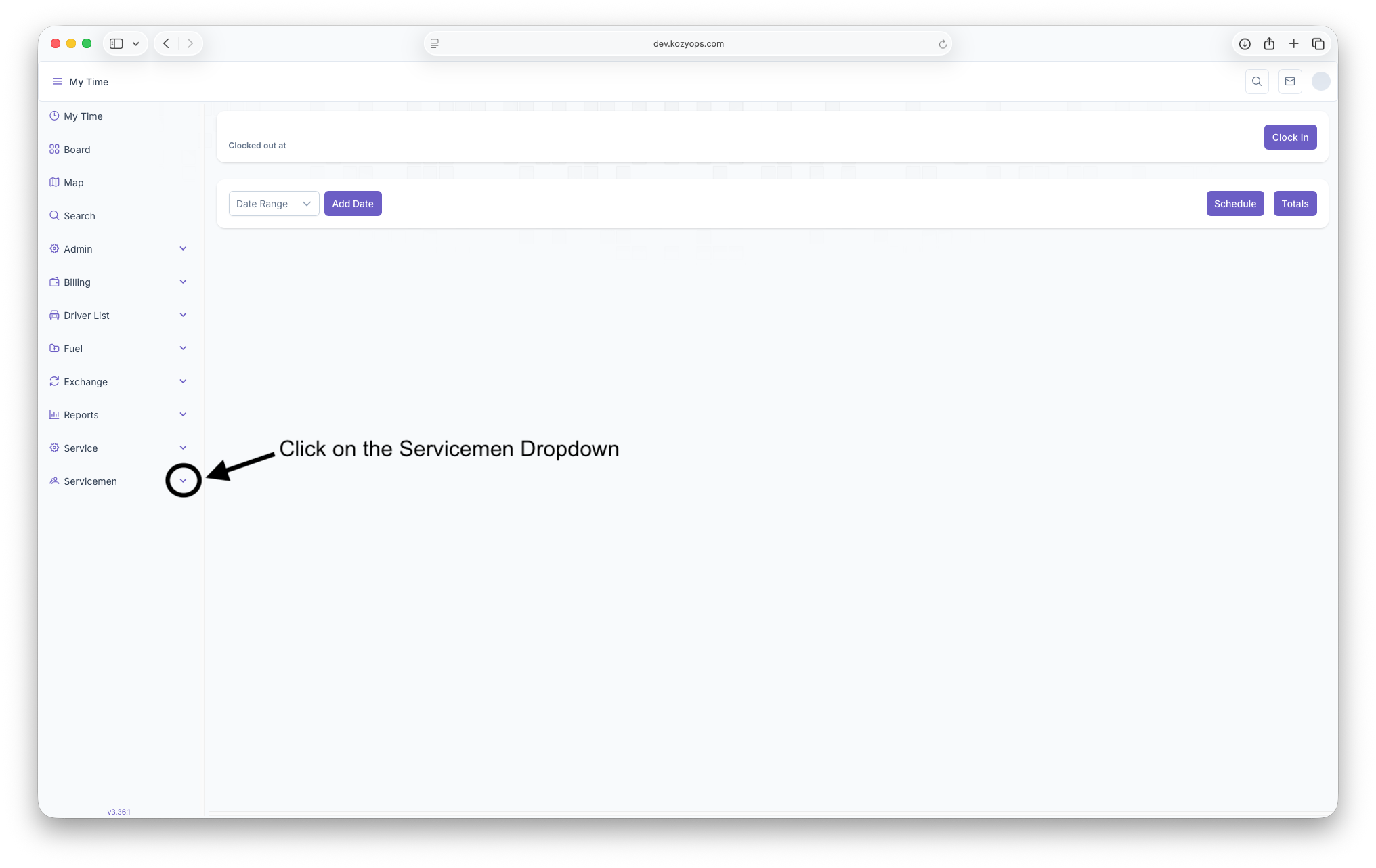
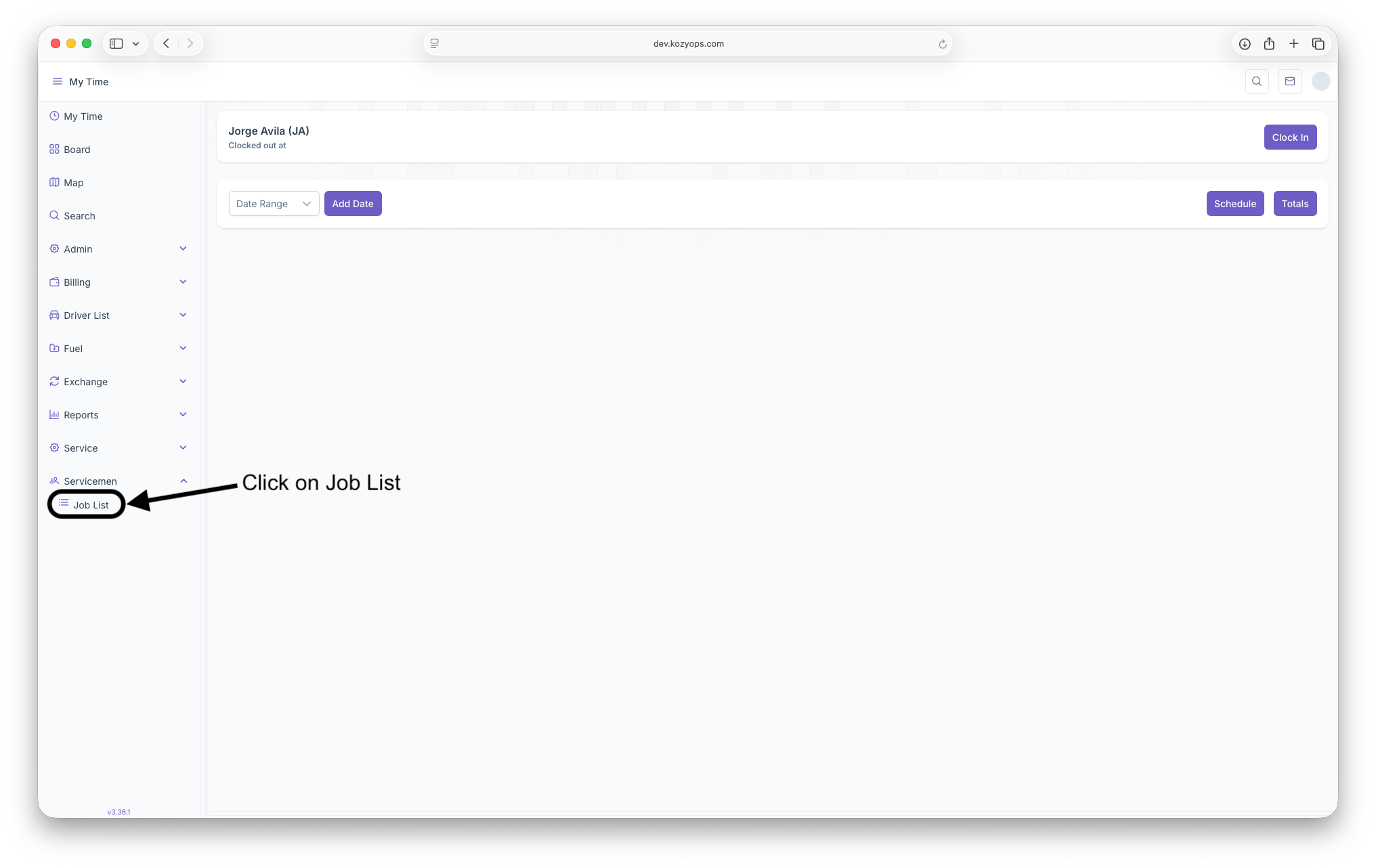
- Select Job List. The page automatically loads the signed-in technician and today's schedule.
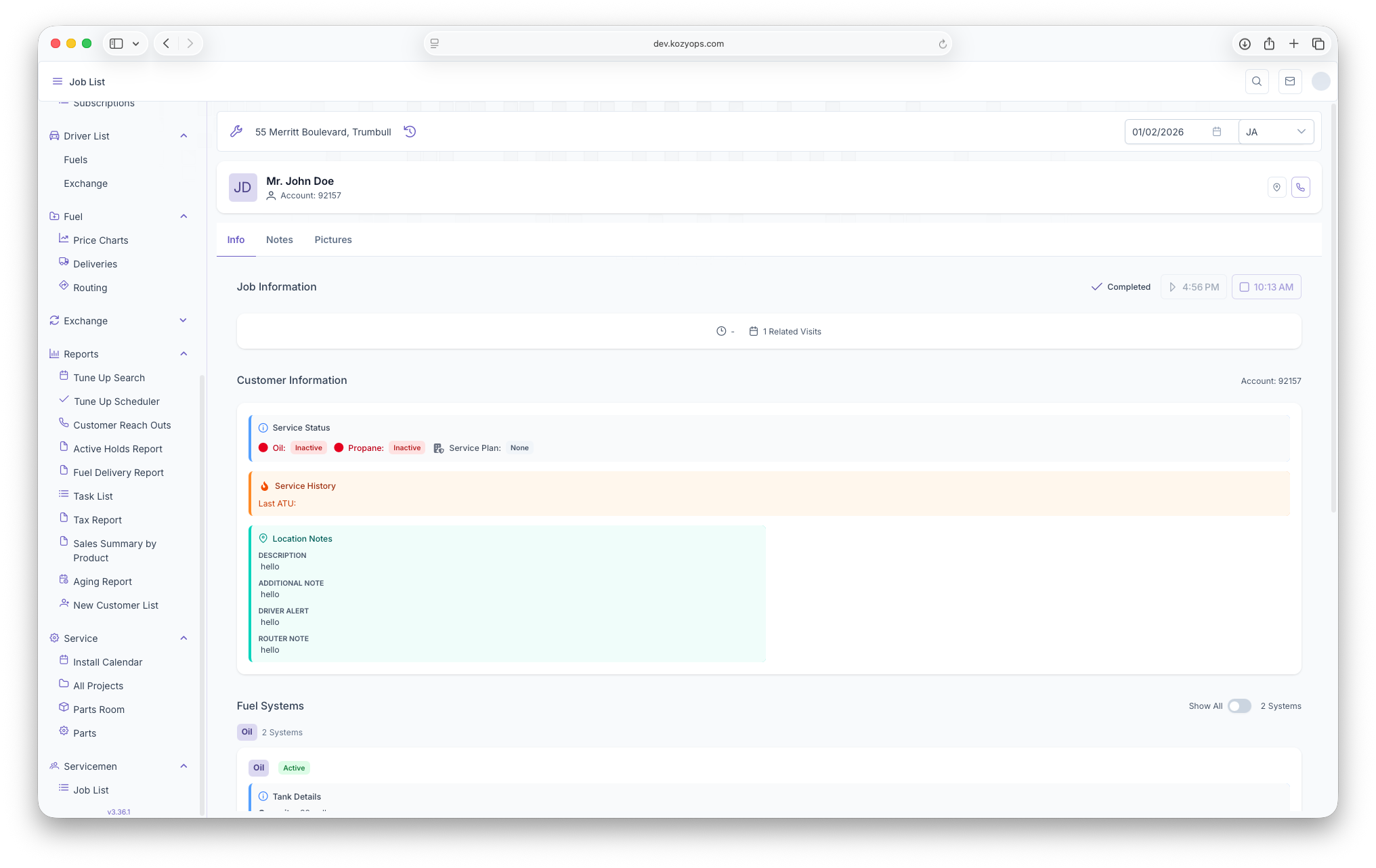
The top toolbar gives you quick access to:

-
Visit Drawer toggle (wrench icon) opens the left-side visit timeline for the selected day.
-
Service History toggle (clock icon) opens the right-side history drawer once a customer is selected.
-
Date picker filters the schedule to your selected day.
-
Technician selector filters the schedule to another technician's route. With admin entitlements, this list will also show every tech with work on the chosen day plus the signed-in user.
Working with the Visit Timeline
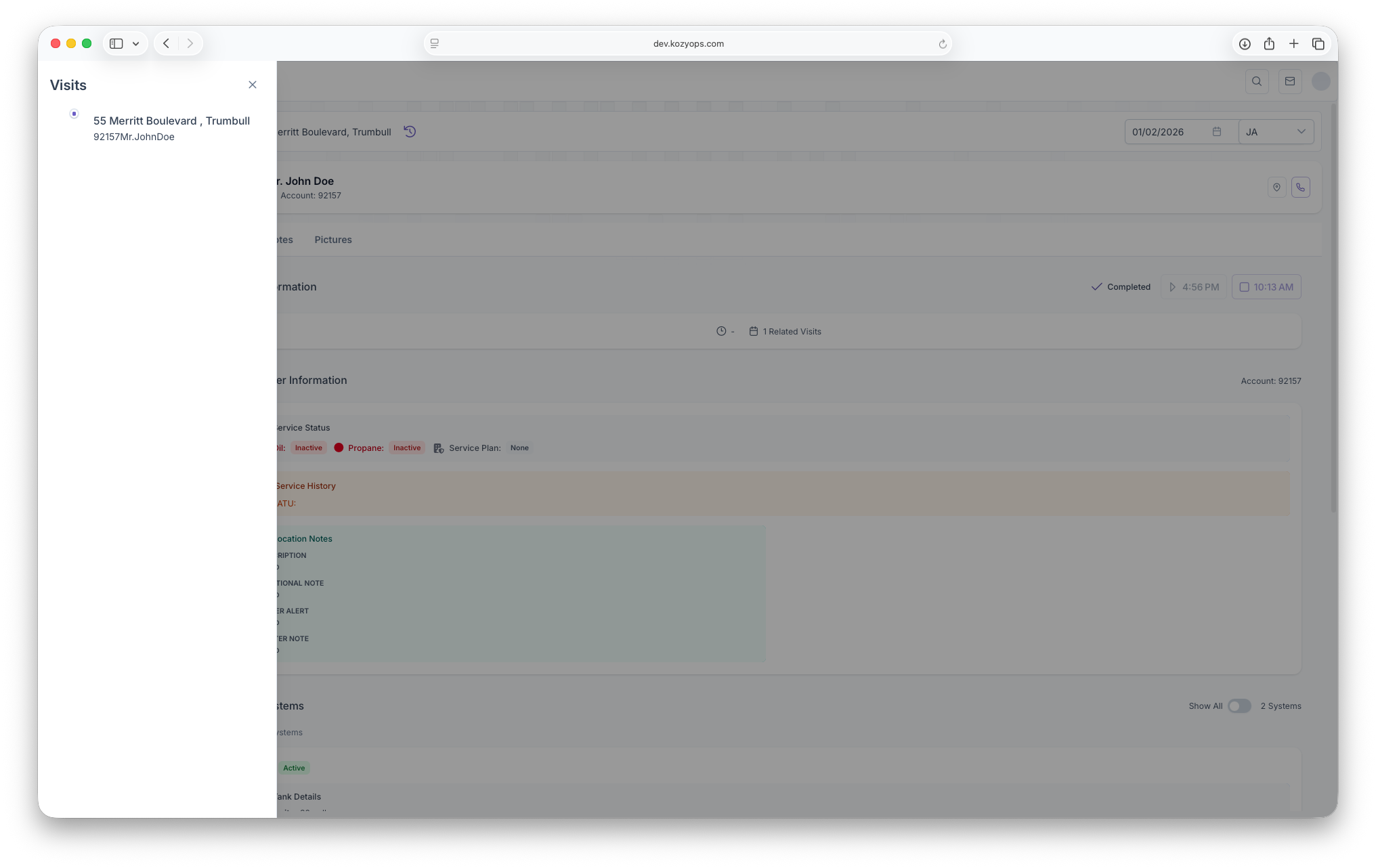
- Toggling the wrench button reveals a timeline drawer on the left.
- Each card shows the service address, customer name, and any problem/equipment/action labels.
- Selecting a card switches the active ticket in the main view and closes the drawer.
- The timeline only lists visits that include project line items; empty visits are filtered out automatically.
Reviewing Service History
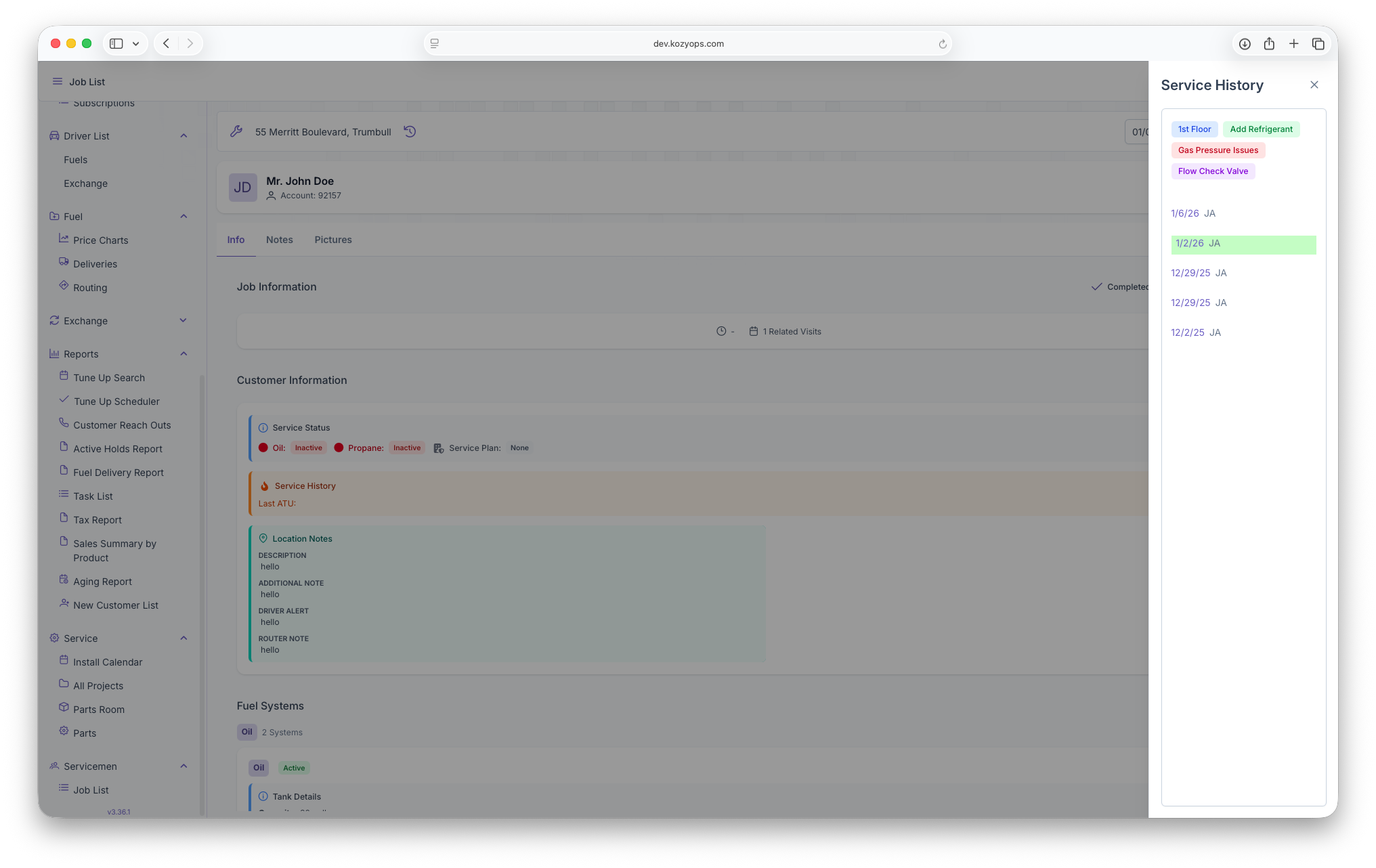
- Once a customer is active, the clock button opens a service history drawer on the right.
- The history list groups visits by date, highlights the currently selected visit, and displays visit labels with severity colors.
- Clicking an entry loads that historical visit into the main Service Ticket view so you can review previous notes.
Service Ticket Overview
When a visit is selected the Service Ticket component renders with three tabs: Info, Notes, and Pictures.
Header Actions (Info Tab)
- Customer summary with initials avatar, account number, and quick-action buttons.
- Navigate button opens the job address in Google Maps (online-only guard).
- Call Customer call the customer the default phone number on file.
- Job status indicator shows Scheduled, In Progress, or Completed based on
jobStartandjobEndtimestamps. - Start button stamps
jobStartfor the current visit; End stampsjobEndand calculates duration. These controls only work on the scheduled service date.
Info Tab Sections
- Job Information card shows labels, summary, arrival window, and related visit count.
- Customer Information card surfaces customer account details and active service status tags by fuel type.
- Heating Units (ATU)
- Toggle between active units and the full inventory.
- Add a new unit (
+) or open an existing unit to record a reading, view history, or edit equipment data. - Equipment details, burner notes, and system notes are surfaced inline with severity styling.
- A/C Units (ACT)
- Similar controls to ATU: show all toggle, add, add reading, view history, equipment cards, guidance callouts.
- Fuel Systems
- Toggle active/all systems, view tank usage tags, monitor status, last delivery, and tank equipment details.
- Tank Monitor cards show current level, last read, capacity, temperature, battery, and hours-to-empty when available.
Notes Tab
- Three text areas capture Problem, Work Performed, and Future Work.
- Guards
- Notes are editable only by the assigned technician (
serviceVisit.employeeId) once the Start button has been pressed for the visit. - When End is recorded (job completed), the note fields, Request Parts, and Submit buttons lock read-only.
- Users who are not the assigned technician see an informational banner and cannot edit.
- Notes are editable only by the assigned technician (
- Auto-save runs every 5 seconds while typing; you can also click Submit Notes to save immediately.
- Request Parts opens the part request dialog pre-filled with ticket and customer context.
Pictures Tab
- Add Pictures launches the upload dialog with context about the service visit, customer, location, and assigned employee.
- Existing pictures for the location will be shown as a gallery. When there are no pictures, a "No Pictures" placeholder appears when none are available.
Additional Actions & Shortcuts
- Visit Drawer Toggle: Allows you to view the jobs for the selected serviceman.
- History Drawer Toggle: Allows you to view other jobs that have occured at that service location.
- Navigate: Launches the default Maps application with the service address when online.
- Call Customer: Uses the default phone number to call the customer.
- Add/Update Equipment dialogs: Allows a user to create, edit or deactivate equipment found on site.
Guardrails & System Rules
- Start before Notes: The Notes tab stays read-only until
jobStartexists. Press Start to unlock the editors and auto-save pipeline. - Completion Lock: Once End records
jobEnd, all notes, Request Parts, and Add Reading actions are disabled to protect closed jobs. - Assigned Tech Only: Notes and equipment edits are restricted to the ticket owner; other techs see an info banner with read-only access.
- Same-Day Time Edits: The Start/End buttons only accept inputs on the actual service date. Attempting to adjust times on other days shows
"Time can not be adjusted". - Online Navigation Guard: Google Maps hand-off only works when the device is online.
Tips for Daily Workflow
- Use the date picker to jump between shifts, then open the visit drawer to choose your first job.
- Tap Start as soon as you arrive; this unlocks note-taking and ensures accurate duration tracking.
- Capture equipment readings from the Info tab while onsite using the Add Reading actions.
- Keep the Notes tab open during work; auto-save will persist your updates every few seconds.
- When finished, tap End, review that the status updates to Completed, then add any final photos from the Pictures tab.
Following these steps keeps tickets consistent, preserves audit trails, and ensures downstream teams have the context they need.