Reports
- Tune Up Search
- Tune Up Scheduler
- Customer Reach Outs
- Active Holds Report
- Fuel Delivery Report
- Task List
- Tax Report
- Sales Summary by Product
- Aging Report
- New Customer List
Tune Up Search
Tune Up Search
Tune Up Search can be used to to see all Tune-up opportunities in order to review and coordinate any upcoming visits and schedule appropriate outreach opportunites. The Tune Up Search page can be pulled up by clicking on the Reports dropdown on the side menu then clicking on Tune Up Search. Clicking on the three bars on the top left corner of the page will expand the side menu to show more detail allowing for easier navigation. The page can then be filtered by Tune Up Type, Tune Up Date and if the Customer Has a Service Plan. The report will then pull up with the following columns
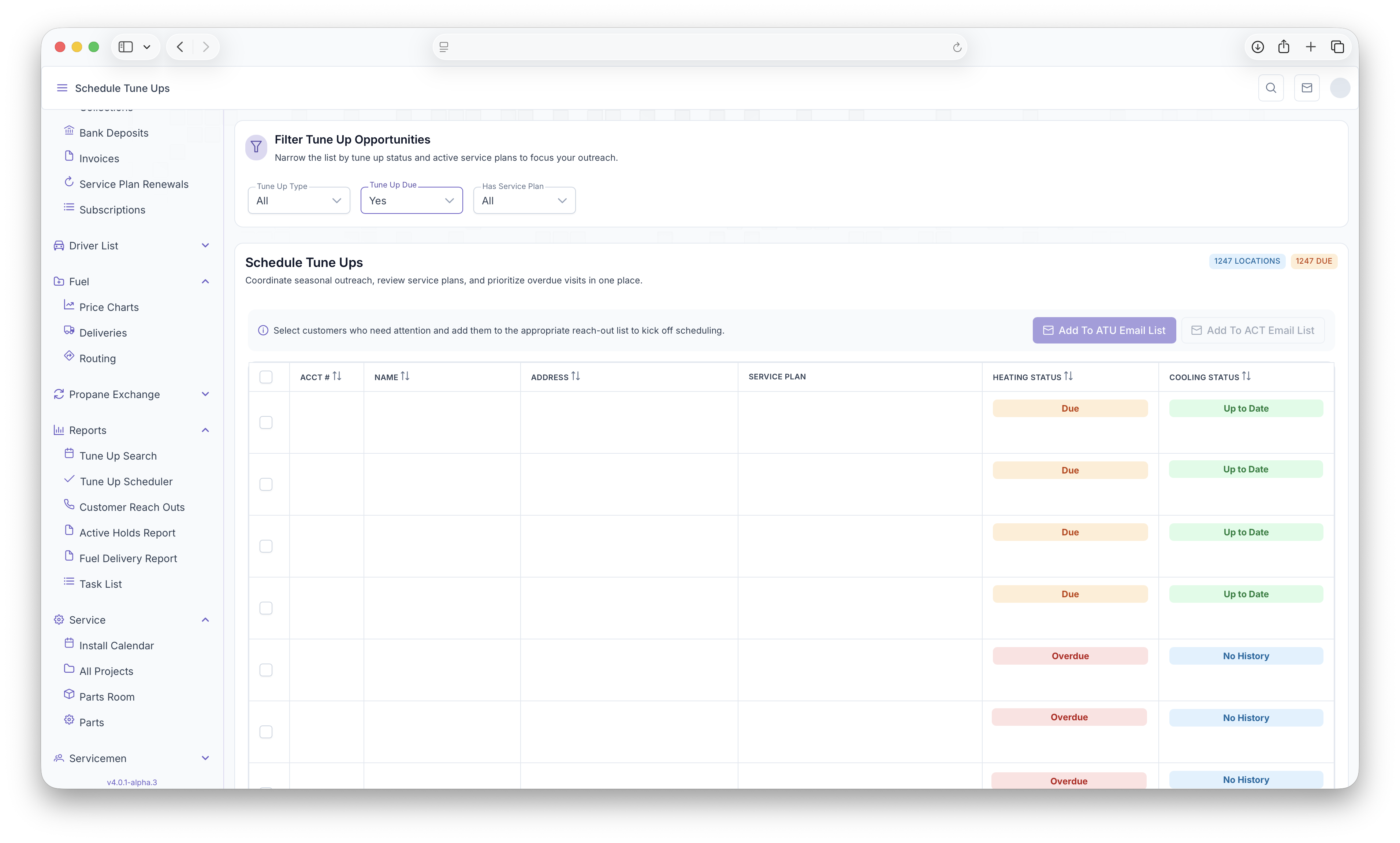
- Account Number - Customer account number
- Customer Name - Name of The Customer
- Customer Address - Customer address
- Service Plan - If the Customer has a Service plan, it will appear here
- Heating/Cooling Status - Shows the status of the customers current heating and/or cooling system, which includes
 ,
,  ,
,  ,
,  , the last time the system was serviced and the last reach out that was made for the system


All Rows can then be selected indiviually or all at once if they need to be added to the ATU Email List or the ACT Email List. This can be done by clicking on the Add To ATU Email List or Add To ACT Email List buttons after seleceting which customers get added to what list.
Tune Up Scheduler
Customer Reach Outs
Customer Reach Outs
The Customer Reach Outs page is used to keep track of any notifications that the customer received or will receive. To reach the page, click on Reports on the side menu, then click on Constumer Reach Outs. Clicking on the 3 bars on the top left corner of the page will expand the side menu showing more detail and allowing for easier navigation. The page can then be filtered by Date Range, Notification Type or by toggling Show All to see all reach outs. The report is then generated with the following columns
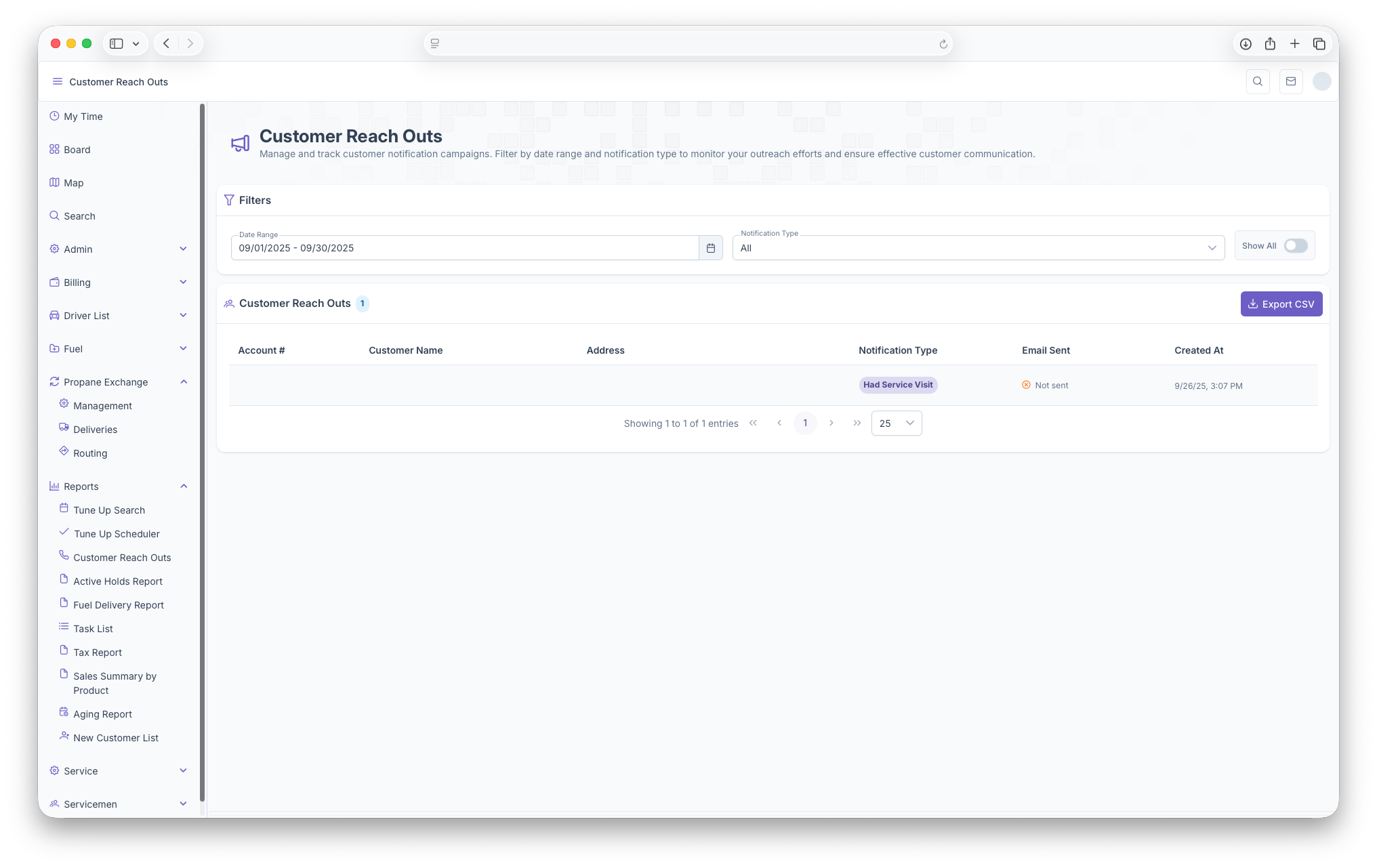
- Account Number - The Customers Account Number
- Customer Name - Name of The Customer
- Address - Customers Address
- Notification Type - Shows the type of Notifications The Reach out is for
- Email Sent - Shows whether an email has been sent out
- Created At - When The Reach Out was created
The generated report can then be exported into document format for easier printing and sharing. This can be done by clicking on the Export CSV button on the right side of the page right above the report itself
Active Holds Report
Fuel Delivery Report
Fuel Delivery Report
The Fuel Deliveries Report is another way to pull up data on deliveries with the inclusion of total sums based on selected filters. To reach The Fuel Delivery Report, on the side menu, click on reports then click on Fuel Delivery Report. Clicking on the three bars on the top left corner of the page will expand the side menu showing more detail and making it easier to navigate. Once on the page, the page will show a sum of The Following which will appear based on the filters set below the information shown
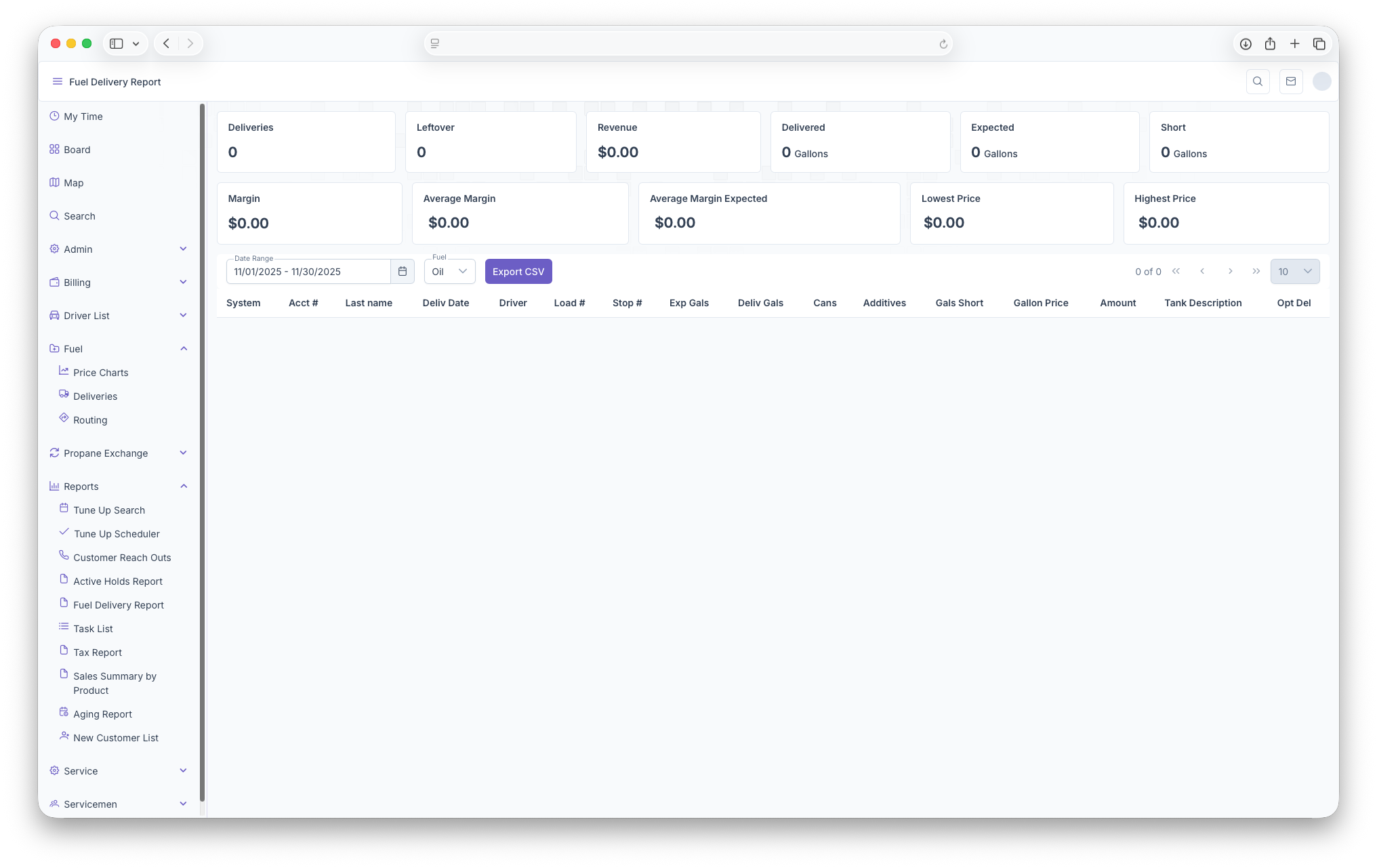
- Deliveries - Total Deliveries
- Leftovers - Total leftover from deliveries
- Revenue - Total Revenue Generated
- Delivered - How much was delivered in total
- Expected - How much was expected to be delivered in total
- Shortage - How much was short for deliveries in total
- Margin - Total Profit
- Average Margin - The average profit line for each delivery
- Average Margin Expected - The average profit line that was expected
- Lowest Price - What the lowest price was for all deliveries
- Highest Price - What the highest price was for all deliveries
Following that, the page can be filtered by Date Range and type of Fuel. The report is then shown with the following columns
- System - Name of The system that was delivered to
- Account Number - Customers Account Number
- Last Name - Last name of the Customer
- Delivery Date - Date of the delivery
- Driver - Initials of the Driver
- Load Number - The Number assigned to the load being delivered
- Stop Number - The number of the stop on the route
- Expected Gallons - The expected gallons being delivered
- Delivered Gallons - How many gallons were actually delivered
- Cans - How many cans were added
- Additives - How many additives were added
- Gallon Shortage - How many gallons they were shorted on delivery
- Gallon Price - Price per Gallon
- Amount - Total Amount after delivery
- Tank Description -
- Optimal Delivery
The report can also be exported into document format for easier printing and sharing by clicking on the Export CSV button next to the filters.
Task List
Tax Report
Sales Summary by Product
Sales Summary by Product
The Sales Summary by Product Report shows sales made by each product, including total amount, what each product/service costs and taxes. To reach the Sales Summary by Product page, click on reports on the side menu then click on Sales Summary by Product. Clicking on the three bars on the top left corner of the page will expand the side menu showing more details and making it easier to navigate. The page can be filtered to show specific date ranges as well as by brands. Depending on the selection, the Overall Sales will be displayed which includes, a Subtotal, Tax and an overall total. Fuel Items and Service Items will also generate each showing it's own Subtotal, Tax and overall Total
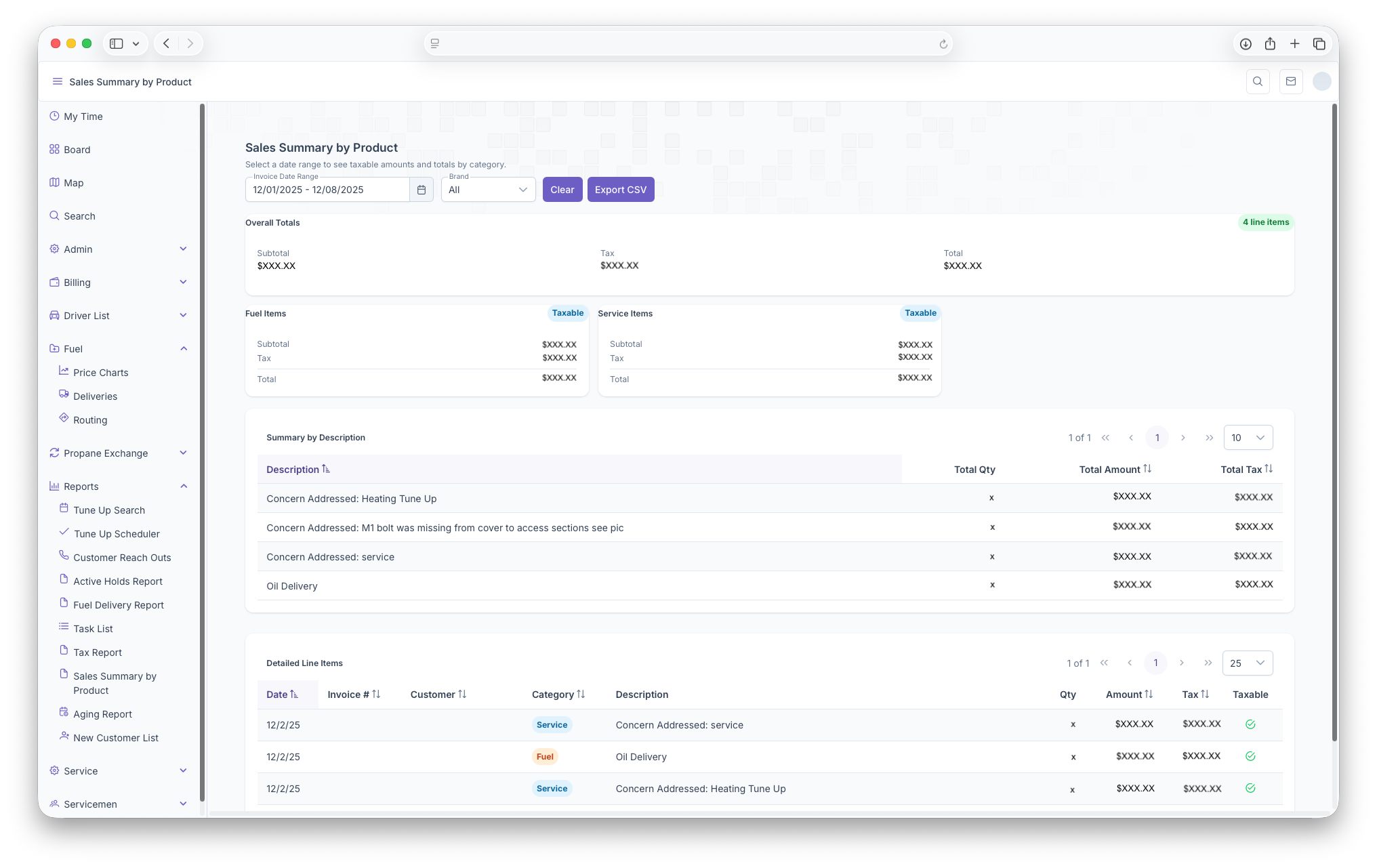
Following that, two tables will be generated as well, the first being a Summary by Description table. The table will generate with each line item being sum of all the same descriptions
- Description - Shows the description of the service
- Total Quantity - The total quantity of the same descriptions
- Total Amount - The total amount for the sum of the descriptions, including taxes
- Tax - The Tax on the sum of the descriptions
The Second table is the Detailed Line Items which shows all invoices as lines items with the following columsn
- Date - The date of the Invoice
- Invoice Number - The Invoice Number
- Customer - The Name of The Customer
- Category - The type of service provided for the customer
- Decription - Shows the description of the service provided for the Customer
- Quantity - The Quantity of the service provided
- Amount - The amount that the service cost
- Tax - The tax on the service
- Taxable - Whether the service proved was taxable
Aging Report
Aging Report
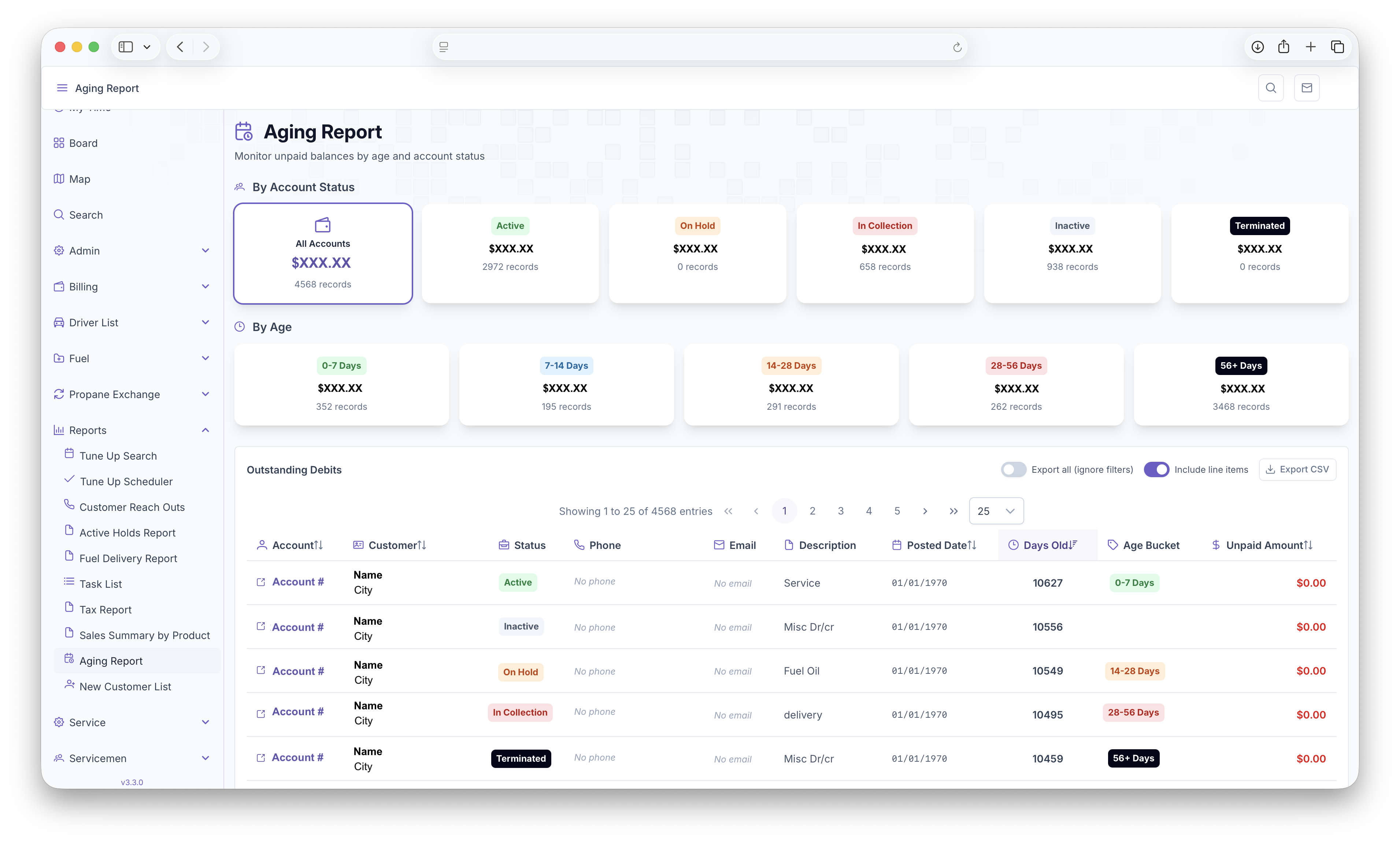
The Aging Report allows unpaid balances to be monitored through age and account status'. The page can be pulled up by clicking on the reports tab on the side bar and clicking on the Aging Report. The side menu can be expanded by clicking on the three lines on the top left corner of the page for easier menu access. Once pulled up, the total balance for all accounts will be shown. The balances are then broken down By Account Status and By Age for the customers in the following
-
By Account
- Active
- On Hold
- In Collection
- Inactive
- Terminated
-
By Age
- 0-7 Days
- 7-14 Days
- 14-28 Days
- 28-56 Days
- 56+ Days
Below that, a table will be generated with each customer as a line item with the following columns
- Account - Displays the account number
- Customer - Displays the Customers name and city
- Status - Displays the customers status
- Phone - Displays the customers phone number
- Email - Displays the customers email
- Description - Displays the service performed
- Posted Date - Displays the date the invoice was posted
- Days Old - How old the invoice has become
- Age Bucket - The Age bucket the customer falls under
- Unpaid Amount - The total amount that has not been paid by the customer
The table can be filtered by clicking on a balance under by Account Status or By Age. The table will then only show customers who fall within the selected balance. The page can then exported for easier printing or sharing by clicking on the Export CSV Button. Either the selected balance or everything can be exported by clicking toggling "Export all." The exported page can also display Line Items by toggling "Include Line Items."
New Customer List
New Customer List
New Customer List report provides information on New Customers that have been brought in to the company. To open the list, click on the reports drop down on the side menu and click on New Customer List. You can expand the side menu by clicking on the three lines on the top left of the screen. The report can be filtered by the following
- Date Range - Shows New Customers added within the sdselected date range
- Brands - The brand the New Customers falls under
- Salesmen - Name of the Salesman that brought in the New Customer
- Service Types - The Services the customer wants provided
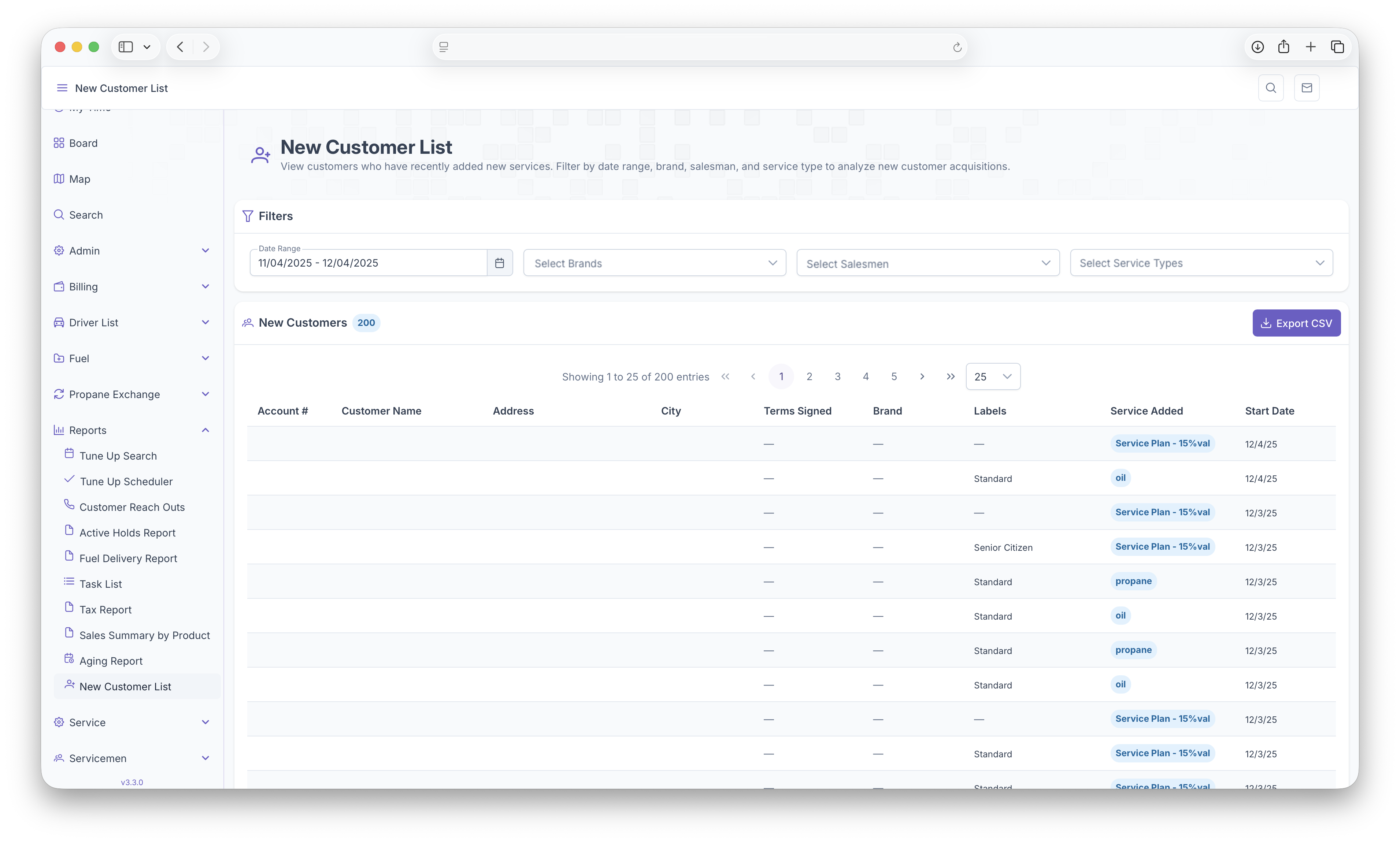
Once the filters are selected, a table will be generated that shows each New Customer as a line item with the followig columns
- Account Number - The Account number assigned to the new customer
- Customer Name - The New Customers name
- Address - The New Customers Address where services are being provided
- City - City of The New Customer
- Terms Signed - The date the terms were signed with the company and salesman
- Brand - The brand the New Customer falls under
- Labels - Labels that are assigned to the New Customers location
- Service Added - Displays all Services the New Customer requested
- Start Date - The start date of the service the New Customer requested
The table can then be exported for easier printing or sharing by clicking on the Export CSV button on the top right corner of the table