Login, Home, Settings and QR code
Login – Accessing the App
Overview
The Login screen is the secure entry point to the Kozy Serviceman mobile application. From here, employees authenticate using their company-issued credentials. First-time users or users switching companies must scan their company’s QR code to connect the app to the correct environment.
Key Features
- Secure username and password authentication
- QR code onboarding for environment setup
- Real-time branding (company logo and name auto-load after QR scan)
- Automatic error detection and clear instructions for resolution
Step-by-Step Login Instructions
Step 1: Open the App
- Ensure you have internet or cellular data access
- Tap the Kozy Serviceman icon to launch the app
Step 2: Enter Your Credentials
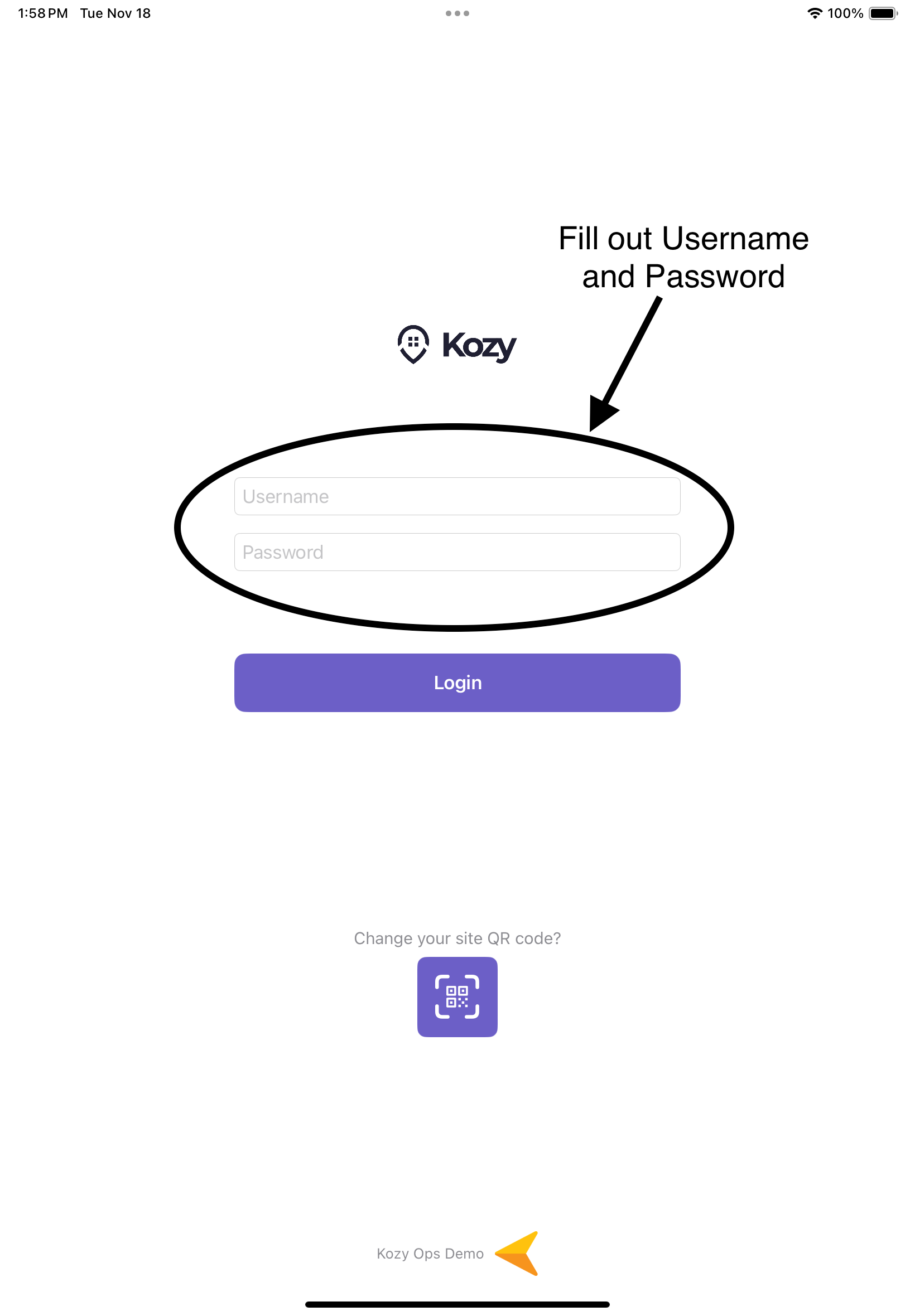
- Tap the Username field and enter your employee username
- Tap the Password field and enter your password
Step 3: First-Time Setup (QR Scan Required)
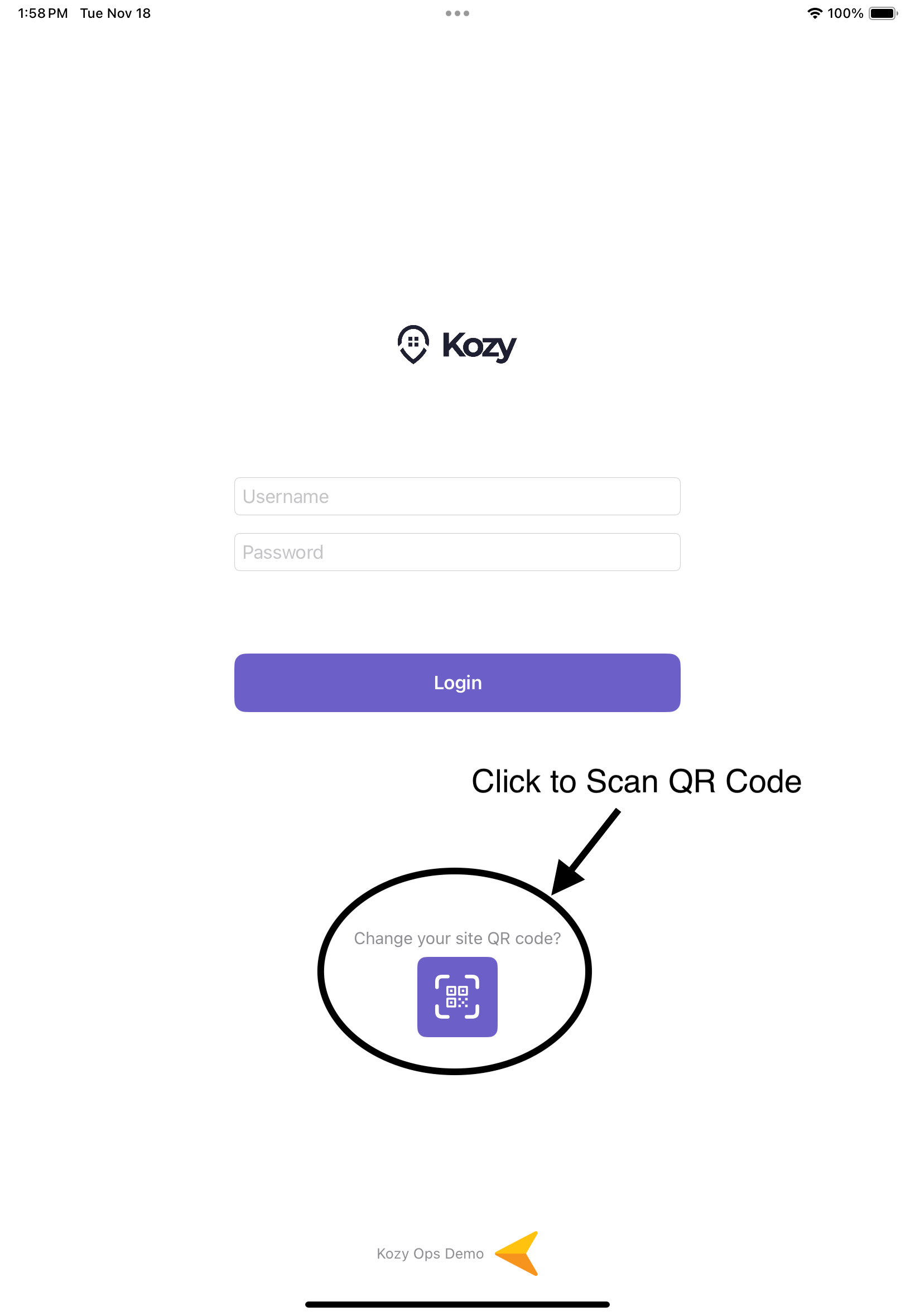 If this is your first time using the app:
- Tap the QR Code icon below the login button
- Point your camera at the QR code provided by your company or dispatcher (See QR code if not provided)
- The app will automatically configure your environment
- A company logo and name will appear at the bottom confirming success
Step 4: Logging In
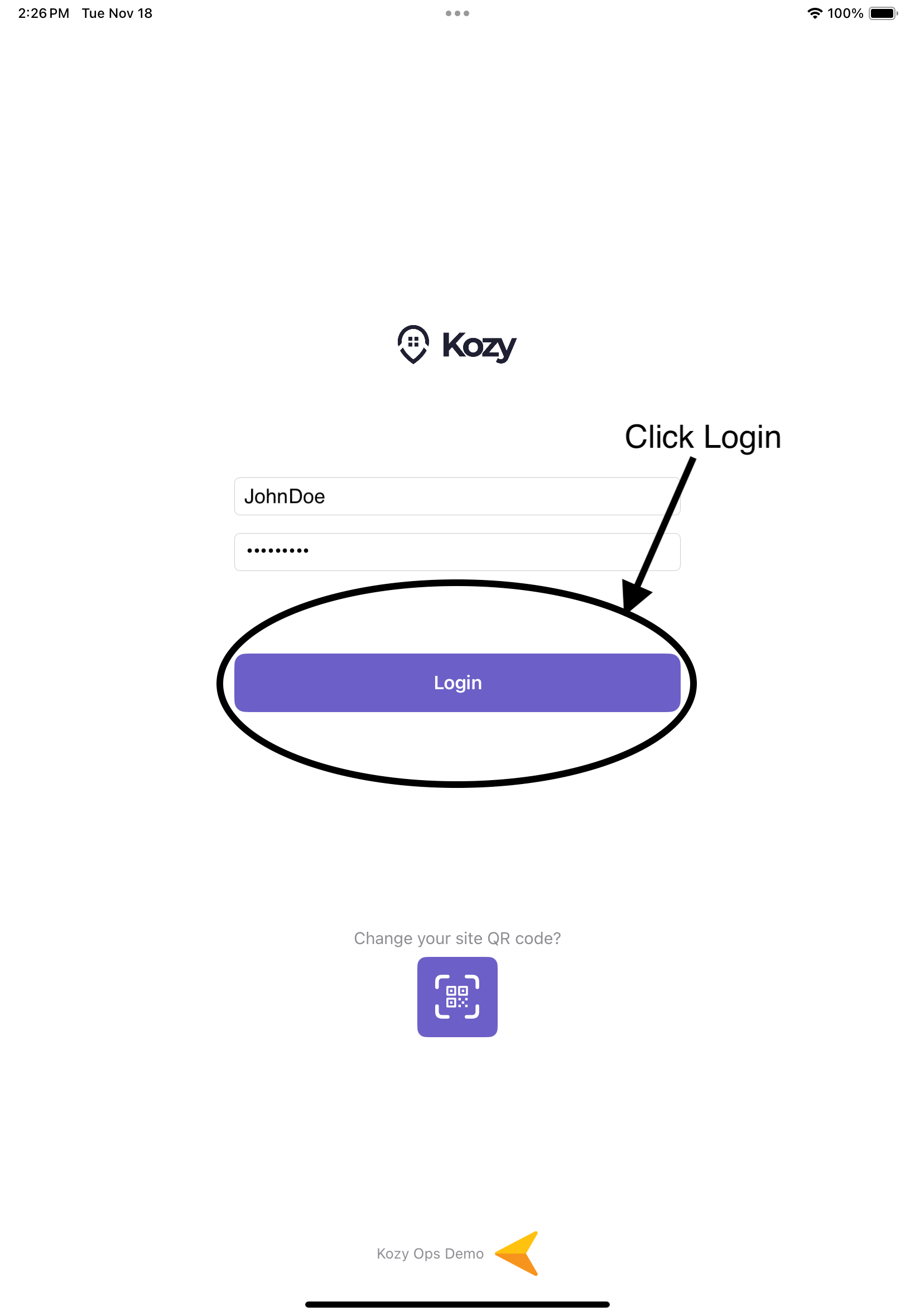
- Tap the Login button
- A loading indicator will appear while your credentials are verified
- If successful, you will be taken to the Home screen

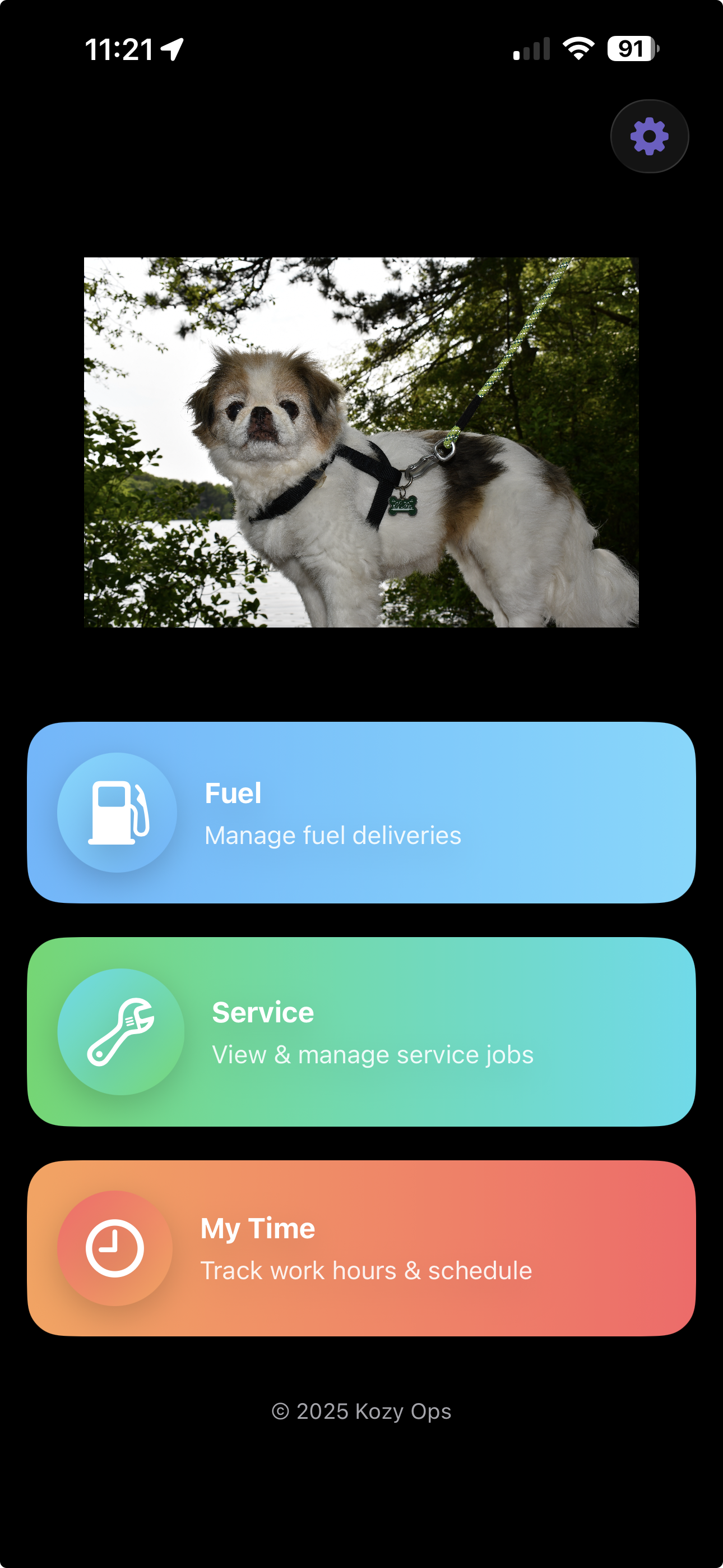
Home
Overview
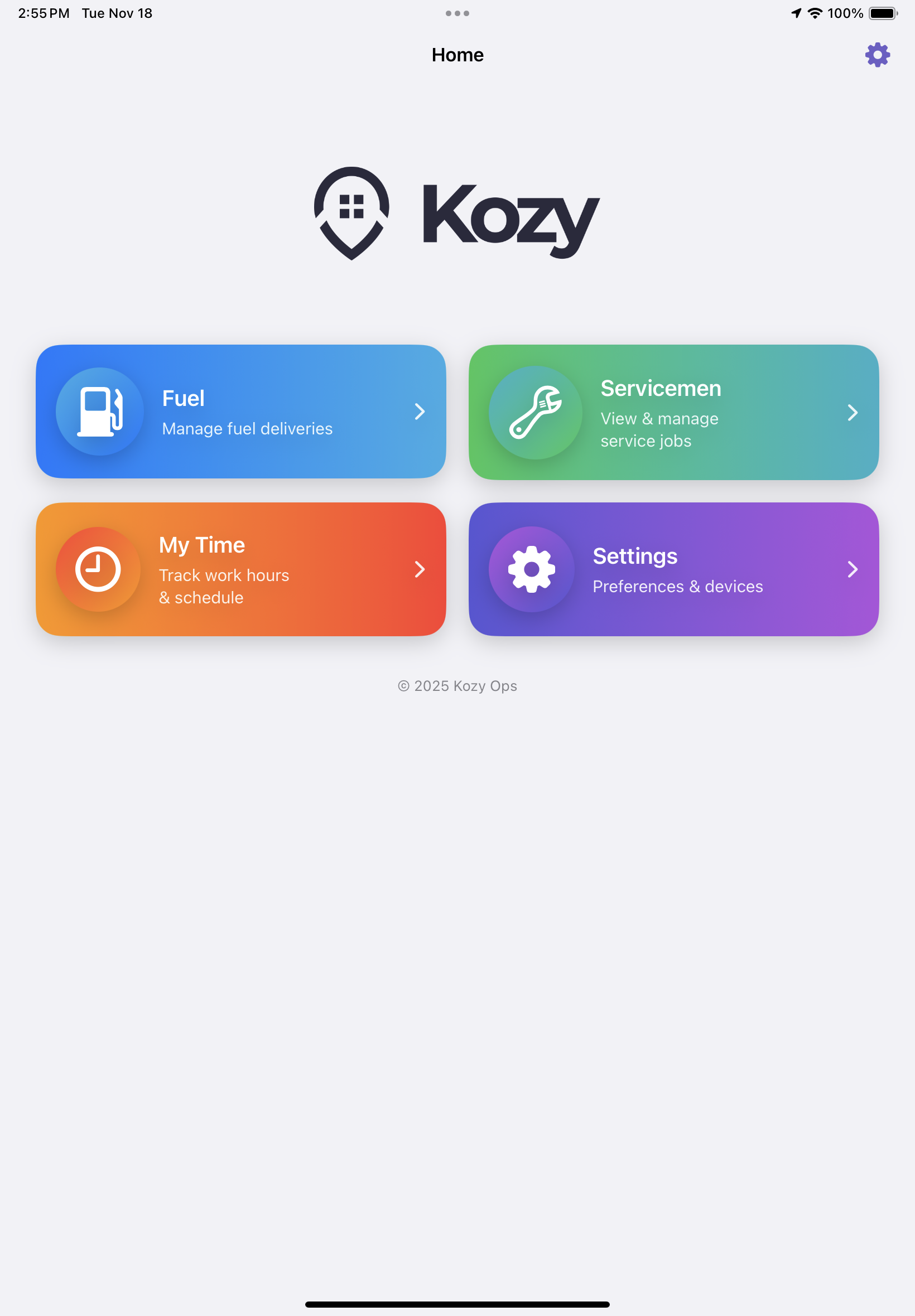
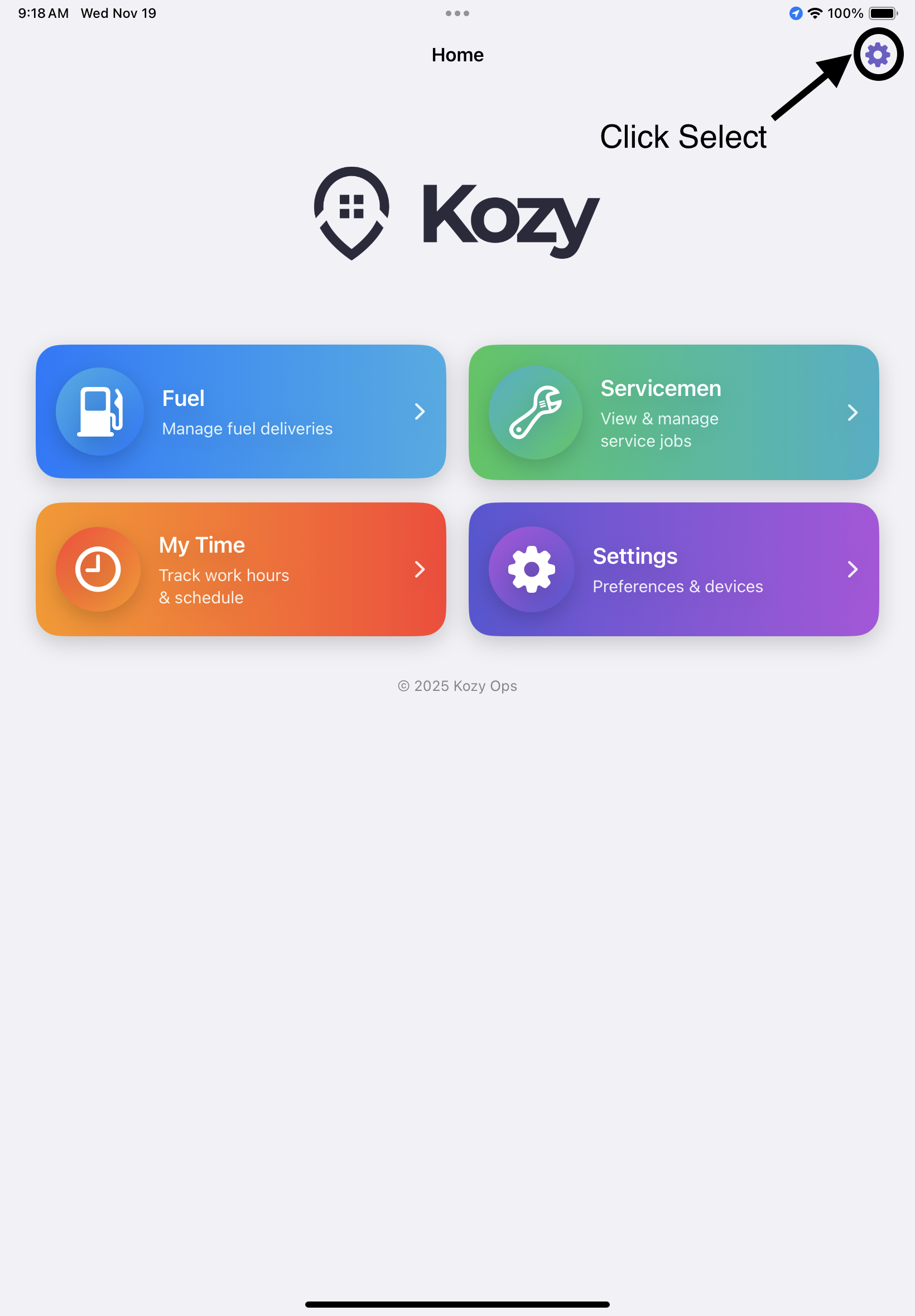
The Home screen is the central hub of the Kozy Serviceman mobile application. It provides quick access to all major work functions through large, easy-to-tap cards. Users can select from Fuel Deliveries, Service Jobs, Time Tracking, and Settings.
Main Dashboard Module
| Module | Purpose | Typical User |
| ****Fuel**** | Start and manage fuel delivery routes | Fuel Drivers |
| ****Servicemen**** | View assigned service jobs and update visit information | Service Technicians |
| ****My Time**** | Clock in/out and track payroll hours | All Employees |
| ****Settings**** | Access preferences, password reset, and QR configuration | All Employees |
Settings – Managing Your Account and Preferences
Overview
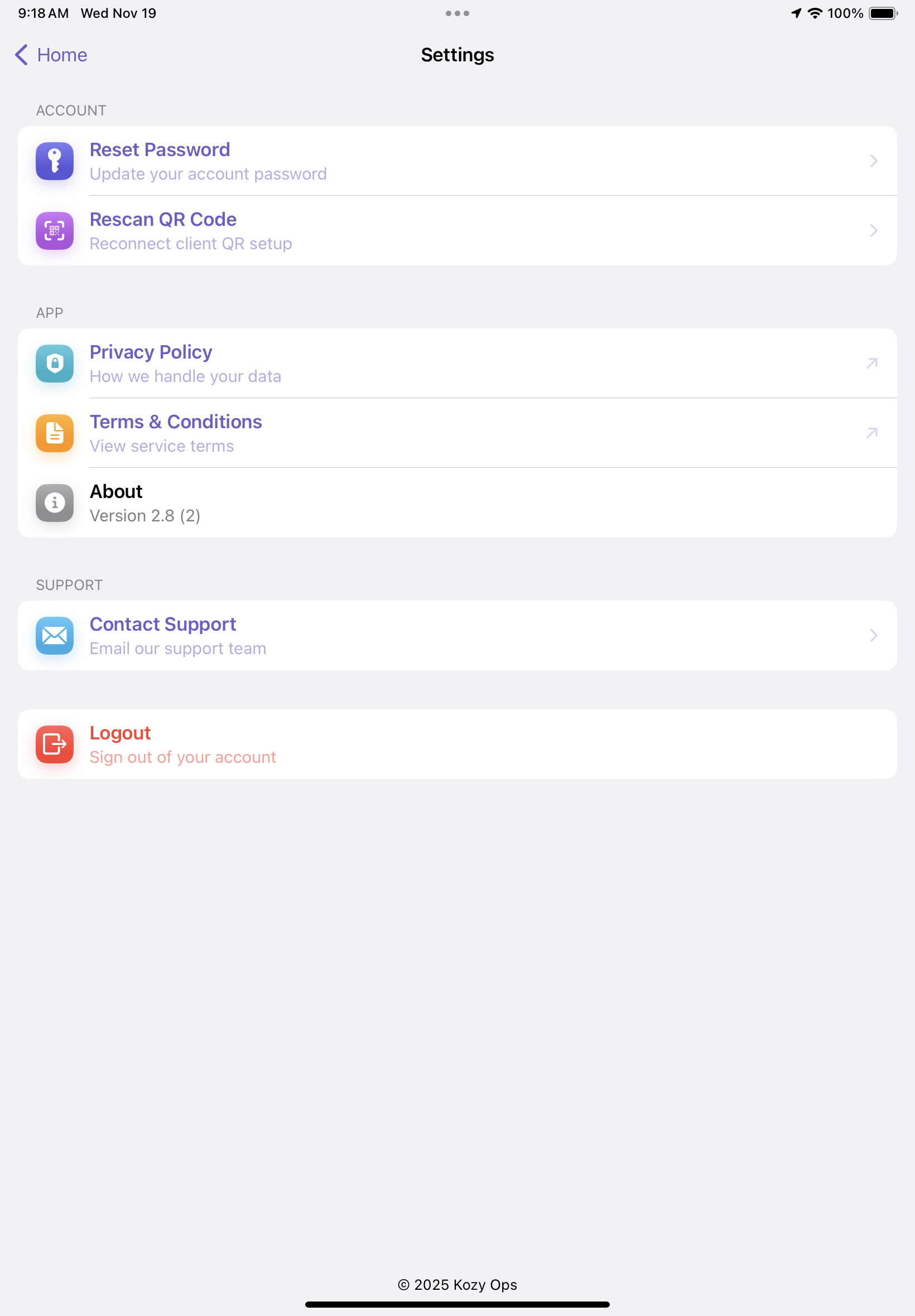
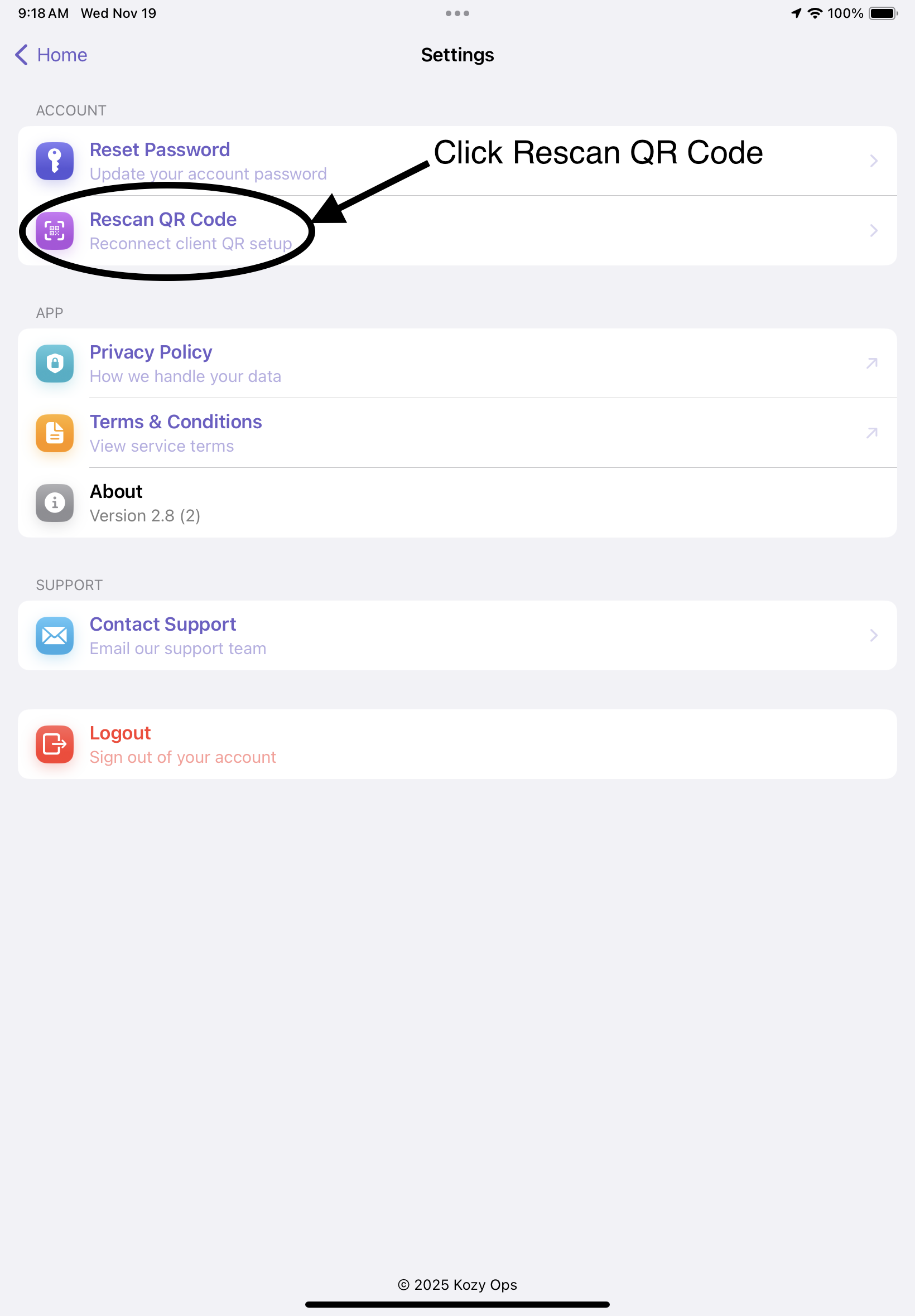
The Settings screen allows you to manage your account, reset your password, update company environment settings using QR code scanning, view app version, and access support resources.
Key Functions within Settings
| Feature | Description | When to Use |
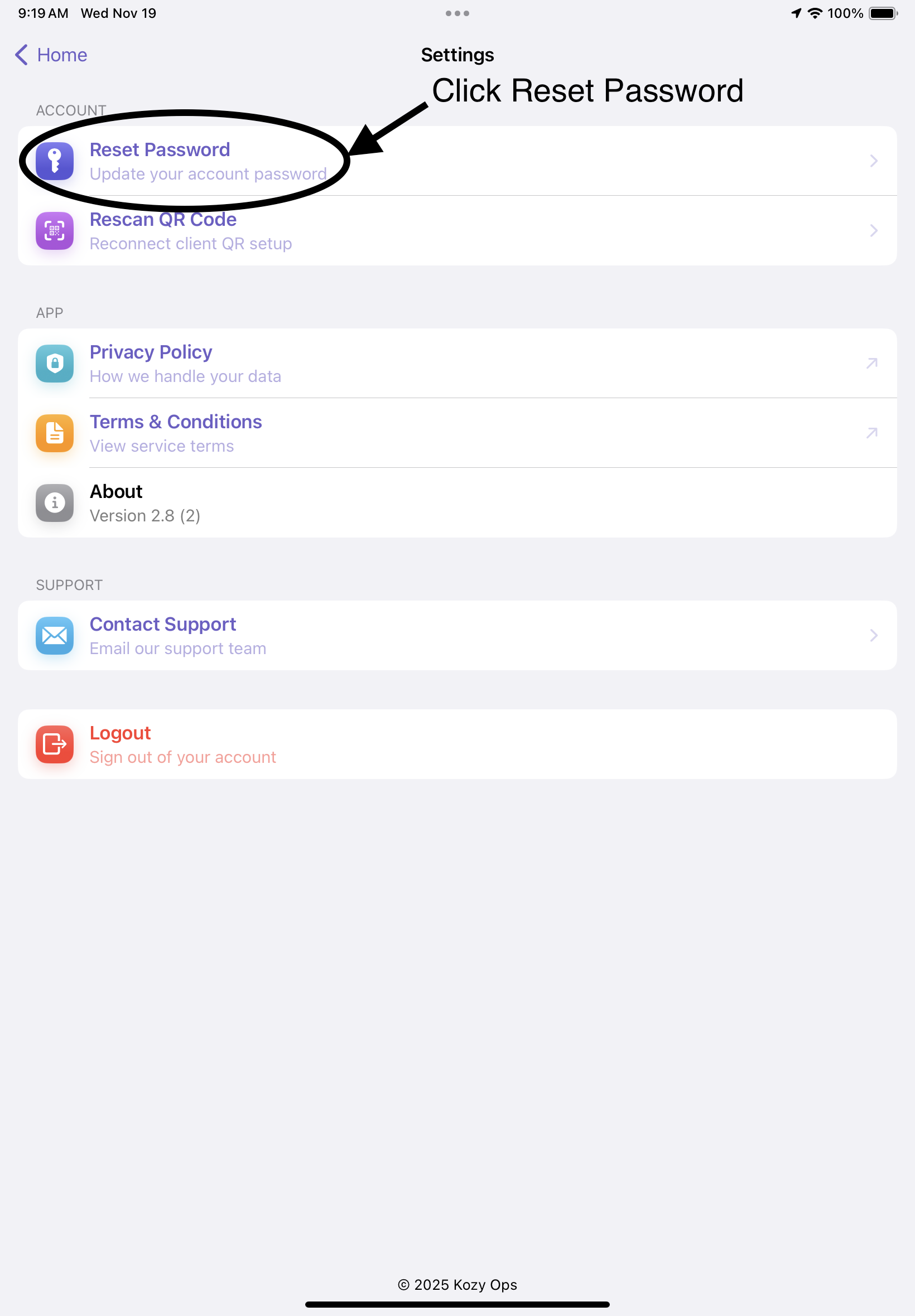
| ****Reset Password**** | Update your login password securely | If you forgot or need to change your password |
| ****Rescan QR Code**** | Load or switch company environments using a QR code | When onboarding or switching locations |
| ****Privacy Policy**** | View company data usage practices | Anytime you need legal information |
| ****Terms & Conditions**** | Review service agreement | During onboarding or audits |
| ****Contact Support**** | Send an email directly to Kozy Ops support | When encountering issues |
| ****Logout**** | Sign out of your account | End of shift or device handoff |
Step-by-Step: Resetting Your Password
-
Open the Settings screen from Home

-
Tap Reset Password

-
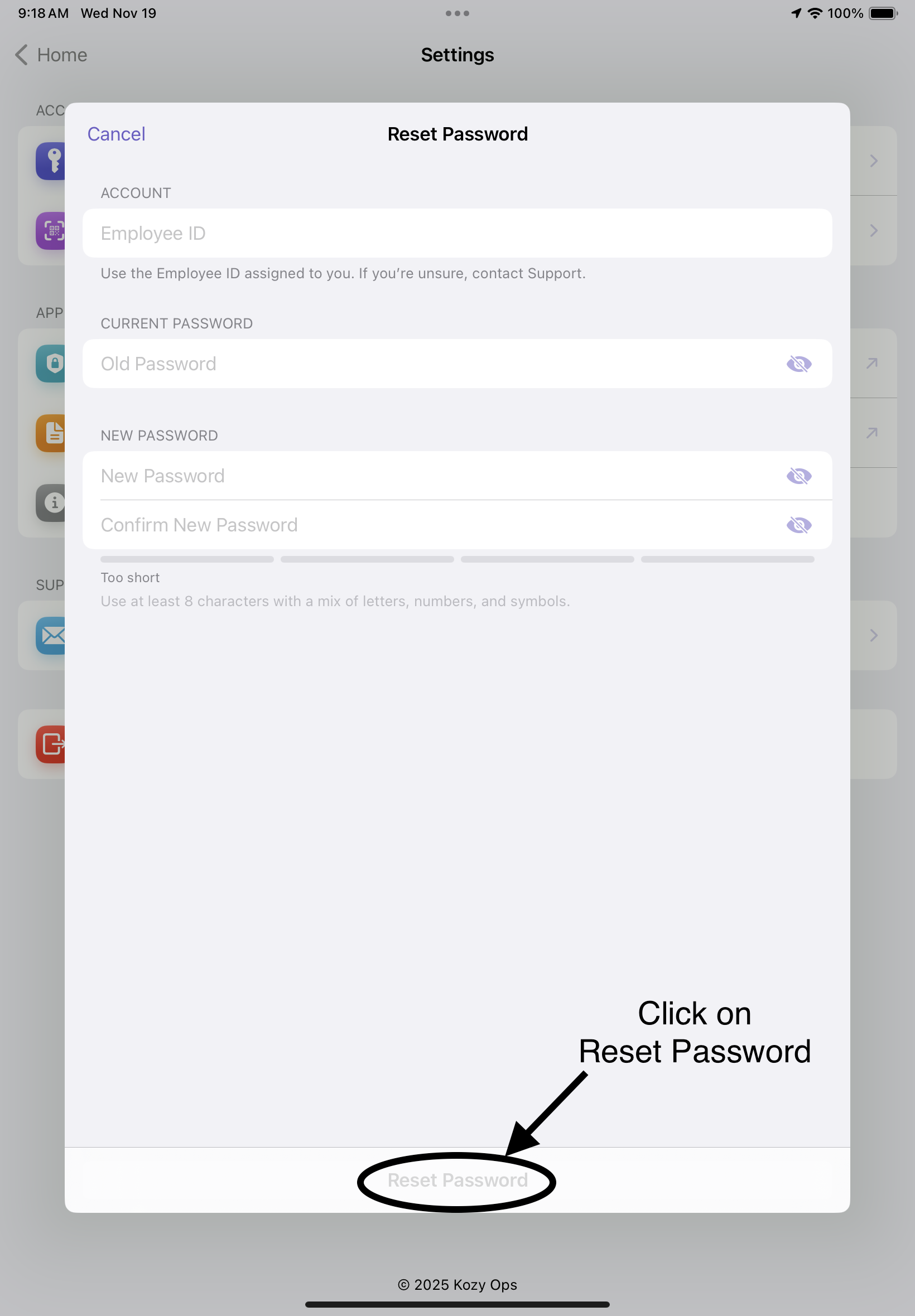
Enter your Employee ID, Old Password, and New Password

-
Confirm the new password
-
Tap Reset Password
-
A confirmation message will appear upon success
Password Requirements
- Minimum 8 characters
- Must include a mix of uppercase, lowercase, numbers, and symbols
- A strength meter will guide you toward a secure password
Step-by-Step: Rescanning QR Code
-
Tap Rescan QR Code in Settings

-
Your camera will activate
-
Scan the QR code provided by your company
-
Upon success, the app will automatically configure the updated environment
QR code
Overview
Instructions on how to acces QR Code if not provided by Company or Dispatcher
Accessing QR Code
-
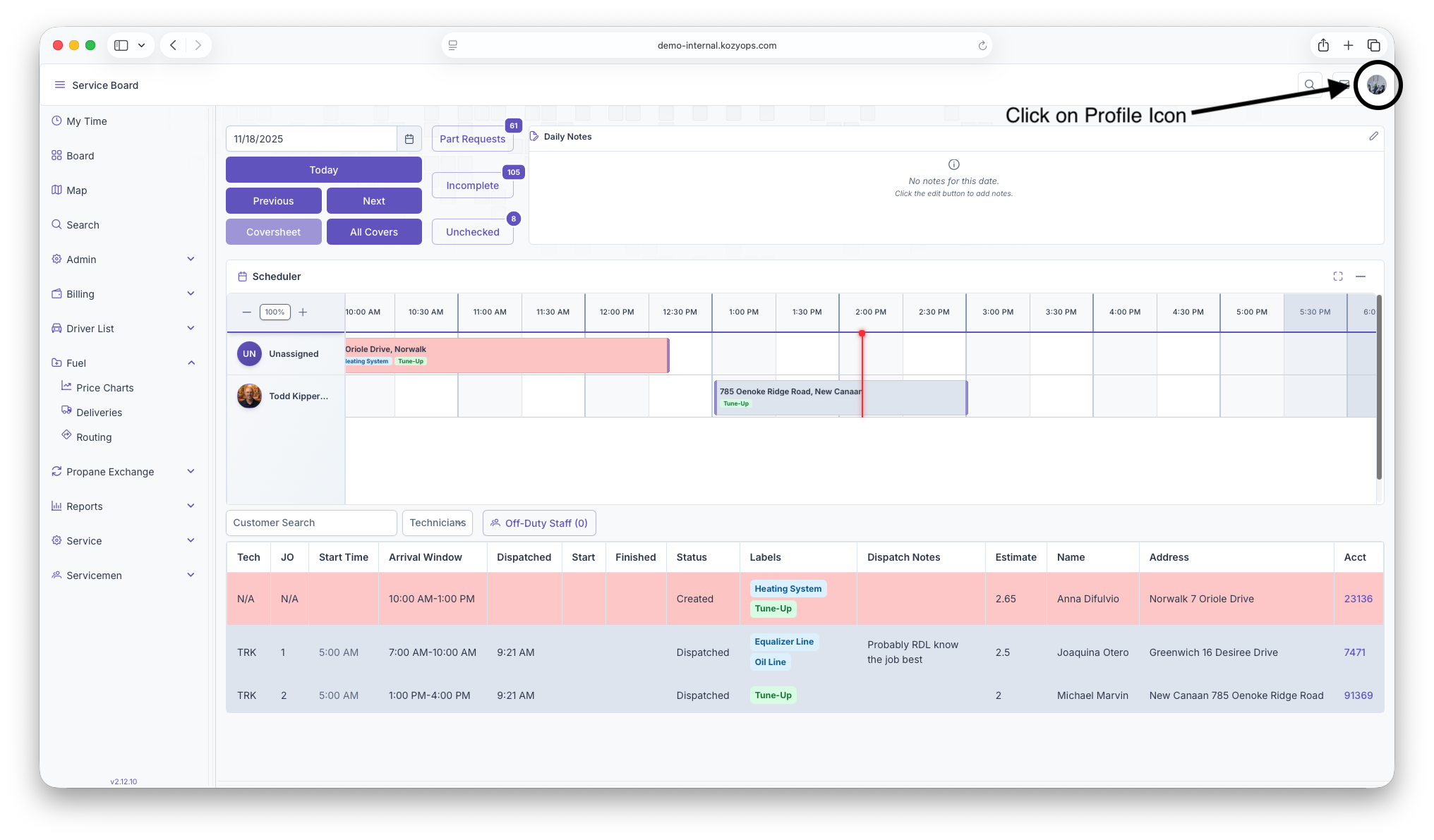
On main Webpage, click on profile icon for dropdown

-
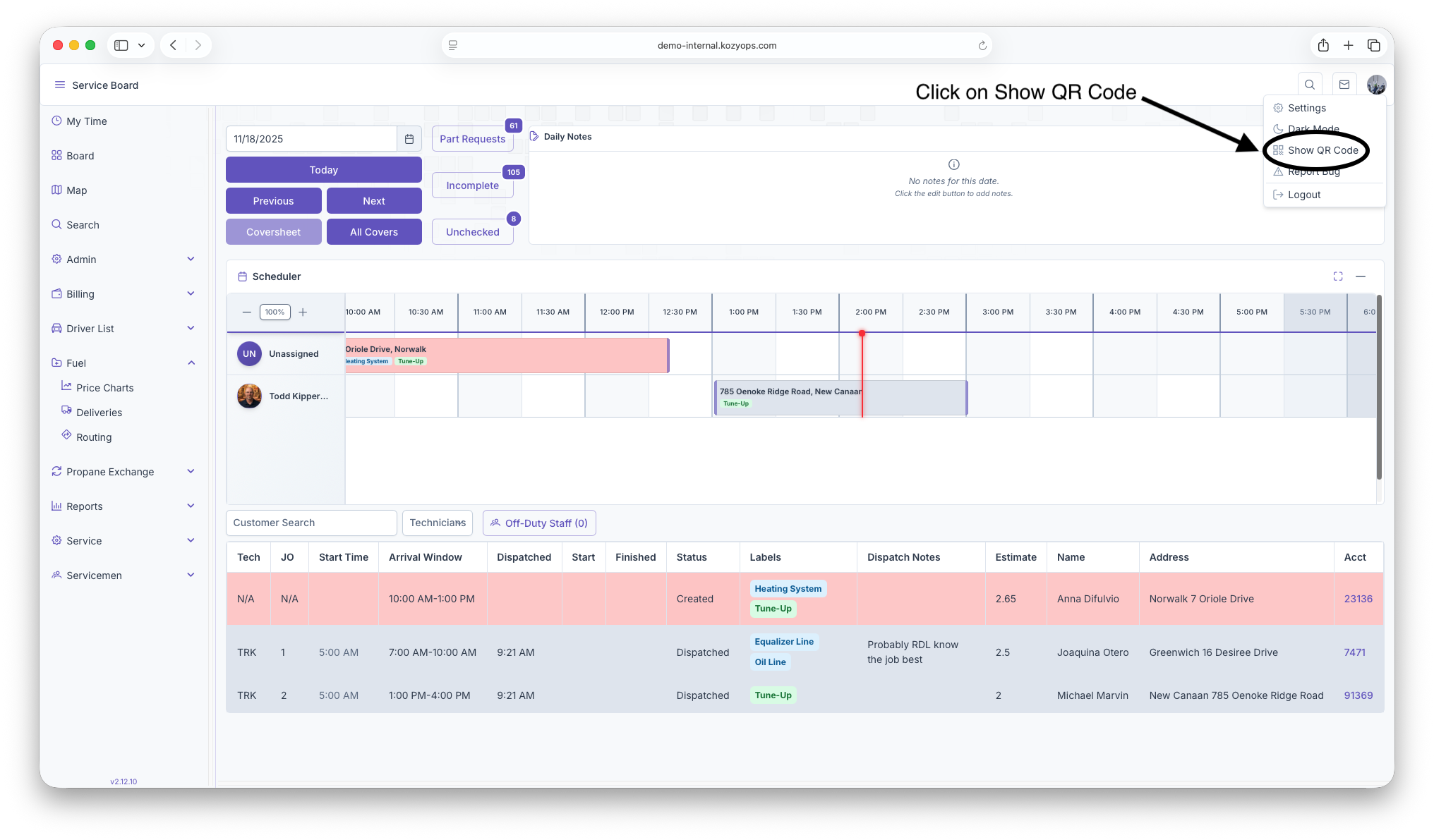
Click on Show QR Code

-
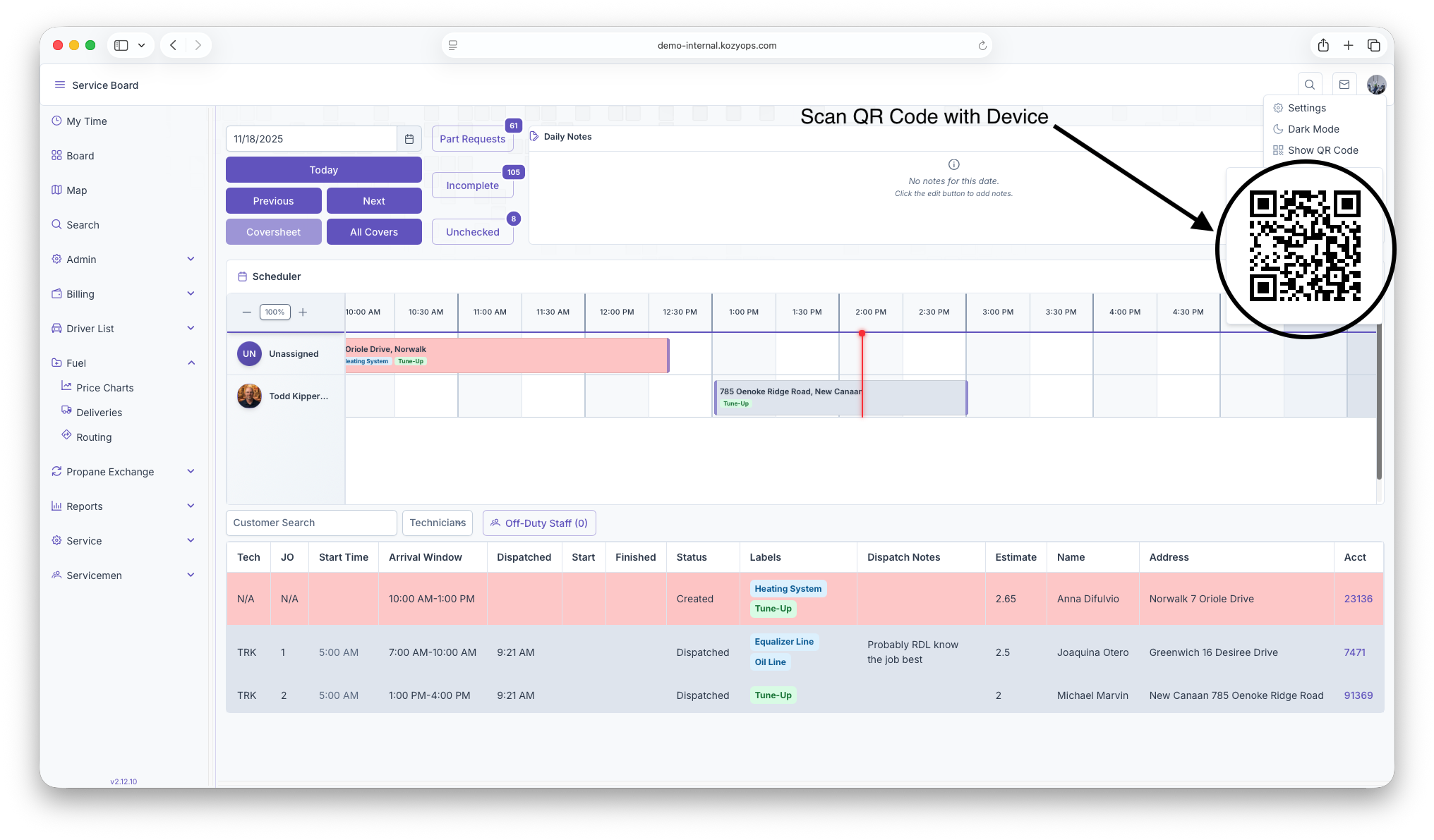
QR Code will generate and you can scan with device