# Getting Started
Employees begin with the shared pattern used across KozyOps: find the customer, confirm the location and related record, complete the work, then confirm that it moved forward.
# Logging in
### Logging In
- Each employee receives their own account URL and login credentials.
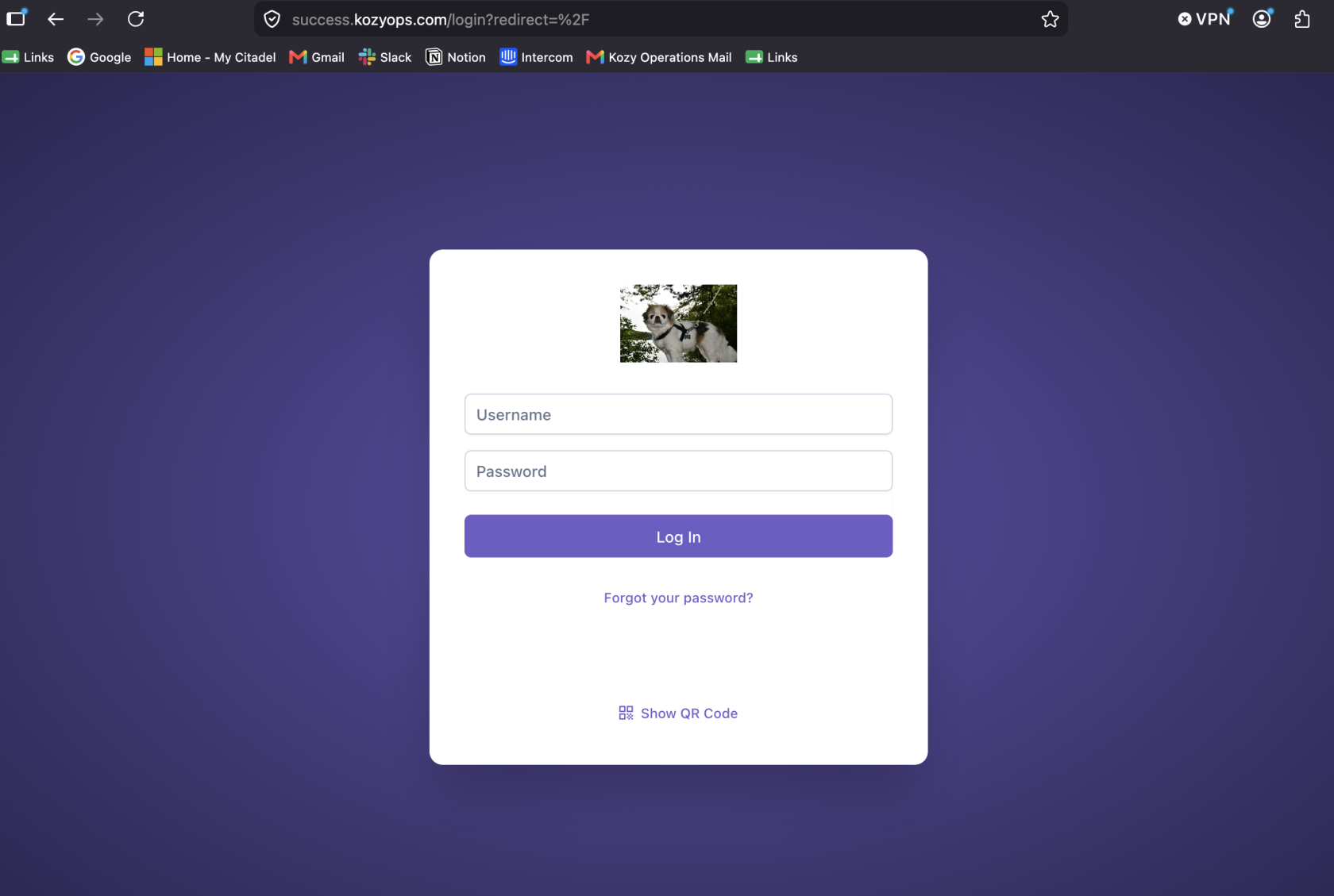
- Go to your company's assigned URL and enter your credentials to log in.
- Click ****Forgot your password**** to request a new one.
- Click ****Scan QR Code**** for quick mobile setup on your phone.
### Important Reminders
- Use an individual login. Do not share credentials with other employees.
- Screens and options vary by role and permissions.
- Drivers and technicians log in through the mobile app and see only what their work requires.
- In the office, the ****Admin**** tab is the visible difference between roles. Admins and Supervisors confirm their permissions when they attempt to change a setting. Supervisors also have extra settings and ledger rights.
- Use the QR code option only on an approved work device, following company procedure.
- To sign out, open the employee profile menu in the top-right corner and select ****Logout****.
[](https://docs-kozyops-com-uploads.s3.amazonaws.com/uploads/images/gallery/2026-07/1R4screenshot-2026-07-21-at-9-40-29-pm.png)