Fuels
Please go to Admin - Settings - Fuels to confirm all fuel sources have been entered.
Add templates for common tank sizes to simplify System entry in the future on a customers account.
Reminder - accounts should have a Service for the type of Fuel Delivery assigned to them to make this process simple. If you do not see your customer on the map ensure their profile has the correct service associated.
- Installing Blue Tooth Device
- Price Charts
- Deliveries
- Routing
- Routing Map
- Routing Map Filters
- Staging Loads
- Manually Adding Customers to Load/Route
- Lasso Tool to Add Customers to Load
- Add Delivery Request from Fuel Map
- Removing Customers from a Load
- Adding Fuel Delivery Request from Customer Profile
- Fuel Drivers
- Login – Accessing the App
- QR code
- Fuel Drivers Daily Life Manually Entered
- Fuel Drivers Daily Life Metered
- Videos for Fuel
Installing Blue Tooth Device
Introduction
This sections covers the installation of the blue tooth adaptor used to transmit data to The Kozy Mobile App.
Blue Tooth Adaptor
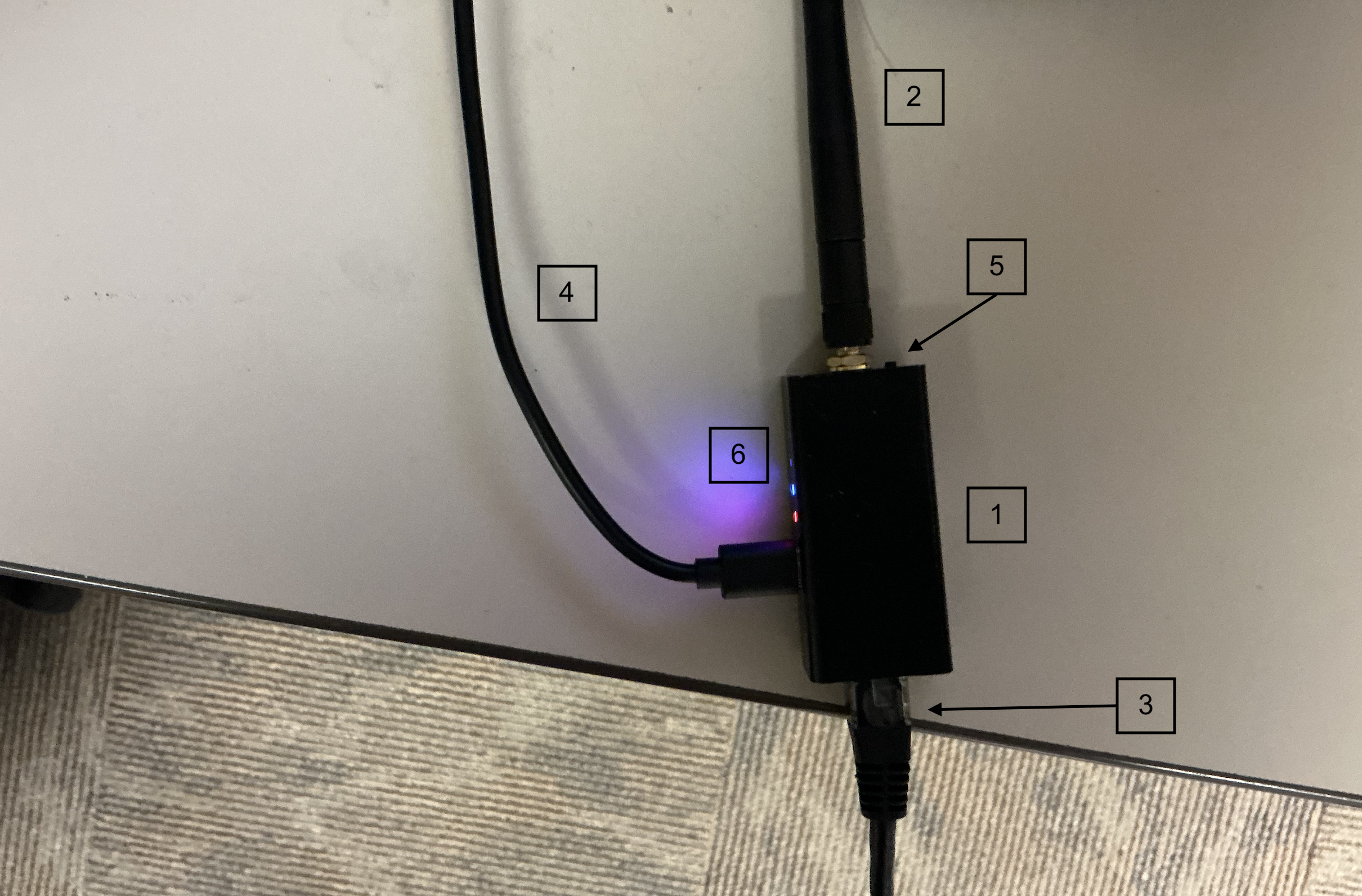
The Blue Tooth adaptor is the is the device that is primarily used to transmit data from the meter to the Mobile Kozy App, which then transmits the data to the Kozyops website
-
Blue Tooth Adaptor
-
Antenna, comes with the device
-
Cable Adaptor, comes with the device
-
USB-C Charger, does not come with device
-
Device Reset Button
-
Indication lights
- Red - Charging
- Blue - Blue Tooth is working
- Green - Blue Tooth is connected
Installation
Meters are typically connected to printers using a DB-25 cable, but with the use of a lapad cable, the meter can be connected to both a printer and the Blue Tooth Adaptor. Installation is simple and should only take a short time to install on each truck. In the case of a meter needing more configurations, an in depth look will be on the ... page. The Lapad cable itself is essentially a Y cable with two ends being a female and male DB-25 Cable with the third end being used to connect to the Blue Tooth Adaptor. The connection can be made using the wire adaptor provided along with the Blue Tooth Adaptor.
- Setting up the Meter
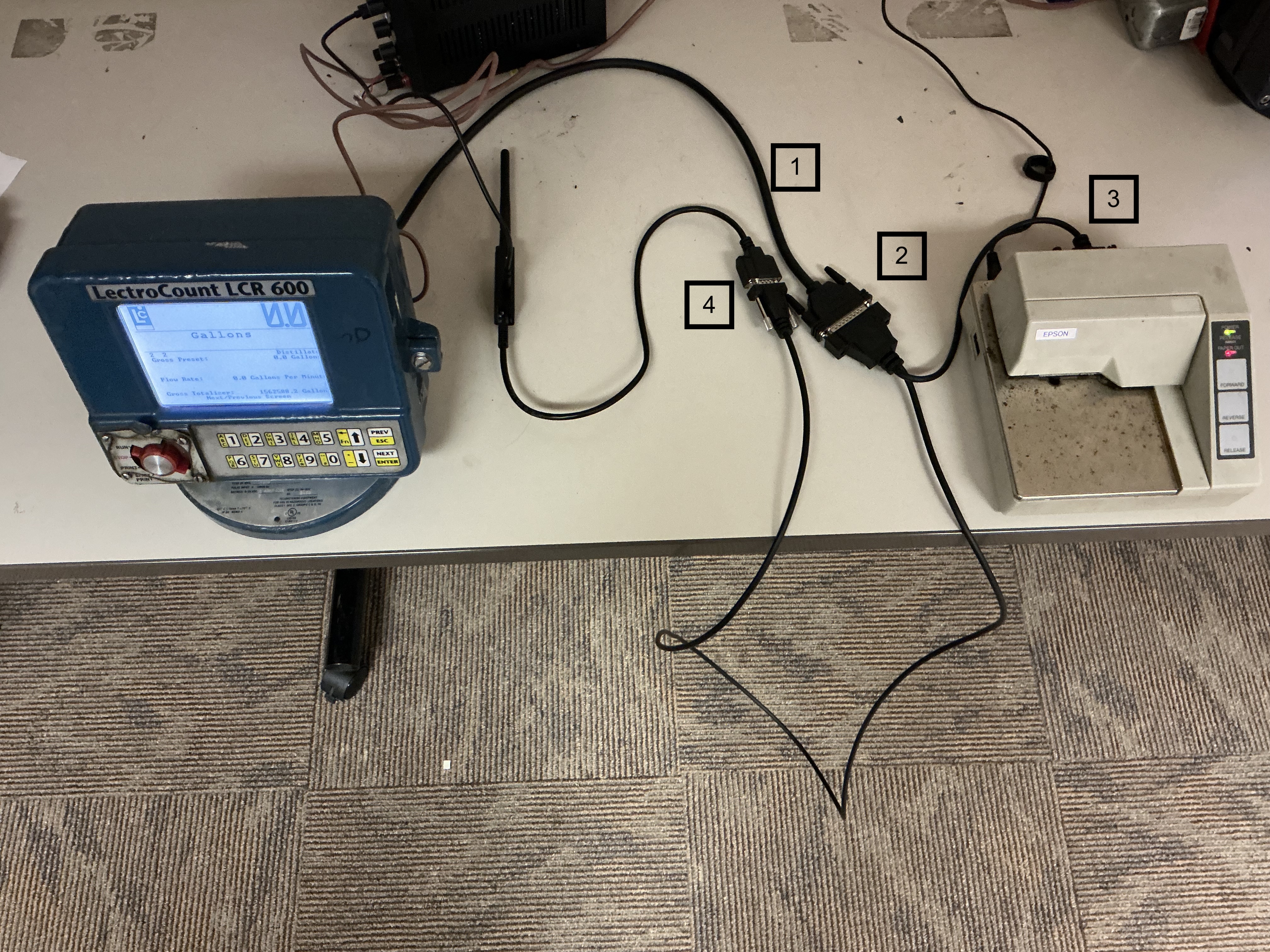
- Remove the DB-25 Cable from the Printer
- Using the Lapad Cable, connect the female end of the Y cable into the male end of the DB-25 cable coming out of the Meter
- Next, connect the lapad cable to the printer using the male end that looks like the DB-25 Cable
- Now connect the remaining cable into the cable adaptor that came with the Blue Tooth Adaptor
- Setting up The Blue Tooth Adaptor
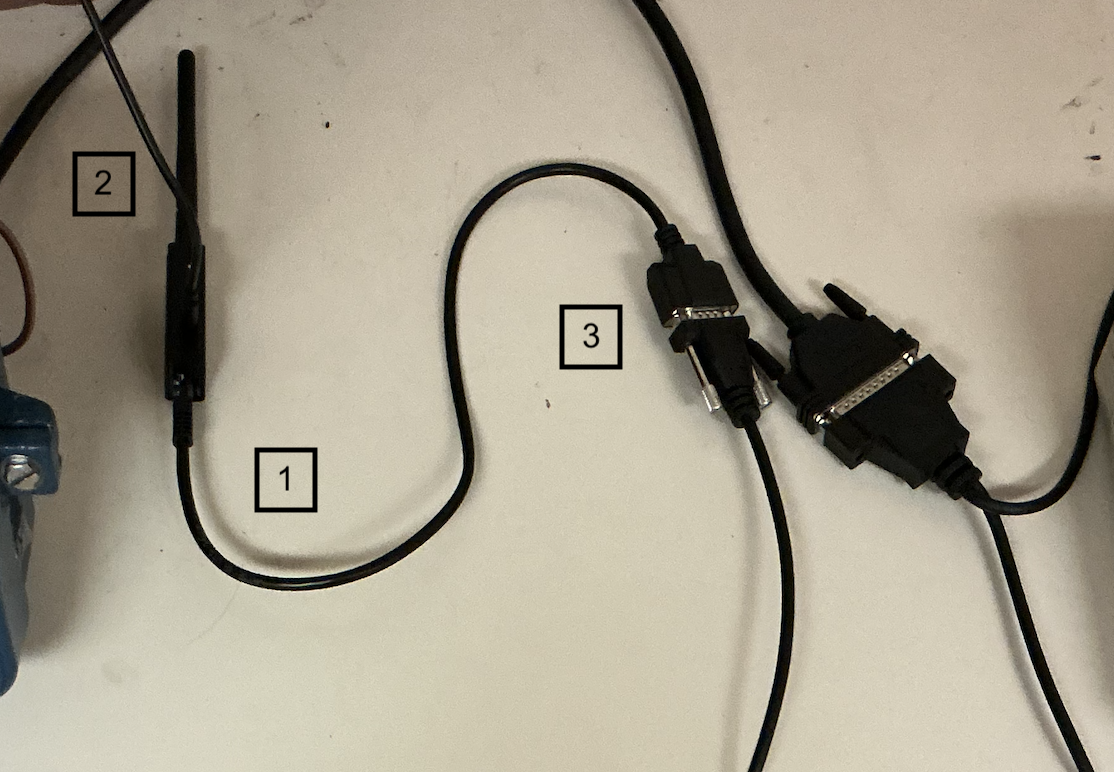
- Using the provided cable, connect the end that looks like an ethernet cable to the end of the Blue Tooth Adaptor that looks like an ethernet port (WARNING! DO PLUG AN ETHERNET CABLE TO ADAPTOR OR ANYTHING ELSE, JUST THE PROVIDED CABLE)
- Next, plug in the Blue Tooth Adaptor using a USB-C cable to provide power
- Using the other end of the cable proved, connect the cable to the Lapad cable mentioned above
Once all set, The Blue Tooth Adaptor should flash a blue light 4 times signifying that the blue tooth is working, The Meter, Printer and Blue Tooth Device should all be connected and ready for use with the Kozy Mobile App. It should look like this
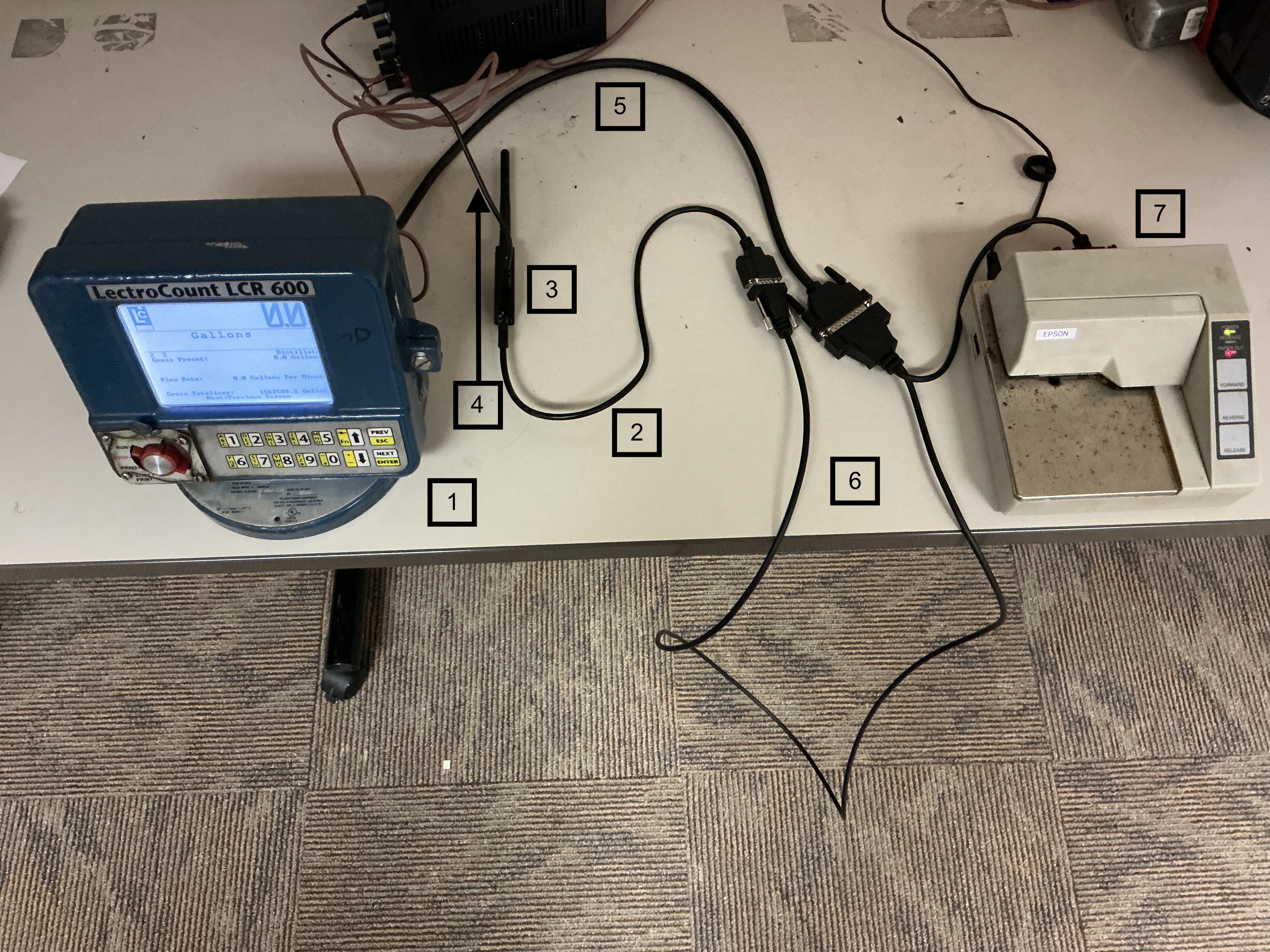
- Meter
- Cable Adaptor
- Blue Tooth Adaptor
- USB Power Cable
- DB-25 Cable
- Lapad Y Cable
- Printer
Trouble Shooting
When set up, the blue light on the Blue Tooth Adaptor should be flashing 4 times to show that it is working. If the adaptor doesn't flash 4 times, double click the Device Reset Button until it does. See Blue Tooth Adaptor for a detailed look at the adaptor
Price Charts
Adding Price Chart
- Open Service Board menu - Fuel - select Price Charts
- Select the Fuel type, Terminal and date range you wish to look at.
- Select Add New when you are on the correct fuel/terminal.
- Complete all the required fields for the system to calculate rates based off your Rack Price.
- Save.
Reminder that this is the rate that will remain active in the system until you report a new Price Chart to use.
Deliveries
To get to this area open the menu - select Fuel - select Deliveries.
Checking In Deliveries
Checking In Deliveries
- After delivery has been completed come back to the Fuel - Deliveries screen.
- Filter by Fuel type (and route if easier).
- Verify all information was entered accurately, IE entering 2500 gallons instead of 250 gallons for manual entry.
- Select the checkmark to confirm pricing.
Routing
Prerequisites:
- Drivers have been entered into Employee Management
- You have a current/valid Price Chart
- Terminals have been added in Settings
- Vehicles have been added in settings
To get to Routing:
- Main Menu - Fuel - Select Routing
- You will always need to select the fuel type and date range (if not same day)
Routing Map
Routing Map
The Routing map is now where all delivery request will show up, including manual and auto deliveries. Before getting started with setting up a route, a few things must be set prior to beginning
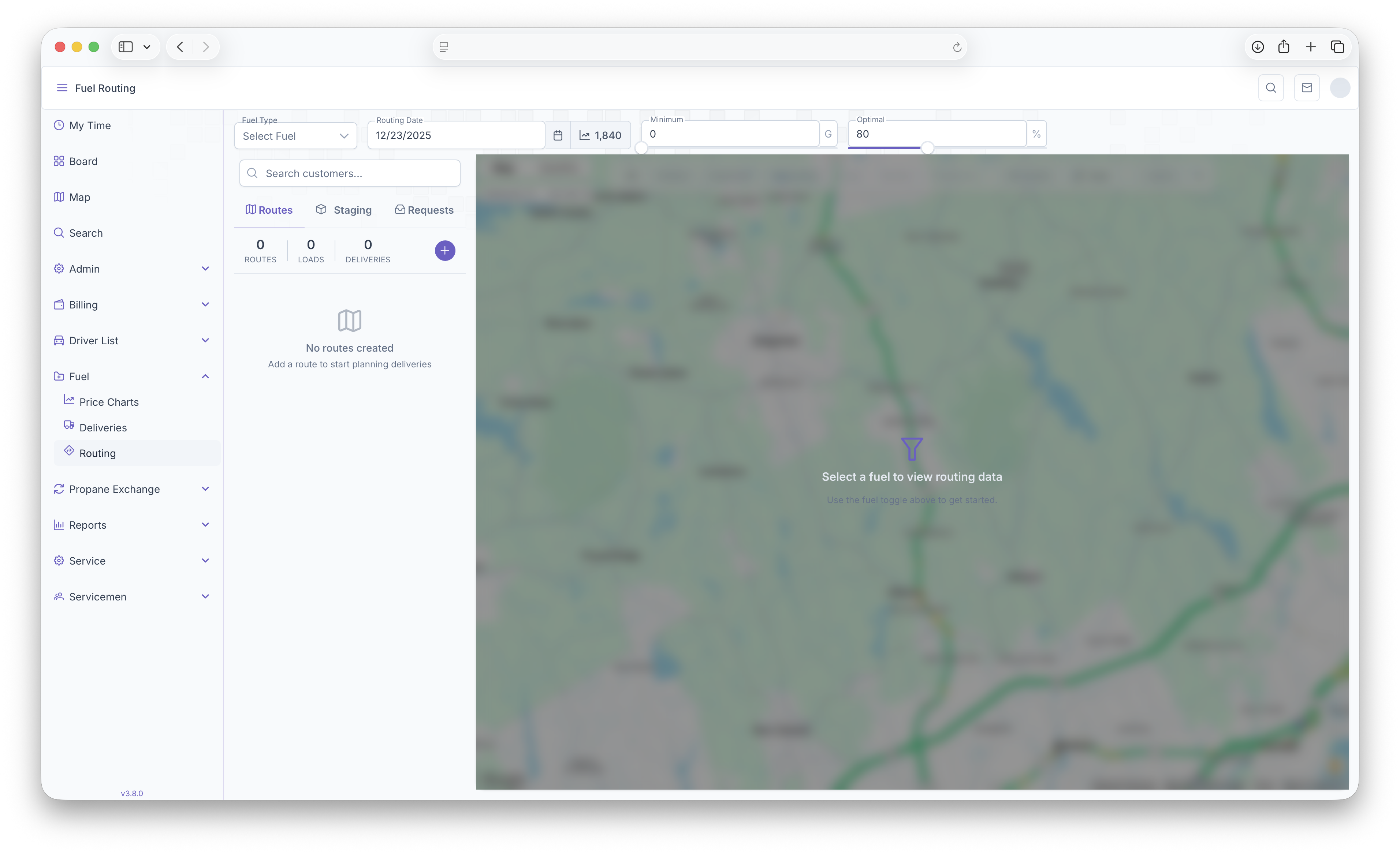
- Fuel Type - Select the fuel that's being routed for delivery
- Routing Date - The date the route is set to be delivered
- Minimum - Can be adjusted to filter out Customers who are below the set minimum gallons on the map
- Optimal - Can be adjusted to filter out Customers who are above the set optimum gallons on the map
These will be the first steps taken in order to start a route. The map will also show the current degree day next to the Routing Date. Once completed, The Routing Map will open up showing all Customers on the map.
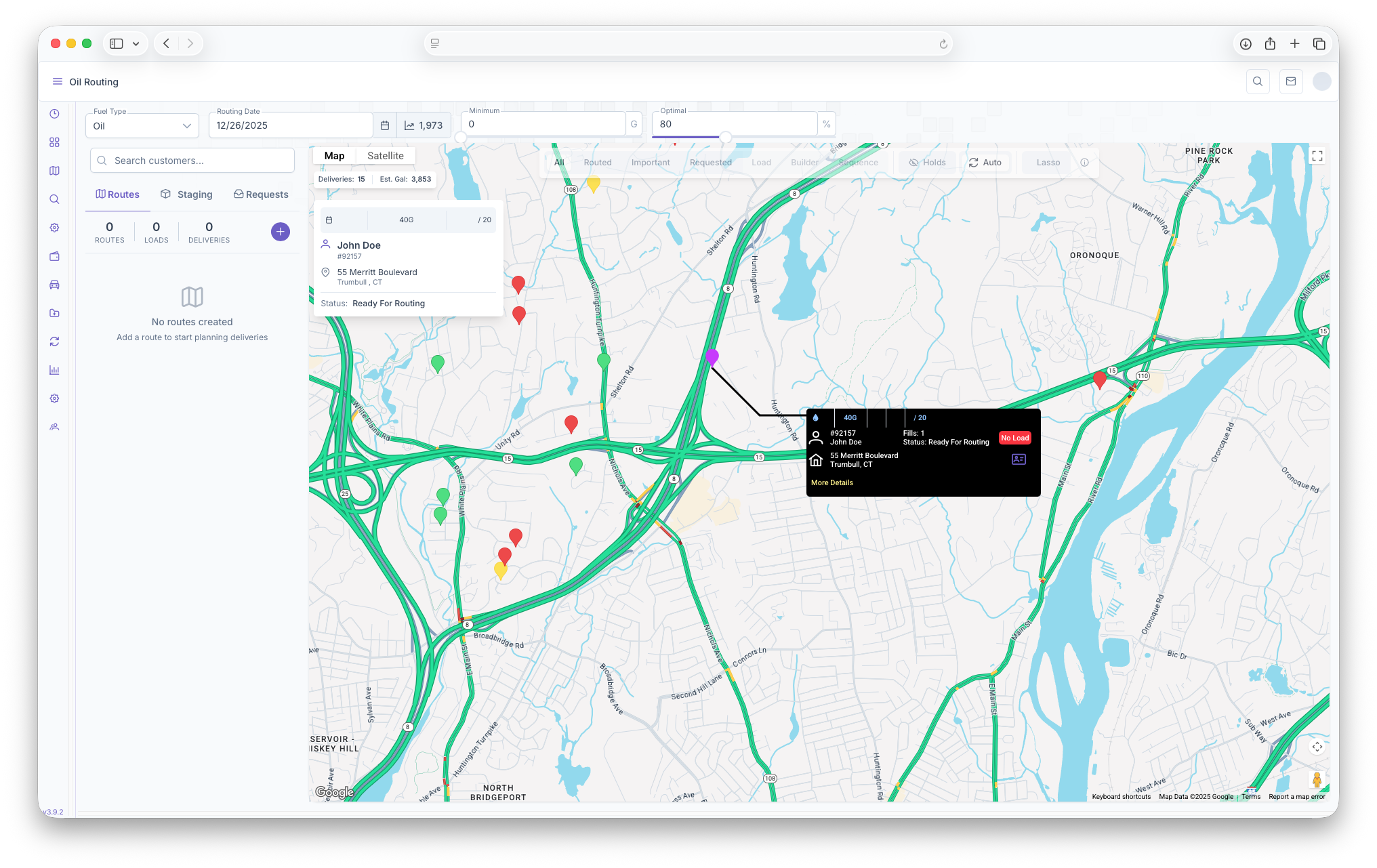
Customers on Map
Hovering over a marker will show a brief description of the customer on the map, this includes
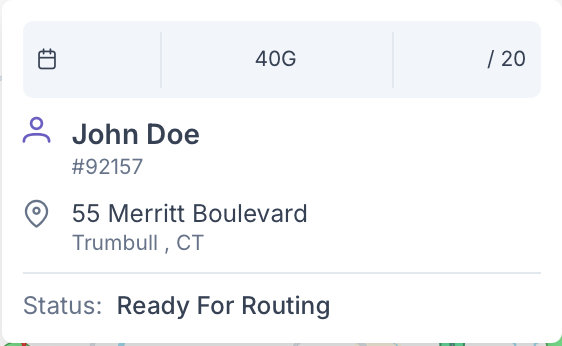
- Tank Size
- Expected Deliver/optimum Delivery
- The Customers Name
- Their Account Number
- Address
- Customer Status
Clicking on the marker will bring up a black box with more detail and options to take on the Customer. This box will be used later on for actual routing.
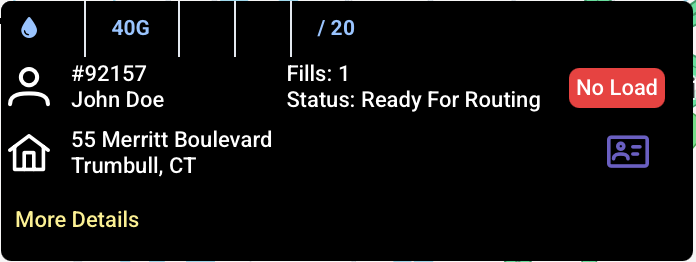
Additional options are that clicking on More Details will bring up a popup showing a more in depth look into the customers information which includes the extra following
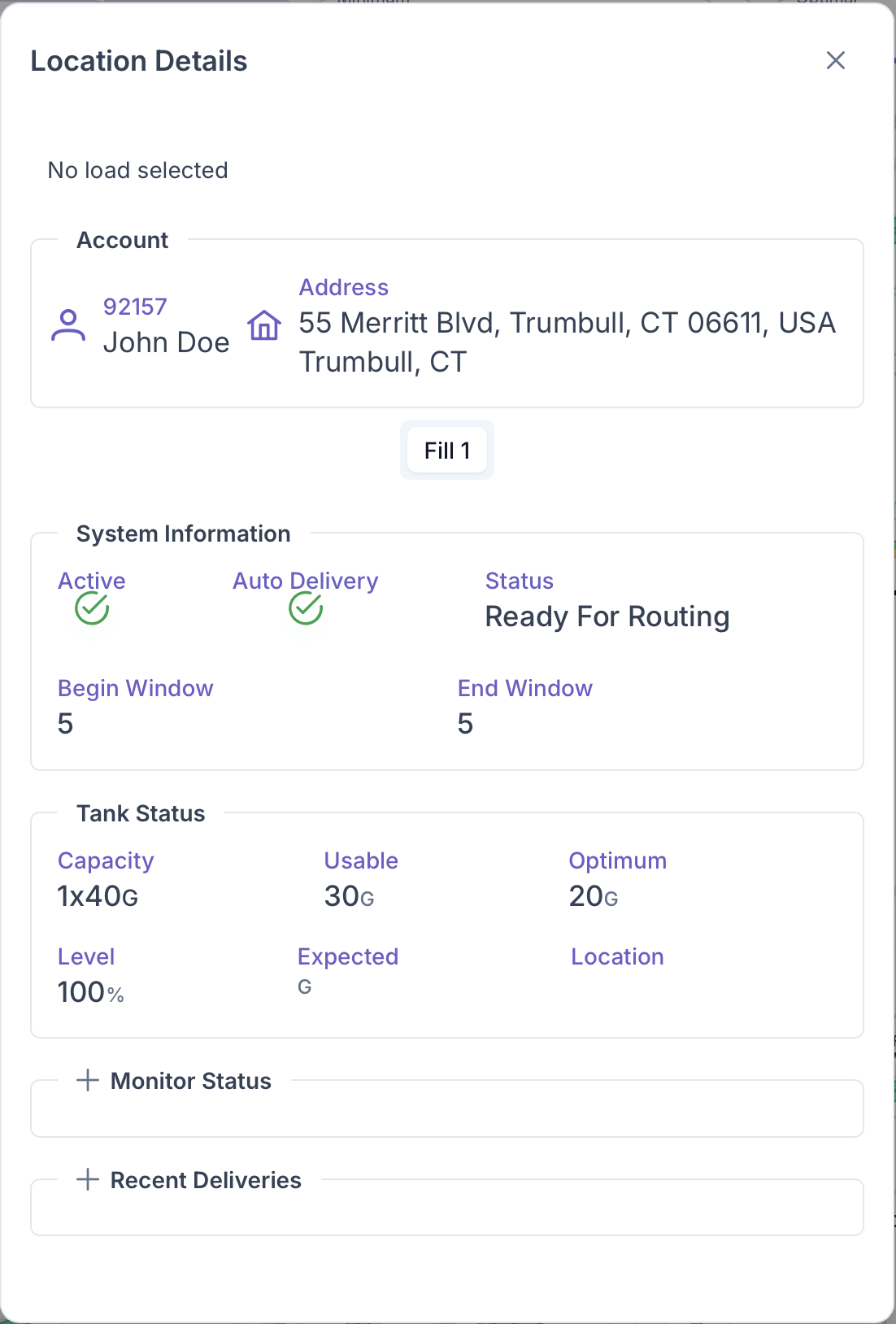
- System Information - This includes if the Customer's home is active, if it's set up for Auto Delivery, if it's ready for routing and the Degree Window for Delivery, including the Begin and End Window
- Tank Status - This includes Tank Capacity, the usable amount, the optimum fill, what level the tank is, expected delivery and the location of the tank on the property
- Monitor Status
- Recent Deliveries
Clicking on the Purple Card on the black customer box will pull up the Customer Account page.
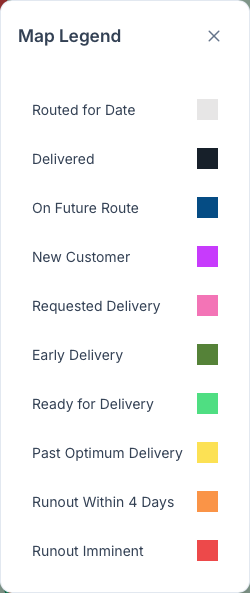
The map also features a legend to indicate what every color on the map signifies. Clicking on the explanation point on the bar will bring up the legend
Routing Map Filters
Below the Map and Satellite bar, is another bar that shows total number of potential deliveries on the map as well as total number of estimated gallons for the day.

Finally the filter bar, probably the more important bar before geting a route ready. The bar itself is divided into 3 sections each used for filtering purposes

The first sections is for filtering routes
- All - Shows all customers on the map for routing
- Routed - Shows only customers that have been added to routes
- Important - Shows the more pressing deliveries that need to be made
- Requested - Shows Deliveries that were requested by the customer
- Load - Shows loads that have been built but need to be added to a route
- Builder
- Sequence - Routes that have been loaded and sequenced showing a route
Next is the customer filter
- Holds - Shows customers on the map that have holds on their accounts
- Auto - Shows customers that have auto deliveries set up on their acount
Finally The Lasso tool, this tool is primarily used when setting up a load for a route. The tool allows for a "Lasso" to be made using points around a selected area. The points then create a zone and everything inside of the zone can then be added onto a load which can then be added to a route. The tool shows the following
- Undo - Clicking on it deletes a previous point added on the lasso
- Check - Clicking on the check will close out the Lasso and create a zone
- X - Clears out the created zone and allows for the creation of a new one
Staging Loads
Next is setting up a load to add to a route. To start this process, click on the Staging tab next to the Routes tab to bring up the Staging toolbar
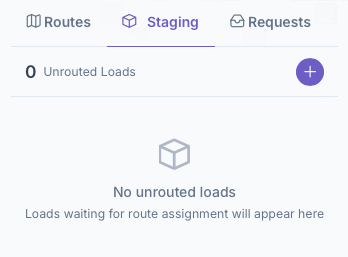
- Click on the add button to add a load to the unrouted loads list
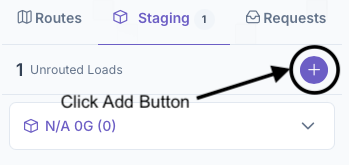
- Next select a Load to work on and click on the arrow to bring up the Load Box dropdown
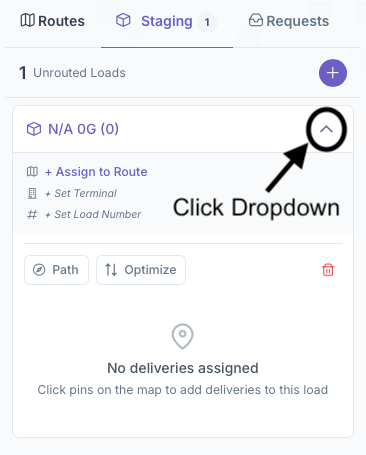
- From here a route can be assigned to the load or it can be done after, but once added, the load will be moved into the routes tab under the Route selected
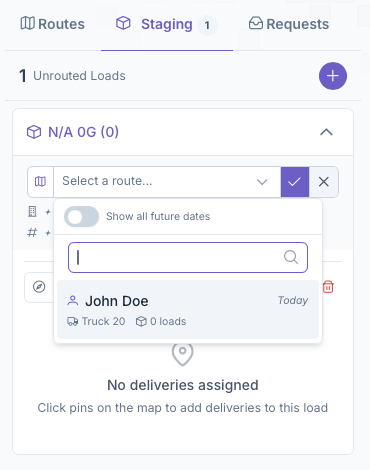
- After which, if a route was added, continue back onto the routes tab and continue there by selecting the load under the route
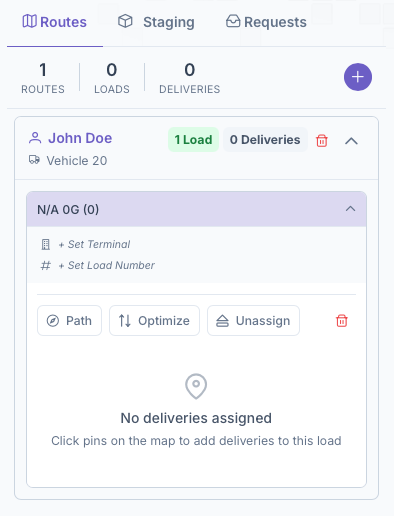
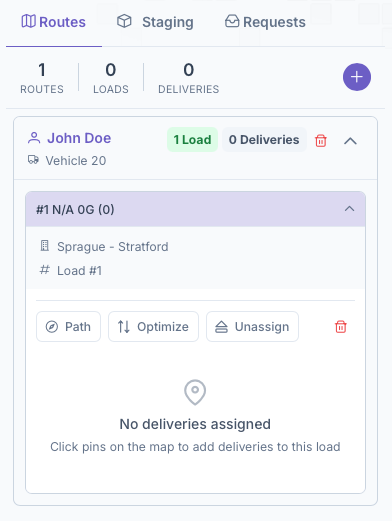
- Click on Set Terminal then click the check after selecting one. Just like with Vehicles, a Terminal must also be created and added to the system for it to appear on here. See the Terminals guide for a more in depth look at creating them
- Click on Set Load Number and click the check after assigning a number
Manually Adding Customers to Load/Route
Next is adding customers. Once a load has been created, customers can be added on to the load. Customers can be added to a load even if the load itself isn't part of a route yet. If not part of a route, adding customers must be done on the staging part of the toolbar but if the load is on a route, then it will be done on the Routes part of the toolbar under the driver.
- To begin, press the dropdown on the load to pull up the load
- Next select the customer by finding them on the map or doing a customer search
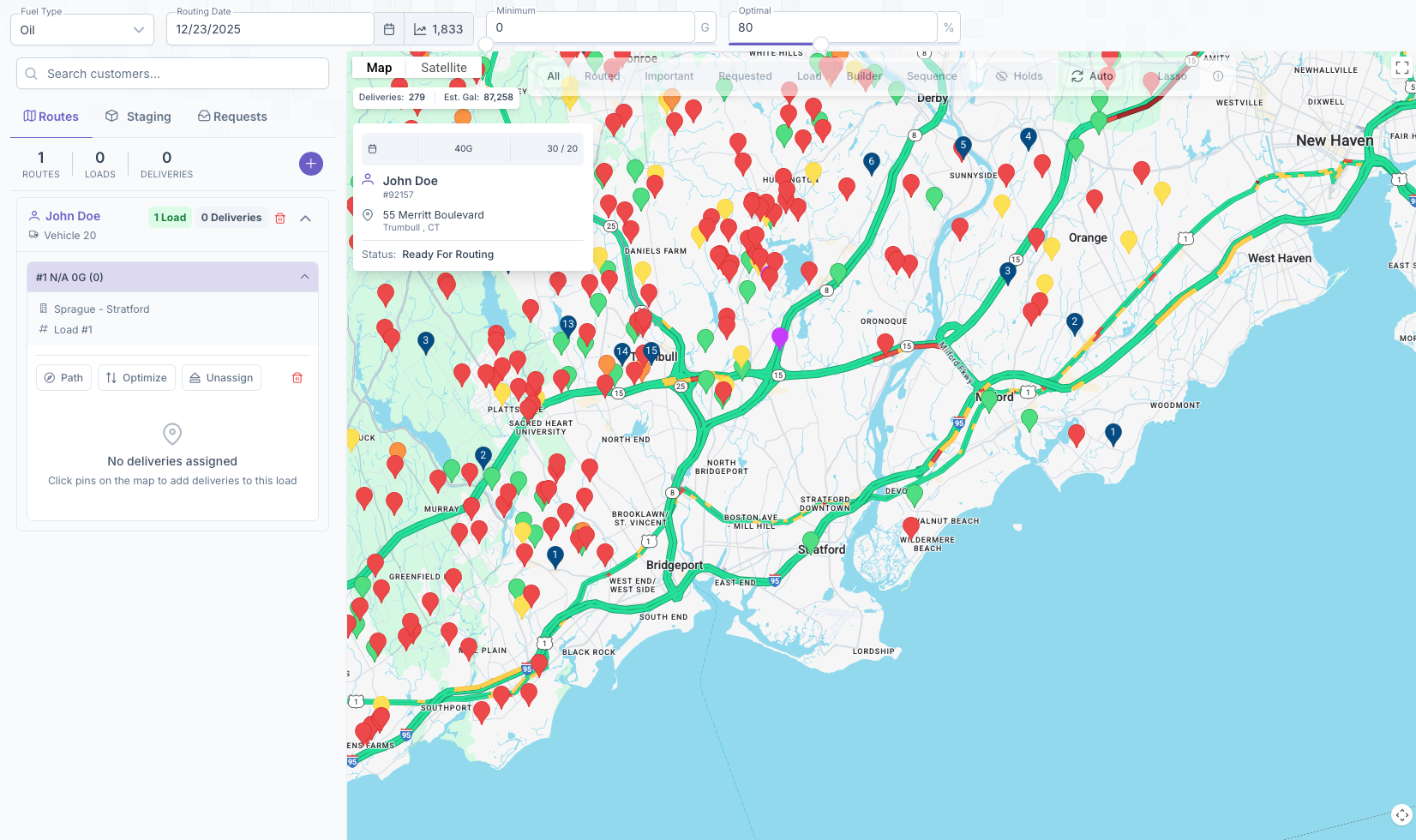
- Click on the Customer to bring up their black info card
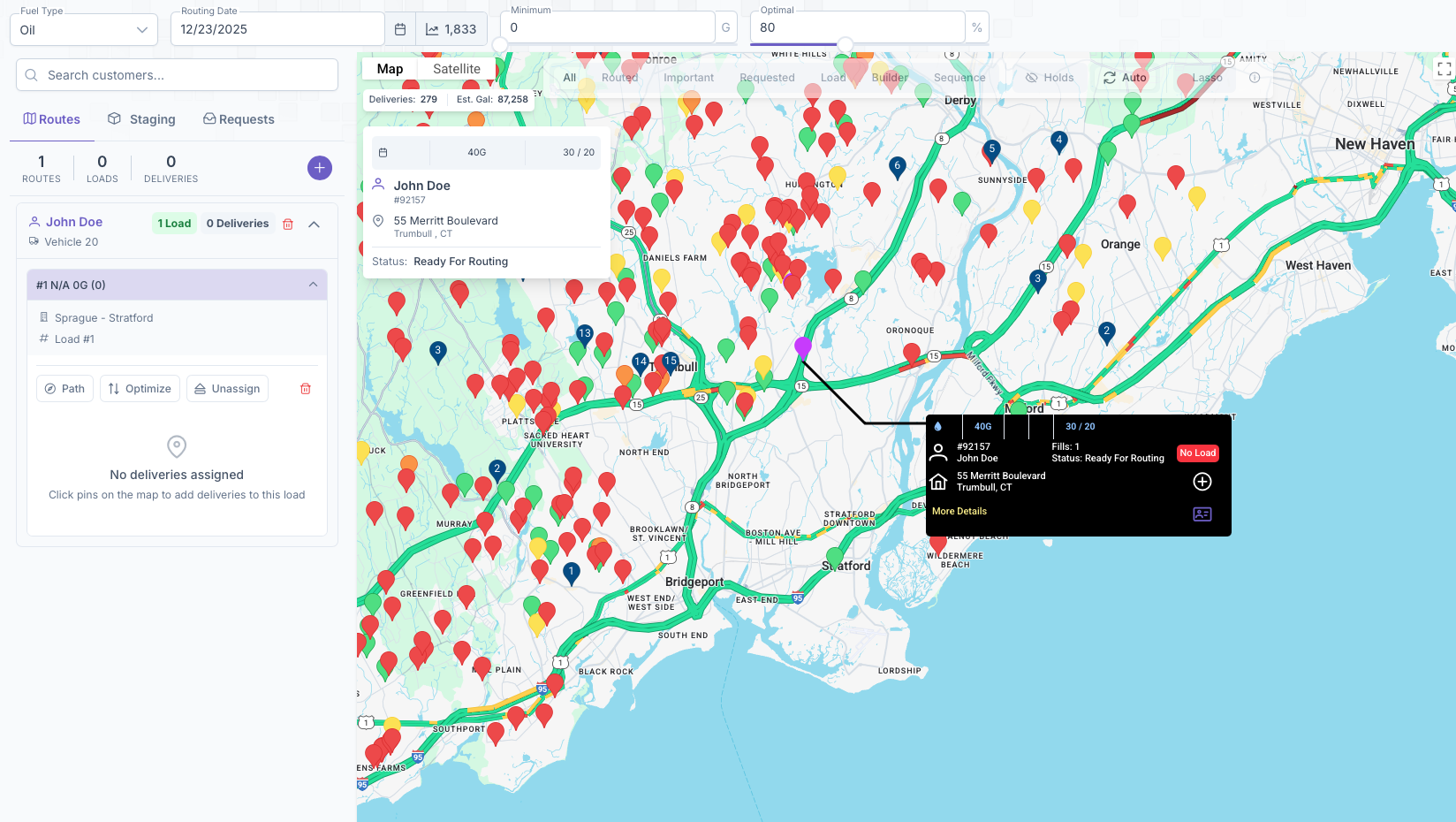
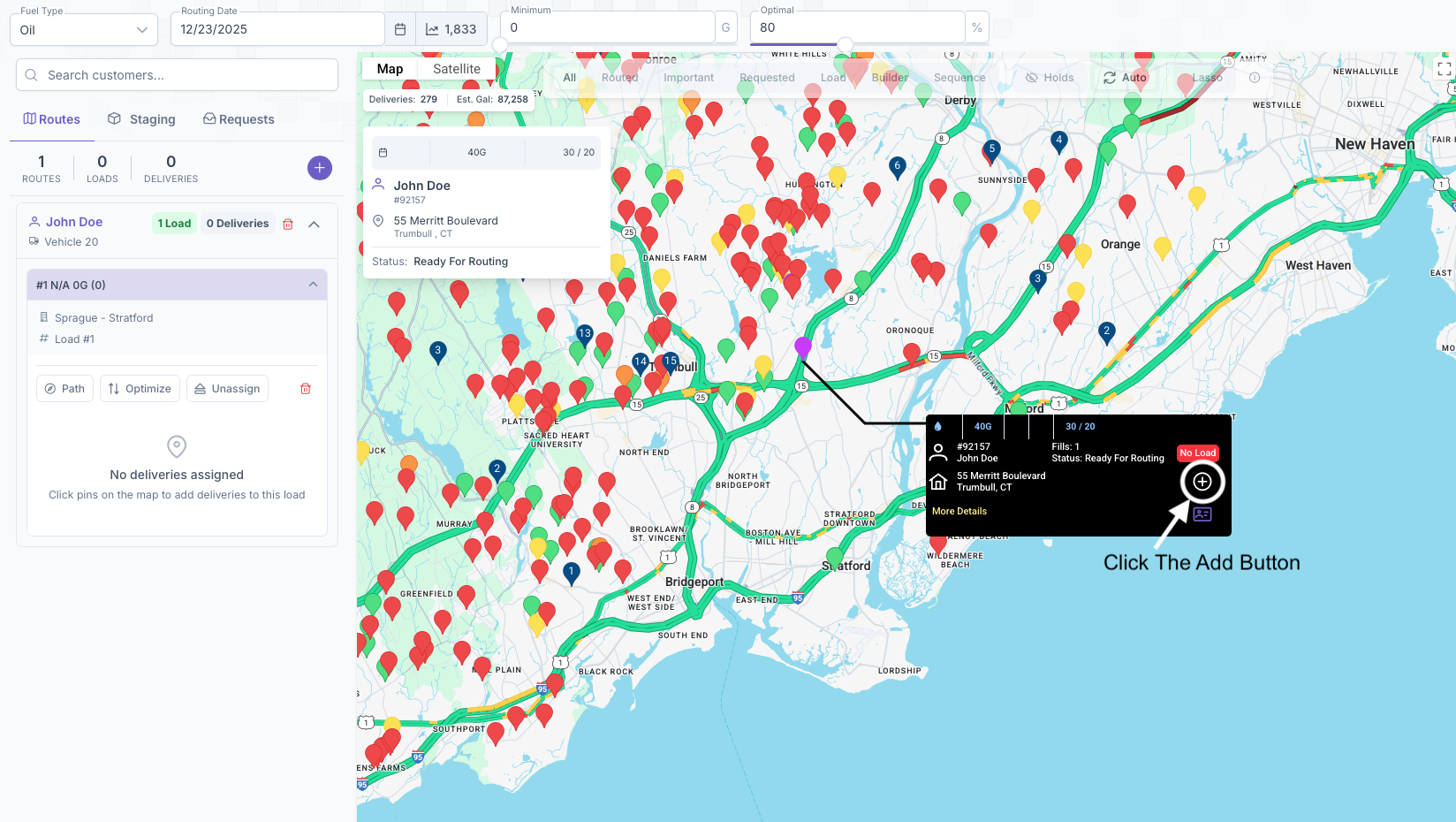
- A plus should now appear on the box, clicking on the plus will now add them onto the load.
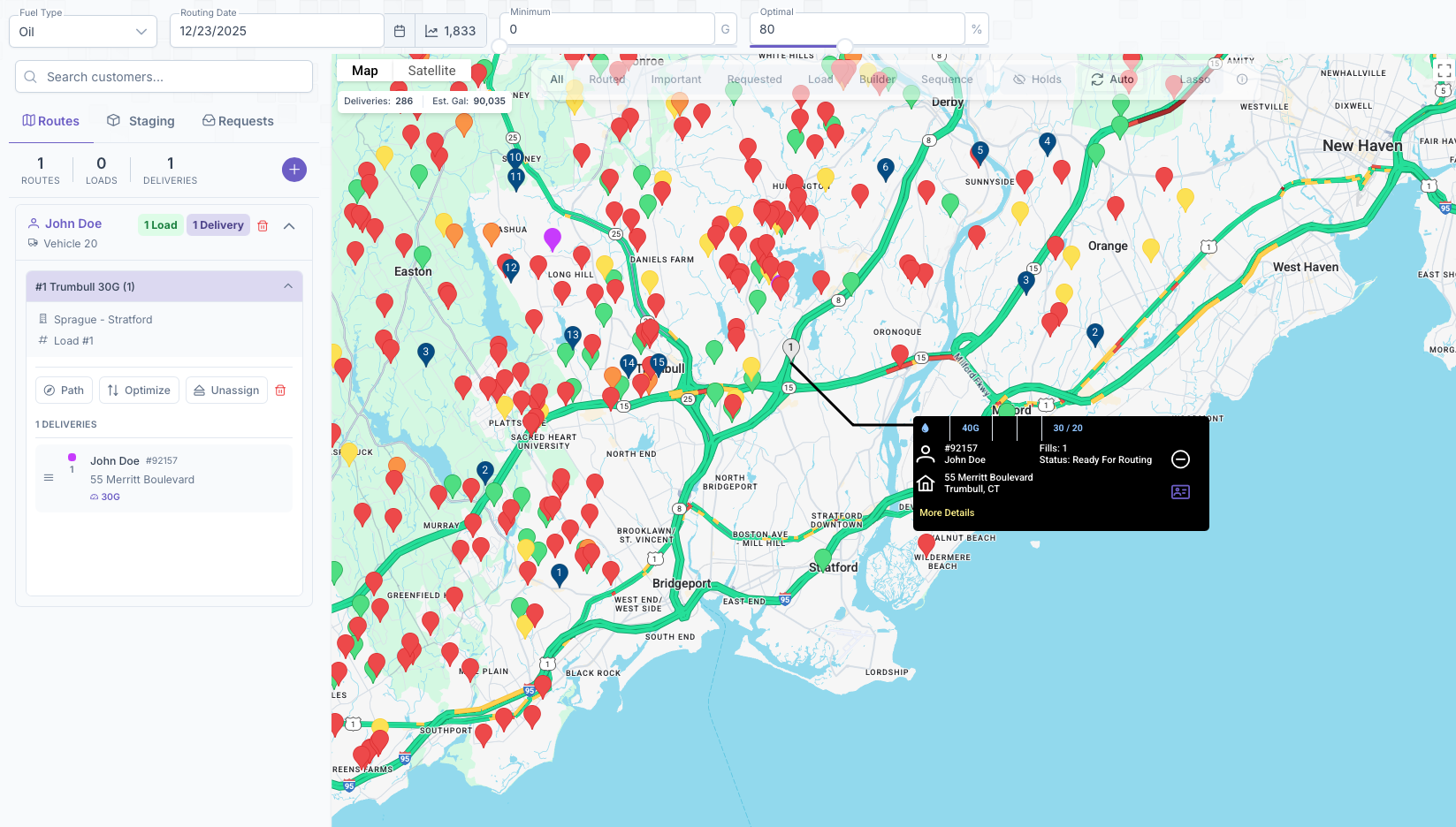
- Repeat the process to continue adding more customers to the delivery
Once completed, a list will appear under the loads showing all customers added. The order that they appear in is the order that they will be delivered to. This list can be rearranged by clicking and dragging the 3 bars next to the name of the customer. Once all customers for that delivery are added and arranged in prefered delivery order, the route is now ready for shipping. Clicking on the path button will create a path on the map starting with the terminal and going in order of the customers list. Clicking on Optimize will optimize the route in a matter that saves time by putting the customers in a more efficient order. If added to a route, clicking on unassign will remove the load from the route in the case that it needs to be reassigned or for any reason. The Lasso Tool from earlier can also be used here. By creating a zone around a particular area, all customers in that area can now be added to a load rather than clicking on each individually.
Lasso Tool to Add Customers to Load
Next is adding customers. Once a load has been created, customers can be added on to the load. Customers can be added to a load even if the load itself isn't part of a route yet. If not part of a route, adding customers must be done on the staging part of the toolbar but if the load is on a route, then it will be done on the Routes part of the toolbar under the driver.
- To begin, press the dropdown on the load to pull up the load
- Next select the Lasso tool on the map
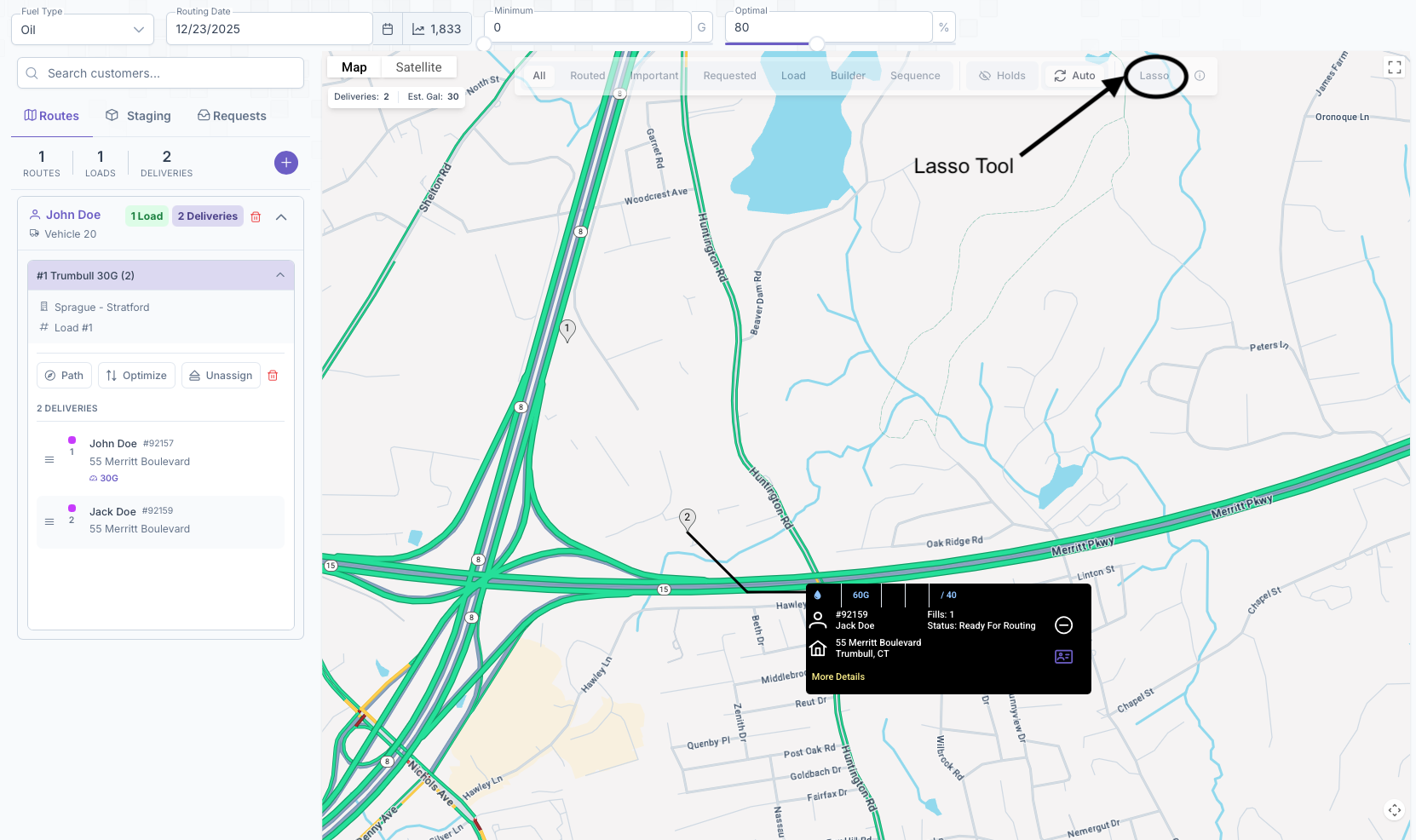
3. Click your Mouse to create pin drops around the area you would like the deliveries to occur and click the checkbox to complete the Polygon
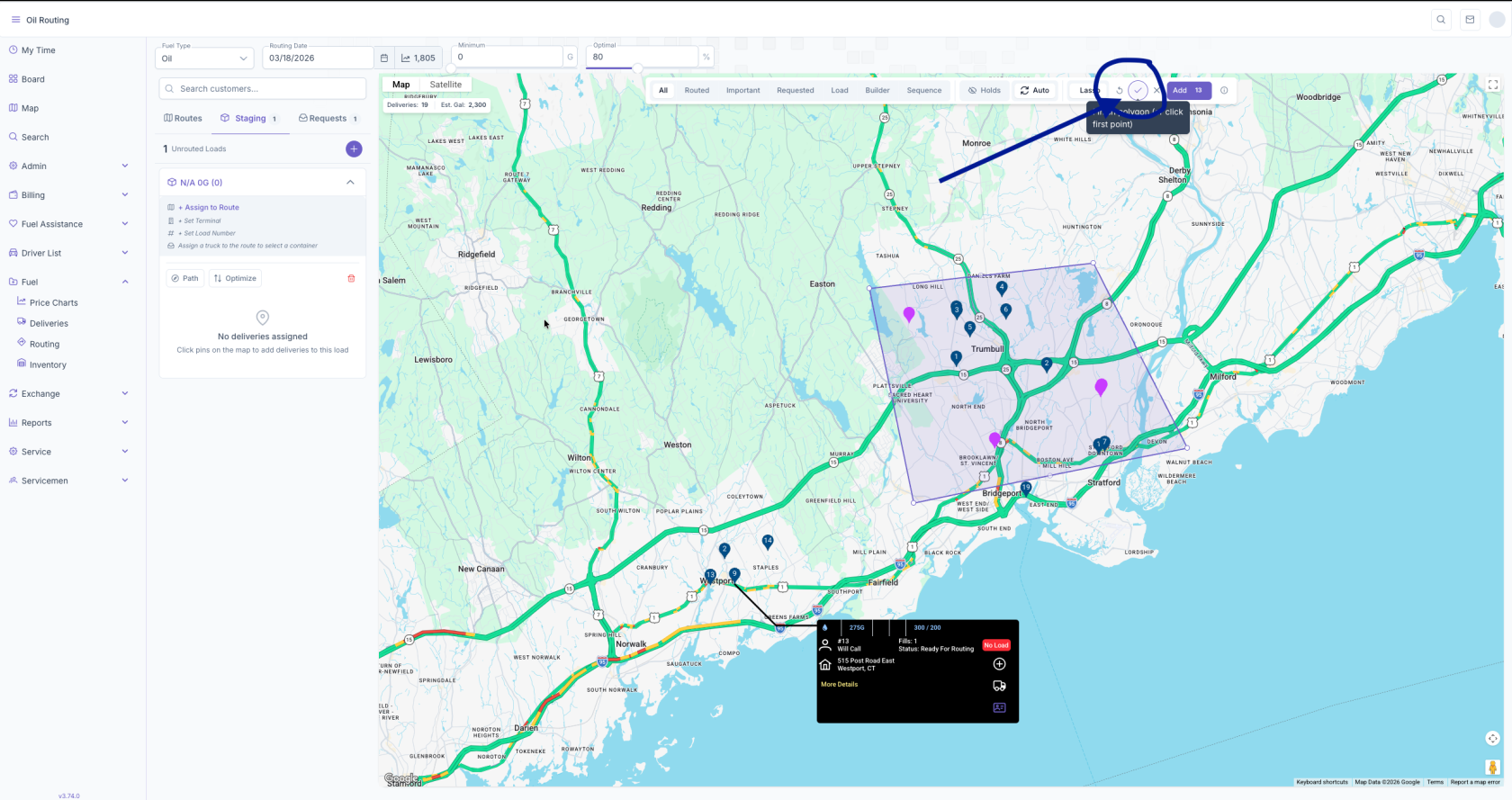
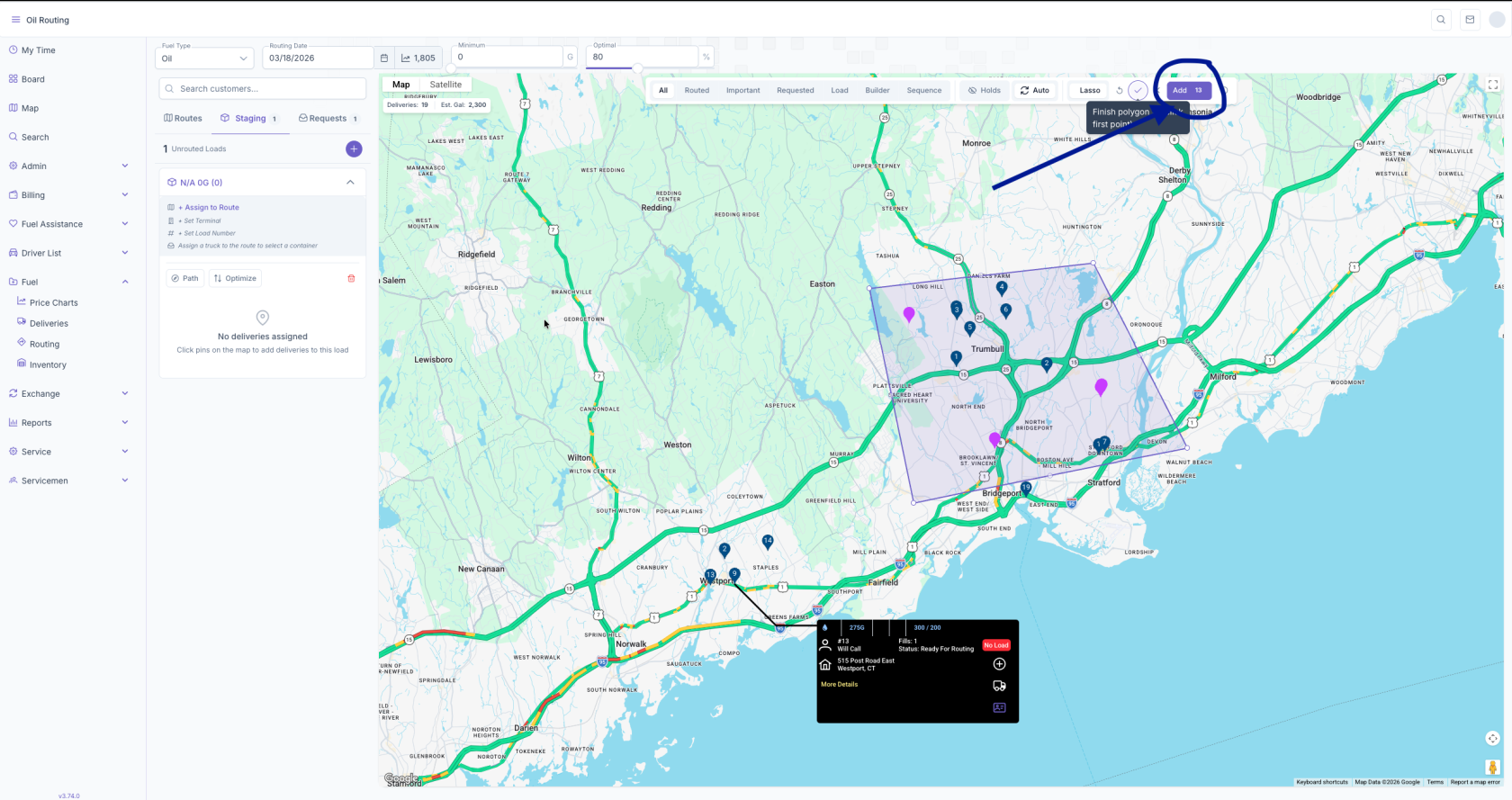
Once completed, a list will appear under the loads showing all customers added. The order that they appear in is the order that they will be delivered to. This list can be rearranged by clicking and dragging the 3 bars next to the name of the customer. Once all customers for that delivery are added and arranged in prefered delivery order, the route is now ready for shipping. Clicking on the path button will create a path on the map starting with the terminal and going in order of the customers list. Clicking on Optimize will optimize the route in a matter that saves time by putting the customers in a more efficient order. If added to a route, clicking on unassign will remove the load from the route in the case that it needs to be reassigned or for any reason. The Lasso Tool from earlier can also be used here. By creating a zone around a particular area, all customers in that area can now be added to a load rather than clicking on each individually.
Add Delivery Request from Fuel Map
Adding from Fuel Map
1. In the Search Customers box enter the customers name and click the envelope next to their name
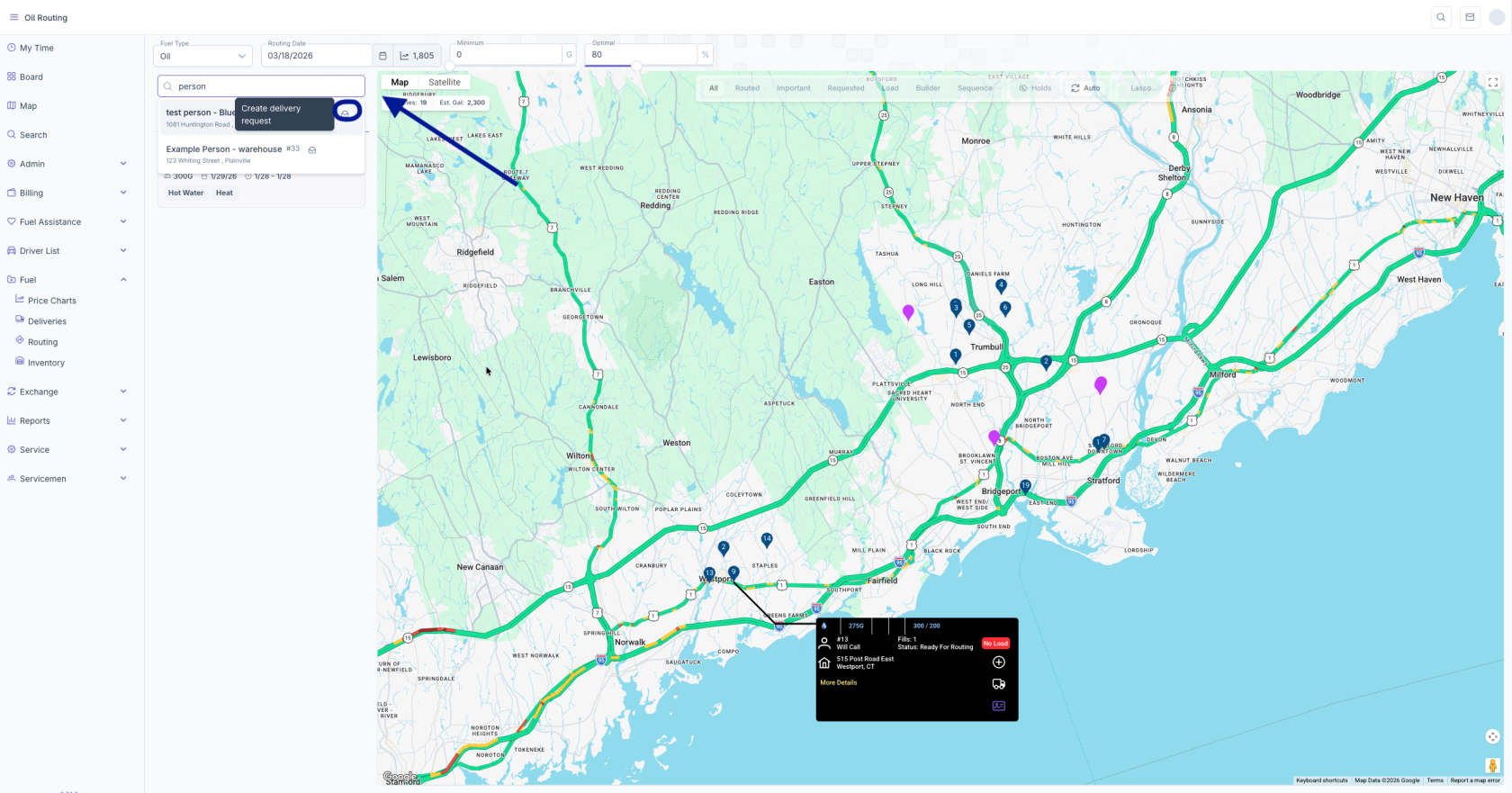
2. Select the correct System, enter Requested Volume and delivery window requested date. Preauthorized Amount and Quoted Price are OPTIONAL. Charge immediately should be turned on if they want their card charged after the delivery is completed.
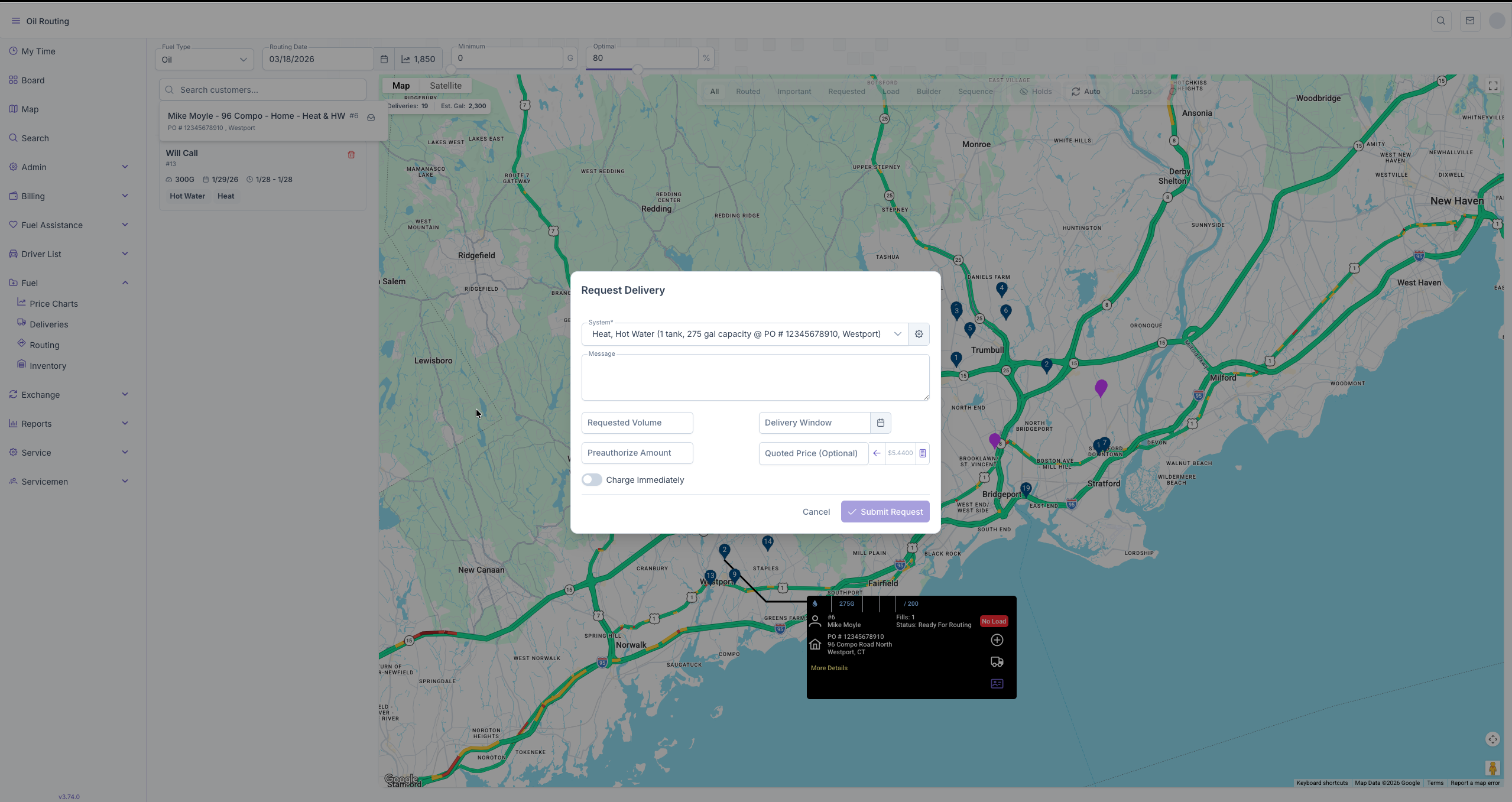
3. This will add them to the Request list to add to a load for delivery.
Removing Customers from a Load
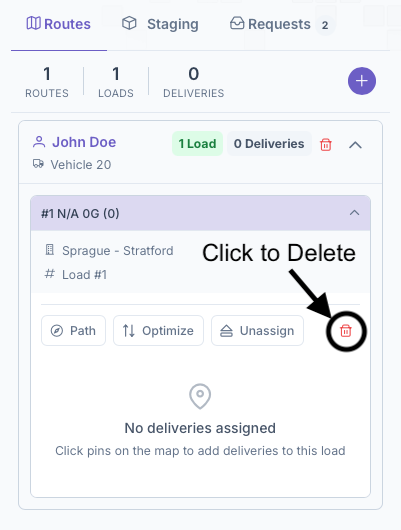
If for whatever reason a route or load need to be deleted, there are several steps that must be taken other than clicking on the garbage can icon. It begins from the end of the process and customers must be removed from a load first. The same process of adding a customer is the same for removing them.
- Open the load by clicking on the dropdown and then select the customer
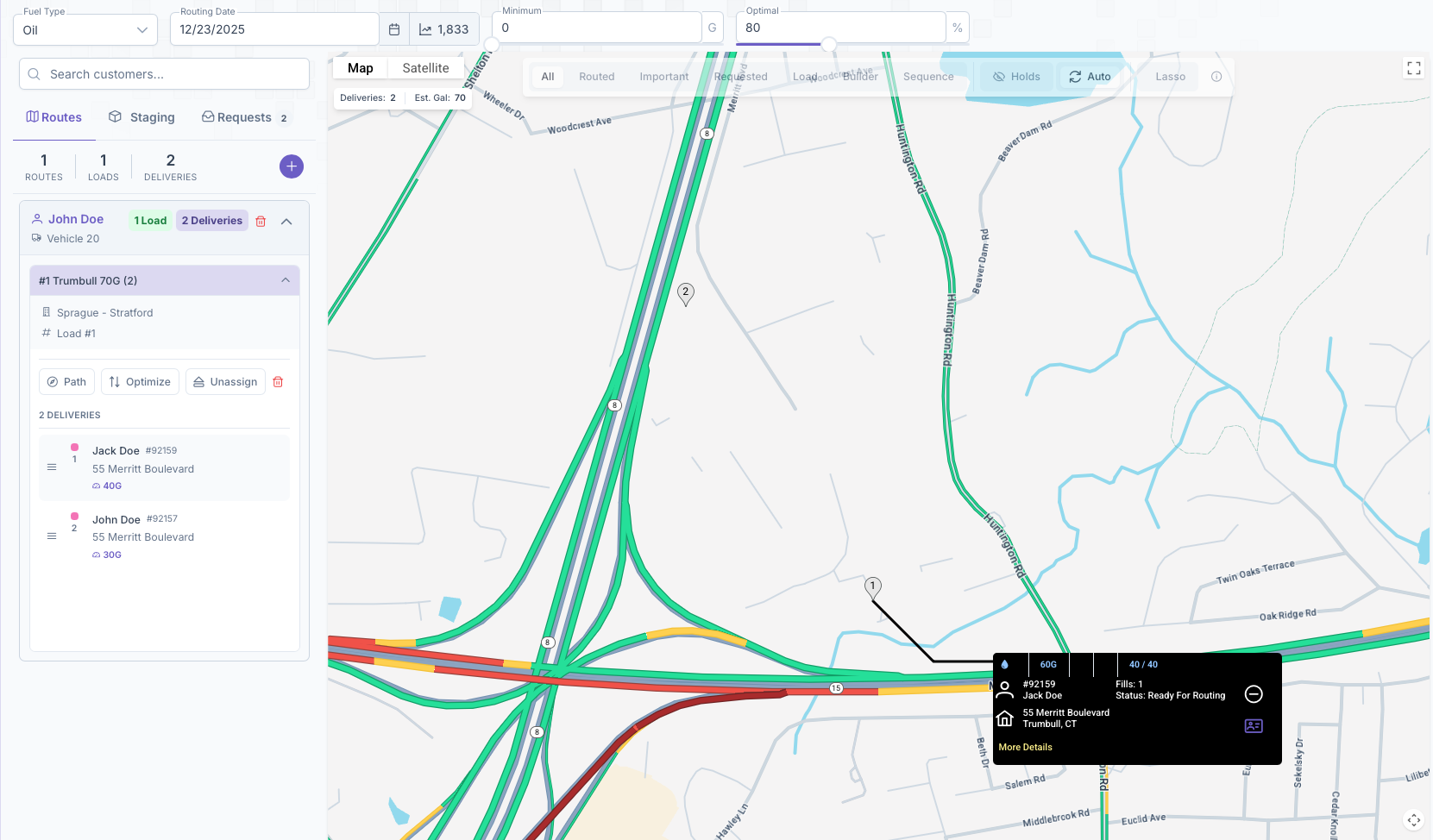
- Clicking on them will open their card on the map and the minus button will appear on their card instead of a plus
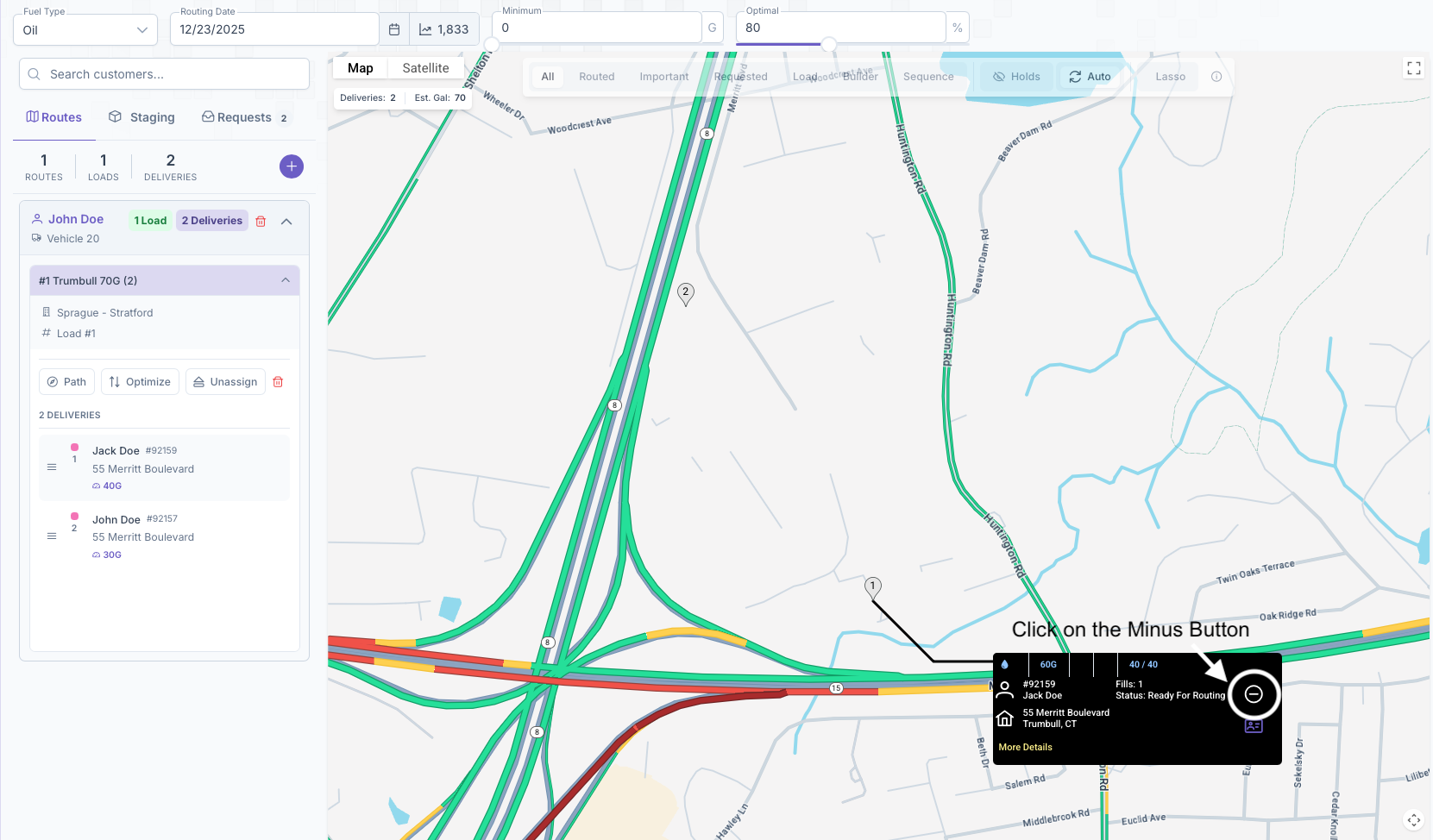
- Clicking on the minus will remove them from the load
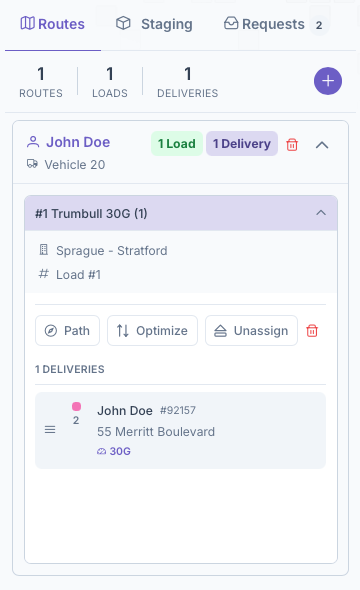
Once all customers have been removed, the load itself can be deleted by clicking on the garbage can icon on the load dropdown box. After a load has been deleted, it'll be removed from the route and now the route itself can be deleted by clicking on the garbage can icon.
Adding Fuel Delivery Request from Customer Profile
If you prefer looking for the customers profile before putting in a deliver request:
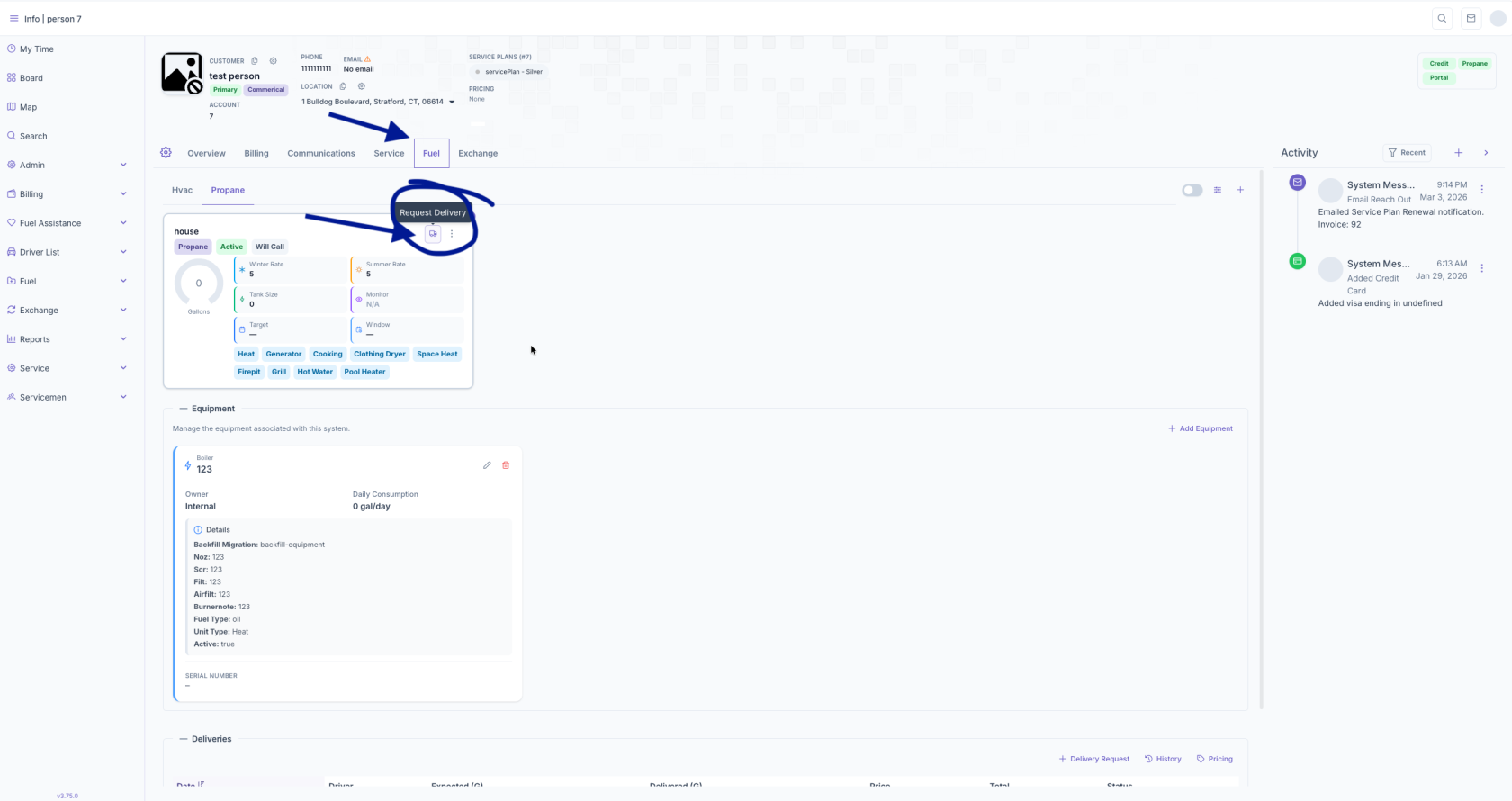
1. From the Search enter detail to locate customer (IE Name, address, account number, etc).
2. Select the customer making the fuel request.
3. Select the Fuel tab.
4. Select the little truck symbol next to on their system to start the Delivery Request
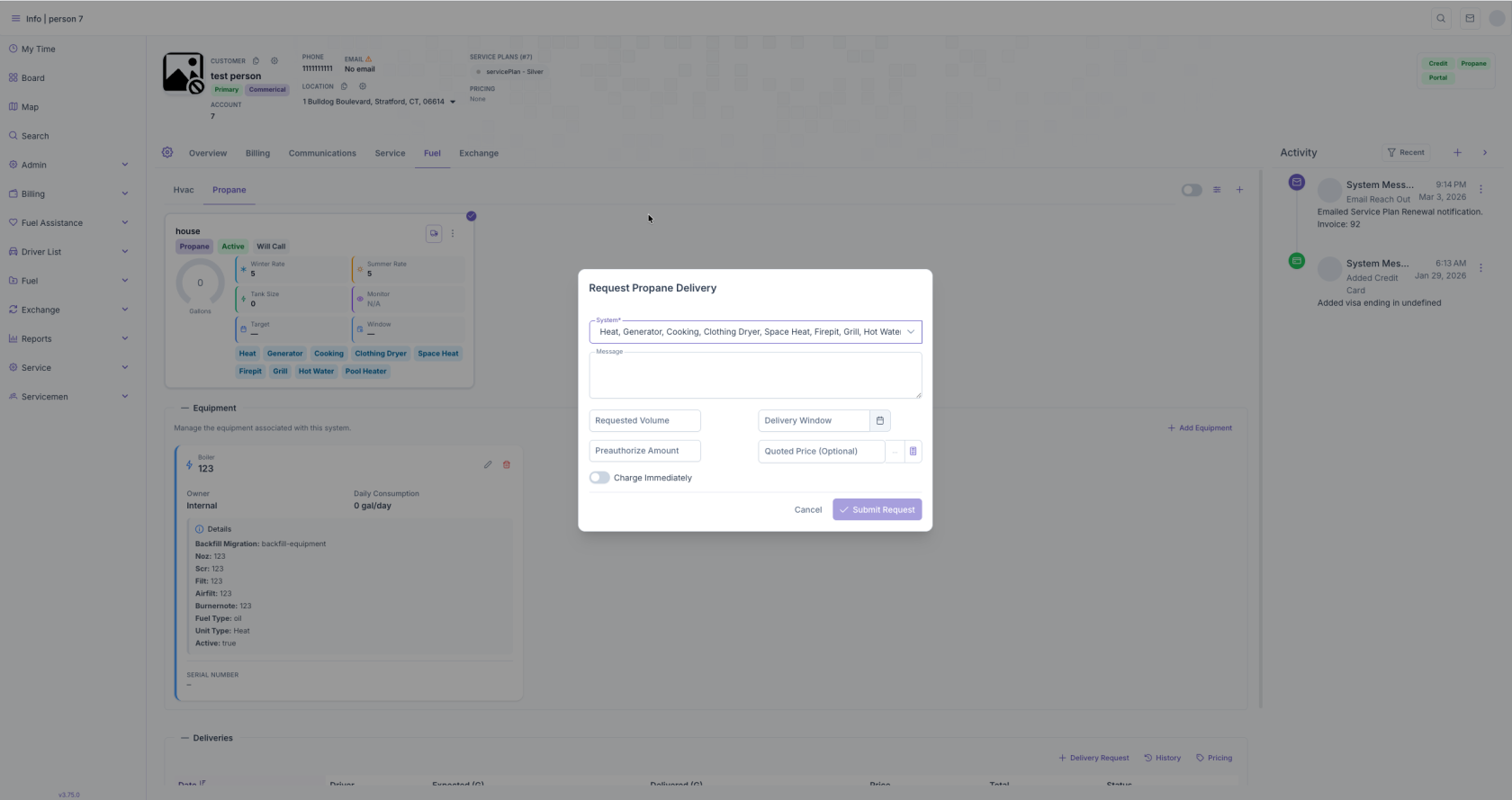
5. Ensure you selected the right system in the dropdown and enter requested volume and Delivery window. Preauthorized amount and quoted price are optional. Charge immediately should be turned on if they have a stored Credit Card on file they wish to charge after delivery is completed. Once you submit request it will appear on the Fuel Routing screen under Requests.
Fuel Drivers
Login – Accessing the App
Overview
The Login screen is the secure entry point to the Kozy Serviceman mobile application. From here, employees authenticate using their company-issued credentials. First-time users or users switching companies must scan their company’s QR code to connect the app to the correct environment.
Key Features
- Secure username and password authentication
- QR code onboarding for environment setup
- Real-time branding (company logo and name auto-load after QR scan)
- Automatic error detection and clear instructions for resolution
Step-by-Step Login Instructions
Step 1: Open the App
- Ensure you have internet or cellular data access
- Tap the Kozy Serviceman icon to launch the app
Step 2: Enter Your Credentials
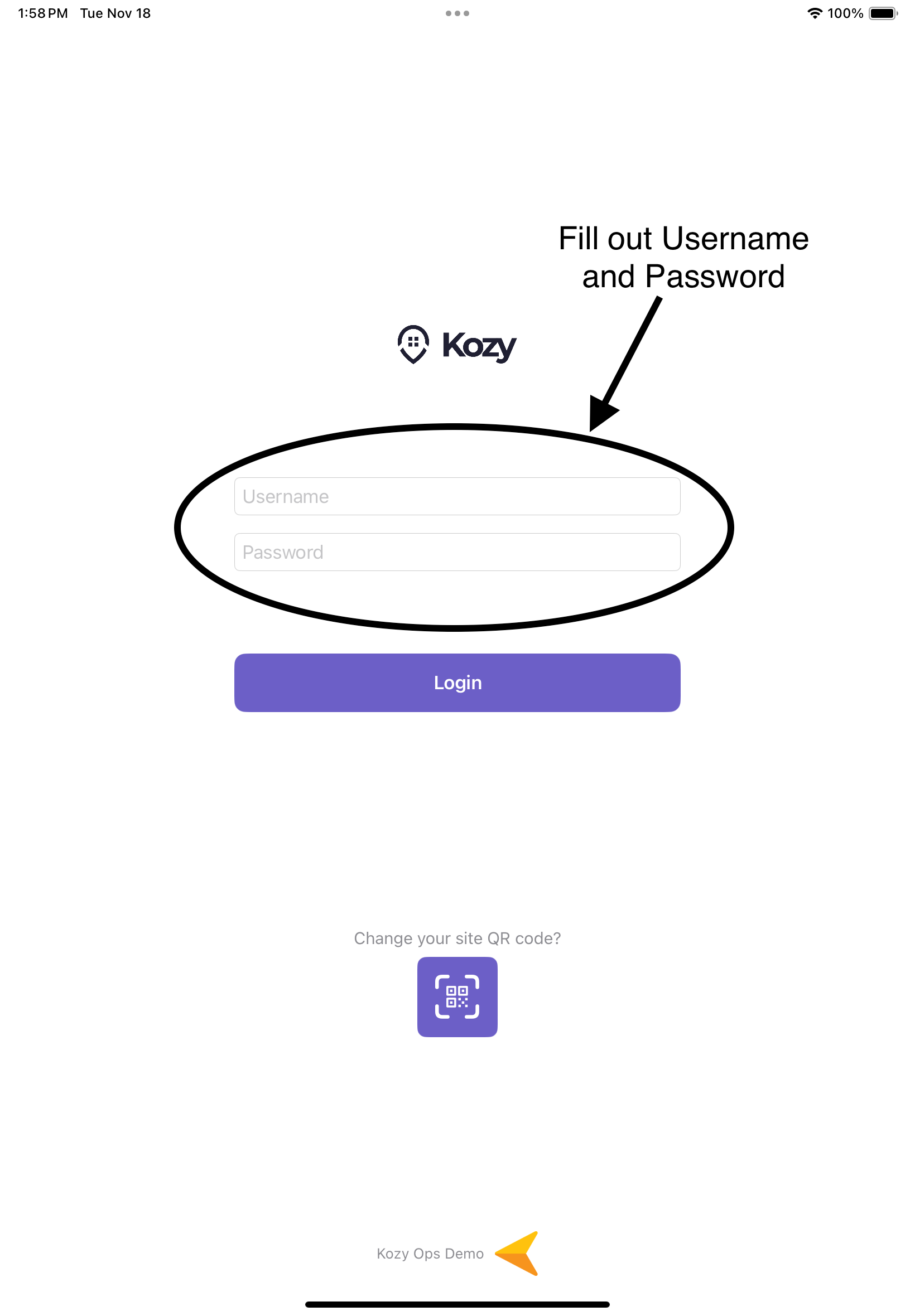
- Tap the Username field and enter your employee username
- Tap the Password field and enter your password
Step 3: First-Time Setup (QR Scan Required)
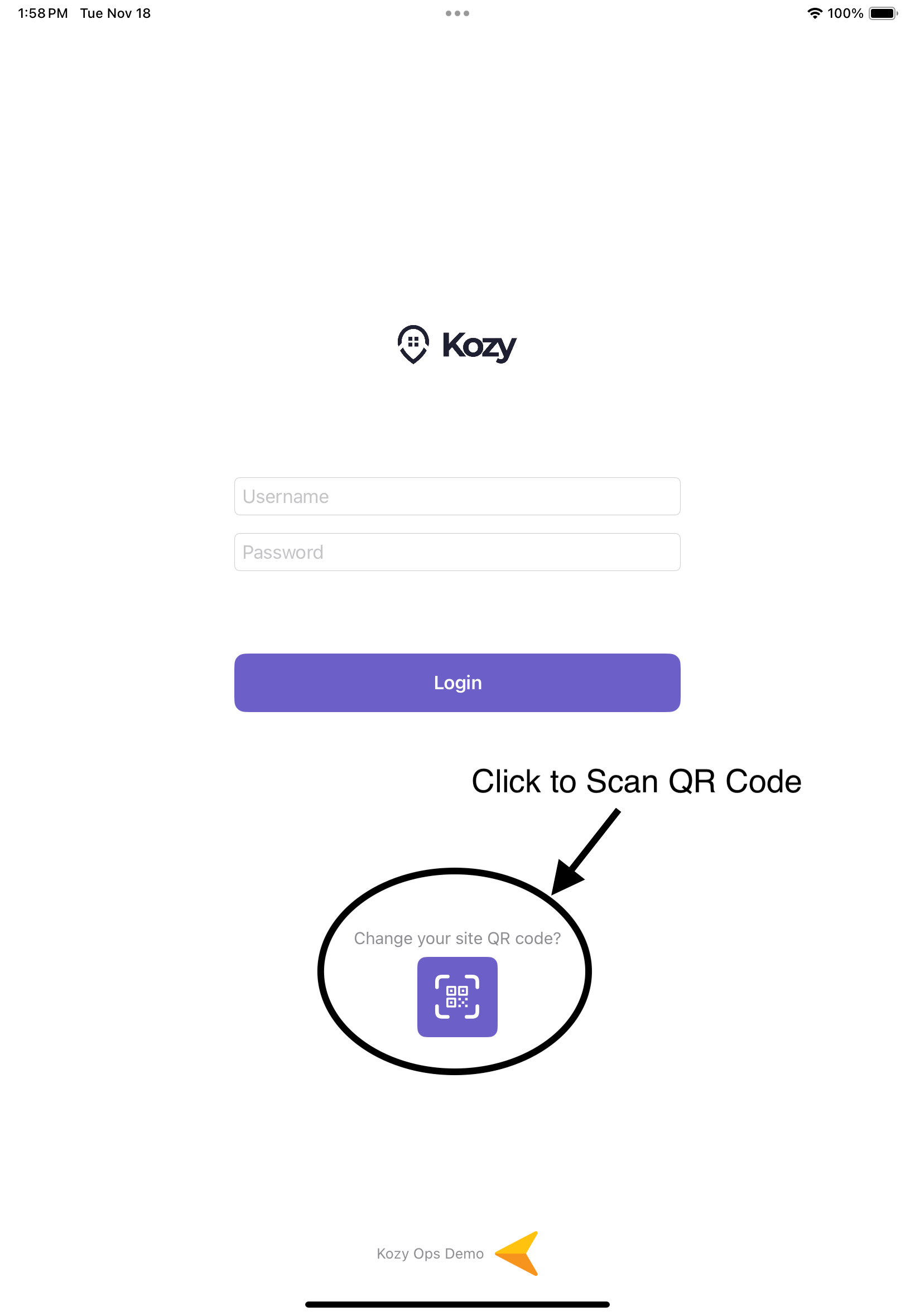 If this is your first time using the app:
- Tap the QR Code icon below the login button
- Point your camera at the QR code provided by your company or dispatcher (See QR code if not provided)
- The app will automatically configure your environment
- A company logo and name will appear at the bottom confirming success
Step 4: Logging In
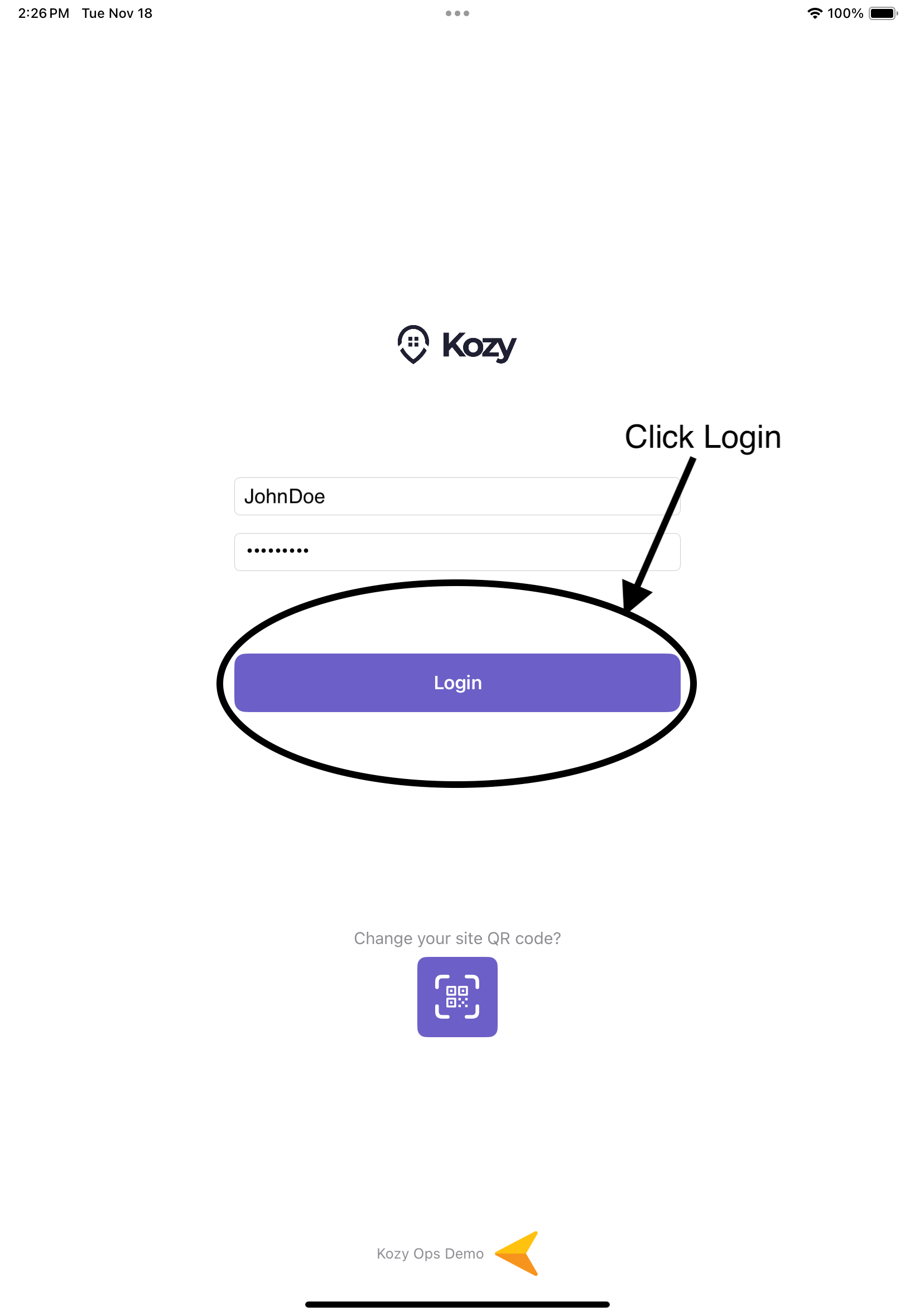
- Tap the Login button
- A loading indicator will appear while your credentials are verified
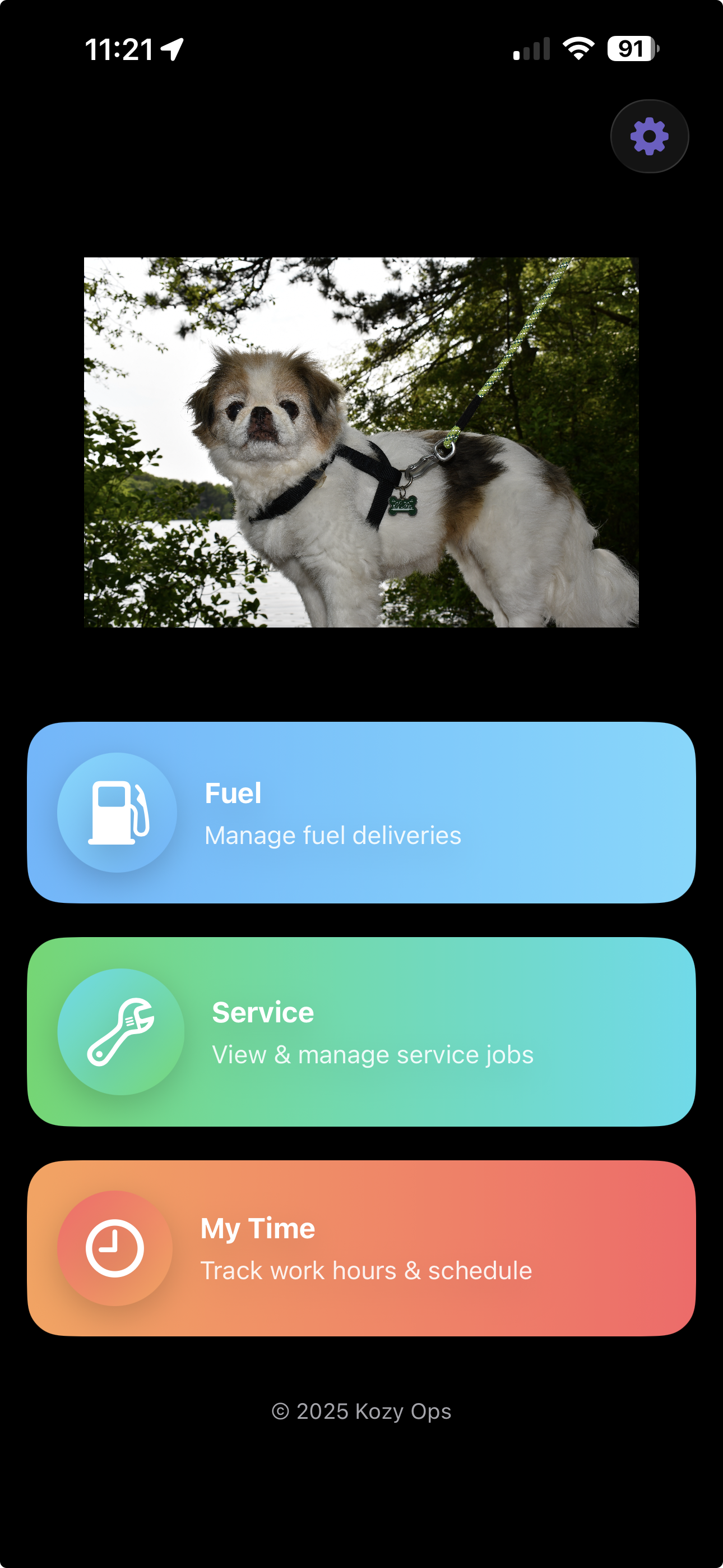
- If successful, you will be taken to the Home screen

QR code
Overview
Instructions on how to acces QR Code if not provided by Company or Dispatcher
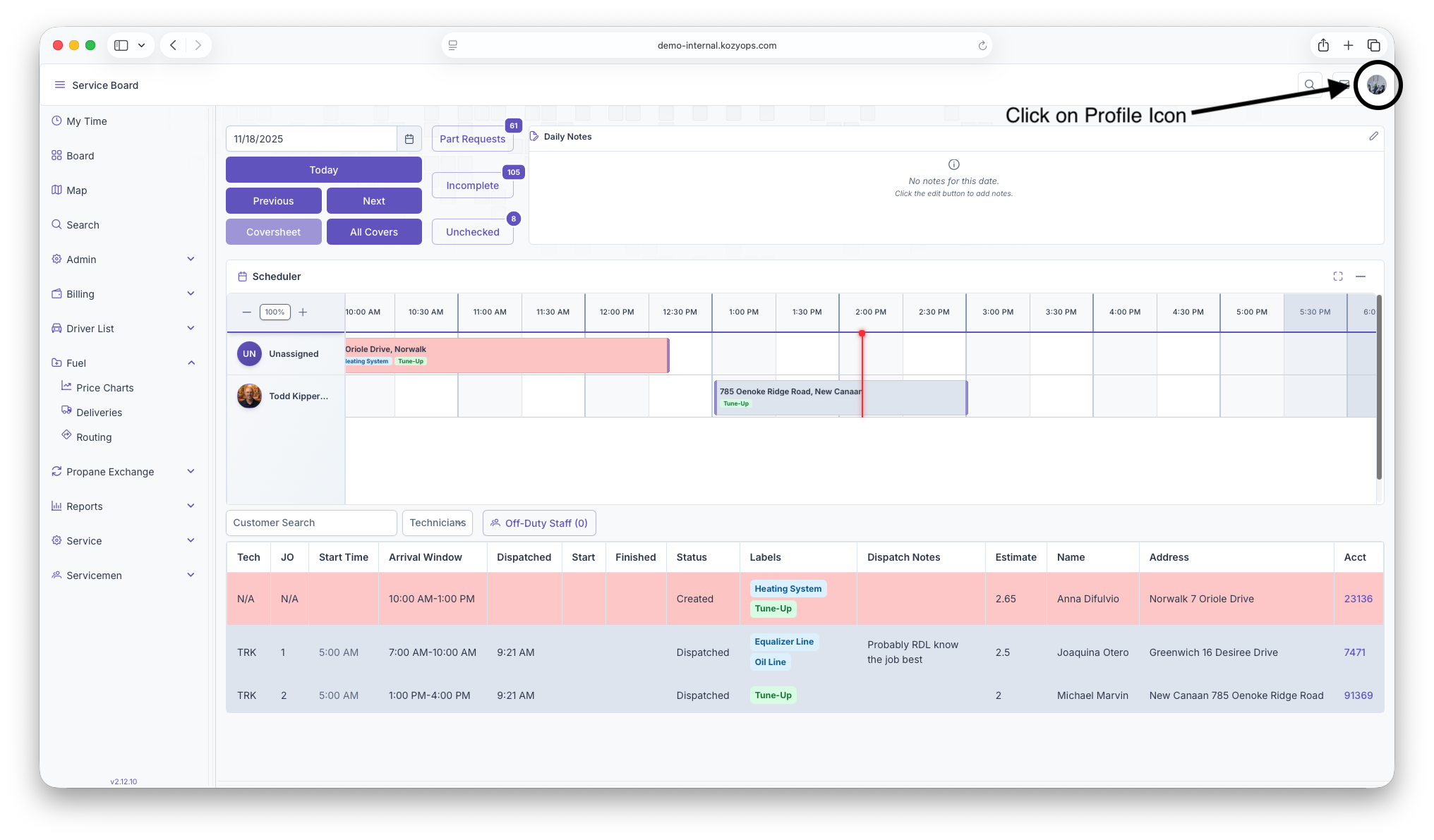
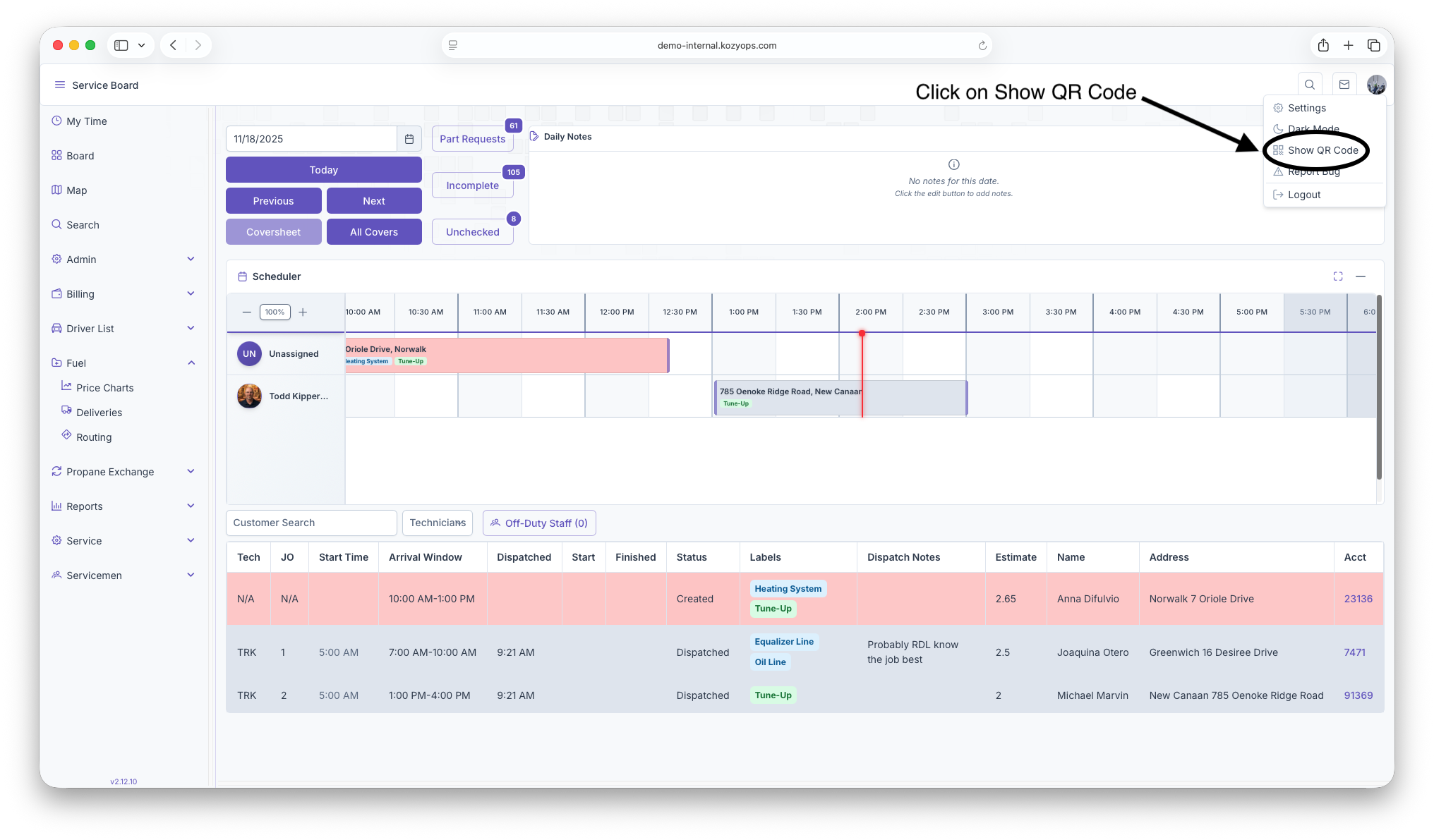
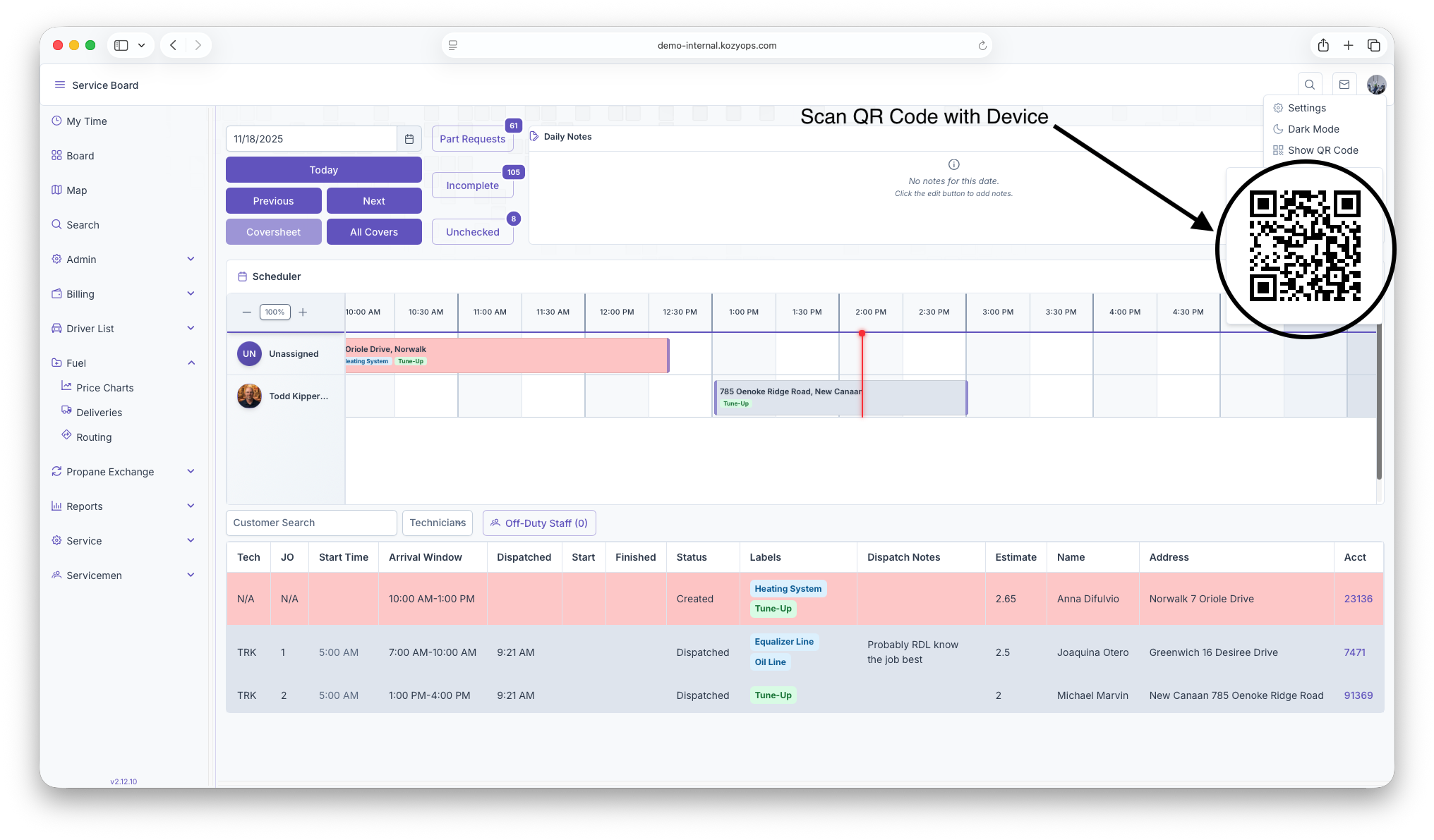
Accessing QR Code
-
On main Webpage, click on profile icon for dropdown

-
Click on Show QR Code

-
QR Code will generate and you can scan with device

Fuel Drivers Daily Life Manually Entered
Your app should already be setup with your truck for the day. You will be using the app.
1. Login to the app (if you are not already logged in).
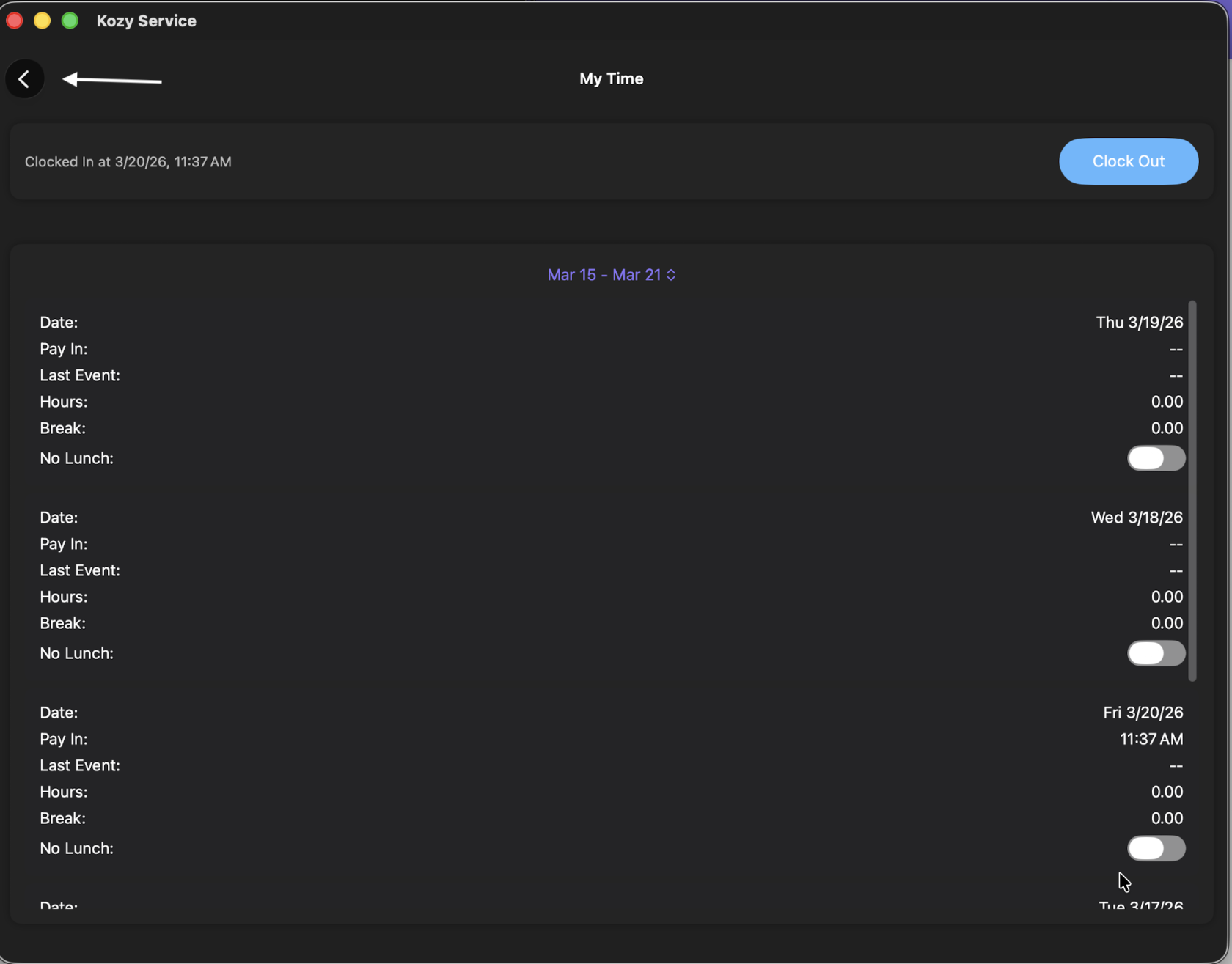
2. IF your company tracks time in Kozy - select My Time and Clock In
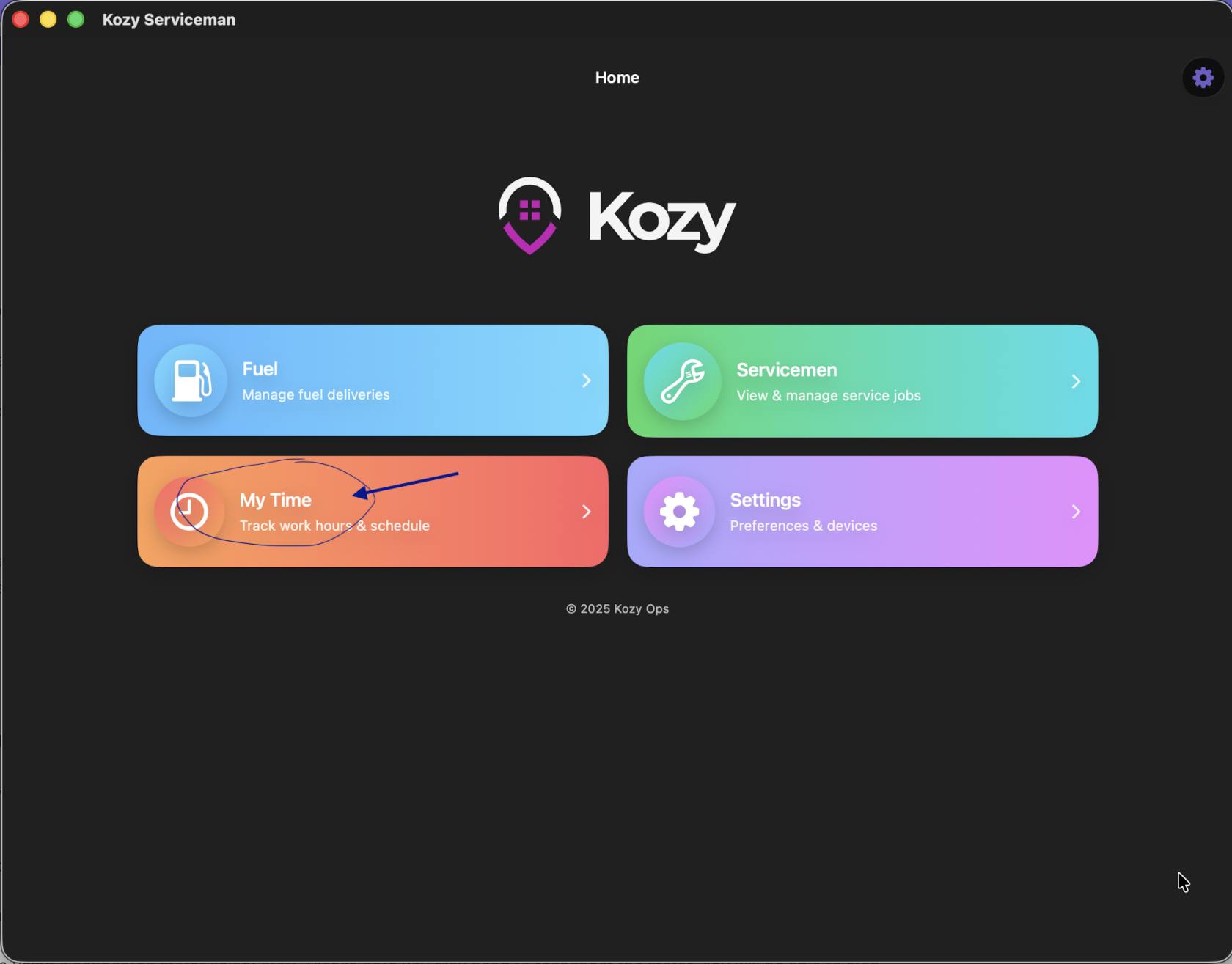
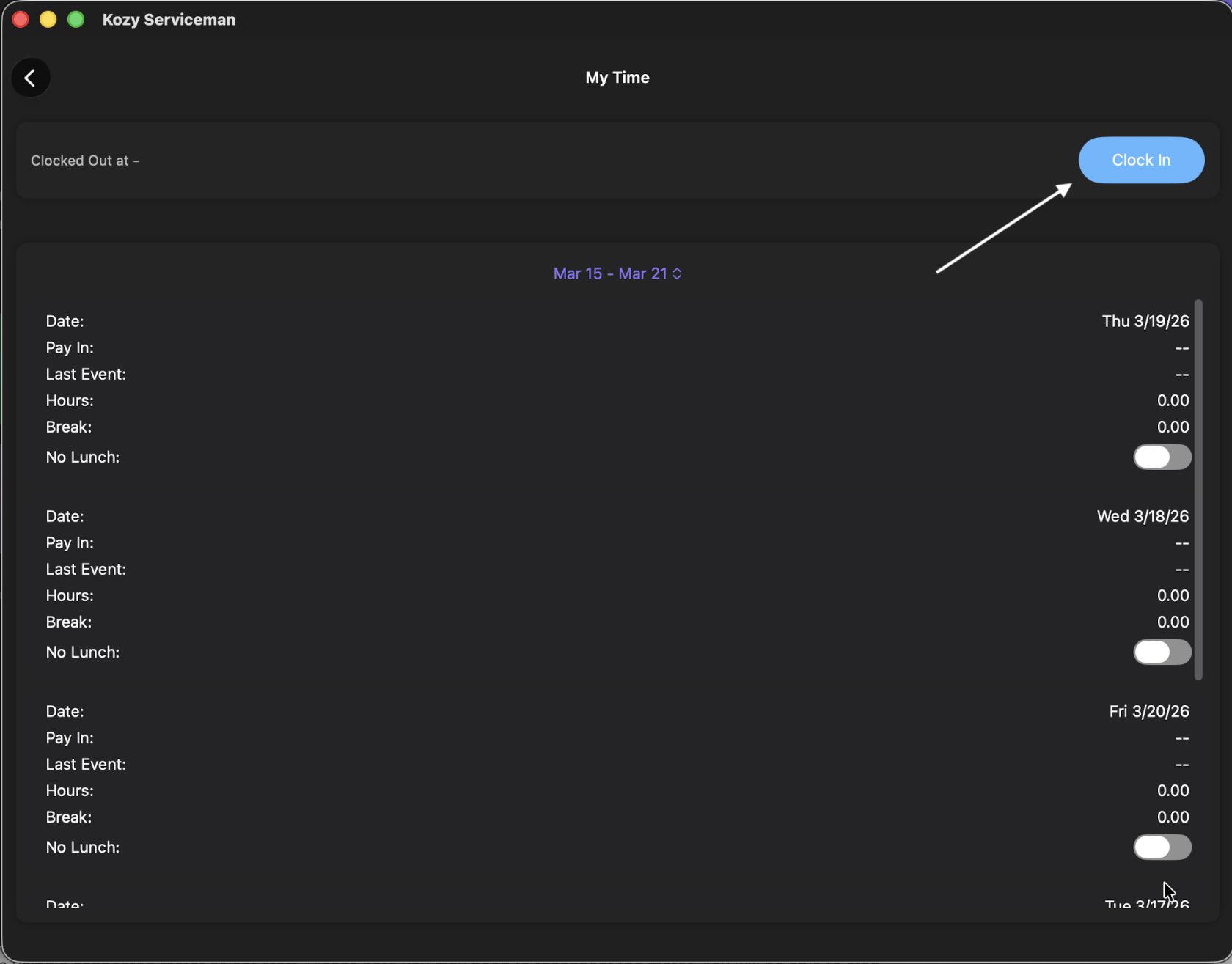
3. Hit the back button to return to the home screen.
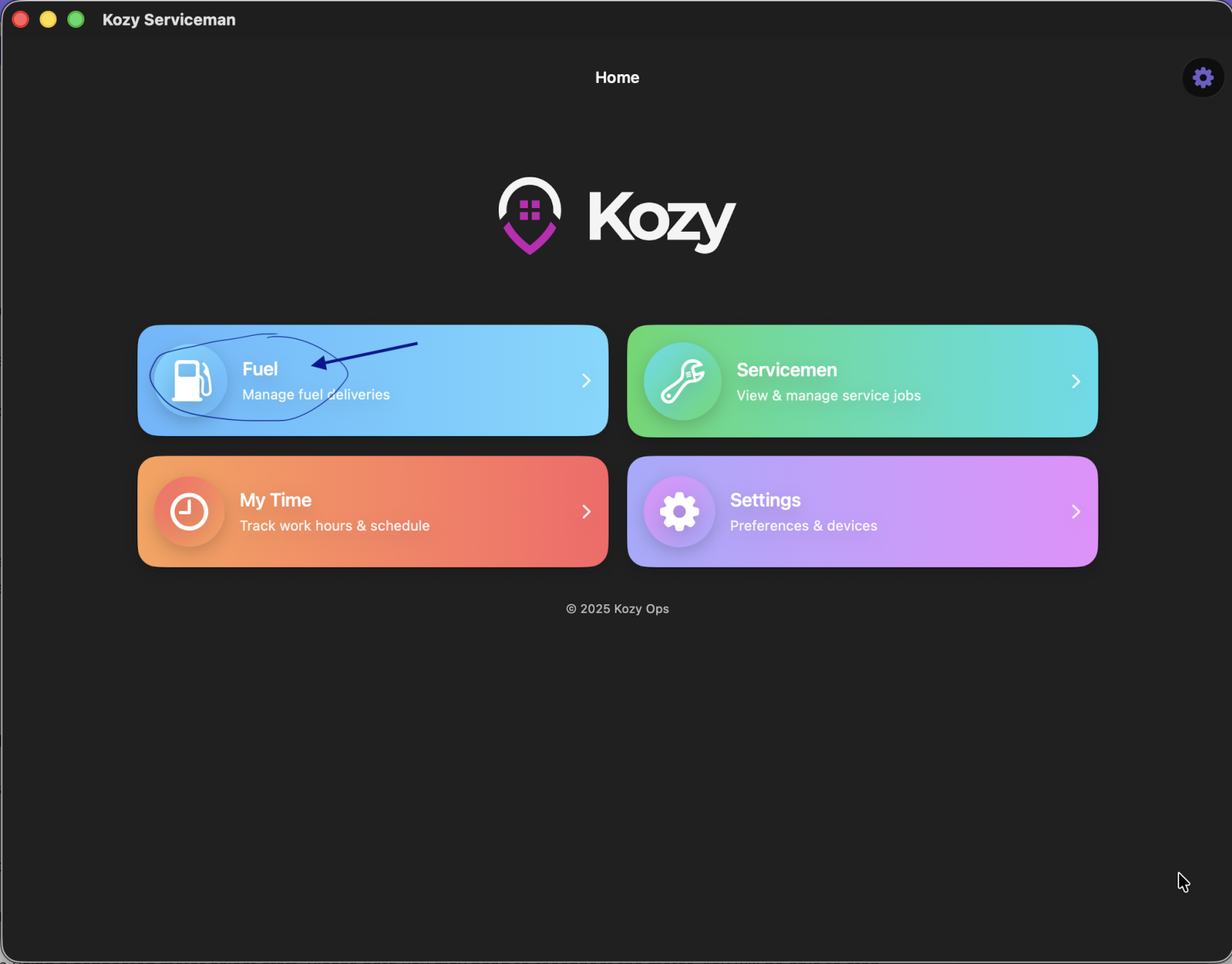
4. Select Fuel
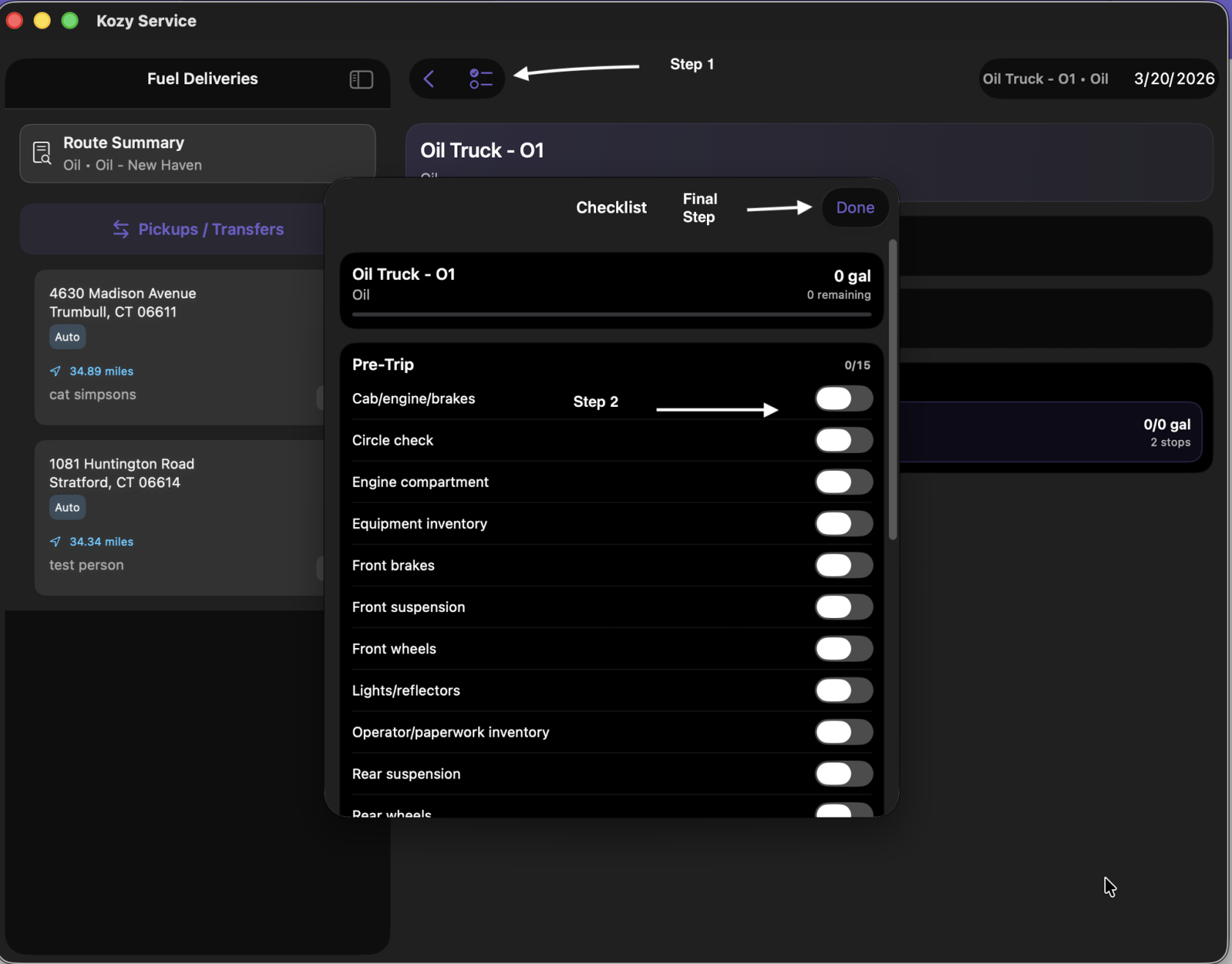
5. IF you are tracking Pre trip in Kozy - select the := icon next to the word Fuel Deliveries at the top and slide for inspection report. Click Done when completed.
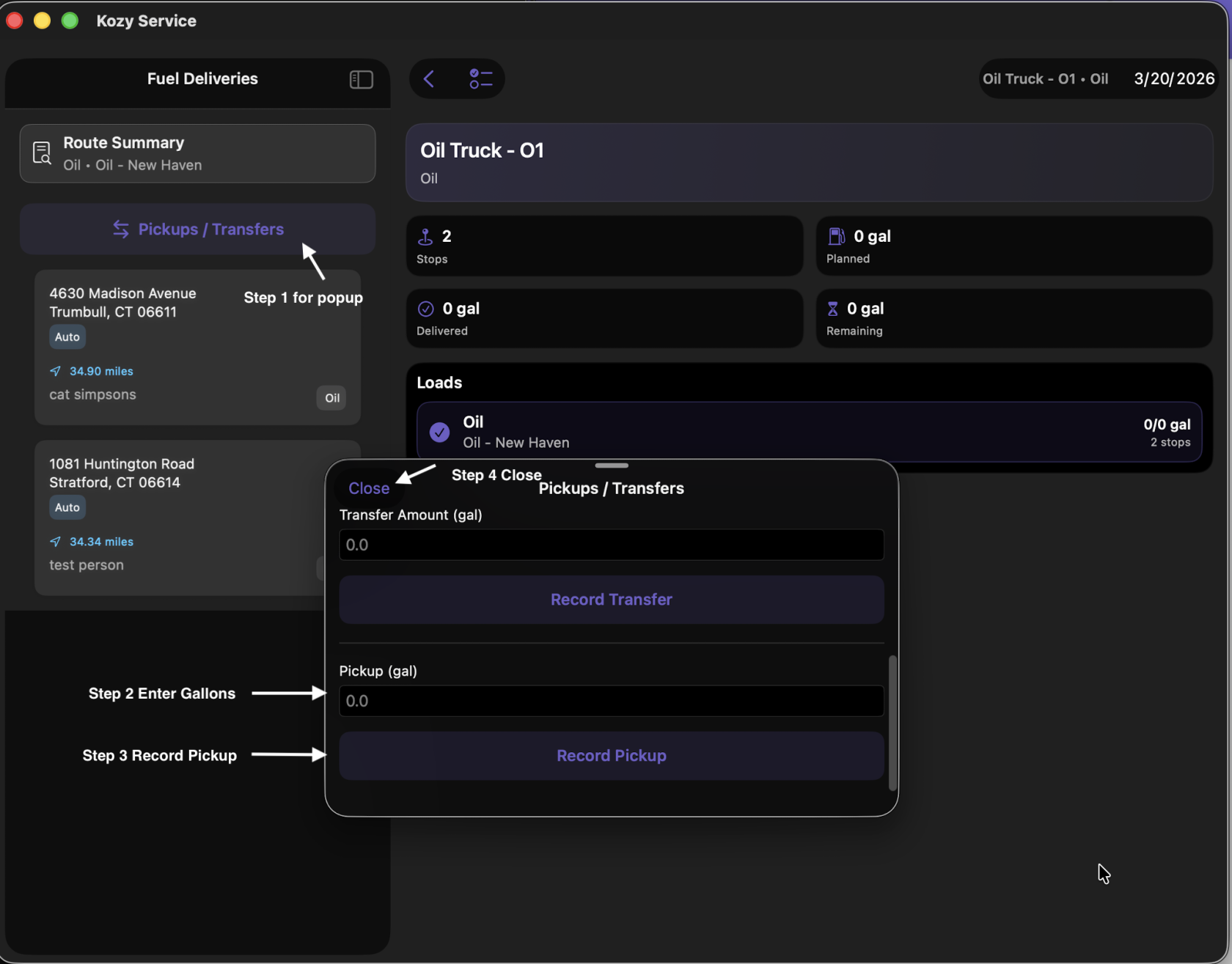
6. To Record a Pickup select Pickups/Transfers
7. The terminal you need to fill your Vehicle is at the top of the list.
8. Select Pickup/Transfers once you pickup your fuel load(s).
9. Enter how many gallons your Pickup (gal) at the bottom and Record Pickup. Close.
10. Select your first stop. This will show you the address (click the arrow for Google Maps to direct you), a picture of the property (if previously added) and expected delivery.
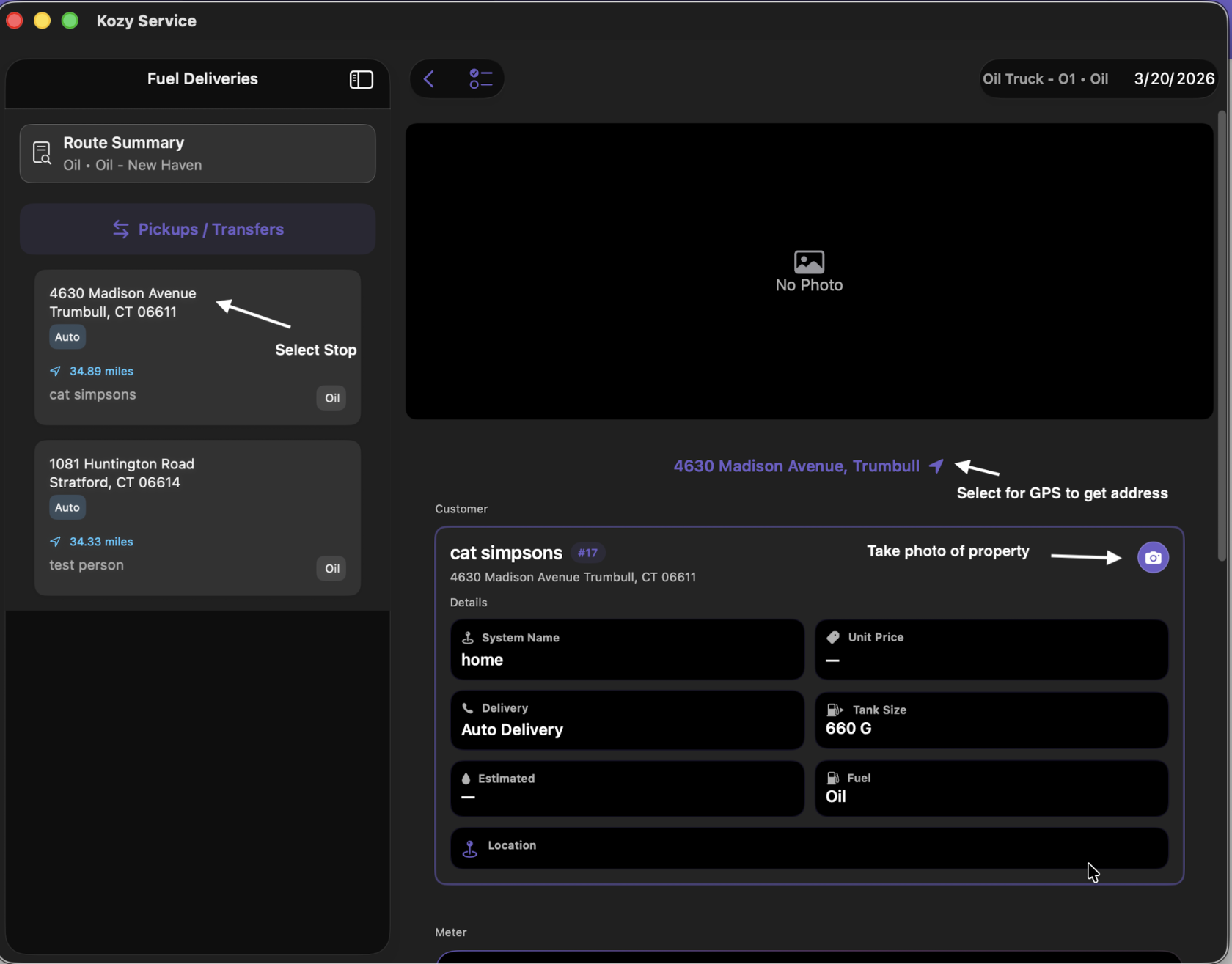
11. Scroll down to manually enter the number of gallons delivered.
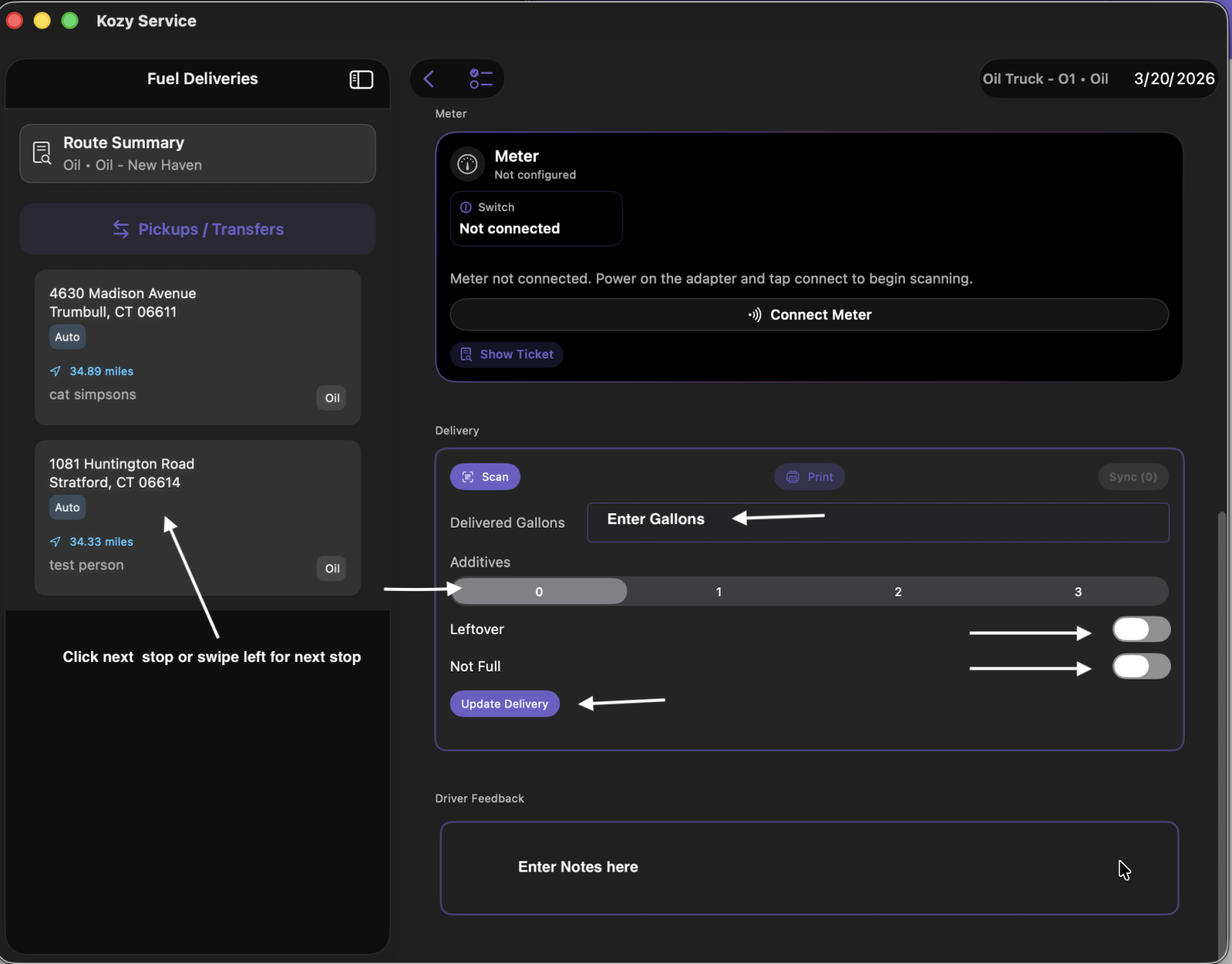
12. Scroll down to enter additives (if used), select if this is leftover or not full. Leave notes or feedback if needed.
13. Swipe left for the next stop or select the next one by hand. Repeats 11&12. Continue until all deliveries are completed.
14. IF you are tracking Post trip in Kozy - select the := icon next to the word Fuel Deliveries at the top and enter closeout details. Click Done when completed.
15. IF you are tracking time - from the home screen select My Time - Clock Out. Remember if you skipped lunch to select the slider for the day.
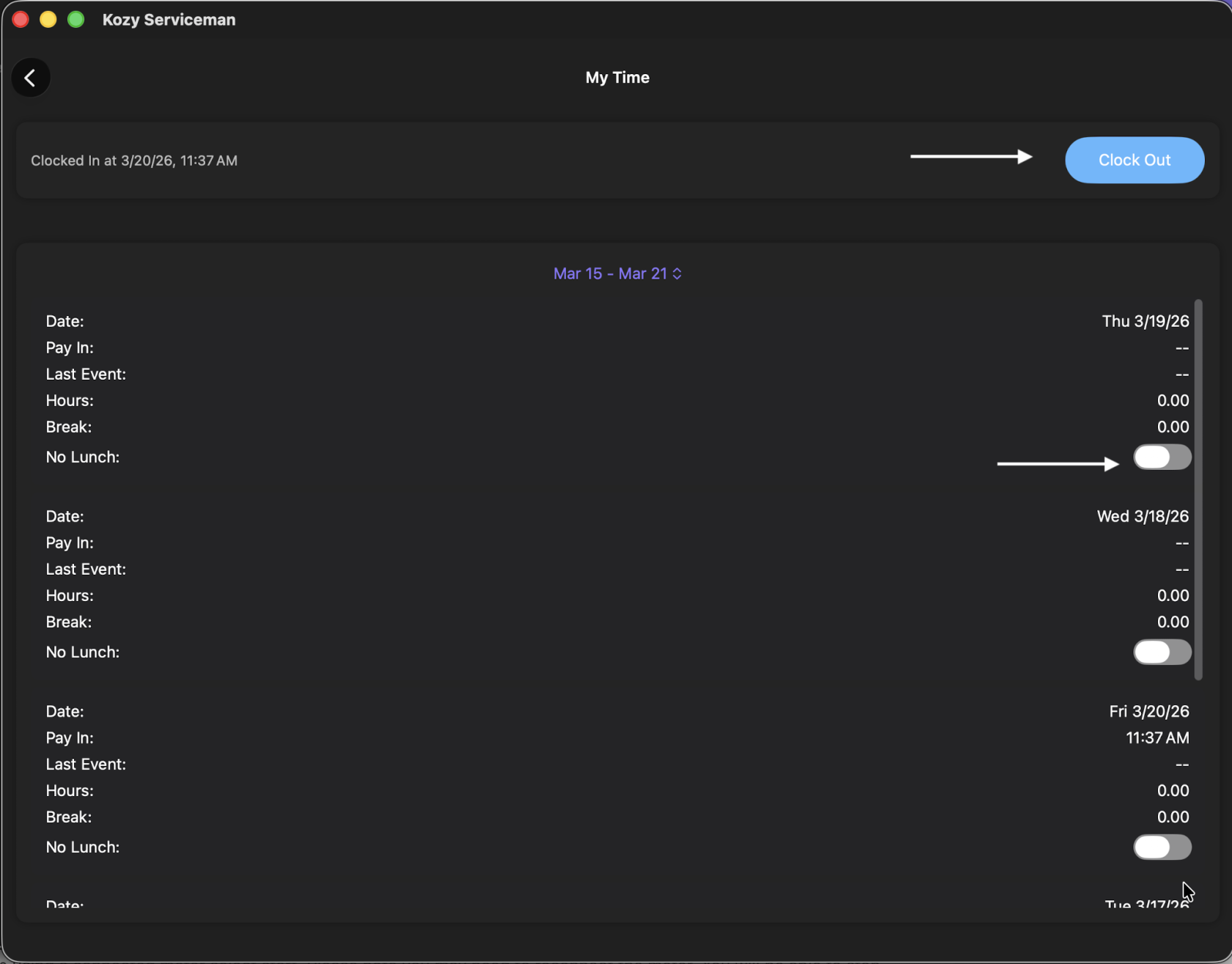
Fuel Drivers Daily Life Metered
Your app should already be setup with your truck for the day. You will be using the app.
1. Login to the app (if you are not already logged in).
2. IF your company tracks time in Kozy - select My Time and Clock In
3. Hit the back button to return to the home screen.
4. Select Fuel
5. IF you are tracking Pre trip in Kozy - select the := icon next to the word Fuel Deliveries at the top and slide for inspection report. Click Done when completed.
6. To Record a Pickup select Pickups/Transfers
7. The terminal you need to fill your Vehicle is at the top of the list.
8. Select Pickup/Transfers once you pickup your fuel load(s).
9. Enter how many gallons your Pickup (gal) at the bottom and Record Pickup. Close.
10. Select your first stop. This will show you the address (click the arrow for Google Maps to direct you), a picture of the property (if previously added) and expected delivery.
11. Scroll down to select START. Please note you may need to reconnect the meter. You will be able to stop it here as well and it will automatically fill in the delivery information.
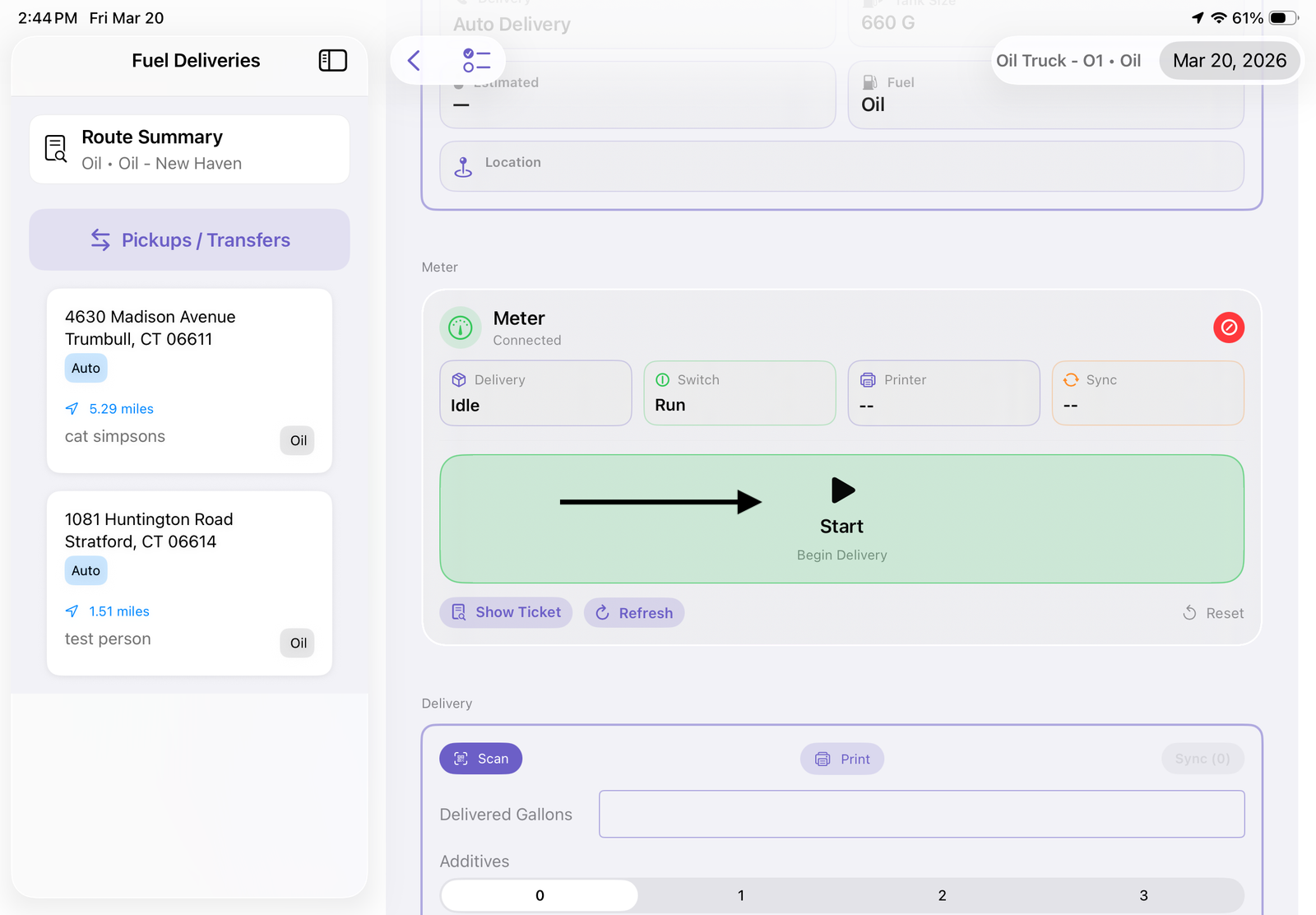
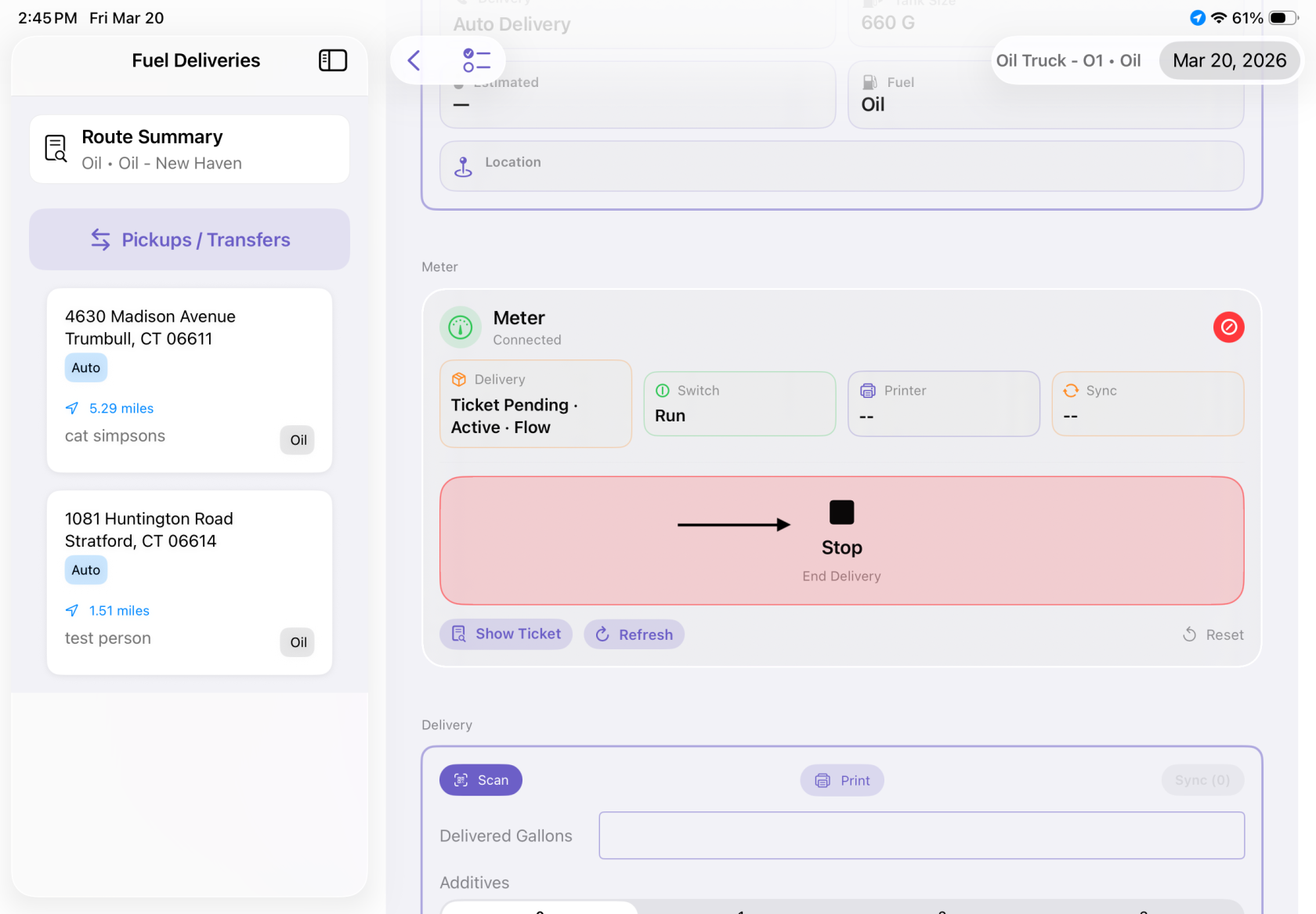
12. Scroll down to enter additives (if used), select if this is leftover or not full. Leave notes or feedback if needed.
13. Swipe left for the next stop or select the next one by hand. Repeats 11&12. Continue until all deliveries are completed.
14. IF you are tracking Post trip in Kozy - select the := icon next to the word Fuel Deliveries at the top and enter closeout details. Click Done when completed.
15. IF you are tracking time - from the home screen select My Time - Clock Out. Remember if you skipped lunch to select the slider for the day.
Videos for Fuel
Below you will find the list of training videos for fuel