Editing a System Guide
This guide explains how to edit an existing system using the Edit System dialog and what each field and setting controls.
Prerequisites
- The system exists and you have permission to modify it.
- You are on the Customer Dashboard with the Location selected.
Edit a system
-
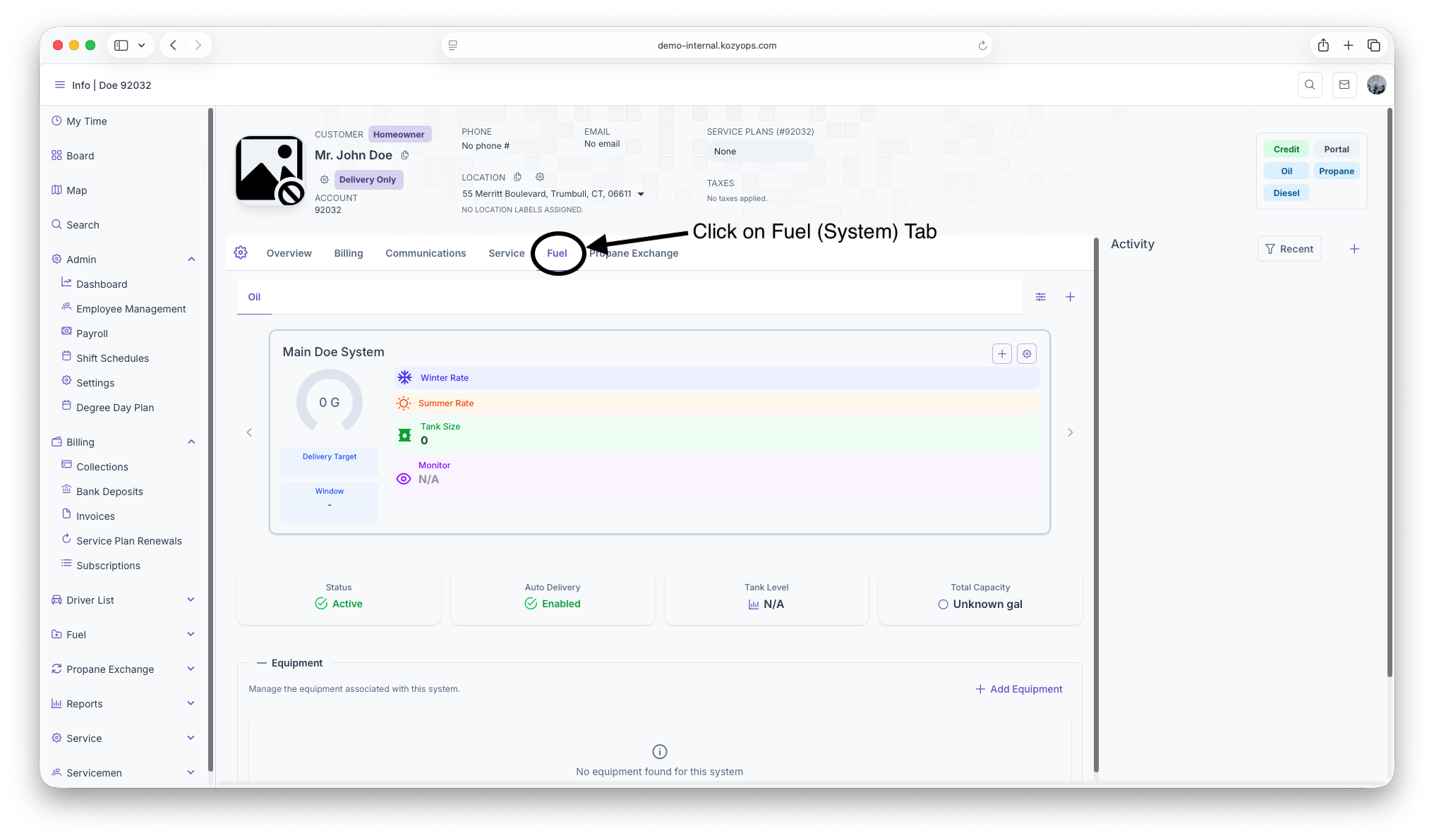
Navigate to Systems from the Customer Dashboard.

-
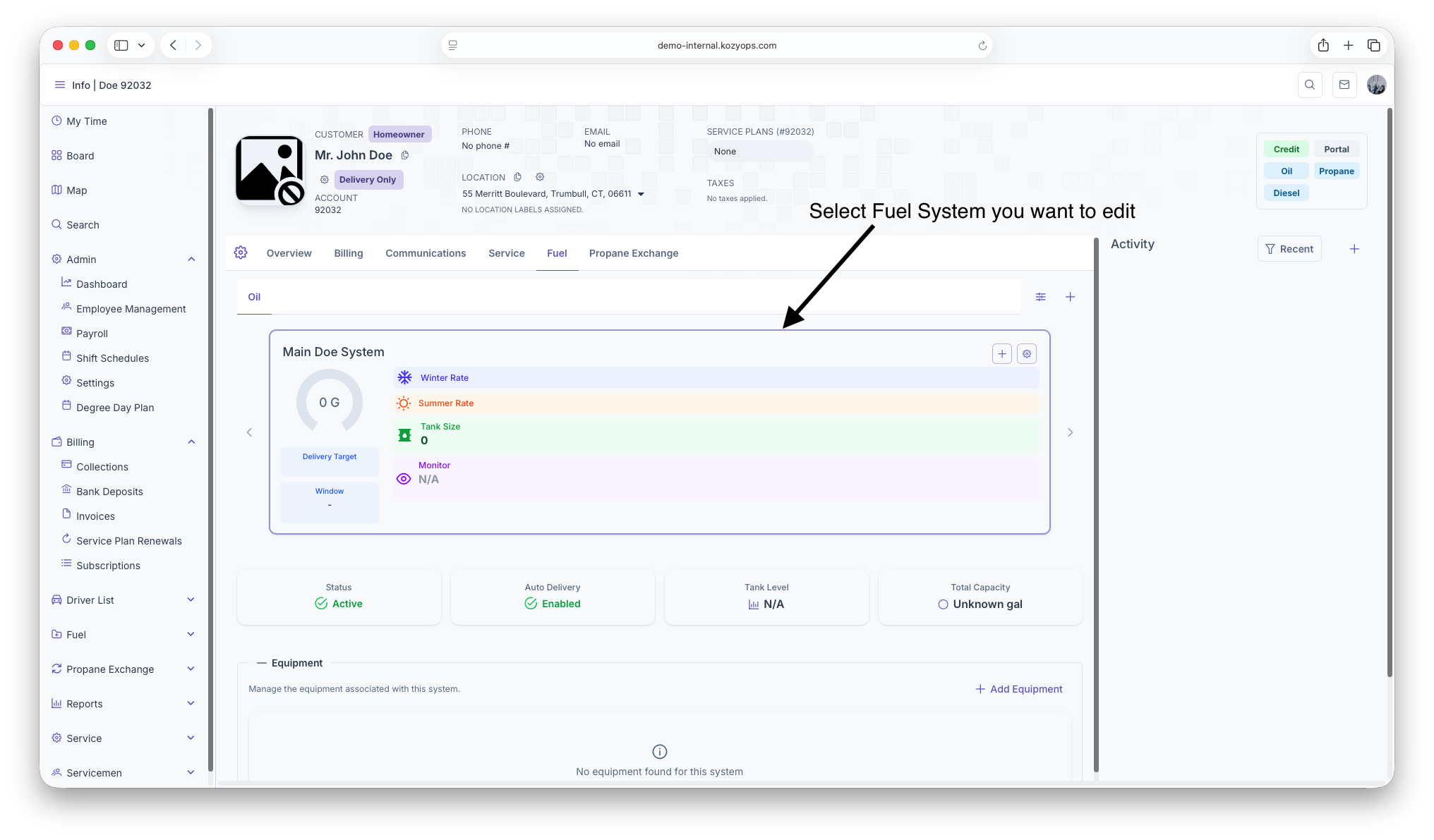
Find the system you want to edit.

-
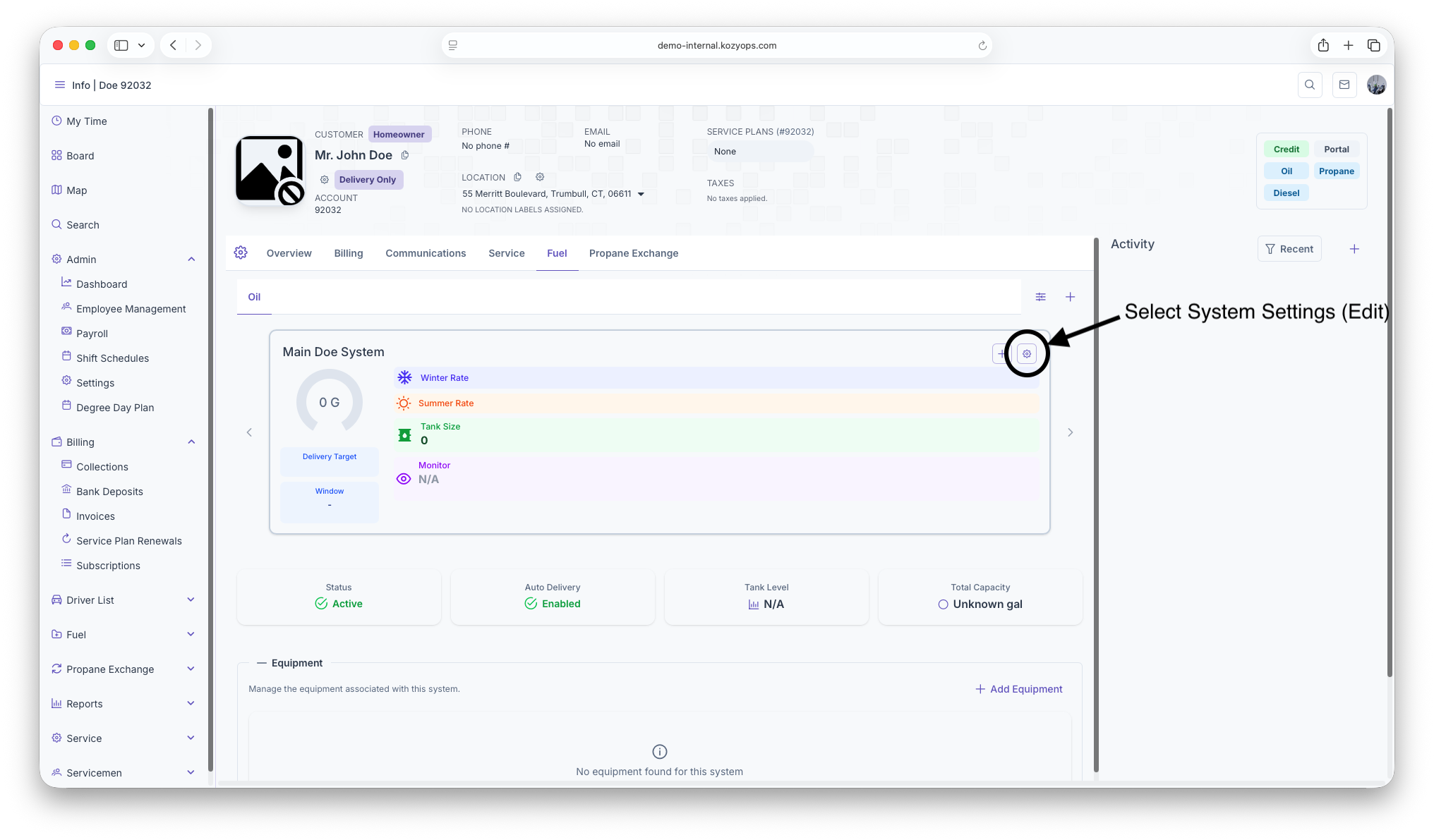
Click Edit on the system.

-
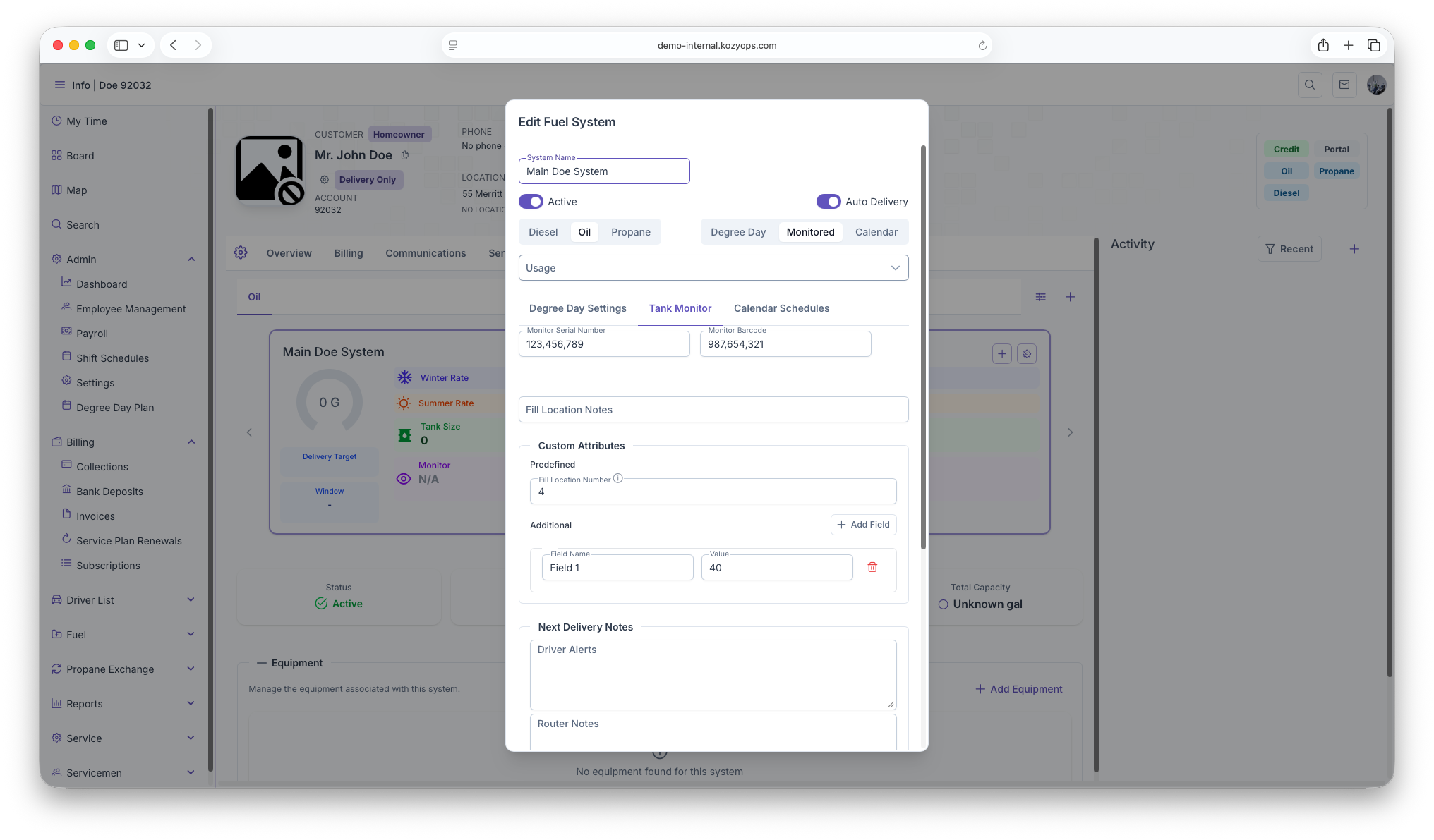
The Edit System dialog opens with all current settings.

-
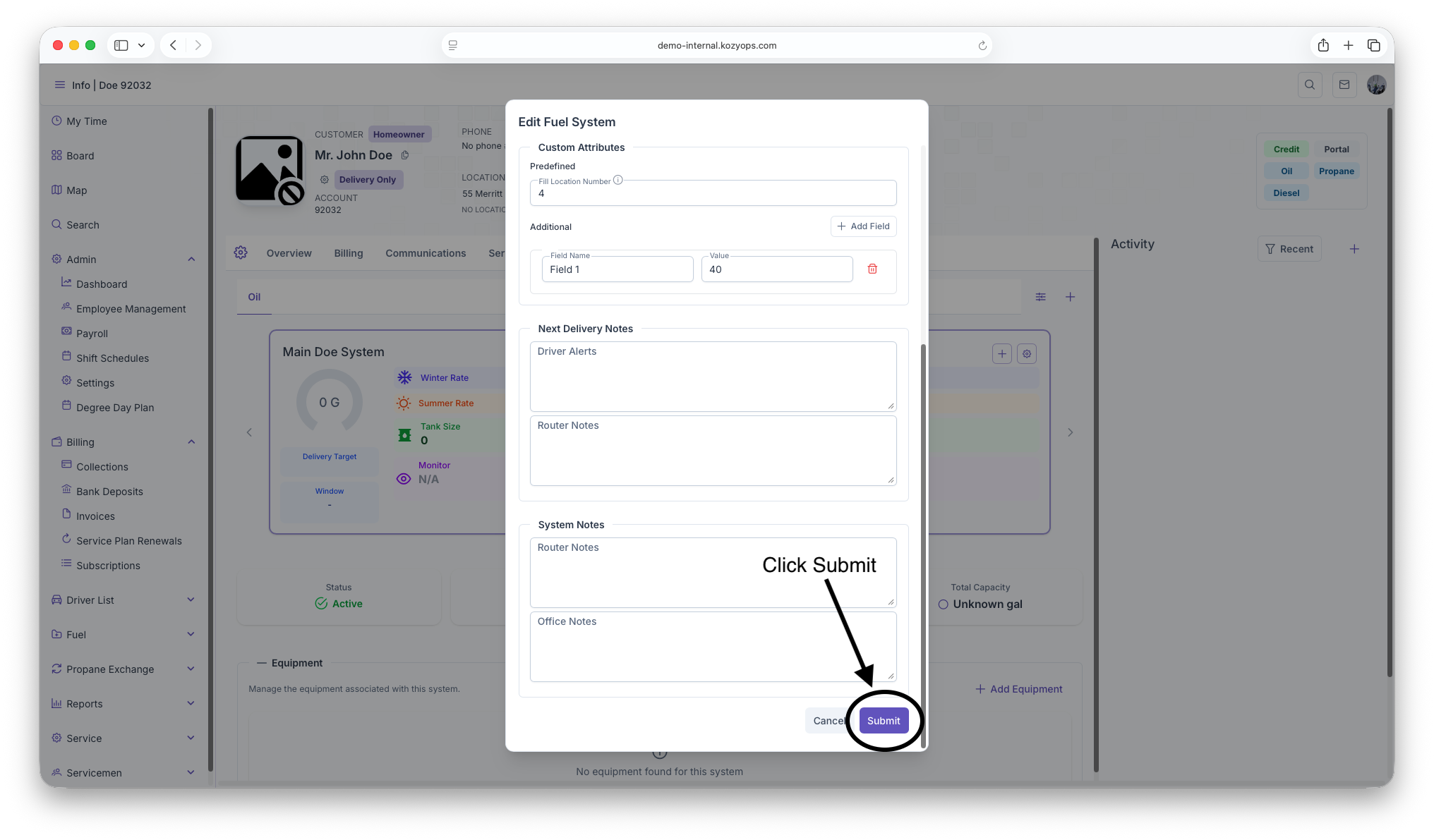
Make your changes and click Submit.

What you can edit
The Edit System dialog has the same structure as Add System, with all fields editable:
Basic system settings
System Name
- Text field for the system identifier
- Safe to change at any time for clarity
Active toggle
- Enable to keep the system active
- Disable to deactivate the system (stops delivery generation)
Auto Delivery toggle
- Enable to allow automatic delivery request generation based on window strategy
- Disable for manual/will-call only (system still tracks data but doesn't auto-generate requests)
Fuel selector (Propane, Oil, etc.)
- Caution: Only change if the physical system has been converted
- Changing fuel type may affect linked services and pricing
Window Strategy selector (Degree Day, Monitored, Calendar)
- Changes which tab's settings are used for delivery estimation
- Safe to switch, but verify the new strategy is properly configured
- See: Window Strategies
Usage multi-select
- Add or remove usage types (heating, appliance, etc.)
- Safe to change at any time
Window strategy tabs
After selecting a window strategy, configure its settings in the appropriate tab:
Degree Day Settings tab
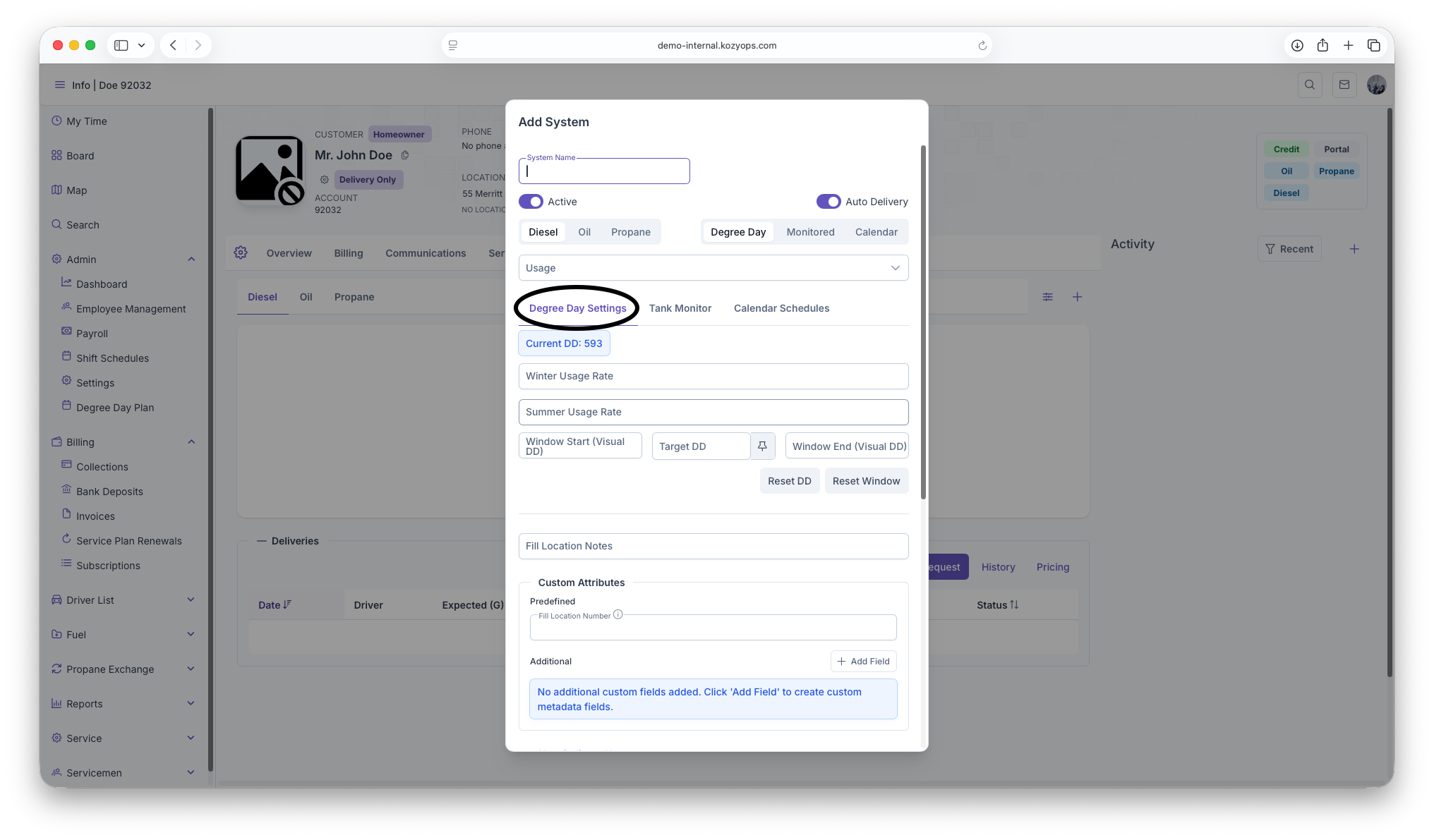
Usage Rates:
- Winter Usage Rate: Gallons per degree day (0-4 decimal places)
- Summer Usage Rate: Gallons per degree day (0-4 decimal places)
- Safe to adjust based on consumption history
Window boundaries:
- Window Start (Visual DD): Lower boundary
- Target DD: Trigger point for delivery
- Window End (Visual DD): Upper boundary
- Force Degree Day (thumbtack icon): Manually override the current target
- Reset DD: Resets degree day accumulation (only available for existing systems with delivery history)
- Reset Window: Resets window boundaries (only available for existing systems)
Info displays:
- Current DD, Last Delivery date, Visual DD, Actual DD values
- Warning messages if target DD change is pending or window is forced
Tank Monitor tab
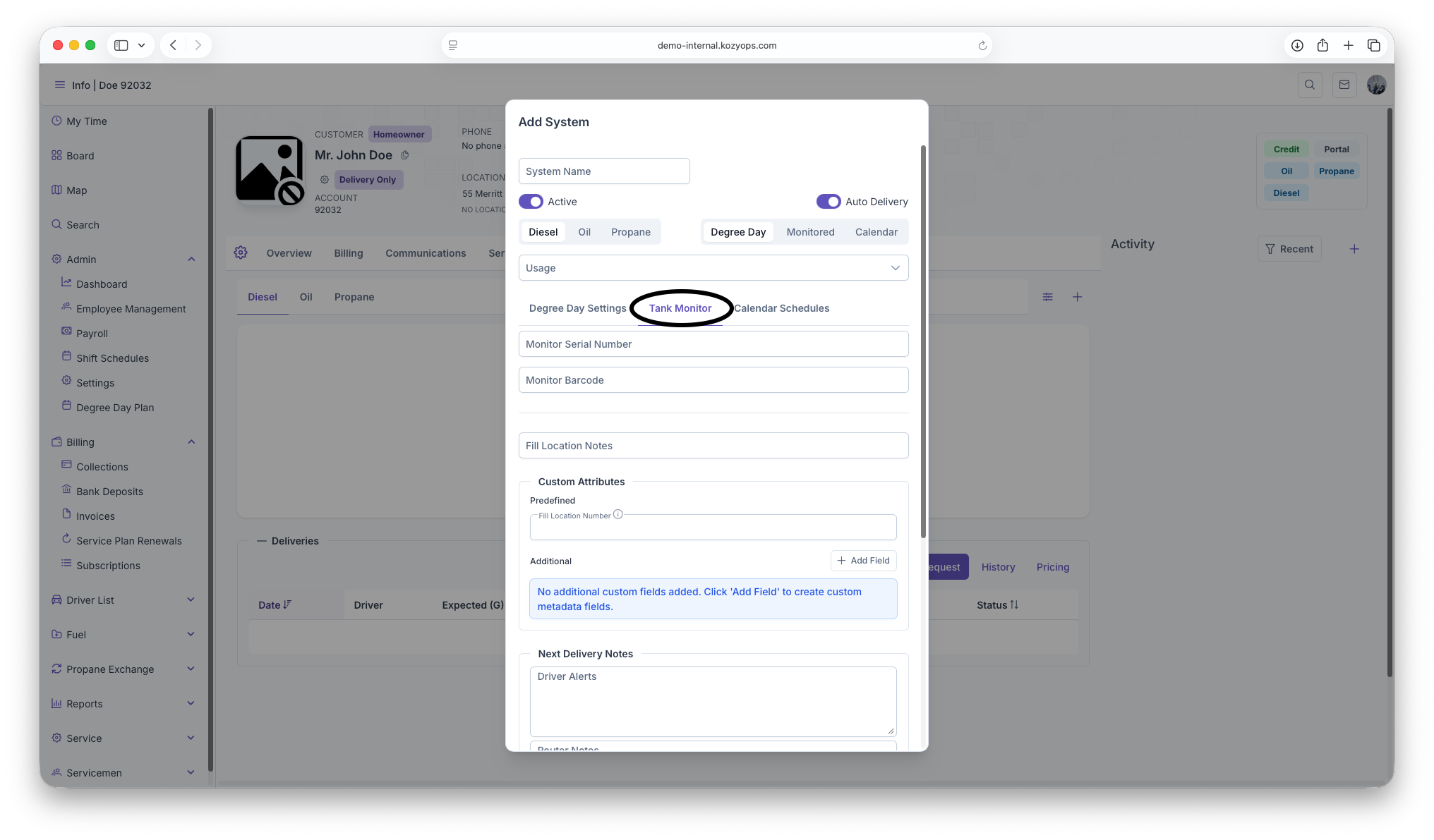
Monitor Serial Number
- Required if Window Strategy is set to Monitored
- Enter the device's serial identifier
- Submit button is disabled until provided for monitored systems
Monitor Barcode
- Optional additional identifier
Calendar Schedules tab
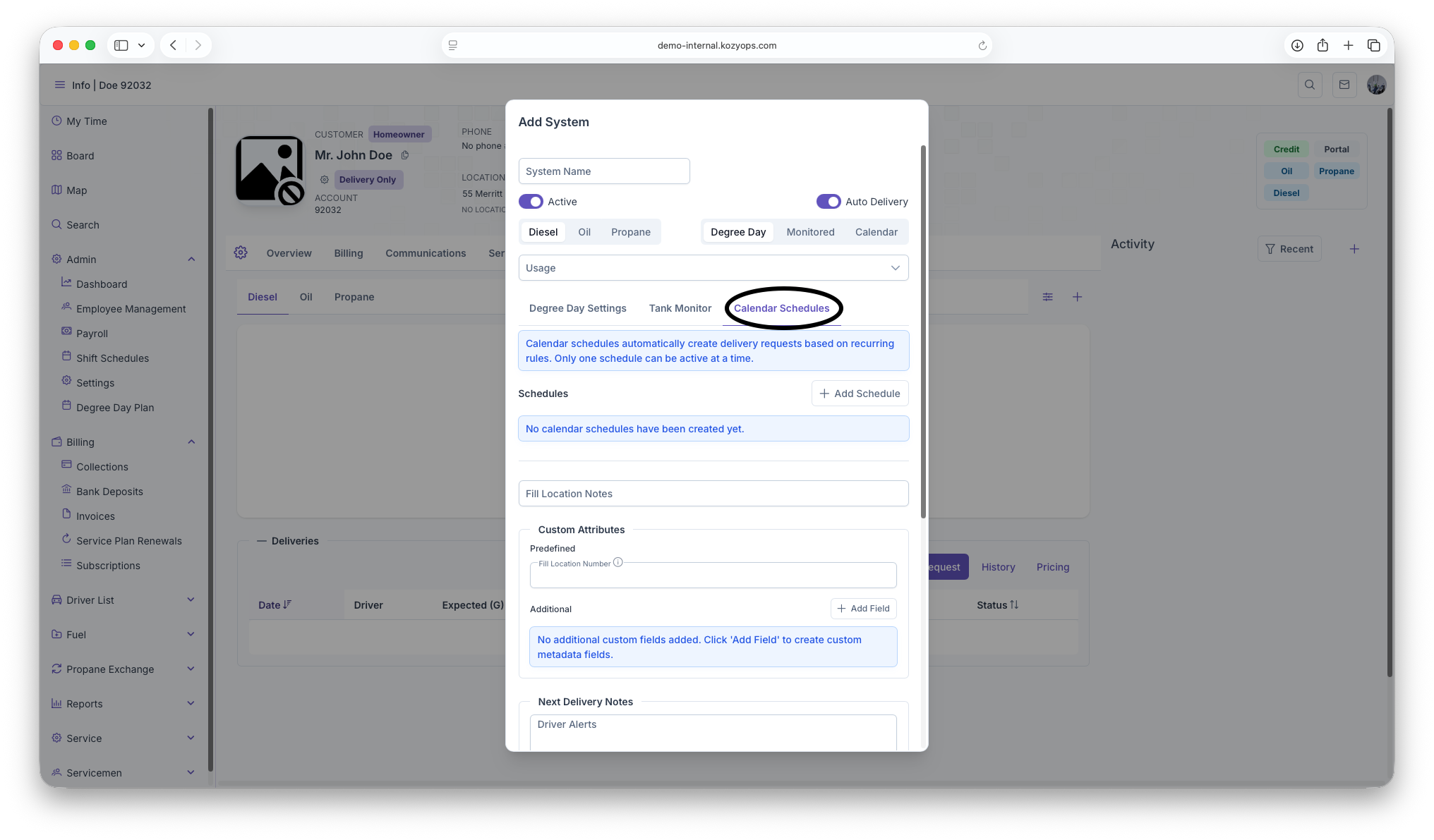
Manage recurring delivery schedules:
- Add Schedule, Edit, Set Active, Deactivate, Delete
- Only available for existing systems (must save first for new systems)
- See: Calendar Scheduling
Additional editable fields
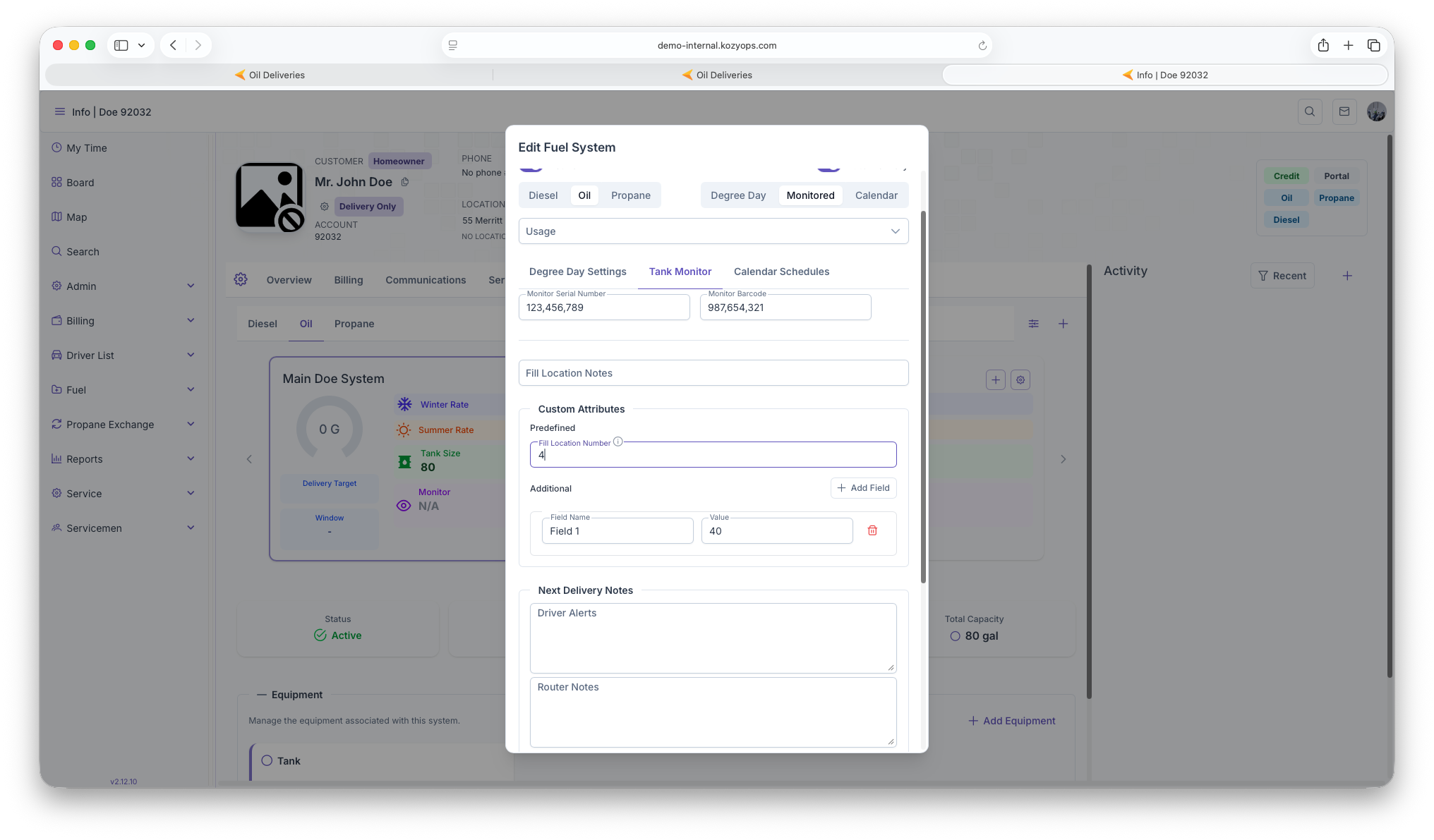
Fill Location Notes

- Text field for delivery access instructions
- Examples: gate codes, driveway location, fill pipe location
- Safe to update at any time
Custom Attributes
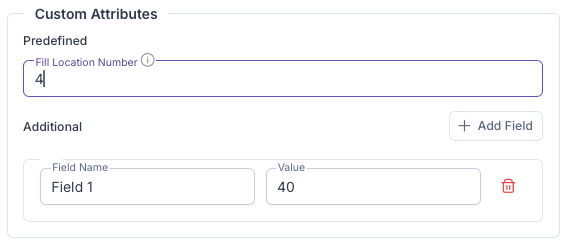
Predefined fields:
- System-type-specific fields loaded from API
- Each has a label and optional description tooltip
- Safe to fill out or update
Additional custom fields:
- Click "Add Field" to create key-value metadata
- Remove with trash icon
- Safe to add, edit, or remove
Next Delivery Notes

Driver Alerts:
- Important information for delivery drivers
- Displayed prominently during delivery
- Examples: safety warnings, access restrictions, special instructions
Router Notes:
- Instructions for routing and dispatch
- Examples: delivery window preferences, route-specific notes
Office Notes
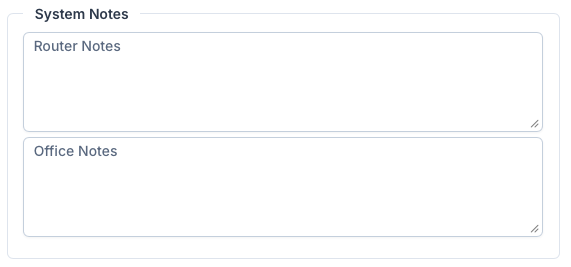
- Internal notes visible only to office staff
- General system information not needed by drivers
- Safe to update at any time
Safe edits (no delivery impact)
These changes can be made freely without affecting active deliveries:
- System Name: Rename for clarity
- Usage types: Add or remove usage categories
- Fill Location Notes: Update access instructions
- Custom Attributes: Add, edit, or remove metadata
- Driver/Router/Office Notes: Update any notes
- Degree Day usage rates: Adjust based on historical data
- Calendar schedules: Add, edit, activate, or deactivate schedules
Changes requiring caution
Deactivating the system (Active toggle off)
Impact:
- System stops tracking and generating deliveries
- Existing delivery requests may be canceled
- Equipment and monitors remain linked but inactive
When to use:
- Customer temporarily discontinues service
- System is being replaced or upgraded
- Account is on hold
Best practice: Verify no pending deliveries exist before deactivating
Disabling Auto Delivery toggle
Impact:
- System continues tracking data but stops generating automatic delivery requests
- Switches to manual/will-call mode
- Monitor/degree day data still calculated for reference
When to use:
- Customer switches to will-call
- Temporary pause in automatic deliveries
- Testing or troubleshooting
Changing Window Strategy
Impact:
- Changes which calculation method triggers deliveries
- Previous strategy data is preserved but not used
- New strategy must be fully configured
Example: Switching from Degree Day to Monitored
- Enter Monitor Serial Number
- Verify monitor is transmitting
- Old degree day settings remain but aren't used
Best practice: Configure the new strategy completely before switching
Changing Fuel type
Impact:
- May cause mismatches with equipment fuel types
- Affects pricing and product calculations
- Historical delivery data remains but context may be confusing
When to use: Only if the physical system has been converted (e.g., oil to propane)
Best practice:
- Update equipment fuel types to match
- Notify dispatch and billing teams
- Document the conversion date in notes
Forcing Degree Day or Resetting Windows
Impact:
- Overrides automatic calculations
- Can cause deliveries to trigger earlier or later than projected
- Resets may clear accumulated history
When to use:
- Manual delivery override needed
- Projections are significantly off
- After major system changes or repairs
Best practice: Document the reason in notes
Equipment management
Equipment is not edited directly in the system dialog. To manage equipment:
- View equipment list in the system details
- Click Edit on the specific equipment
- Use the Equipment dialog to modify
- See: Adding Equipment
Note: You cannot change which system equipment belongs to from this dialog. Edit the equipment itself to reassign it.
What you cannot edit
- System creation date: Historical timestamp, read-only
- Last delivery information: Calculated from delivery history
- Current degree day value: Real-time data from weather service
- Monitor readings: Real-time data from monitoring device
- Equipment list: Managed separately via equipment dialogs
Validation and errors
The dialog validates entries before allowing submission:
Common validation errors:
- Monitor serial number required when Window Strategy = Monitored
- Window strategy must be selected
- Fuel type must be selected
- Numeric fields must be valid numbers
Validation errors appear at the top or inline with red styling. The Submit button is disabled until all errors are resolved.
After saving changes
When you click Submit:
- Changes are saved immediately
- Dialog closes and returns to the system list
- System selector and displays update with new values
- Delivery projections recalculate based on new settings
Note: Changes to window strategy or usage rates may cause immediate recalculation of delivery windows and target dates.
Deactivating vs. deleting a system
Deactivate (Active toggle off):
- Preserves all historical data
- Can be reactivated later
- Recommended for systems temporarily out of service or that have been replaced.
Delete (via delete action):
- Permanently removes the system
- Deletes linked equipment
- Cannot be undone
- Only use if system was created in error
Best practice: Always deactivate rather than delete to maintain data integrity and history.
Related guides
- Add System — Creating new systems
- Window Strategies — Understanding and configuring window strategies
- Degree Day System — Degree day settings and calculations
- Monitoring — Tank monitor configuration
- Calendar Scheduling — Managing calendar schedules
- Adding Equipment — Managing equipment within systems
- Add Services — Products and service plans