Adding Equipment Guide
This guide explains how to add equipment to a system using the Add/Edit Equipment dialog. Equipment represents physical components like tanks, regulators, filters, and other equipment.
Key concept: You can add multiple tanks to a system when they share the same fill connection. Each piece of equipment is tracked separately within the system.
Prerequisites
- A system must exist for the location. See Add System if you need to create one first.
- You are on the Customer Dashboard with the correct Location selected.
Add equipment to a system
-
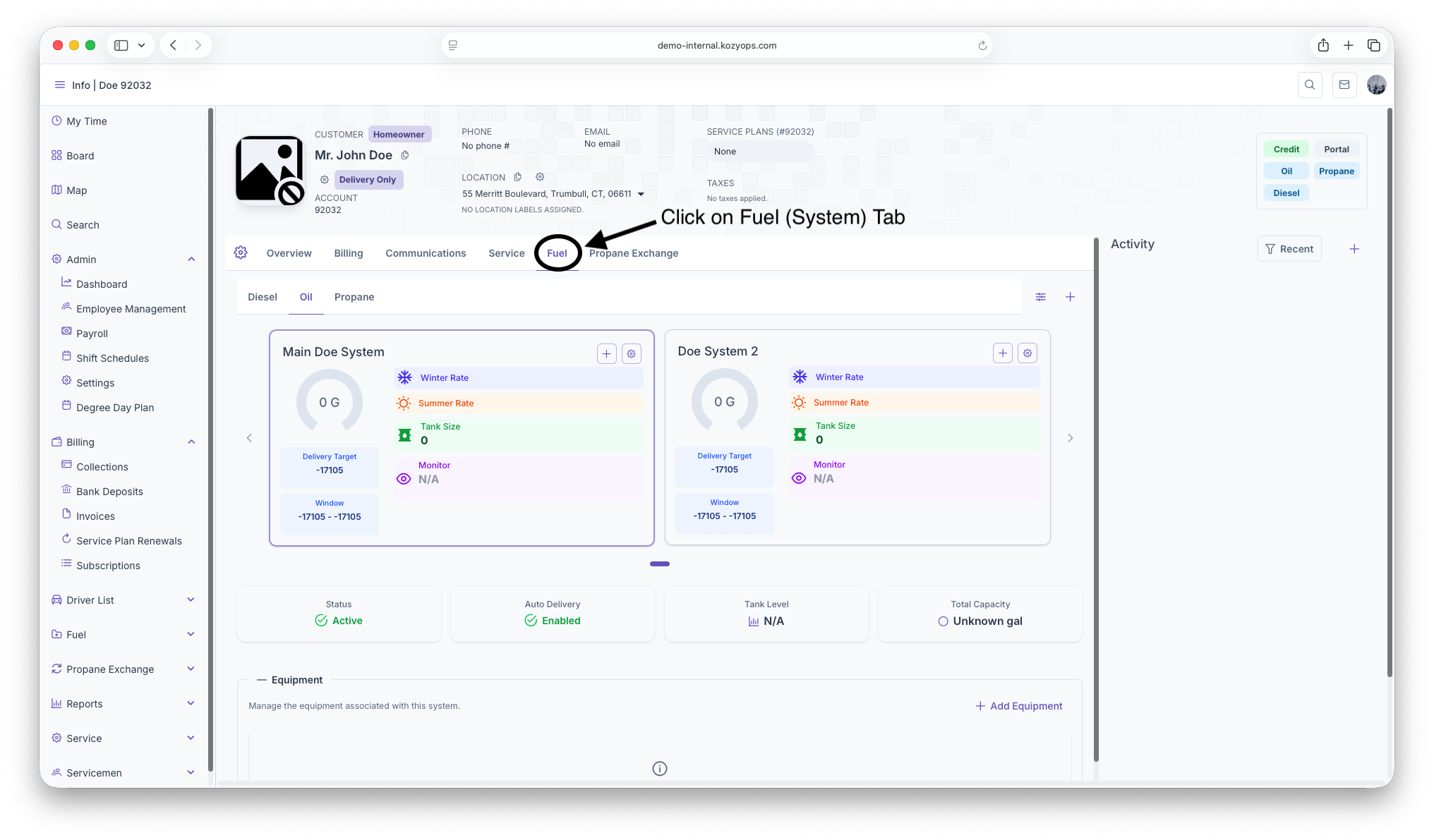
Navigate to the Systems section from the Customer Dashboard.

-
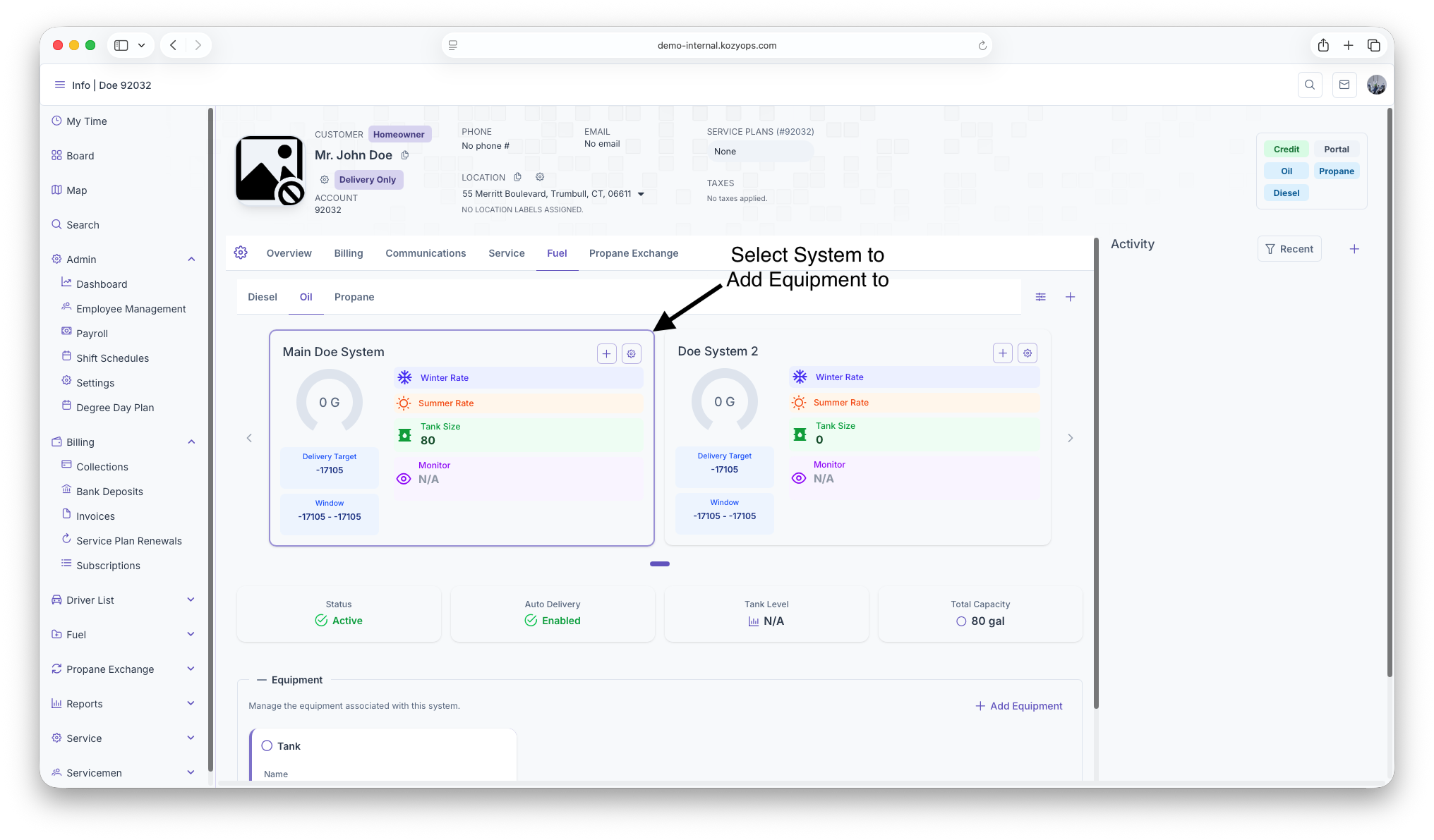
Select the system you want to add equipment to.

-
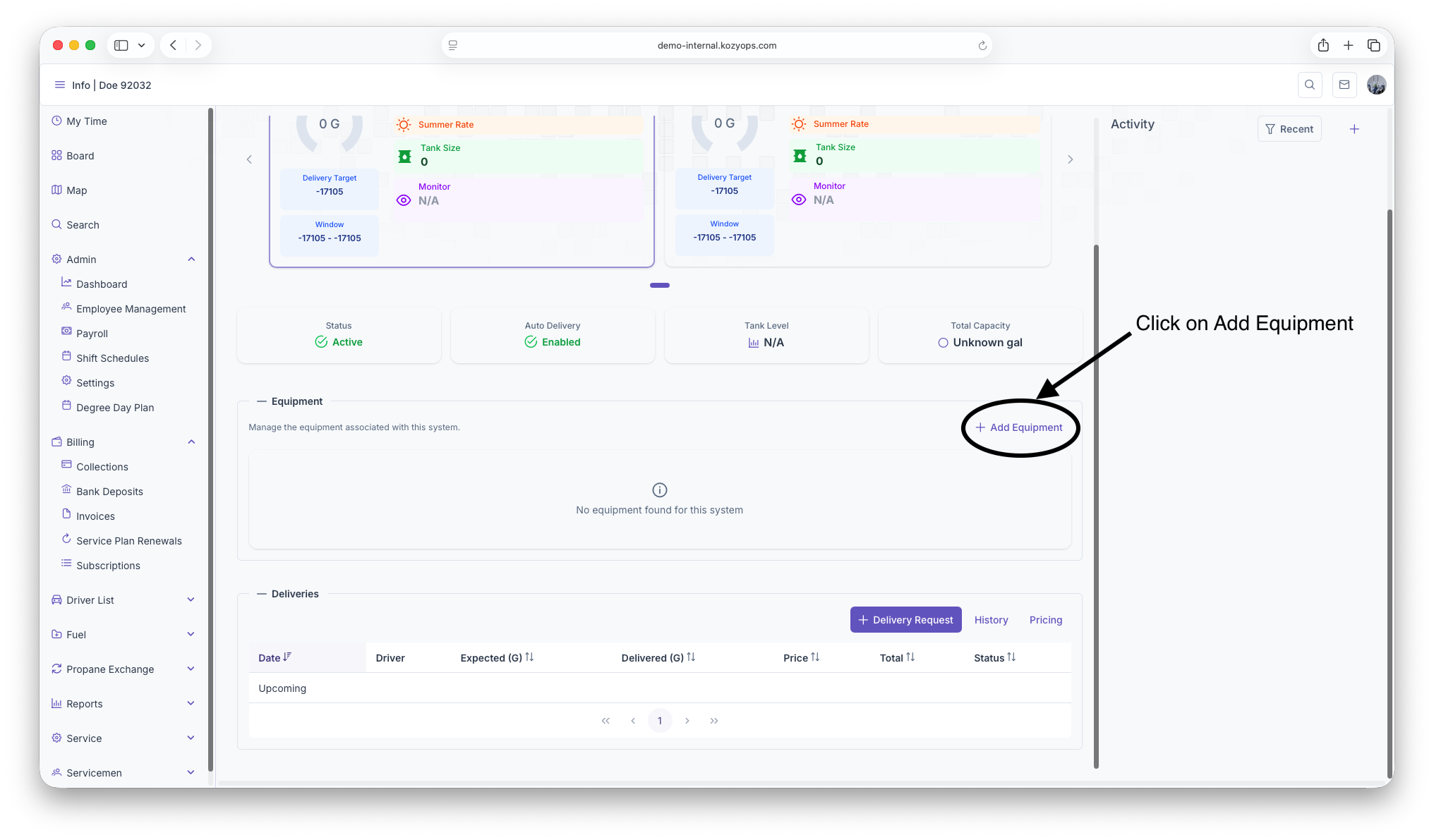
Click Add Tank or Add Equipment.

-
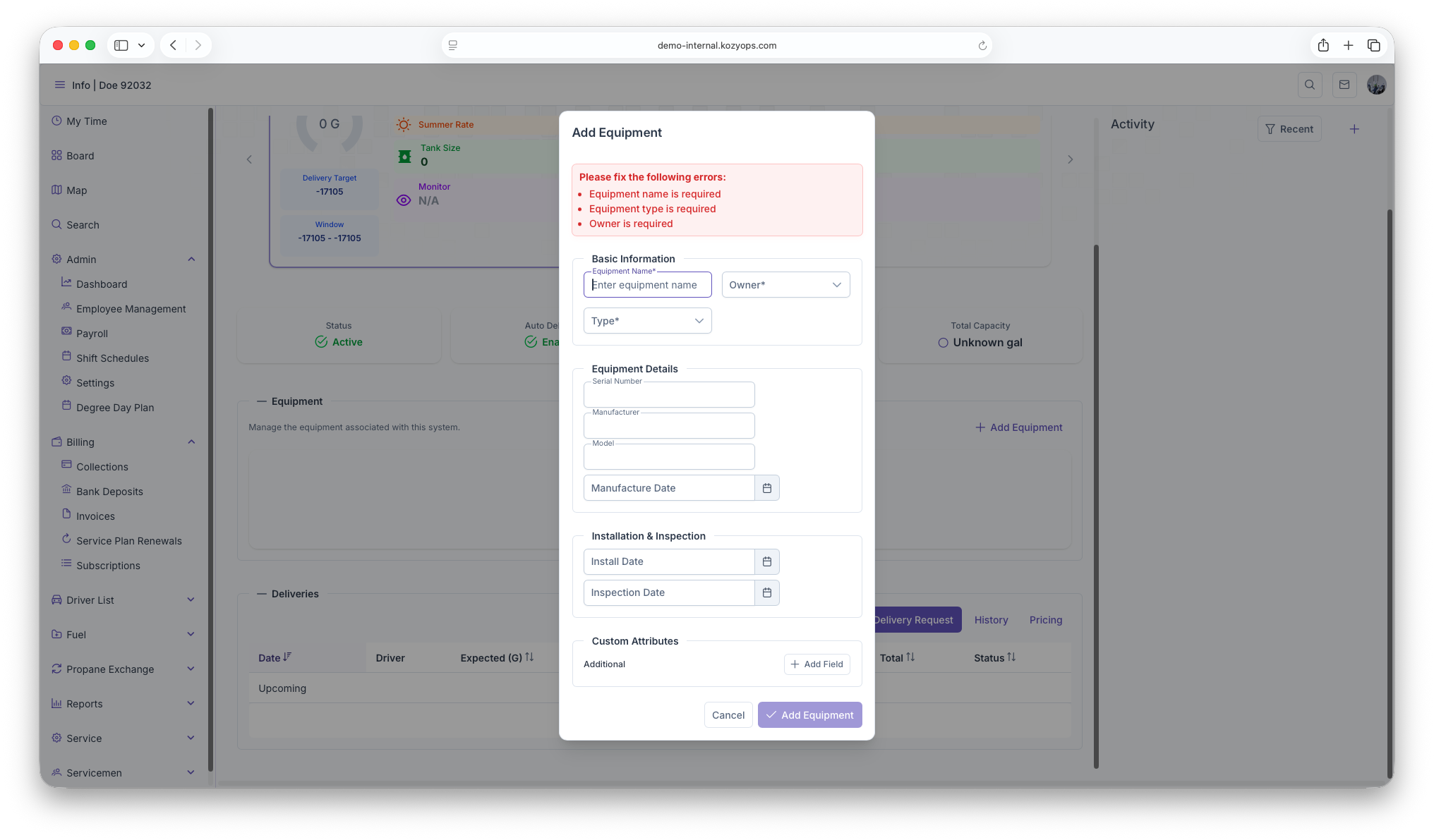
The Add Equipment dialog opens with multiple sections.

-
Fill out the required fields and click Add Equipment or Update Equipment.



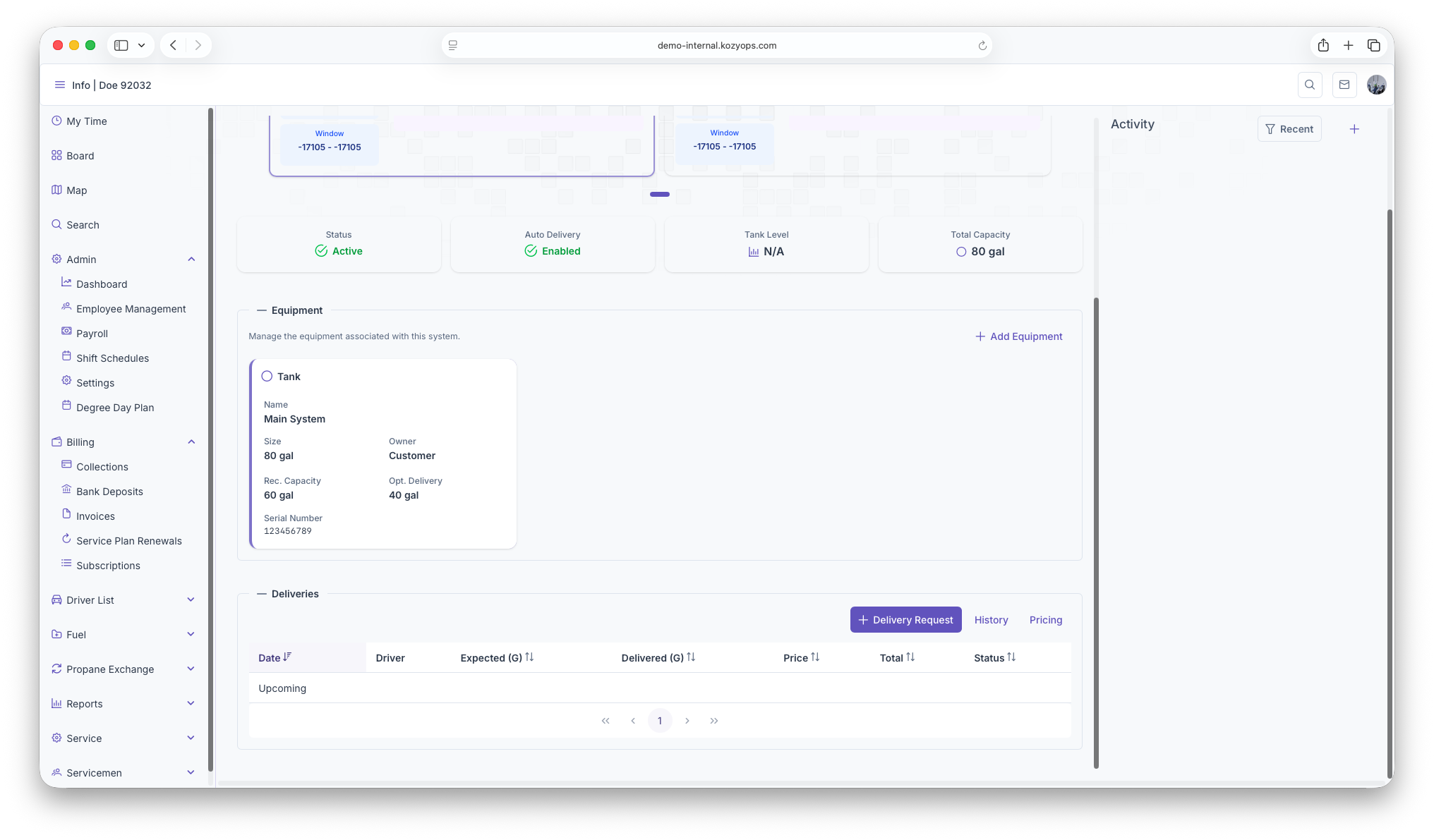
Equipment types
The dialog supports these equipment types:
- Tank: Storage tanks for fuel (propane, oil)
- Regulator: Pressure regulation equipment (requires expiration date)
- Filter: Filtration equipment
- Other Equipment: Custom equipment types
Basic Information section
Required fields
- Equipment Name: Clear identifier for the equipment
- Owner: Select "Customer" or "Internal"
- Type: Tank, Regulator, Filter, or Other Equipment
All three fields are required to proceed.
Equipment Details section
Serial Number
- Required if Owner is "Internal"
- Optional for customer-owned equipment
- Used for warranty and service tracking
Optional fields
- Manufacturer: Equipment manufacturer name
- Model: Model number or designation
- Manufacture Date: When the equipment was manufactured (date picker with Luxon support)
Installation & Inspection section
Both fields are optional:
- Install Date: When the equipment was installed or replaced
- Inspection Date: Most recent inspection date
Use date pickers to select dates.
Regulator Information (regulators only)
If you selected Type = Regulator, an additional section appears:
Required field
- Expiration Date: When the regulator expires and needs replacement (required for regulators)
This field uses a date picker and is mandatory for regulator equipment.
Tank Information (tanks only)
If you selected Type = Tank, an additional section appears with three required fields:
Required fields (all with gallon suffix)
-
Size (Gallons): Total tank size capacity
- Supports up to 3 decimal places
- Minimum value: 1 gallon
-
Recommended Capacity: The recommended fill capacity (typically 80-90% of total size)
- Supports up to 3 decimal places
- Minimum value: 1 gallon
- Used for delivery calculations
-
Optimum Delivery: The optimal delivery amount for this tank
- Supports up to 3 decimal places
- Minimum value: 1 gallon
- Used for routing and delivery planning
Example for a 275-gallon tank:
- Size: 275 gallons
- Recommended Capacity: 247 gallons (90% of 275)
- Optimum Delivery: 200 gallons
Multiple tanks on one system
When you have multiple tanks sharing the same fill connection:
- Add each tank as separate equipment to the same system
- Enter accurate Size, Recommended Capacity, and Optimum Delivery for each tank
- The system automatically aggregates capacity across all tanks for delivery calculations
Example setup:
- System: "Main Propane System"
- Tank 1: 500 gallons (450 recommended, 400 optimum)
- Tank 2: 500 gallons (450 recommended, 400 optimum)
- Total system capacity: 1000 gallons (900 recommended)
This approach allows accurate tracking of individual tanks while calculating deliveries for the combined system.
Custom Attributes section
Always visible at the bottom of the dialog:
Predefined custom fields
- Loaded from the API based on equipment type
- Each field shows with a label and optional description tooltip
- Enter values as needed for your tracking requirements
Additional custom fields
- Click Add Field to create custom key-value metadata
- Enter Field Name and Value
- Remove fields with the trash icon button
- Useful for tracking location-specific or custom attributes
Validation and submission
The dialog validates your entries:
- Validation errors appear at the top in a red message box
- Common errors:
- Missing required fields (Name, Owner, Type)
- Serial number required for Internal-owned equipment
- Expiration date required for regulators
- Tank size, recommended capacity, and optimum delivery required for tanks
- Values must be > 0 for numeric fields
The Add Equipment or Update Equipment button is disabled until all validation passes.
Dialog actions
- Cancel: Close the dialog without saving changes
- Add Equipment (for new): Save the new equipment to the system
- Update Equipment (for existing): Save changes to existing equipment
After saving, the equipment appears in the system's equipment list and can be used for delivery projections, monitoring, and service tracking.
Editing or removing equipment
- To edit: Click the equipment row or Edit button, make changes, and click Update Equipment
- To remove: Use the delete/remove action (typically with confirmation)
- Be cautious if the equipment is linked to active monitors or services
Related guides
- Add System — Create the parent system first
- Editing a System — Modify system details
- Monitoring — Link tank monitors to equipment
- Window Strategies — Configure delivery estimation using equipment data
- Add Services — Products and service plans for the customer