Adding a System Guide
A system represents a group of equipment that all share the same fill connection (the same delivery fill). For example, multiple manifolded tanks feeding the same appliance belong to one system. This guide shows how to create a system and configure its delivery window strategy.
Important: You can attach multiple physical tanks to the same equipment entry when they are manifolded to a single fill. This keeps projections and routing accurate for the shared capacity.
Prerequisites
- Customer and Location exist.
- You are on the Customer Dashboard with the Location selected in the header.
Create a system
-
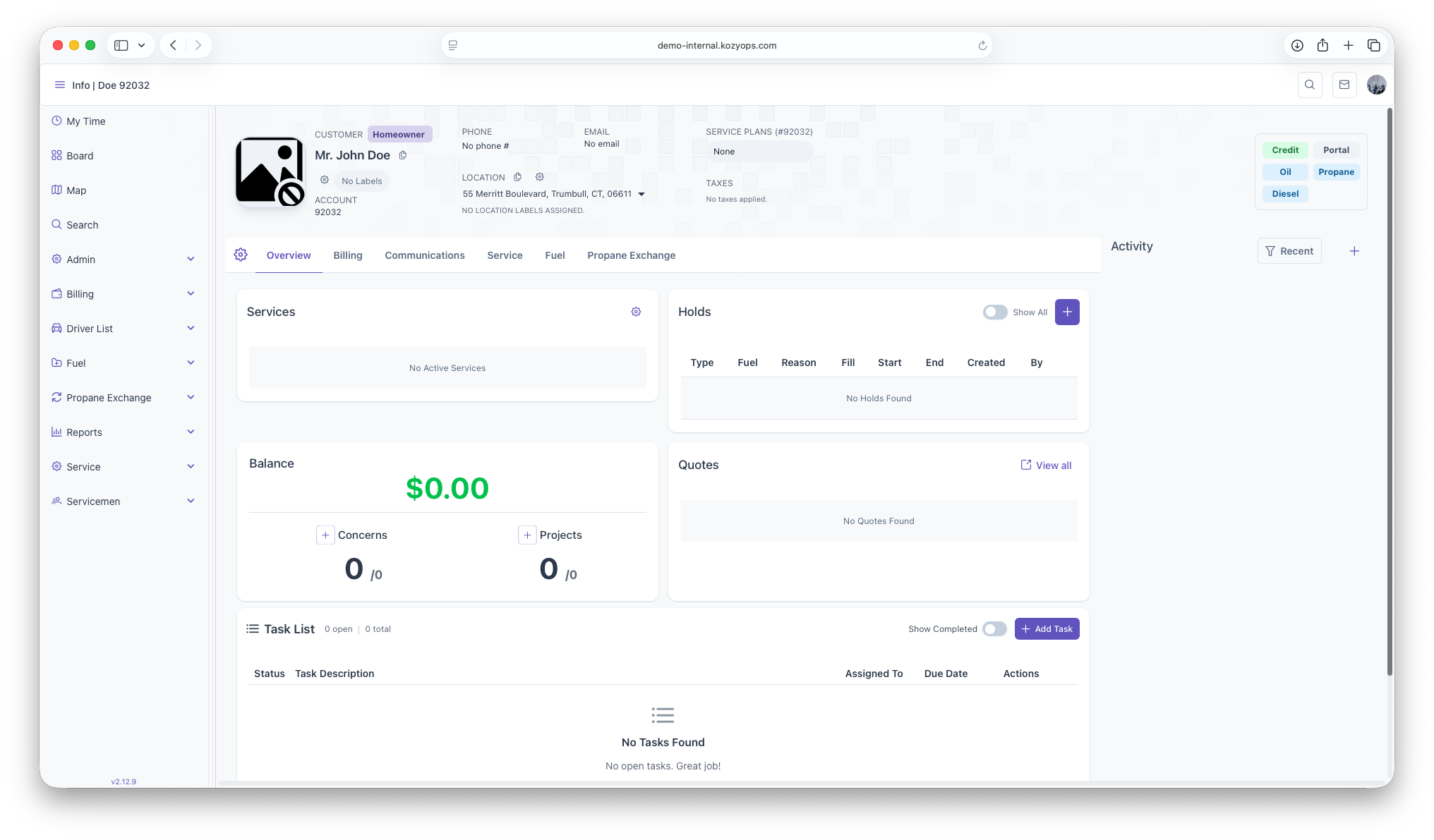
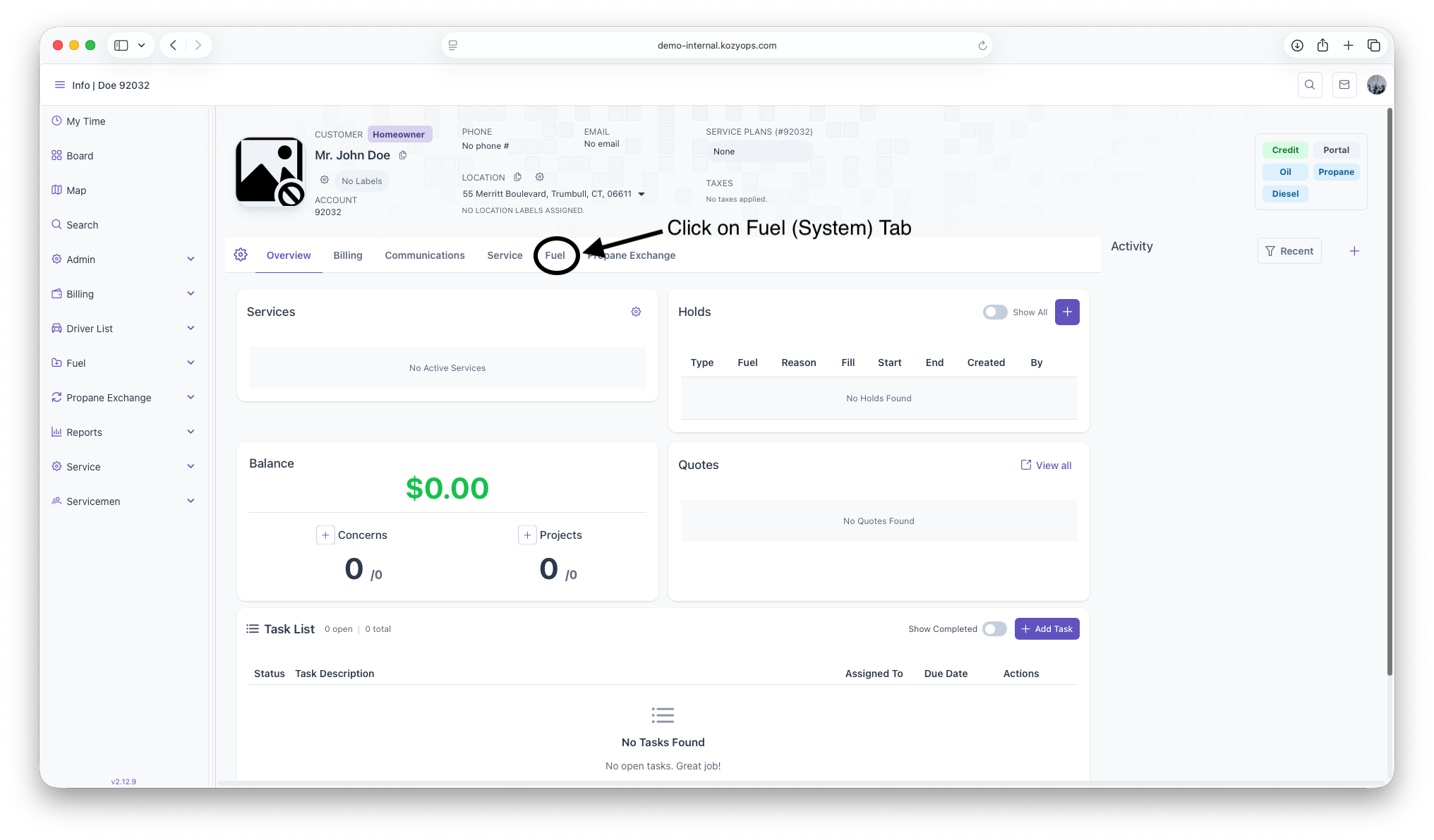
Open the Customer Dashboard for the selected Customer and Location.

-
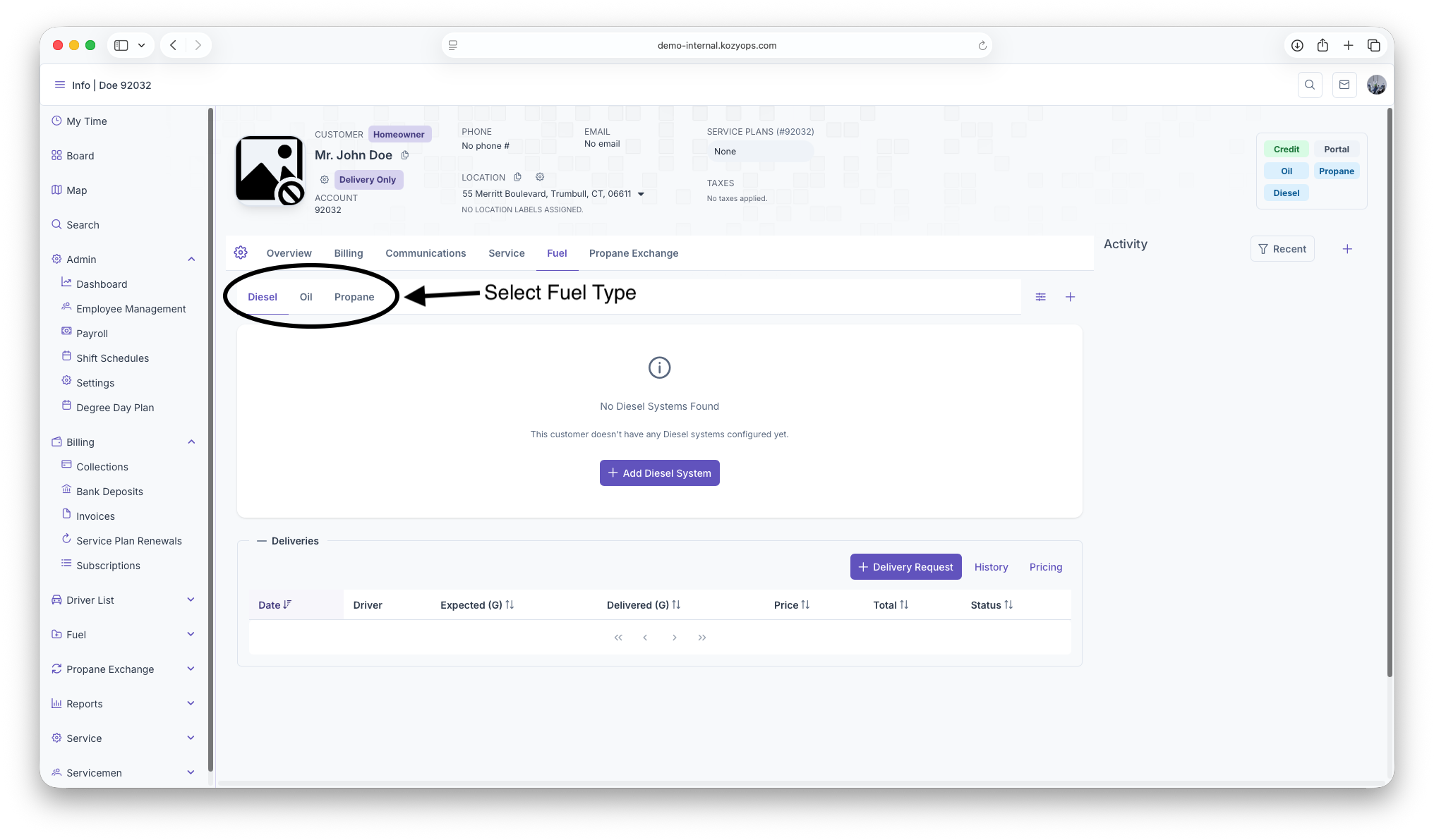
Go to Systems in the overview (or use the Systems action in the header).


-
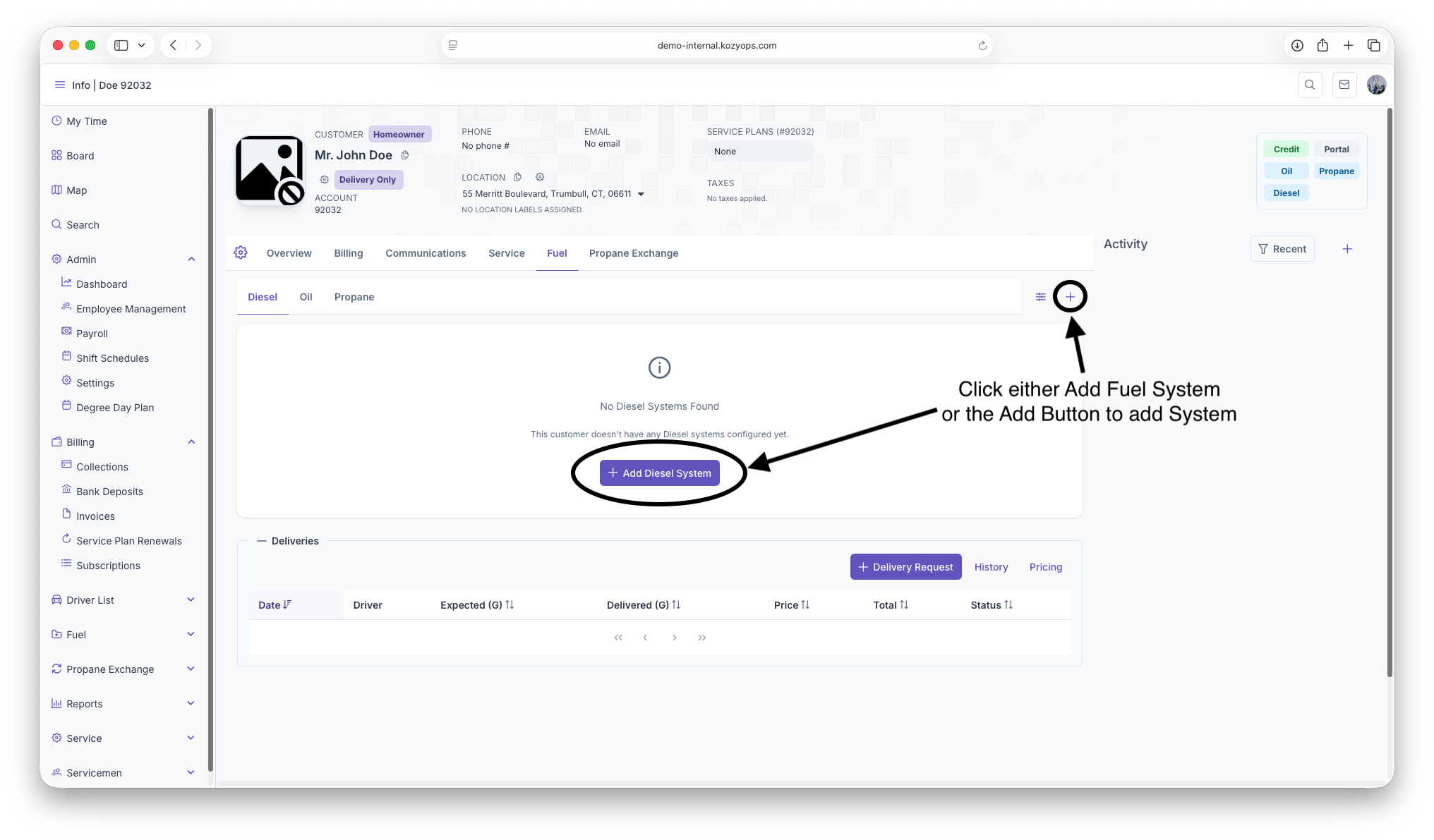
Click Add System.

-
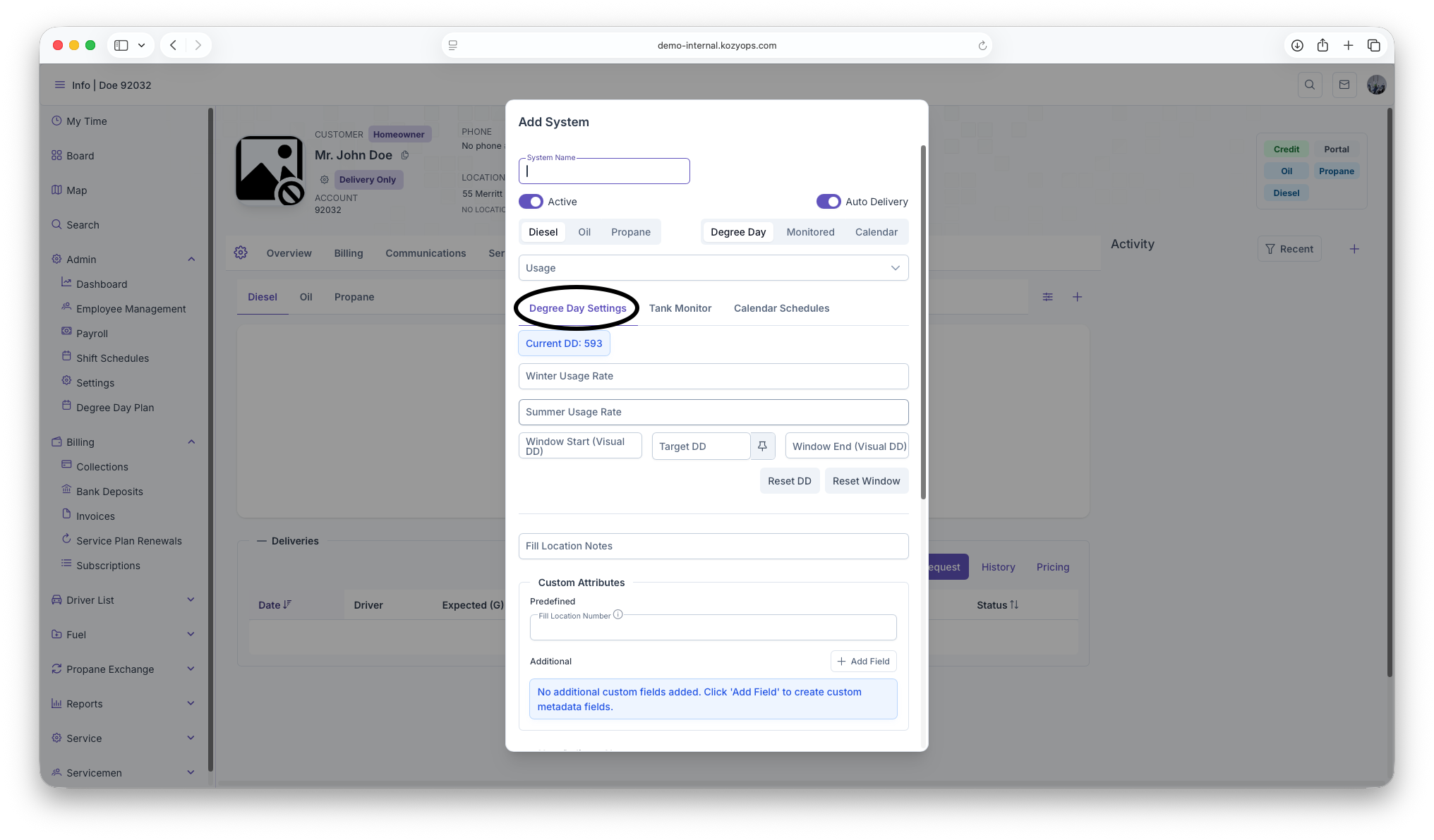
The Add System dialog opens with multiple configuration sections.


-
Complete the basic settings and select a window strategy.
-
Configure the strategy-specific settings in the appropriate tab.
-
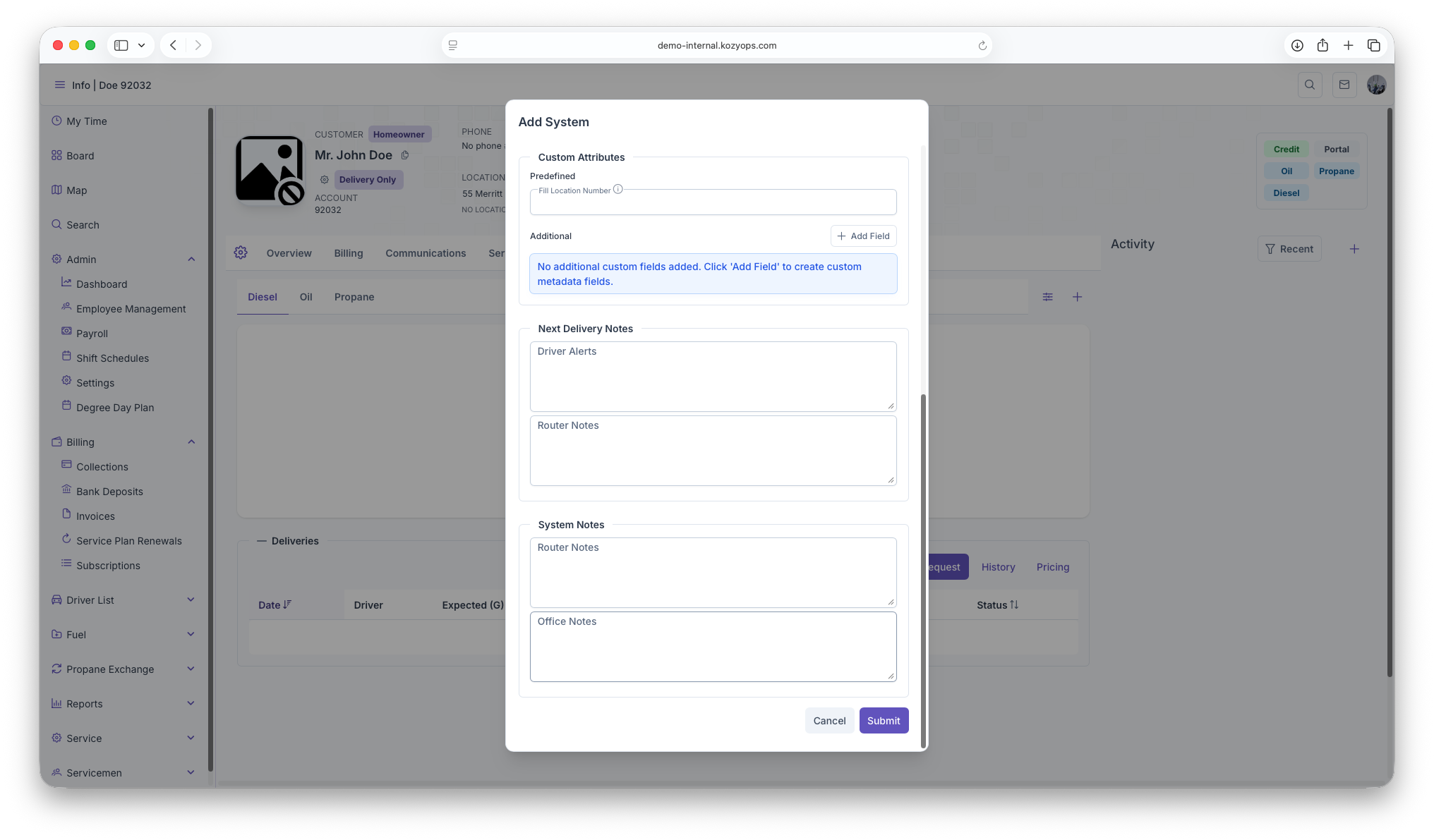
Click Submit to save.

Basic system settings
Required fields
- System Name: A clear label (e.g., "Main Oil System" or "Shop Propane")
- Fuel: Propane, Oil, etc. (select button group)
- Window Strategy: Choose Degree Day, Monitored, or Calendar (select button group)
Toggles
- Active: Enable to activate the system immediately (default: on)
- Auto Delivery: Enable automatic delivery scheduling based on the selected window strategy
Optional fields
- Usage: Multi-select dropdown for usage types (heating, appliance, etc.)
Window strategy selection
Choose the delivery estimation method that best fits this system:
-
Degree Day: For temperature-based consumption estimation (best for heating oil)
-
Monitored: For systems with tank monitors providing real-time levels
-
Calendar: For recurring time-based delivery schedules
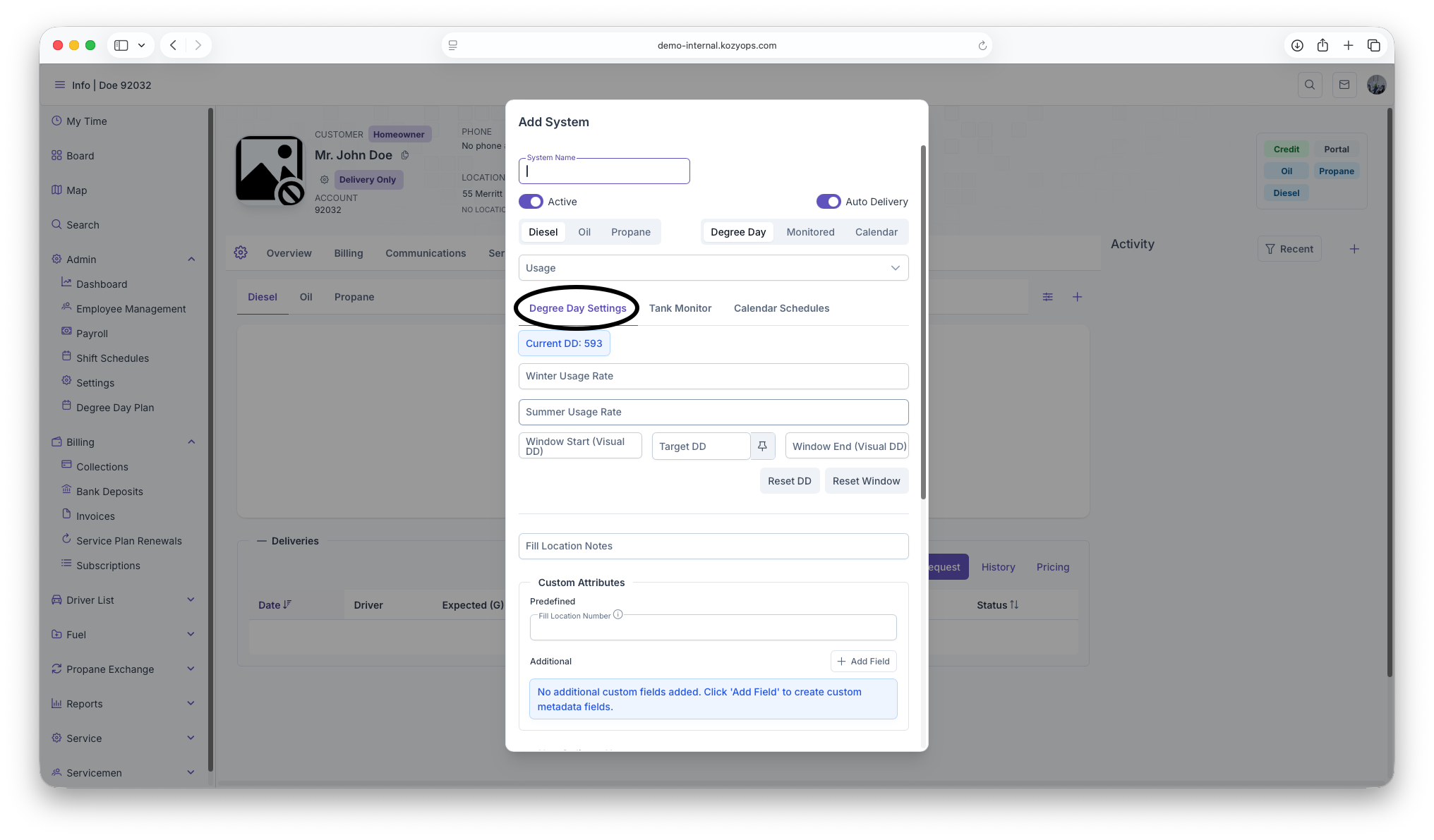
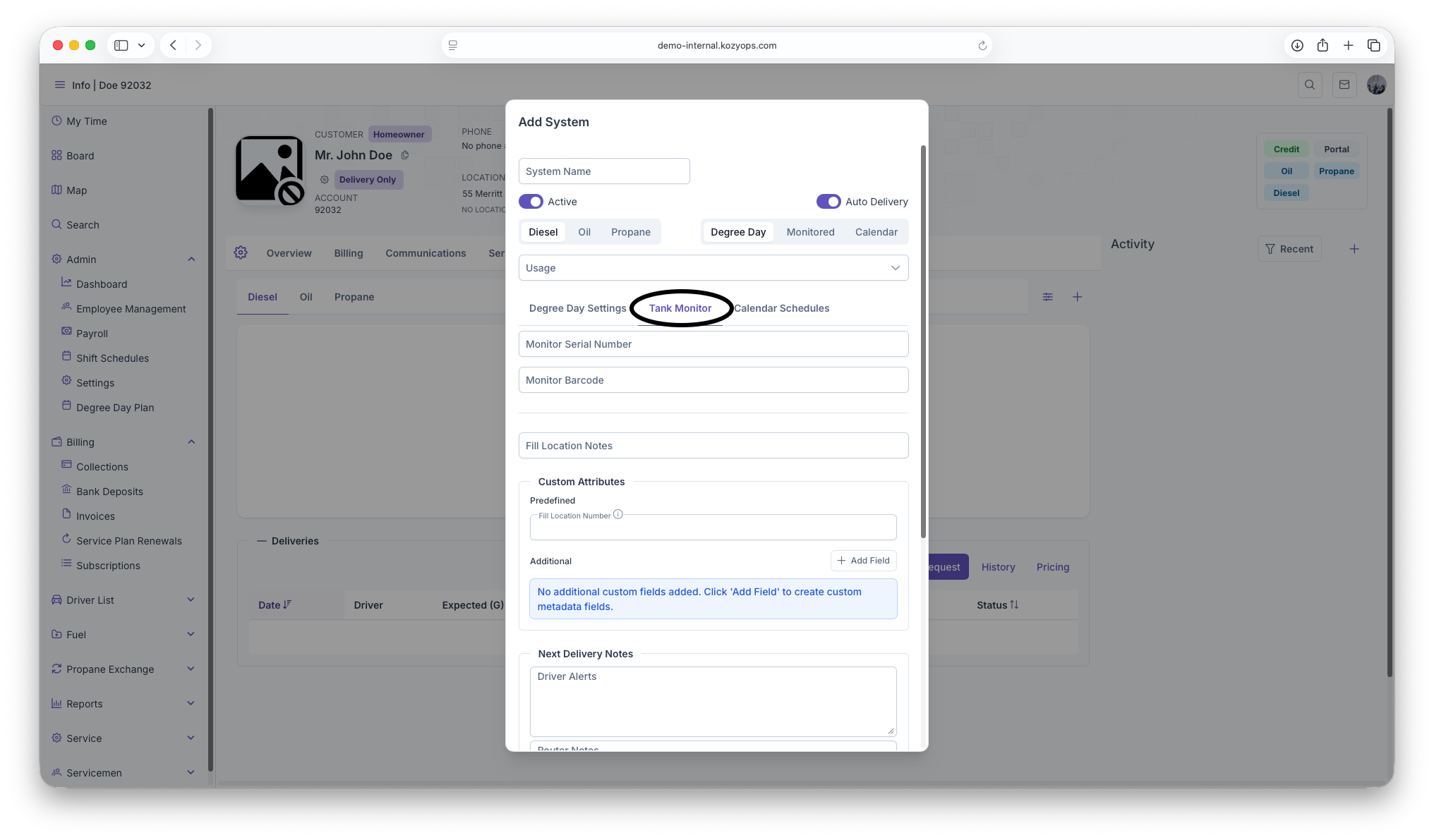
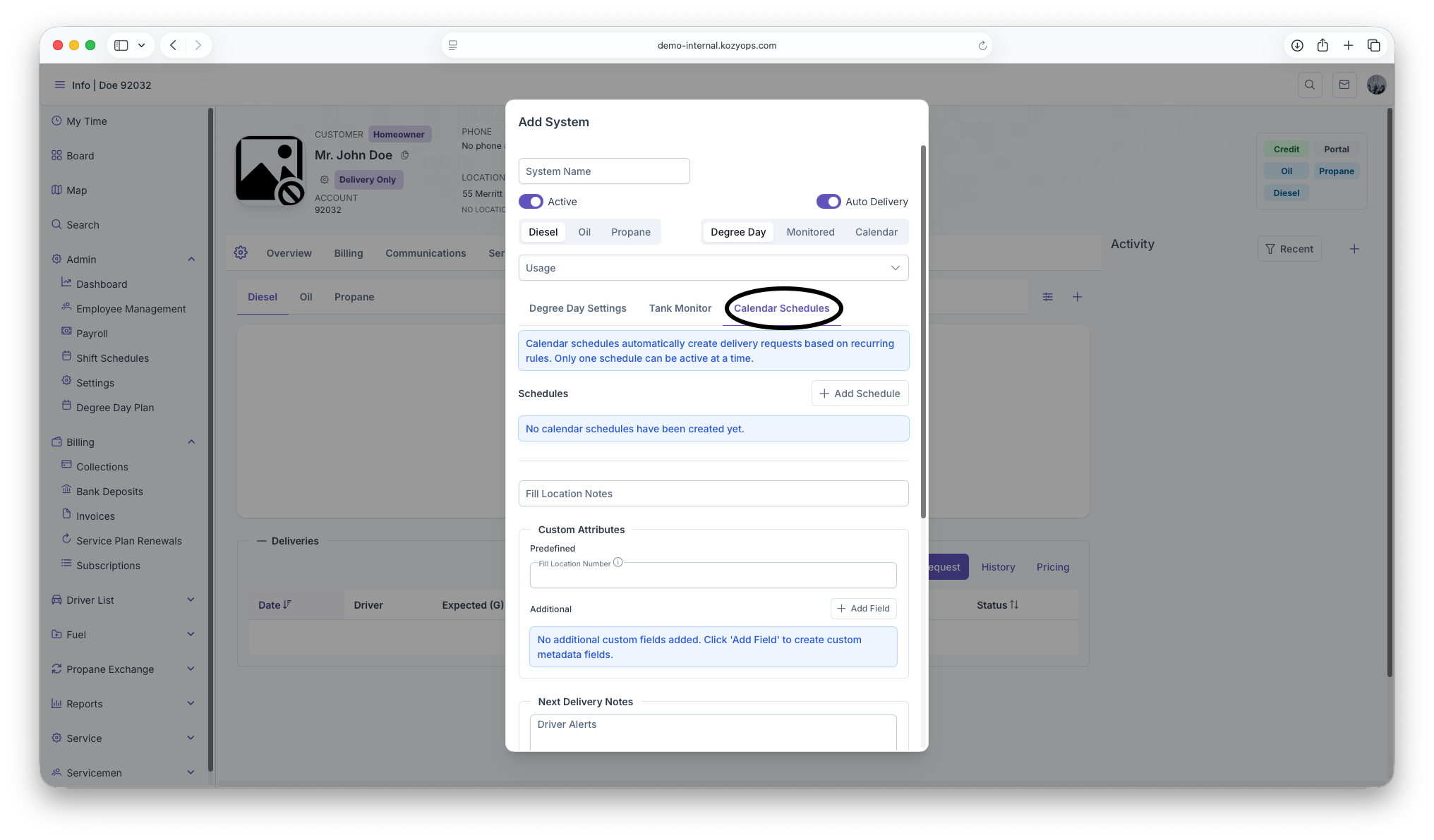
The selected strategy determines which configuration tab you'll use next.
See: Window Strategies Guide for detailed comparison and recommendations.
Strategy-specific configuration
Degree Day configuration
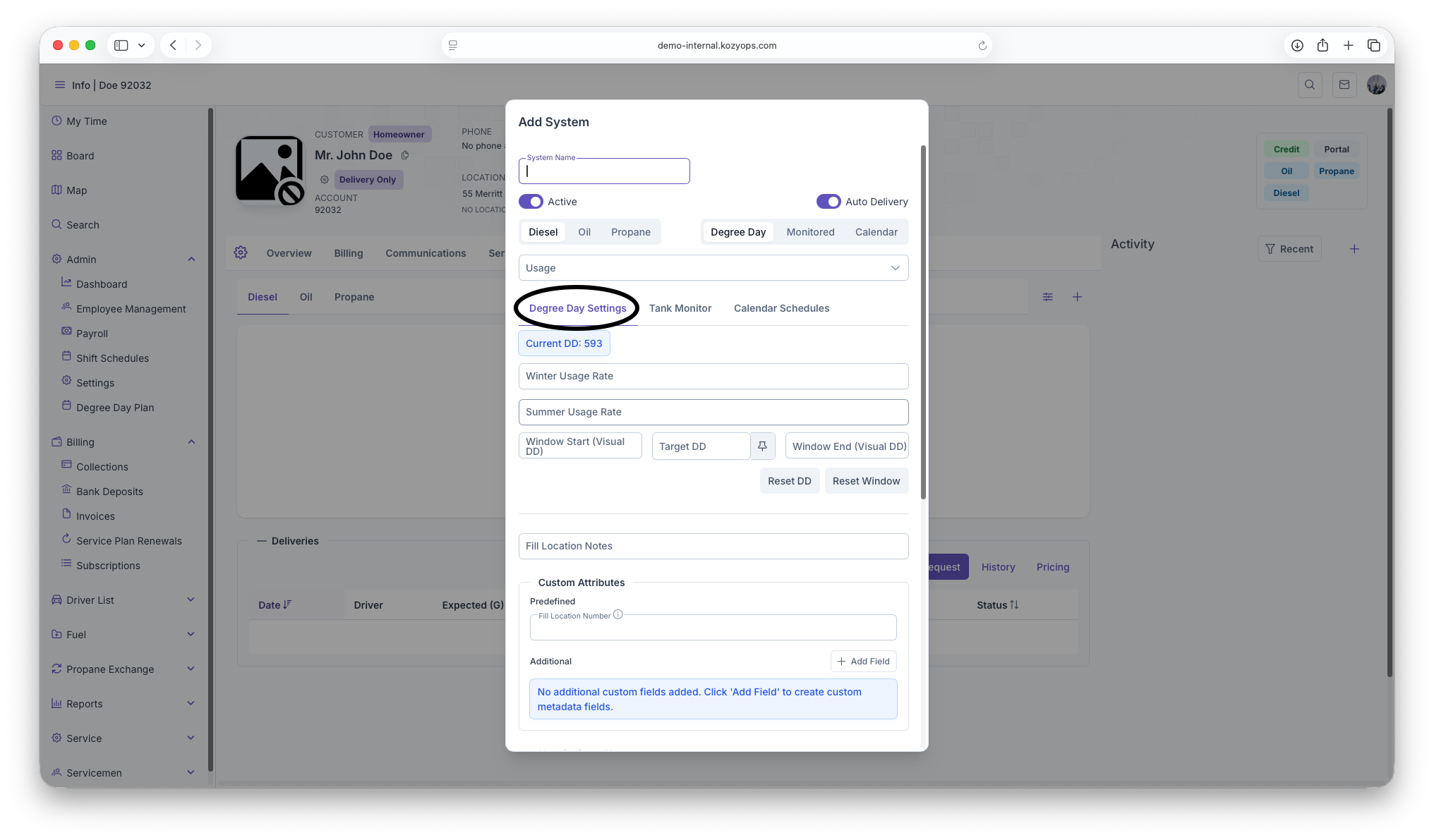
If you selected "Degree Day" as your window strategy:
Usage rates:
- Winter Usage Rate: Gallons per degree day during winter season (supports up to 4 decimal places)
- Summer Usage Rate: Gallons per degree day during summer season (supports up to 4 decimal places)
Delivery windows:
- Window Start (Visual DD): Lower boundary value for when deliveries can begin
- Target DD: The degree day value that triggers a delivery
- Window End (Visual DD): Upper boundary value for delivery window
Actions available:
- Force Degree Day button (thumbtack icon): Manually override and force the current target
- Reset DD and Reset Window buttons (only available after system is saved and has delivery history)
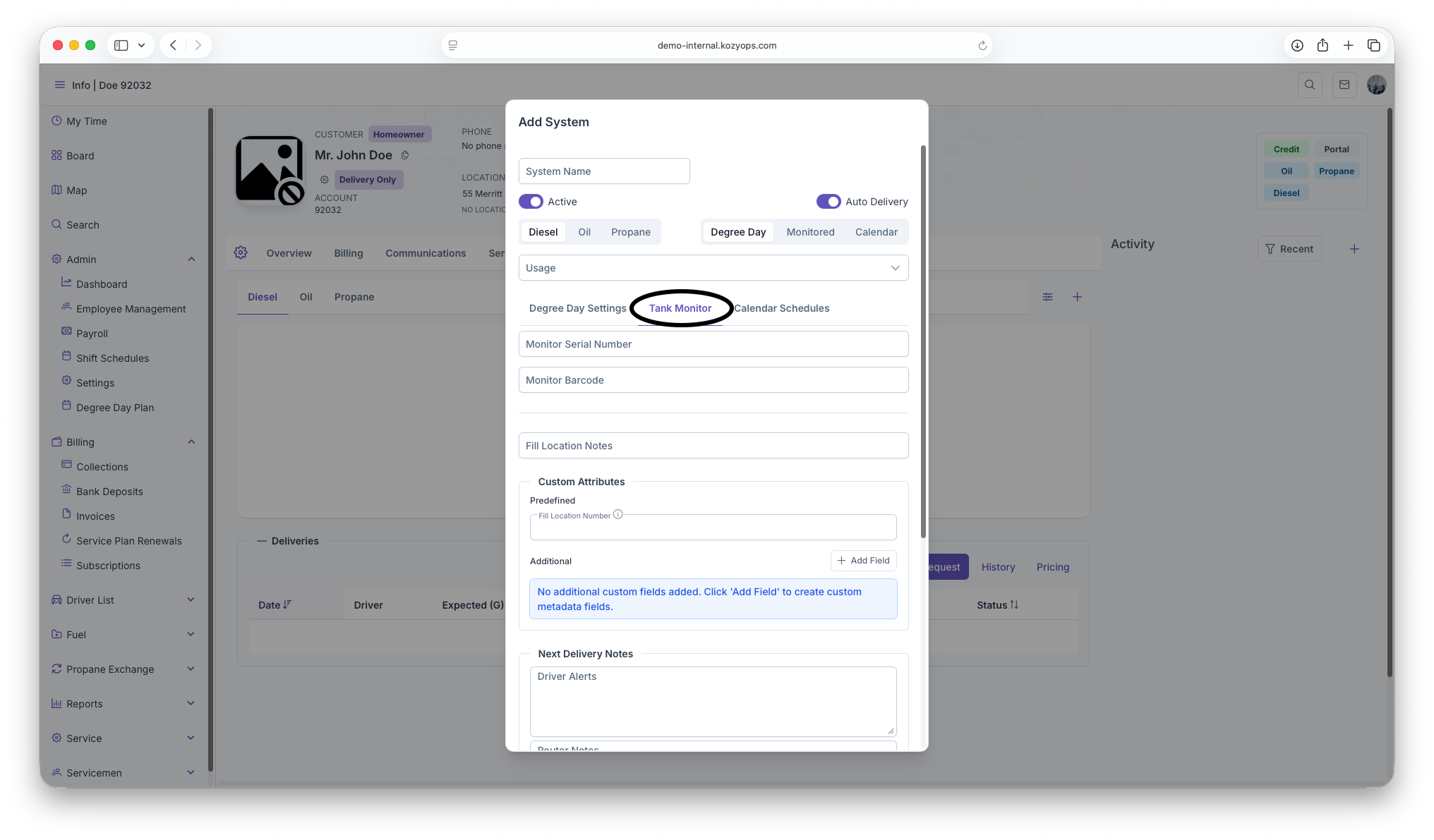
Monitored configuration
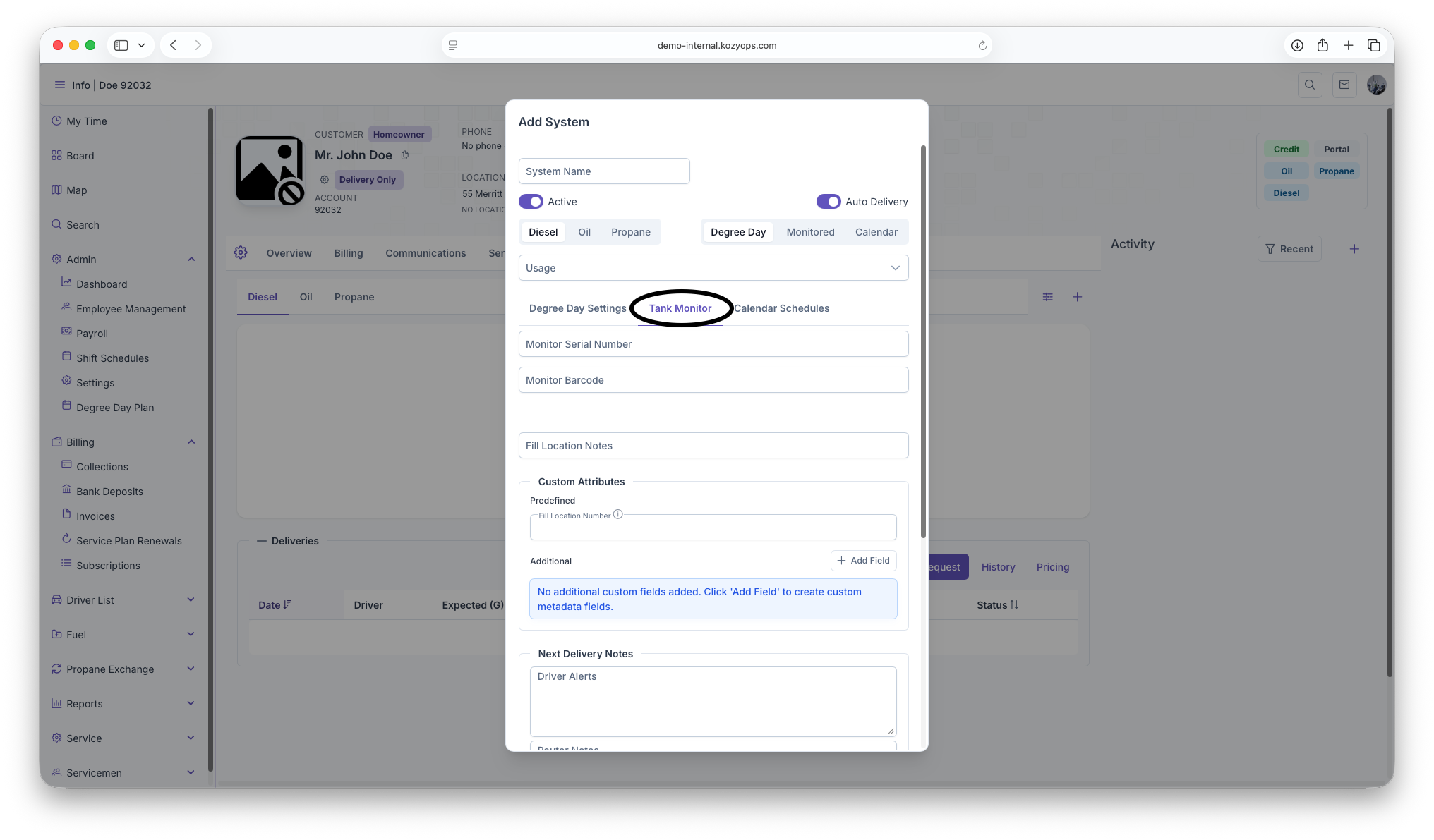
If you selected "Monitored" as your window strategy:
Required:
- Monitor Serial Number: The unique identifier for the tank monitoring device
Optional:
- Monitor Barcode: Additional identifier for the monitor
Note: The submit button will be disabled until you provide a monitor serial number for monitored systems.
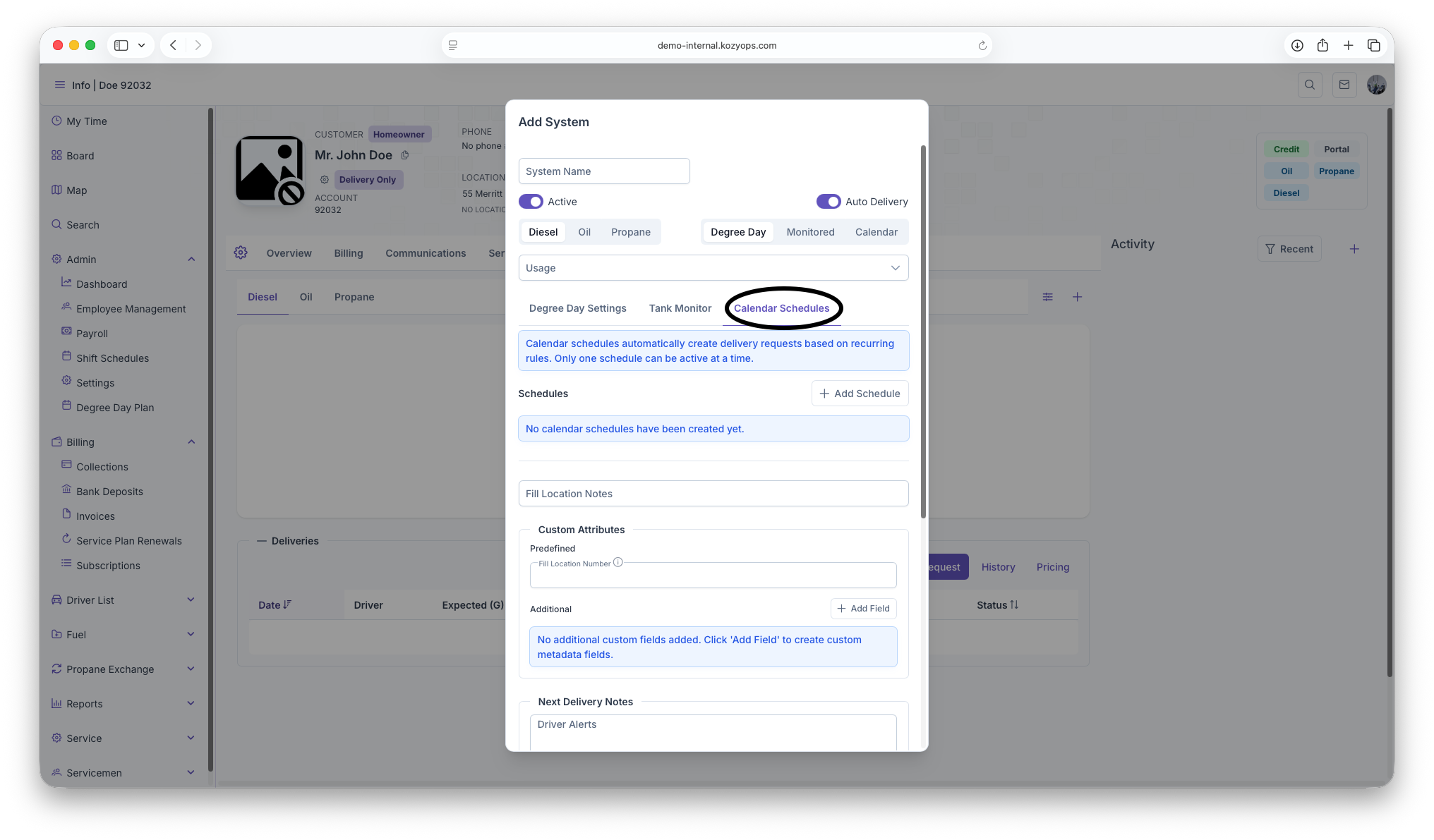
Calendar configuration
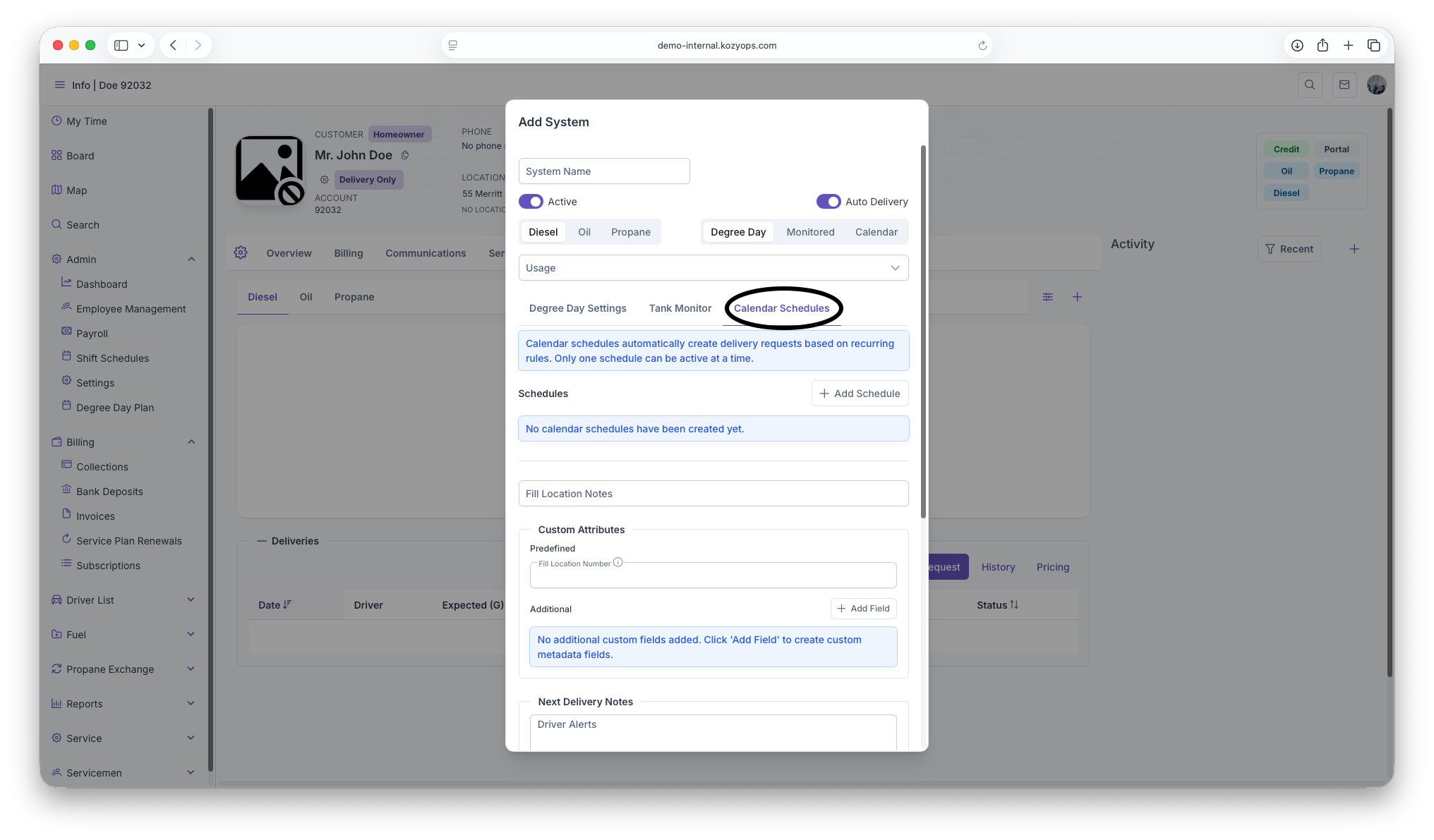
If you selected "Calendar" as your window strategy:
For new systems, calendar schedules must be configured after the system is saved. You'll see a warning message: "Save the system before managing calendar schedules."
After saving, you can create calendar schedules with:
- Frequency and units (days, weeks, months, years)
- Preferred day of week
- Seasonal start/end dates
- Requested delivery volume
- Active/inactive status
Only one calendar schedule can be active at a time.
See: Calendar Scheduling Guide for detailed schedule management.
Understanding systems and fills
A system is a logical grouping of equipment that all connect to the same fill point:
- If you have 2 manifolded tanks feeding one boiler, that's one system with multiple tanks attached to the same equipment.
- If you have separate heating and water heater systems at the same location, each with their own fill, those are two separate systems.
This grouping ensures accurate capacity tracking, delivery projections, and routing.
Additional system fields
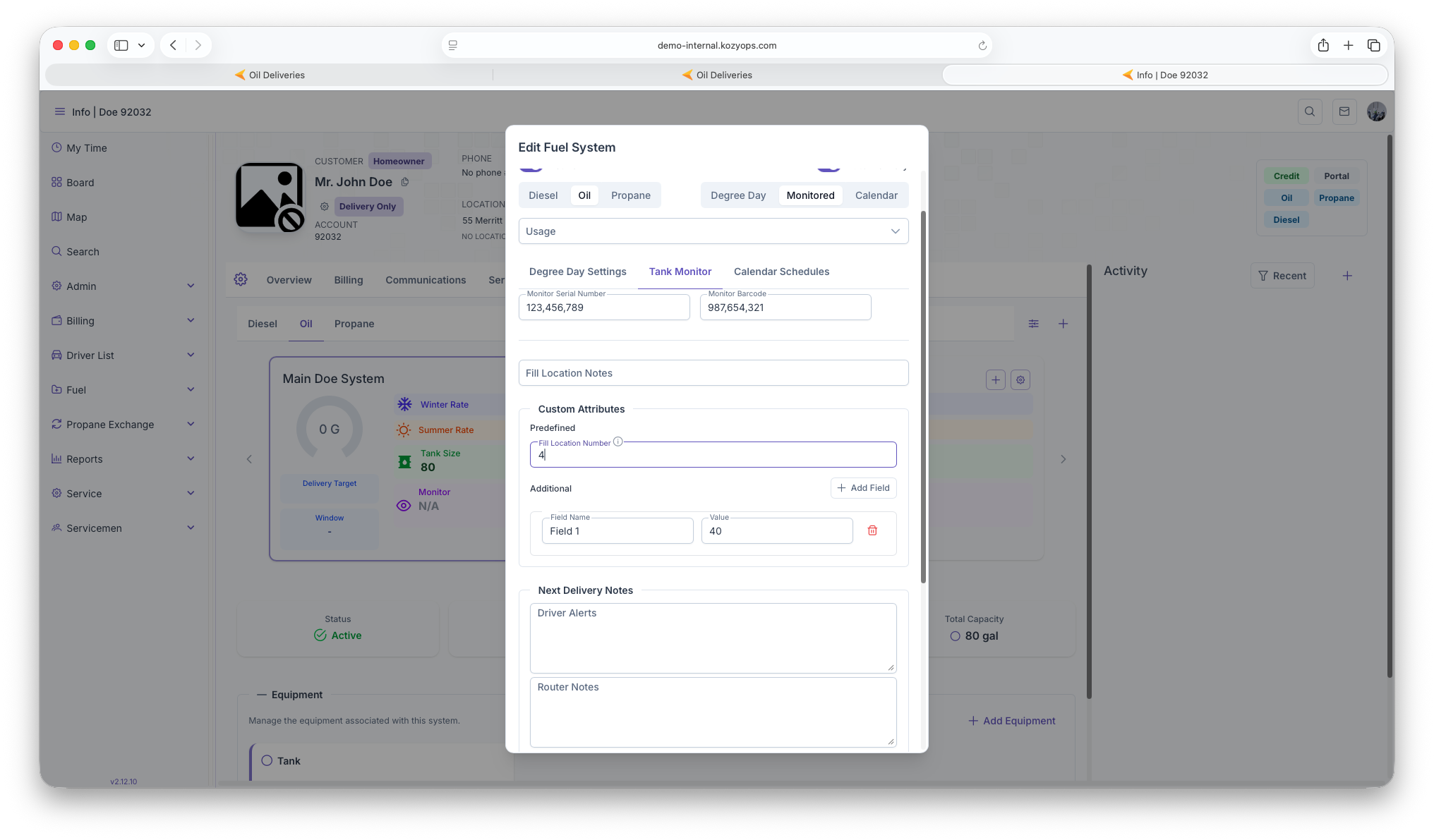
Fill Location Notes

- Text field for delivery access instructions (gate codes, driveway location, etc.)
Custom Attributes

Predefined fields:
- System-type-specific custom fields loaded from the API
- Each shows with label, optional description tooltip
Additional custom fields:
- Click "Add Field" to create custom key-value metadata pairs
- Enter field name and value
- Remove with trash icon
Next Delivery Notes
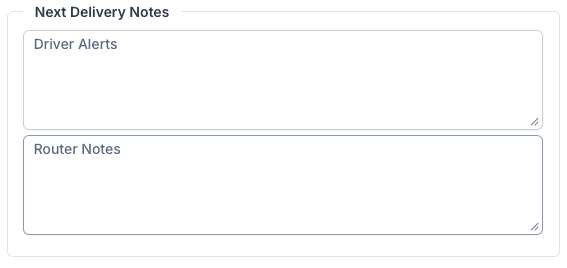
Driver Alerts:
- Important safety or access information for delivery drivers
- Displayed prominently during delivery
Router Notes:
- Instructions for routing and dispatching
- Helps with route planning and optimization
Office Notes

- Internal notes visible only to office staff
- General system information not needed by drivers
Next: Add equipment
After saving the system, add equipment under the system (tanks, boilers, furnaces, vaporizers, regulators, etc.).
For manifolded tanks feeding the same appliance/fill, attach multiple tanks to the same equipment set to represent one shared capacity.
See: Adding Equipment
Editing later
You can rename the system, adjust window strategy, or deactivate it. Be careful changing fill associations or window strategies after deliveries exist, as it can impact projections.
See: Editing a System
Related guides
- Window Strategies — Choosing and configuring the right delivery estimation method
- Add Services — Services are linked to locations or systems
- Location Management — Managing service locations
- Creating a New Customer — Full onboarding flow