# Login – Accessing the App
## Overview
The Login screen is the secure entry point to the Kozy Serviceman mobile application. From here, employees authenticate using their company-issued credentials. First-time users or users switching companies must scan their company’s QR code to connect the app to the correct environment.
### Key Features
- Secure username and password authentication
- QR code onboarding for environment setup
- Real-time branding (company logo and name auto-load after QR scan)
- Automatic error detection and clear instructions for resolution
## Step-by-Step Login Instructions
#### Step 1: Open the App
- Ensure you have internet or cellular data access
- Tap the Kozy Serviceman icon to launch the app
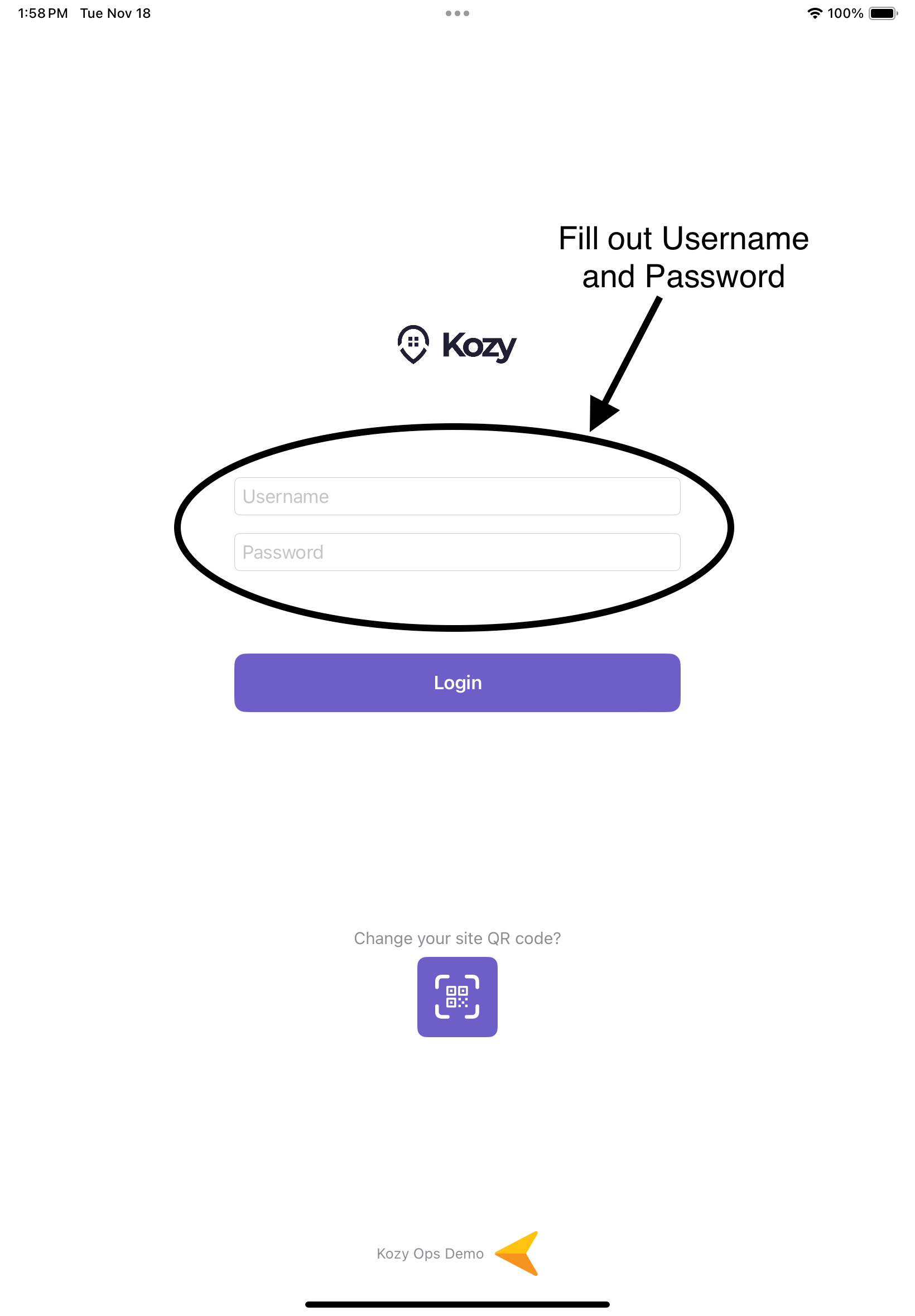
#### Step 2: Enter Your Credentials
[](https://docs-kozyops-com-uploads.s3.amazonaws.com/uploads/images/gallery/2025-11/image-1763493609056.PNG)
- Tap the ****Username**** field and enter your employee username
- Tap the ****Password**** field and enter your password
#### Step 3: First-Time Setup (QR Scan Required)
[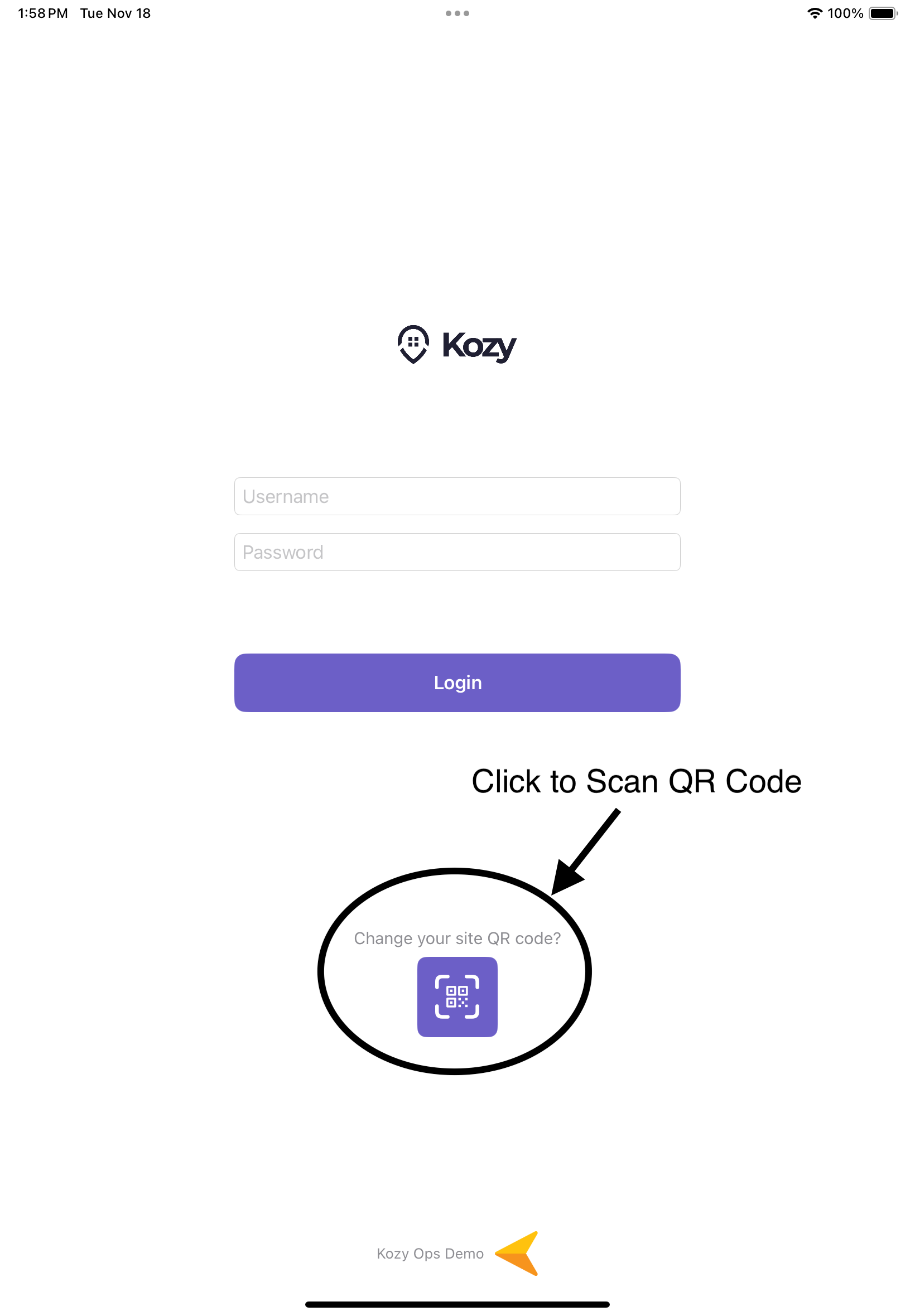](https://docs-kozyops-com-uploads.s3.amazonaws.com/uploads/images/gallery/2025-11/image-1763493630437.PNG) If this is your first time using the app:
1. Tap the ****QR Code icon**** below the login button
2. Point your camera at the QR code provided by your company or dispatcher (See [QR code](https://docs.kozyops.com/books/mobile-app/page/qr-code) if not provided)
3. The app will automatically configure your environment
4. A company logo and name will appear at the bottom confirming success
#### Step 4: Logging In
[](https://docs-kozyops-com-uploads.s3.amazonaws.com/uploads/images/gallery/2025-11/image-1763494383767.PNG)
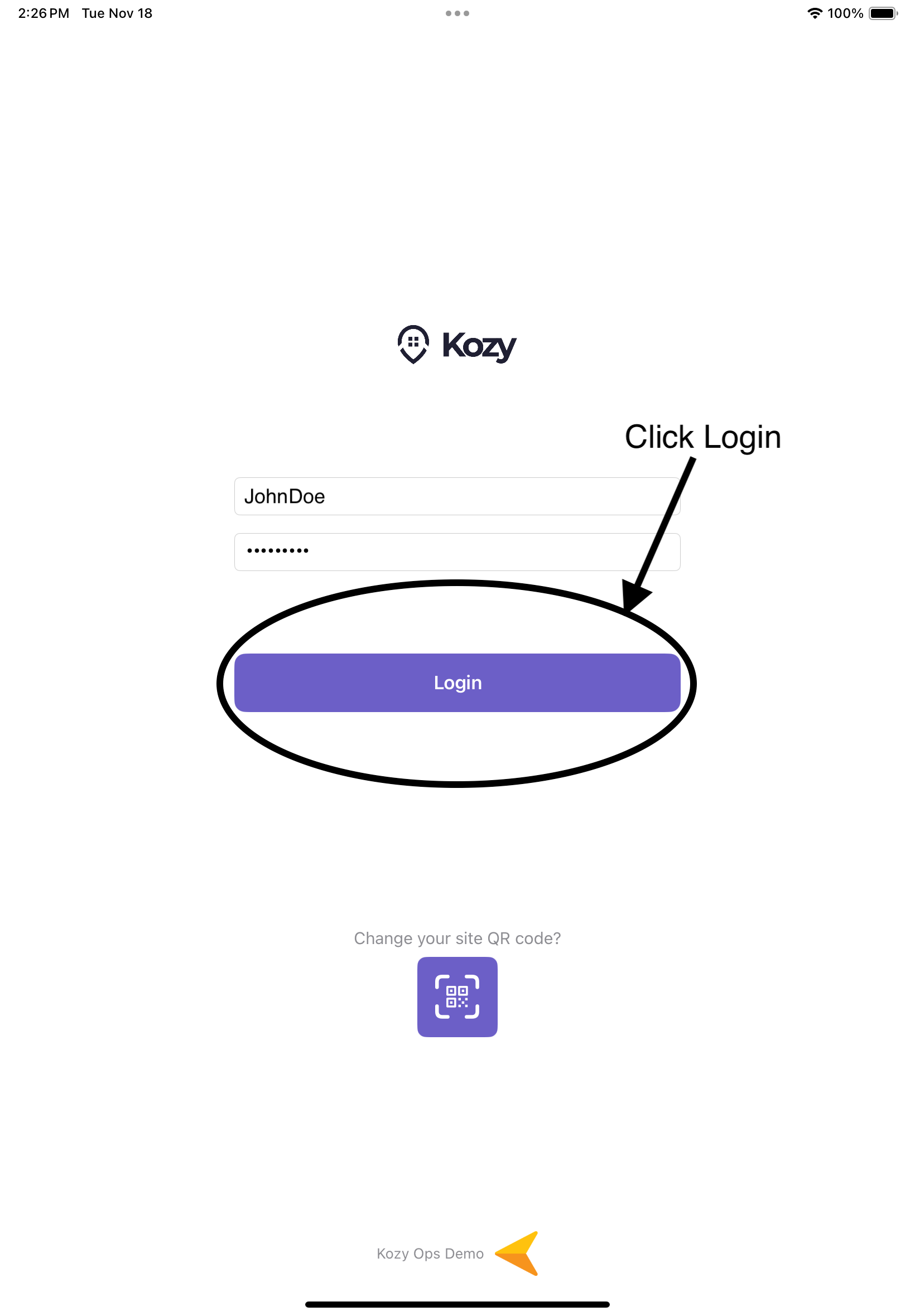
- Tap the ****Login**** button
- A loading indicator will appear while your credentials are verified
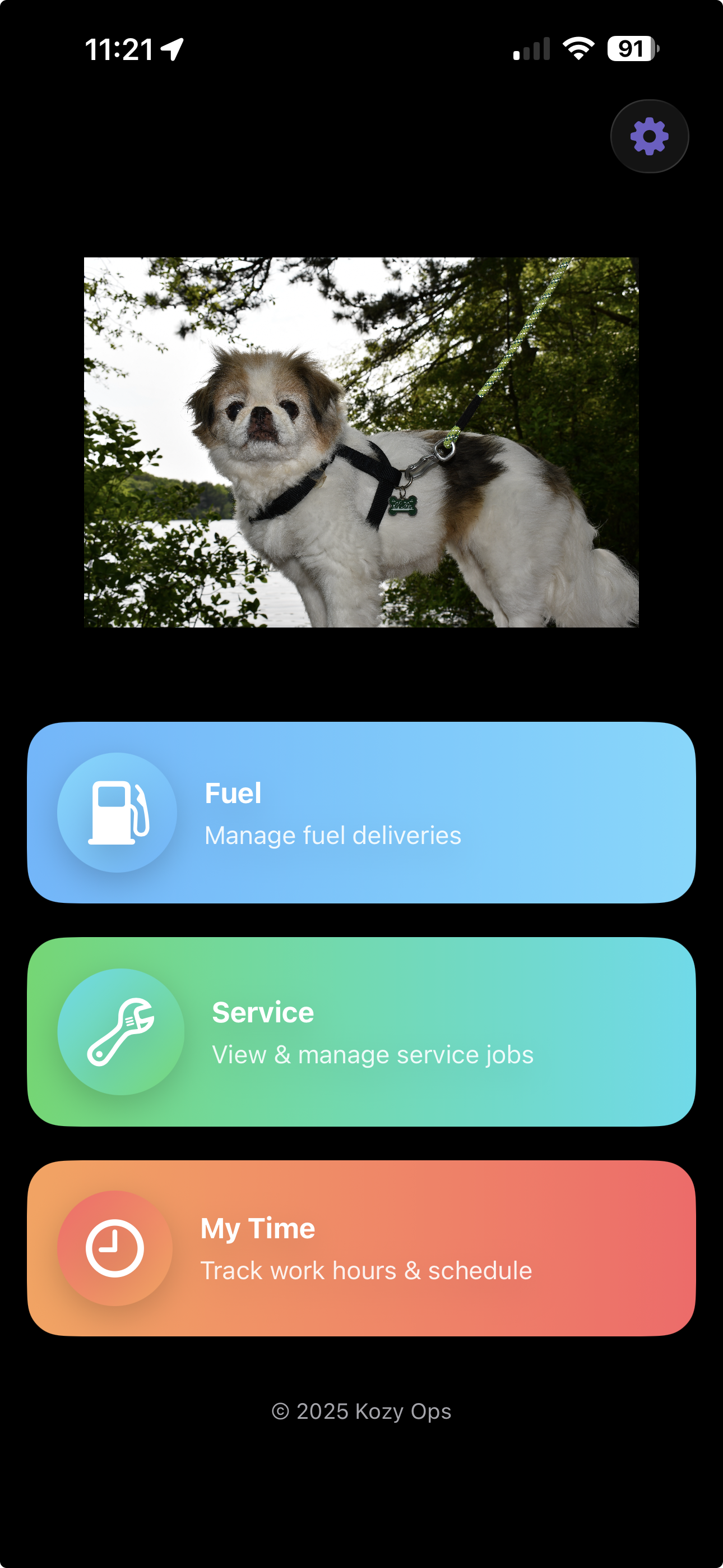
- If successful, you will be taken to the ****Home screen****
- [](https://docs-kozyops-com-uploads.s3.amazonaws.com/uploads/images/gallery/2026-03/paste-0dc9f504-fe4a-4f51-8293-f34413a2dac9.png)