# Employees
# Employee Management
Managing your employees access to Kozy is important. Here are all the articles you may need for building out your Employee Management.
On the Employee Management landing screen you can select Show Active Only to view only Active Employees or filter the view by clicking the filter icon in the column you wish to sort by.
# Adding Employee Profile Pictures
****Adding Employee Profile Pictures****
1. Service Board menu - Admin - Employee Management.
2. On the row with the employees name select the ⋮ than Profile Picture.
3. Select +Choose the jpg or png.
4. Crop the center of the employees face and Next.
5. Select Save.
# Deactivating Employees
****Deactivating Employees****
1. Service Board menu - Admin - Employee Management.
2. On the row with the employees name select the ⋮ than Deactivate Employee.
3. Confirm you want to deactivate this employee by selecting Yes.
# Other Employee Management Options
****Reset Password for Employee****
1. Service Board menu - Admin - Employee Management.
2. On the row with the employees name select the ⋮ than Reset Password.
3. Enter New password twice and Save.
****Editing Employee****
1. Service Board menu - Admin - Employee Management.
2. On the row with the employees name select the ⋮ than Edit Information.
3. Edit the profile and select Save.
# Adding Employee Profile Pictures
****Adding Employee Profile Pictures****
1. Service Board menu - Admin - Employee Management.
2. On the row with the employees name select the ⋮ than Profile Picture.
3. Select +Choose the jpg or png.
4. Crop the center of the employees face and Next.
5. Select Save.
# Payroll
Kozy's Payroll system and ability to track clock ins/outs allows you to use our software for payroll.
We have the ability to connect to ADP's API. If this is of interest to you and was not previously discussed please reach out to for next steps.
# Shifts Schedules
****Shift Schedules****
If you wish to use Shift Schedules please ensure we have all of your shift options to put in the database such as 5am start time vs 12pm start time or office 8-5pm.
1. Open the menu - Admin - Shift Schedules
2. Select New Shift to add a single date schedule per employee. Select Add Typical Shifts to add "normal" shifts for all active employees. If shift is applied to their profile this will fill in with typical shifts for the employee.
3. Use Edit Shifts to remove days they will be off.
# Employee Clock In/Out
****Employee Clock In/Out****
Web:
1. Open the menu - My Time - Clock In or Clock Out.
2. Select if lunch was taken.
3. If a punch was missed select the box next to the date.
1. Select Request Clock Event
2. Ensure the Date and Time is accurate for the updated Clock Event and select the Description
3. Submit
App:
1. Select My Time.
2. Clock In or Clock Out.
3. Slide if lunch was not taken for the day.
# Video for Employee Management
# Fuel Drivers
# Login – Accessing the App
## Overview
The Login screen is the secure entry point to the Kozy Serviceman mobile application. From here, employees authenticate using their company-issued credentials. First-time users or users switching companies must scan their company’s QR code to connect the app to the correct environment.
### Key Features
- Secure username and password authentication
- QR code onboarding for environment setup
- Real-time branding (company logo and name auto-load after QR scan)
- Automatic error detection and clear instructions for resolution
## Step-by-Step Login Instructions
#### Step 1: Open the App
- Ensure you have internet or cellular data access
- Tap the Kozy Serviceman icon to launch the app
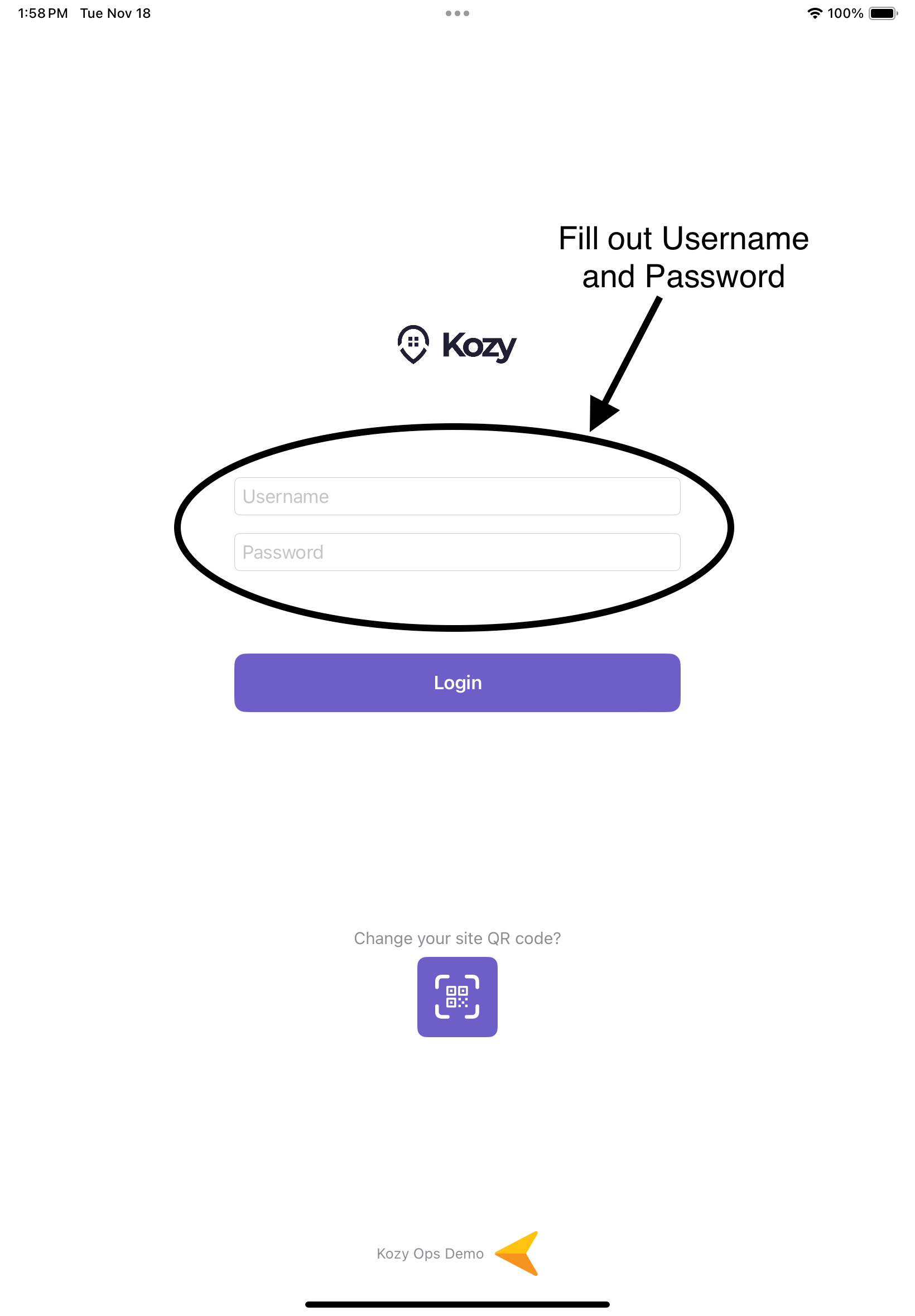
#### Step 2: Enter Your Credentials
[](https://docs-kozyops-com-uploads.s3.amazonaws.com/uploads/images/gallery/2025-11/image-1763493609056.PNG)
- Tap the ****Username**** field and enter your employee username
- Tap the ****Password**** field and enter your password
#### Step 3: First-Time Setup (QR Scan Required)
[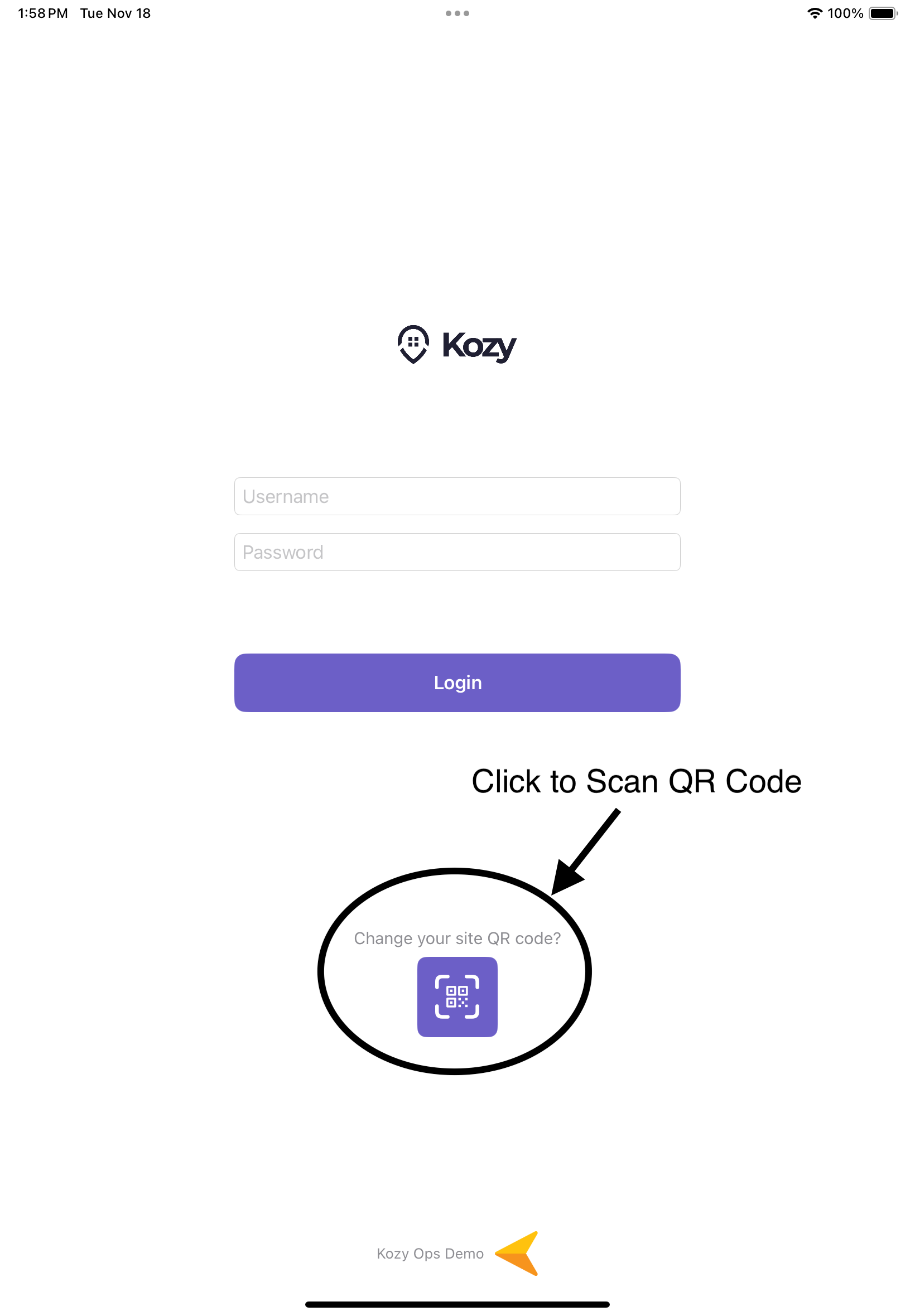](https://docs-kozyops-com-uploads.s3.amazonaws.com/uploads/images/gallery/2025-11/image-1763493630437.PNG) If this is your first time using the app:
1. Tap the ****QR Code icon**** below the login button
2. Point your camera at the QR code provided by your company or dispatcher (See [QR code](https://docs.kozyops.com/books/mobile-app/page/qr-code) if not provided)
3. The app will automatically configure your environment
4. A company logo and name will appear at the bottom confirming success
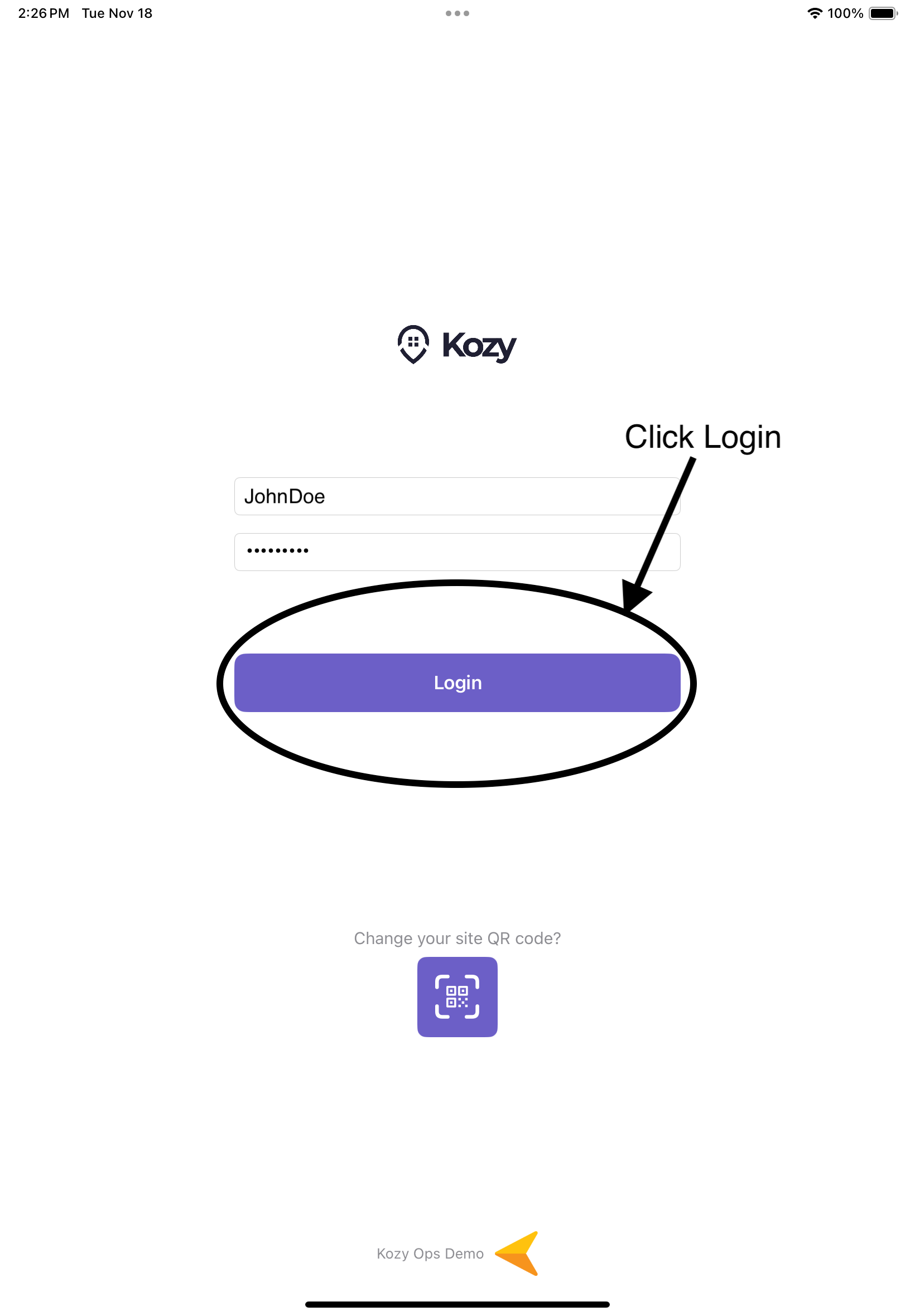
#### Step 4: Logging In
[](https://docs-kozyops-com-uploads.s3.amazonaws.com/uploads/images/gallery/2025-11/image-1763494383767.PNG)
- Tap the ****Login**** button
- A loading indicator will appear while your credentials are verified
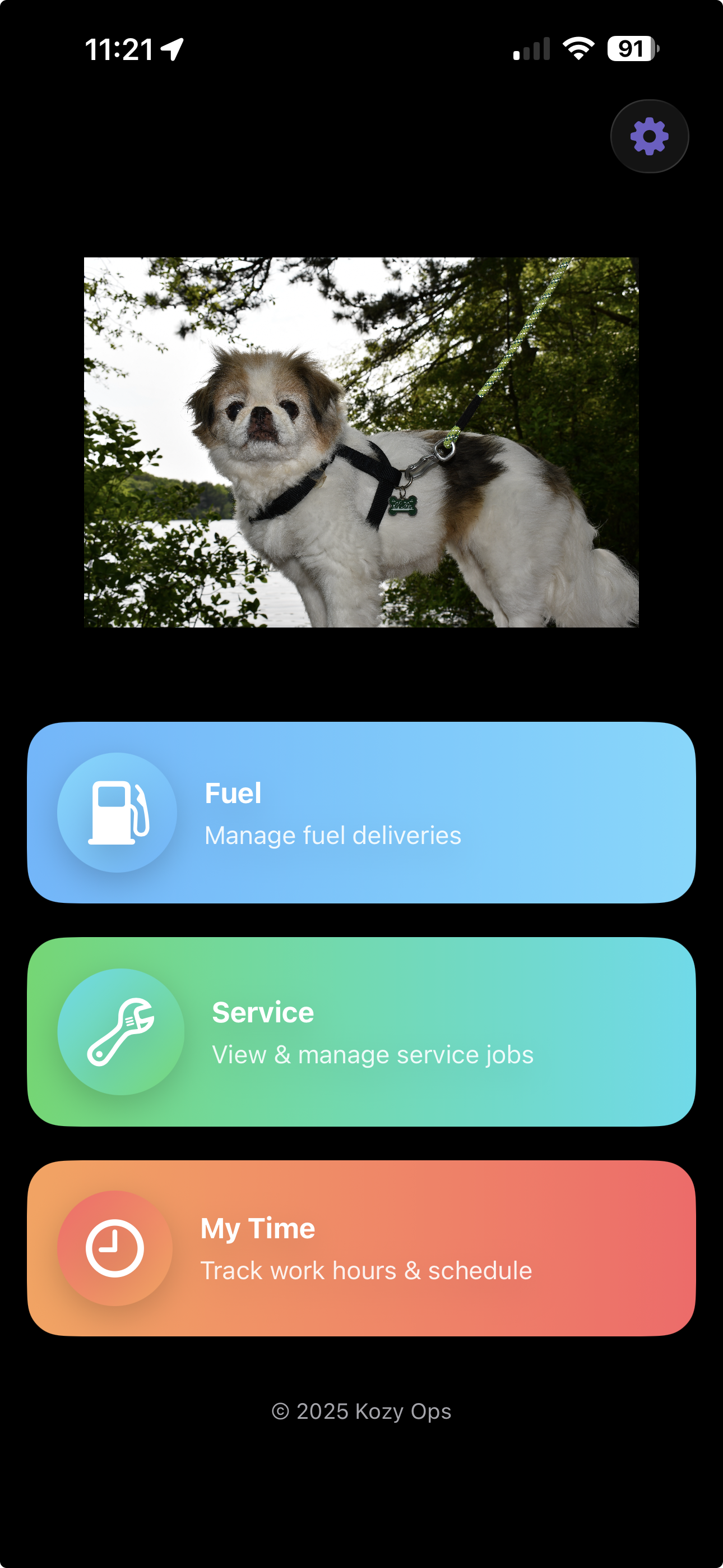
- If successful, you will be taken to the ****Home screen****
- [](https://docs-kozyops-com-uploads.s3.amazonaws.com/uploads/images/gallery/2026-03/paste-0dc9f504-fe4a-4f51-8293-f34413a2dac9.png)
# QR code
## Overview
Instructions on how to acces QR Code if not provided by Company or Dispatcher
## Accessing QR Code
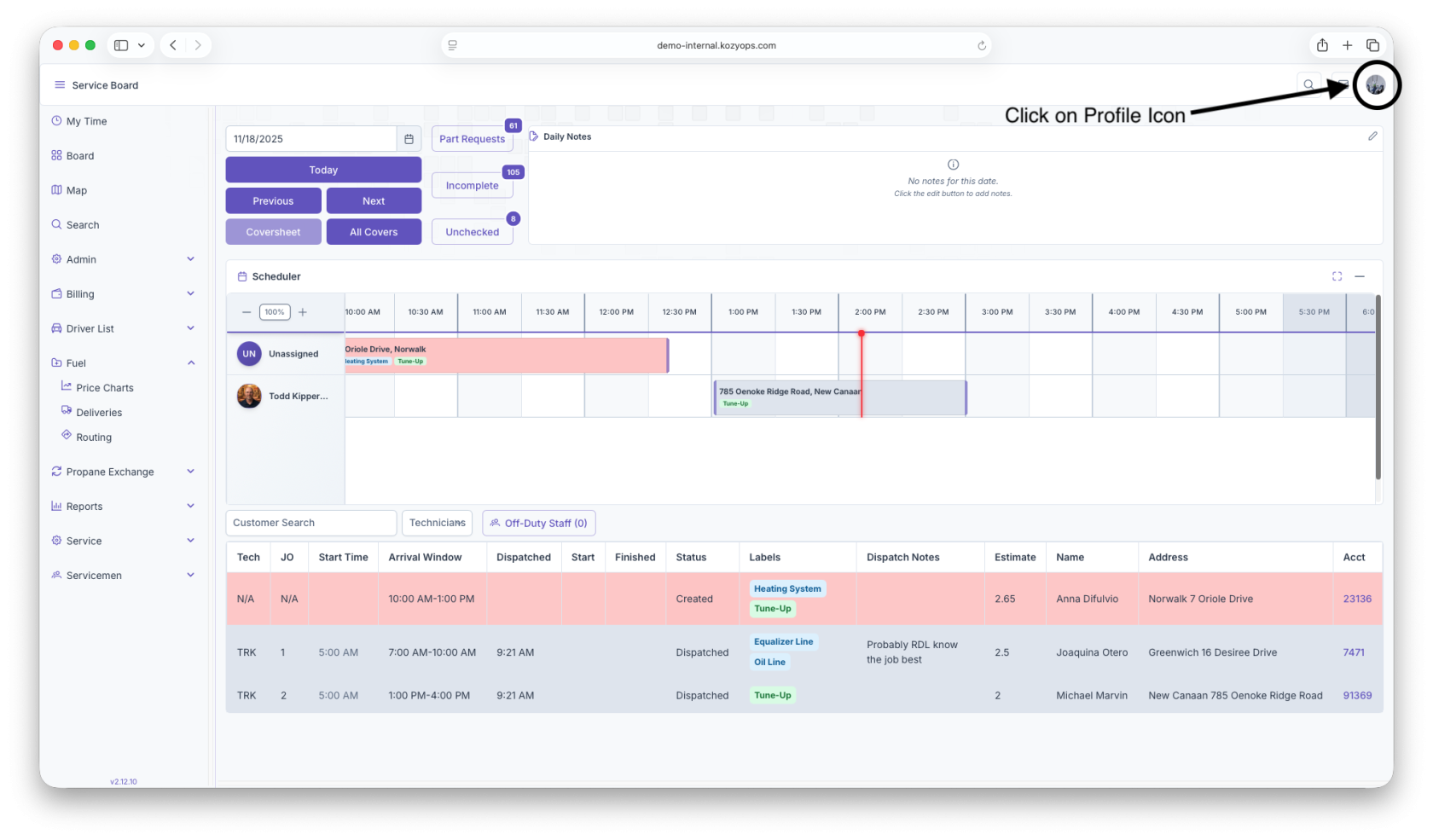
1. On main Webpage, click on profile icon for dropdown
[](https://docs-kozyops-com-uploads.s3.amazonaws.com/uploads/images/gallery/2025-11/image-1763495417979-45-15-pm.png)
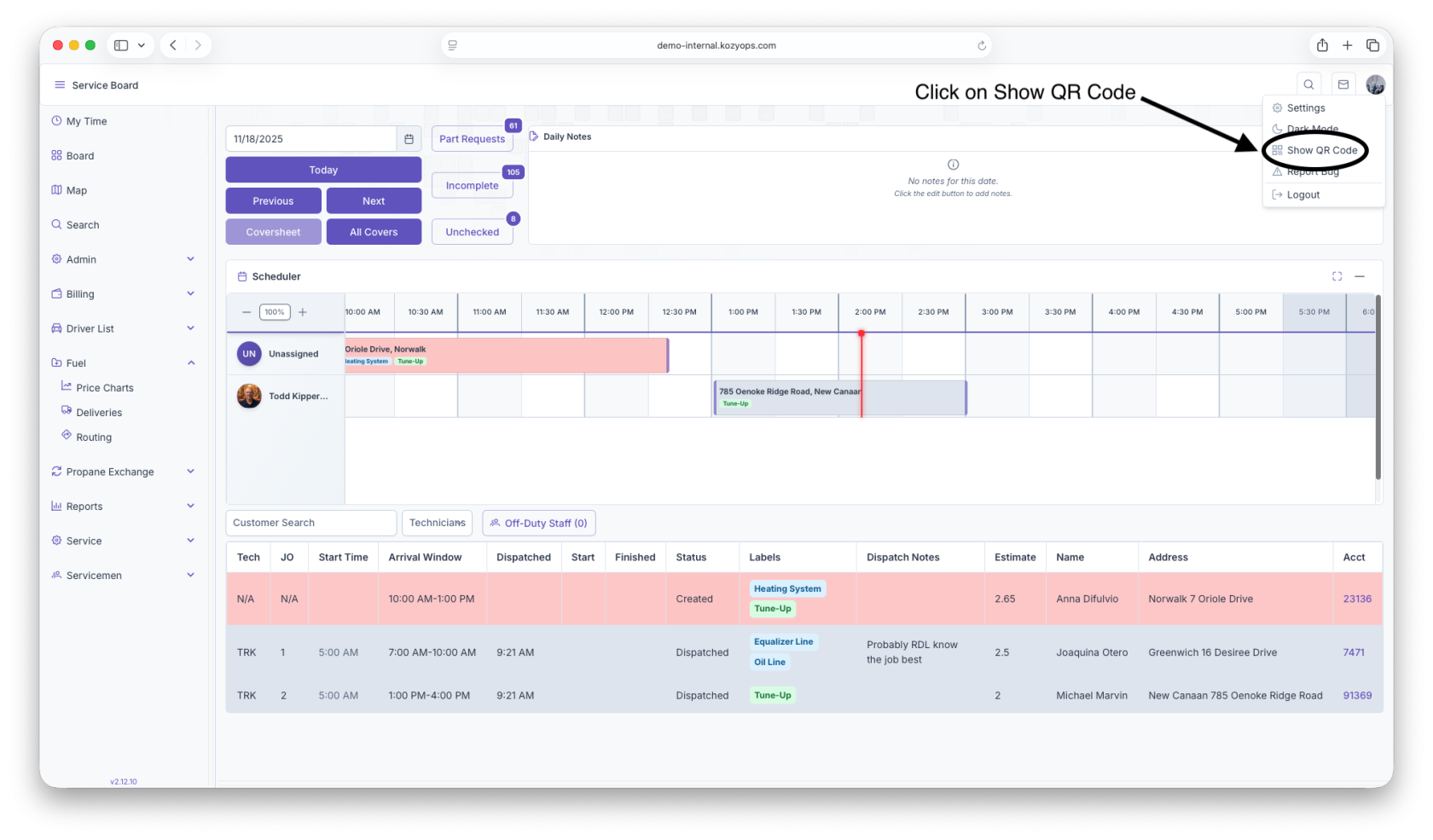
2. Click on Show QR Code
[](https://docs-kozyops-com-uploads.s3.amazonaws.com/uploads/images/gallery/2025-11/image-1763495427090-45-21-pm.png)
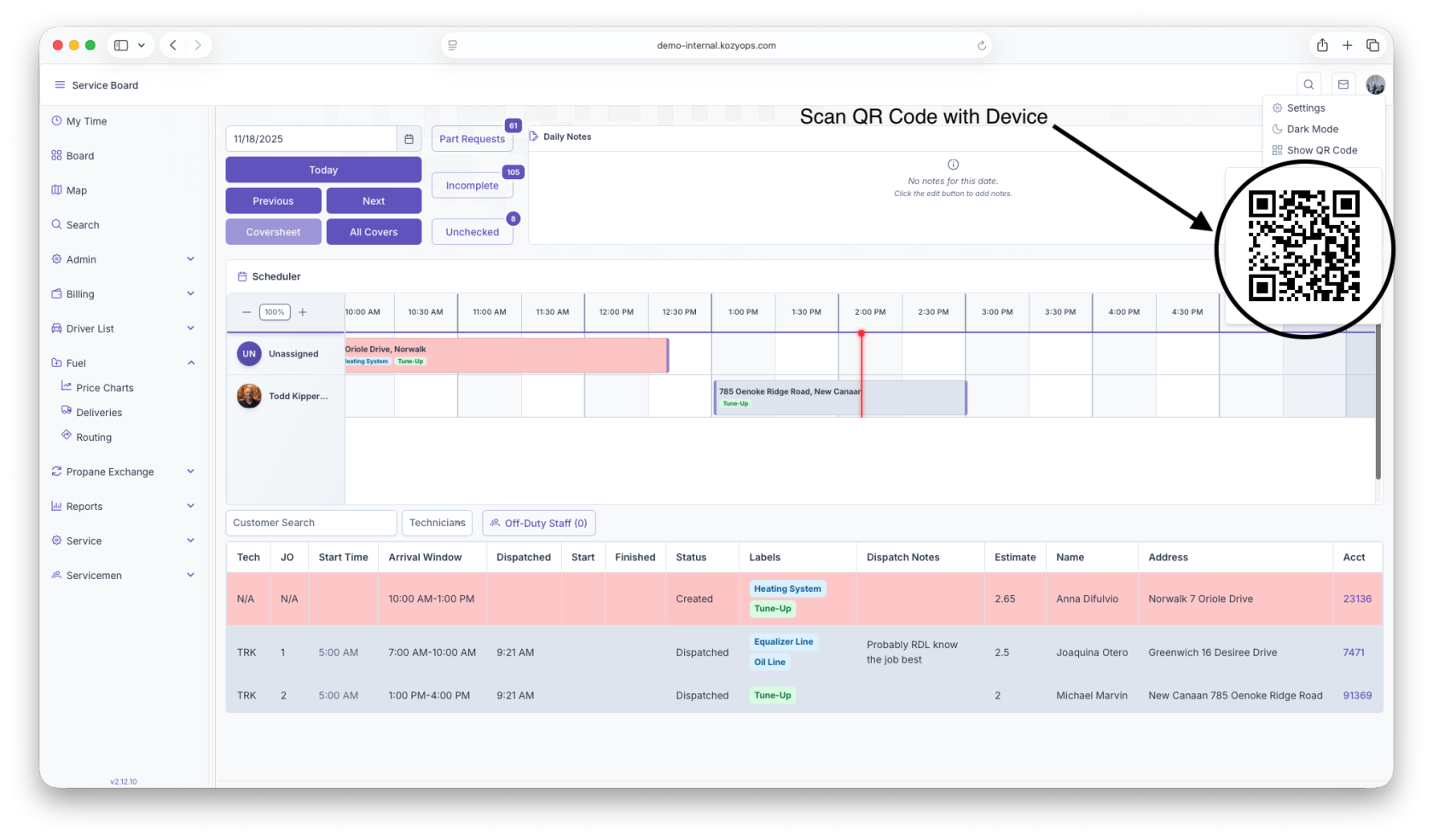
3. QR Code will generate and you can scan with device
[](https://docs-kozyops-com-uploads.s3.amazonaws.com/uploads/images/gallery/2025-11/image-1763495432740-45-26-pm.png)
# Fuel Drivers Daily Life Manually Entered
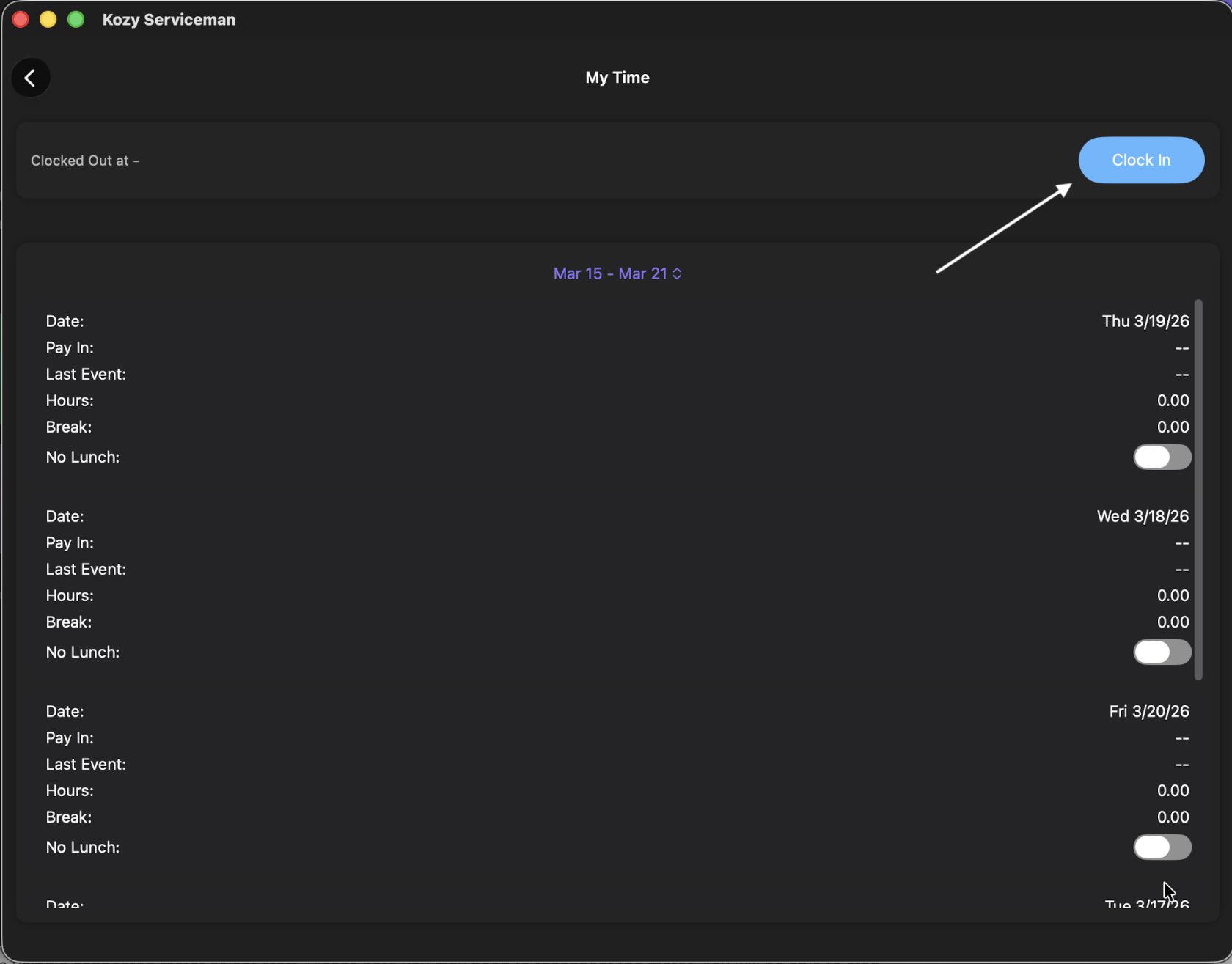
Your app should already be setup with your truck for the day. You will be using the app. 1. Login to the app (if you are not already logged in).
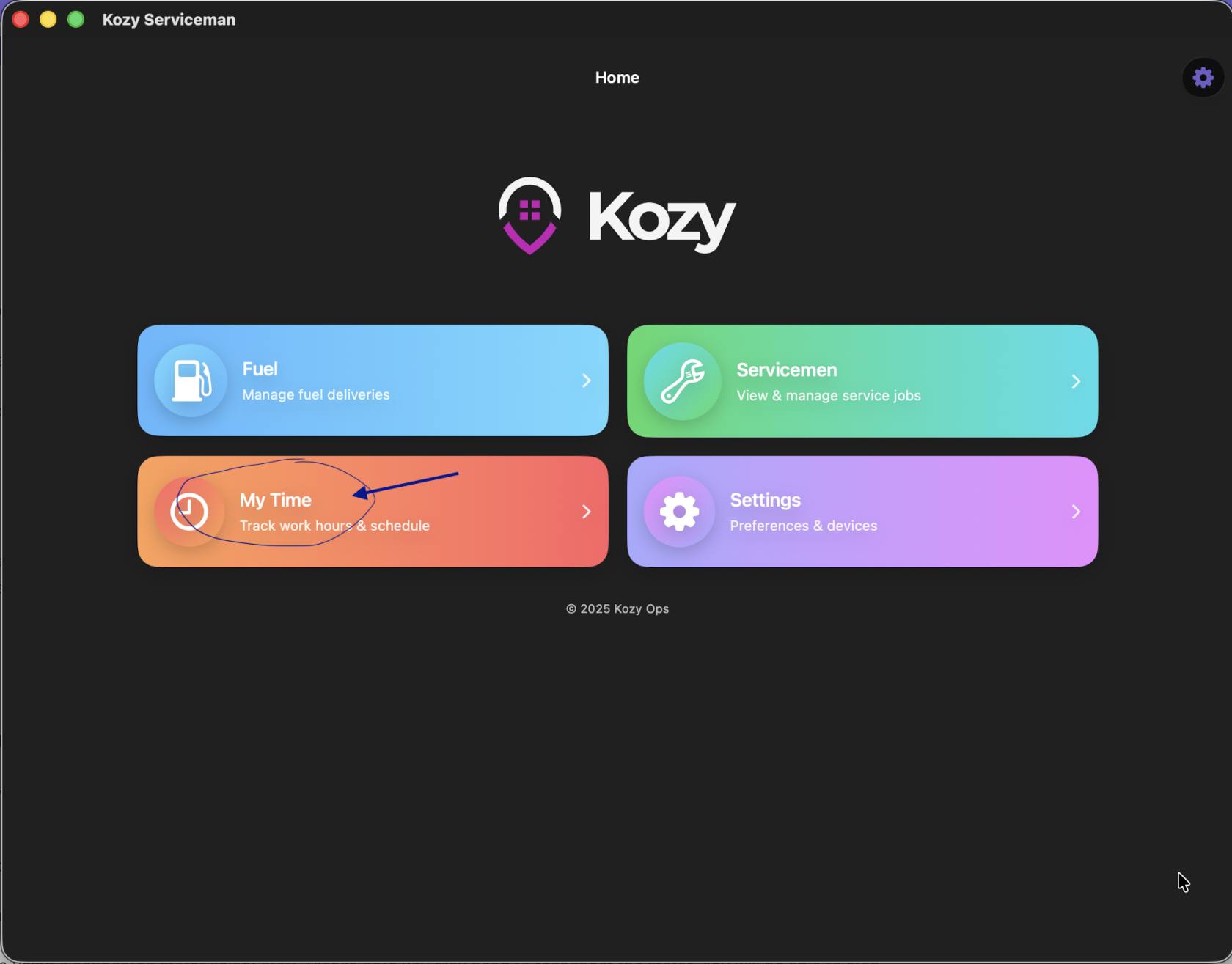
2\. IF your company tracks time in Kozy - select My Time and Clock In
[](https://docs-kozyops-com-uploads.s3.amazonaws.com/uploads/images/gallery/2026-03/scaled-1680-/my-time.png)
[](https://docs-kozyops-com-uploads.s3.amazonaws.com/uploads/images/gallery/2026-03/scaled-1680-/clockin.png)
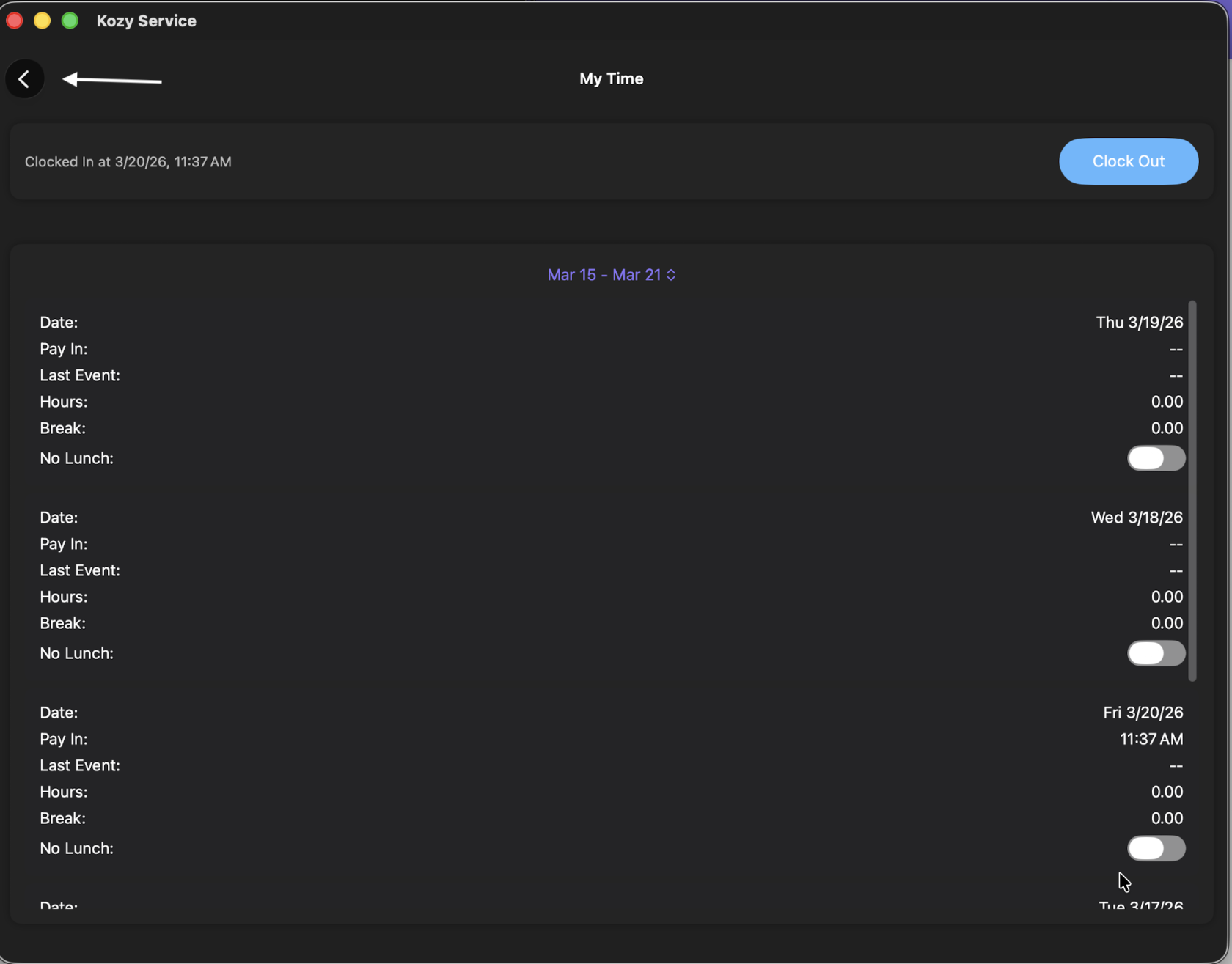
3\. Hit the back button to return to the home screen.
[](https://docs-kozyops-com-uploads.s3.amazonaws.com/uploads/images/gallery/2026-03/scaled-1680-/back.png)
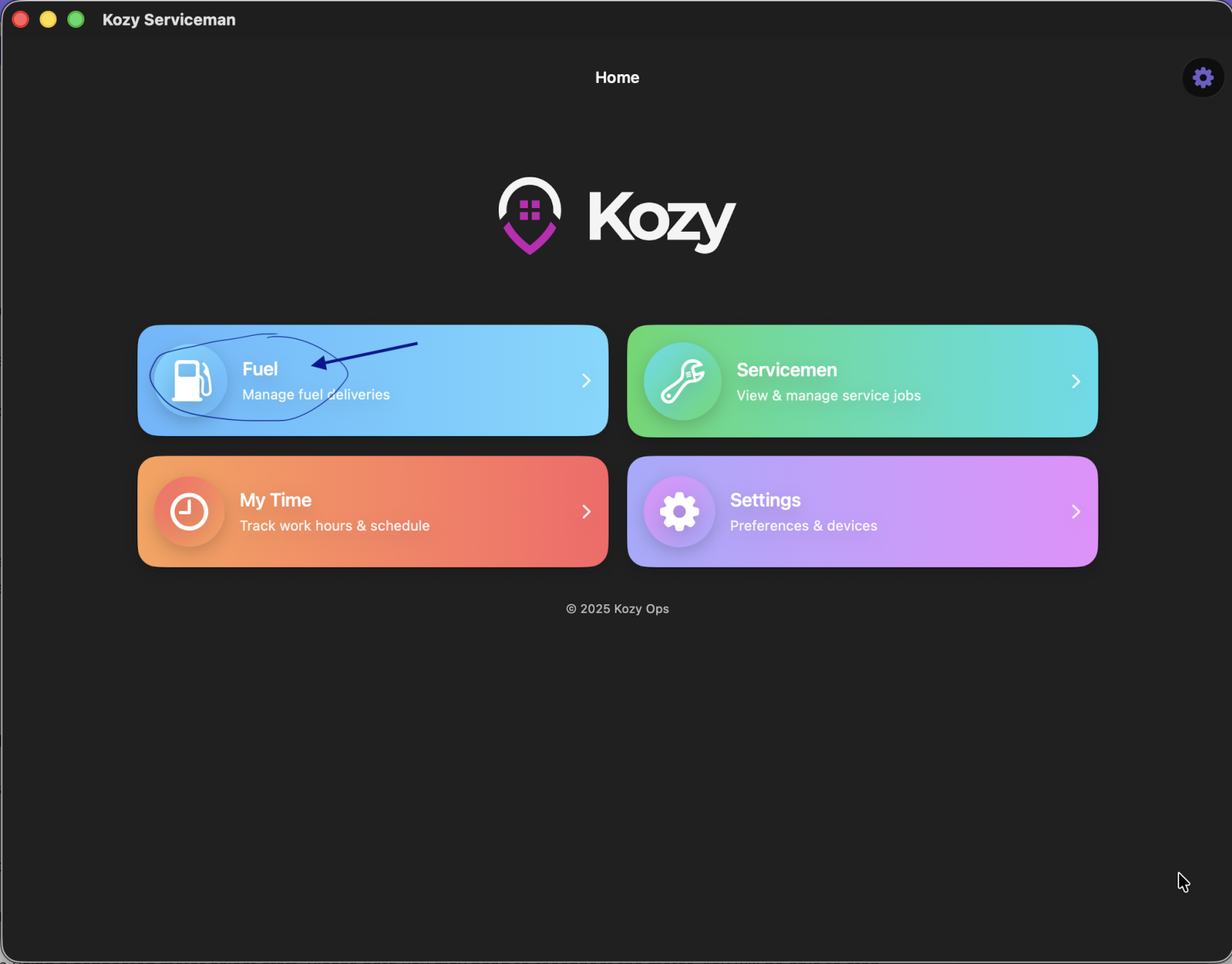
4. Select Fuel
[](https://docs-kozyops-com-uploads.s3.amazonaws.com/uploads/images/gallery/2026-03/scaled-1680-/fuel.png)
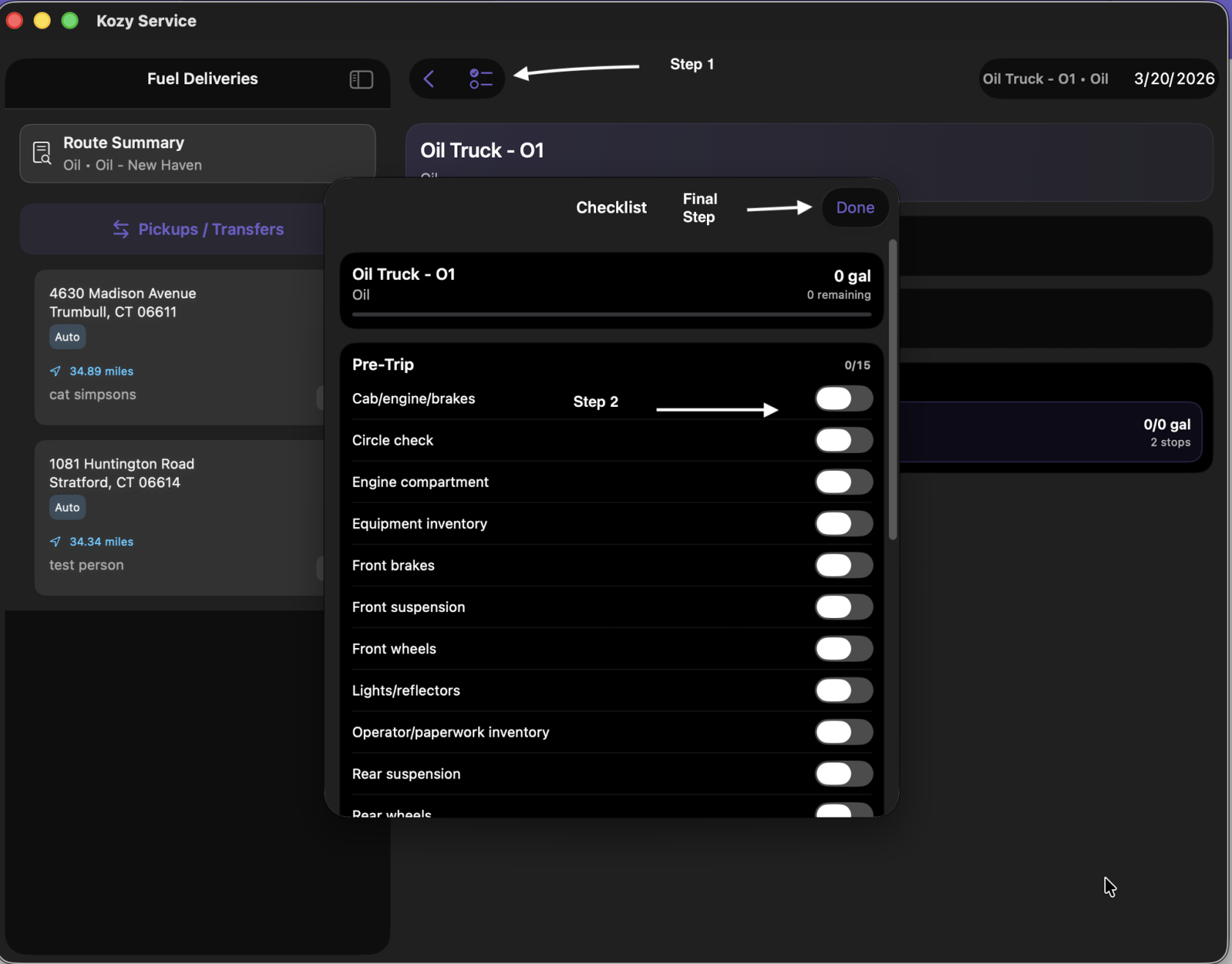
5\. IF you are tracking Pre trip in Kozy - select the := icon next to the word Fuel Deliveries at the top and slide for inspection report. Click Done when completed.
[](https://docs-kozyops-com-uploads.s3.amazonaws.com/uploads/images/gallery/2026-03/scaled-1680-/precheck.png)
6\. To Record a Pickup select Pickups/Transfers
7\. The terminal you need to fill your Vehicle is at the top of the list.
8. Select Pickup/Transfers once you pickup your fuel load(s). 9. Enter how many gallons your Pickup (gal) at the bottom and Record Pickup. Close.
[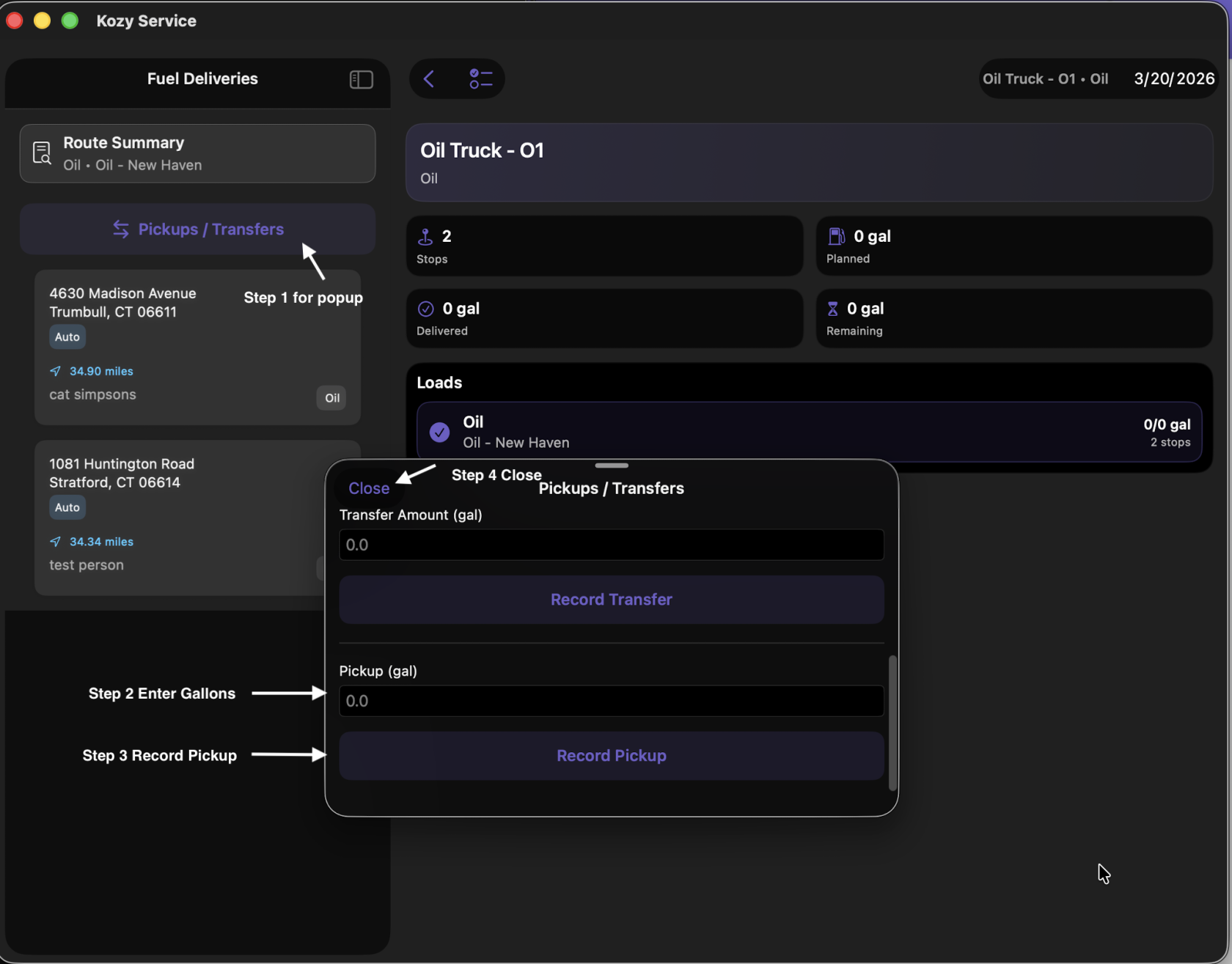](https://docs-kozyops-com-uploads.s3.amazonaws.com/uploads/images/gallery/2026-03/scaled-1680-/pickup.png)
10. Select your first stop. This will show you the address (click the arrow for Google Maps to direct you), a picture of the property (if previously added) and expected delivery.
[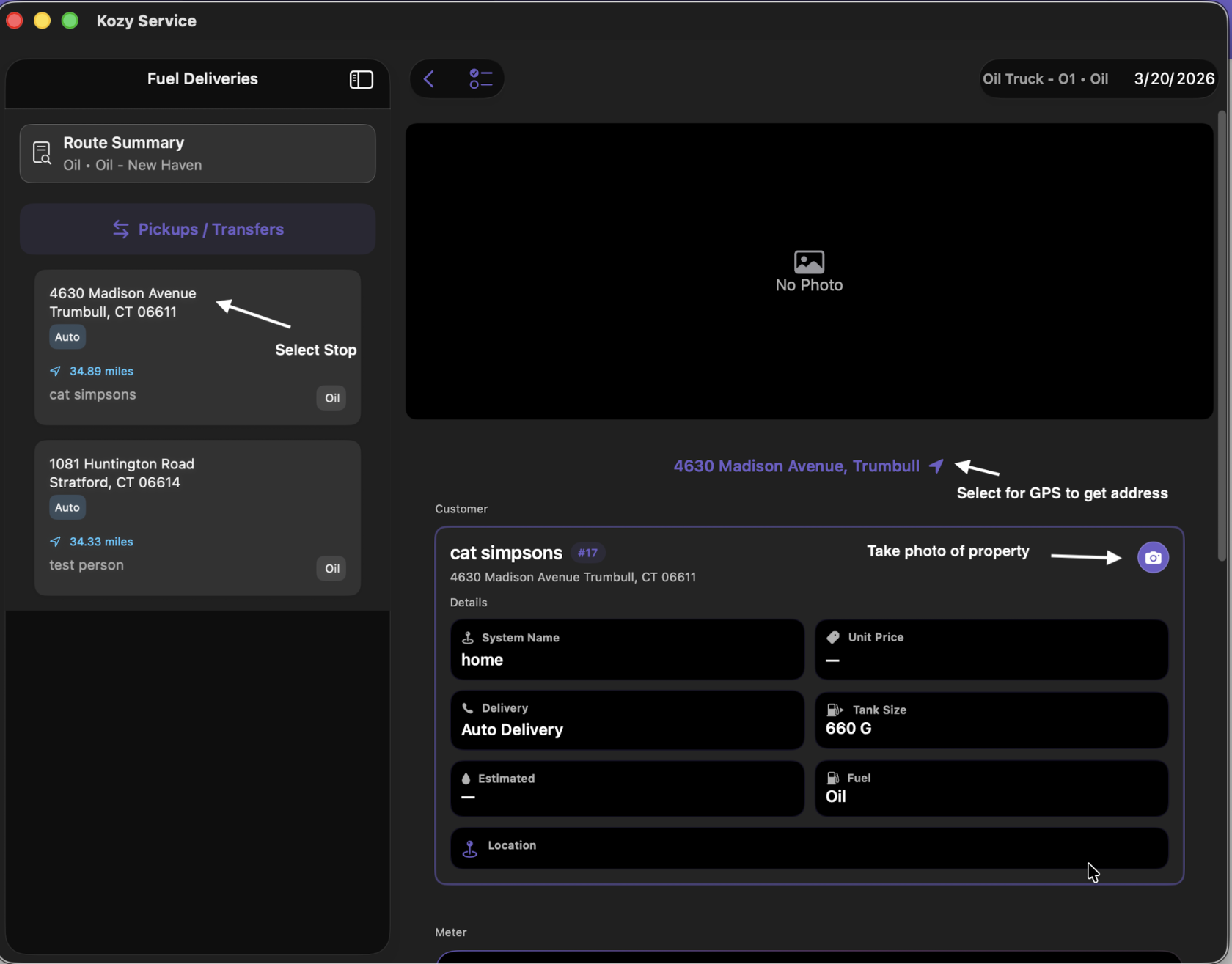](https://docs-kozyops-com-uploads.s3.amazonaws.com/uploads/images/gallery/2026-03/scaled-1680-/selecting-custoemr.png)
11. Scroll down to manually enter the number of gallons delivered.
[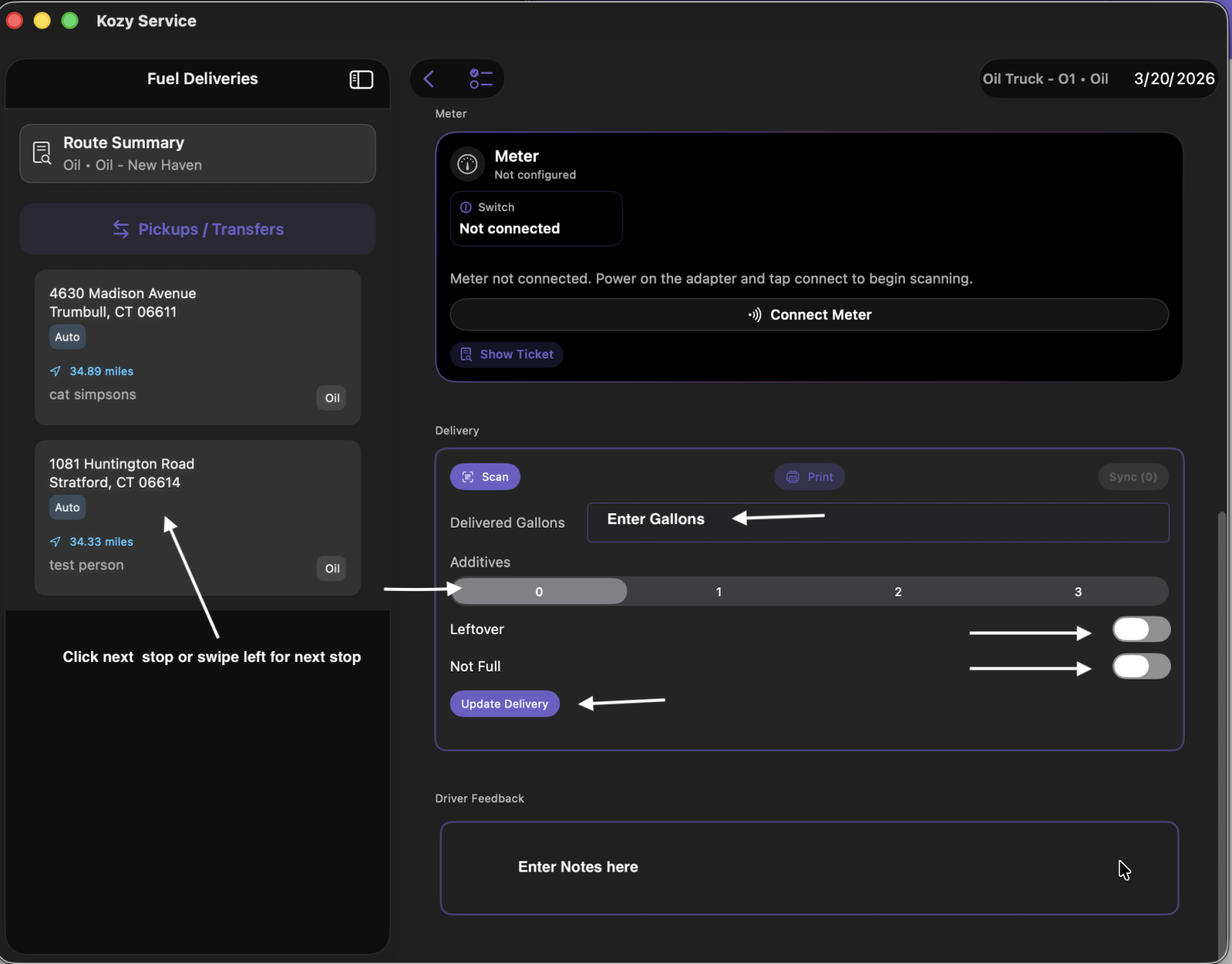](https://docs-kozyops-com-uploads.s3.amazonaws.com/uploads/images/gallery/2026-03/scaled-1680-/manualdelivery.png)
12. Scroll down to enter additives (if used), select if this is leftover or not full. Leave notes or feedback if needed. 13. Swipe left for the next stop or select the next one by hand. Repeats 11&12. Continue until all deliveries are completed.
14\. IF you are tracking Post trip in Kozy - select the := icon next to the word Fuel Deliveries at the top and enter closeout details. Click Done when completed.
15. IF you are tracking time - from the home screen select My Time - Clock Out. Remember if you skipped lunch to select the slider for the day.
[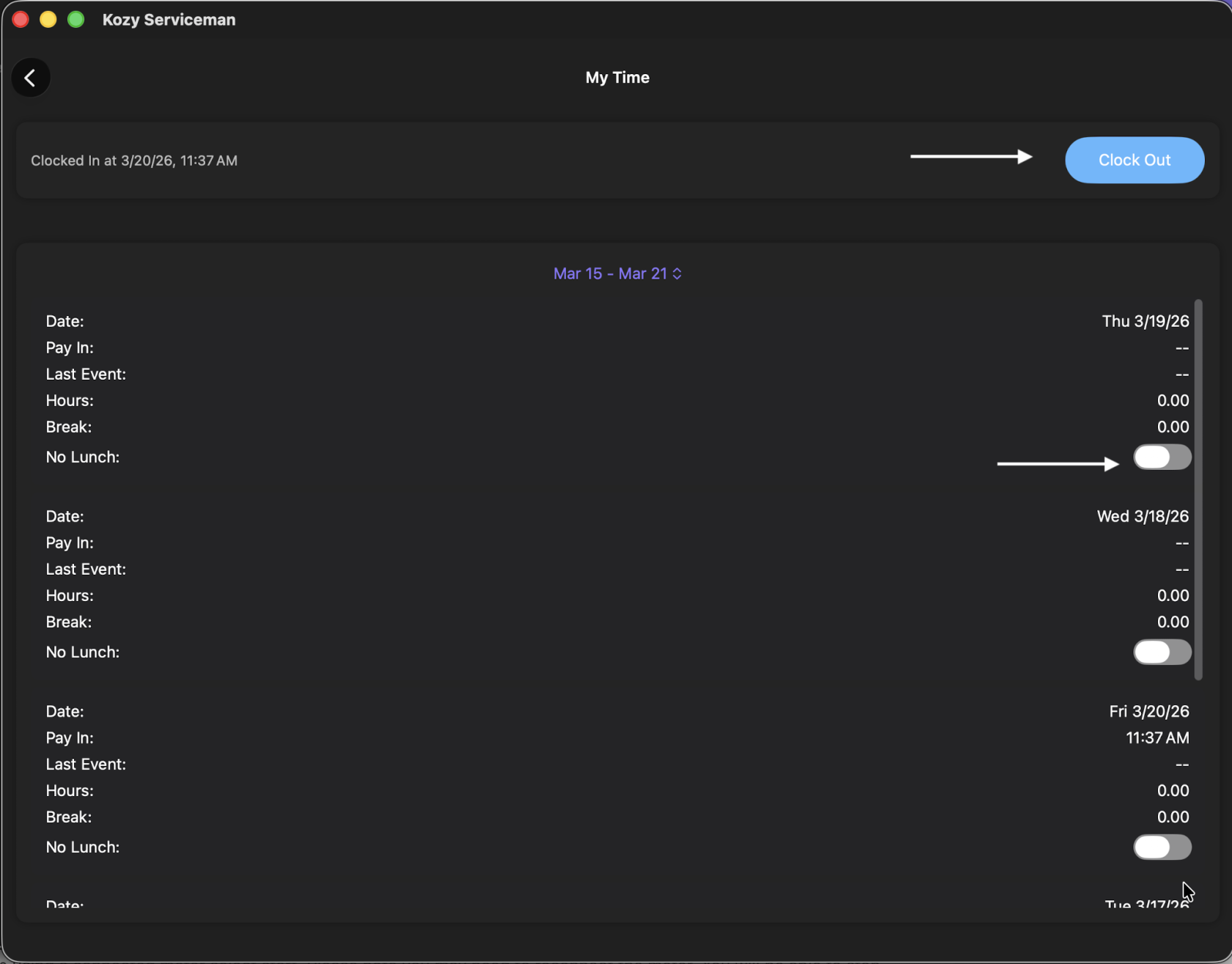](https://docs-kozyops-com-uploads.s3.amazonaws.com/uploads/images/gallery/2026-03/scaled-1680-/clockout.png)
# Fuel Drivers Daily Life Metered
Your app should already be setup with your truck for the day. You will be using the app. 1. Login to the app (if you are not already logged in).
2\. IF your company tracks time in Kozy - select My Time and Clock In
[](https://docs-kozyops-com-uploads.s3.amazonaws.com/uploads/images/gallery/2026-03/scaled-1680-/my-time.png)
[](https://docs-kozyops-com-uploads.s3.amazonaws.com/uploads/images/gallery/2026-03/scaled-1680-/clockin.png)
3\. Hit the back button to return to the home screen.
[](https://docs-kozyops-com-uploads.s3.amazonaws.com/uploads/images/gallery/2026-03/scaled-1680-/back.png)
4. Select Fuel
[](https://docs-kozyops-com-uploads.s3.amazonaws.com/uploads/images/gallery/2026-03/scaled-1680-/fuel.png)
5\. IF you are tracking Pre trip in Kozy - select the := icon next to the word Fuel Deliveries at the top and slide for inspection report. Click Done when completed.
[](https://docs-kozyops-com-uploads.s3.amazonaws.com/uploads/images/gallery/2026-03/scaled-1680-/precheck.png)
6\. To Record a Pickup select Pickups/Transfers
7\. The terminal you need to fill your Vehicle is at the top of the list.
8. Select Pickup/Transfers once you pickup your fuel load(s). 9. Enter how many gallons your Pickup (gal) at the bottom and Record Pickup. Close.
[](https://docs-kozyops-com-uploads.s3.amazonaws.com/uploads/images/gallery/2026-03/scaled-1680-/pickup.png)
10. Select your first stop. This will show you the address (click the arrow for Google Maps to direct you), a picture of the property (if previously added) and expected delivery.
[](https://docs-kozyops-com-uploads.s3.amazonaws.com/uploads/images/gallery/2026-03/scaled-1680-/selecting-custoemr.png)
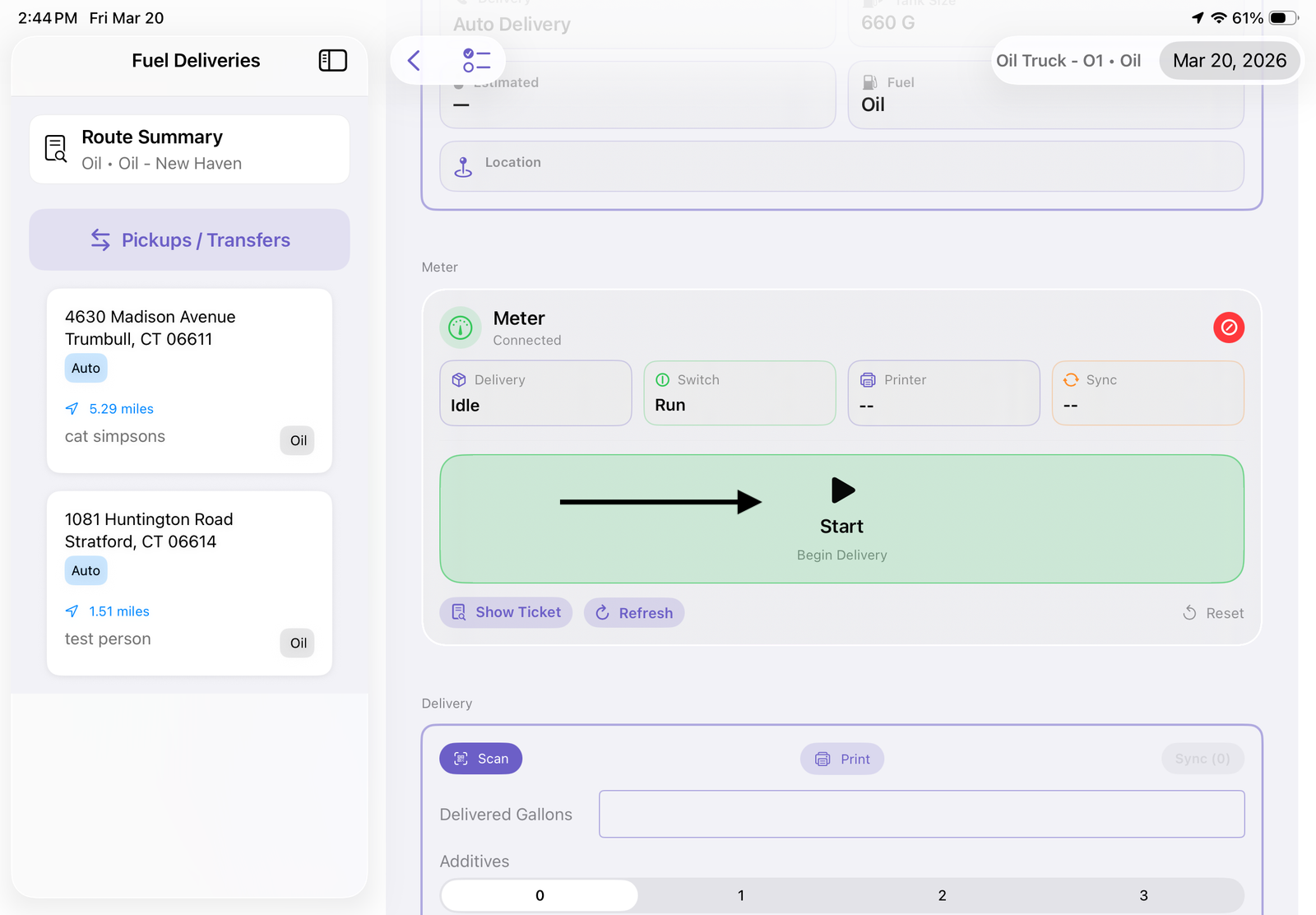
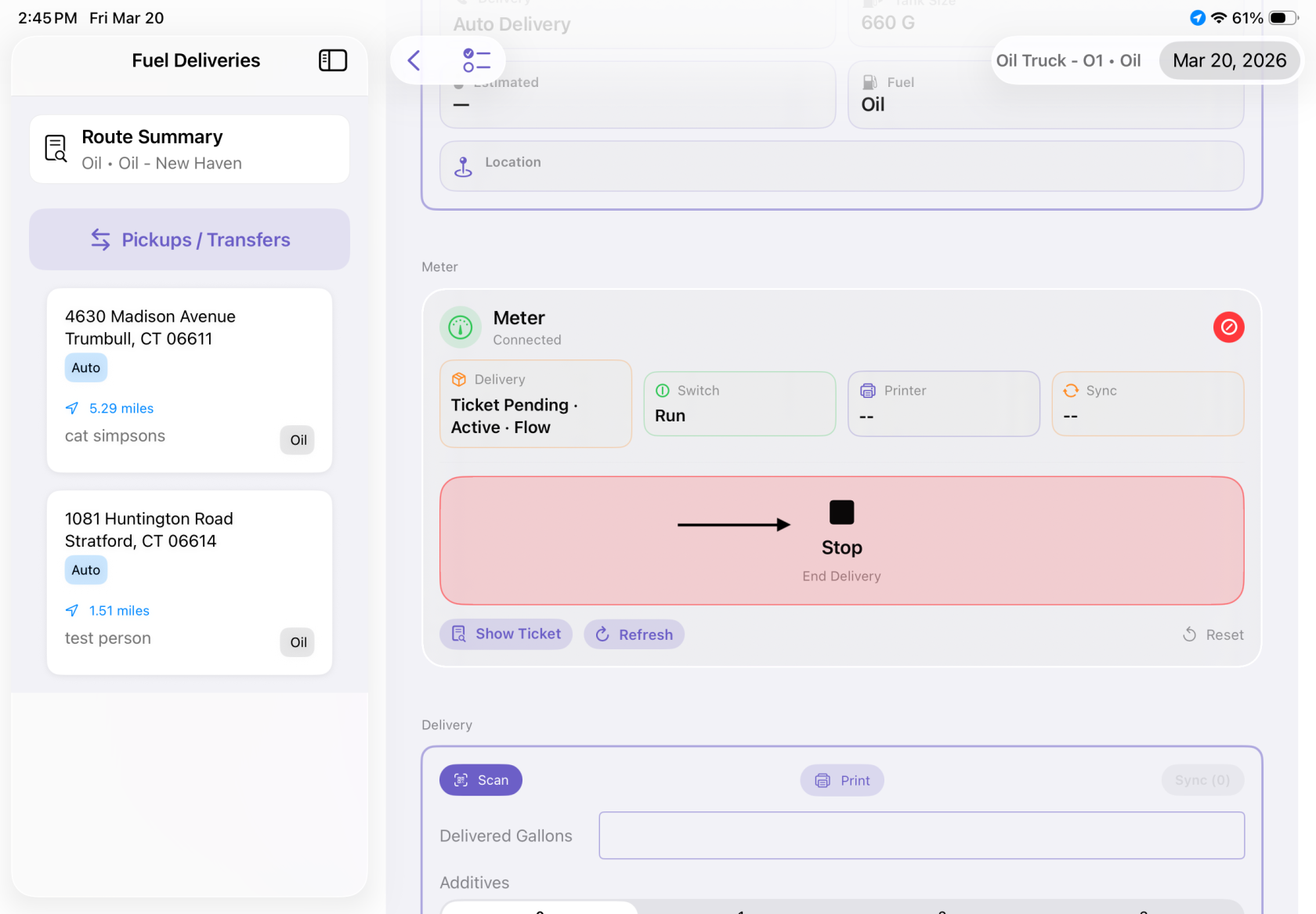
11\. Scroll down to select START. Please note you may need to reconnect the meter. You will be able to stop it here as well and it will automatically fill in the delivery information.
[](https://docs-kozyops-com-uploads.s3.amazonaws.com/uploads/images/gallery/2026-03/scaled-1680-/startmeter.png)
[](https://docs-kozyops-com-uploads.s3.amazonaws.com/uploads/images/gallery/2026-03/scaled-1680-/stopmeter.PNG)
12. Scroll down to enter additives (if used), select if this is leftover or not full. Leave notes or feedback if needed. 13. Swipe left for the next stop or select the next one by hand. Repeats 11&12. Continue until all deliveries are completed.
14\. IF you are tracking Post trip in Kozy - select the := icon next to the word Fuel Deliveries at the top and enter closeout details. Click Done when completed.
15. IF you are tracking time - from the home screen select My Time - Clock Out. Remember if you skipped lunch to select the slider for the day.
[](https://docs-kozyops-com-uploads.s3.amazonaws.com/uploads/images/gallery/2026-03/scaled-1680-/clockout.png)