Adding Services
Introduction
Services refers to account-level Products and Service Plans that apply to a specific Customer and Location (e.g., service plans, fuel delivery, service contracts, etc).
What a “Service” is here
- A Product/Service Plan record associated with a Customer + Location
- Examples: Service Plan/Contract, Budget Plan, Prebuy, Price Cap, Preferred Program
- Tracked with start/end dates, T&C, salesperson, lead source, incentives, and notes
Delivery scheduling lives on systems. To configure automatic deliveries, edit the System and pick a Window Strategy (Degree Day, Monitored, or Calendar). See: Understanding Window Strategies
Open the Products (Services) dialog
- Go to the Customer Dashboard and select the Customer and Location in the header
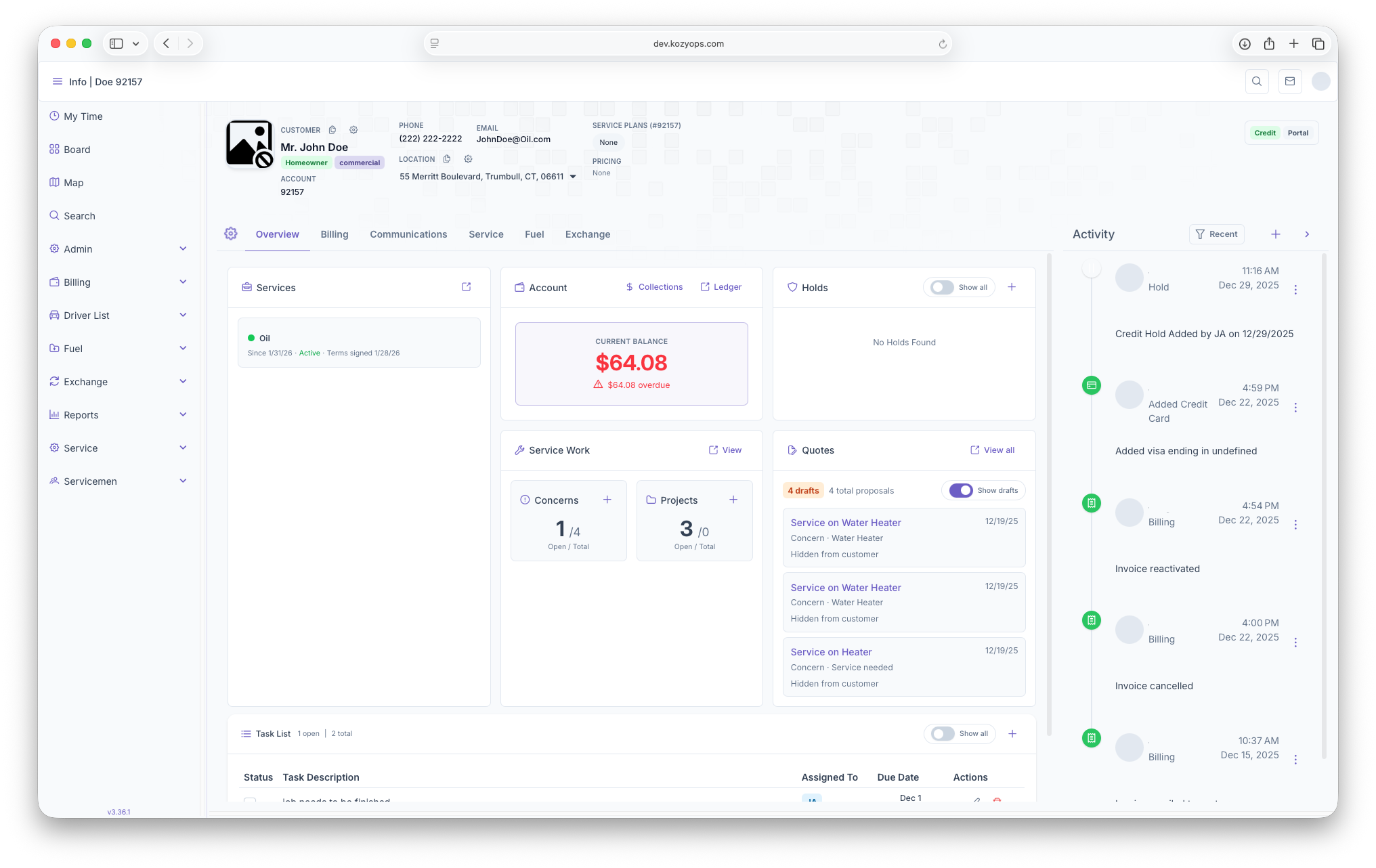
- Open the Products/Services action to launch the Products dialog
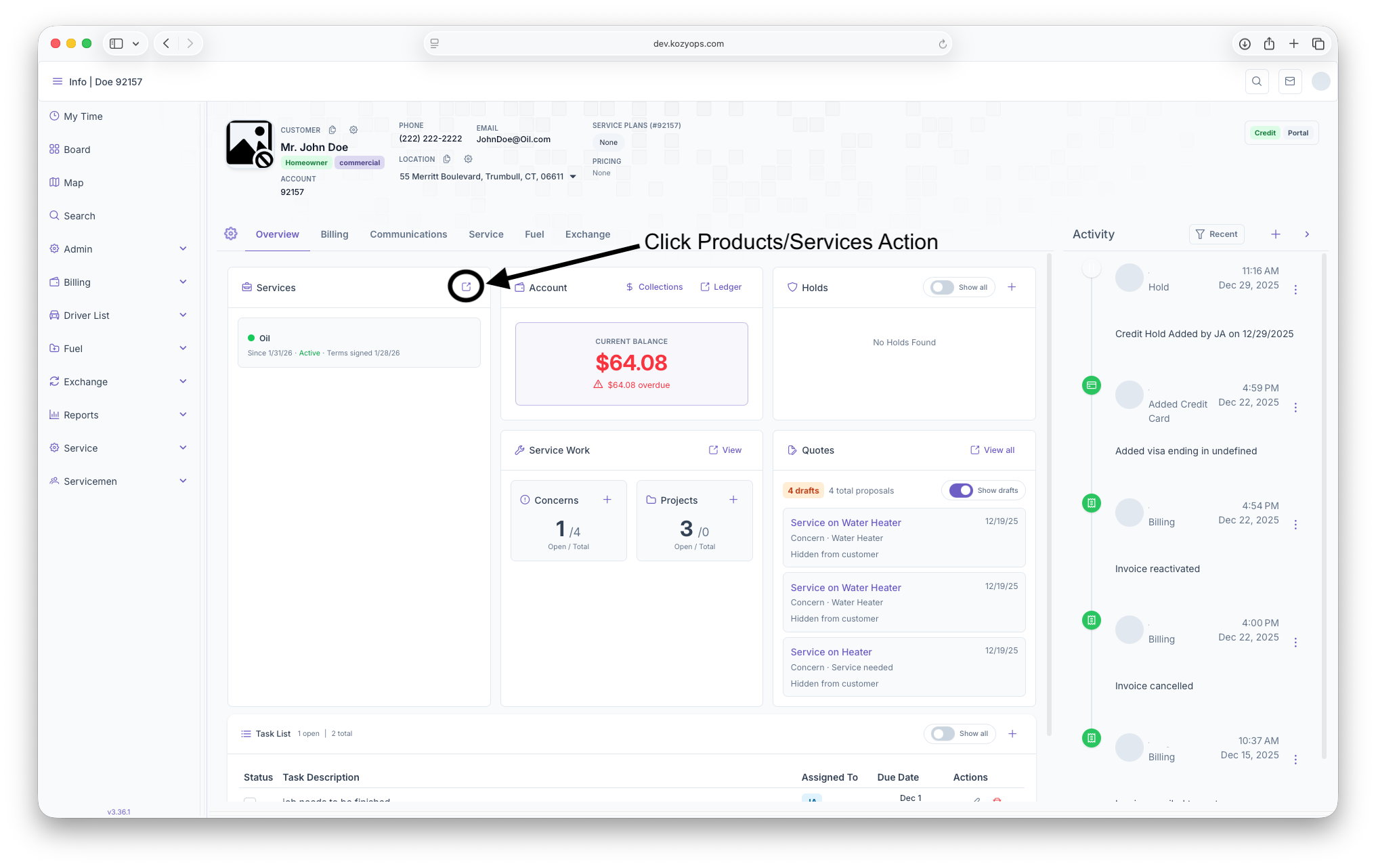
- You’ll see a table of existing products for this customer + location and actions at the top
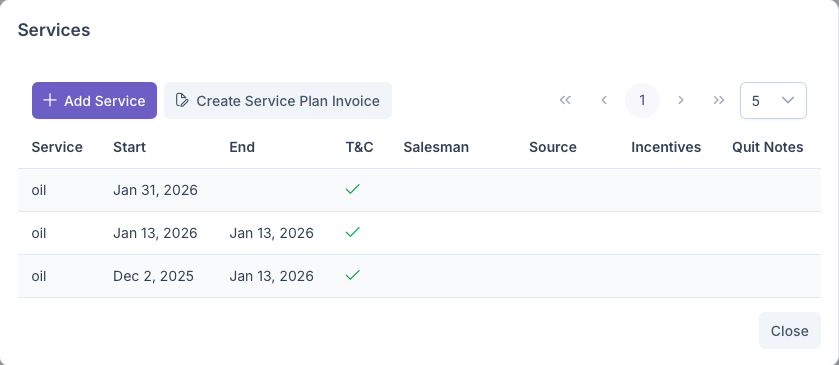
Actions in the dialog
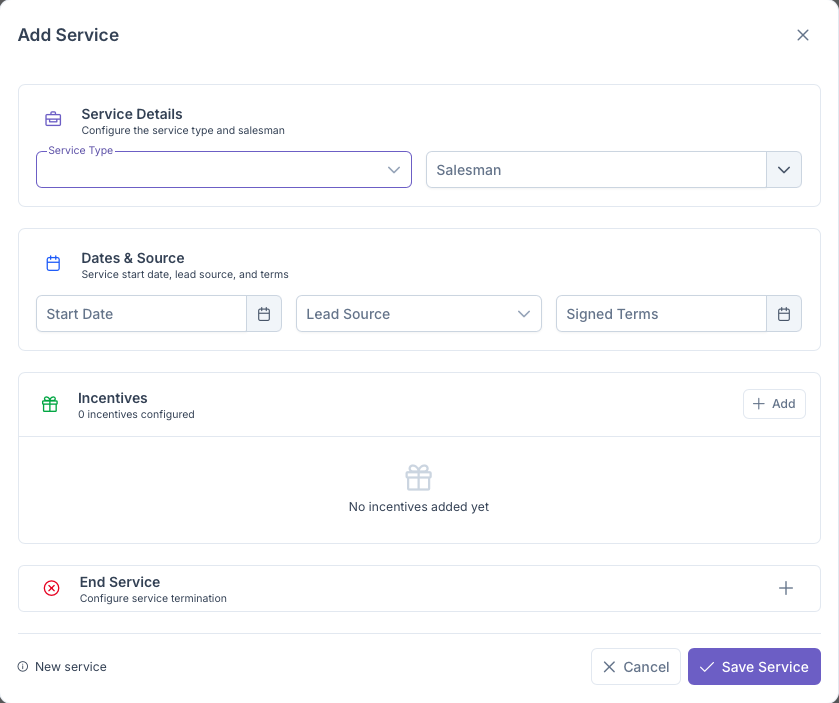
- Add Product — Opens a form to add a new product/service plan
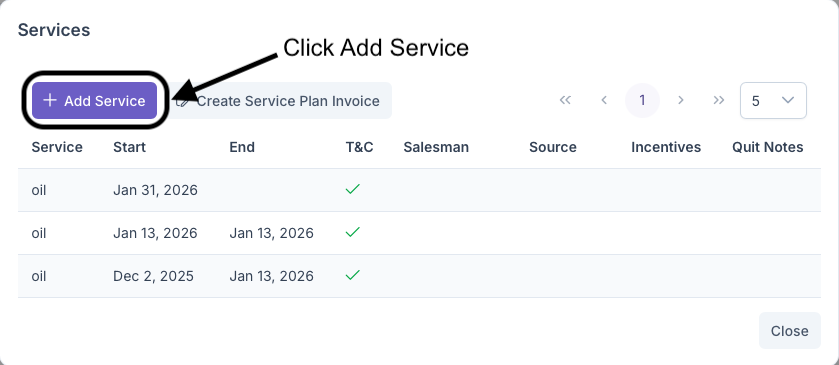
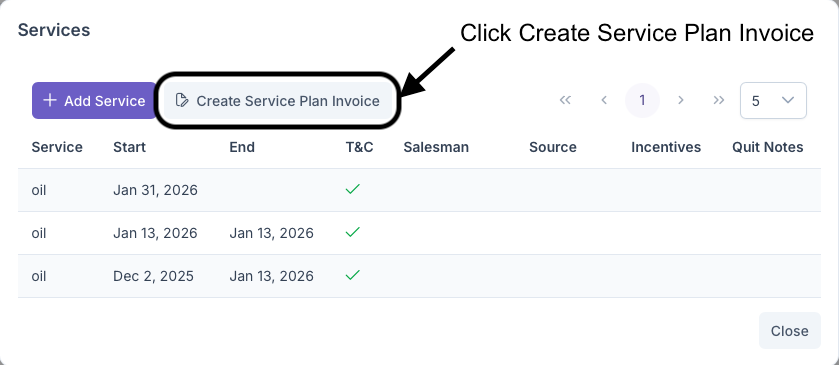
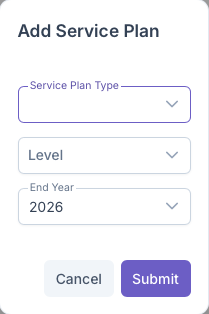
- Create Service Plan Invoice — Opens a small dialog to generate an invoice for a plan
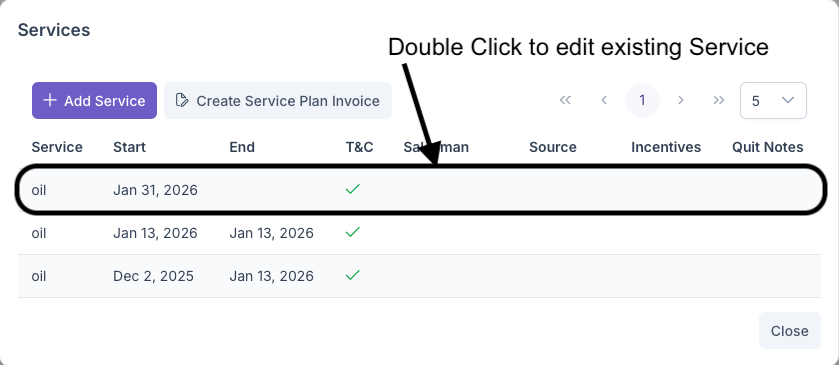
- Click any row — Opens the product in edit mode
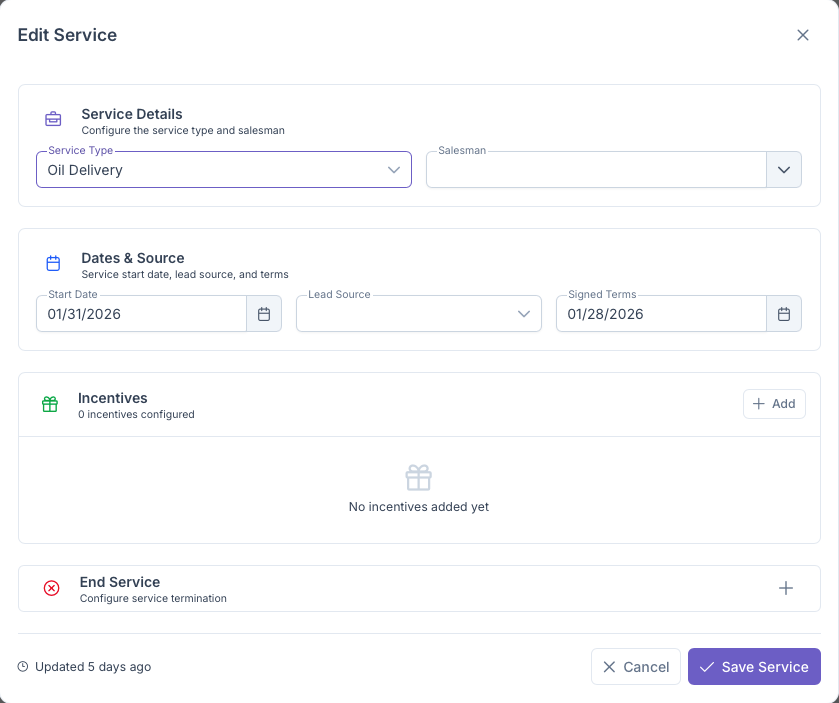
- Close — Dismisses the dialog (changes are returned to the caller)
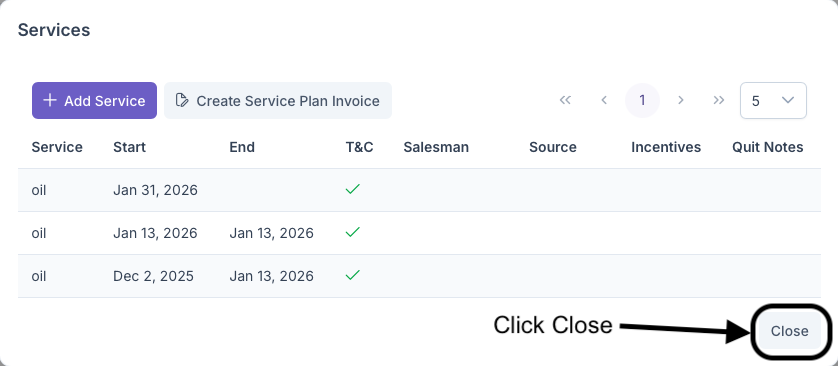
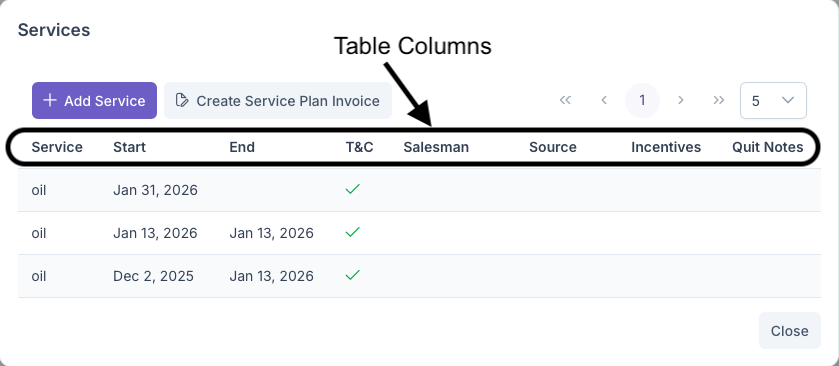
Table columns (what you’ll see)
- Product — The product/service type (e.g., ServicePlan, BudgetPlan, etc.)
- Start — Start date of the product
- End — End/Quit date (if ended)
- T&C — Signed Terms indicator (checkmark shows date tooltip if signed)
- Salesman — Assigned employee/salesperson
- Source — Lead source
- Incentives — List of attached incentive descriptions
- Quit Notes — Notes captured when ending/quitting a product
Add or Edit a Product
When you click Add Product (or click an existing row), a full form opens to create or edit the product.
You can expect fields such as:
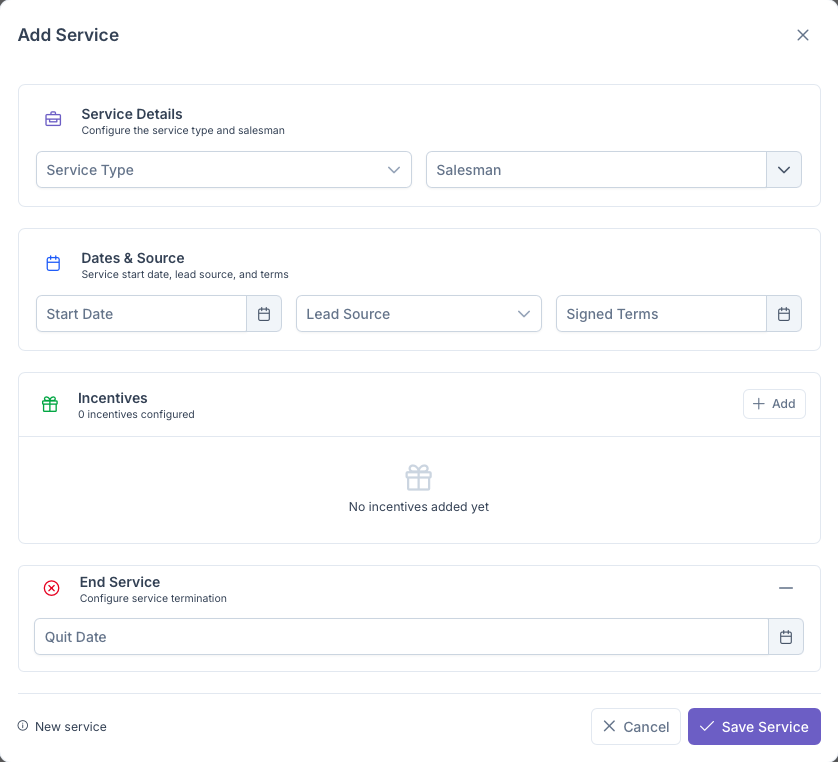
- Product Type — The product/service category
- Start Date — When the product becomes active
- End/Quit Date — When the product ends (optional)
- Signed Terms — Mark T&C as signed (stores date)
- Salesperson — Assign employee responsible
- Lead Source — Track where it came from
- Incentives — Add one or more incentive lines
- Quit Notes — Reason/context when ending a product
After saving, the table will update. If you close with changes, those updates are returned to the caller of the dialog.
Scope and relationships
- Products are stored per Customer + Location (they don’t belong to a System)
- Delivery services are not created here; they’re implicit via System setup
- To associate deliveries with tanks/equipment, configure the System under the same location
For delivery automation, open the System dialog and set:
- Window Strategy: Degree Day, Monitored, or Calendar
- Auto Delivery toggle: On to allow automatic requests
See: Adding a System Guide and Understanding Window Strategies
Tips & Validation
- If you need a one-off Service Plan invoice, use “Create Service Plan Invoice” from the Products dialog
- Keep T&C in sync — update Signed Terms when you receive the signed document
- Use Quit Notes for clarity when ending a product
- If you don’t see any products, you can add your first one with Add Product
Related guides
- Account setup: Adding a New Customer
- Locations and systems: Location Management, Adding a System Guide, Adding Equipment Guide
- Delivery automation: Understanding Window Strategies, Understanding Degree Days, Understanding Fuel Monitoring, Understanding Calendar Schedules