Editing and Adding New Employees
Introduction
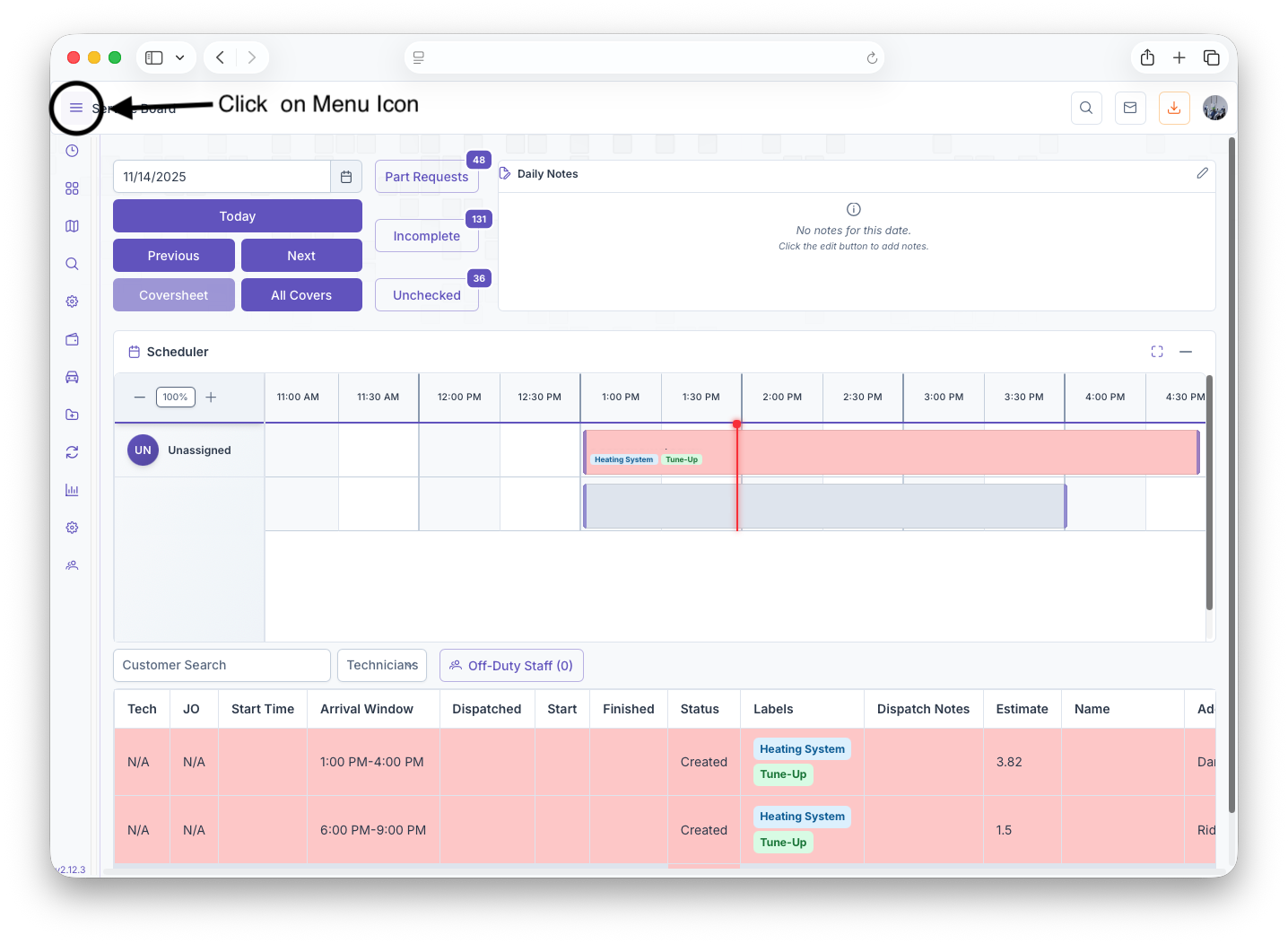
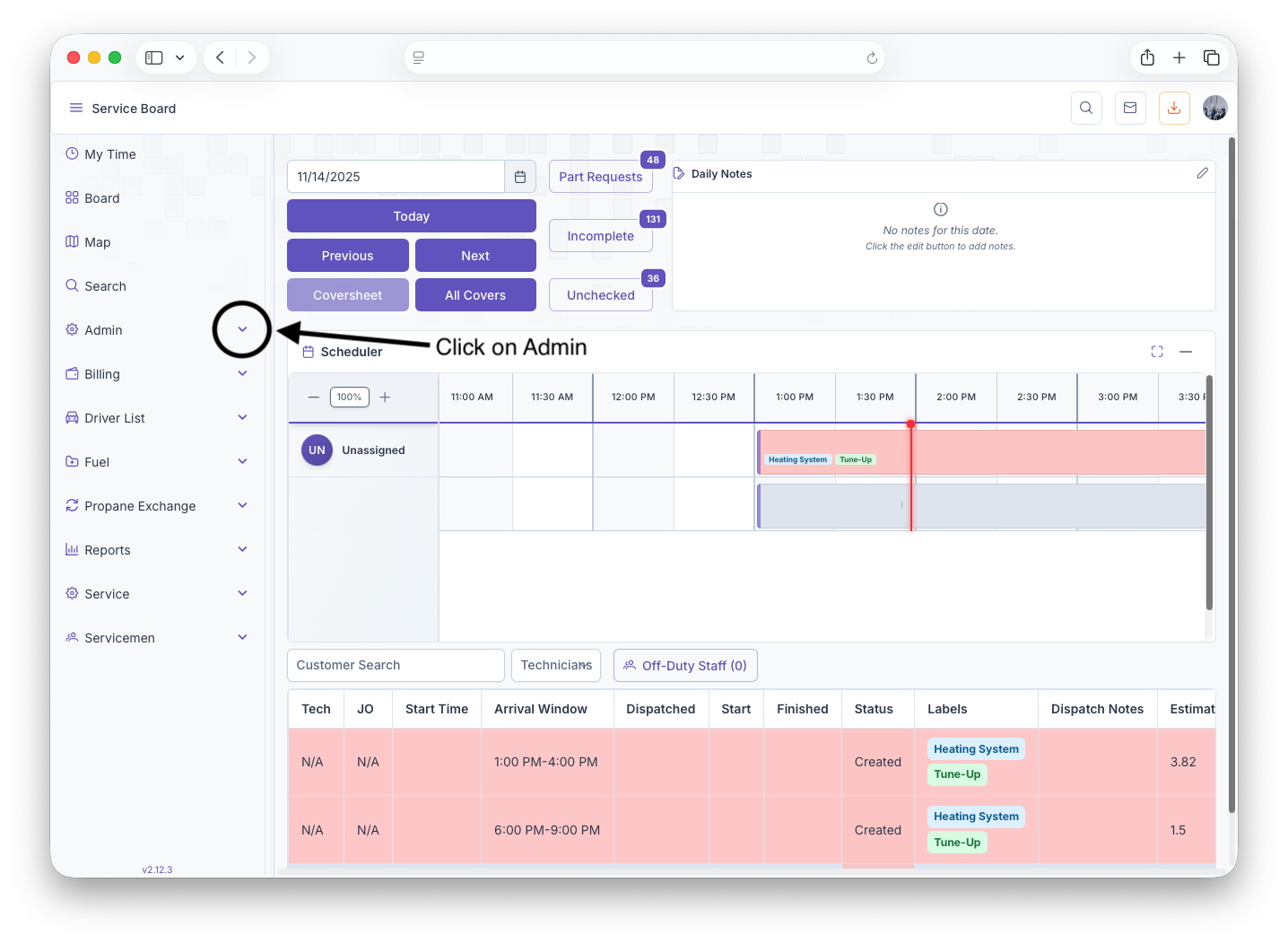
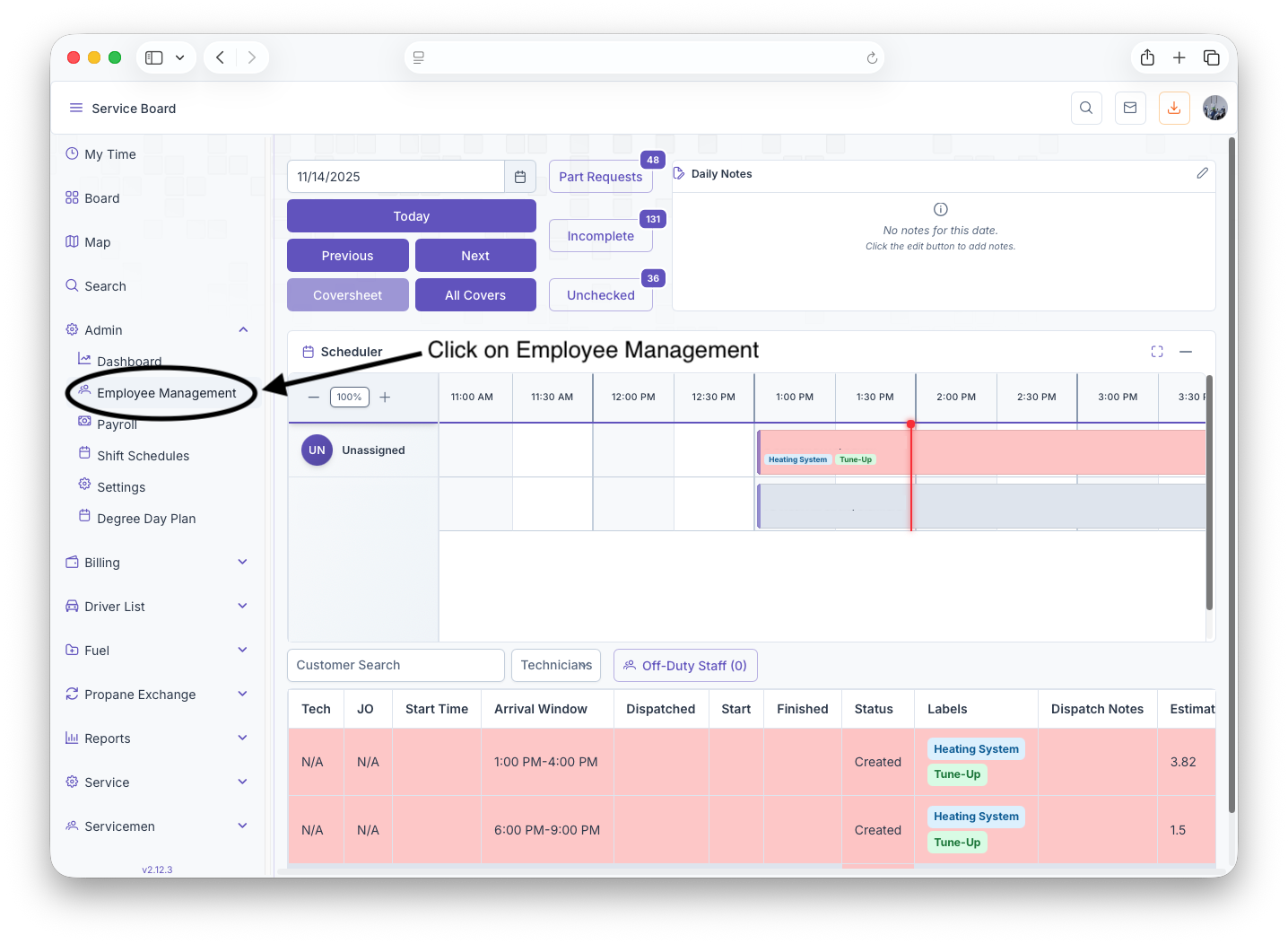
The Employee Management page can be used to add a new employee to the system or edit a current one. To reach the Employee Management page, click on The Admin dropdown on the side menu then click on Employee Managaement. Clicking on the three bars on the top let corner on the page expands the side menu to show more detail allowing for Easier Navigation.
Editing or Adding a New Employee
The Employee Management page will then generate. From here clicking on the Select Employee dropdown gives the option to select a current Employee and edit their account or clicking on add Employee at the bottom of the dropdown clears all fields to allow data entry of a new employee. The page will then show the Employee Status, Their Application, Payroll, Employment and Profile Picture
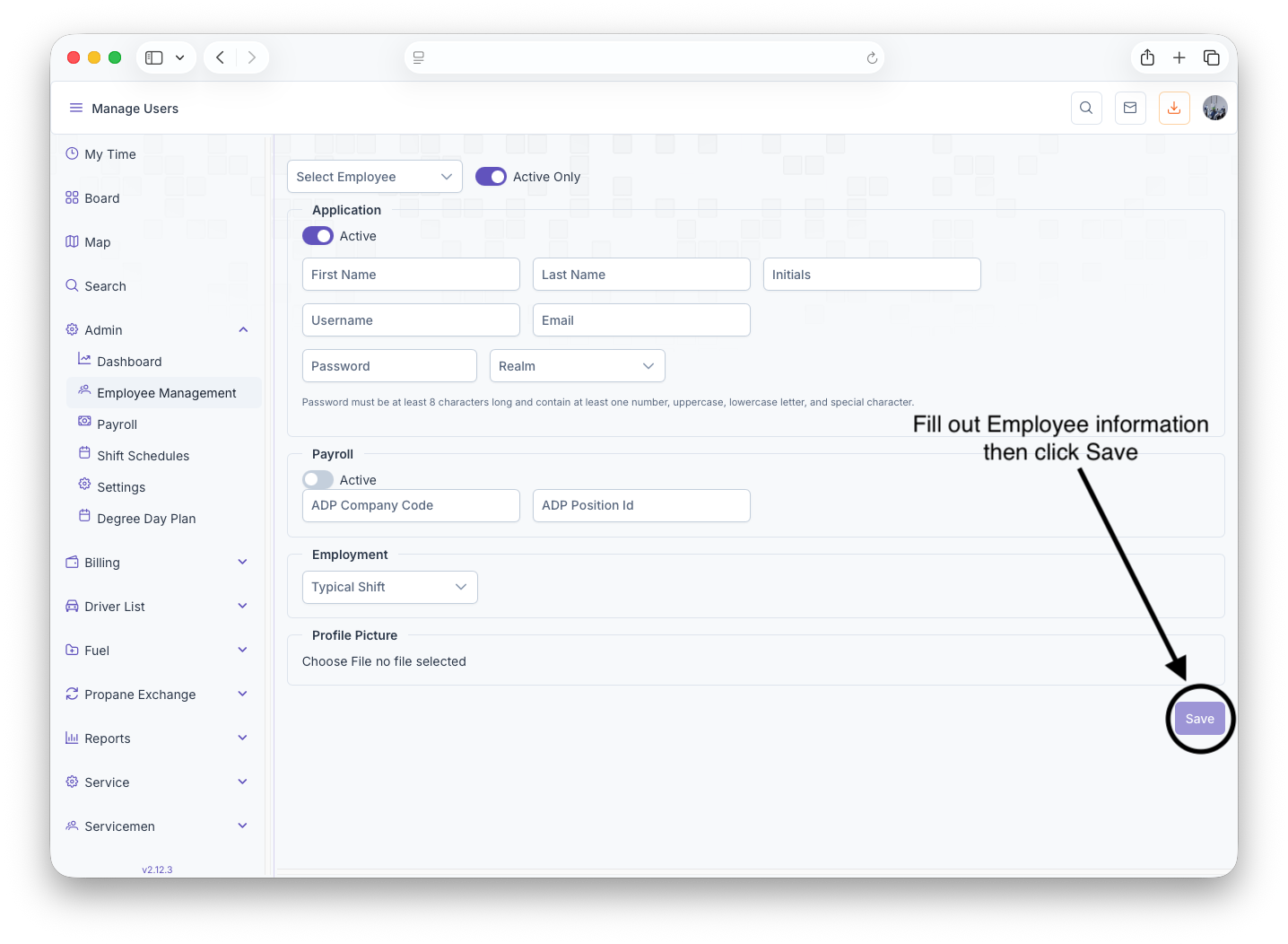
- Status: Toggling status shows if the employee is currently active or inactive\
- Application: Here is where the employees information is filled out: First Name, Last Name, Initials, Username, Email, Password and Realm
- Payroll: The Employees payroll status can be toggled to active or inactive, can fill out the ADP Company Code and the ADP Position ID
- Employment: Shows location of where the employee is working and the time
- Profile Picture: clicking on Choose File allows a picture of the employee to be uploaded to their account
Upon finishing filling out The Employees information, clicking on the Save button will save the employees information to the system. Filling out a blank page can be used to add a new employee to the system and changing the information of a currently selected employee allows the employees information to be edited